
Your profile: name, callsign and locator
Set your first and last name, your callsign and your QTH locator, and see how HamQSO uses your location for distances and nearby references.
Free and ProUpdated for HamQSO 0.1.19
On this page
Your profile holds what is about you, not about the app: your first and last name, your callsign and your QTH locator, then your account and subscription. This page also explains how HamQSO uses your device's location and what happens if you don't allow it.
Opening Your profile
- Open Profile.
- Tap the card at the top with your callsign (or «Callsign not set»), your locator and the email of your account.
The Your profile page opens, with its sections in this order: About you, Station, Account, Subscription and, at the bottom, Delete account.
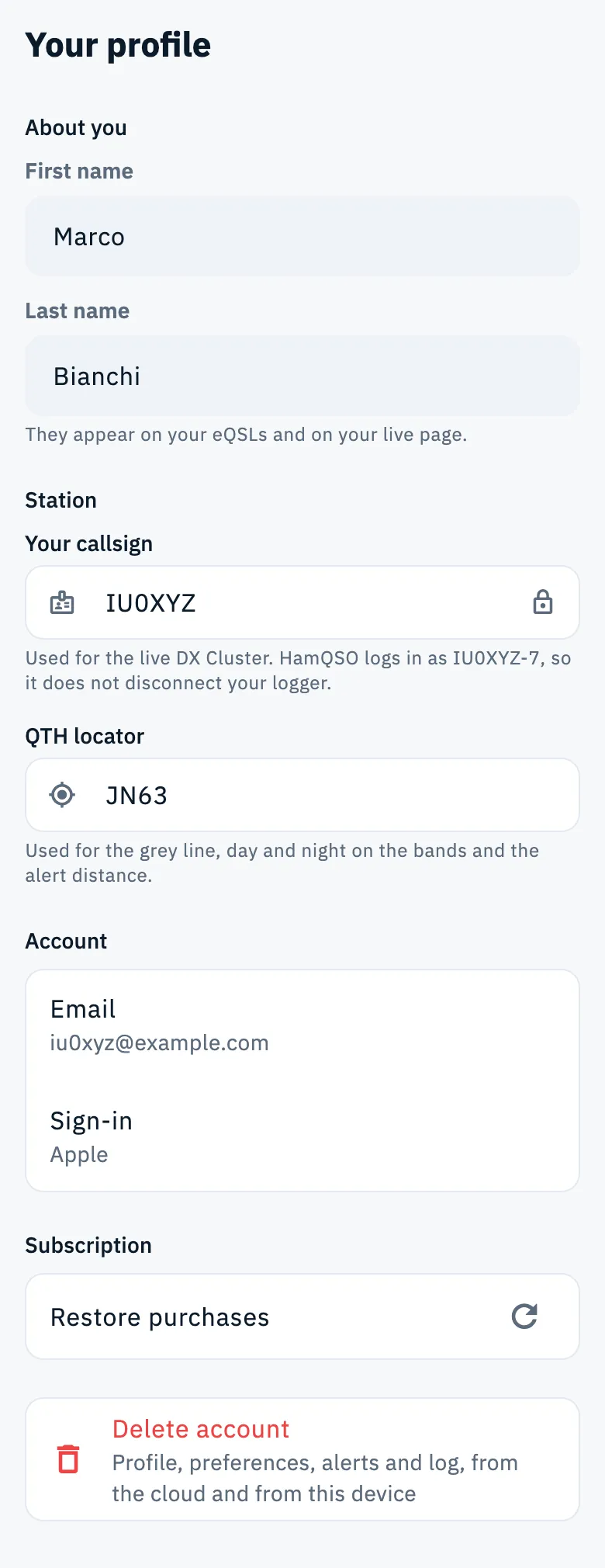
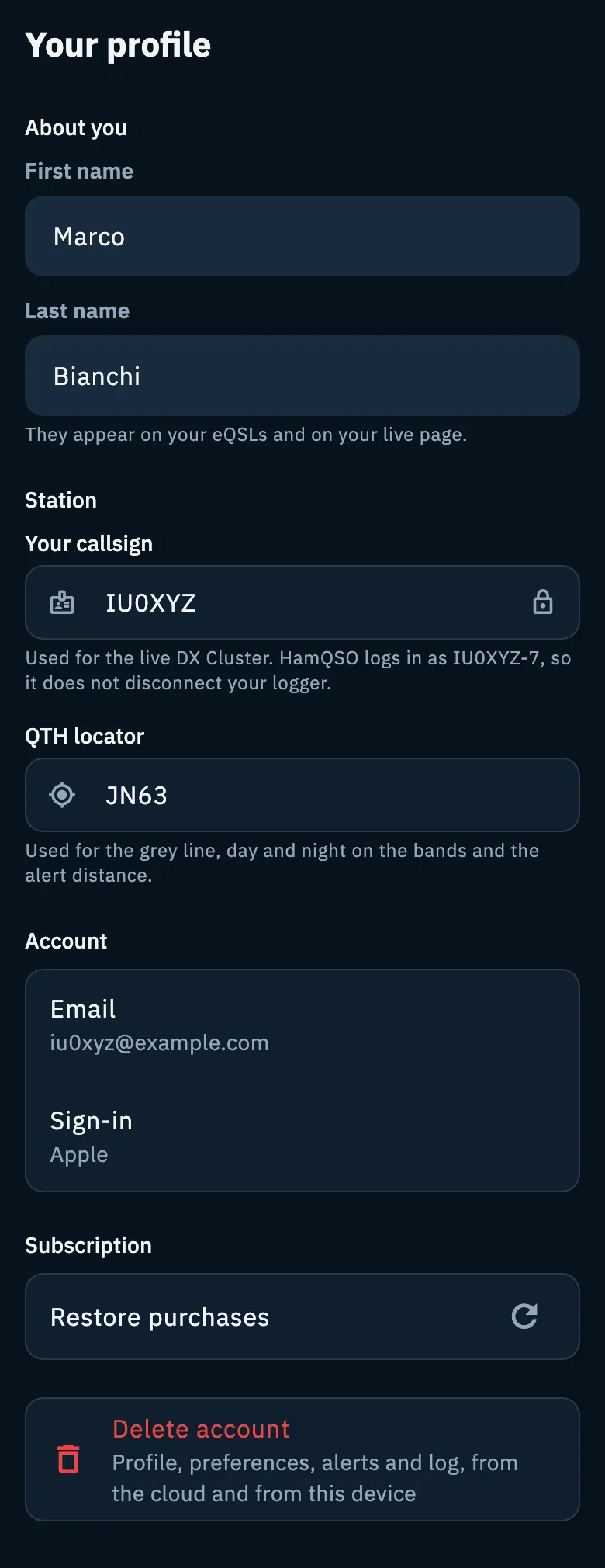
You also get here from other places in the app, with the right field already active:
- Set your callsign, wherever your callsign is needed: the live page, When you get spotted in Settings › Notifications, the operation settings and the coverage test. Also the Your profile button in the sheet for spotting a station, next to «Your callsign is needed to spot.». The page opens with the callsign field active.
- Set your locator in Propagation, under the grey line when the locator is missing: the page opens with the locator field active.
- The command palette: type and choose Go to: Your profile.
There is no Save button: each field saves itself when you press Enter or leave the field (with Tab, by tapping elsewhere or by going back).
About you: first and last name
Your first and last name appear on your eQSLs and on your live page. They are saved in your account: to save them you need to be signed in (see Signing in and saving your log).
- In the About you section, type your First name and Last name.
- Press Enter in the last name, or leave the fields.
- «Saved» appears under the fields.
The rules are the same as the server's:
- up to 50 characters per field;
- only letters, spaces, apostrophes and hyphens, with at least one letter;
- the first time, the name is saved only once you have typed both the first and the last name.
Messages you may see under the fields:
| Message | What it means |
|---|---|
| «They appear on your eQSLs and on your live page.» | The help text, when there is nothing else to say. |
| «Saved» | The name is on the server. |
| «The first name can't be empty.» / «The last name can't be empty.» | You emptied a field after saving it: a saved name cannot be erased. |
| «Up to 50 characters.» | The text is too long. |
| «Use only letters, spaces, apostrophes and hyphens.» | There are digits or symbols. |
| «Needs a connection» (in red) | The save did not go through: the text stays in the fields, try again when you are online. |
While the name is loading or saving, the fields are off. If HamQSO cannot read the name from the server (for example offline), the fields stay off with «Needs a connection» and a Retry button: this way you never save an empty name over the real one by mistake.
Enrich your profile
eQSL HamQSO cards now carry the first and last name of whoever sends them. If your account has a callsign but no first and last name yet, HamQSO asks you for them with the Enrich your profile dialog when you reach the home screen. Once they are saved, it never asks again.
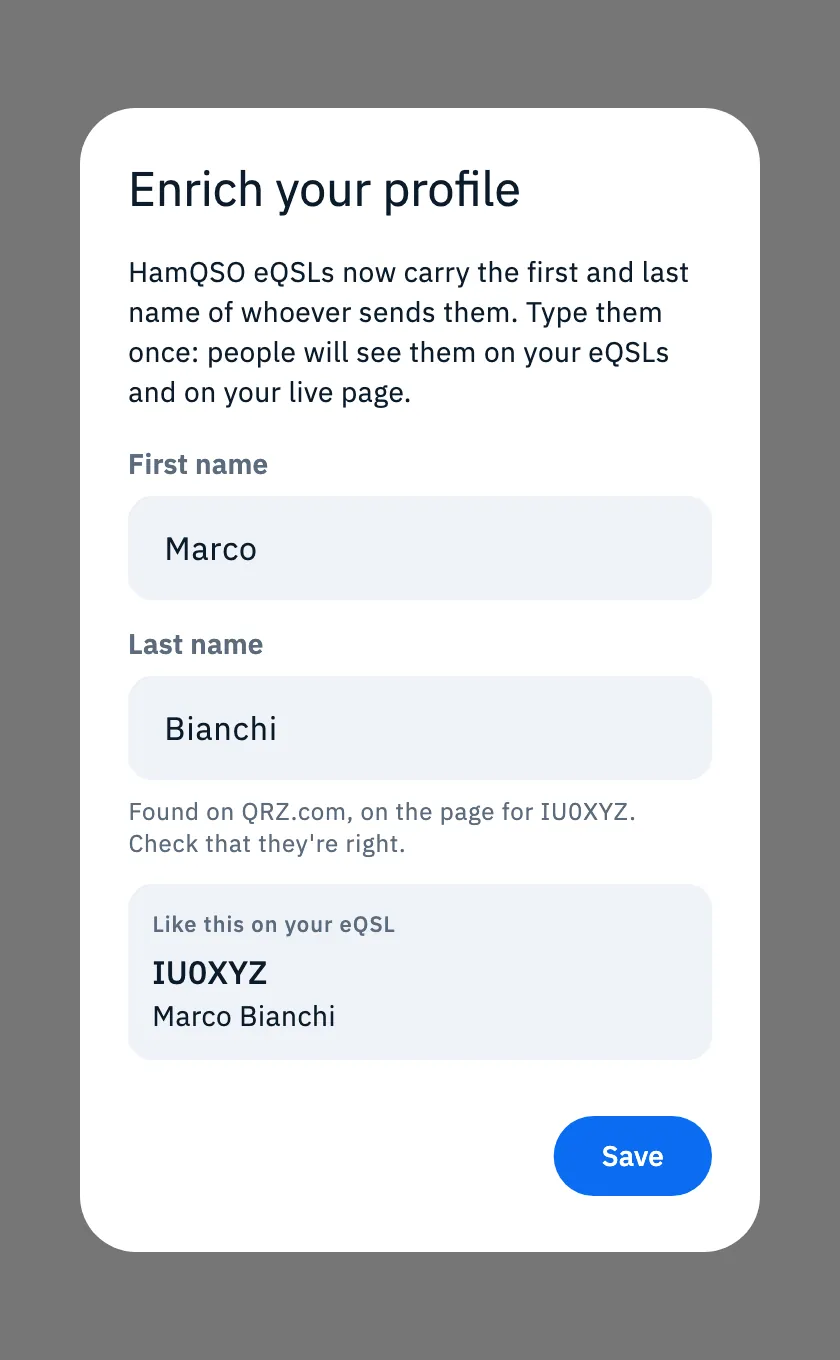
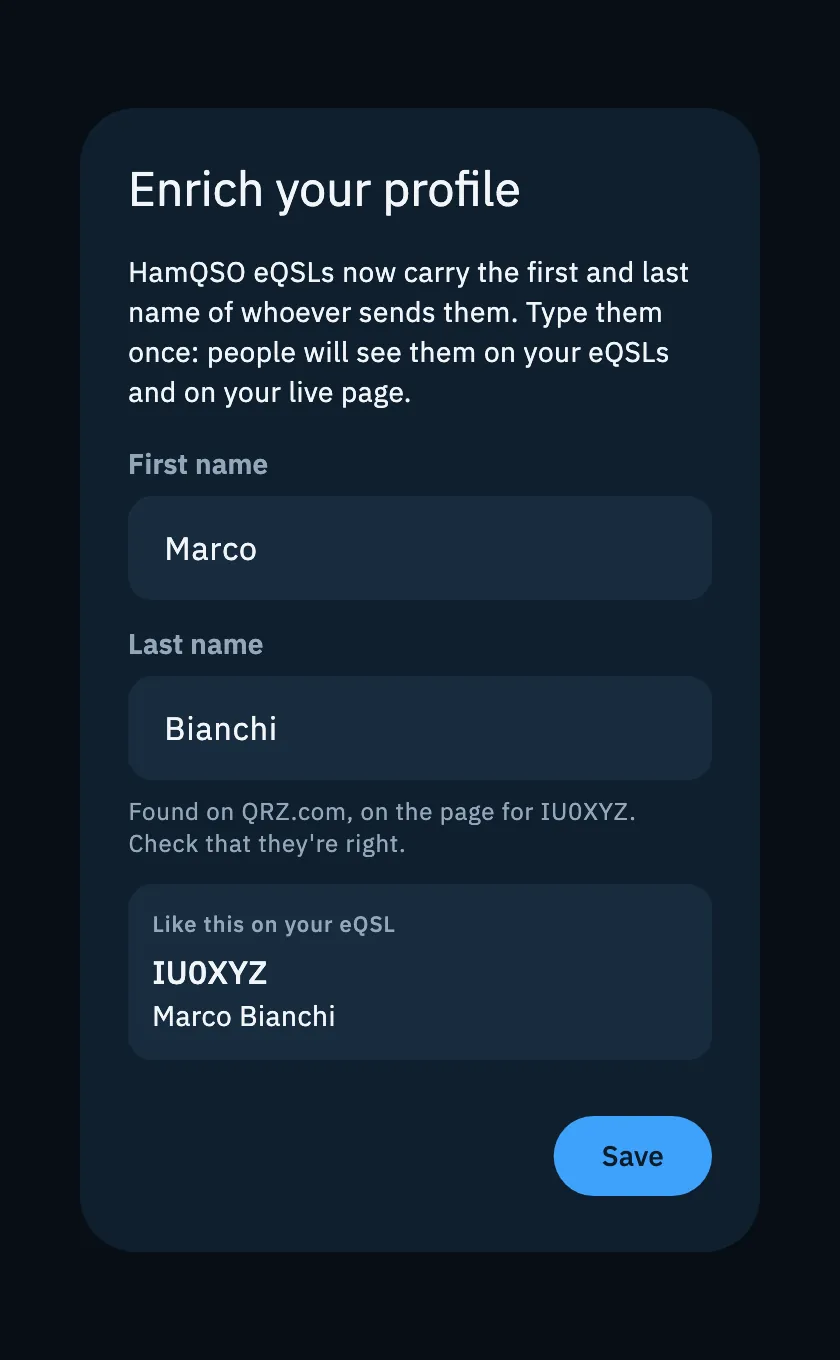
- Check First name and Last name. If HamQSO found them on QRZ.com, on HamQTH or in the Apple or Google account you sign in with, they are already in the fields and the line below says where they come from, for example «Found on QRZ.com, on the page for IU0XYZ. Check that they're right.». If a source only has the first name (or only the last name), the line asks you to type the missing part. If nothing was found, the fields are empty and the line says «Only once. You can change them any time from Profile.».
- Look at the Like this on your eQSL preview: it updates as you type.
- Tap Save. «Profile updated» appears with your first name, for example «Profile updated, Marco».
The dialog has no close button, and Esc and Back do not close it: it closes only when you save. Save stays off until both the first and the last name are typed and valid («Type first and last name to save.»). If the save fails, «Needs a connection» appears and you can try again. Offline at startup, the dialog does not open and HamQSO tries again when the connection is back. If the QSOs waiting for you dialog is open, it waits for it to close. Afterwards you can change your name any time from About you.
Your callsign
The Your callsign field is in the Station section and always writes in capitals. Your callsign is used for spotting, for the live page, for When you get spotted and for the live DX Cluster.
The help text under the field tells you the name HamQSO uses on the DX Cluster: your callsign with a number after the hyphen, for example «Used for the live DX Cluster. HamQSO logs in as IU0XYZ-7, so it does not disconnect your logger.». The number is picked at random once per installation, and it is different on each device of your account: this way you can stay connected to the cluster with your logger too.
How it is saved depends on how you use the app.
Without an account
- Type your callsign (the empty field shows «e.g. IU2ABC»).
- Press Enter or leave the field.
The callsign stays on this device and you can change it any time. To save it with your log, see Signing in and saving your log.
With an account
An account has one callsign, and you type it only once.
- Type your callsign and press Enter, or leave the field.
- Is this your callsign? opens, with the callsign in large type and «Check that it's right: once confirmed, you won't be able to change it yourself. To correct it, you'll need to write to support.».
- Tap Yes, it's my callsign to save it, or Fix it to go back to the field with your text still there.
- «Callsign saved» appears.
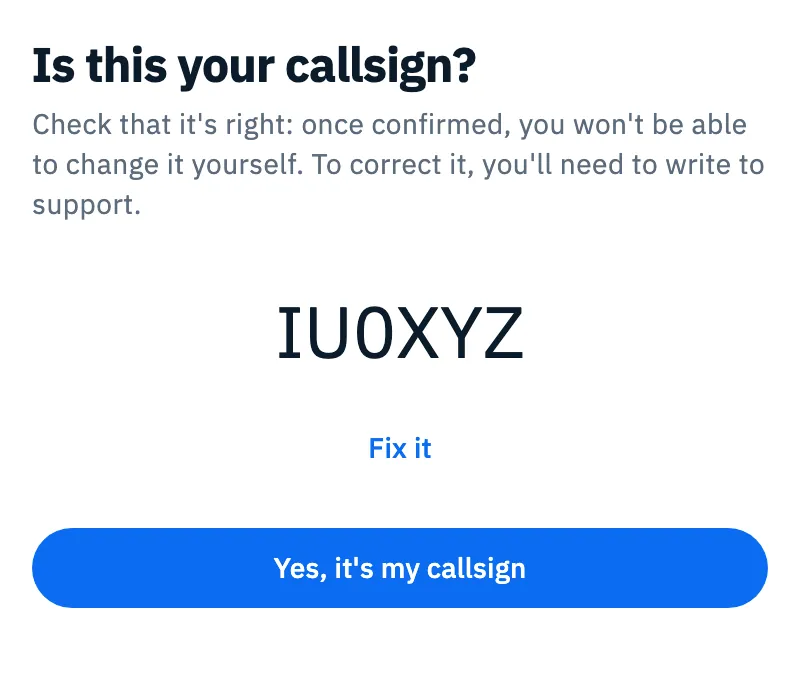
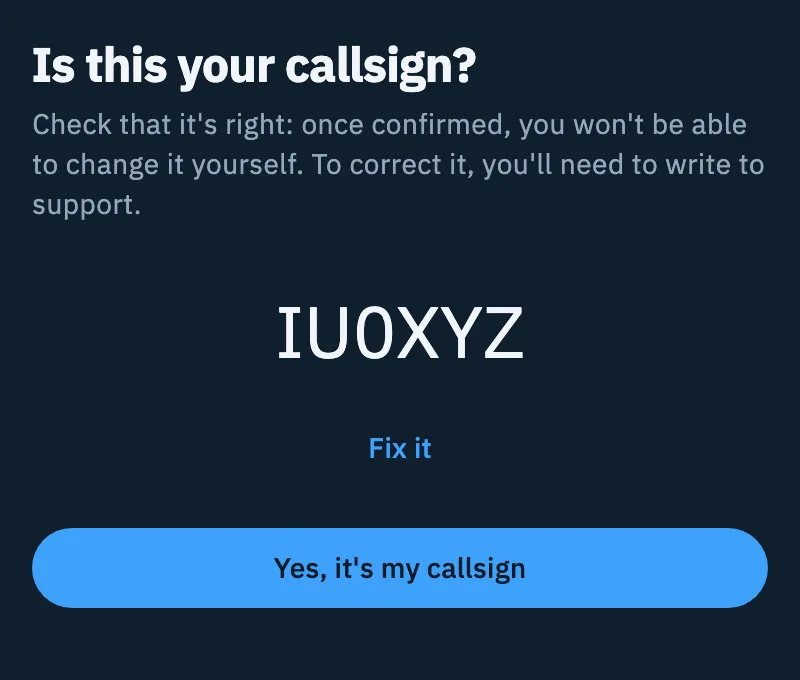
After the confirmation the field is read-only, with a padlock. To correct a wrong callsign you need to write to support: you can write to the developers with feedback.
Your QTH locator
The QTH locator is the Maidenhead locator of your station. As the text under the field says, it is «Used for the grey line, day and night on the bands and the alert distance.». It also takes the place of your device's location when you don't allow it.
- In the Station section, type the locator in the QTH locator field (the empty field shows «JN45 or JN45AB»): 4 or 6 characters, in capitals as you type.
- Press Enter or leave the field to save it.
- To remove it, empty the field and leave it.
If the locator is not valid, «Invalid locator: use 4 or 6 characters, e.g. JN45 or JN45AB» appears and it is not saved. The locator also shows on the card at the top of Profile, under your callsign.
How HamQSO uses your location
HamQSO uses your device's location for:
- the distances in the spot detail (DX Cluster, POTA, SOTA and WWFF);
- the Near you references when you choose a reference;
- working out your QTH locator.
The grey line, day and night on the bands and the alert distance use your QTH locator instead.
It asks for the permission at the first launch, in the Make it yours step, on the Location card («Distances, grey line and alerts near you. We work out your locator.»):
- Tap Yes: the system asks you for the permission.
- If you allow it, the card shows «Location on: you are in …» with your locator. If you don't allow it, or tap Not now, it shows «That's fine. Turn it on whenever you like from Settings.».
- While you are on that step, Change lets you choose again.
If you have not allowed it, the system may ask again when a feature needs it, for example when you open the detail of a spot. To withdraw or grant it later, use the system settings: HamQSO's Settings have no location option.
How it works:
- The locator from your location. If you have not typed a locator and the permission is there, HamQSO works it out by itself at startup, without asking, with 6 characters. A locator you typed is never replaced by your location.
- Precision. A DX distance only needs a rough location: HamQSO uses the device's last known location or asks for a low-precision one, waiting 10 seconds at most. The location is kept in memory while the app is open.
- Without the permission. If the permission is denied or location services are off, HamQSO shows no error and uses the center of your QTH locator. Without a locator and without a location, there are no distances.
When you create an alert with a distance and the locator is missing, «Your QTH is needed for the distance.» appears with Use my location, which saves the locator worked out from your location. See Creating an alert.
Account and subscription
Under Station you find Account, with your email and how you sign in (Sign-in), and Subscription, with Restore purchases for everyone. At the bottom is Delete account. They are explained in Account: email, signing out and deleting and Managing your subscription.
Phone, tablet and web
The page is the same everywhere. On tablet, desktop and web the content stays in a column of readable width in the middle. With a keyboard, Tab moves from one field to the next and saves the field you leave.
Troubleshooting
- My callsign has a padlock and I can't change it. That is expected: an account with a confirmed callsign cannot change it by itself. Write to support to correct it (see Sending feedback).
- «IU0XYZ already has an account» (or «… Your callsign stays …»). That callsign belongs to another account: the field goes back to the callsign you had. If it is yours, sign in with that account (see Signing in and saving your log).
- «You need a connection to change callsign. Try again when you're online.» The callsign of an account is saved on the server: try again when online.
- «Needs a connection» under the name. The name was not read or saved. If the fields are off, tap Retry when you are online. If the save failed, what you typed stays in the fields: leave the field again when you are online. First and last name are saved only with an account.
- «Invalid locator: use 4 or 6 characters, e.g. JN45 or JN45AB». Check letters and digits: two letters from A to R, two digits and, if you want, two letters from A to X (for example JN63 or JN63GU).
- The locator does not fill in by itself. HamQSO works it out only if the location permission is granted and the field is empty. Grant the permission in the system settings, or type the locator yourself.
- No distances show up. Both the location and the locator are missing: type your locator in Your profile.