
Managing your alerts
Pause, resume, edit or delete an alert, see what the free plan and Pro allow, and find the latest alerts you received.
Free and ProUpdated for HamQSO 0.1.19
On this page
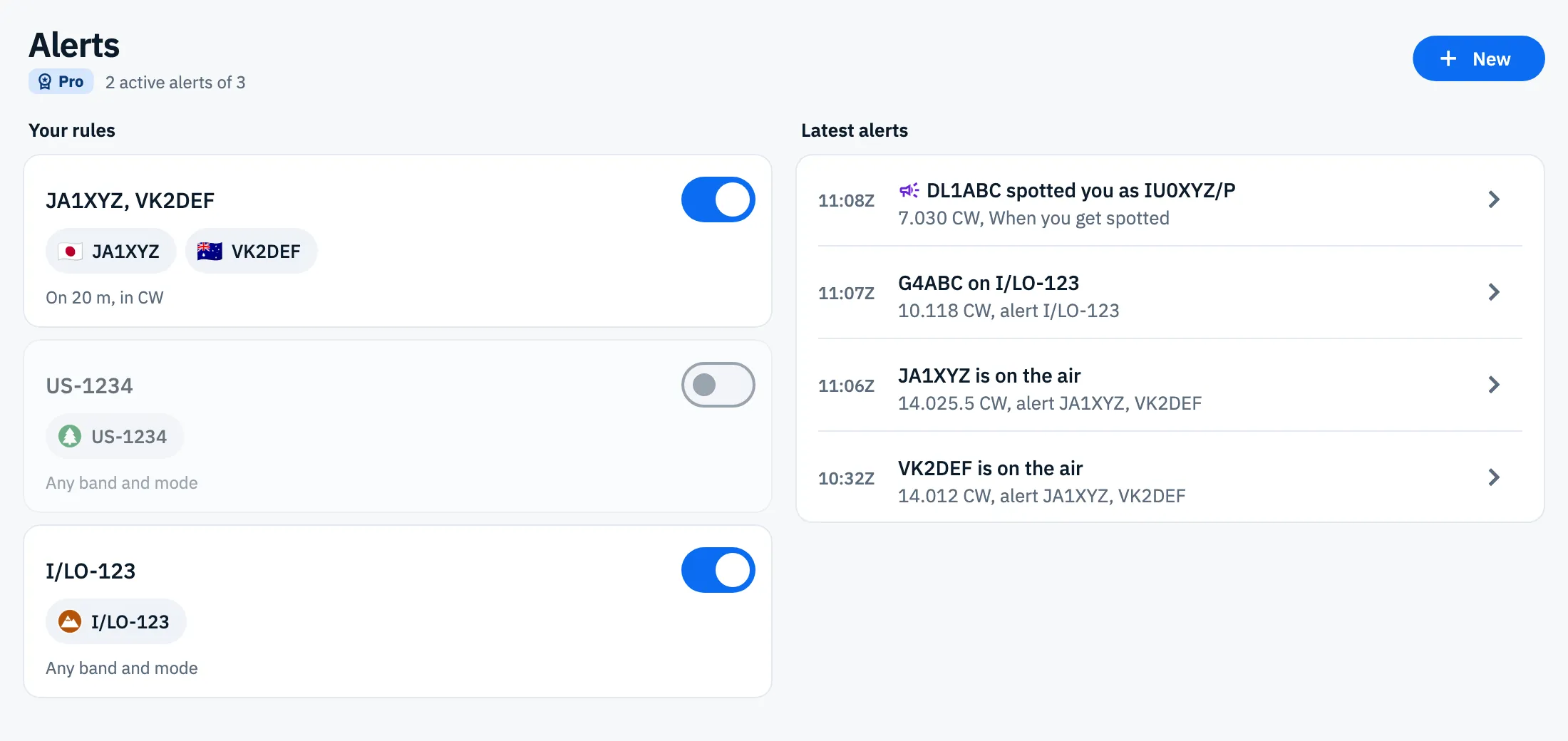
In the Alerts section you find all your alerts under Your rules and the notifications you received under Latest alerts. From here you pause an alert without losing it, resume it, edit it or delete it. To create a new one, see Creating an alert.
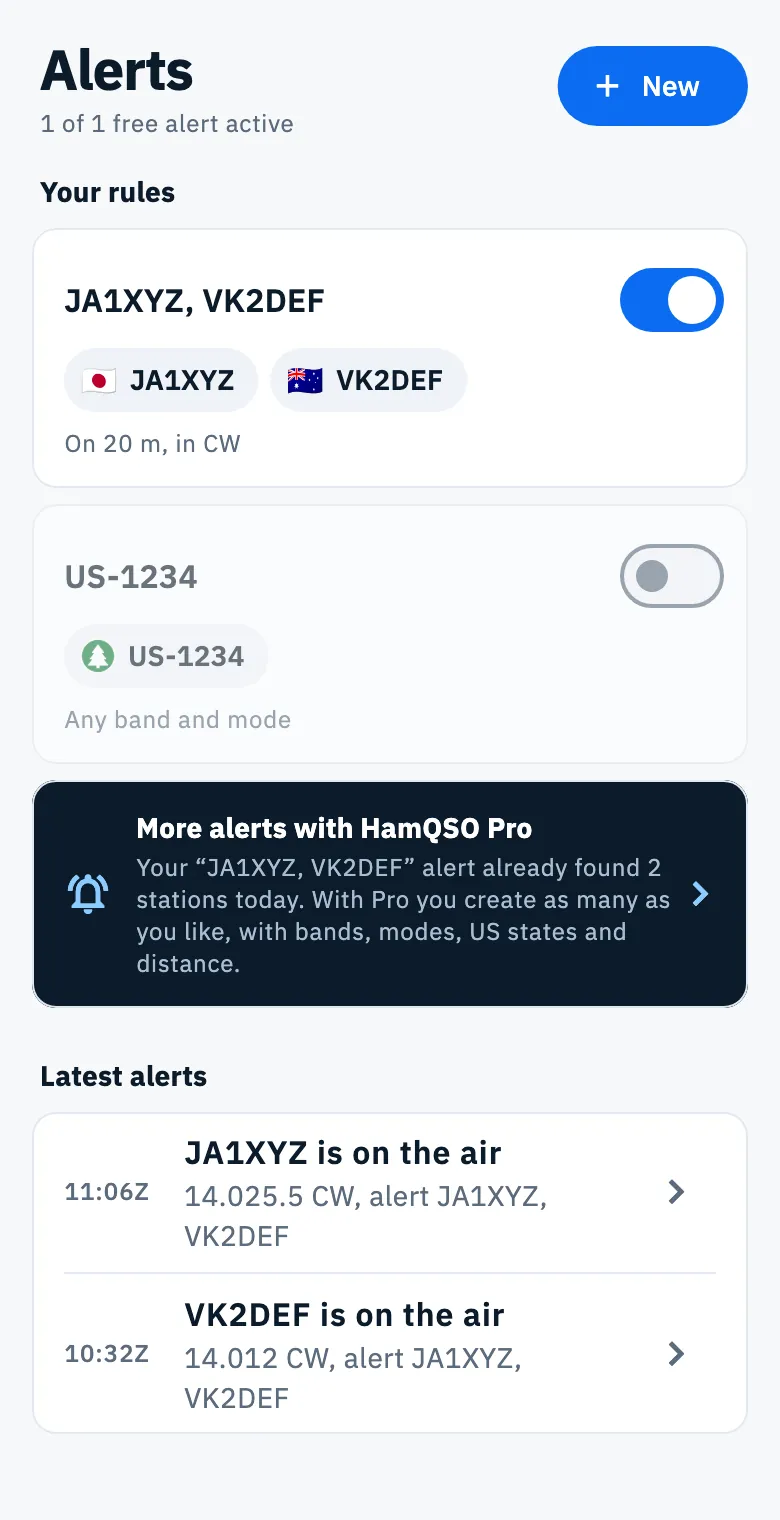
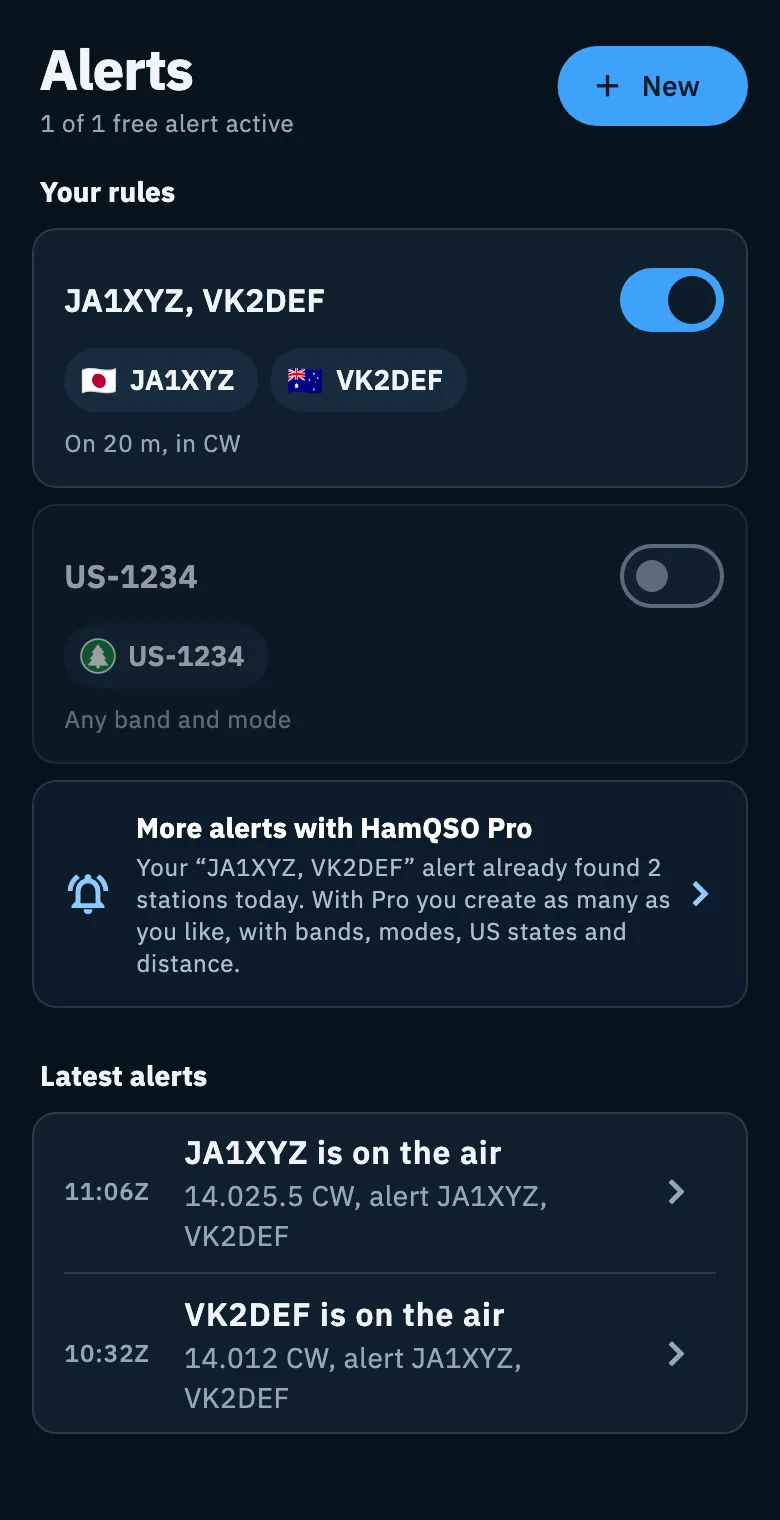
Your rules
Each alert is a card with:
- the alert's name and, on the right, the switch that keeps it active or paused;
- the callsigns, countries and references it looks for, as chips (with the flag or the program's logo);
- a line with bands, modes, US states and distance, for example "On 20 m, in CW". An alert with no filters reads "Any band and mode".
Under the Alerts title there is a counter: without Pro "1 of 1 free alert active", with Pro for example "2 active alerts of 3", with the Pro badge next to it.
To refresh the list, pull the page down.
Pausing and resuming an alert
- Open Alerts.
- Under Your rules, tap the alert's switch.
A paused alert stays saved with all its criteria, but sends you no notifications: its card turns lighter. Tap the switch again to resume it.
The switch changes at once. If the server cannot save the change, it goes back to how it was and a message at the bottom tells you why (see "Troubleshooting" at the end of the page).
Editing an alert
- Open Alerts and tap the alert's card (not the switch).
- Edit alert opens, with the alert's criteria already filled in.
- Change the name, callsigns, countries, references, bands, modes or the other criteria.
- Tap Save alert.
The alert stays active or paused as it was. If, without Pro, you add Pro criteria to an active alert, tapping Save alert opens the HamQSO Pro page; if you do not subscribe, the alert is not saved and you see "These criteria are a HamQSO Pro feature." The editor is the same one you use to create an alert: all the criteria are in Creating an alert.
Deleting an alert
- Open Alerts and tap the alert's card.
- In Edit alert, tap the trash can at the top right (Delete).
- When asked "Delete the alert?", tap Delete, or Cancel to go back.
Deleting is permanent: you will stop getting those notifications, and the ones that alert already sent you disappear from Latest alerts too. To keep them, pause the alert instead of deleting it.
Latest alerts
Latest alerts is the list of the notifications you received, from your alerts and from When you get spotted. Use it to find a spot again even after you cleared the notification on your phone.
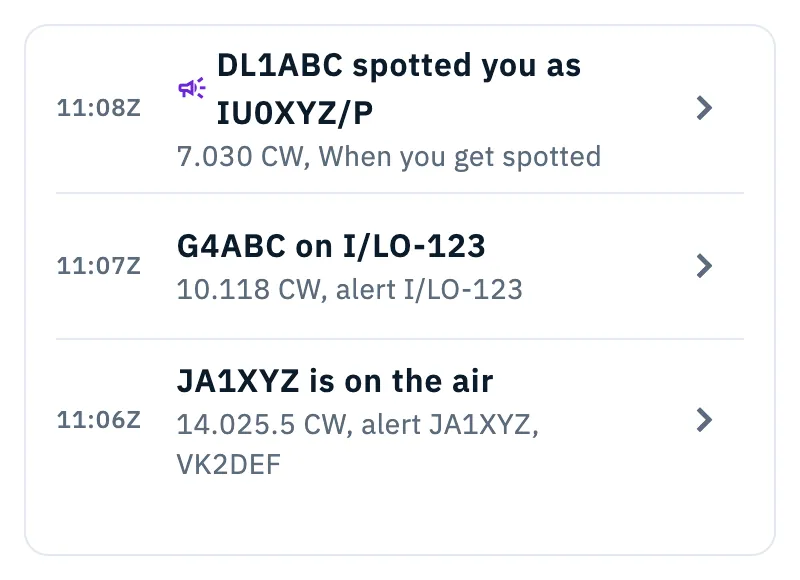
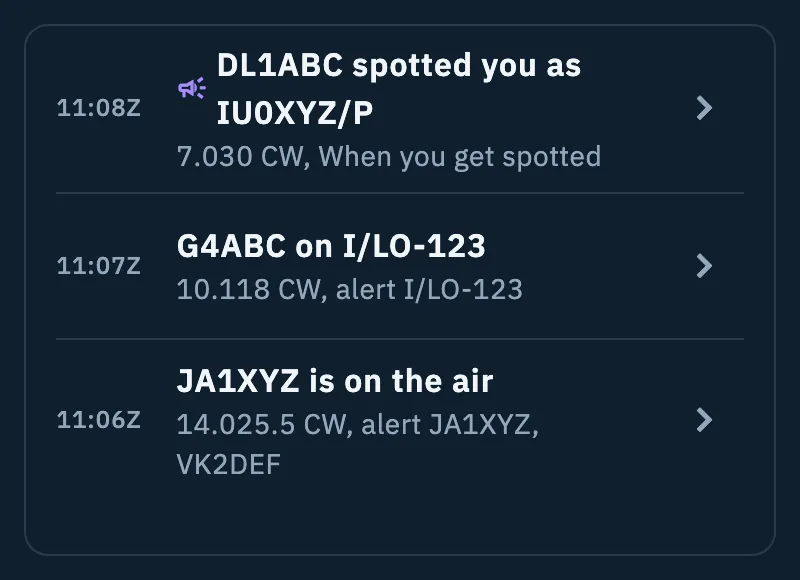
Each row shows:
| Part | What it says |
|---|---|
| Time | The UTC time of the notification, for example "06:12Z". |
| Title | "JA1XYZ is on the air", or "G4ABC on I/LO-123" when the station is on a POTA, SOTA or WWFF reference. For "When you get spotted", with the megaphone: "DL1ABC spotted you", "… spotted you on US-1234" or "… spotted you as IU0XYZ/P". |
| Below | Frequency and mode, then "alert" with the name of the alert that fired, or "When you get spotted". |
To open a spot:
- Tap a row of Latest alerts.
- The spot detail opens (DX Cluster, POTA, SOTA or WWFF), the same one you open from a spot in the list: see Opening a spot. It starts from the data of the notification and loads the rest.
The list shows the latest 50 notifications; the server keeps them for 30 days. If none has arrived yet, it reads "Notifications you receive appear here for 30 days." How notifications reach your phone is explained in Getting notifications.
Free plan and Pro
| Free plan | HamQSO Pro | |
|---|---|---|
| Active alerts | 1 at a time | As many as you like, up to 20 saved alerts |
| Callsigns, countries, references | Yes | Yes |
| Bands and modes | One band and one mode | Several bands and modes together |
| US states and distance | No (Pro badge) | Yes |
| Latest alerts | Yes | Yes |
The limit of 20 counts every saved alert, paused ones too. Pausing an alert is always possible, also without Pro.
Without Pro:
- at the bottom of Your rules there is the More alerts with HamQSO Pro card. If your alert already found stations today, the card says so ("Your “…” alert already found 2 stations today…"). Tap it to open the HamQSO Pro page;
- if you already have an active alert and tap New, the "You already have an active alert" sheet opens, with your alert's name and, if it found any, how many different stations it found today;
- if you resume a second alert, the same sheet reminds you that you can resume one for free: pause the active one and resume the other.
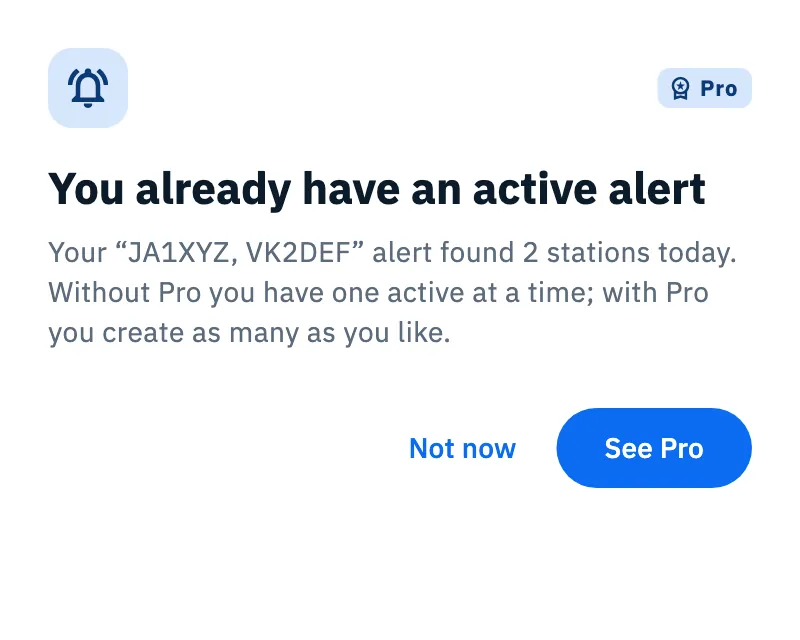
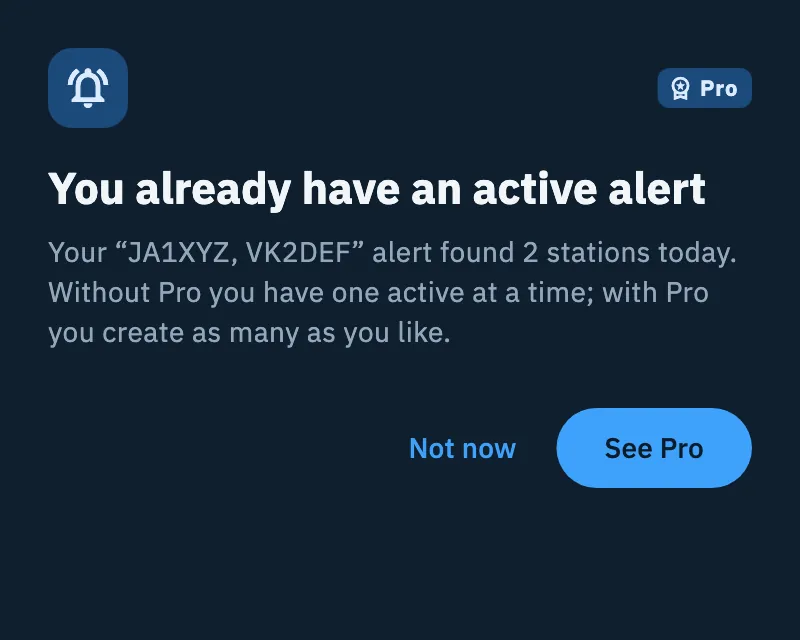
In the sheet, tap See Pro to open the HamQSO Pro page, or Not now to close it. If you become Pro from the sheet, the app goes on: the editor of the new alert opens, or the alert you wanted to resume becomes active.
When HamQSO Pro ends
When your subscription ends, the server pauses all your alerts: it does not delete them. If you have more than one alert, under Your rules you read "HamQSO Pro has ended and your alerts are paused. You can resume one for free, or come back to Pro for all of them."
- Pick the alert you want to keep and tap its switch.
- If it uses only free-plan criteria (callsigns, countries, references, one band and one mode), it becomes active. If it uses Pro criteria, edit it first to remove them, then resume it.
If you come back to Pro, the alerts stay paused: you resume them yourself, one by one.
Phone, tablet and computer
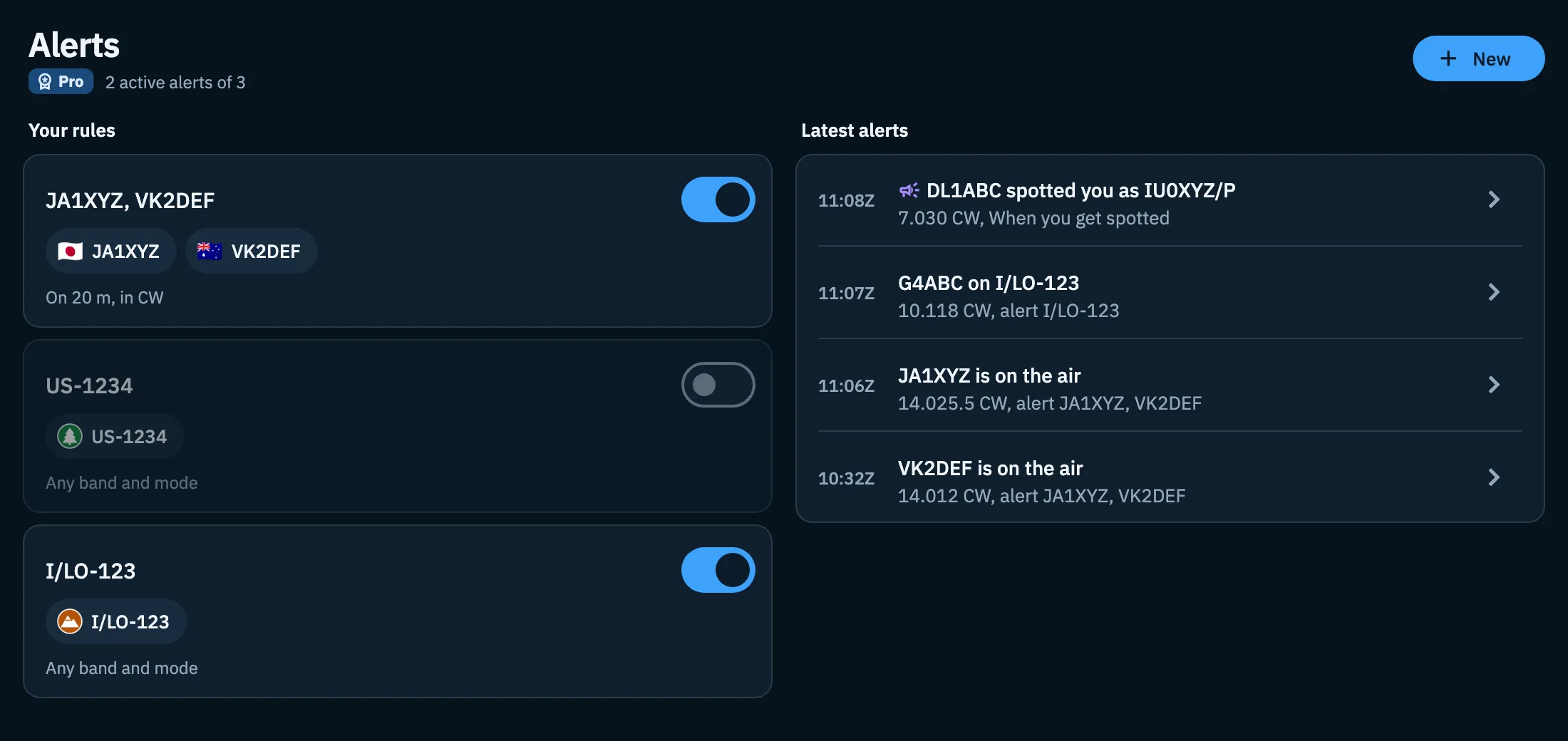
On a phone, Latest alerts is below Your rules. On a tablet and on a computer (also in the browser, with a wide window) the page has two columns: the rules on the left, the latest alerts on the right.
Troubleshooting
| Message | What to do |
|---|---|
| "The free plan includes one active alert. Pro has no limit." | You already have an active alert: pause it before resuming another one, or move to Pro. |
| "These criteria are a HamQSO Pro feature." | The alert uses Pro criteria (US states, distance, several bands or modes). Edit it to remove them, or move to Pro. |
| "You reached the limit of 20 alerts." | Delete an alert you no longer use. |
| "Can't reach the service. Check your connection." | The change was not saved: check the network and try again. If it happens while deleting, the alert stays. |
| "Alerts can't be shown offline. Active ones keep working: the server checks them." | You are offline. Active alerts keep sending you notifications; the list comes back by itself when the network returns. See Using HamQSO offline. |
If the list does not load for another reason, tap Retry.