
Spots sent while offline
A spot made without network waits on your device and goes out when the network is back; if it is 10 minutes old or more, the app asks you first.
FreeUpdated for HamQSO 0.1.19
On this page
Without network a spot is not lost: it stays queued on your device and goes out by itself as soon as the network is back. If too much time has passed in the meantime, the app asks you before sending it, because an old spot can send people to a frequency you have already left.
Queuing a spot
It works in every sheet that sends a spot: New spot, Re-spot (see Spotting a station and Re-spotting a spot or a QSO) and I'm on the air (see Activating a POTA park or a SOTA summit).
- Fill in the spot as usual: callsign, frequency, mode, comment and the networks to send it to.
- Without network the button at the bottom of the sheet becomes Queue spot: tap it.
- The outcome replaces the form, with an amber icon: “Spot queued: it goes out when the network is back.” and the spotted callsign.
- Tap Done to close the sheet.
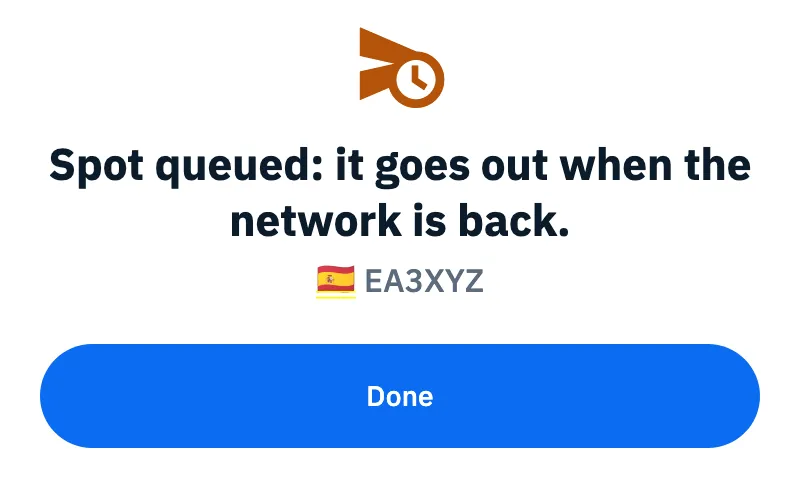
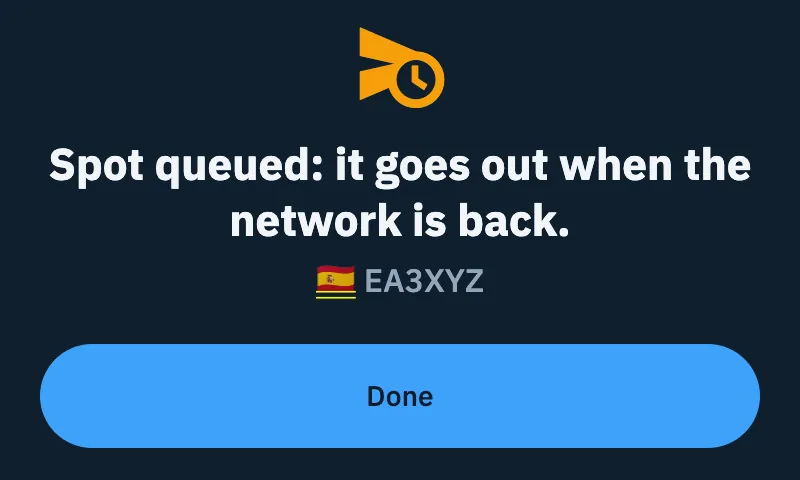
The button becomes Queue spot both when the device has no network (airplane mode, no signal) and when it is connected to a network without internet, for example a public Wi-Fi that asks you to sign in.
With I'm on the air the operation of the activation opens anyway, right away: the outcome says “Operation opened. The spot goes out when the network is back.” and the Open the activation log button takes you to the log, so you can log QSOs without network too.
If the network drops right while you send the spot (Send spot, or Announce in I'm on the air) and no network received it, the spot is queued by itself and you see the same outcome.
One spot per station
Only one spot per station stays in the queue:
| What you queue | What happens | What you see |
|---|---|---|
| The same spot again (same station, less than 1 kHz away) | The queued spot is updated with the current time and comment | “It's already queued: it goes out when the network is back.” and “Only one spot stays in the queue, updated with the current time and comment.” |
| The same station on another frequency | The new spot takes the place of the old one, which won't go out anymore | “Spot updated: it goes out on … when the network is back.”, the old frequency struck through next to the new one, and “The spot on … won't go out anymore.” |
| Another station | It is added to the queue | “Spot queued: it goes out when the network is back.” |
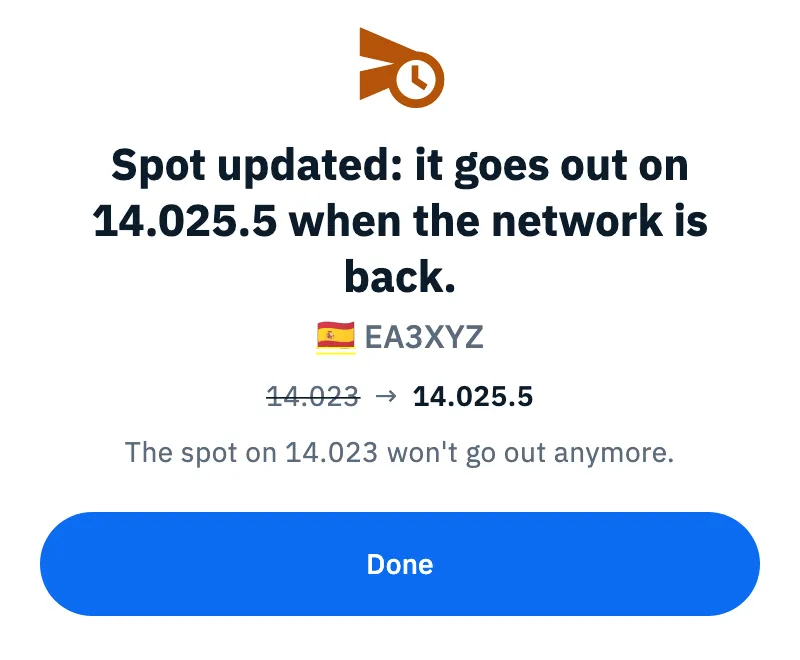
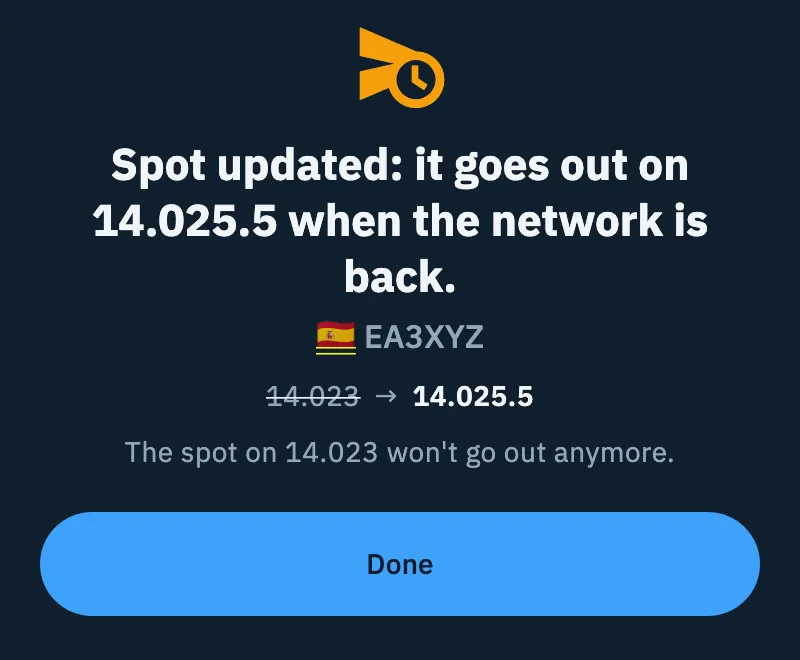
The age of a queued spot counts from the last time you queued it: updating it starts it again from zero.
When the network is back
Queued spots stay saved on the device (on the web, in the browser) even if you close the app. They go out when the app sees that the network is back, or the next time you open the app with the network:
- a spot younger than 10 minutes goes out by itself, to the networks you chose;
- a spot 10 minutes old or more does not go out until you answer the app's question.
The question appears by itself, whatever screen you are on:
- One old spot: “Spot from 25 min ago: send it?”, with the callsign and frequency. Tap Send to send it or Discard to remove it from the queue.
- Several old spots: “2 old spots queued: which should I send?”, with a box for each spot (callsign, frequency and how many minutes ago it was queued). No box is ticked at first: tick the ones still valid and tap Send selected (it stays off until you pick at least one), or tap Discard all.
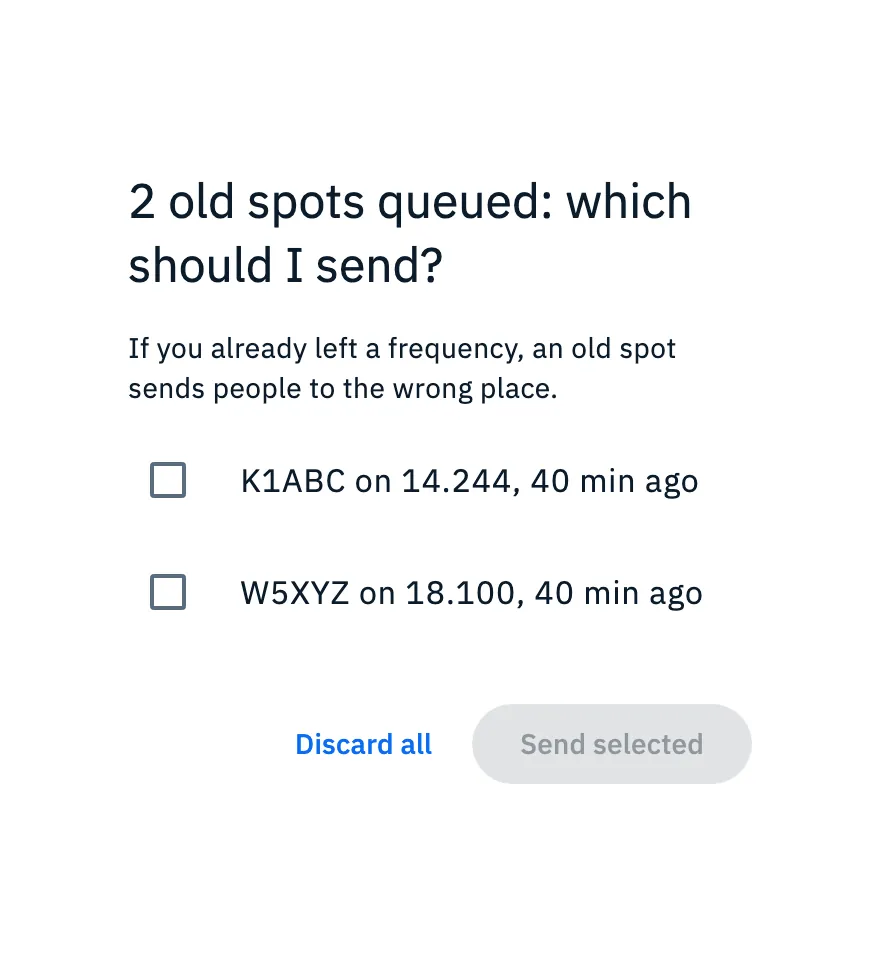
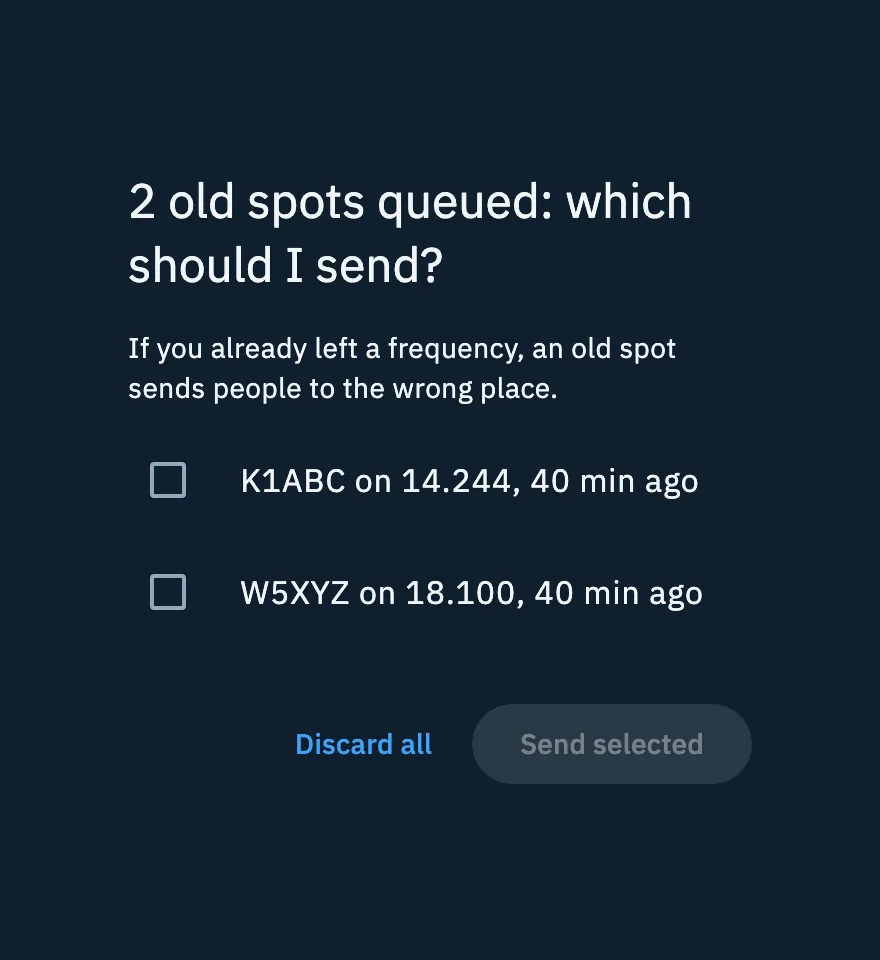
The spots you don't tick, and the discarded ones, leave the queue and are lost. The window does not close when you tap outside it: answer with one of the two buttons.
If the network drops again while the queue is being sent, the spot that could not go out stays queued and is tried again the next time the network is back.
If you send the same spot by hand
- If the network is back and you send by hand a spot of a station that was still queued, the queued one leaves the queue and only yours goes out.
- If the same spot has just gone out from the queue (in the last 2 minutes), it is not sent a second time: you see “Your spot already went out at 14:32z, as soon as the network came back.” and “We won't send it again.”. It is an outcome, not an error; the time is in UTC.
Seeing the queued spots
Everything waiting for the network is in the Log section:
- Open Log.
- At the top, next to Operations, tap the cloud icon: a number tells how many things are waiting (its tooltip says, for example, “3 waiting”). The icon shows even if you are not signed in, when something is queued.
- In the Sync sheet, read the Waiting part.
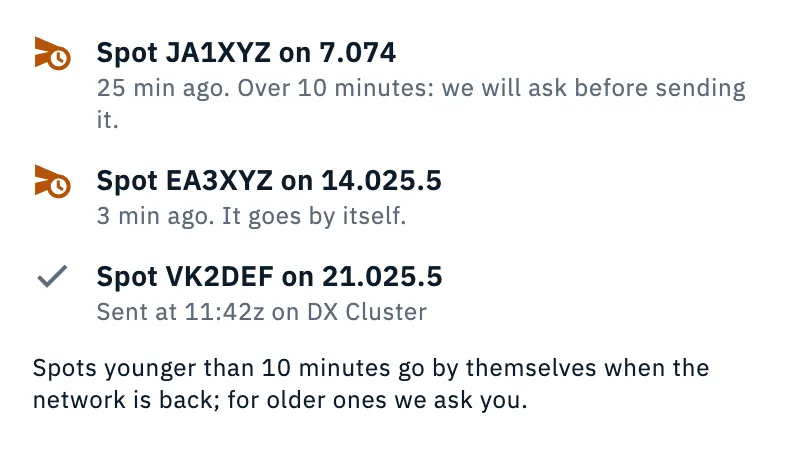
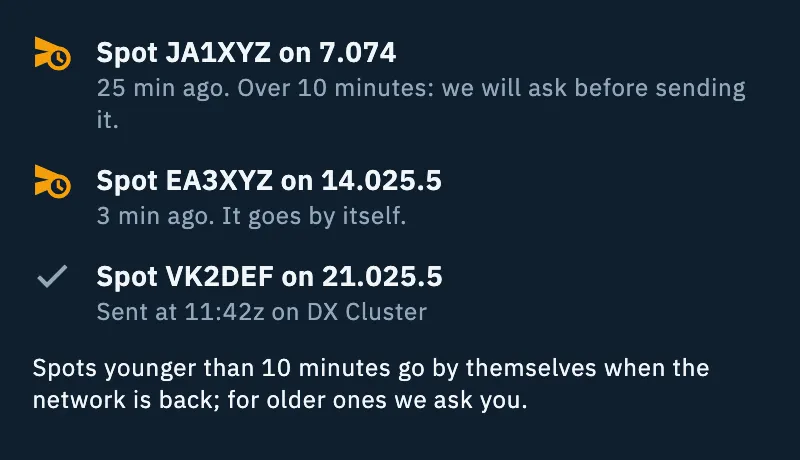
Each queued spot is a row with its callsign and frequency, for example “Spot JA1XYZ on 7.074”, and its age under it:
| Line | Meaning |
|---|---|
| “3 min ago. It goes by itself.” (or “Just now. It goes by itself.”) | Younger than 10 minutes: it goes out without asking you when the network is back. |
| “25 min ago. Over 10 minutes: we will ask before sending it.” | When the network is back you get the question about old spots. |
| “Sent at 11:42z on DX Cluster” | It went out from the queue: the time (UTC) and the networks that received it. |
| “Not sent: …” | It was refused after the network came back, with the reason (for example a duplicate). It left the queue. |
Outcomes stay in the list for an hour after sending, as long as the app stays open. Under the queued spots a note recalls the rule: “Spots younger than 10 minutes go by themselves when the network is back; for older ones we ask you.”
The same list also shows the QRT of an operation closed without network (“QRT of the closed operation”, see Closing, reopening and deleting an operation) and the other things waiting, such as QSOs to sync (see Using HamQSO offline). The band that shows at the top when the network changes also counts queued spots together with the rest, for example “Offline: QSOs are saved on this device. 3 waiting”.
Free and Pro
The spot queue is free and works the same on phone, tablet, desktop and web. Automatic re-spot has its own rule without network: see Automatic re-spot and QSY.
Troubleshooting
- The button says “Queue spot” but I have a network. The app can't reach the internet: this happens with a public Wi-Fi that asks you to sign in, or a network without internet. Open the browser to sign in to the Wi-Fi, or queue the spot: it goes out as soon as the connection works.
- The queued spot did not go out. The queue is sent only while the app is open: open it with the network on. If the spot is 10 minutes old or more, it waits for your answer to the question about old spots.
- “Not sent: The cluster already has this station on this frequency: someone just spotted it.” Someone else spotted the station while you were offline: no need to send it again.
- “Not sent: Sending failed. Check the connection and try again.” No network accepted the spot when the network came back. If the station is still there, send it again by hand.
- You tap “Queue spot” and a red error shows in the form. The spot did not pass the checks (callsign, band, comment, networks): fix the field shown and try again.