
Checking sent eQSLs and resending them
See how each eQSL you sent went, read the email as it arrived, and resend a bounced eQSL to a new address.
FreeUpdated for HamQSO 0.1.19
On this page
The Sent tab of eQSL HamQSO lists every eQSL you sent and how it went: arrived, bounced or not sent. For an eQSL that left by email you see the email as it arrived, and if the address was wrong you can write a new one and resend it.
Opening Sent
- Open Profile and tap the eQSL HamQSO card (see What eQSL HamQSO is).
- Tap the Sent tab.
If some eQSLs bounced, their number appears in amber next to the tab name, for example "2 to check". It counts only the Bounced eQSLs: the To check filter also shows the Not sent ones.
Reading the list
The eQSLs are grouped by the day they were sent, newest first. Each row shows:
- a thumbnail of the card;
- the callsign of the station that received it, the band and the mode;
- the model it left with (if the model is no longer among yours, you read Model);
- the outcome, always with an icon and a word: Sent, Bounced (in red) or Not sent.
For a Not sent eQSL the row also gives the reason and the date of the QSO.
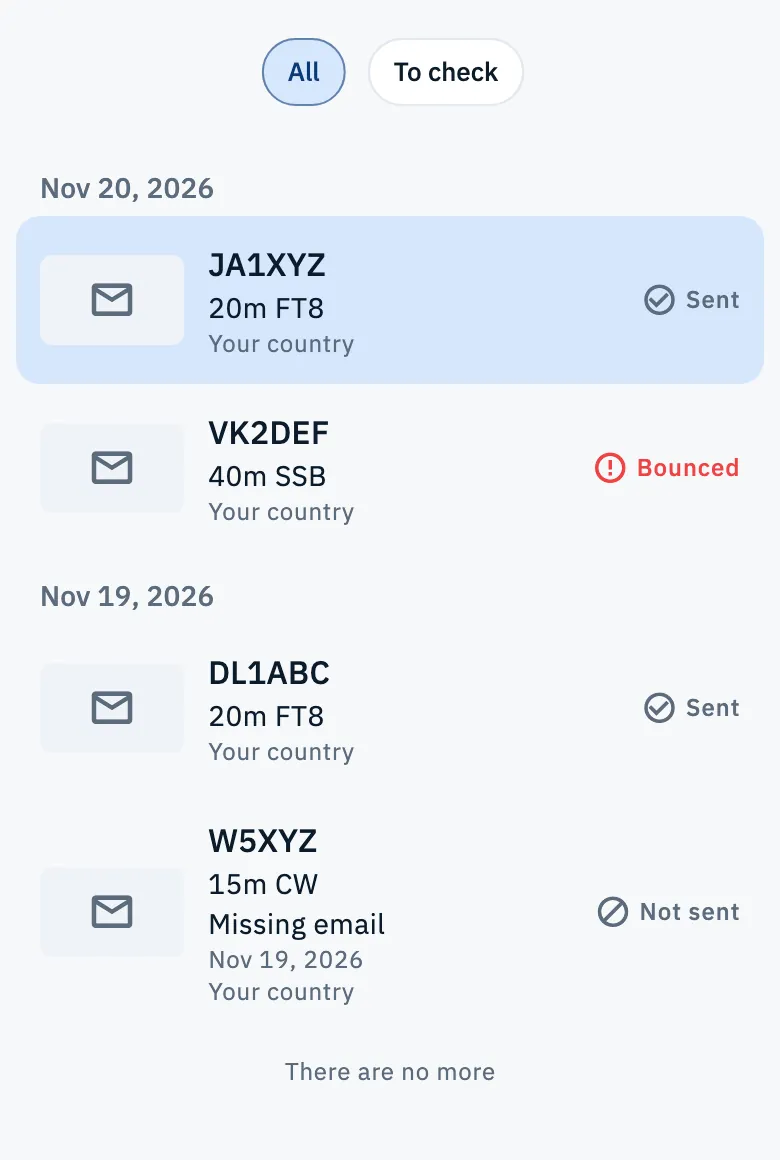
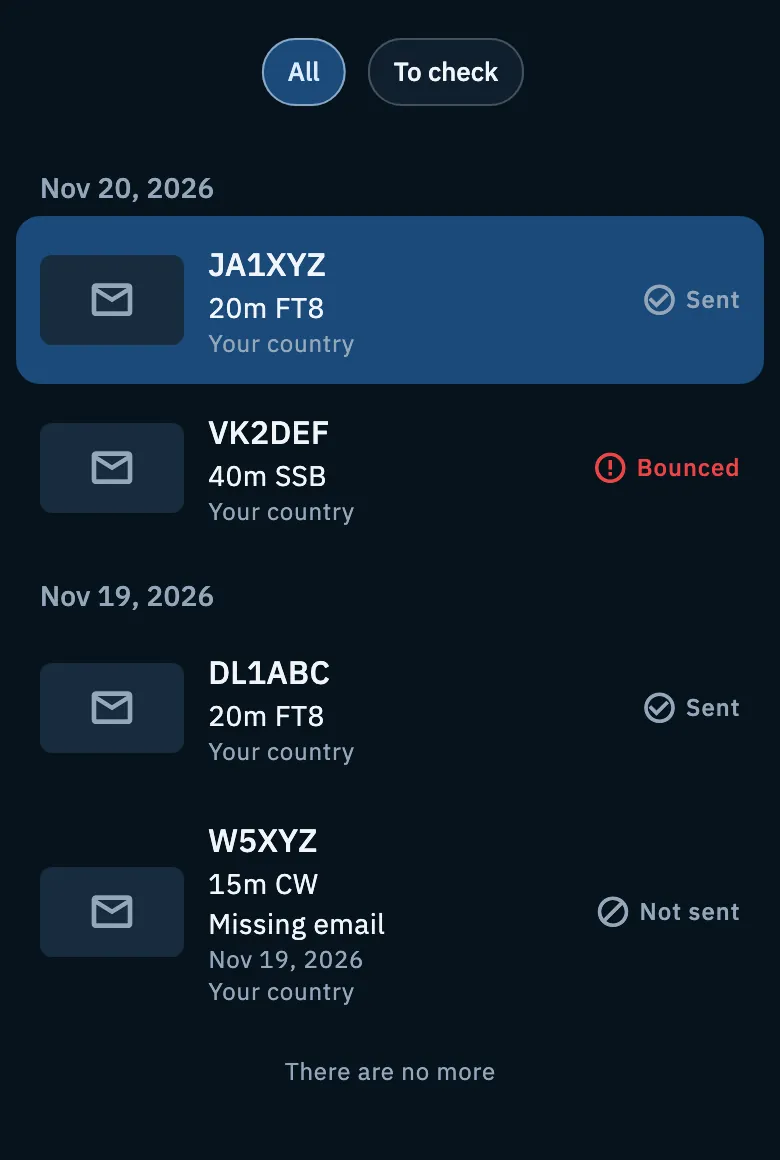
At the top there are two filters:
| Filter | What it shows |
|---|---|
| All | Every eQSL you sent. The tab opens on this filter. |
| To check | Only the eQSLs that did not arrive: the Bounced and the Not sent ones. |
The list loads 50 eQSLs at a time: at the bottom tap Show more for older ones. When there are no more you read "There are no more". Pull the list down to refresh it.
eQSLs still in the queue ("Sending soon") are not in Sent: they appear once they have an outcome. The ones you stopped with Cancel the send are not there either. Dates and times are in your device's time, not in UTC.
The outcomes
| Outcome | What it means |
|---|---|
| Sent | The eQSL left: by email, or in the app if the station uses HamQSO. |
| Bounced | The email left but the address did not receive it. You can fix the address and resend it. |
| Not sent | The eQSL did not leave. The reason is on the row. |
The reasons for Not sent:
- Missing email: HamQSO did not find the station's email address. You can write it yourself from the QSO's row in the log: see Sending eQSLs.
- eQSL: no: the station wrote on the callbook that it does not want eQSLs. If you know its address you can write it yourself, as for Missing email.
- Asked not to receive any: the station stopped the eQSL HamQSO emails (see What eQSL HamQSO is).
- Something went wrong: the send failed for another reason.
Opening a sent eQSL
- Tap a row of the list.
- Read the detail: the callsign at the top, then what happened and the facts.
On a phone the detail opens in a page with the callsign in the title. On a wide window (tablet, computer or browser) the list is on the left and the detail on the right: the newest eQSL is already open, and the chosen row is highlighted.
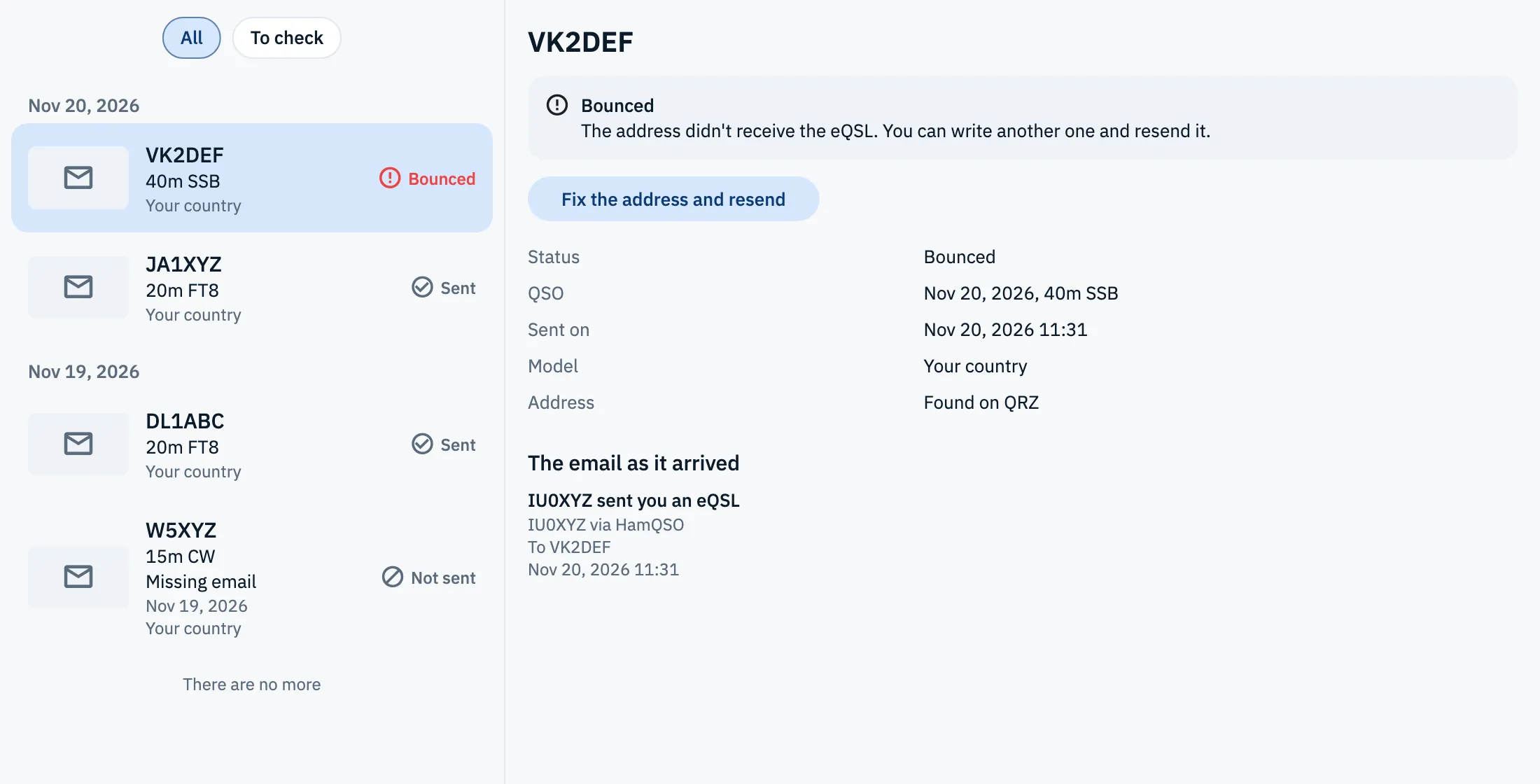
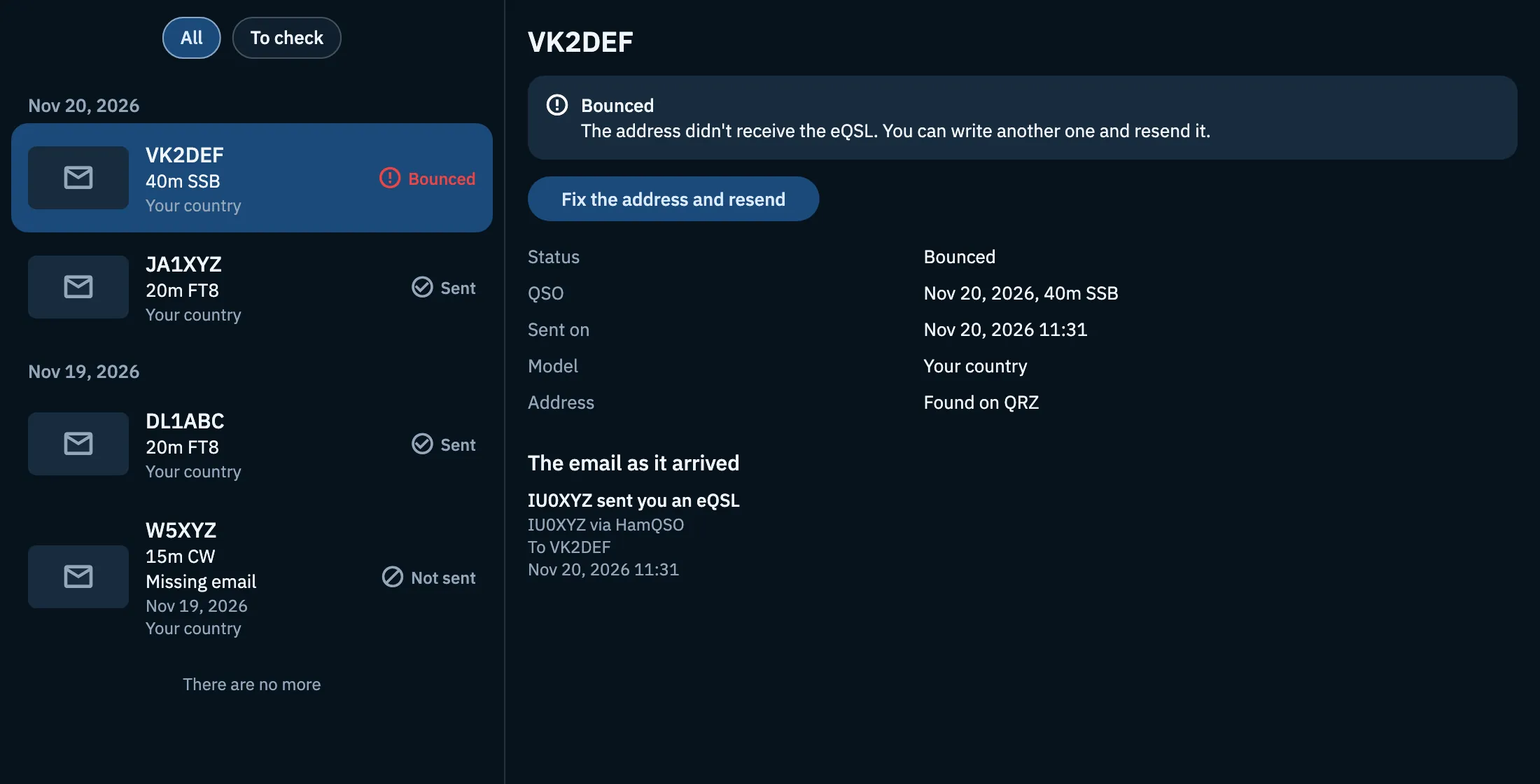
For a Bounced eQSL a box says "The address didn't receive the eQSL. You can write another one and resend it.". For a Not sent one the box gives the reason.
Below are the facts:
| Item | What it says |
|---|---|
| Status | Sent, Bounced or Not sent. |
| QSO | Date of the QSO, band and mode. |
| Sent on / Not sent on | Date and time of the send, or of the attempt for an eQSL that did not leave. |
| Model | The model of the card. |
| Address | Where the email address came from: Found on QRZ, Found on HamQTH or Entered by you. Not there for eQSLs delivered in the app. |
The recipient's email address never appears in the app, not even partly: you only see where it came from.
Seeing the email or the card as it arrived
At the bottom of the detail you see what the other station received.
For an eQSL sent by email (even a bounced one) there is The email as it arrived:
- Open the eQSL in Sent.
- Scroll to The email as it arrived.
- Read the subject, the sender, the recipient (for example "To VK2DEF"), the date and time, and the whole email below.
The HamQSO server rebuilds the email with the same model and the same data, in English as the station receives it. There are only small differences: the links do not lead to the public page of the eQSL and do not carry the recipient's personal code, and if the card's picture is gone (after a year) only its text is left. The email is shown isolated from the rest of the app: its links do not open from the preview.
For an eQSL delivered in the app there is The card as it arrived, with "Uses HamQSO: receives it in the app":
- Open the eQSL in Sent.
- Choose Front or Back to turn the card over.
A Not sent eQSL has no preview: nothing arrived.
Fixing the address and resending
If an eQSL bounced you can send it to another address.
- Open the Bounced eQSL in Sent (the To check filter helps you find it).
- Tap Fix the address and resend.
- In New email address, write the correct address in the Email address field. The field starts empty: the old address never reaches the app.
- Tap Resend the eQSL (or press enter on the keyboard).
- Read "eQSL resent" and "It will arrive at the new address.", then tap Close.
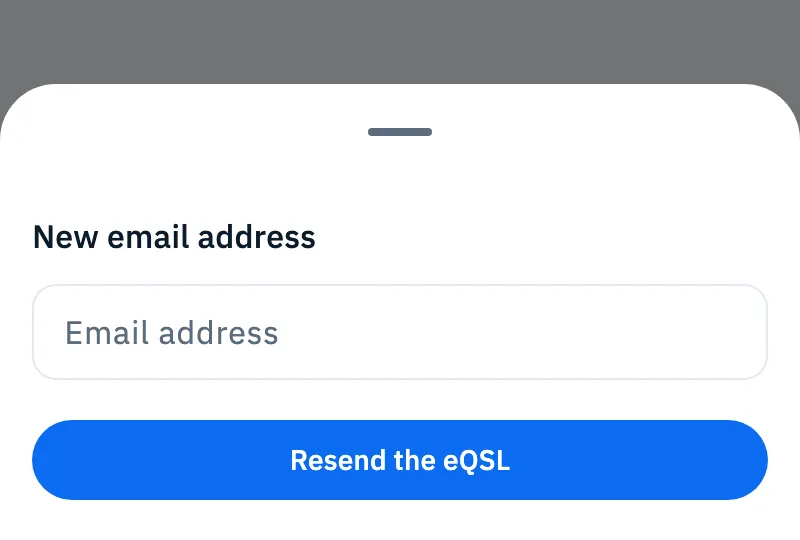
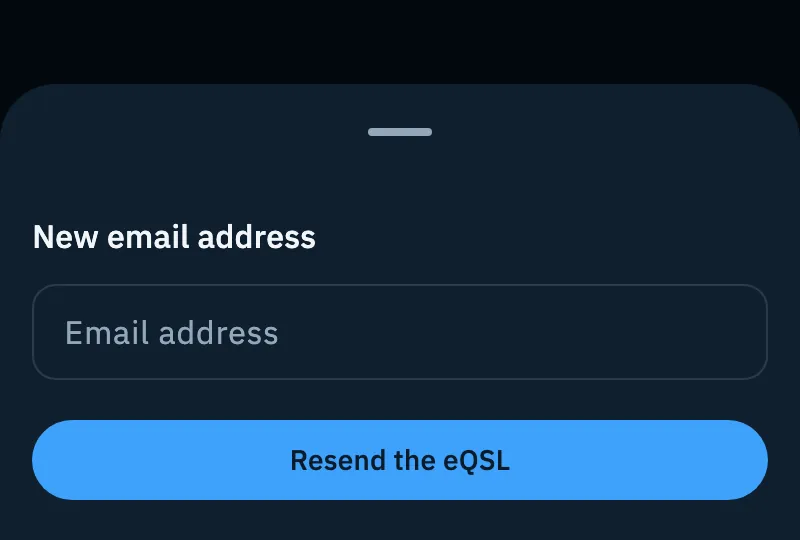
On a phone a sheet opens from the bottom, on a tablet or computer a dialog in the middle. After the resend the list refreshes: the eQSL leaves Sent while it is in the queue and comes back with its new outcome. On a phone the detail page closes too.
The server decides a few rules:
- The Fix the address and resend button is only on a Bounced eQSL. You can resend it once per bounce: if the new address bounces too, the button comes back.
- You cannot resend it to an address that already bounced for this eQSL.
- After the resend, the Address fact becomes Entered by you.
Free and Pro
Sent, the preview of the email and of the card, and resending are free for everyone, without HamQSO Pro.
Troubleshooting
- "Without a connection we can't show the sent eQSLs." Sent is read from the server. Go back online and tap Retry.
- "We can't load the sent eQSLs." The server did not answer. Tap Retry, or try again later.
- "Here you'll find the eQSL you send" and no rows. You have not sent any eQSL yet, or they are all in the queue. See Sending eQSLs.
- "No eQSL to check. All in order." With the To check filter it means every eQSL arrived. Go back to All to see them.
- "We can't show the email." The preview did not load. Tap Retry under the message.
- You don't see "Fix the address and resend". The eQSL did not bounce, or you already resent it after this bounce.
- Errors in the resend sheet:
- "This address isn't valid": check that you wrote a complete email address.
- "This address doesn't receive mail. Write another one.": it is an address that already bounced for this eQSL. Write a different one.
- "You've already resent this eQSL": the resend for this bounce was already done. Refresh the list: the eQSL comes back with its new outcome.
- "This eQSL didn't bounce": there is nothing to resend. Refresh the list.
- "This eQSL no longer exists.": the eQSL is gone. Refresh the list.
- "We couldn't resend it. Try again.": usually the network is missing. Tap Resend the eQSL again.