
Letting others follow your activation live
Choose what goes on your live page, share its link as text, image or QR, and end the announcement with I'm QRT.
FreeUpdated for HamQSO 0.1.19
On this page
The live page is your public page on HamQSO: a link that anyone opens in a browser to see whether you are on the air, on which frequency and from which reference, and then to read the operations you chose to publish. This page explains how to put an activation on it, what anyone with the link sees, how to share it and how to end the announcement.
Your address
The address never changes: hamqso.app/live/ followed by your base callsign, without suffixes such as /P. For IU0XYZ/P it is hamqso.app/live/IU0XYZ. The app builds it from the callsign on the device, so you have it before your first announcement and without network.
- Open Profile.
- At the top, under your callsign (and under the Pro invitation, if you are not subscribed), find the Live page row with the address written under it.
- Tap it to open Share the live page (see below).
If you have not set a callsign yet, the row says Set your callsign and a tap opens Your profile: see Your profile: name, callsign and locator.
Putting an activation live
The activation goes on the live page when you announce it with I'm on the air (see Activating a POTA park or a SOTA summit).
- Open I'm on the air and fill in frequency, mode and references.
- Under Send to keep the HamQSO tile (Push and live page) selected.
- The Live page switch appears below it, with the line "Your activation live on hamqso.app/live/…: frequency, mode and references, no location.". Leave it on to put the activation on the page, or turn it off.
- Tap Announce on 1 network (the number changes with the networks you chose).
The switch is on the first time, then the app remembers your last choice. It appears only with HamQSO selected and a callsign set.
After sending, on the You're on the air! screen, if you left Live page on you find the Your live page card with the link, Copy link (confirmed by "Link copied") and Share, which opens the share sheet.
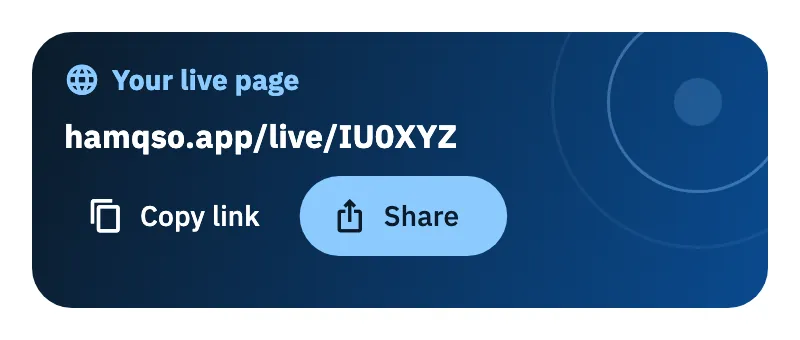
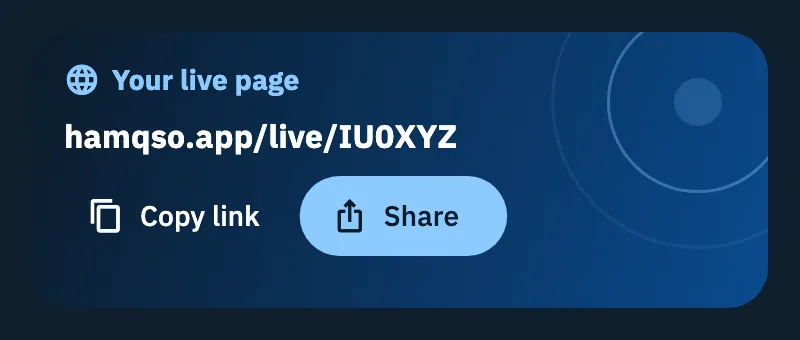
With Live page on, the operation opened in your log for the activation is linked to the page: it is an announced operation. With the switch off the page does not show the activation and the operation is not announced.
Choosing which operations go on the page
Each operation has its own switch. Nothing becomes public by itself.
- Open the operation from the Log section (see The operation page).
- Tap ⋮ (More actions) and choose Operation settings.
- In the Sharing section read the line under Show on the live page: it says why it is on or off.
- Turn the switch on or off.
- Tap See the live page to open your page in the browser.
When you create an operation you find the same switch in the last step, Last details (see Creating an operation).
| Operation | Switch | What happens |
|---|---|---|
| Announced, in progress | On (default) | "On because you announced this operation: anyone with the link already sees it." |
| Announced, in progress | Off | "Off: you announced the operation, but the page shows only the announcement." The announcement stays on the page, with frequency and references, until you say I'm QRT. |
| Not announced, in progress | Off (default) | "Off because you did not announce this operation: nothing becomes public by itself." |
| Not announced, in progress | On | "On: the operation will appear on the page when you close it." |
| Closed | On | "On: anyone with the link already sees this operation." |
| Closed | Off | "Off: this operation is private, only you see it." |
An operation is closed when you closed or archived it (see Closing, reopening and deleting an operation).
Under the switch there is always the list of what anyone with the link sees (or will see, or would see if you turn it on):
- While you are on the air: frequency, radio and antenna, map of the QSOs. Only for an announced operation that is still open.
- Summary: date, references, QSOs, countries, bands and modes.
- Log: callsign, band, mode and UTC time of each QSO.
- Photos: all the photos of the operation, with how many you have now out of the maximum of 3 (see Operation summary, milestones and photos).
- "RST, notes and tags stay private."
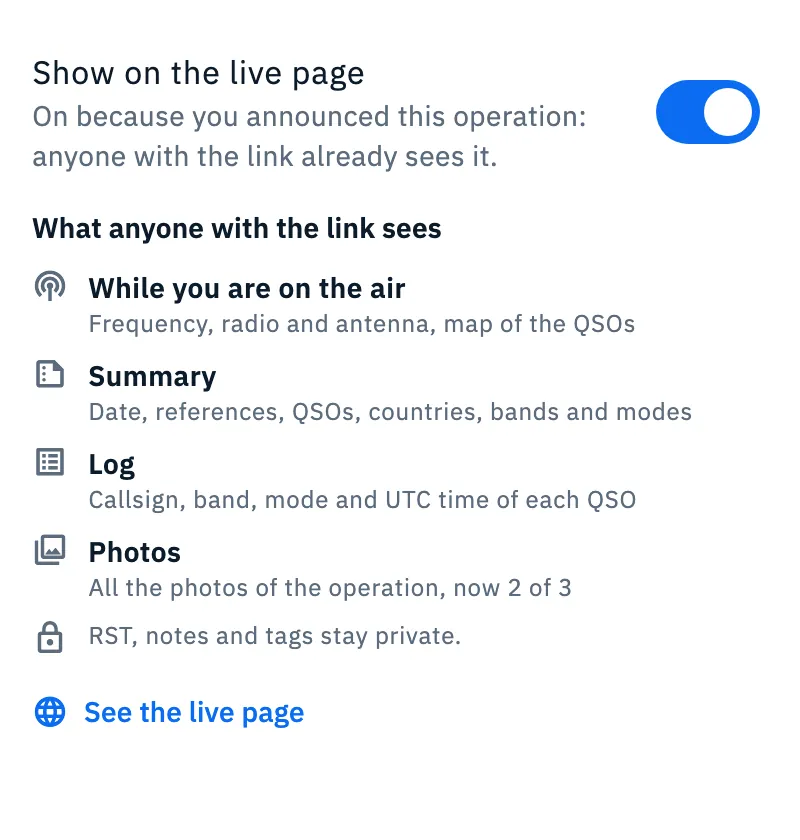
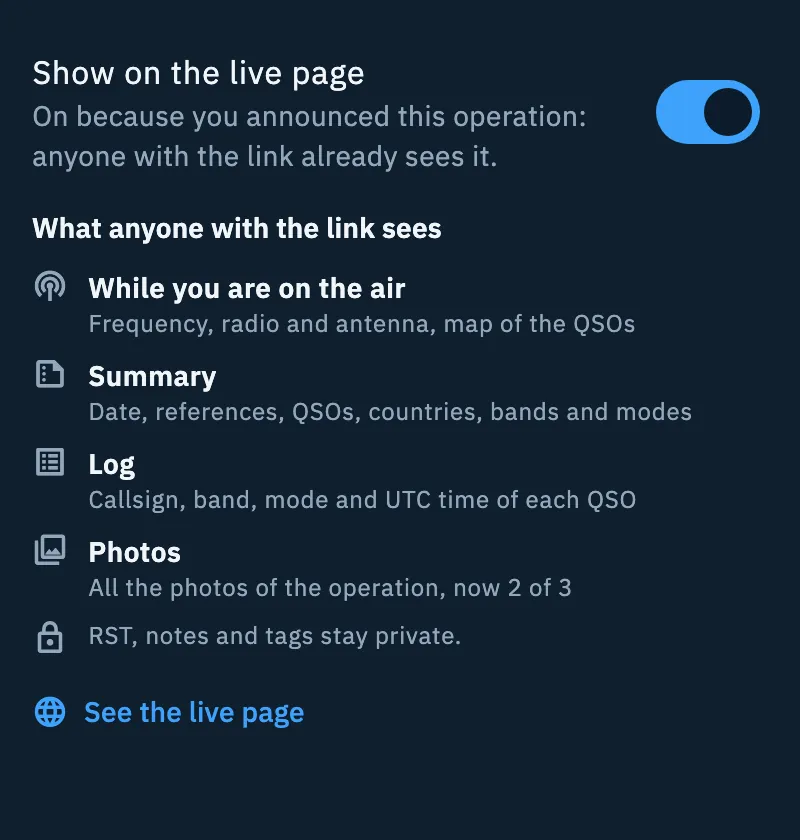
When an operation is on the page, its header shows the globe icon with a green dot (On the live page: share the link).
Sharing the live page
There is one Share the live page sheet, and you open it from:
- the globe icon in the operation header, or ⋮ → Live page;
- ⋮ → Share → Link → Live page (see Sharing an operation and DX Replay);
- Profile → Live page;
- Share on the Your live page card after I'm on the air;
- the command palette, searching for "Share the live page" (see Finding anything with the command palette).
- Under What to share choose Image or Text.
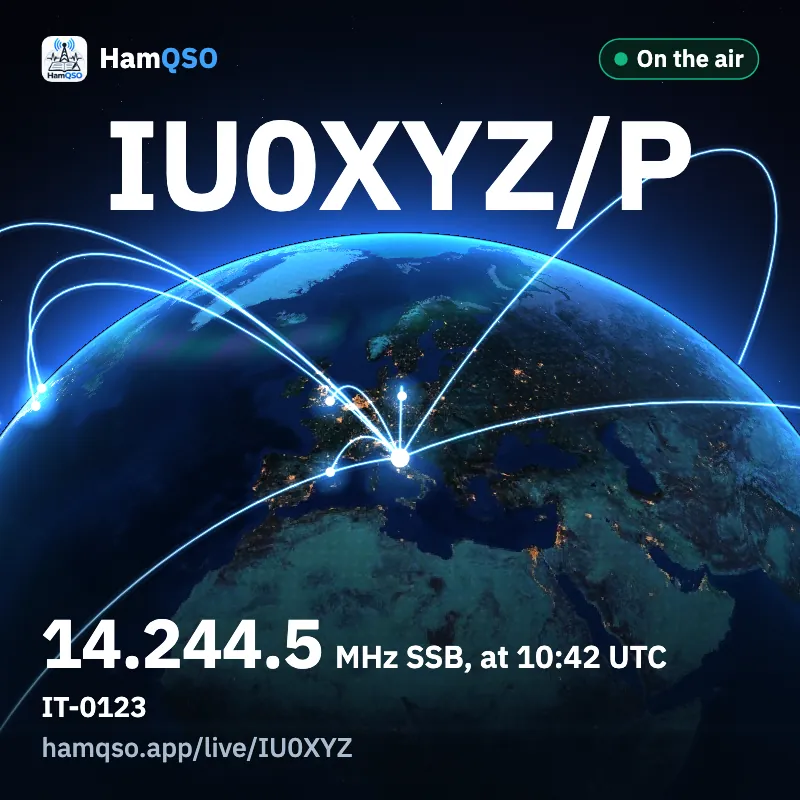
- For the image choose the Square format (1080 × 1080, for posts) or Story (1080 × 1920, with free margins at the top and bottom for stories). While the app draws it you read "Preparing the image…".
- Tap Share image or Share text: the system share opens. The image goes out together with the text, so the link stays clickable in the apps that keep it.
- Under the line you find the link, Copy link and Show the QR: the QR is scanned with another phone and works without network too.
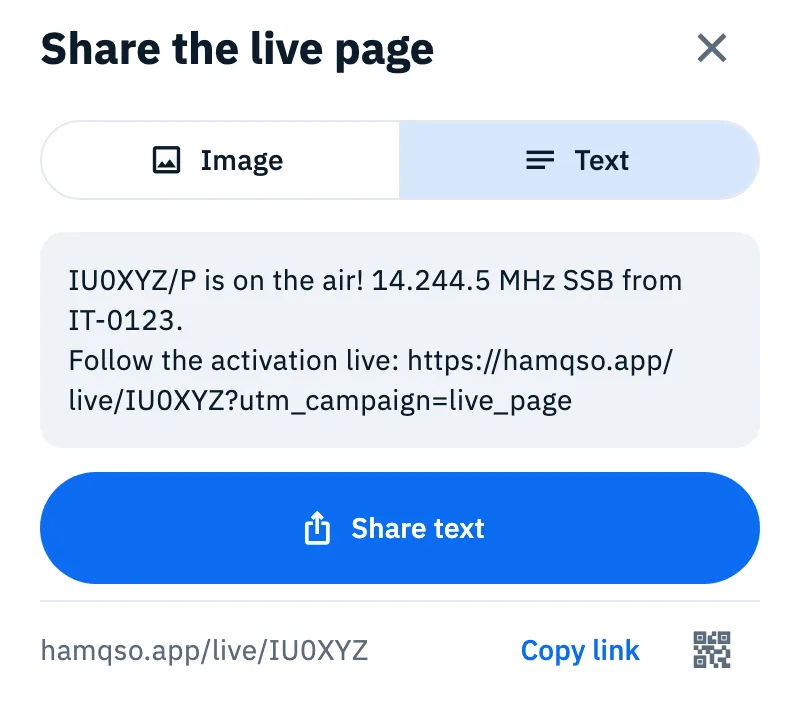
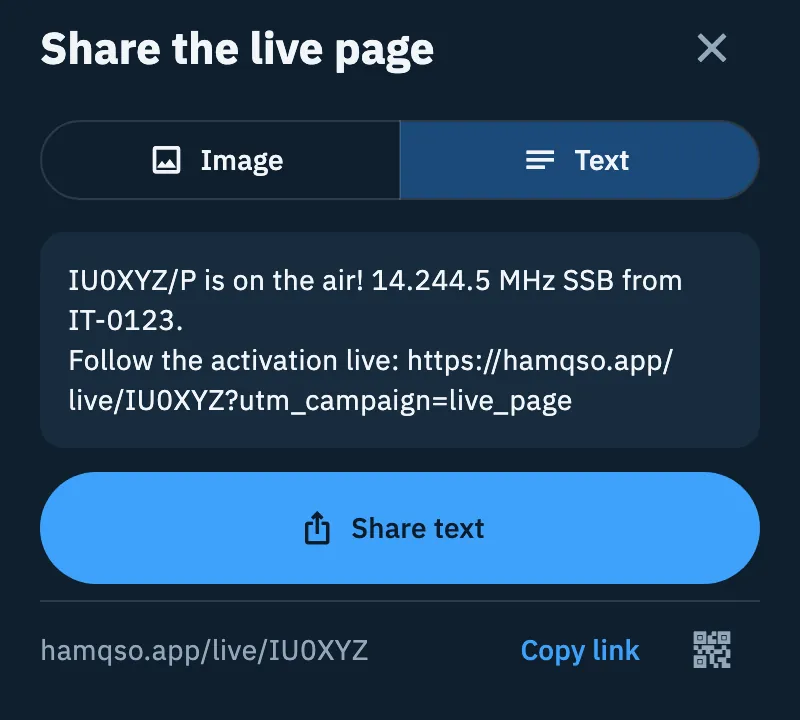
The content is chosen for you, in this order:
| Situation | Image | Text |
|---|---|---|
| You are on the air with a public activation | Frequency, mode, UTC time, references and the On the air mark | "IU0XYZ/P is on the air! 14.244.5 MHz SSB from IT-0123. Follow the activation live:" and the link |
| You opened the sheet from the page of a closed and public operation, with at least one QSO | Its QSOs, countries, references and date | Callsign, references, date, QSOs and countries, "The full log is here:" and the link to the page of that operation |
| You have closed and public operations with at least one QSO | The total of QSOs, countries and operations | "… on HamQSO: … Find them all here:" and the link |
| Nothing else | Only the callsign and "When I'm on the air, you find me here." | "This is my live page on HamQSO: when I'm on the air you find frequency and mode here." and the link |
The image shows the globe with the trails of your QSOs towards your callsign. The trails appear only if at least one QSO is 800 km away or more; otherwise you see the callsign and the rings around the station. On the image the link is always the short one of the live page.
In the browser on a computer
In the web version used with a mouse the buttons change: Download image (confirmed by "Image downloaded"), Copy image where the browser allows it (confirmed by "Image copied"), Copy text (confirmed by "Text copied") and, on the QR screen, Download the QR (confirmed by "QR downloaded"). On phone, tablet and the other versions the system share is used.
Ending the announcement: I'm QRT
When you are done but want to keep the operation open in your log:
- Open the operation.
- Tap ⋮ and choose I'm QRT (live page).
The public announcement on the live page ends; the operation stays open. The item is there only while the announced activation is still open.
In an operation of type xOTA activation with references, during its UTC day, the menu shows Close operation instead, which does it all at once: it ends the announcement on the live page, sends the QRT to the networks you had spotted on, if any, and closes the operation (see Closing, reopening and deleting an operation).
I'm on the air reminds you too: at the top you read for how long and on which frequency (for example "On the air for 40 min on 14.244.5 SSB"), with the Close operation button. The tap opens the operation of the activation and asks "Close the operation?". If the activation has no operation in your log, it ends only the announcement and you read "Activation closed: the live page now shows you off the air.".
Free
The live page, sharing it and I'm QRT are free, without HamQSO Pro.
Troubleshooting
- "Your callsign is needed." in the Sharing section: the live page comes from your callsign and until you set it the operation stays private. Tap Set your callsign.
- "The link comes from your callsign. Set it and the page is yours at once, even without network." instead of the share sheet: tap Set your callsign, and Your profile opens on the callsign field.
- "I couldn't create the image": tap Retry, or Go to the text and send the text, which has the same link.
- "Could not complete the action, try again" after I'm QRT (live page): check the network and try again from the menu.
- I can't find the Live page switch in I'm on the air: select the HamQSO tile under Send to and set your callsign.
- I can't find I'm QRT (live page): the announcement has already ended, or the operation is of type xOTA activation with references, during its UTC day, and the item is Close operation.
- An operation with the switch on is not on the page: if you did not announce it, it appears only when you close it.
- There is no globe in the header: the operation is not on the page. Use ⋮ → Live page to share your page anyway.