
Coverage test without CAT
Run the coverage test with any radio: you send your callsign in CW by hand, HamQSO listens to the Reverse Beacon Network and shows who hears you.
Free and ProUpdated for HamQSO 0.1.19
On this page
With the Manual test you run the coverage test with any radio, even without CAT: you send your callsign in CW yourself, with your key or the keyer memory, and HamQSO listens to the Reverse Beacon Network to show you which skimmers hear you. At the end you get the same result as the automatic test.
When to use it
The manual test is offered when:
- the radio is not connected over CAT (the usual case on the web or with a radio without a cable);
- the radio is connected, but cannot send CW over CAT on the link you use;
- everything is ready for the automatic test, but you would rather key yourself.
Two things are always needed: your callsign set in your profile (it is what you send and what the app looks for in the skimmers' spots) and a network connection, to reach the Reverse Beacon Network.
Starting the manual test
- Open the coverage test and tap Run the test (see Running a coverage test).
- The app runs its checks: Radio connected, Callsign set, The radio keys CW over CAT, Reverse Beacon Network reachable.
- If the radio is missing, or it does not key CW over CAT, the Manual test button appears under the checks. Without a radio you read “Connect the radio for the automatic test, or do the test in manual mode: you transmit and the app listens for who hears you.”. Tap it.
- If instead every check is green and you are on Get ready to transmit, tap I'd rather transmit myself at the bottom of the card.
- The first time, choose how to go on:
- Guide me: “Step by step: radio, frequency, what to send.”
- I know how: “Straight to the text to send.”
Your choice is saved on this device: next time the manual test starts straight with the guide or with the text to send. With Guide me you can go back to the choice screen by tapping Back on the first step.
The status block
At the top of the manual test panel a box always tells you where you are:
- with Guide me, the step bars and “Step 3 of 4”;
- the title of the step, with a coloured dot: grey while you prepare, red when it is your turn to transmit, blue while the app listens;
- the HamQSO line: what the app is doing now;
- the Your turn: line: what you have to do.
The globe beside it (above the panel on a phone) says the same with a pill: the title of the step, then “Transmit now” and “Listening”.
The four guided steps
With Guide me the test has four steps. At the bottom there is one button to go on; on the first three steps Back goes to the step before.
- Get the radio ready. “Put the radio in CW on a frequency in the CW part of the band, for example 14.045 MHz, at your usual power.” HamQSO shows how many skimmers are listening on the band now. Without CAT you pick the band you transmit on; with the radio connected the app checks mode and frequency (see below). Tap Next.
- Is the frequency free? “Listen for a few seconds, then send “QRL?”. If nobody answers you can transmit: the transmission is your responsibility.” The text “QRL?” is on screen, in large letters. In this step HamQSO transmits nothing and waits for you. Tap It's free, next.
- Send this. Send the message 2 or 3 times, with a pause of a few seconds, then tap I transmitted. The app is already listening from the moment the text is on screen (“We are already listening: transmit whenever you like.”).
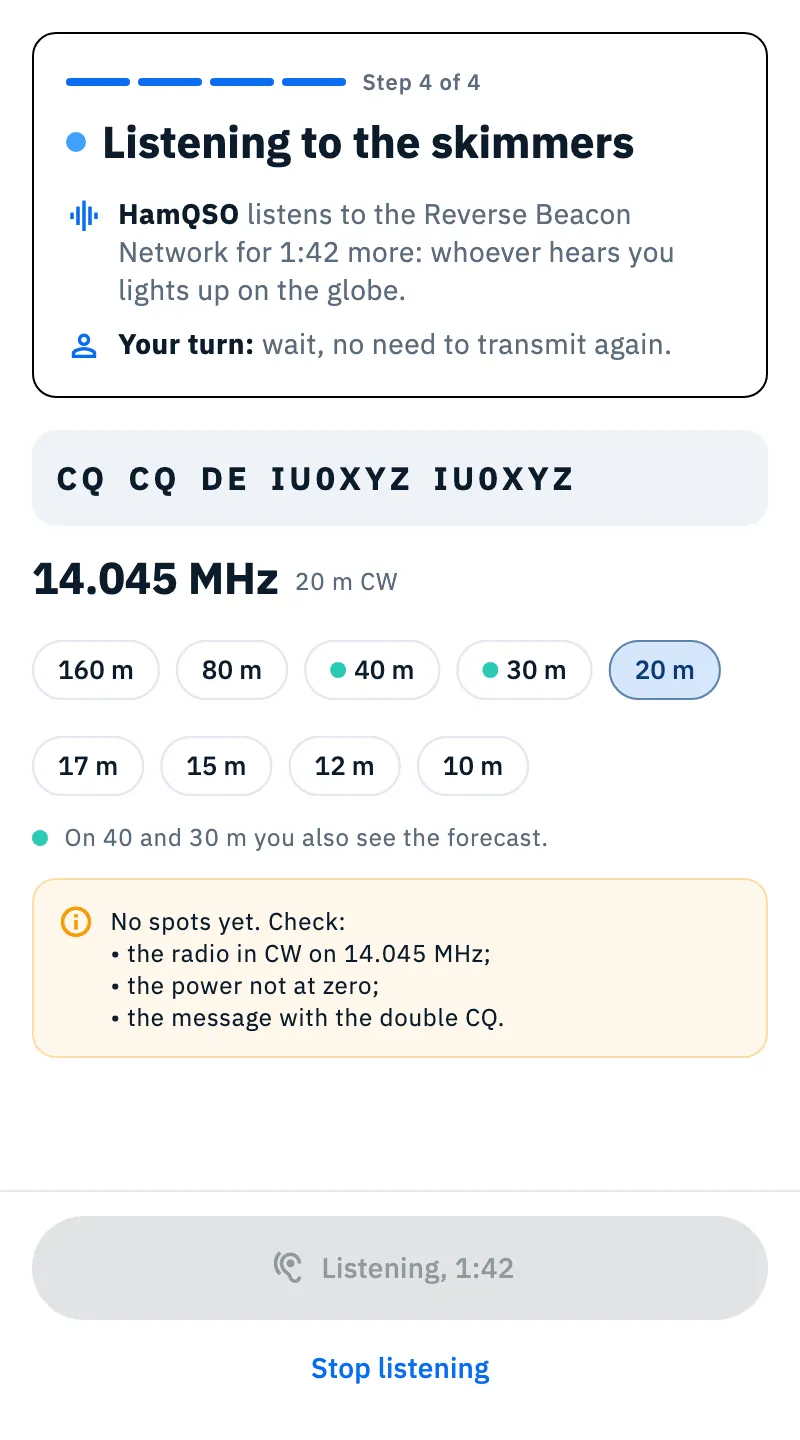
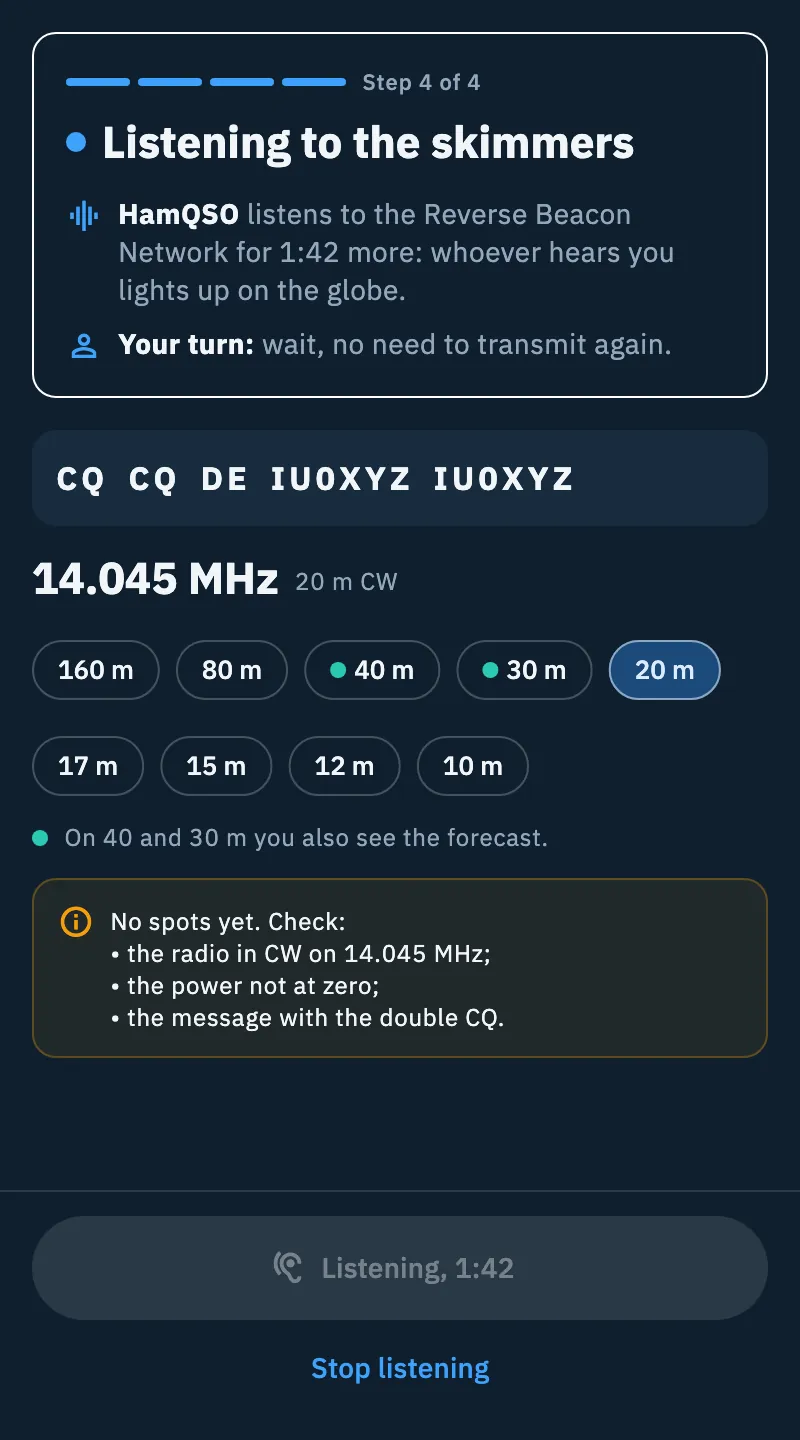
- Listening to the skimmers. The button becomes the countdown, for example Listening, 2:45, and can no longer be tapped. Wait: there is no need to transmit again. Whoever hears you lights up on the globe and appears in the list under the step.
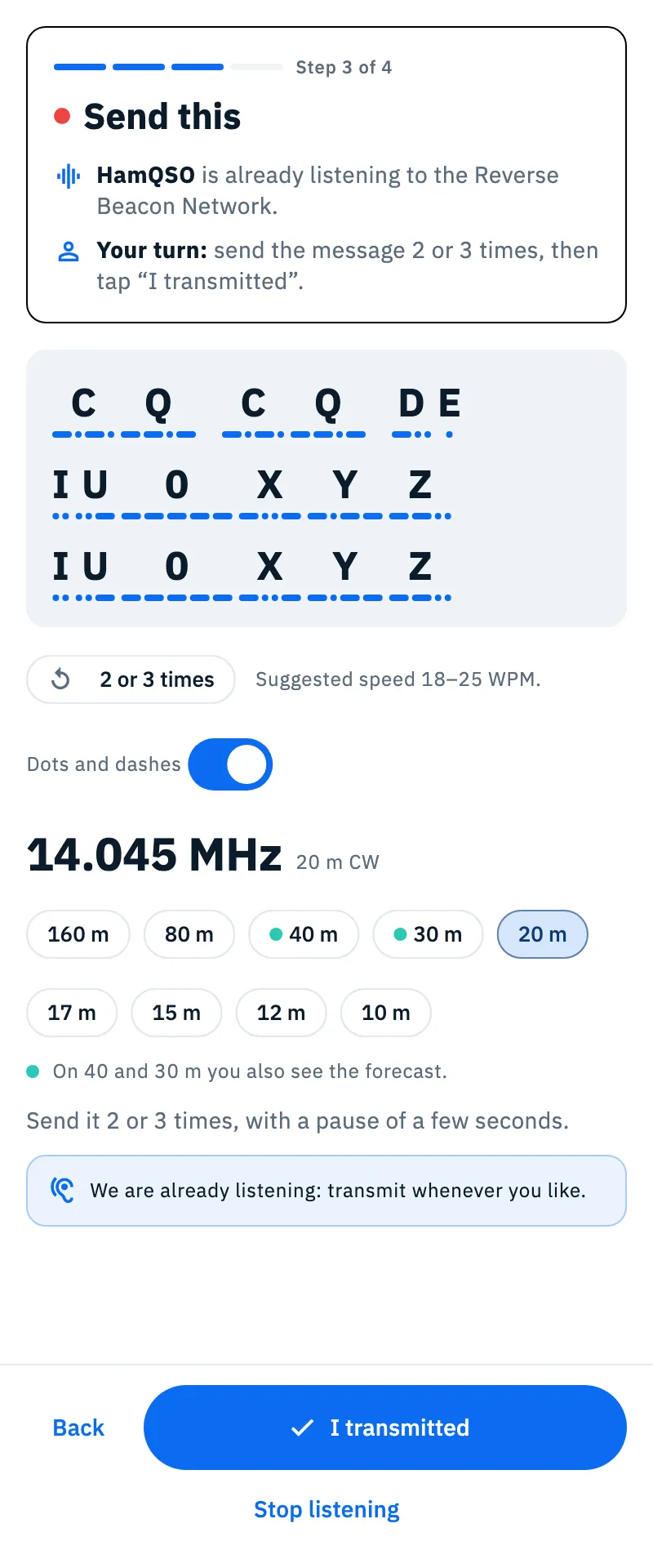
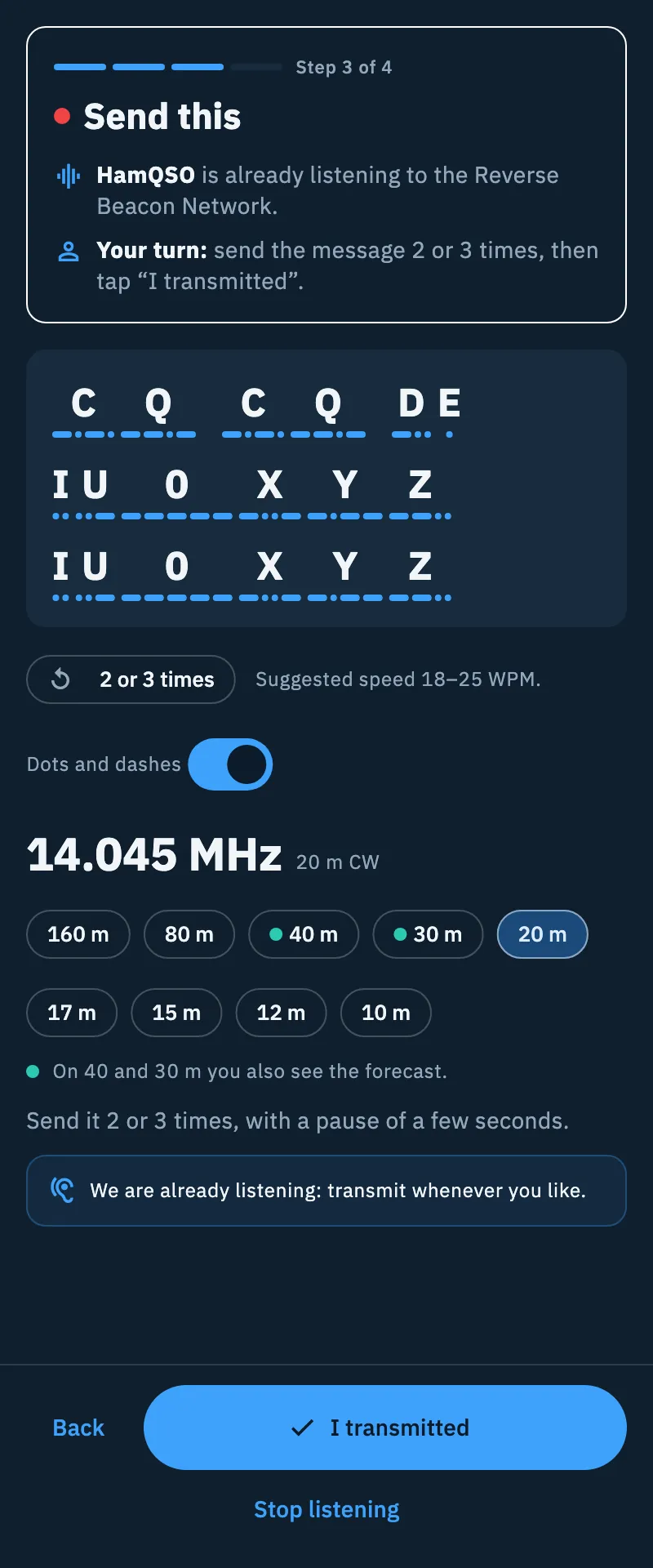
With I know how you skip the first two steps: the manual test opens straight on Send this, without the step bars and without Back.
The message to send
The message is always CQ CQ DE followed by your callsign twice, for example CQ CQ DE IU0XYZ IU0XYZ. Send it exactly: the skimmers report a spot only when they hear the double CQ, and the app looks for exactly your callsign in the spots, including any /P.
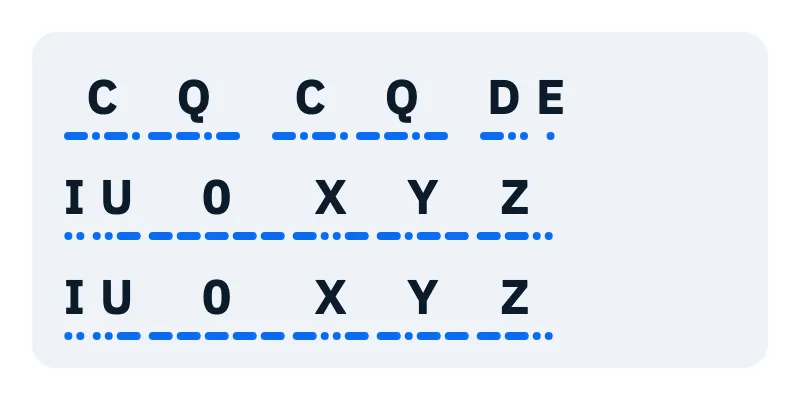
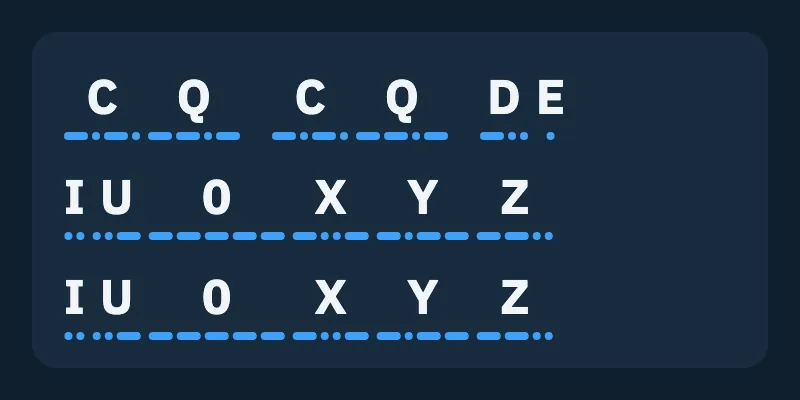
Next to the message you find:
| Item | What it does |
|---|---|
| 2 or 3 times | How many times to repeat the message. |
| “Suggested speed 18–25 WPM.” | The speed the skimmers decode best. |
| Dots and dashes | Shows the dots and dashes of each letter under it. It is on if you chose Guide me, off with I know how; once you change it, the app remembers your choice. |
How long the listening lasts
- The app starts listening to the Reverse Beacon Network as soon as the message is on screen, with no time limit until you tap I transmitted or a skimmer hears you.
- The 3-minute countdown starts from the first tap on I transmitted or from the first skimmer that hears you, whichever comes first. A second tap does not restart it.
- Stop listening, under the button on the Send this and Listening to the skimmers steps, ends the test early.
- If you stop before tapping I transmitted and no skimmer heard you, there is no result: you read “No skimmer heard you”, with Try another band and Done.
- At the end of the 3 minutes, or when you stop after transmitting, the result appears (see Reading the test result). From there Try another band starts again from Get the radio ready with the guide, or straight from the message with I know how.
Without CAT: choosing the band
With no radio connected you read “Pick the band you transmit on: we suggest the frequency.” and choose the band from the chips. For each band the app suggests a frequency in the CW part of the band:
| Band | Suggested frequency |
|---|---|
| 160 m | 1.822 MHz |
| 80 m | 3.530 MHz |
| 40 m | 7.025 MHz |
| 30 m | 10.115 MHz |
| 20 m | 14.045 MHz |
| 17 m | 18.075 MHz |
| 15 m | 21.045 MHz |
| 12 m | 24.900 MHz |
| 10 m | 28.045 MHz |
The bands with the dot also show the forecast (“On 40 and 30 m you also see the forecast.”). The band chips stay on the Send this and Listening to the skimmers steps too.
With the radio connected over CAT
If the radio is connected but does not key CW over CAT, the manual test still uses it to help you:
- the band follows the radio: there are no chips to pick, and the suggested frequency is the radio's own when it is already in the CW part of a test band;
- on Get the radio ready two checks tell you whether you are set: Radio in CW (or “The radio is in USB: switch to CW”, or Put the radio in CW when the mode is unknown) and Frequency in the CW part of the band (or Tune the radio to the CW part of an HF band).
The radio is never put into transmit: you always key. To connect it, see Connecting your radio.
Phone, tablet and web
- Phone: the globe is at the top and scrolls together with the step panel under it; the step button stays fixed at the bottom of the screen.
- Tablet and wide window: the globe on the left, the panel with the button on the right.
- Keyboard (web and desktop, in a wide window with mouse and keyboard): Enter is the step button (Next, It's free, next, I transmitted), Esc stops the listening, the keys 1 to 9 choose the band when no radio is connected. See Keyboard shortcuts.
Free and Pro
Troubleshooting
I don't see the Manual test button. The manual test needs your callsign and the Reverse Beacon Network:
- “Your callsign is needed: it is what you send.”: tap Set your callsign, enter it in your profile and come back to the test (see Your profile: name, callsign and locator).
- “Without internet the skimmers cannot answer: I won't transmit.”: check your connection and tap Retry.
“No spots yet. Check:” It appears after a minute of listening with no skimmer. Check that:
- the radio is in CW on the frequency shown;
- the power is not at zero;
- the message has the double CQ, exactly as on screen.
If all is right, the band may be closed: try another band or look at propagation (see Reading propagation).
“The Reverse Beacon Network does not answer: some results may be missing.” The link to the skimmers' spots dropped. The test goes on, but some skimmers that heard you may not appear: if the result looks thin, run the test again later.