
Who you are working, and duplicates
See who the station is as you type its callsign: country, name and QTH, what is new for you, distance and bearing, earlier QSOs and duplicates.
FreeUpdated for HamQSO 0.1.19
On this page
While you type a callsign in the entry bar, the app tells you who the station is: country, name and QTH, whether it brings you a new country, band or mode, how far away it is, what time it is there and whether you have worked it before. If the QSO would be a duplicate, it tells you at once, before you save it. All of this is free.
While you type the callsign
- Open the log of an operation and type the callsign in the entry bar (see Logging a QSO).
- At the first letters the flag shows inside the field, and flag and country above the fields. This works offline too and follows the prefix the station is transmitting with: for EA8/DL1ABC/P the flag is the one of the Canary Islands.
- After a short pause the name and QTH arrive, with their source in small print (for example «from QRZ.com»). Until the name arrives, a progress indicator turns next to the country.
- Under them you see the QSOs already made with that station: 3 earlier QSOs with the last five (date, band and mode), and Already worked on this band and mode when you have already worked it on the band and mode of the bar.
- Tap the station line to open the full station sheet (see below).
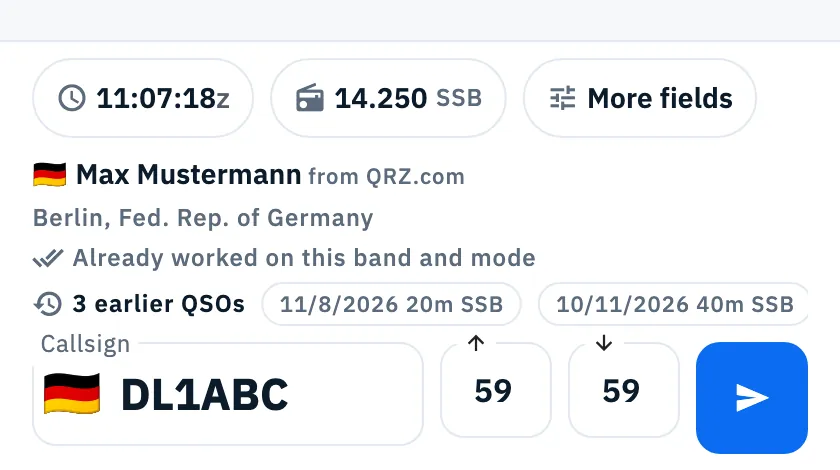
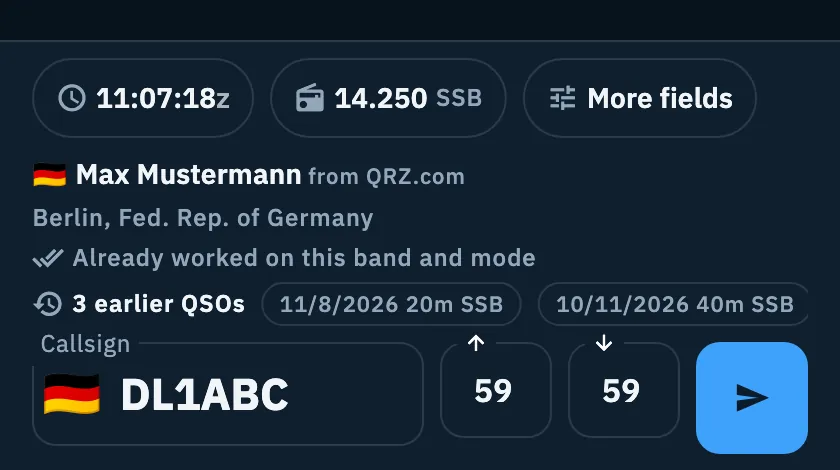
The name is looked up only once the callsign has at least 3 characters, with at least one letter and one digit. If you only change the prefix or suffix (from DL1ABC to DL1ABC/P), name and earlier QSOs stay: it is the same station. /MM, /AM and prefixes the app does not know get no flag.
When room is short, the line gets shorter:
- Phone with the keyboard open: two lines at most; a duplicate or Already worked on this band and mode takes the place of the list of earlier QSOs.
- Phone in a contest (bar on two lines): a single line with flag, country and the most important fact (duplicate, already worked, or the number of earlier QSOs). The rest is in the station sheet.
With no callsign, after a save the line shows the QSO just saved for a few seconds, with the cloud icon until it is synced.
Duplicates
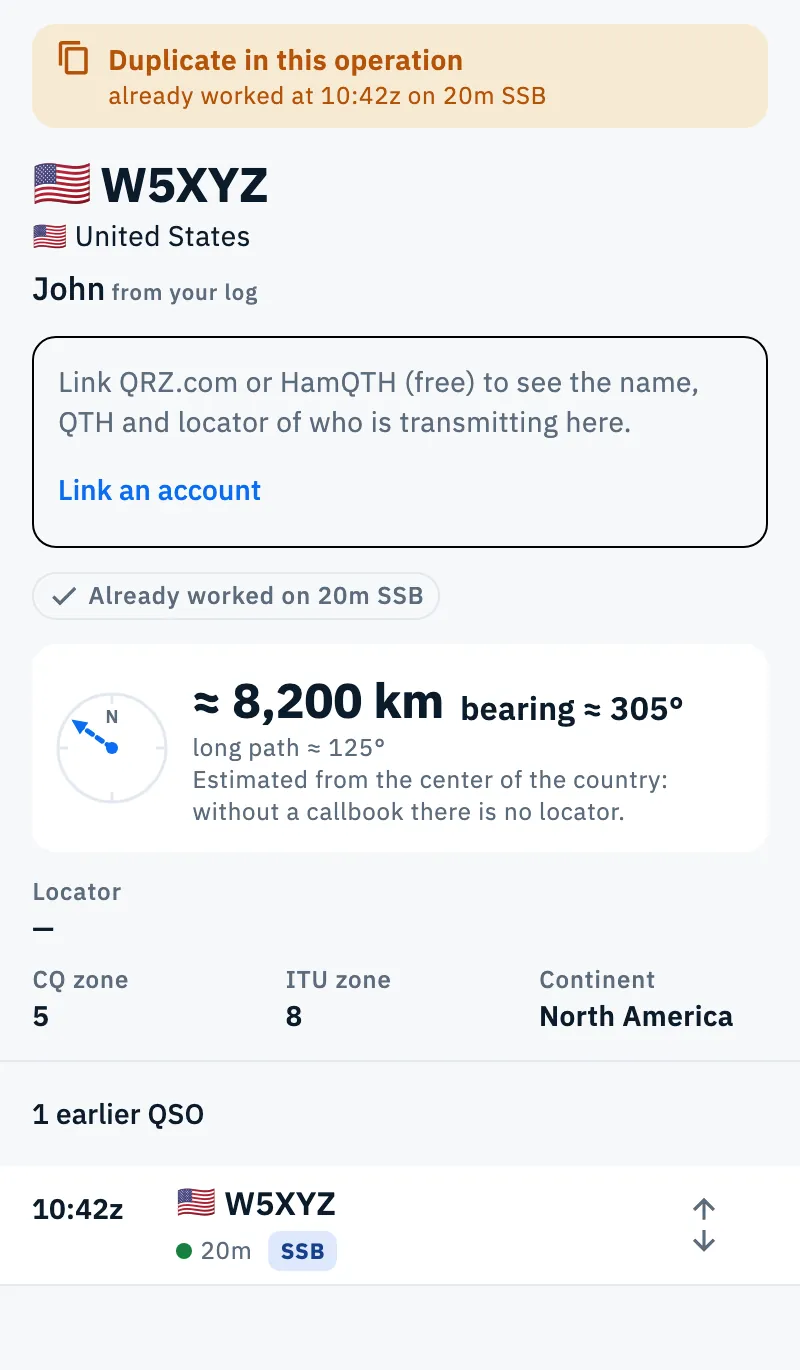
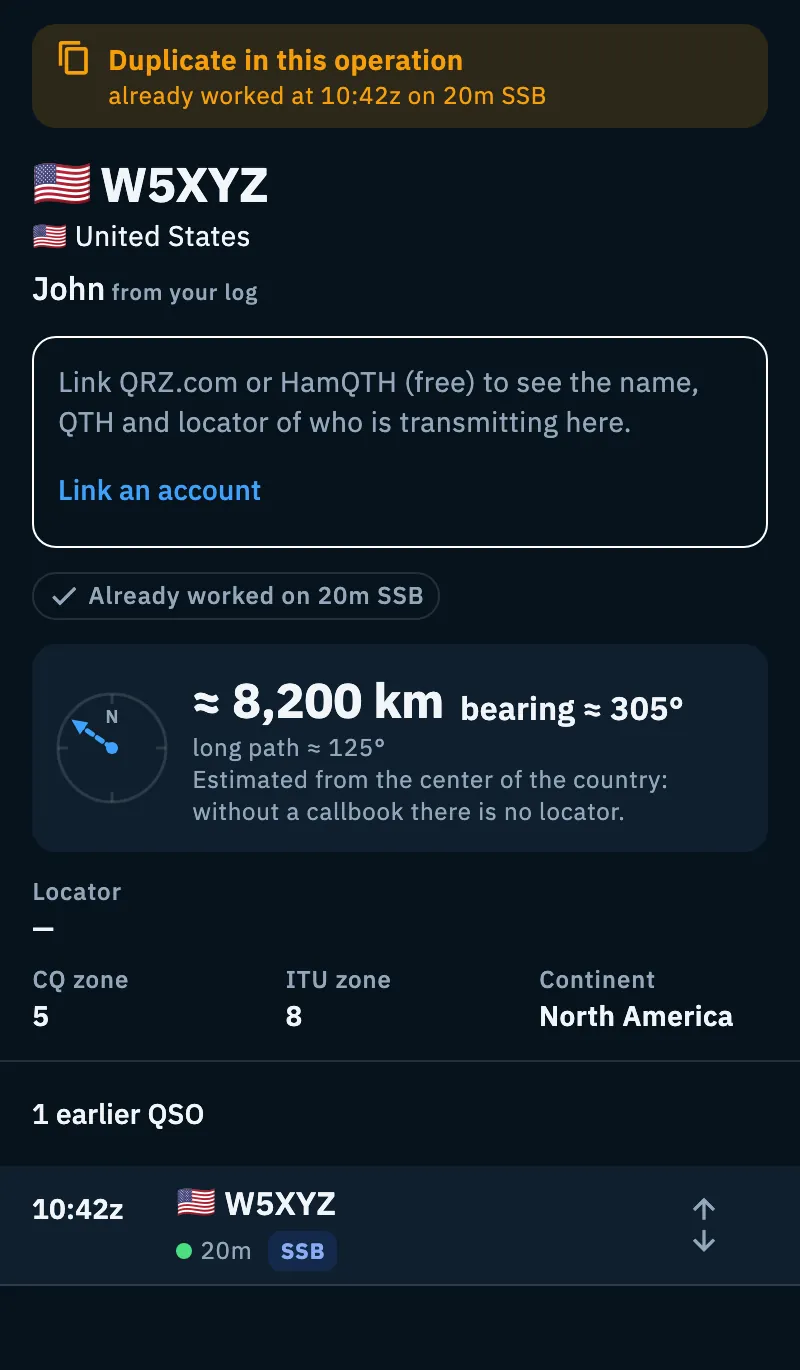
If the QSO you are typing repeats one already made, a highlighted band shows above the fields: Duplicate in this operation, with the earlier QSO: «already worked at 14:02z on 20m SSB». The check runs again at every change of callsign, band, mode or time. You can still save: it is up to you whether to log it anyway.
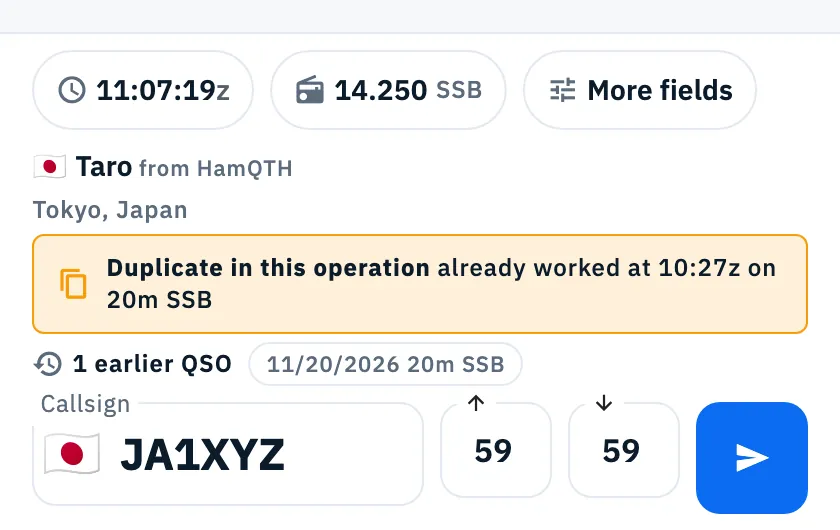
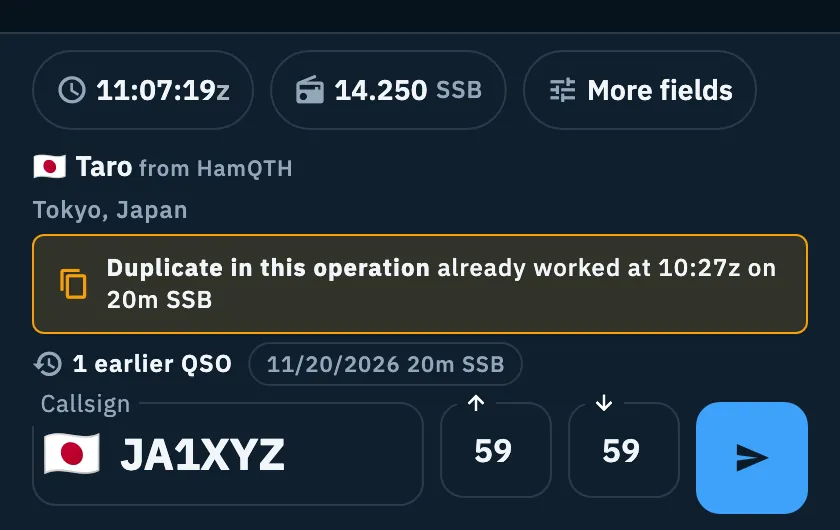
What counts as a duplicate depends on the rule of the operation:
| Rule | When the QSO is a duplicate |
|---|---|
| No check | Never: no duplicate warning |
| Once across all bands | The same callsign, on any band and mode |
| Once per band | The same callsign on the same band |
| Once per band and mode (default) | The same callsign on the same band and in the same mode |
- Where the app looks: in the QSOs of the operation. In an activation with a POTA, SOTA or WWFF reference it looks in the UTC day of the QSO, among the QSOs made from those references, in any operation: as the program counts it, a day in a park is one activation even when it is split over two operations.
- Mode: USB and LSB both count as SSB.
- Callsign: compared exactly: DL1ABC/P is not DL1ABC.
- No band: when the rule looks at the band and the QSO has none, the exact frequency counts.
To change the rule:
- For one operation: open Operation settings, section Duplicate check, and pick one of the four options (see The operation page).
- For new operations: in Logbook settings, section Logging, pick the option under Dupe check in new operations (see Logbook settings). It applies to operations created from now on; existing ones keep their rule.
Where name and QTH come from
The app asks several sources for the name, in this order of priority:
- your linked callbook: QRZ.com first, then HamQTH for what is missing;
- your log (earlier QSOs with that station);
- the data of the spot you started from (the POTA, SOTA or WWFF activator).
The first name that arrives shows at once; if a more important source answers later, the name is replaced. QTH, locator and state missing from the best source are taken from the others. A source that does not answer is skipped.
| Written next to the name | Where it comes from |
|---|---|
| from QRZ.com | Your QRZ.com account |
| from HamQTH | Your HamQTH account |
| from your log | An earlier QSO with that station |
| from POTA, from SOTA, from WWFF | The spot of the activation |
| entered by you | The name you typed |
- Saving does not wait for the name: a QSO saved without a name is completed as soon as the sources answer, even if you have already closed the panel. In the QSO detail, offline, the name reads «filled in when you are online».
- A name you type in More fields → Name is never replaced.
- Portable, mobile or abroad stations (/P, /M, EA8/…): the callbook only knows their home, so its locator is not saved in the QSO.
The callbook
The callbook is asked with your own account: link it in Profile → Linked services (see QRZ.com and callsign lookup). QRZ.com without a subscription gives name and QTH but no locator; HamQTH gives it and is free. With both linked, HamQTH fills in, field by field, what QRZ.com does not give. Answers stay on the device: a station found is not asked again for 7 days, one not found for 1 day. Without a callbook, names come only from the log and the spots.
If no callbook is linked, the app offers one where it would help:
- In the bar, only once per device, after a QSO saved without a name: the Names, automatically card («Link HamQTH (free) or QRZ.com: name and QTH arrive as you type.») with Link, Don't show again and the X. Link opens Linked services; when you come back, what you were typing is still in the bar. The X closes it for now, Don't show again for good and on all your devices.
- In the station sheet: «Link QRZ.com or HamQTH (free) to see the name, QTH and locator of who is transmitting here.» with Link an account.
- In the path of a QSO: «Link QRZ.com or HamQTH to see where the station is.»
To get the invite of the bar back, in Linked services, section Callsign lookup, turn on Suggest linking a callbook.
The station sheet
The sheet gathers everything the app knows about the callsign you are typing.
- Type the callsign in the bar.
- Tap the station line above the fields. On phone and tablet the sheet opens from the bottom; in the desktop window you also see it in the right column of the log, which shows the station as soon as you start typing (when the window is narrow, or if you closed it with its X, the column becomes a strip: click it to open it).
- Scroll through the sections. On the sheet, Log a QSO at the bottom puts the callsign in the bar.
The sheet does not change the QSO you are typing. The sections are always in the same order, and each one shows only when it has data:
| Section | What it shows |
|---|---|
| Duplicate | Only in the desktop column, at the top: the same band as in the bar |
| Who it is | Callsign, flag and country, name and QTH with their source, the callbook photo |
| What is new for you | New country, New on 20m, New in CW or Already worked on 20m CW |
| Distance and bearing | The compass, the distance, the bearing and the long path |
| Facts | Locator, Local time, CQ zone, ITU zone, Continent |
| Confirmations | QSL via, LoTW and eQSL, the link to the callbook profile |
| Earlier QSOs | 3 earlier QSOs with the latest ones, or «No QSOs with this station in the log» |
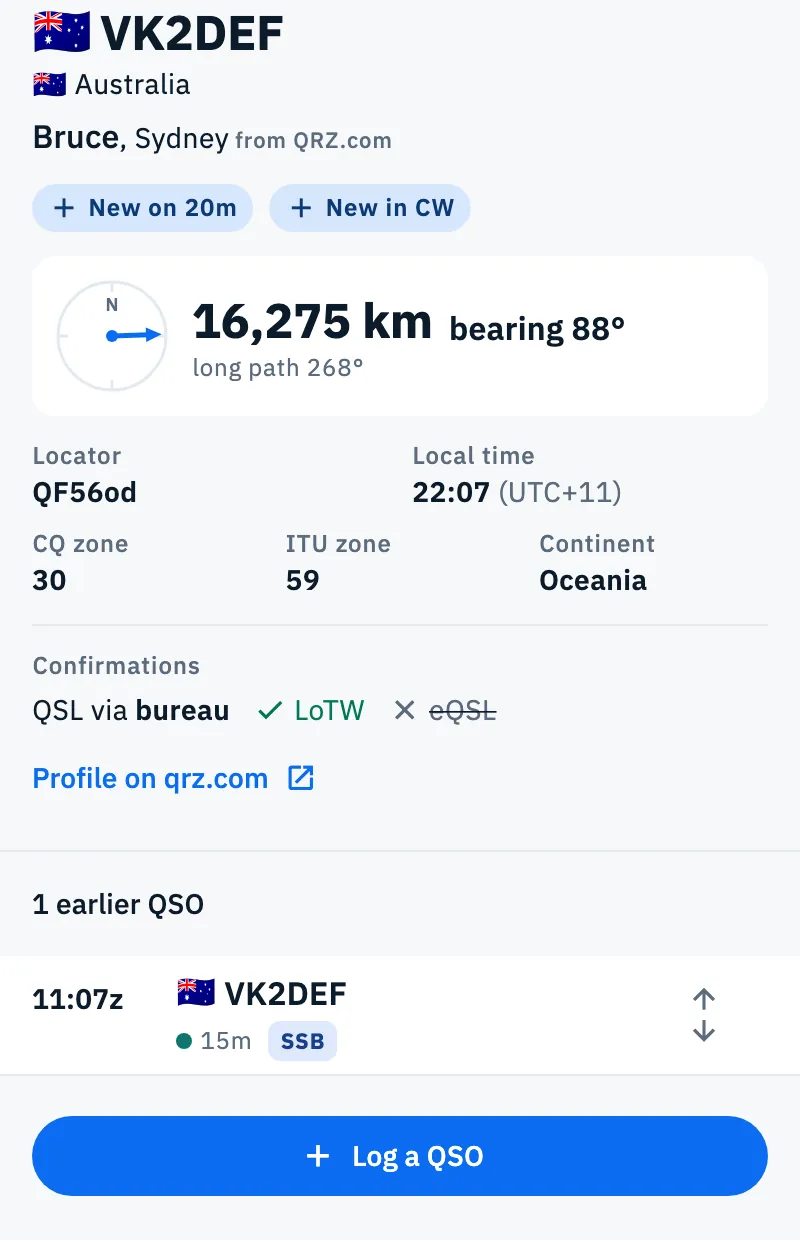
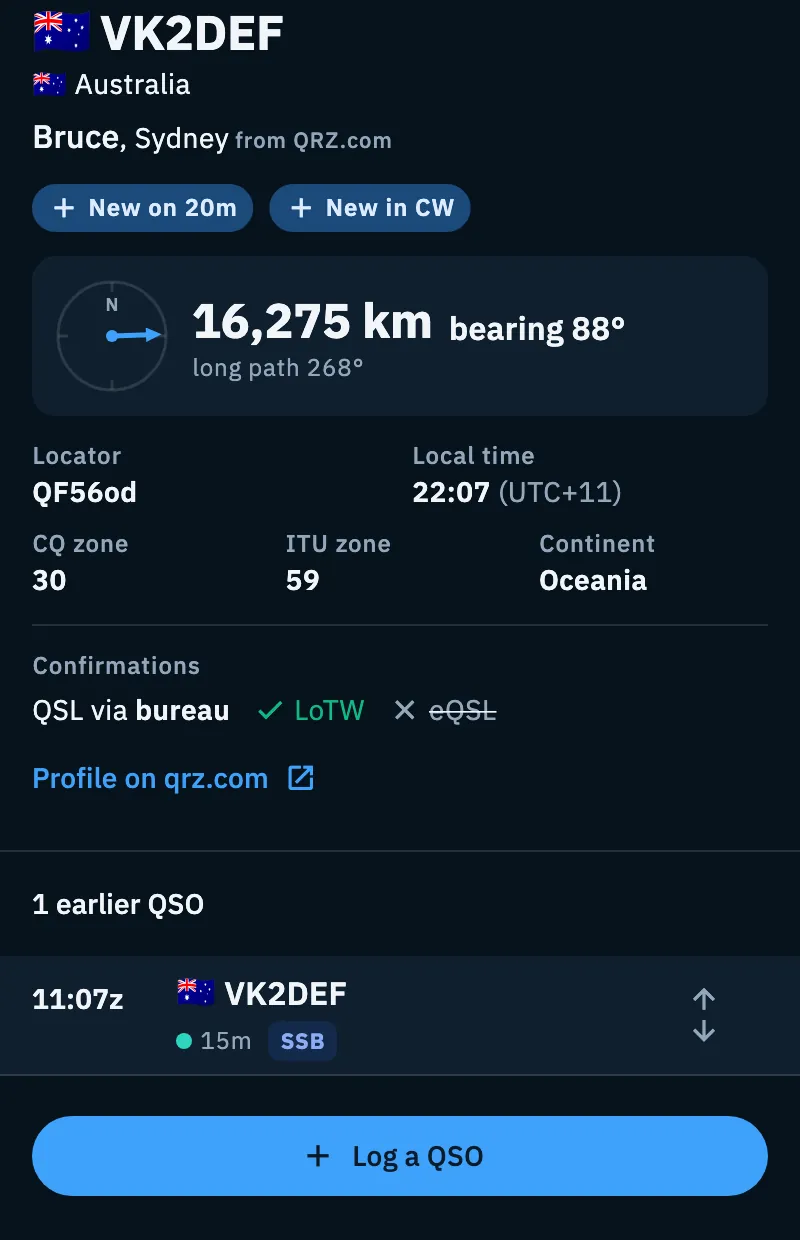
Who it is. The callbook photo, when there is one, is on the right: tap it to open the profile in the callbook. If the station is transmitting away from home, under the name you read «Home in Bolzano. Now transmitting away from home.» (or «from another country.»). If you have a callbook linked but no source knows the name: «Name not found in your callbook or in the log». Without a callbook, the invite to link one takes the place of the name. While the callbook answers you see grey placeholders in place of its data; country, zones, local time and news come at once, from the device.
What is new for you. News is counted on the whole log, not only on the operation, and by DXCC country, with the band and mode set in the bar:
- New country (green): you have never worked that country. It shows alone.
- New on 20m and New in CW (blue): you have worked the country, but not on that band or not in that mode.
- Already worked on 20m CW (grey): nothing new, you have already worked that country on this band and in this mode.
If you have worked the country on the band and in the mode, but never together, nothing shows.
Distance and bearing. They start from your location: the locator of the operation, else the one of its station profile, else the park or summit you are activating, else the location of the operation (without an operation, the default station profile). Under the bearing there is always the long path. The distance is in the unit you chose (see Language, theme and units).
When the station's locator is missing, or the station is away from home, distance and bearing are estimated: they have «≈» in front, the compass arrow is dashed and a line says where the estimate comes from and why.
| Estimate | Why |
|---|---|
| Estimated from the center of the country or Estimated from the center of the state | «the callbook gives no locator», «without a callbook there is no locator» or «away from home the callbook locator does not apply» |
| Estimated from the home in the callbook | «away from home the locator does not apply» |
If the app does not know your location you read «Distance and bearing need your location.»: tap Set your locator and type it in the operation settings; the sheet updates by itself.
Facts. Next to the Locator you may see «away from home» or «not in the callbook». The Local time is the station's time now, with its offset from UTC and daylight saving time; it has «≈» in front when estimated, for example in a country with several time zones and no precise location.
Confirmations. From the callbook: QSL via, then whether the station uses LoTW and eQSL.cc: «Uses LoTW» with a green tick when it does, «Does not use eQSL» struck through when it does not, nothing when the callbook does not say. The Profile on qrz.com (or hamqth.com) link opens its page. If you linked only QRZ.com without a subscription and the locator is missing, the sheet suggests HamQTH: «QRZ.com without a subscription gives no locator: HamQTH does, and it is free.» with Link HamQTH.
The DXCC country
The app recognizes the DXCC country of every callsign offline, with AD1C's country file (cty.csv) included in the app, and takes portable prefixes into account (W6/K1ABC). From it the app gets the flag, the country name in the app's language, the continent, the CQ zone and the ITU zone.
- In the bar and in the station sheet: flag and country.
- In the full QSO form (More fields): Country (DXCC) with the DXCC number, and the CQ and ITU zones.
- In the detail of a spot: Country, Continent, CQ zone and ITU zone (see Opening a spot).
A callsign the file does not recognize has no flag and no country; in the statistics it goes under Unknown country. The file is the one of the app version you use: a new country or prefix comes with an update.
The US state
For a station in the United States (USA, Alaska, Hawaii) the app proposes the state, in this order: the one you picked, the one of the spot (a POTA park that lies in a single state), the one from the callbook or the log. For Alaska and Hawaii the country is enough.
- Type a US callsign: when the state is known, a chip with the state's flag and code shows in the row of chips of the bar.
- Tap the chip (or More fields) to open the full form.
- Under State (USA) check the value, marked prefilled when you did not pick it. Tap the field to pick another state (when empty, the field reads Pick the state); None drops your pick and the prefilled state comes back.
The state counts for the grid of US states worked (see Countries and US states worked).
The station spotted on the frequency
When you type a frequency, or the connected radio stays on a frequency, the app proposes the station spotted most recently there in the last 10 minutes, of any program, with its reference: Spot on this frequency, «Fills in callsign, reference and name».
- Type the frequency or tune the radio.
- Tap the suggestion row. With a keyboard, press Ctrl + Enter (⌘ + Enter on a Mac), Use the suggestion.
- Callsign, reference and name go into the bar and the cursor moves to the reports. Frequency and mode of the QSO stay yours.
- If you have already worked that station on that band in the operation in use, the row says Worked (or Worked today).
- The X closes the suggestion. A station closed or just saved is not proposed again until the frequency changes.
- Your own callsign is never proposed, and there is no suggestion when you log a past QSO.
- For a moment after it shows or changes station (300 milliseconds), a tap does nothing: so you do not take one station instead of another.
- On the phone the row is above the fields, on two lines; in the tablet panel and in the desktop window it is under the fields, on one line. With mouse and keyboard, the key to press is written in the row.
The suggestion comes from the spots server: it needs the network. If the server does not answer, nothing shows.
Troubleshooting
No name or QTH shows. The name is looked up only from 3 characters with at least one letter and one digit. If no callbook is linked, names come only from the log and the spots: link QRZ.com or HamQTH in Linked services. If the sheet says «Name not found in your callbook or in the log», no source knows that station: type the name in More fields → Name.
The name arrived, the locator did not. QRZ.com without a subscription gives no locator: link HamQTH too, which is free. For stations away from home the callbook locator does not apply and is not used.
Callbook lookups stopped. If the callbook refuses the password, lookups on that callbook stop. In Linked services → Callsign lookup you read «password refused. Link it again in Linked services to resume the lookups.»: link the account again.
Offline. Country, flag, zones, local time, news and earlier QSOs still work. The callbook does not: in the detail of a spot you read «Callbook not reachable offline. I'll try again by myself.», and QSOs saved without a name are completed when the network is back.
Distance and bearing are missing. If you read «Distance and bearing need your location.», tap Set your locator and type your locator in the operation or in the station profile (see Station profiles).
I don't see the duplicate warning. Check the rule in Operation settings → Duplicate check: with No check it never shows, with Once per band and mode a QSO in another mode is not a duplicate. Remember that DL1ABC/P and DL1ABC are different callsigns.