
Linking QRZ.com and callsign lookup
Add your QRZ.com logbook API keys to upload your QSOs, and link QRZ.com or HamQTH to see name, QTH and locator of every station.
FreeUpdated for HamQSO 0.1.19
On this page
In HamQSO, QRZ.com does two separate things: it uploads your QSOs to your QRZ.com logbook, with one API key per station profile, and it works as a callbook, showing the name, city and locator of the stations you hear or work. For callsign lookup there is also HamQTH, which is free. All of this is free in HamQSO.
Opening the QRZ.com page
- Open Profile.
- In the Station and log group, tap Linked services (from the Log tab there is also the ⋮ menu of the operations list → Linked services).
- Tap the QRZ.com card.
At the top you find the Callsign lookup section, below it the Logbook keys section. On tablet and desktop the page has two columns: the accounts on the left, uploads, queue and confirmations on the right.
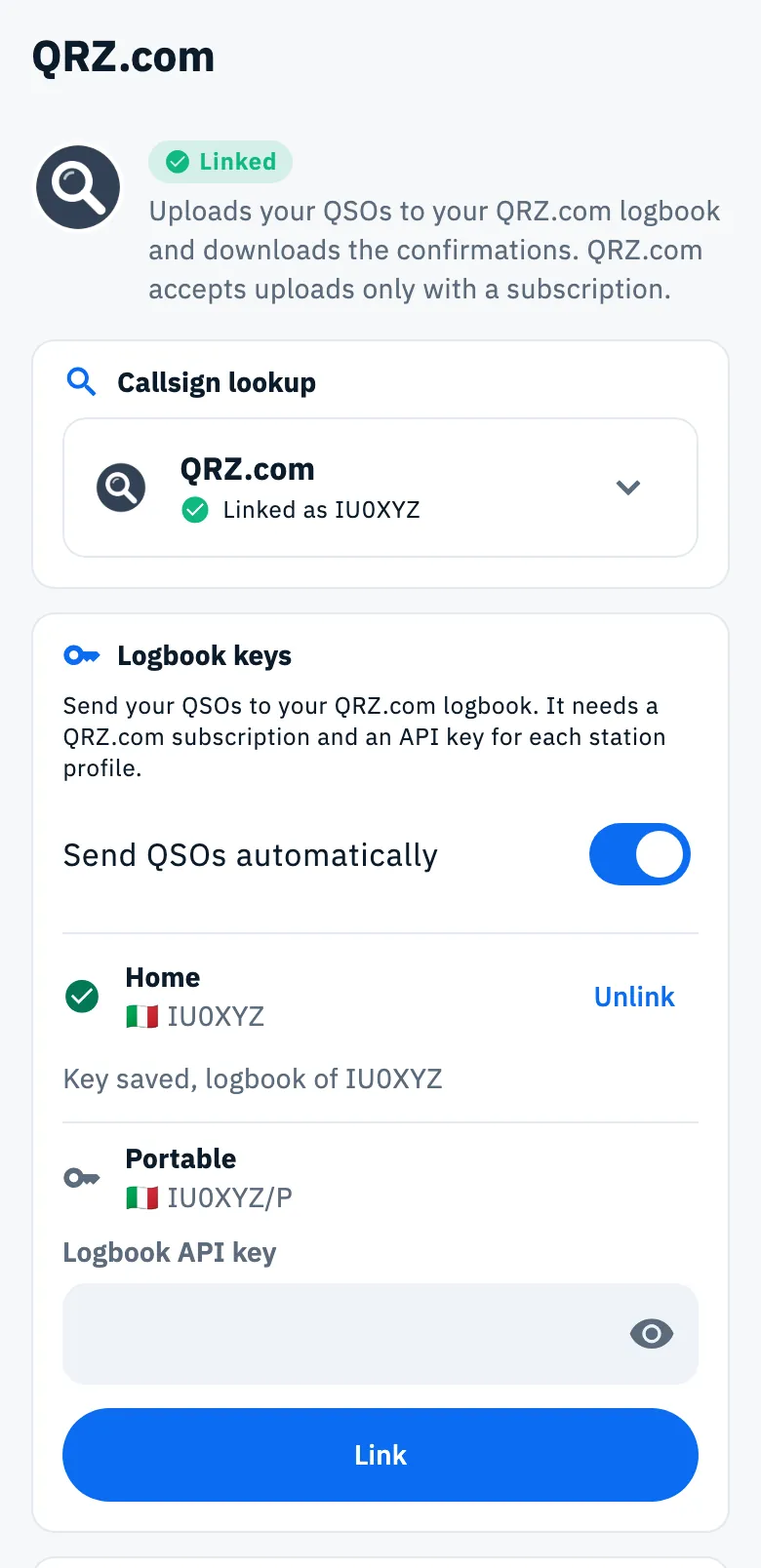
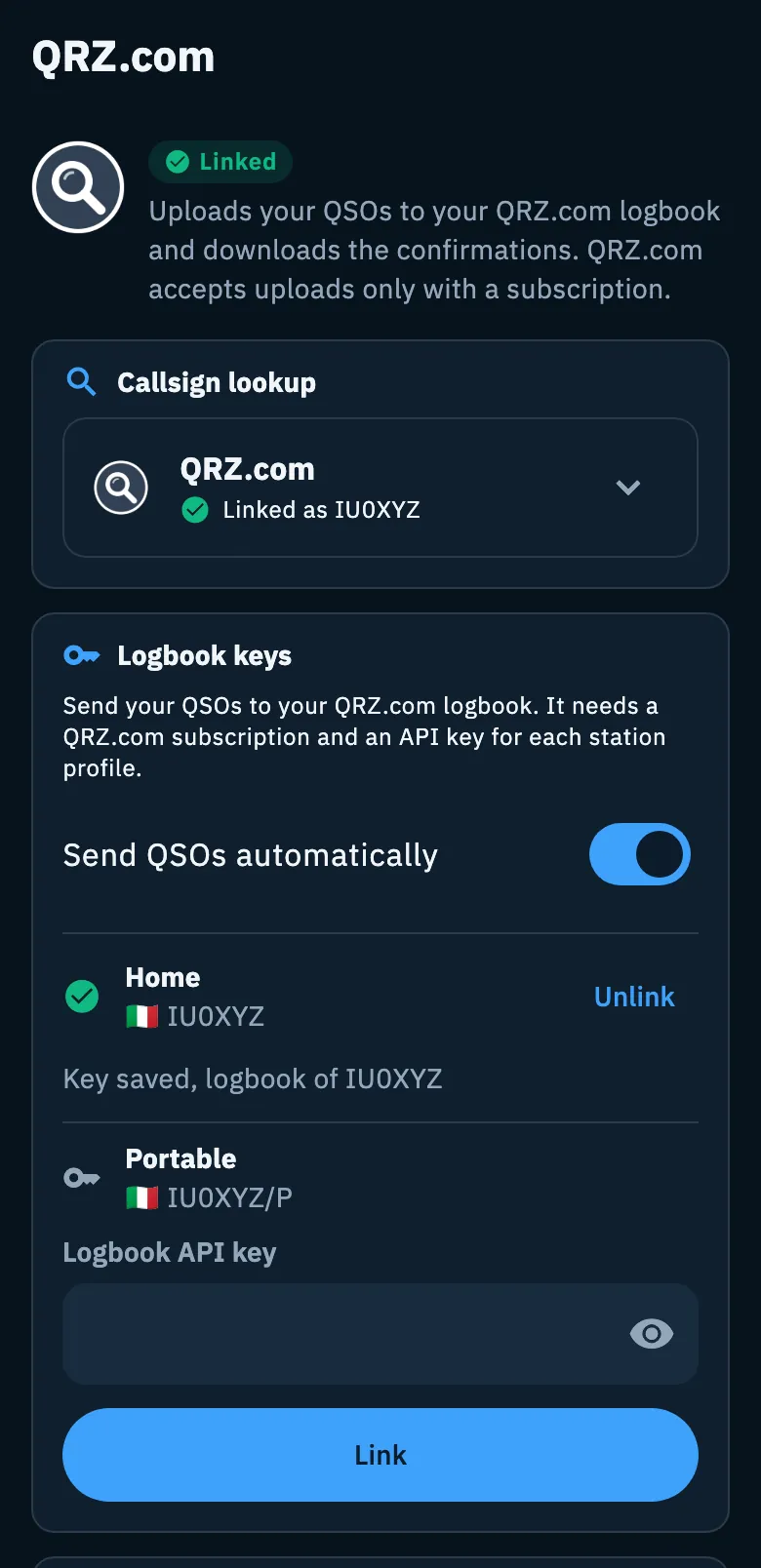
The other parts of the page are explained in Linking QRZ.com, LoTW, eQSL.cc and HRDLog, Automatic uploads and waiting QSOs and Importing from QRZ.com.
Uploading QSOs to your QRZ.com logbook
QRZ.com gives one API key per logbook, and each logbook belongs to one callsign. That is why in HamQSO you add one key per station profile: the QSOs of a profile without a key do not go to QRZ.com.
- On QRZ.com open Logbook, then Settings, and copy the logbook API key. The Next step box on the page reminds you of this while no profile has a key.
- In HamQSO, in the Logbook keys section, tap the Logbook API key field of the station profile (while no profile has a key, Add the API key in the Next step box takes you there too).
- Paste the key and tap Link.
- HamQSO tries the key on QRZ.com right away and tells you at the top of the page how it went, for example "Linked: QRZ.com accepted the credentials.".
- Repeat for every station profile with another callsign (for example IU0XYZ/P).
Once linked, the profile shows a green check and "Key saved, logbook of IU0XYZ", with the logbook callsign QRZ.com reported. The key field is hidden: the Show password / Hide password eye makes it readable while you type.
If you have no station profile yet, the section says "Create a station profile first.": see Station profiles.
Options
| Option | What it does | Default |
|---|---|---|
| Send QSOs automatically | On: QSOs go by themselves. Off: you upload them with Upload now or in bulk. Until a key is there it is off and says "Turns on when the API key is there". | On |
| Unlink (next to the profile) | Asks "Unlink QRZ.com?" and removes that profile's key from this device. QSOs already uploaded stay on QRZ.com. | — |
How QSOs are sent, the queue and the waiting QSOs are explained in Automatic uploads and waiting QSOs.
Callsign lookup with QRZ.com
With your QRZ.com account HamQSO shows the operators' name, city and locator. Full data needs QRZ's XML subscription: without it QRZ gives only part of it (for example no locator).
- On the QRZ.com page, in the Callsign lookup section, tap the QRZ.com card to open it.
- Check QRZ callsign or username: it is already filled with your callsign, if you set it in your profile.
- Type the Password of your QRZ.com account.
- Tap Link.
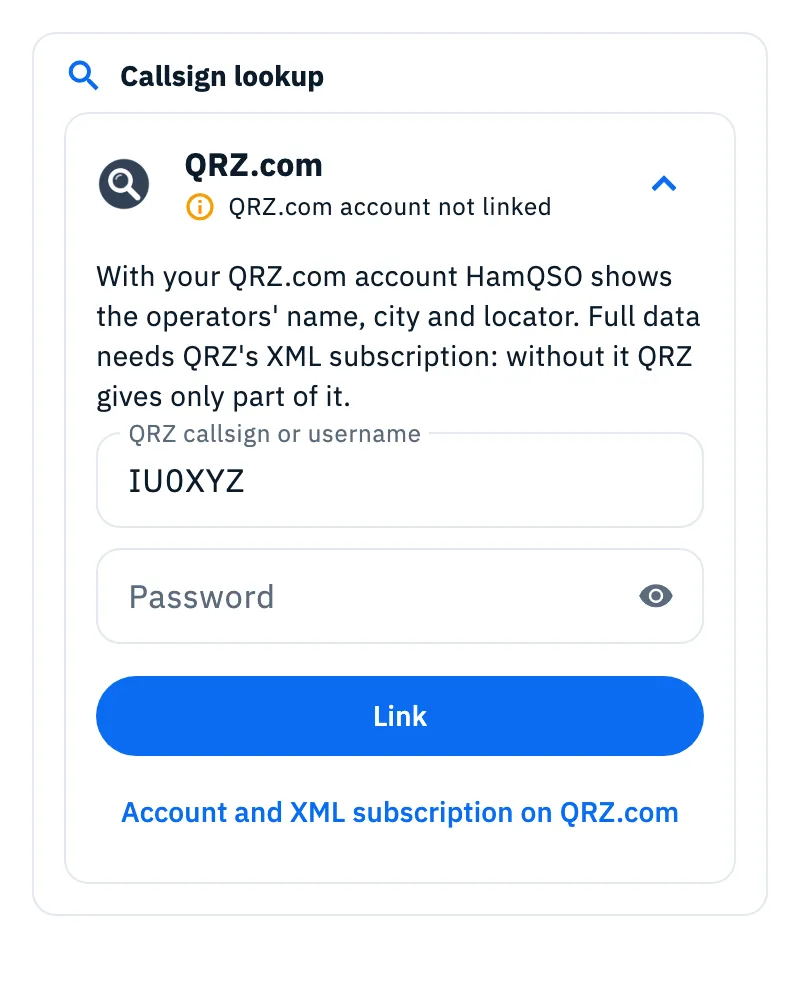
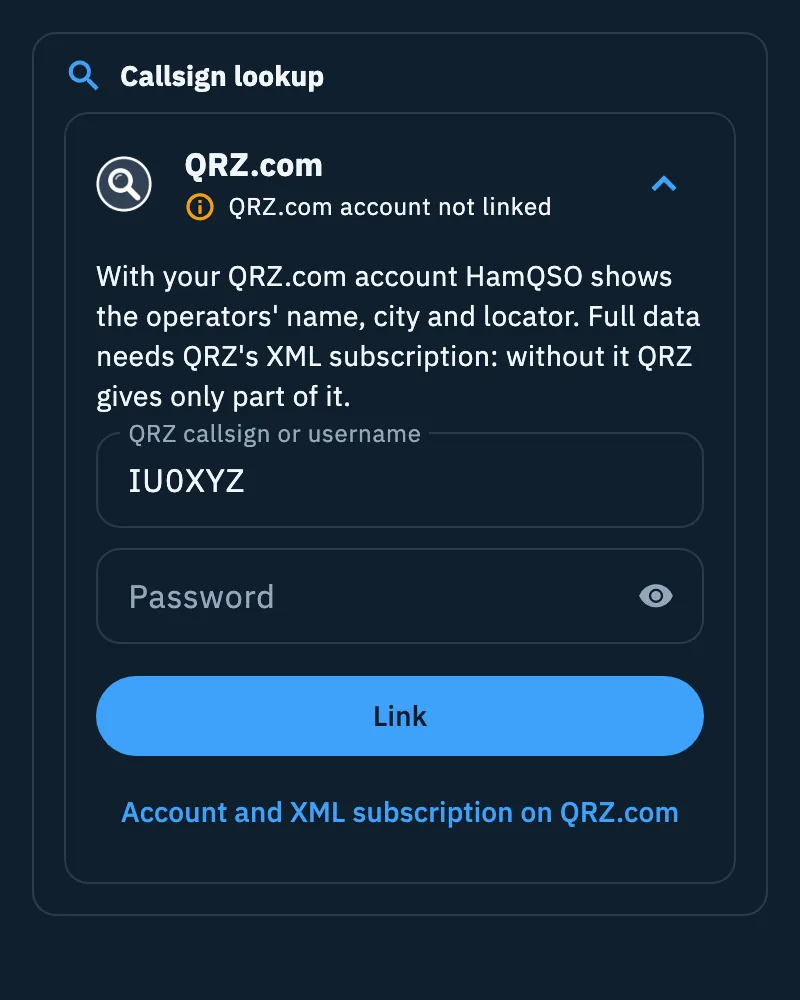
If you have no account or no XML subscription, the Account and XML subscription on QRZ.com link opens the QRZ.com site.
Once linked, the card says "Linked as IU0XYZ" and below it, when QRZ.com reports it:
- "XML subscription active until …" with the expiry date, or
- "No XML subscription: QRZ gives reduced data only".
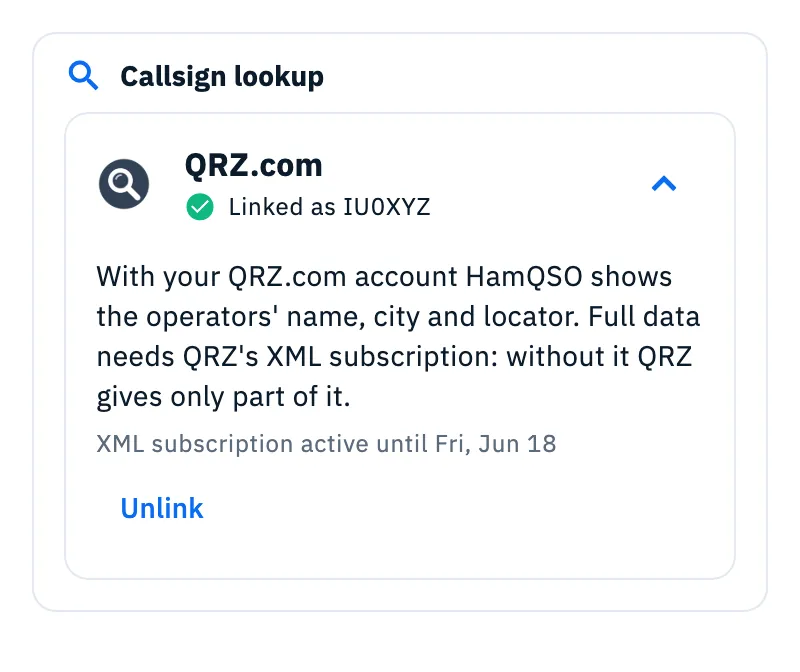
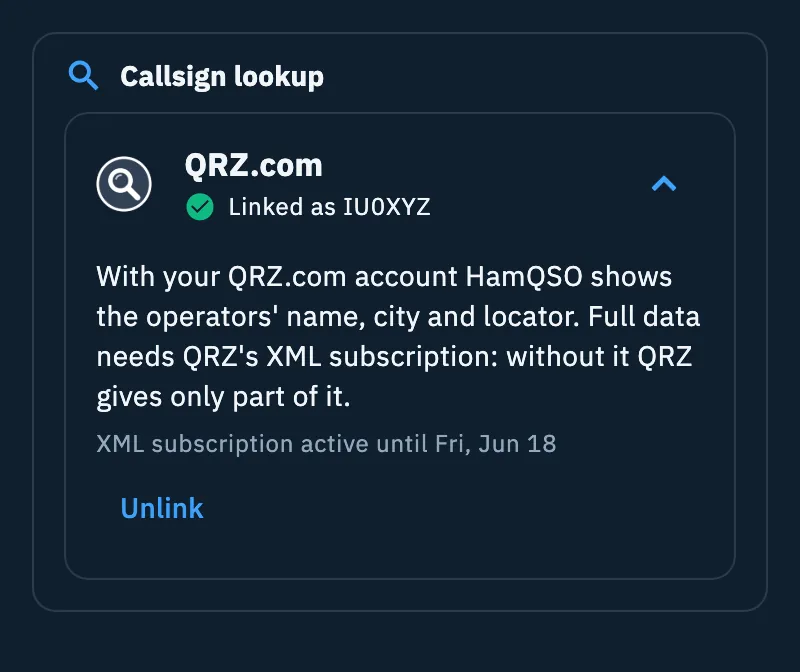
To remove the account, tap Unlink in the card.
Callsign lookup with HamQTH (free)
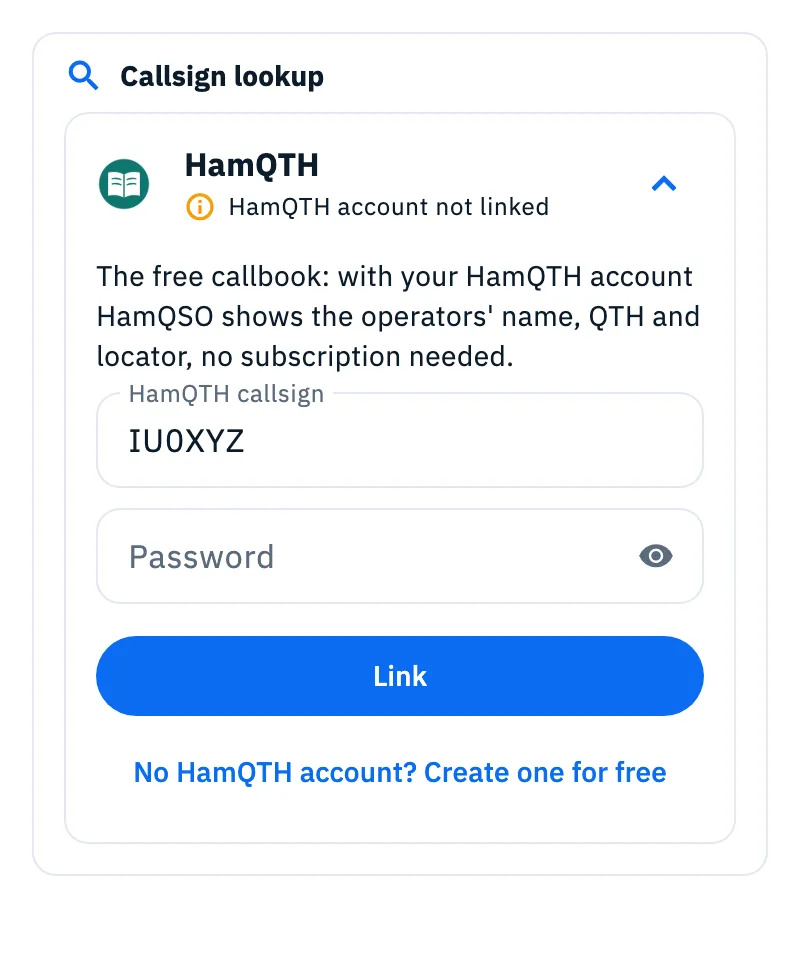
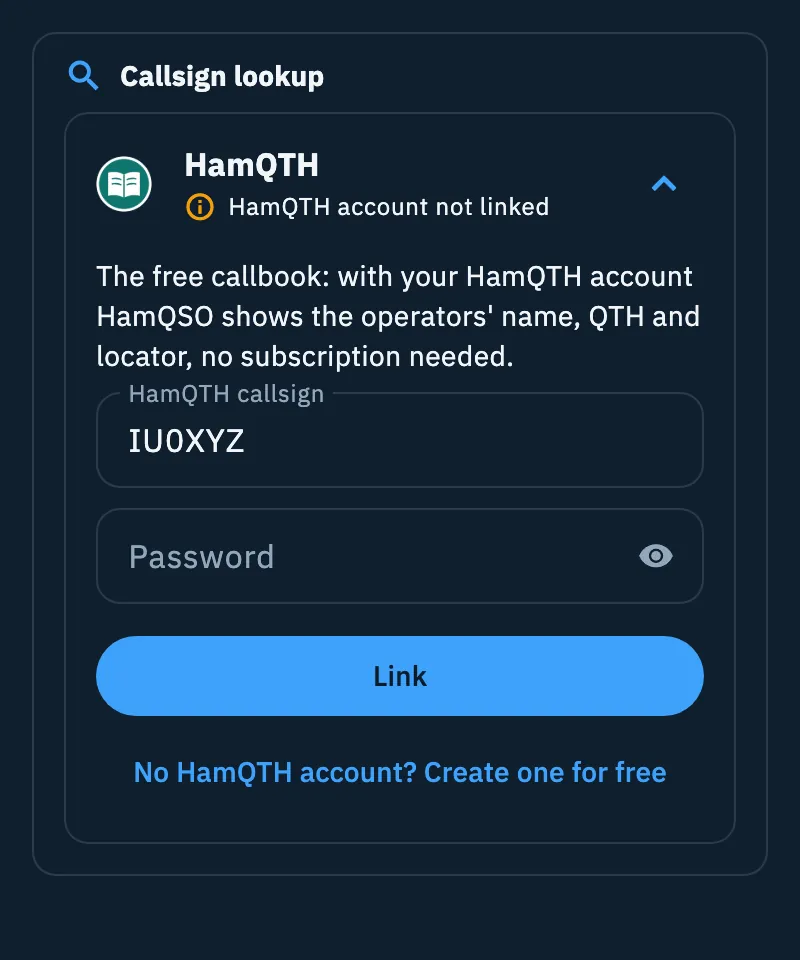
HamQTH is the free callbook: with your HamQTH account HamQSO shows the operators' name, QTH and locator, no subscription needed. It is only for callsign lookup: it does not receive QSOs.
- In Linked services, tap the HamQTH card (right after QRZ.com).
- In the Callsign lookup section, tap the HamQTH card to open it.
- Type HamQTH callsign and Password.
- Tap Link.
If you have no account, tap No HamQTH account? Create one for free. Once linked the card says "Linked as …" and has Unlink.
You can also link QRZ.com and HamQTH as callbooks at the first launch of the app: see The first launch.
Where name, QTH and locator come from
HamQSO asks the callbooks you linked directly, with your own account, without going through the HamQSO servers:
- first QRZ.com, which has the fullest data;
- then HamQTH, only for what QRZ.com did not give, field by field (with QRZ.com without the XML subscription, HamQTH adds for example the locator);
- then your log and the spots. Without a linked callbook, names come only from there.
Answers stay on the device: a station that was found is not asked again for 7 days, one that was not found for 1 day. The data appears in the spots, while you type a QSO and in the log: see Who you are working, and dupes and Opening a spot.
In Linked services, below the service cards, a second Callsign lookup section sums up which callbooks you use and which one is Asked first. Manage accounts (or Link a callbook, if you have none) opens the callbook's page. The Suggest linking a callbook switch, on by default, decides whether the app suggests linking one while you log.
Free and Pro
Linking QRZ.com and HamQTH, uploading QSOs and looking up callsigns is free in HamQSO. The subscription this page talks about is QRZ.com's, on the QRZ.com site.
Troubleshooting
| Message | What to do |
|---|---|
| "Wrong username or password." | Check the callbook username and password (QRZ.com or HamQTH) and tap Link again. |
| "QRZ.com is not answering. Try again shortly." / "HamQTH is not answering. Try again shortly." / "QRZ.com does not answer. Try again shortly." | The service did not answer when linking the callbook or the key: check the network and try again later. |
| "QRZ.com refused the credentials." (sometimes with QRZ.com's own words) | The logbook API key is not valid: copy it again from QRZ.com (Logbook → Settings) and paste it again. |
| "A QRZ.com subscription is needed" | The key is right but the XML Logbook Data subscription (or higher) is missing on QRZ.com. Once it is active, tap I renewed, check. |
| The Credentials refused pill on the QRZ.com card in Linked services, and "Wrong username or password." in the callbook card | QRZ.com refused the saved password (for example you changed it on qrz.com): lookups stop, so that too many wrong logins do not lock your account. Tap Unlink and link again with the right password. |
| "… password refused. Link it again in Linked services to resume the lookups." in the Callsign lookup section of Linked services | As above, for the callbook shown: unlink it and link it again. |
| "Callbook not reachable offline. I'll try again by myself." in a spot's detail | You are offline: the lookup starts again by itself when the network is back. See Using HamQSO offline. |