
Adding an antenna
Save your antennas once, with type, bands, gain and height, and give each radio its preferred antenna for your operations and QSOs.
FreeUpdated for HamQSO 0.1.19
On this page
You save an antenna once in My station and then pick it in every operation: its name goes into your QSOs as MY_ANTENNA. Only the name is needed; type, bands, gain, height and note are optional. Each radio can have a preferred antenna, which comes along by itself when you choose that radio. All of this is free.
Opening the editor of a new antenna
- Open Profile and tap My station (the other ways in are in My station: radios and antennas).
- On a phone or tablet, switch to the Antennas tab.
- Tap Add antenna. If you have no antennas yet, the tab says "No antenna saved" and the button is Add your first antenna. On the web, in a wide window (1200 points or more), radios and antennas are two columns side by side with no tabs, and the button at the top of the Antennas column is Add.
You reach the same editor from New antenna, at the bottom of the list when you choose the antenna of an operation or the preferred antenna of a radio, and from Save to the station when you typed an antenna on the fly in an operation: then the name is already filled in.
On a phone the editor is a sheet from the bottom; on a tablet and the web it is a window in the middle. The ✕ at the top and Cancel leave without saving.
Choosing the type
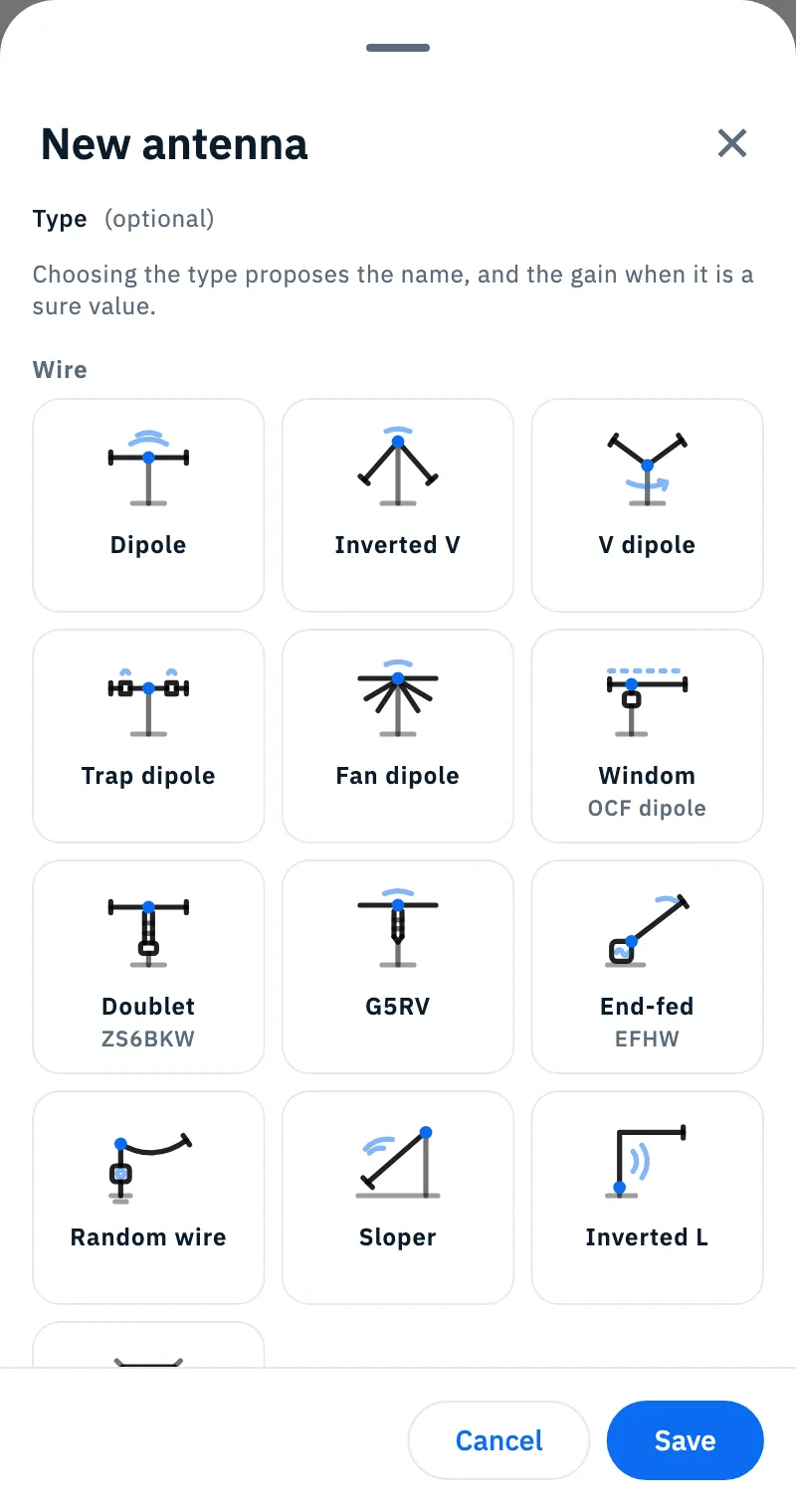
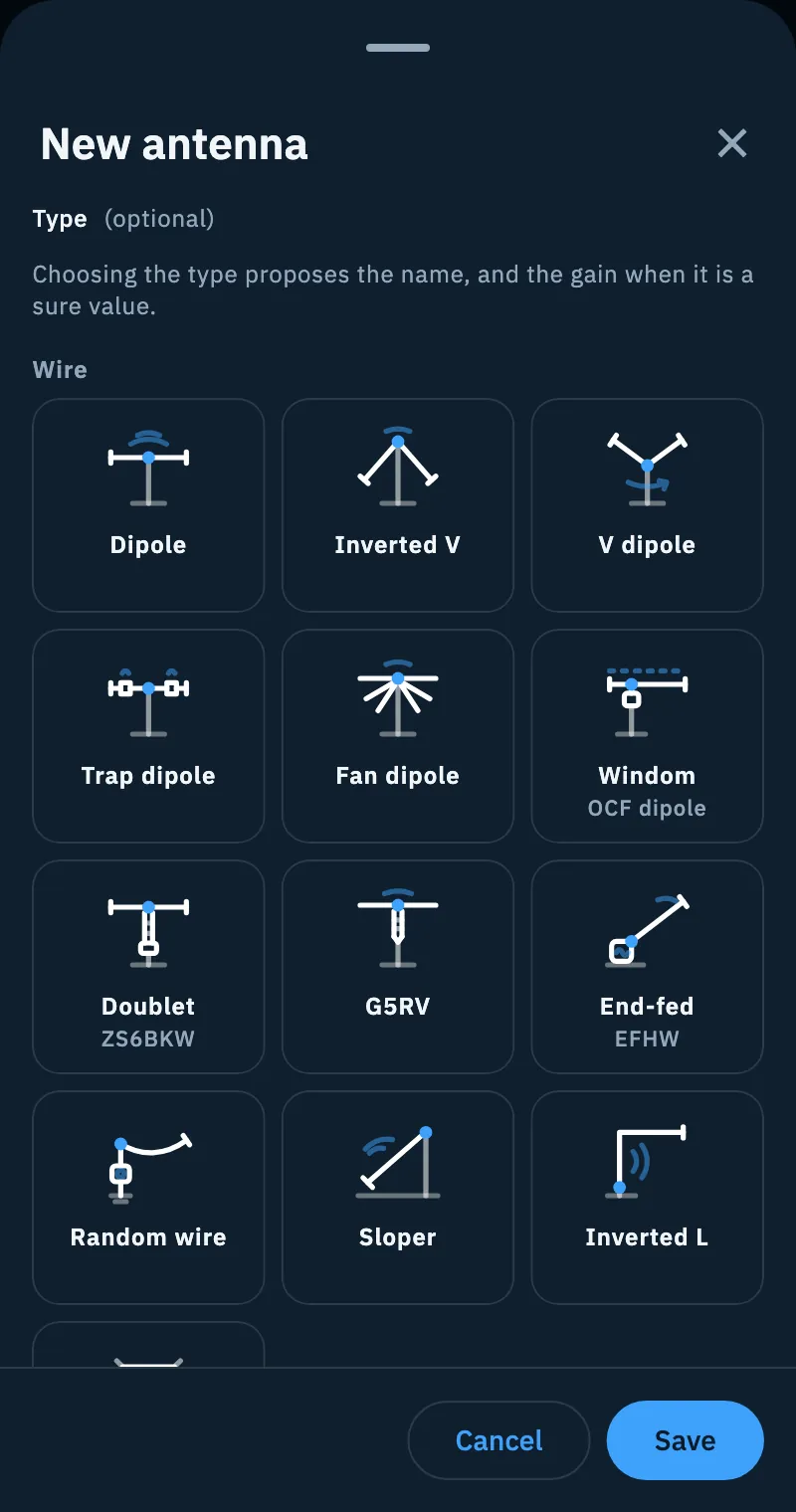
At the top is Type "(optional)", with the help "Choosing the type proposes the name, and the gain when it is a sure value."
- Scroll the grid: the types are grouped in Wire, Verticals, Directional, Loops, Receive only, Mobile and portable and Other.
- Tap the type of your antenna, for example End-fed (subtitle EFHW) or Windom (OCF dipole).
Type names are in English in every language, the way hams use them (Dipole, Inverted V, Yagi, Hex beam, Magnetic loop…). An antenna of a type in the Receive only family (Beverage, EWE, K9AY, Flag and Pennant, Active loop, Mini-whip, Discone) carries the Receive only pill in the editor, the list and the details: it blocks nothing, but if you use it in a coverage test you get a warning (see Running a coverage test).
Once a type is chosen, the grid closes and you see the big icon of the type with its family and the Change type button. Change type opens the grid again; Close the list closes it without changing anything.
You can also choose no type at all: the antenna is saved anyway and shows as "Type not given".
What the type proposes
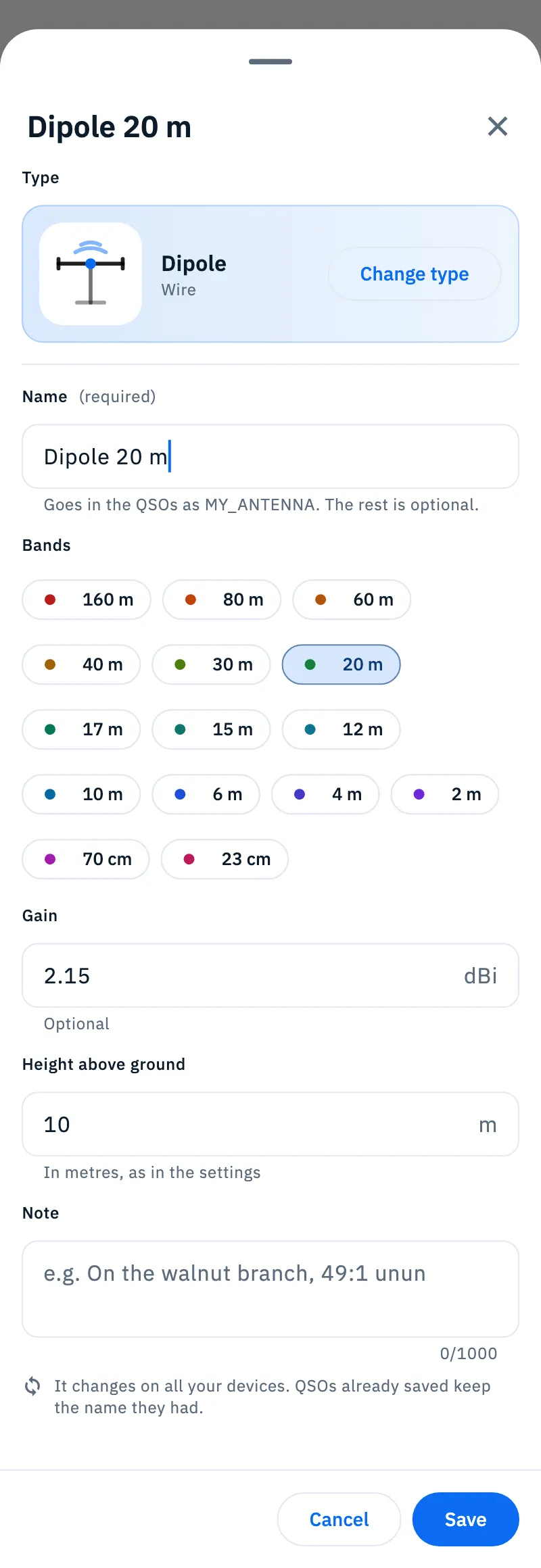
- Name: if the name is empty, the app writes the name of the type (for an end-fed, "EFHW") with the bands you choose, for example "EFHW 40-10 m" or "Collinear 2 m, 70 cm". from the type appears next to the field. Until you touch it, the name follows the bands you switch on and off.
- Gain: only the Dipole has a sure value, 2.15 dBi. You find it already filled in, with from the type and the box "We put in the typical value of the type Dipole. Change it to the one of your antenna."; under the field the help says "Typical for this type". For every other type the gain depends on how the antenna is built, so the field stays empty.
If you change a proposed value, the tag becomes changed with Restore, which puts the type's proposal back.
Filling in the details
| Field | What it does | Notes |
|---|---|---|
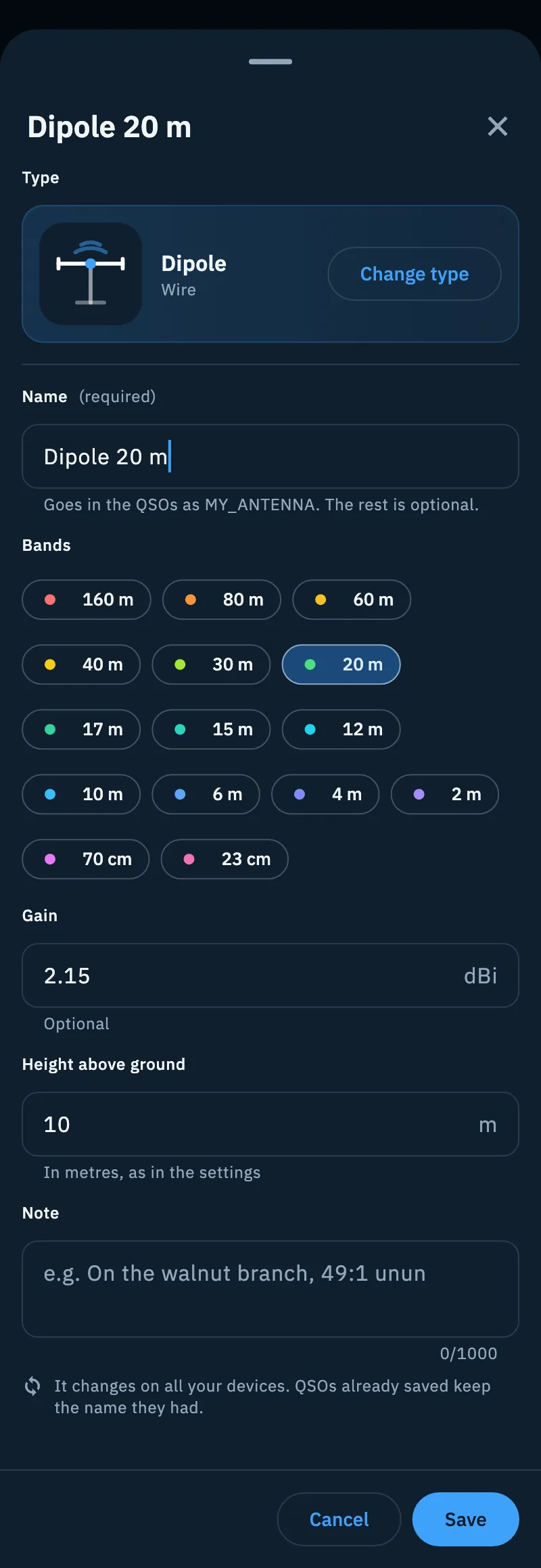
| Name (required) | The name of the antenna, the one that goes into your QSOs as MY_ANTENNA | Up to 200 characters. Hint: "e.g. EFHW 40-10 m" |
| Bands | The bands it works on: tap the pills to switch them on or off | From 160 m to 23 cm |
| Gain | In dBi | Optional, between -20 and 30 dBi |
| Height above ground | The height of the antenna | In metres or feet, as in your units settings; from 0 to 300 m (1000 ft) |
| Note | Anything you want to remember, for example "On the walnut branch, 49:1 unun" | Up to 1000 characters |
Under the name the help reminds you: "Goes in the QSOs as MY_ANTENNA. The rest is optional." At the bottom of the form a line warns: "It changes on all your devices. QSOs already saved keep the name they had."
To save, tap Save. With a keyboard you can also press Ctrl+Enter (⌘+Enter on a Mac) and close with Esc: on the web the line at the bottom of the editor says so ("Esc closes, Ctrl+Enter saves").
A bar at the bottom confirms: "EFHW 40-10 m added" for a new antenna, "… updated on all your devices." for a change. If you added it from My station, the page switches to Antennas and selects it.
Viewing and editing an antenna
- On a phone (and in narrow windows, under 840 points) tapping an antenna opens the editor straight away.
- On a tablet and the web a tap opens the details in the side pane: icon, name, type, the Receive only pill when it applies, then Bands, Gain, Height above ground, Note and Preferred on. Missing values read "Not given" or "None". Tap Edit to open the editor.
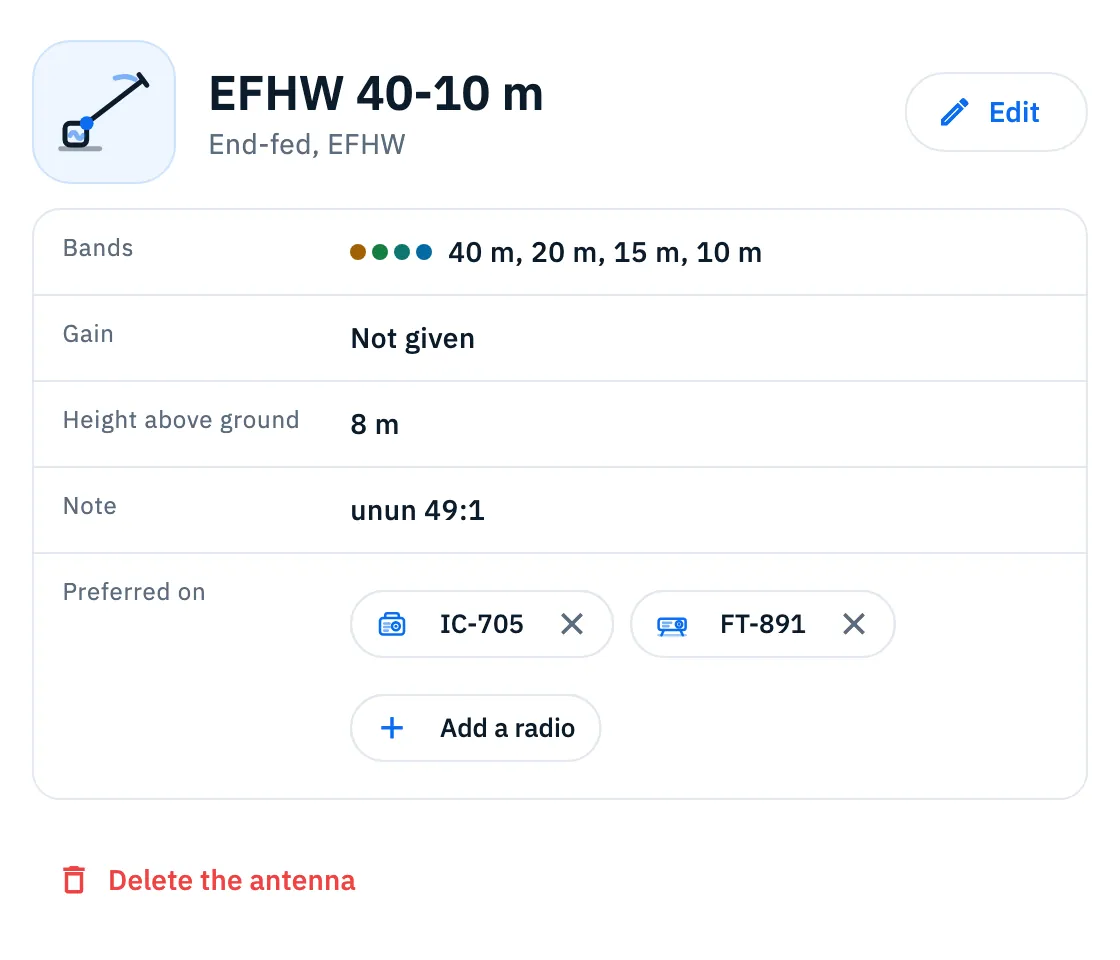
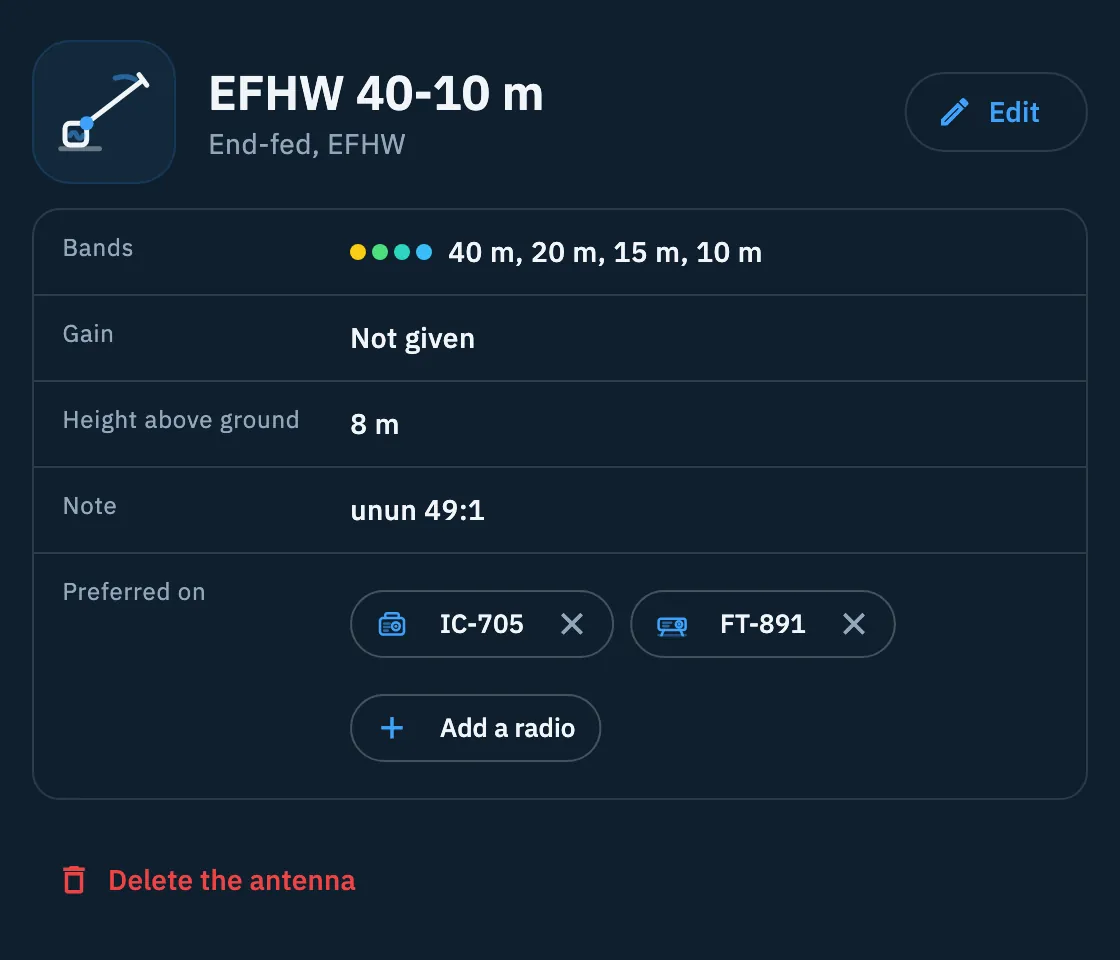
The ⋮ menu of each row ("More actions for …") has Edit, Duplicate (makes "… (copy)" right below), Move up and Move down (when the row can move) and Delete.
The preferred antenna of a radio
Each radio can have a preferred antenna. When you choose that radio in an operation, the antenna comes along by itself and goes into your QSOs as MY_ANTENNA. The same antenna can be the preferred one of several radios. In the antenna list, the row shows it with a star pill, for example "Preferred on IC-705" or "Preferred on 3 radios".
From the radio editor
- Open the radio and tap Edit (see Adding a radio).
- Tap the Preferred antenna field. When there is none it shows "None" and "It is set by itself when you choose the radio".
- Pick an antenna, or No antenna to remove it, or New antenna to create one there and then: once saved, it becomes the preferred one.
- Save the radio.
From the antenna details (tablet and web)
- Open the antenna in the side pane.
- Under Preferred on, tap Add a radio and choose the radio. The list shows only the radios that do not already have this antenna.
- If the radio already had another preferred antenna, the app asks "IC-705 already has Dipole 20 m as its preferred antenna. Replace it with EFHW 40-10 m?": tap Replace or cancel.
Each radio shows as a chip: tap it to open the radio, tap its ✕ ("Remove from …") so the antenna is no longer its preferred one.
In an operation
When you choose a radio for an operation, its preferred antenna becomes the antenna of the operation. If you then tap Antenna to change it, the radio's preferred one is at the top under "The preferred one of IC-705", the others under "The other antennas" (the coverage test works the same way). At the bottom are No antenna, New antenna and Write on the fly, which opens the field "Antenna only for this operation" with Use. How the station of an operation works is in Creating an operation.
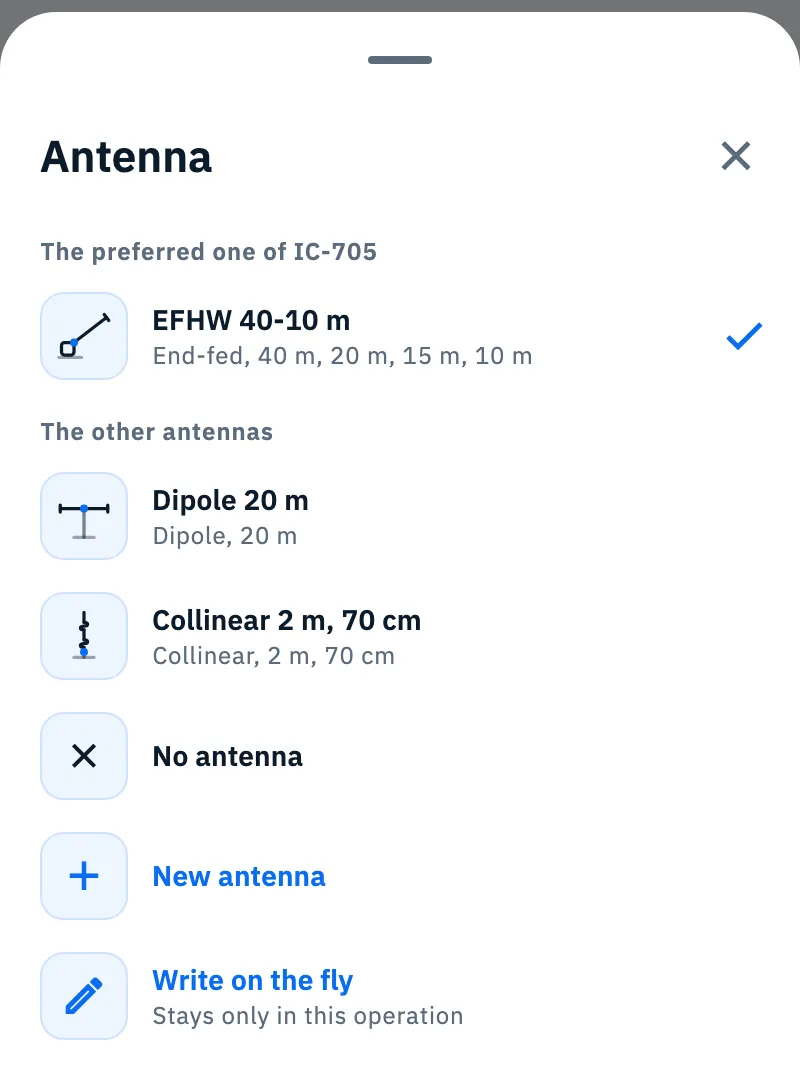
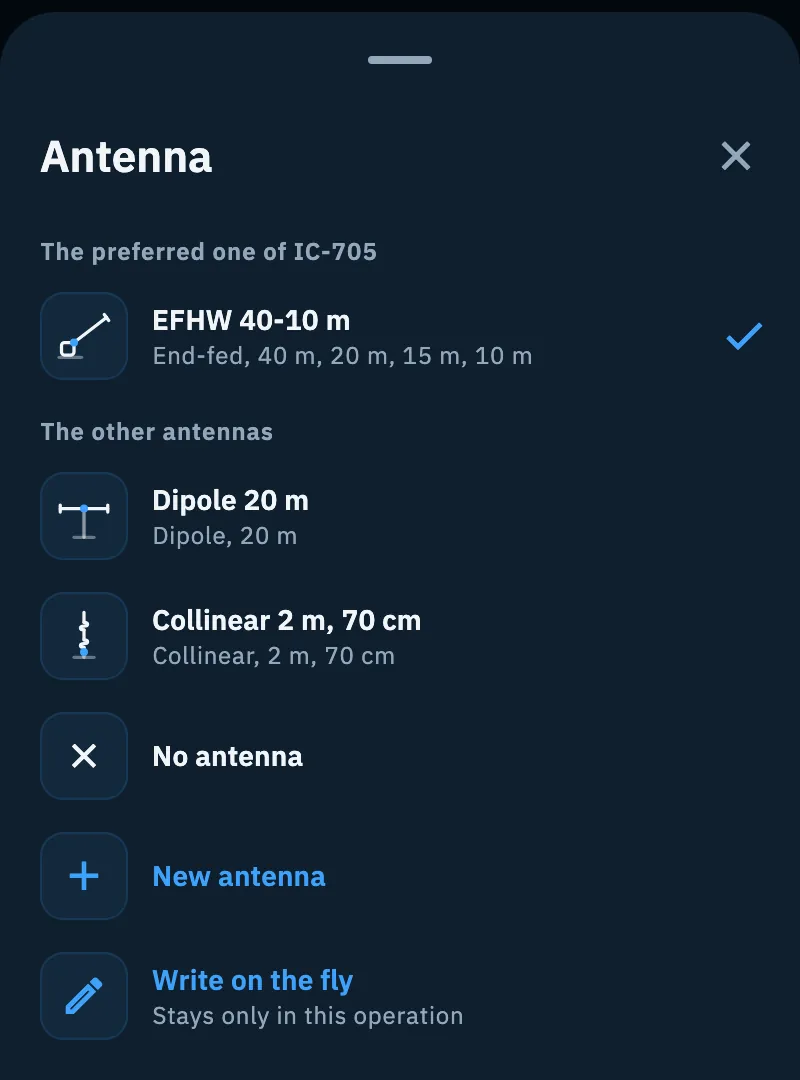
Deleting an antenna
- In the details tap Delete the antenna, or choose Delete from the ⋮ menu of the row.
- The antenna disappears at once and the bar says "… deleted from all devices."; if it was the preferred antenna of some radios it adds "It was the preferred antenna of …".
- Tap Undo in the bar to put it back: it also returns as the preferred antenna of its radios, except those you gave another antenna in the meantime.
On the web, with the columns side by side, Ctrl+Z (⌘+Z on a Mac) undoes the last deletion of the page even after the bar is gone.
Troubleshooting
- "It needs a name: it is what goes in the QSOs as MY_ANTENNA.": you tapped Save with an empty name. Choose a type (the name fills in by itself) or type it.
- "A number between -20 and 30" under Gain: the value is not a number or is out of range. Type the gain in dBi, with a point or a comma.
- "A positive number" under Height above ground: the height is negative, not a number, or above 300 m (1000 ft).
- The radio says "No preferred antenna" although you chose one: the antenna was deleted (deleting it removes it as the preferred antenna of all its radios; only Undo puts it back), or it has not yet reached this device from the one where you created it: when it arrives, it is the preferred one again by itself. Otherwise choose another one.
- Older QSOs still have the old name: that is on purpose, QSOs already saved keep the name the antenna had then.