
The status of a QSO on your services
See whether a QSO is uploaded and confirmed on QRZ.com, eQSL.cc, HRDLog and LoTW, upload or retry it by hand, or keep it off a service.
FreeUpdated for HamQSO 0.1.19
On this page
Every QSO of your log has a status on each linked service: QRZ.com, eQSL.cc, HRDLog and LoTW. In the QSO detail you see whether it was uploaded, from which device, whether something went wrong and whether the other station confirmed it. From there you can also upload it now, retry it or keep it off a service.
To link the services see Linking QRZ.com, LoTW, eQSL.cc and HRDLog; for automatic uploads see Automatic uploads and waiting QSOs.
Opening «Uploads and confirmations»
- Open the QSO: in the Log tab tap its row (or tap it in the operation page).
- Scroll to the Uploads and confirmations section.
- If it is folded, tap its title to open it. The section is already open only when the QSO is confirmed in HamQSO.
On a phone the section is below My station; on a tablet and on desktop it is in the right column. The content is the same everywhere, on the web too.
The section has one row per service, always all four, also the ones you have not linked. Each row shows:
- the service's mark and name, with the buttons you need right now on the right;
- the status of the QSO on that service, with an icon and a color;
- for an Uploaded QSO, «Sent by …» with the name of the device that uploaded it, when known (see Services on several devices);
- the reason of an error, when the service gave one;
- Confirmed on … with the date (or just Confirmed) when the service sent the confirmation.
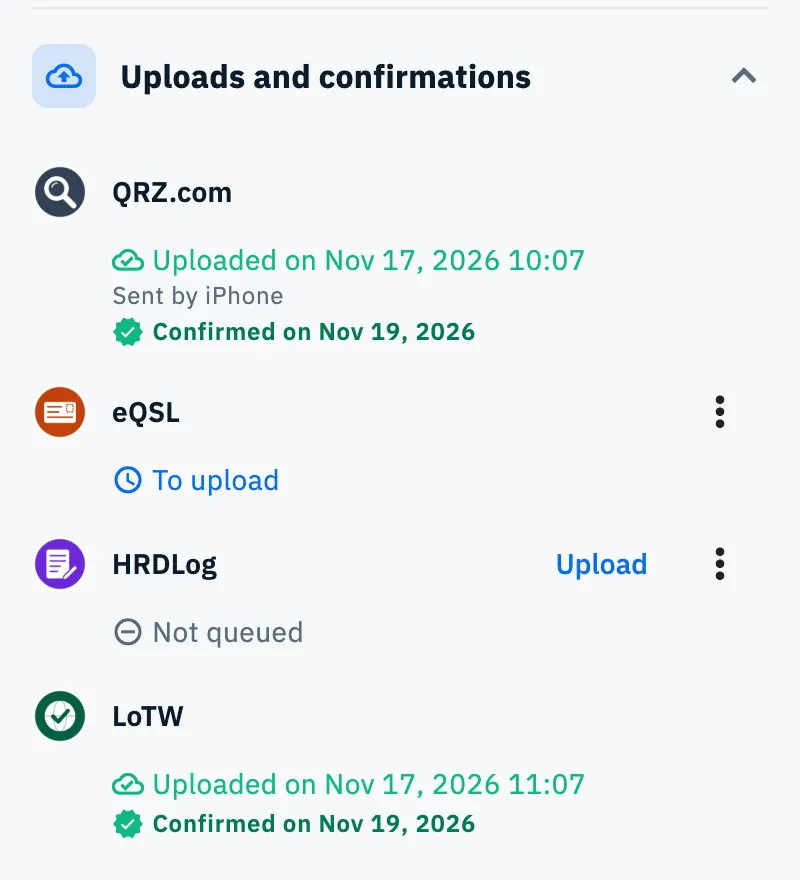
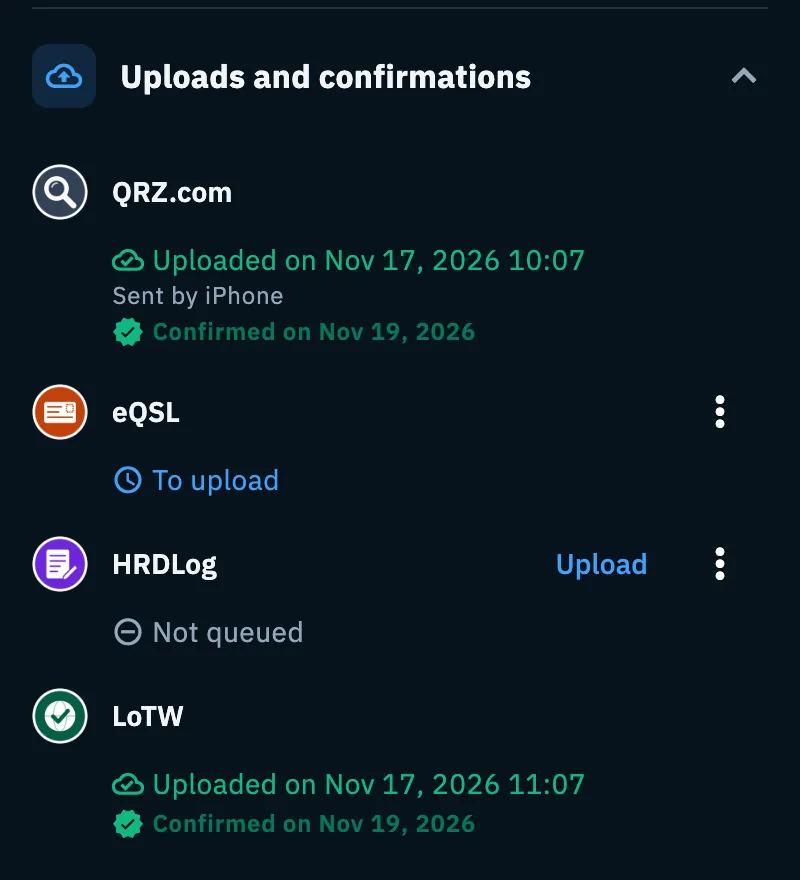
The statuses of a QSO on a service
| Status | Color | What it means |
|---|---|---|
| Not queued | grey | The QSO was never queued for this service (for example the service was not linked or does not upload automatically). |
| To upload | blue | It is queued: it goes out at the next upload from a device where the service is linked (for LoTW, from the HamQSO service). |
| Uploaded on … / Uploaded | green | It is on the service, with the date and time of the upload. Also when the service already had it (a duplicate). |
| Changed after the upload | yellow | You changed the QSO after uploading it. QRZ.com and HRDLog get the change at the next upload; eQSL.cc and LoTW take no changes (see below). |
| Error, next try … / Temporary error | yellow | The service or the network did not answer. HamQSO retries by itself, waiting longer each time; the row tells when it tries again. |
| Refused by the service | red | The service does not accept this QSO. Below it you read the reason, in the service's words. It is never retried by itself. |
| Won't be uploaded to … | grey | You excluded it from this service. |
| To delete from the service | yellow | The QSO is in the trash and will be deleted from QRZ.com or HRDLog. |
| Deleted from the service | grey | The QSO was deleted from the service. If you restore it from the trash it goes back to To upload. |
A QSO with estimated values (mode, band or frequency) is not uploaded until you confirm them: it stays To upload (see Automatic uploads and waiting QSOs).
Uploading or retrying a QSO
The buttons appear on the service's row only when they are useful. Upload, Retry and the ⋮ menu do not appear for a QSO in the trash.
- Open Uploads and confirmations in the QSO detail.
- Tap the button on the service's row:
- Upload when the status is Not queued;
- Retry when the status is an error or Refused by the service.
The QSO goes back to the queue with its attempts reset and, when the service is linked on this device, it is uploaded right away. LoTW uploads are done by the HamQSO service: the QSO goes back to To upload and leaves with the next round. While the action runs, a spinner replaces the buttons.
Keeping a QSO off a service
Uploads are automatic: if you don't want a QSO on a service (for example on eQSL.cc), exclude it.
- On the service's row tap ⋮ (More actions for …).
- Tap Don't upload to …, for example Don't upload to HRDLog.
The status becomes Won't be uploaded to … and the QSO no longer goes out, not even with automatic uploads. The ⋮ menu is not there when the QSO is Uploaded: an uploaded QSO cannot be excluded.
To queue it again tap Upload to … (for example Upload to HRDLog) on the same row: it goes back to the queue and leaves with the next upload.
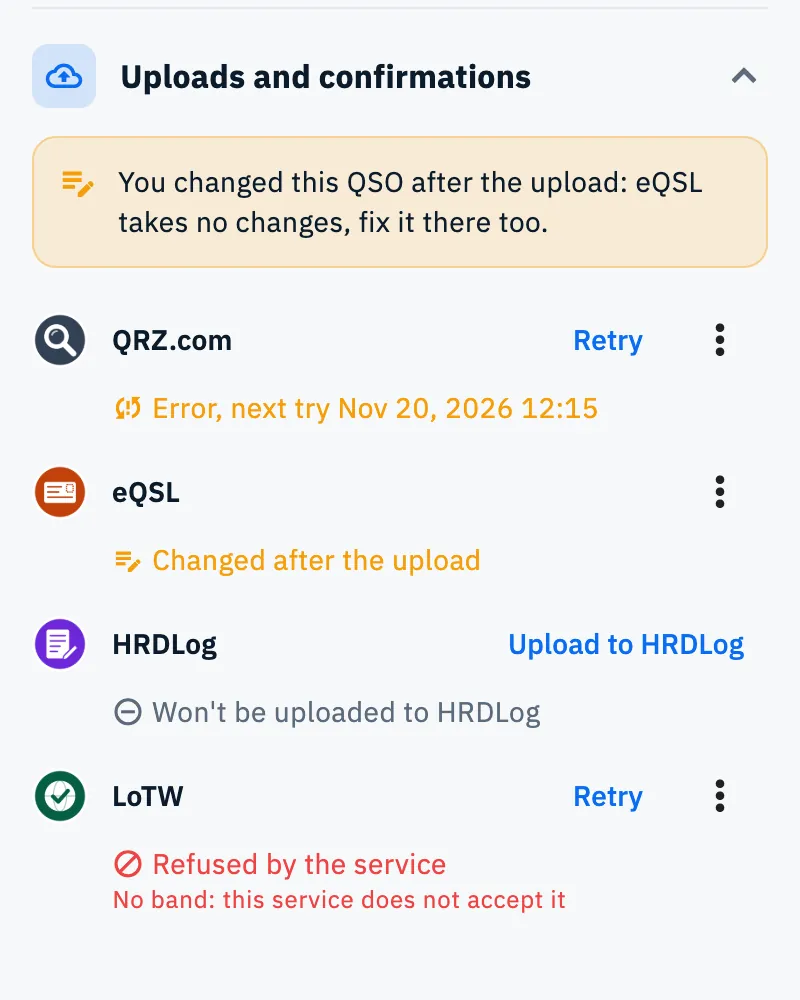
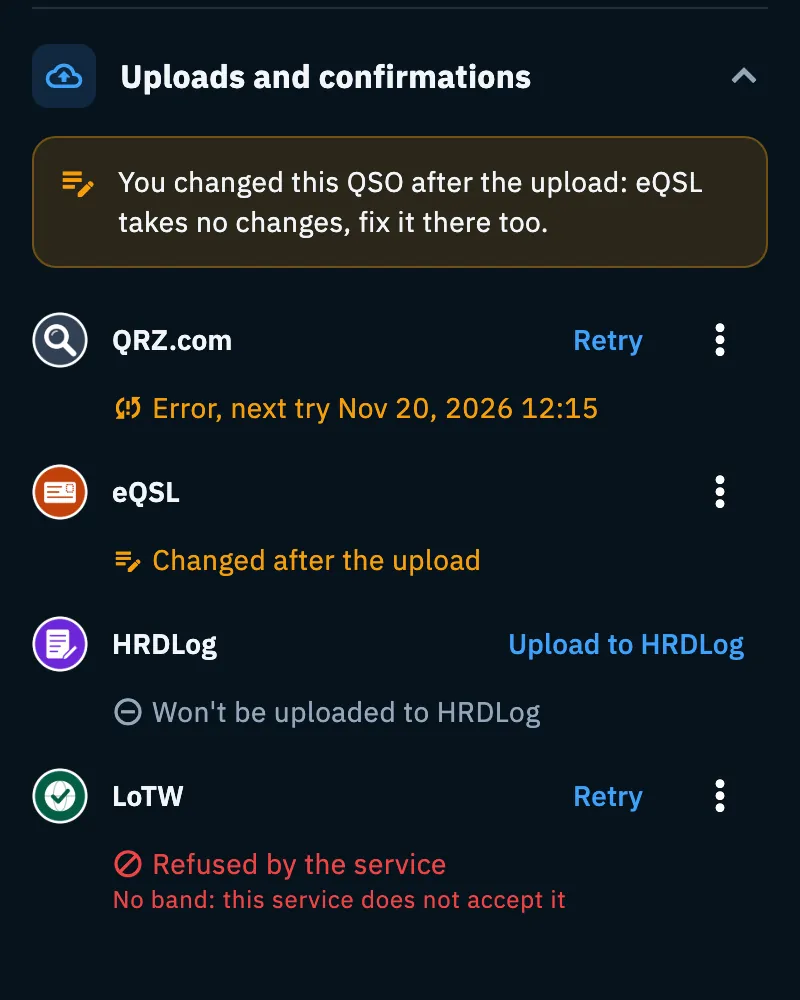
The notices at the top of the section
At the top of Uploads and confirmations a yellow box may appear:
- «You changed this QSO after the upload: … takes no changes, fix it there too.» It appears for eQSL.cc and LoTW, which do not take a new version of the QSO. Fix the QSO on the service's website too.
- «This QSO is in the trash but stays on …: delete it there by hand too.» It appears for the services HamQSO cannot delete from: eQSL.cc, LoTW, and QRZ.com when the QSO lacks its QRZ.com record number. Delete it by hand on the service's website. QRZ.com and HRDLog instead delete a QSO in the trash by themselves after a couple of minutes (status To delete from the service, then Deleted from the service). See Deleting QSOs and the trash.
Confirmations
When a service confirms the QSO, its row shows Confirmed on …. HamQSO downloads the confirmations of QRZ.com, eQSL.cc and LoTW by itself and matches them to the QSOs of your log by callsign, band, mode and time (within 15 minutes). HRDLog has no confirmations.
- Confirmed in HamQSO: when the other station logged the QSO with HamQSO too, this row appears above the services, with «… logged it too with HamQSO: it's confirmed in both logs.»
- The eQSL.cc card: on the eQSL.cc row of a confirmed QSO the card appears. Tap it to see it full screen; tap the share icon next to it (Share the card) to send it as an image. Until it is downloaded you read «Confirmed by eQSL.cc: the card will be downloaded as soon as possible.» See Cards received from eQSL.cc.
When they arrive and what they count for
Confirmations are checked every 6 hours: those of QRZ.com and eQSL.cc while the app is open, those of LoTW by the HamQSO service, even with the app closed. eQSL.cc cards arrive a few at a time.
Not to wait, or to choose which confirmations count:
- Open Profile, then Linked services.
- Tap QRZ.com, eQSL (the app calls eQSL.cc this way here) or LoTW.
- In the Confirmations section:
- the Counts as confirmed switch (for QRZ.com Use QRZ.com confirmations) decides whether the QSLs of that service mark the QSO as confirmed in the log and in the statistics. It is on for every service and the choice applies on all your devices;
- Last check … tells when they were last checked;
- Download confirmations now downloads them right away. It is there only for QRZ.com and eQSL.cc, when the service is linked on this device: LoTW confirmations come only from the HamQSO service.
After the download you read «No new confirmation», «1 new confirmation» or for example «12 new confirmations».
Free and Pro
Everything on this page is free: statuses, buttons, exclusion and confirmations. eQSL.cc cards that match no QSO of your log live in the gallery and are Pro (see Cards received from eQSL.cc).
Troubleshooting
- «The action on … failed. Try again shortly.» The upload, the exclusion or the return to the queue did not work, usually because of the network. Wait a moment and tap the button again.
- «No band: this service does not accept it» under Refused by the service: eQSL.cc and LoTW need the band. Open the QSO, add the frequency or the band and tap Retry.
- It stays «To upload»: the service is not linked on any of your devices, automatic uploads are off, or the QSO has estimated values to confirm. See Automatic uploads and waiting QSOs.
- «Temporary error» or «Error, next try …»: the service could not be reached. HamQSO retries by itself; tap Retry not to wait.
- No confirmations from LoTW: the HamQSO service downloads LoTW confirmations only when you saved the LoTW website username and password (see Uploading to LoTW).
- After Download confirmations now an error appears, for example «QRZ.com refused the credentials.», «eQSL does not answer. Try again shortly.» or «Link the account first.»: check the service's link on its page and try again.
- «The card could not be shared.»: sharing the eQSL.cc card did not work. Try again from the share icon.