
Several callsigns and locations with station profiles
Create a profile for each station (home, portable, club) with callsign, locator, references and power, and choose the default one.
FreeUpdated for HamQSO 0.1.19
On this page
A station profile holds the data of one of your stations: the callsign on air, the operator, the locator, the references and the power. If you operate from home, portable or from a club with different callsigns or locations, you create a profile for each one and your QSOs do not get mixed up. Station profiles are free.
What a profile is for
- New operations use the default profile. When you create an operation, it takes the callsign on air and the operator of the default profile; for a Portable operation or an activation the app adds
/Pto the callsign by itself, unless it is already there. - Each QSO takes the data of its operation's profile when you log it: your locator, state or province and DXCC entity (unless the operation has its own), the CQ and ITU zones, the power (unless you typed it in the QSO or in the operation) and the eQSL.cc card message.
- The station log, which the app creates by itself the first time you log a QSO with no operation open, starts with the callsign, location, default references and power of the default profile.
Changes to a profile apply to the QSOs you log afterwards: QSOs already logged keep their data. The callsign on air and the operator go to the operation when you create it: if you change them in the profile, operations already created keep theirs. To give new operations another profile, make that profile the default before you create them.
The app creates the first profile when you create your first operation or log your first QSO, from the callsign and locator of your profile (see Your profile: name, callsign and locator), and names it after the callsign.
Opening the station profiles
- Open Profile and tap Logbook settings. Or, in the Log section, tap the ⋮ menu (Log menu) and choose Logbook settings.
- Tap Station profiles. Under the title you see how many profiles you have and which one is the default, for example "2 profiles, default IU0XYZ".
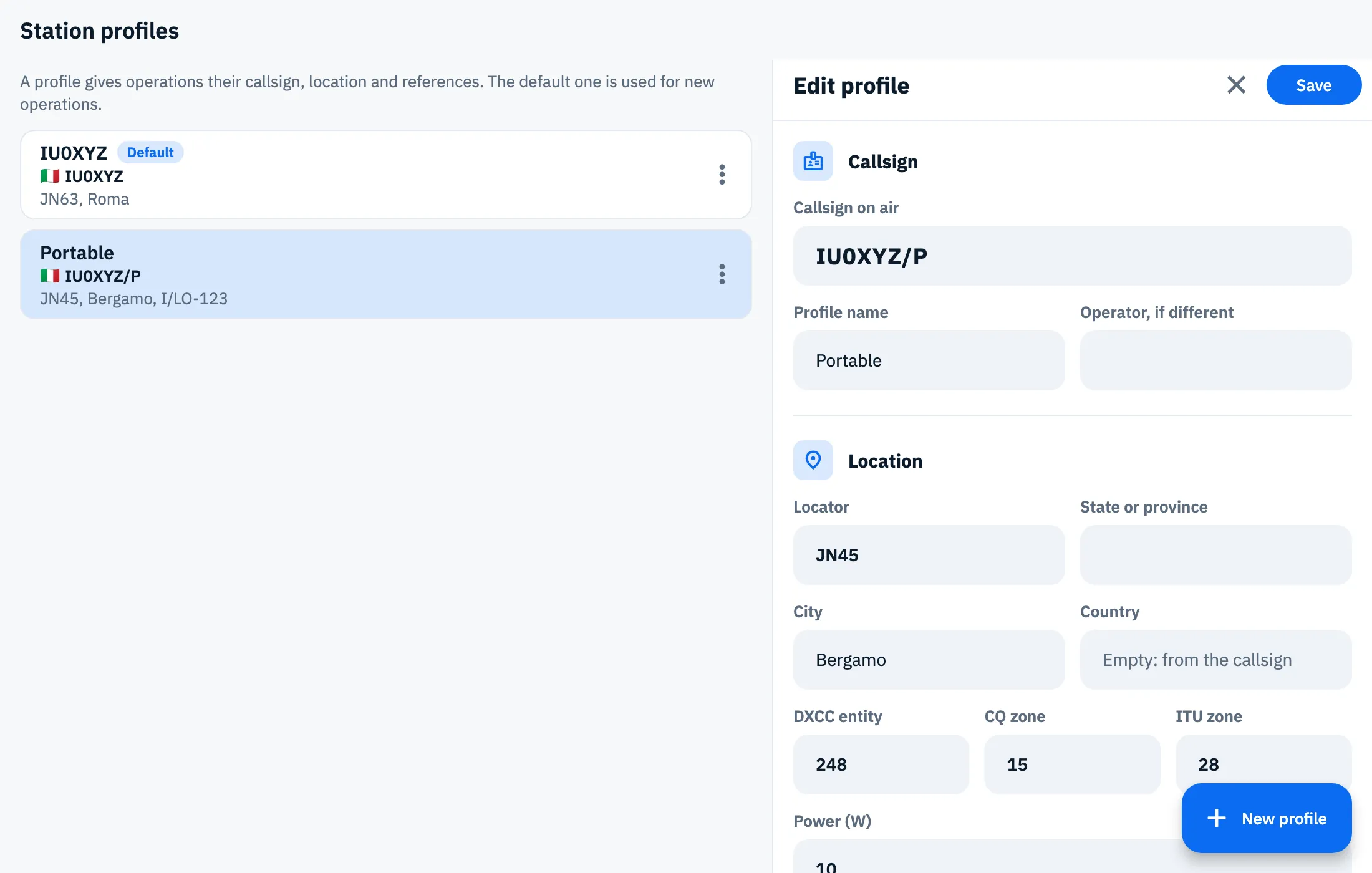
At the top of the page a line reminds you what profiles are for. The default profile always comes first and carries the Default badge. Each card shows the profile name, the callsign on air and, below, the locator, city and default references.
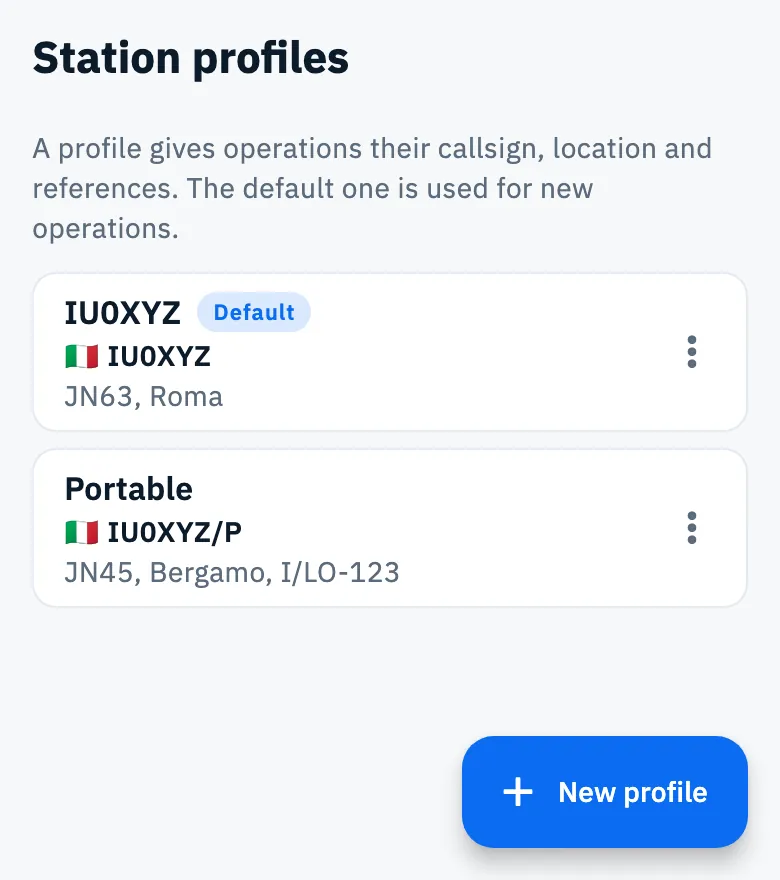
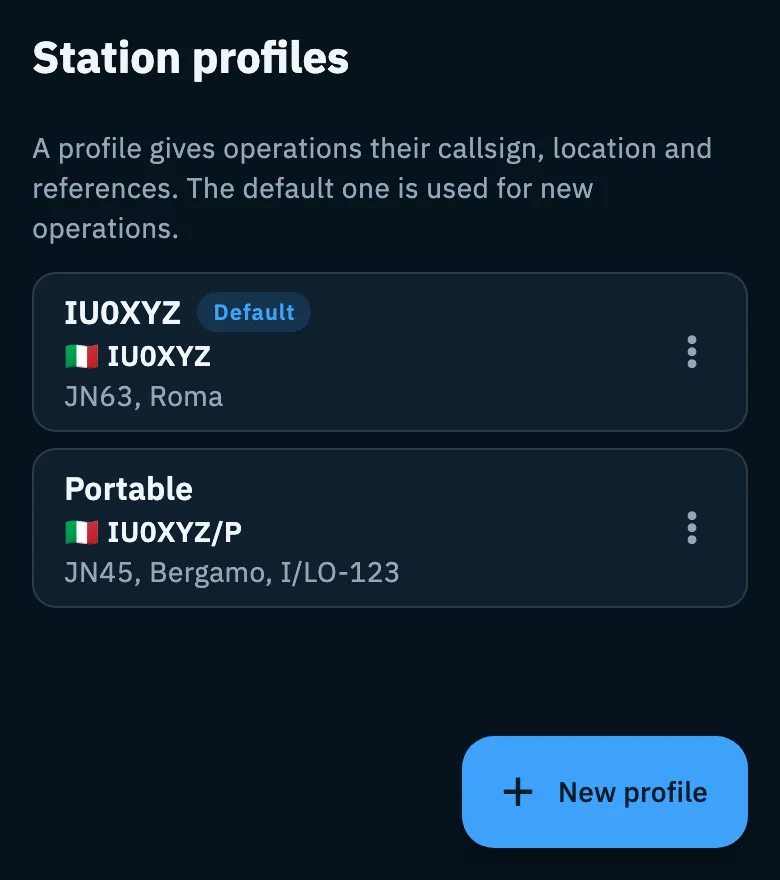
With no profile yet, the page says "No profile yet" and "Create a profile with your callsign and locator.", with the New profile button.
You also reach the profiles from the Linked services pages, where they hold the QRZ.com keys, the LoTW certificates and the eQSL.cc QTH (see below).
Creating or editing a profile
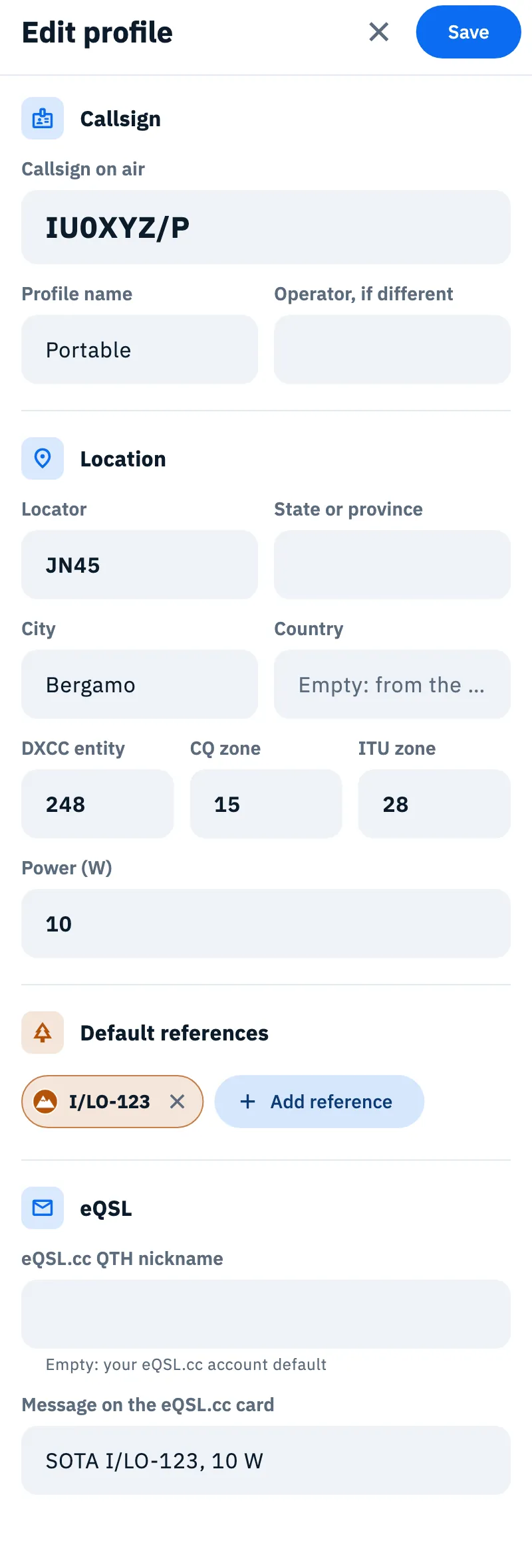
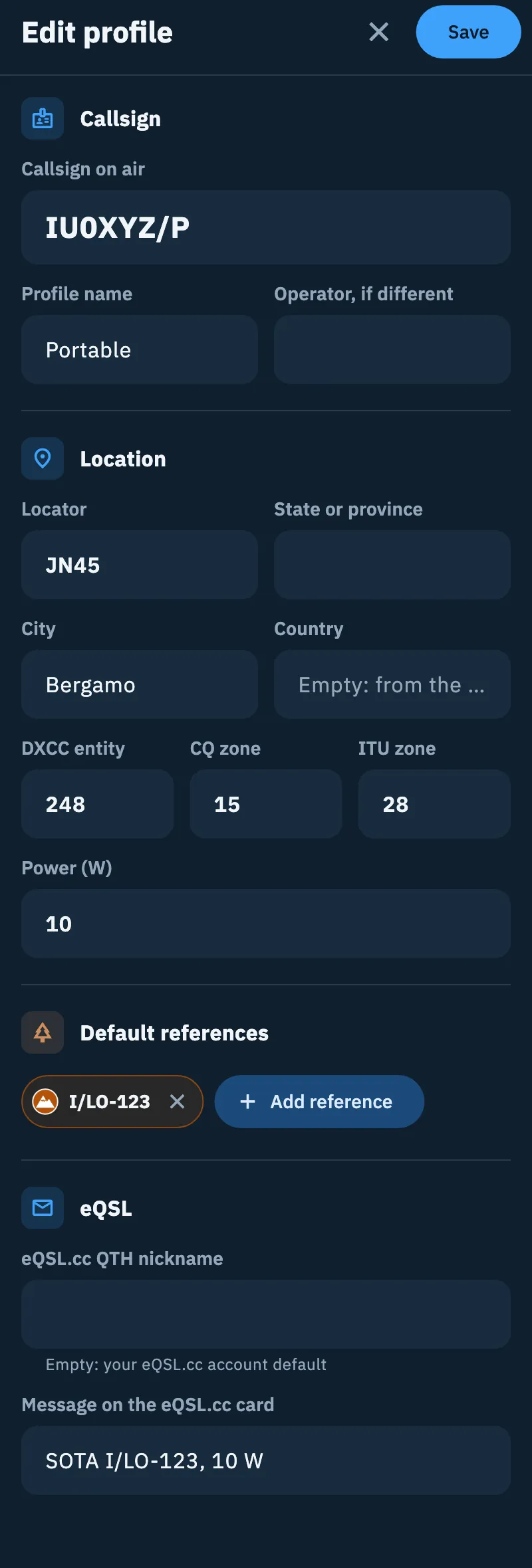
- Tap New profile at the bottom right, or tap a profile to edit it (Edit profile).
- Enter the Callsign on air: it is the only required field.
- Add the other data you need (see the table).
- Tap Save at the top. "Profile saved" appears.
To close without saving, tap the x (Cancel). On a phone the form opens in a sheet that covers almost the whole screen: if you close it by dragging it down, your changes are not saved.
The fields of a profile
| Section | Field | What it does |
|---|---|---|
| Callsign | Callsign on air | The callsign you transmit, /P included. Required, always uppercase. |
| Profile name | The name you see in the list ("e.g. Home, Portable, Club"). Left empty, the profile is named after the callsign. | |
| Operator, if different | Your own callsign when you transmit with a club or special event callsign. | |
| Location | Locator | Your Maidenhead locator, of 4, 6, 8 or 10 characters (JN63, JN63ab…). |
| State or province | The code of the state or province, when it applies. | |
| City | Where the station is. | |
| Country | "Empty: from the callsign": left empty, the app takes it from the callsign when you save. | |
| DXCC entity, CQ zone, ITU zone | With Auto (empty field) the app takes them from the callsign when you save. Enter them only when the callsign is not enough. | |
| Power (W) | Your usual power, used in the QSOs where you do not type it. | |
| Default references | Add reference | Choose the program (POTA, SOTA or WWFF) and then the references in the picker. Remove a reference with the x on its chip. They are the references the station log starts with. |
| eQSL | eQSL.cc QTH nickname | The QTH of your eQSL.cc account that receives the QSOs of this profile. "Empty: your eQSL.cc account default". Case matters: type it exactly as on eQSL.cc. |
| Message on the eQSL.cc card | The message printed on the eQSL.cc cards of this profile's QSOs. |
The default profile
There is always exactly one default profile: the first one you create is the default straight away.
- Tap the ⋮ menu (More actions) on the profile's card.
- Choose Make default. The item is not in the menu of the profile that is already the default.
The Default badge moves to that profile, which moves to the top of the list. From then on new operations use it; operations already created keep their profile.
Deleting a profile
- Tap the ⋮ menu (More actions) on the profile's card.
- Choose Delete profile.
- Confirm with Delete profile in "Delete the profile IU0XYZ/P?". The message reminds you that "Operations and QSOs already logged do not change.".
The operations that used that profile move to the default profile; their callsign and their QSOs stay as they are.
Phone, tablet and computer
- Phone: you tap a profile and the form opens in a sheet over the list.
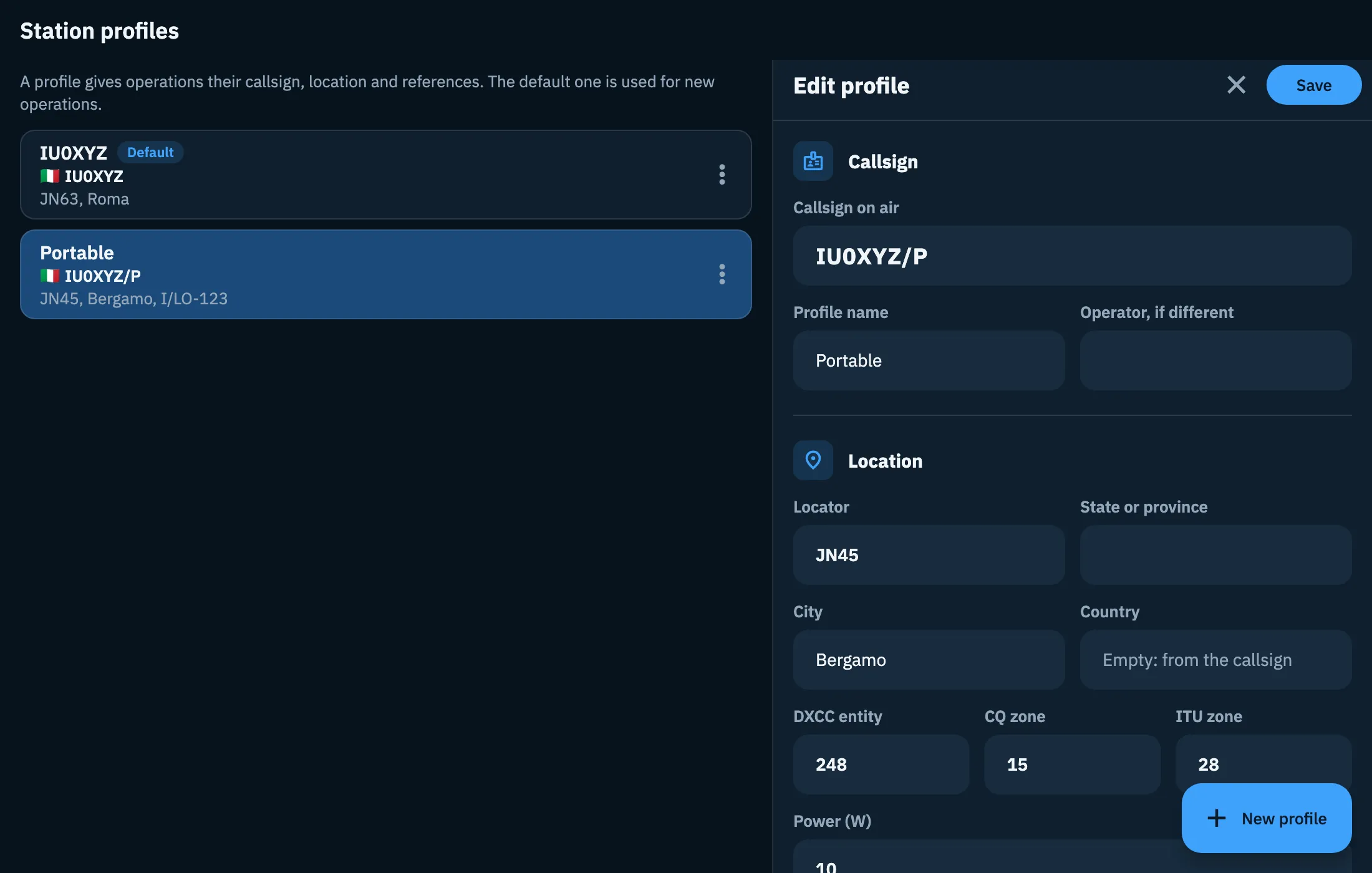
- Tablet and computer (wide window): the list is on the left and the form on the right, on the same screen. The profile you are editing is highlighted in the list; when you are not editing, the right panel explains what profiles are for.
When you are signed in, your profiles reach all your devices together with the log: see Your log on all your devices.
Where else profiles are used
- QRZ.com: each profile has its own QRZ.com logbook key, so home and portable QSOs each go to the right logbook. See Linking QRZ.com, LoTW, eQSL.cc and HRDLog and Importing from QRZ.com.
- LoTW: when you add a certificate you choose the Station profiles to sign; the callsign and DXCC of the profile must be those of the certificate. See Uploading to LoTW.
- eQSL.cc: the profile's QTH and message go with the uploaded QSOs. See eQSL.cc and HRDLog.
- Export: with more than one profile, you can export only the QSOs of some profiles with the Station profiles filter. See Exporting your log as ADIF.
- Operations: see Creating an operation.
Troubleshooting
| Message | What to do |
|---|---|
| "Enter a valid callsign" | The Callsign on air is empty or not a callsign, or the one in Operator, if different is not: in both cases the message appears under Callsign on air. Fix the field and tap Save again. |
| "Not a valid locator (e.g. JN55)" | The locator must be a Maidenhead locator of 4, 6, 8 or 10 characters (JN63, JN63ab). Fix it or leave it empty. |
| "Profile not saved. Try again." | The profile was not saved or no longer exists (for example you deleted it on another device). Try again; if the profile is gone, create a new one. |
| "To delete the default profile, make another one the default first." | Use Make default on another profile, then delete this one. |
| "Operations use this profile and there is no other profile to move them to." | Create another profile, then delete this one. |
| "Could not read the station profiles" | Tap Retry. |