
When the radio does not answer
What to check when the radio does not connect over rigctld, flrig or the USB cable, and how to send us the details when the problem stays.
Free and ProUpdated for HamQSO 0.1.19
On this page
When you tap Connect and the radio does not answer, the app tells you right under the button and shows what to check. Here you find what each message means, how to fix it and how to send us the technical details when the problem stays.
Where the message appears
The message appears only after a connection attempt that failed, under the Connect button:
- in My station, in the radio's CAT link on this device section;
- in the Step-by-step guide, at the Test step.
It goes away when you tap Connect again, change a field of the connection, choose another port or another radio, or tap Disconnect.
The technical causes (the exact error of the system, of the serial port or of the server) are not on the screen: they go into the session log, which you can send us with a report (see below).
In the app: the red line
In the app on phone, tablet and computer, with rigctld or flrig and with the USB cable on Android, the app shows a red line: "The radio does not answer. Check the connection and the settings."
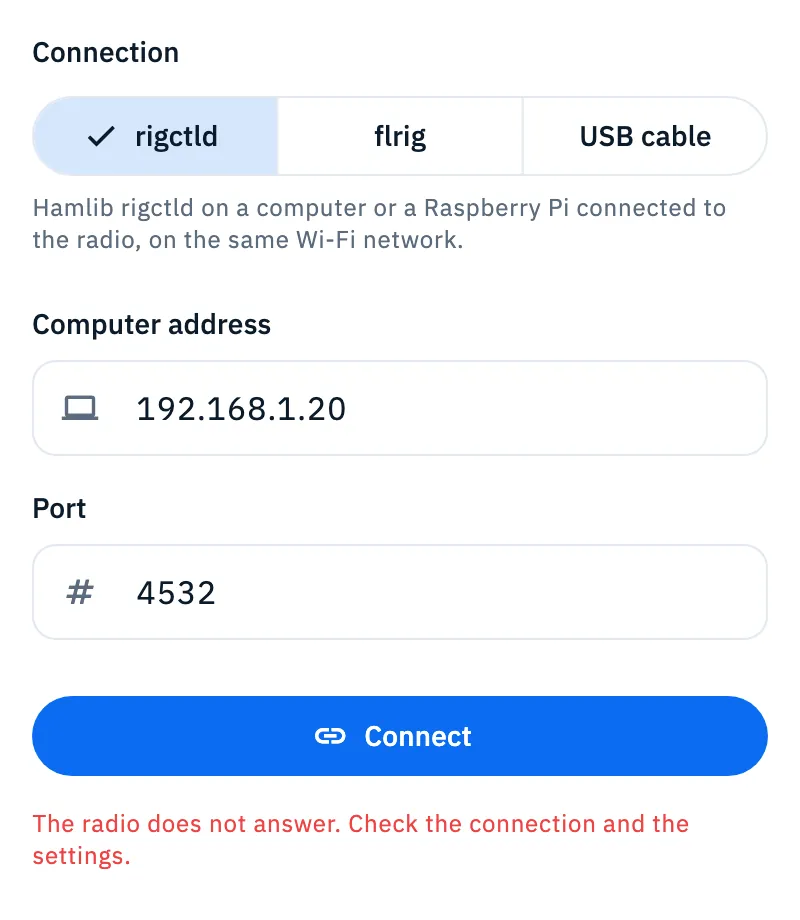
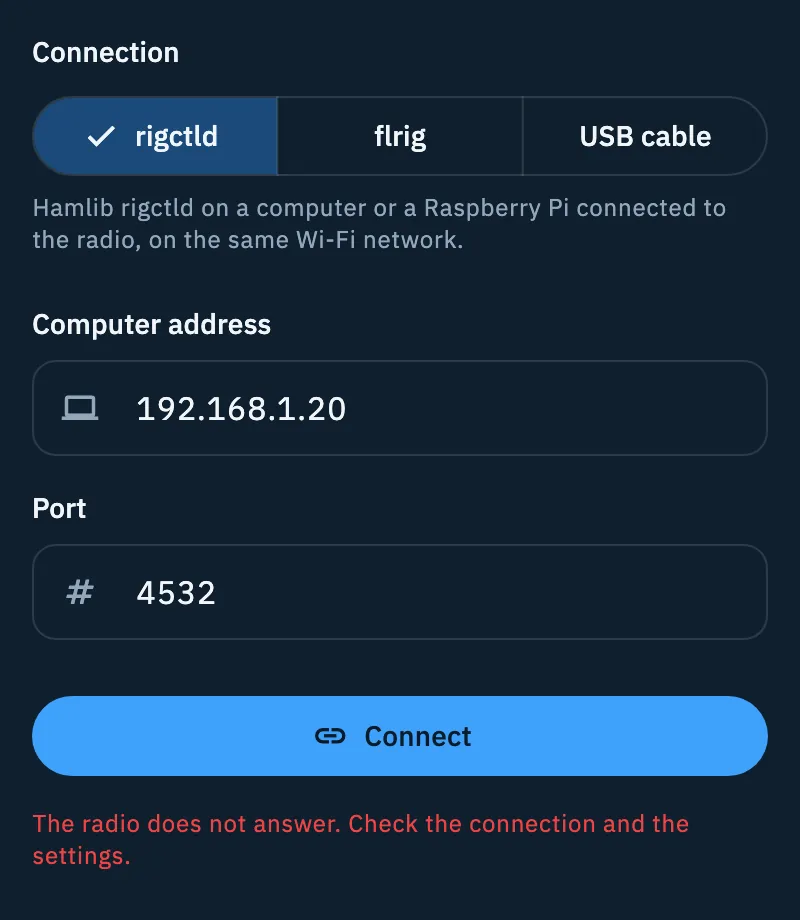
Check, in this order:
- The radio is on.
- With rigctld: rigctld is running on the computer (or Raspberry Pi) connected to the radio. Port is 4532, or the port you started rigctld on.
- With flrig: flrig is open and its XML-RPC server is on. Port is 12345, unless you changed it in flrig.
- Computer address is the right address of the computer on the network (for example 192.168.1.20), and the phone is on the same Wi-Fi network as the computer.
- With the USB cable on Android: Model is your radio, Speed (baud) is the same as in the radio's menu and, for CI-V radios (Icom and Xiegu), so is CI-V address. When Android asks for permission to use the USB device, allow it: if you refuse, the radio does not connect and Android asks again at the next Connect.
- Tap Connect again.
The fields and what they mean are explained in Connection types: USB, rigctld and flrig.
In the browser: the "The radio does not answer" box
On HamQSO web, with the USB cable to the computer (Chrome or Edge), the app shows a box with your radio's values, so you know what to check in the radio's menu.
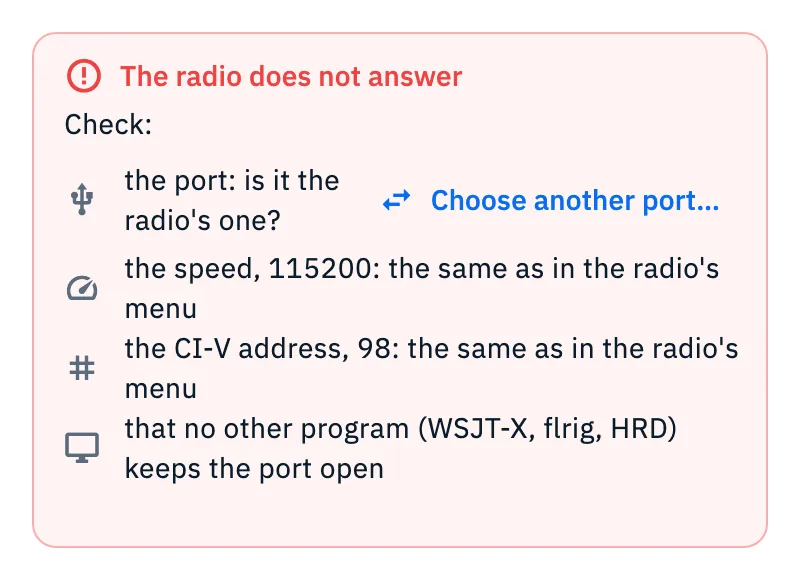
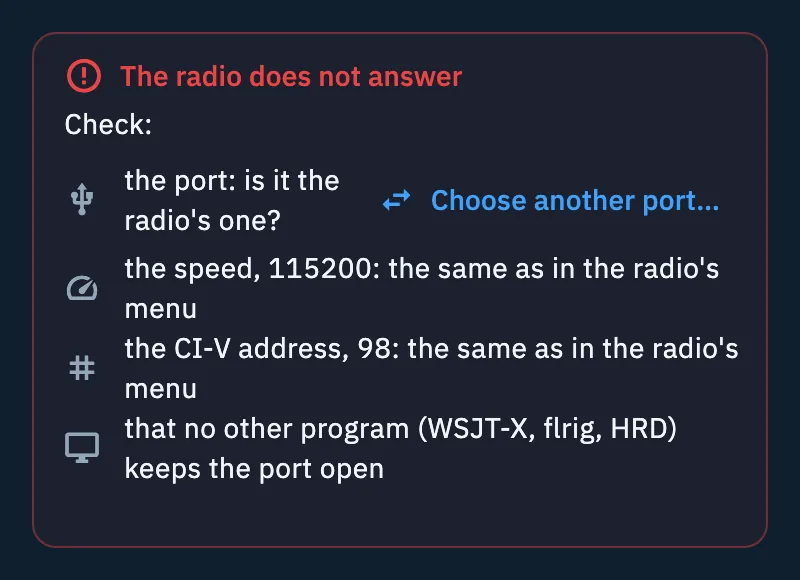
Under Check: you find these points:
| Point | What to do |
|---|---|
| "the port: is it the radio's one?" | Tap Choose another port… (or Choose the port… if none is chosen): the browser opens its window with the COM ports. Pick the radio's one, then tap Connect. |
| "the speed, …: the same as in the radio's menu" | The number is the one in Speed (baud): if you did not change it, it is the model's default. Set the same value in the field and in the radio's menu. |
| "the CI-V address, …: the same as in the radio's menu" | Only for CI-V radios (Icom and Xiegu). The number is the one in CI-V address (two hexadecimal digits, for example 94). It must match the one in the radio's menu. |
| "that no other program (WSJT-X, flrig, HRD) keeps the port open" | A serial port opens for one program at a time: close the other programs that use the radio, then tap Connect. |
If the radio did not answer on the chosen port, before showing the box the app tries by itself the other ports the browser already allowed with the same USB ids: some radios, like the IC-7610, have two and only one of them speaks CI-V. If one answers, the app uses it and remembers it for the next times.
When the radio disconnects by itself
- While in use: if the radio does not answer three readings in a row, the app disconnects it. The same happens at once if a tune fails and the radio no longer answers. The status goes back to Not connected and the Connect button comes back: check the cable, the power and the network, then connect it again.
- When the app opens: if the radio was connected last time and you did not tap Disconnect, the app tries to reconnect it by itself (also when you get HamQSO Pro again). If the radio is off or away you see no message: connect it from My station when it is ready.
Sending us the details
Every radio problem (connection failed, reading failed, tuning failed, connection lost) writes a line in the session log with the original error. For a connection that failed or was lost, the line also has the connection tried: connection type, model, speed, CI-V address, USB ids, but not the computer's address. With a report this log reaches us together with the radio's state, so we understand the problem.
- Open Profile and tap Feedback.
- Tap Report a problem.
- In What happened? tell us what you did (at least 20 characters): radio, connection, what you saw.
- In Where did it happen? choose My station.
- In Technical details leave Attach technical details on (it is on by default). Tap See what we send to check: the Radio row shows the model, the connection and whether the radio is connected or not connected; the Session log row has Show logs to read the lines.
- Tap Send report.
The whole form is explained in Sending feedback.
Free and Pro
Troubleshooting
- "The radio does not answer. Check the connection and the settings.": follow the checks of the "In the app: the red line" section above.
- "The radio does not answer" box in the browser: check the port, the speed, the CI-V address and the other open programs, as above.
- "No USB adapter found. Connect the radio with the OTG cable." on Android: plug in the cable, with the OTG adapter if needed, and tap the Retry icon next to the message.
- "On iPhone and iPad the radio connects over the network, with rigctld or flrig.": the USB cable is only in the Android app and on HamQSO web. Here, use rigctld or flrig on a computer connected to the radio.
- "The radio over USB works in Chrome and Edge on a computer.": open HamQSO web in Chrome or Edge on a computer, or use the app.
- "Could not tune the radio." when you tap a spot: the radio is connected but the app could not tune it. See Tuning the radio from spots.