
Opening a park, summit or area
Open a POTA, SOTA or WWFF activation: the reference data, whether it is already in your log, where to point the antenna and the actions for the QSO.
Free and ProUpdated for HamQSO 0.1.19
On this page
The detail of an activation tells you everything the app knows about the POTA park, SOTA summit or WWFF area and about who is activating it: where the reference is, whether you have already worked it, whether you know the activator and where to point your antenna. From here you log the QSO, re-spot the activator or create an alert.
Opening the detail
- Open the xOTA section (see Following activations on the air).
- Tap the card of an activation in the list, or an activation on the map or the globe (see Activations on the map and globe).
- On a phone the detail opens as a page, with the bar of the program: Parks on the Air, Summits on the Air or World Wide Flora & Fauna. Go back to see the list again. On a tablet and in the computer window (on the web too) the detail appears next to the list: tap another card to change it.
The same detail also opens from the notifications of your alerts on a park, summit or area (see Getting notifications) and from the link of a shared spot (see Sharing a spot).
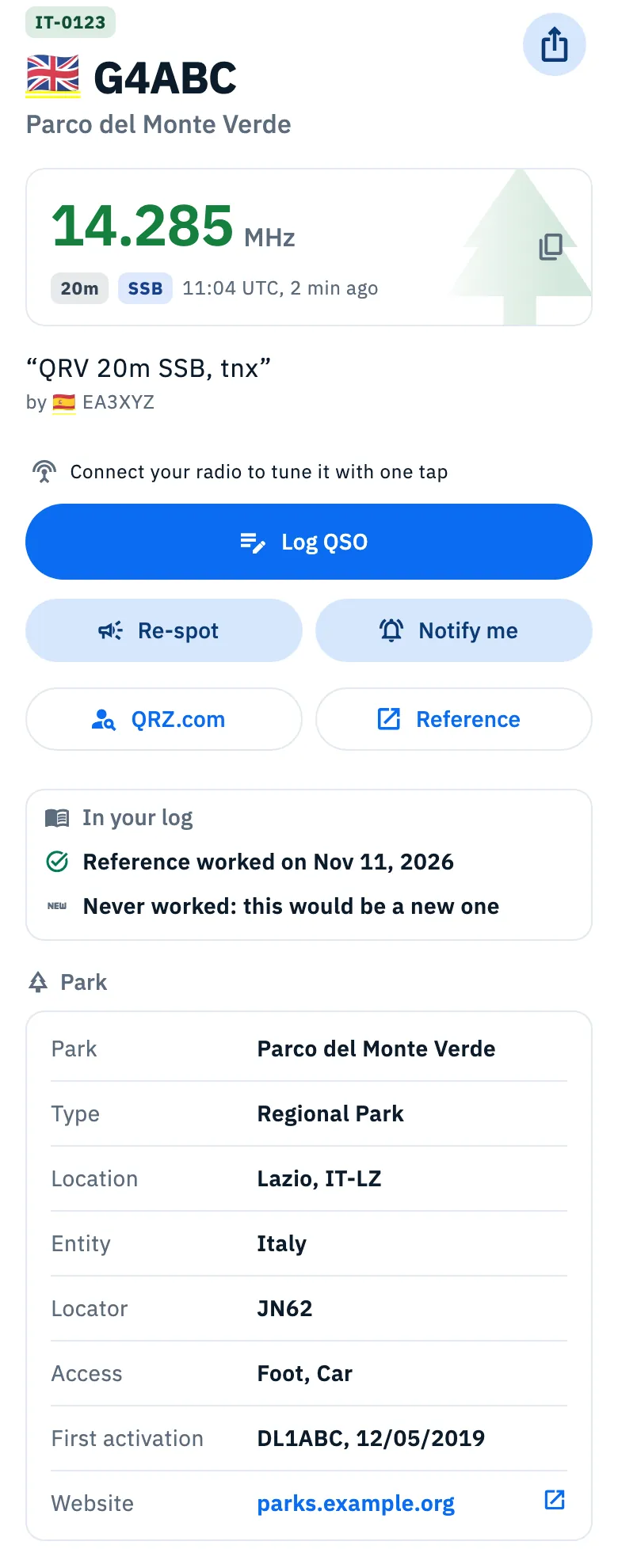
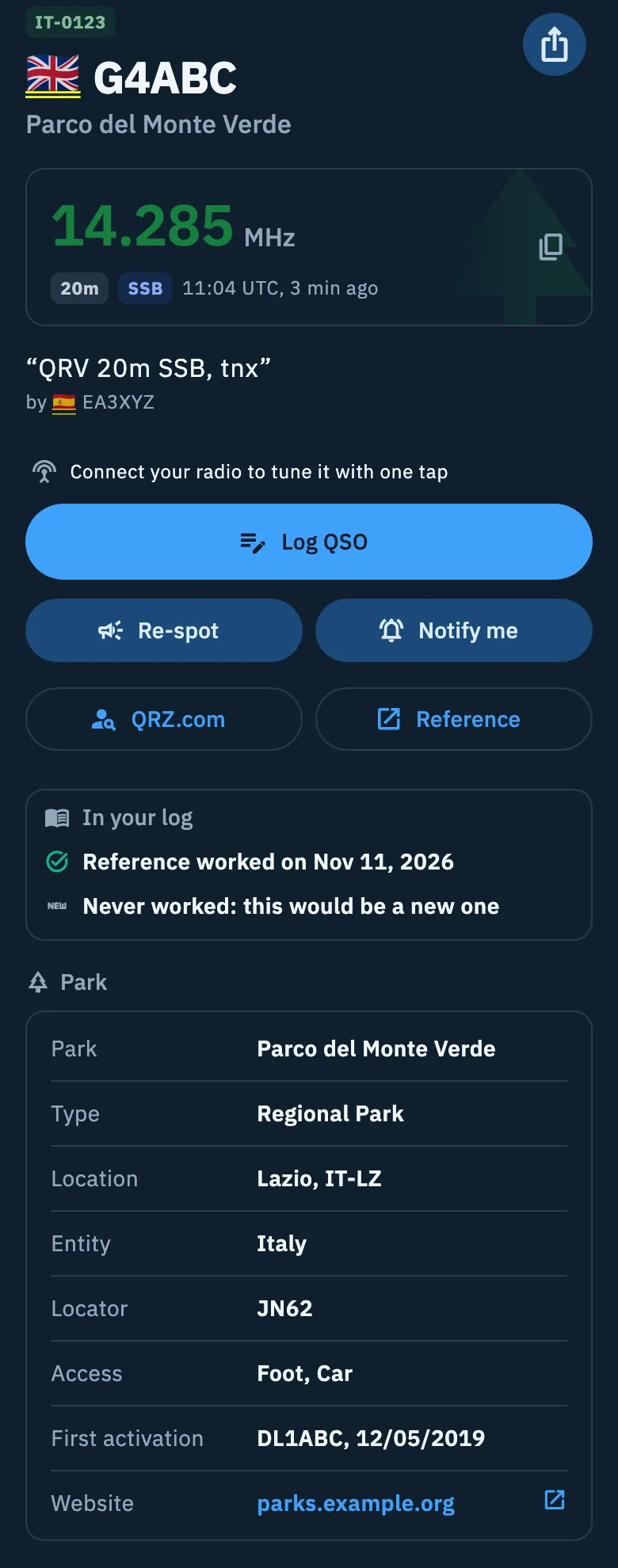
At the top: who to call and where
-
The reference code (for example IT-0123) in the color of the program, and below it the activator's callsign, large.
-
Under the callsign you see (some lines arrive a moment later, with the details):
- the activator's name: first from your callbook (QRZ.com or HamQTH) when it is linked and knows them, otherwise from the operator's POTA profile or from the name SOTAwatch gives with the spot. For WWFF the name comes only from the callbook;
- the reference name (the park, summit or area);
- the US state with its flag, when the reference is in the United States.
The activator's city is not shown: during an activation the operator is at the reference, not at home.
-
The share button (Share spot) at the top right: see Sharing a spot.
-
The frequency card, with the program's icon faded behind it: the frequency in MHz exactly as the spot gave it, never rounded, the band, the mode and the spot time in UTC with its age («10:42 UTC, 3 min ago»), which updates by itself. If the activator has closed, the red QRT mark is next to it.
-
The comment of the spot in quotes, and below it by with the callsign of the spotter.
To copy the frequency, tap the frequency card: Frequency copied appears and the frequency is on the clipboard, in MHz, ready to paste into another program.
The actions
Under the frequency card you find the buttons:
| Button | What it does |
|---|---|
| Tune the radio | Puts the connected radio on the frequency and mode of the activation. It is there only with a radio connected; without one, in its place there is the line Connect your radio to tune it with one tap, which opens the connection guide. If your radio does not receive that frequency the button is off, with Outside your radio's coverage. See Tuning the radio from spots. |
| Log QSO | Opens the QSO entry already filled in with callsign, frequency, mode, the reference with its name, the activator's name when the app knows it and, for a POTA park in a single US state, the state. See Logging a QSO. |
| Re-spot | Sends the activator's spot again. See Re-spotting a spot or a QSO. |
| Notify me | Opens a new alert for the activator (the base callsign, without /P or prefixes). See Alerts from a spot or a link. |
| QRZ.com | Opens the activator's QRZ.com page (base callsign) in a sheet inside the app. |
| Reference | Opens the official page of the reference in a sheet inside the app: the park on pota.app, the summit on sotadata.org.uk, the area on wwff.co. |
With a radio connected Log QSO becomes a lighter button, because the first thing to do is tune in. The mode Log QSO puts in the QSO is the one the program reports, not an estimate.
For a spot with more references (an n-fer), Log QSO puts the first one as the reference of the QSO and the others along with it.
In your log
Under the actions, the In your log card tells you what your log knows about this activation:
- Reference worked on and the date of your last QSO with that reference, or Reference worked today at and the UTC time if you worked it today. Any QSO with that reference counts, with any activator. If the spot has more references, it looks at the first one.
- Never worked: this would be a new one, if you have never worked the activator;
- or Worked 2 times (or Worked once), with your last QSOs with them below (up to five): date, UTC time, band and mode. Tap a row to open that QSO.
The station is matched by base callsign: G4ABC/P and G4ABC are the same. The card reads the log on your device, leaves out the trash and updates by itself when you log a QSO. As long as the app knows nothing about either the reference or the station, the card is not there. See also Spotting what you have already worked.
Map and antenna heading
Under In your log there is a small map centered on the reference, with the program's mark. The location comes from the spot and, when the spot does not have it, from the park or summit data, or from the reference catalog for a WWFF area. If none of them knows it, there is no map.
- Tap the map (or Open map) to open it full screen, with your location and the line from you to the reference.
- Close the map with the ✕ at the top.
The map is light or dark following the app's theme.
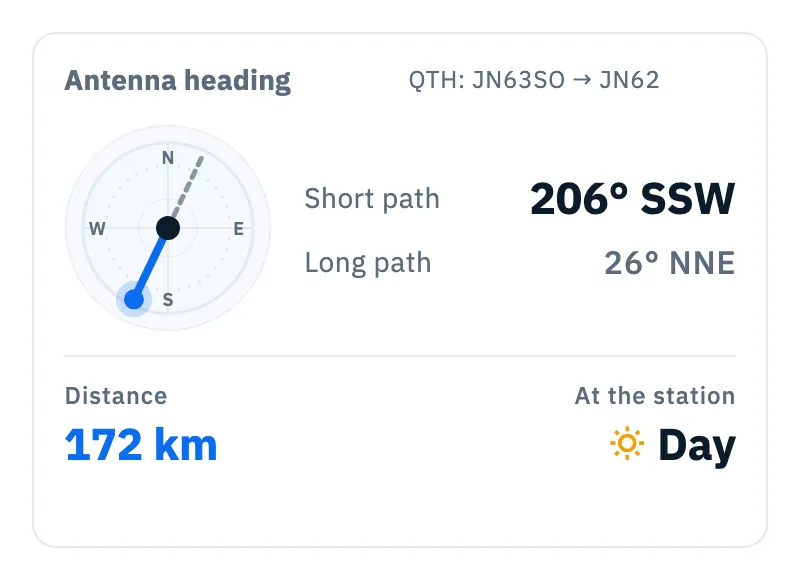
If the app knows your location (the device's one or, without it, the center of the locator saved in your profile), the Antenna heading card appears under the map:
| Part | What it shows |
|---|---|
| QTH | Your locator and the reference's (four characters). |
| Compass | The short path direction (solid line) and long path (dashed). |
| Short path / Long path | The two directions in degrees and compass point. |
| Distance | In km or miles, following the units you chose (see Language, theme and units). |
| At the station | Day or Night at the reference, from the sun. |
The sections of the park, summit or area
Under the map (on a tablet and on a computer in the right column) come the sections with the program's data. A row without a value is not shown. If your callbook is linked and knows the activator, the Operator section with their data is at the top too (see Opening a spot).
Park (POTA)
The data come from pota.app.
| Section | Rows |
|---|---|
| Park | Park (the name), Type, Location (region and code, for example Lazio, IT-LZ), Entity, Locator, Access, Activation methods, First activation (callsign and date), Notes, Website (shows the domain: tap it to open the park's site in the browser). |
| Park statistics | Activations, Attempts, Total QSOs. |
| Activator | The operator's POTA statistics: Operator, QTH, Activations, Parks activated, Activator QSOs, Parks hunted, Hunter QSOs, Awards. They are per base callsign (G4ABC/P counts as G4ABC). |
| Previous spots (3) | The spots of this activation, newest first (up to 30): UTC time, frequency, mode, who spotted it with their comment and, on the right, the source (for example RBN). Duplicate spots of the RBN skimmers appear only once. |
The park data stay in memory while the app is open: opening the same park again is immediate.
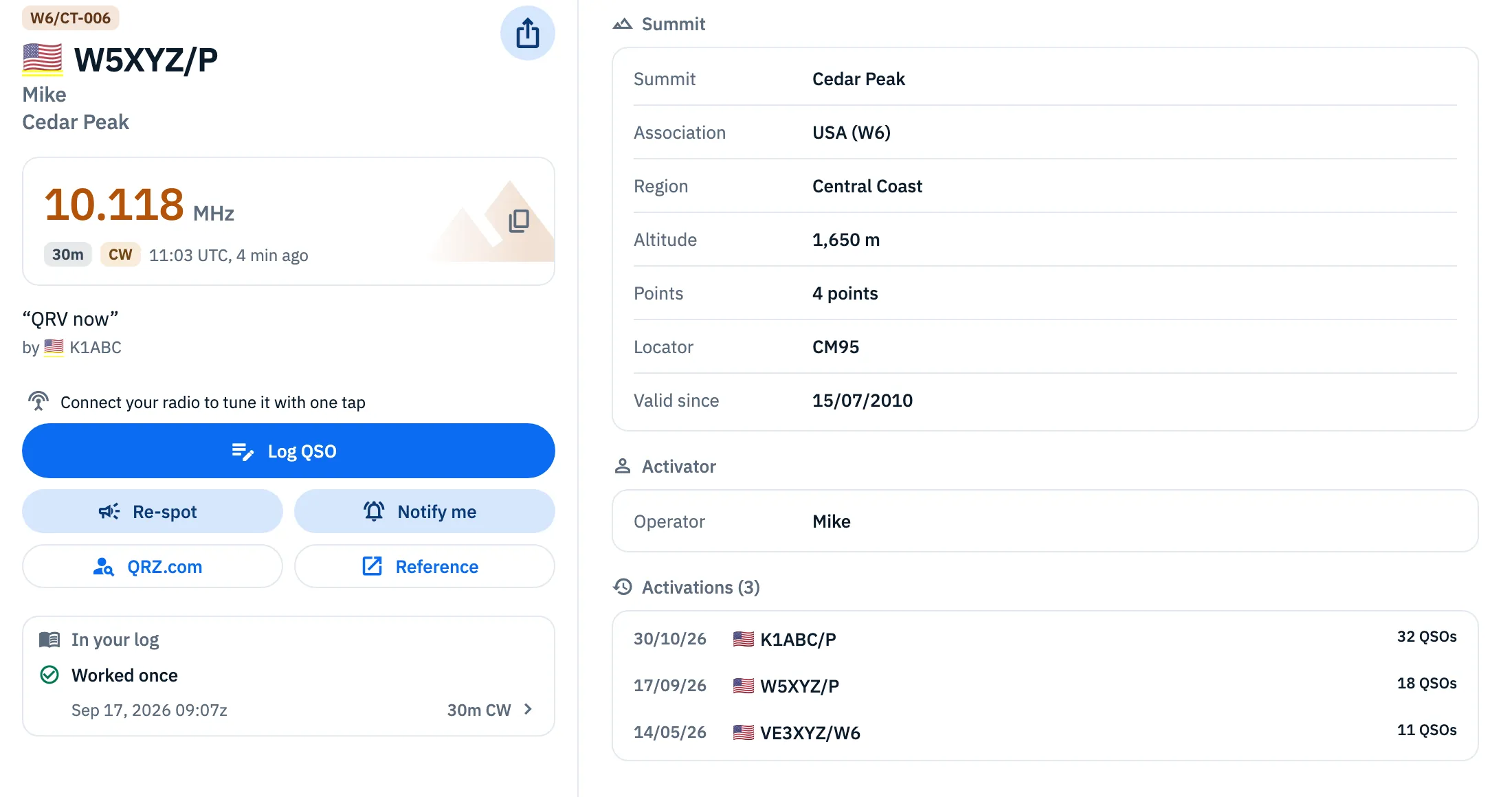
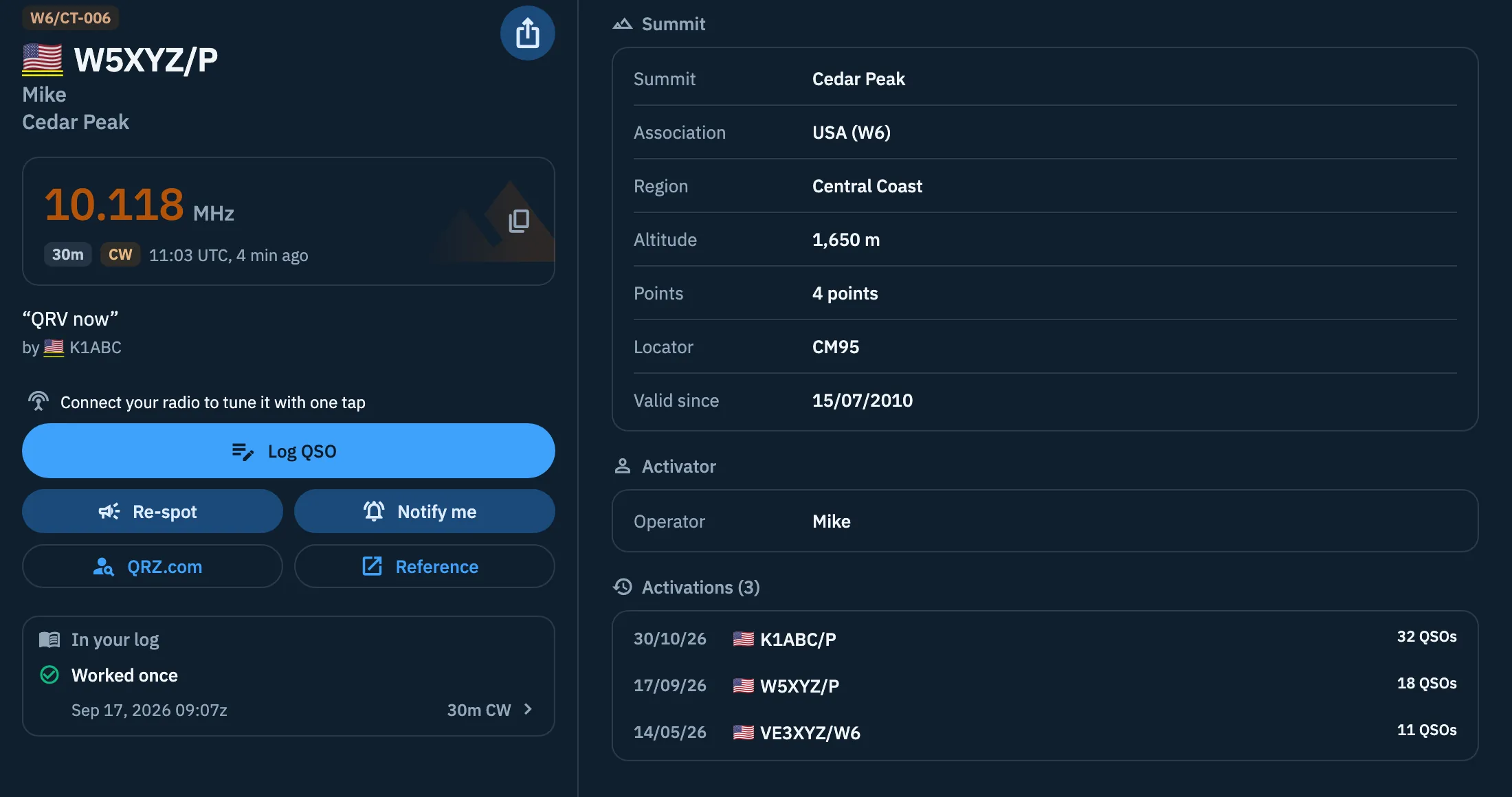
Summit (SOTA)
The data come from the SOTA database.
| Section | Rows |
|---|---|
| Summit | Summit (the name), Association, Region, Altitude (in metres or feet following the units you chose), Points (for example «4 points»), Locator, Valid since, Restrictions, Notes. |
| Activator | Operator: the name SOTAwatch gives with the spot. |
| Activations (3) | The past activations of the summit, up to 20: date, callsign and number of QSOs. |
Protected area (WWFF)
WWFF has no public service with the data of the areas: the app takes them from the HamQSO reference catalog (see Finding and choosing references).
| Section | Rows |
|---|---|
| Protected area | Name, Location (not shown when it is the same as the country), Country with its flag, Locator and, for a retired area, Status: No longer valid. |
| Previous spots | The spots of this activation from the WWFF feed, up to 30: UTC time, frequency, mode, who spotted it and the comment. It appears only when there are at least two spots. |
If the catalog does not know the area, the section shows only the name given by the spot, without errors.
Offline
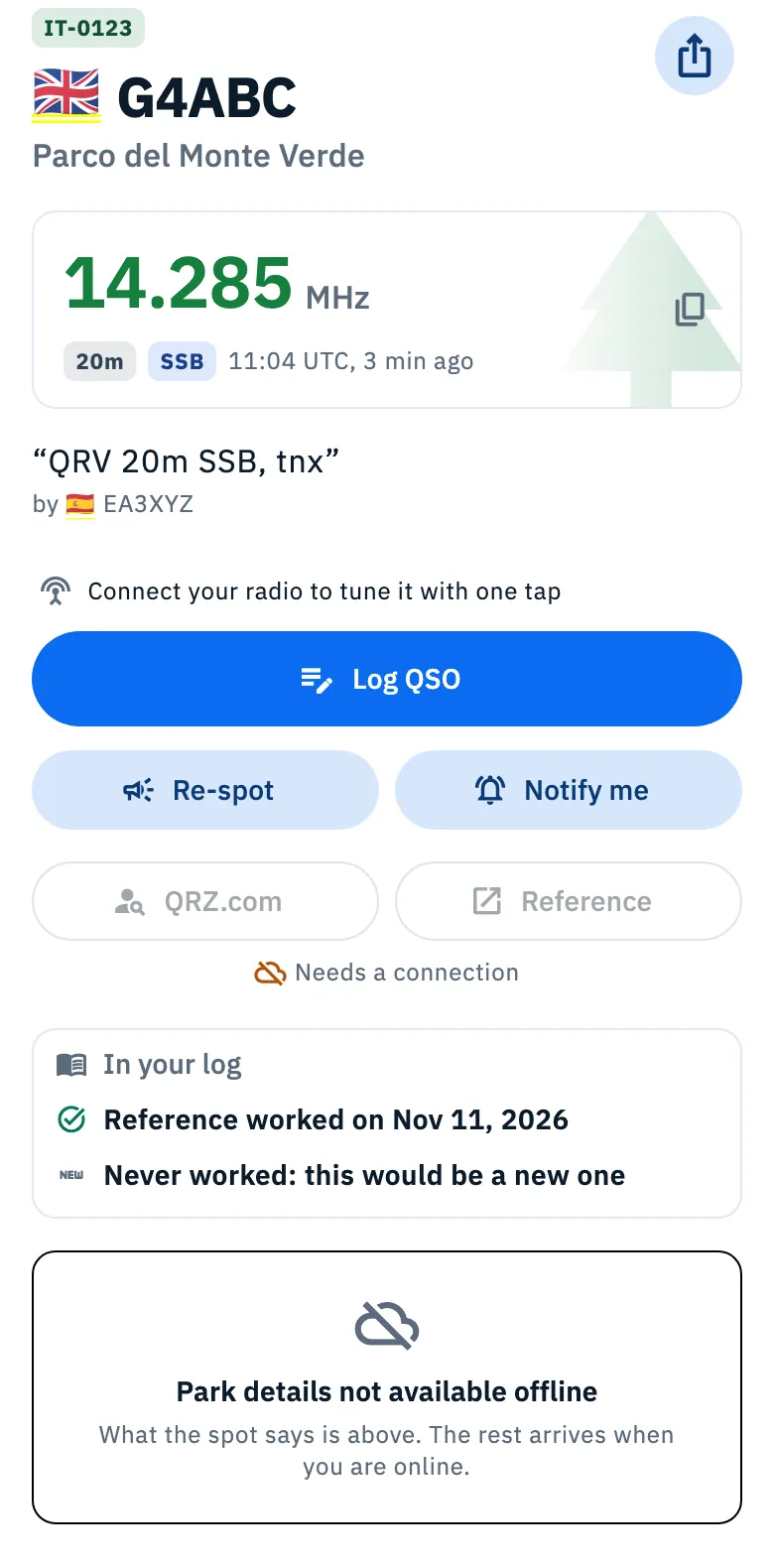
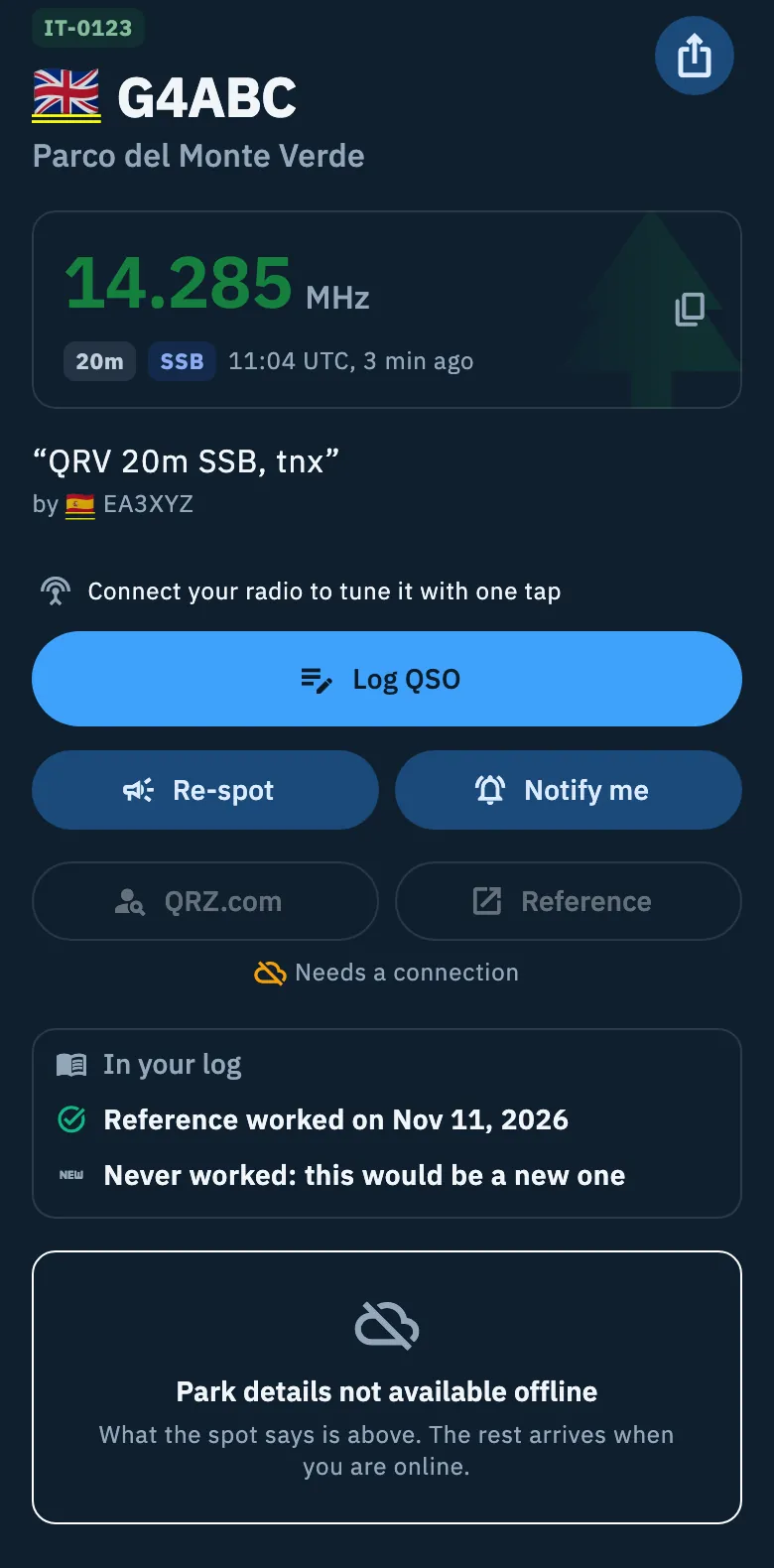
Offline the detail still shows everything the spot carries: header, frequency, actions and In your log.
- In place of the sections there is the Park details not available offline box (for SOTA Summit details not available offline, for the others Details not available offline) with «What the spot says is above. The rest arrives when you are online.».
- When the network comes back the page reloads everything by itself, the callbook's Operator section too: you do not need to do anything.
- QRZ.com and Reference stay visible but off, with Needs a connection below.
- In place of the map you read Map not available offline; distance and heading stay.
- For a WWFF area, if you have downloaded the reference catalog to your device, the area data are there offline too.
See also Using HamQSO offline.
Free and Pro
The detail, copying the frequency, Log QSO, Re-spot, QRZ.com, Reference, In your log, the program sections and the antenna heading are free.
Phone, tablet and computer
- Phone: a single scrolling column: header, actions, In your log, map and then the sections.
- Tablet and computer (on the web too): the detail sits next to the list, in two columns that scroll on their own: on the left header, actions, In your log and map, on the right the sections. In a computer window the sections column has a maximum width, to leave room for the list.
Troubleshooting
- «The service returned an error. Try again shortly.», «Can't reach the service. Check your connection.» or «Received invalid data.» with Retry, in place of the sections: you are online but the program's service did not answer properly. The spot's data stay: tap Retry.
- The Park statistics, Activator, Previous spots or Activations section is missing: they are optional parts; if the program does not give them or does not answer, the section is simply not there.
- I don't see the activator's name at the top: for WWFF the name comes only from the callbook. Link QRZ.com or HamQTH (see QRZ.com and callsign lookup).
- I don't see the map: neither the spot nor the program's data have the location of the reference.
- I don't see the Antenna heading card: the app does not know your location. Give the app the location permission, or save your locator in your profile (see Your profile: name, callsign and locator).
- QRZ.com and Reference are off with «Needs a connection»: the web pages need the network.
- Tune the radio is off with «Outside your radio's coverage»: your radio does not receive the frequency of the activation; the app sends nothing to the radio.