
Account: email, signing out and deleting
See the email and sign-in method of your account, sign out without losing changes, or delete the account after saving your log.
FreeUpdated for HamQSO 0.1.19
On this page
Your account holds your log and your settings. This page shows which email and sign-in method you use, how to sign out on a device without losing changes, and how to delete the account after saving a copy of your log.
Seeing your email and sign-in method
- Open Profile.
- Tap your card at the top, with your callsign: Your profile opens.
- Scroll to the Account section.
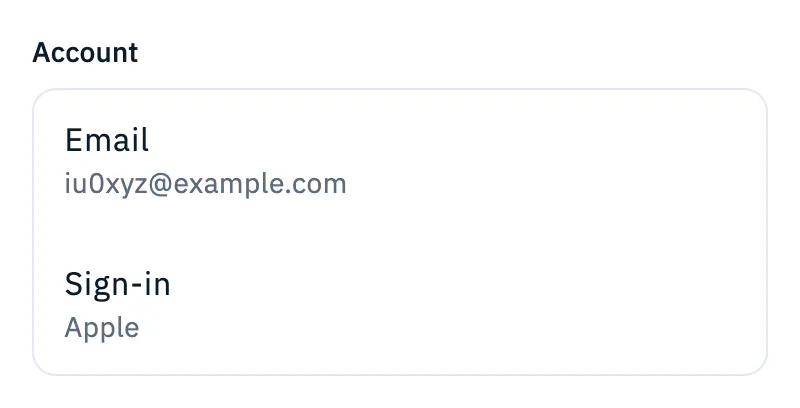

| Row | What it shows |
|---|---|
| The email address of the account. | |
| Sign-in | How you sign in: Apple, Google or Email. |
It reminds you what to use on another device: sign in the same way and you get your log and settings back. The section is read-only: the email and the sign-in method cannot be changed from the app.
Signing out
The Sign out button is at the bottom of Profile, and only when you are signed in with an account. On a tablet it is at the bottom of the right-hand column.

- Tap Sign out.
- HamQSO always asks first: Sign out of your account?. The text reminds you that your log and settings stay in your account and how to come back: "Sign back in whenever you like with Apple", "with Google", or "Sign back in any time with your email".
- Tap Sign out to leave, or Cancel to stay.
Before signing out HamQSO tries to upload to the cloud the log changes that are still only on the device. When you sign out, the local copy of the log is removed from the device: it stays in your account and comes back when you sign in again. After signing out you see Sign in to continue (see Signing in and saving your log).
When changes are not uploaded yet
If some changes are not in the cloud yet, the Sign out of your account? dialog says how many, for example "3 changes are not uploaded yet. If you sign out you lose them.", and gives you three choices:
| Button | What it does |
|---|---|
| Upload and sign out | Uploads the changes, then signs out. |
| Sign out anyway | Signs out now: the changes not uploaded are lost. |
| Cancel | You stay signed in; the changes stay on the device. |
If the only changes left are ones the cloud did not accept, the text reads "N changes were not accepted by the cloud. If you sign out you lose them." and Upload and sign out is not offered: you can only choose Sign out anyway or Cancel.
Deleting your account
Delete account is the last row of Your profile. Its subtitle says what goes: "Profile, preferences, alerts and log, from the cloud and from this device".
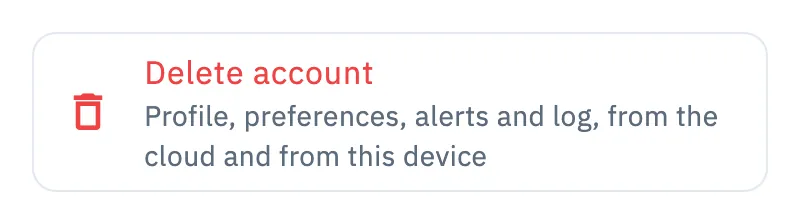

- Open Profile and tap your card to open Your profile.
- Scroll to the bottom and tap Delete account.
- Delete your account? opens. At the top, the Save your log first box reminds you that your log is erased too, from the cloud and from this device.
- To keep a copy, tap Export the log (ADIF): the dialog closes without deleting anything and the export opens (see Exporting your log as ADIF). Then come back and repeat from step 2.
- To delete, tap Delete. Cancel closes without doing anything.
Your profile, preferences, alerts, history and devices are deleted from the server, and your log goes from the cloud and from this device. After the deletion the app has no account and Sign in to continue appears. The usage statistics of this install also start over.
Free and Pro
Seeing your account, signing out and deleting it are free, and work the same on phone, tablet, computer and web.
Troubleshooting
- "Sign-out failed. Try again.": the sign-out did not complete and you are still signed in. Try again shortly.
- "No connection. Your changes stay on this device.": you chose Upload and sign out while offline. You stay signed in and the changes stay on the device; sign out again when you are back online.
- "Deletion failed. Try again.": the account was not deleted. Check your connection and try again.
- The Sign out button or the Delete account row is grey: HamQSO is already working on a sign-out or a deletion. Wait for it to finish.