
Re-spotting a spot or a QSO
Re-spot a station from the spot list or the one you just worked: the sheet comes prefilled, you check the mode, pick the networks and send.
FreeUpdated for HamQSO 0.1.19
On this page
Re-spotting means sending out again a station that has already been spotted, to tell others it is still there. HamQSO opens the re-spot sheet already filled in, both from a spot in the list and from the QSO you just logged: you check the mode, add a comment if you like and send.
Re-spotting a spot from the list
- Open the DX or xOTA section and tap a spot.
- In the detail (on tablet and desktop, in the spot's panel), tap Re-spot, next to Notify me.
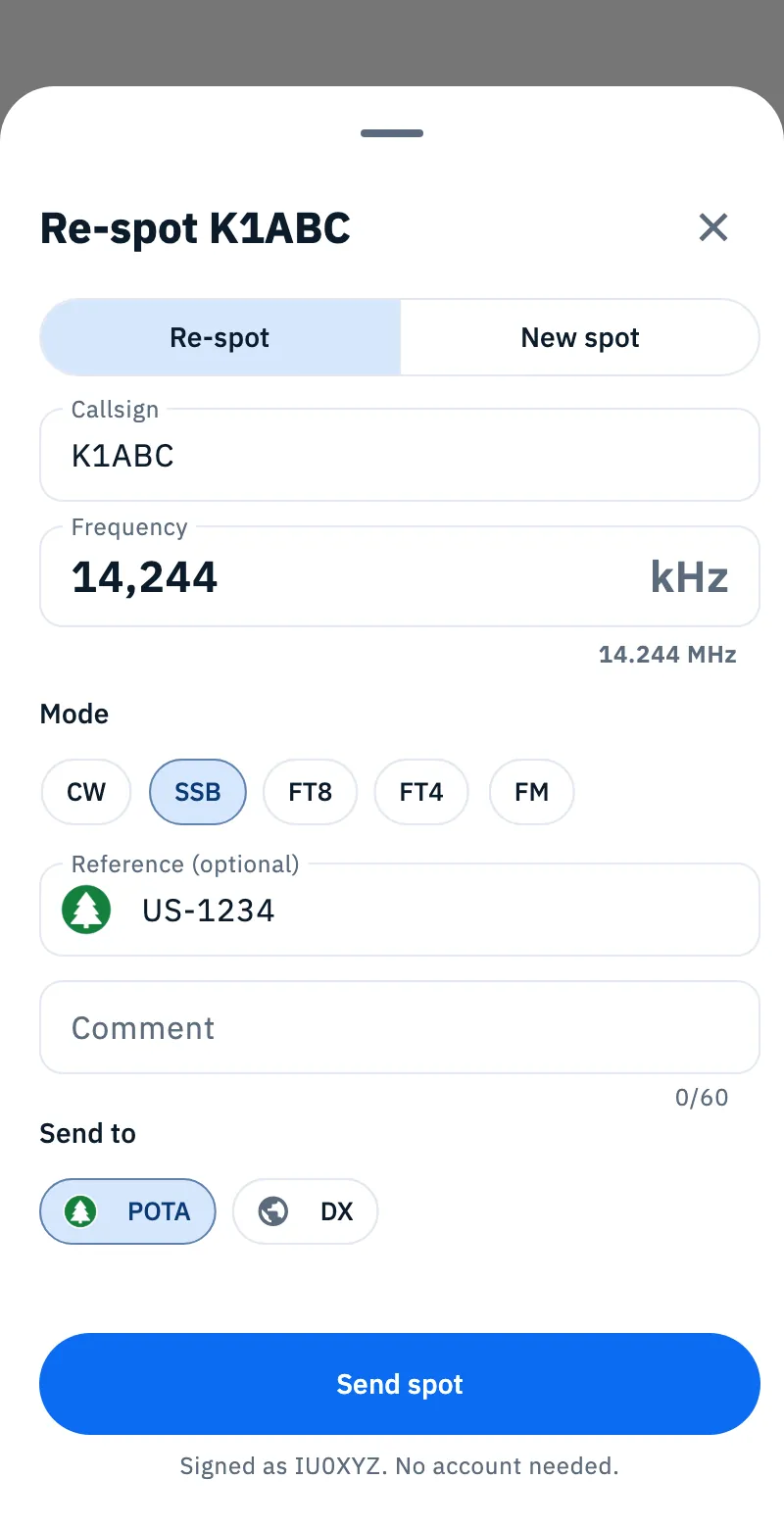
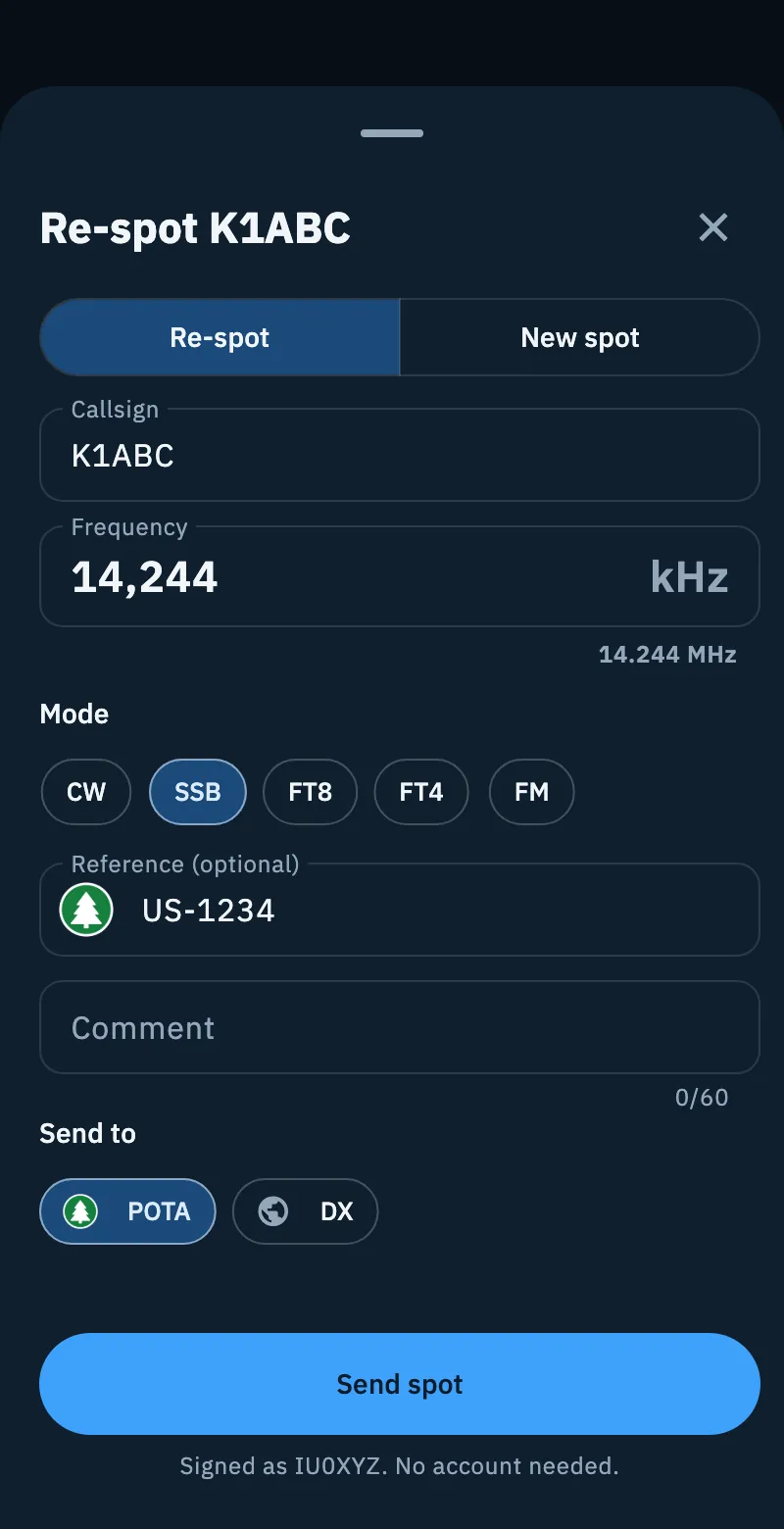
- The "Re-spot K1ABC" sheet opens: callsign, frequency and reference come from the spot.
- Check the Mode: if no chip is selected, pick the right one.
- If you like, type a Comment (for example the report, up to 60 characters).
- Check Send to and tap Send spot.
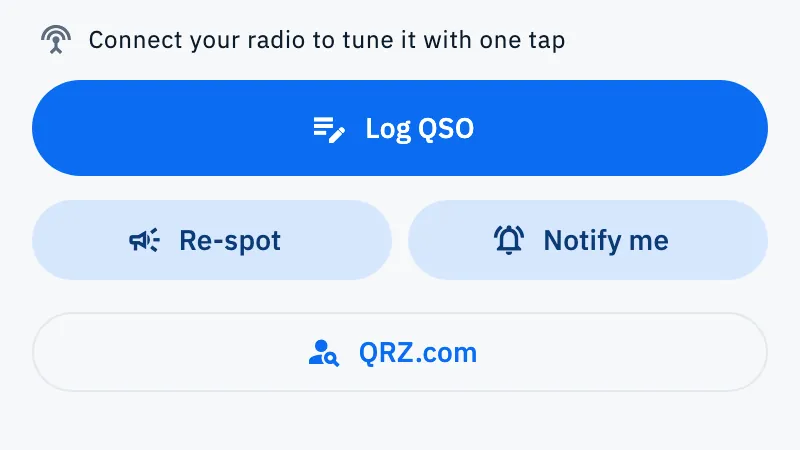
Re-spot is also there on spots of your own callsign: only Log QSO and Notify me are missing there.
What is already filled in
| Field | When re-spotting |
|---|---|
| Callsign | The spot's, locked. |
| Frequency | The spot's, locked. It does not follow the radio: it is the frequency of the station spotted. |
| Mode | The spot's. USB, LSB and PHONE become SSB. If the spot's mode is estimated, or is not one of CW, SSB, FT8, FT4 and FM, no chip is selected and Send spot stays off until you pick one. |
| Reference (optional) | The spot's, locked. If the spot has none, you can type it. |
| Comment | Empty. Up to 60 characters. |
| Send to | The networks the spot suggests (see below). |
Re-spot or new spot
At the top of the sheet there is the choice Re-spot / New spot.
- Re-spot: sends out the spot's station again, with its data.
- New spot: clears callsign, frequency and reference to spot another station. With a radio connected, frequency and mode follow the radio again.
If you go back to Re-spot, the sheet takes the spot's data again.
The networks of a re-spot
Under Send to there are three networks:
- POTA: can be selected only with a POTA park reference.
- DX: the DX Cluster.
- WWFF: can be selected only with a WWFF reference.
Which one is suggested depends on the spot:
- a POTA spot goes back to POTA;
- a WWFF spot goes back to WWFF;
- the others (a DX spot, a SOTA spot) go to DX. SOTA is not among the networks.
If the DX Cluster cannot be selected, a spot that would go to DX has no network on: pick one yourself.
For a QSO from the log, the shape of the station's reference decides: a POTA reference suggests POTA, a WWFF one suggests WWFF, otherwise DX. You can turn each network on or off before sending. How the networks, the DX Cluster and the result of a send work is explained in Spotting a station.
Re-spotting the station you just worked
It is the habit of POTA and SOTA hunters: after the QSO, you re-spot the activator.
- Log the QSO with the activator in the QSO entry bar.
- Right after saving, the Saved line appears above the fields, with the callsign and the UTC time of the QSO.
- Tap Re-spot at the end of the line.
- The re-spot sheet opens filled in from the QSO: check it and tap Send spot.
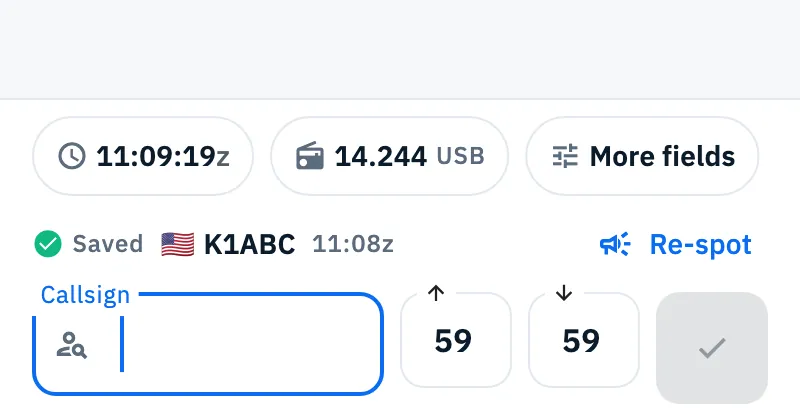
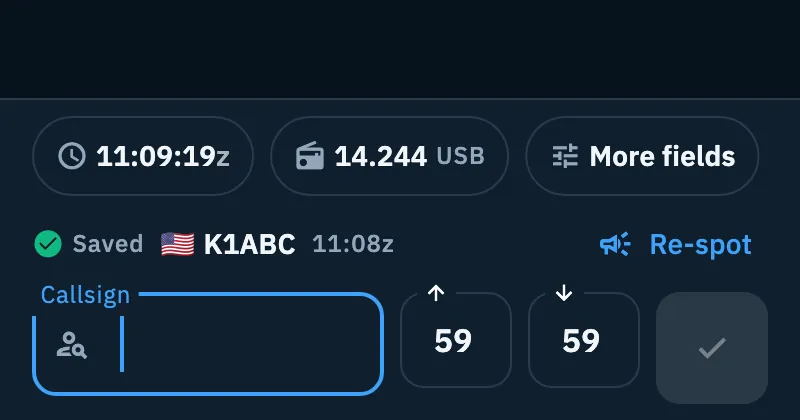
From the QSO the sheet takes:
- the callsign and the frequency of the QSO;
- the mode, or the submode when there is one (FT4, USB which becomes SSB). If the QSO's mode is estimated, you pick it;
- the station's reference: the POTA or SOTA one first, then the WWFF one, otherwise the first there is.
When Re-spot is there, the Saved line stays until you type the next callsign. Without Re-spot, the line goes away after 3 seconds.
Next to the time, the cloud icon with the arrow means "Not synced yet": the QSO is not in the cloud yet. Below the line, "Back among your operations" appears when the QSO brought an archived operation back among the active ones.
When there is no Re-spot
- The QSO has no frequency, or its frequency is estimated.
- The QSO is with a hunter of your activation: you have references and they have none. You do not re-spot those who call you. In a park to park, instead, Re-spot is there, because the other station is an activator.
Re-spotting a QSO from the log
- Open the Log section and tap a QSO.
- In the detail, tap the megaphone icon at the top (Re-spot).
- Check the sheet and tap Send spot.
The icon is there when the QSO has a real frequency, not an estimated one. More about the QSO in Opening and editing a QSO.
A new spot with the log's frequency
When you are working in the log and want to spot a new station, HamQSO starts from where you are.
- In the QSO entry bar, set the frequency you are on (also after a QSY, before the first QSO).
- Tap Spot and choose Spot a station: frequency and mode are already those of the QSO entry bar.
The bar's mode becomes one of the chips: USB and LSB become SSB; a mode without a chip becomes SSB, and you can change it. I'm on the air opened from the log also starts from the frequency and mode of the QSO entry bar (see Activating a POTA park or a SOTA summit).
Where to find Spot in the Log section:
- phone: the megaphone icon at the top of the log pages;
- tablet: the Spot button at the top of the side rail;
- desktop: the Spot button at the top of the side bar, also with the S key.
Phone, tablet and desktop
Re-spotting works the same everywhere. On a phone the sheet slides up from the bottom; on tablet and desktop, when the screen or the window is large enough, it opens as a window in the middle. The Saved line with Re-spot is in the QSO entry bar on every form factor.
Free and Pro
Re-spotting is free, from a spot and from the log.
Troubleshooting
Send spot is off. Something is missing:
- no Mode chip is selected: the spot or the QSO had an estimated mode. Pick the mode;
- no network is on under Send to;
- your callsign is missing: the sheet says "Your callsign is needed to spot.". Tap Your profile and type it (see Your profile).
"Your spot already went out at 14:05z." You already sent the same spot (same station, within 1 kHz) in the last 2 minutes: "We won't send it again.". It is not an error, the re-spot is already out there.
"The cluster already has this station on this frequency: someone just spotted it." The DX Cluster row of the result says so: the station is already on the cluster, there is nothing to fix.
"The DX Cluster needs the live session with your callsign." The DX network cannot be selected: see Spotting a station.
"From the browser, DX cluster spots are sent for your account: sign in with Apple or Google." On the web, without an account, the DX Cluster waits for you to sign in: tap Sign in.
Without a network the button says Queue spot. The spot stays on the device: "Spot queued: it goes out when the network is back.". See Spots sent while offline.
I don't see Re-spot after saving. The QSO has no real frequency, or it is with a hunter of your activation (see above).