
What's new, version and credits
Read what changed in each version of HamQSO, find which version you have installed and open the credits and open source licenses.
FreeUpdated for HamQSO 0.1.19
On this page
After an update HamQSO tells you what changed, in the language of the app. Here you also find where to read the version you have installed, and the credits page with the data sources and the open source licenses.
Reading what's new
- Open Profile.
- Tap What's new.
- Read the versions, from the newest to the oldest.
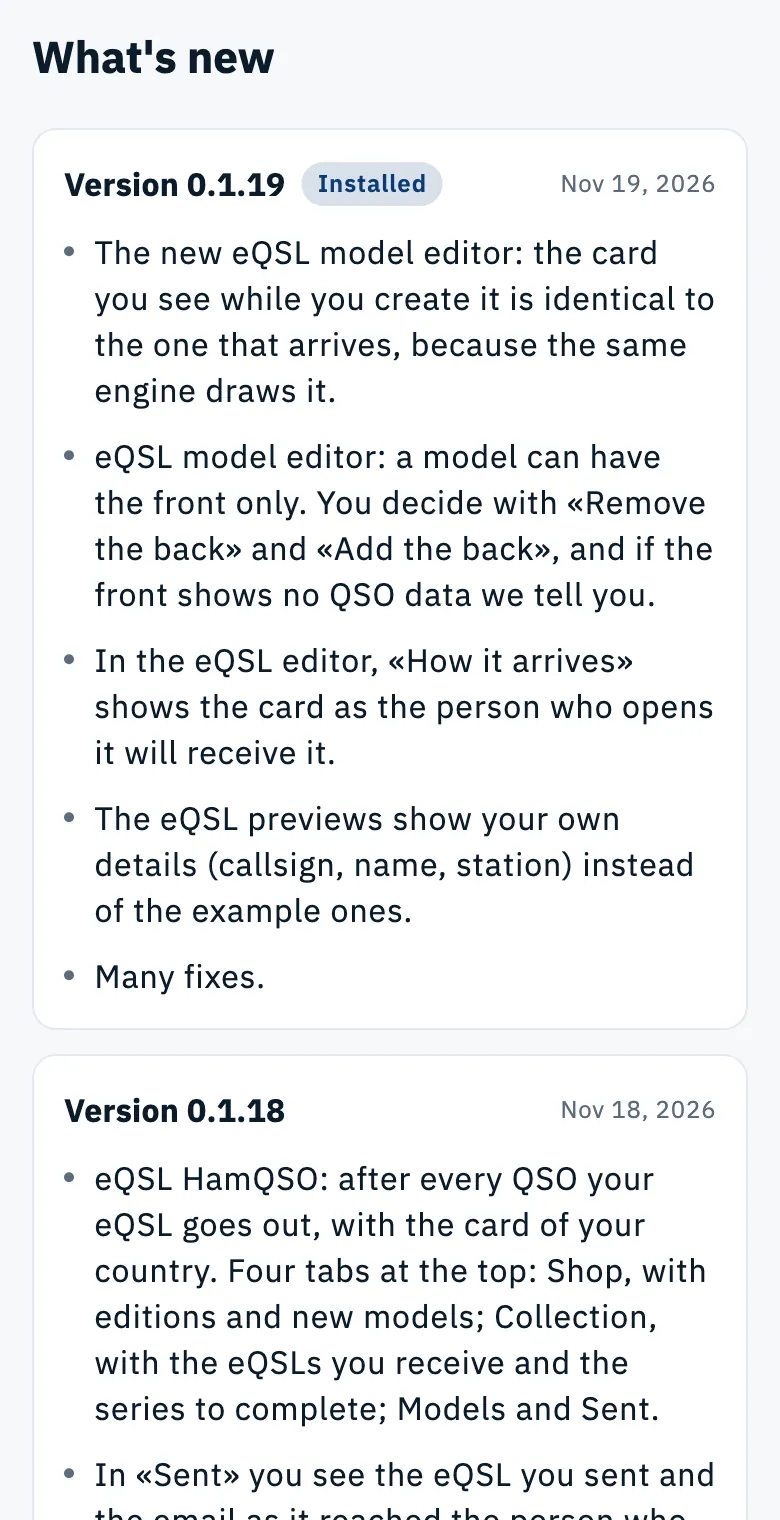
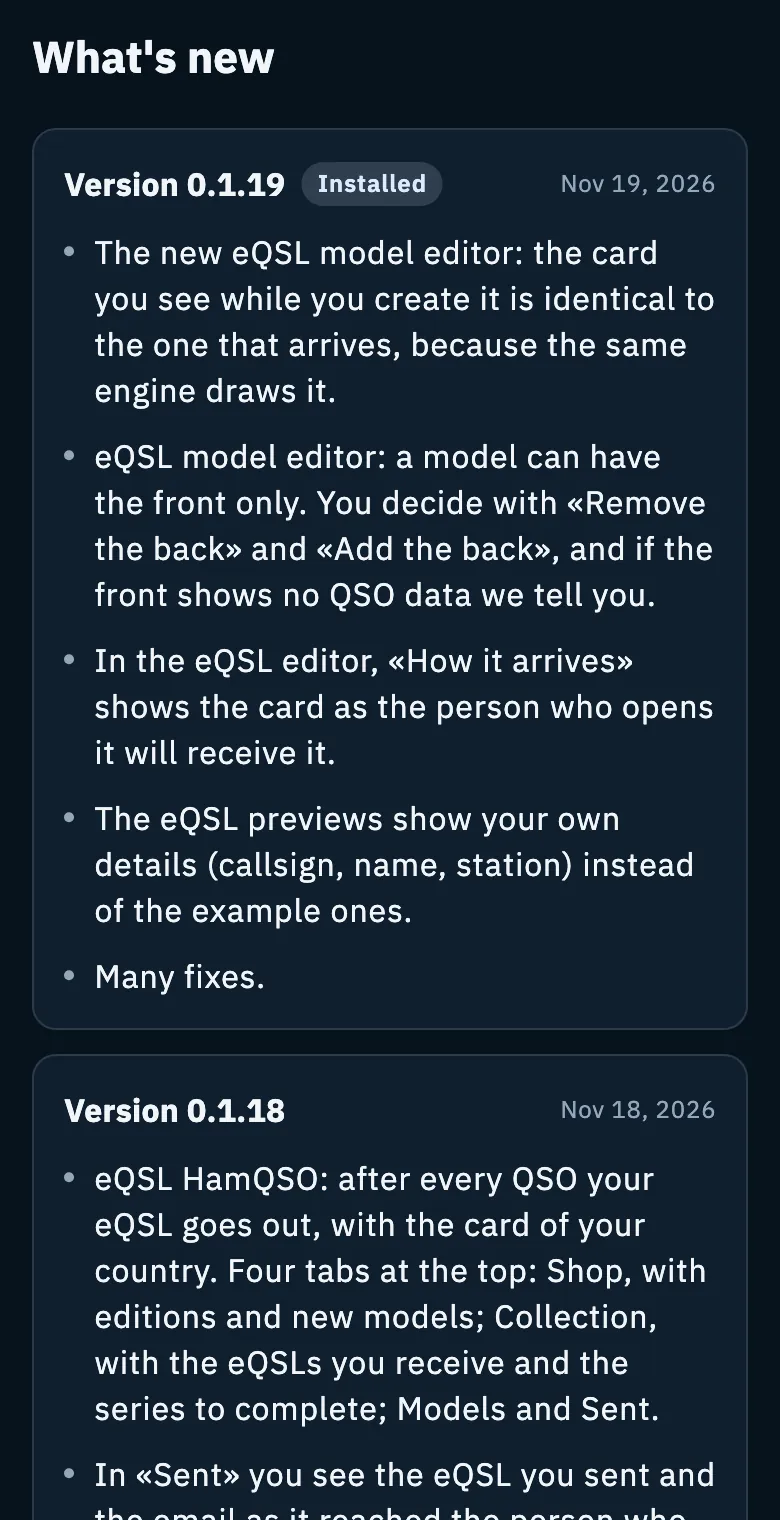
Each version can appear in three ways:
| How it appears | What it means |
|---|---|
| A card with Version and the number, the date at the top right and a list of points | The version brought changes that matter to you |
| A line with the number and Fixes and small improvements | The version has fixes only: the text is the same for all of them |
| The number alone | The version you have installed has no What's new text |
- The version you are using has the Installed label.
- The page shows only the versions up to the installed one: what's new in a version you don't have yet does not appear. To see it, update the app; on the web, when a new version comes out, "New version available." appears with the Reload button.
- The texts are inside the app: the page reads without a network too.
- You can select and copy the text of the points.
- To close the page go back; with a keyboard, Esc too.
The What's new dot
When an update brings news you have not read yet, HamQSO shows a dot.
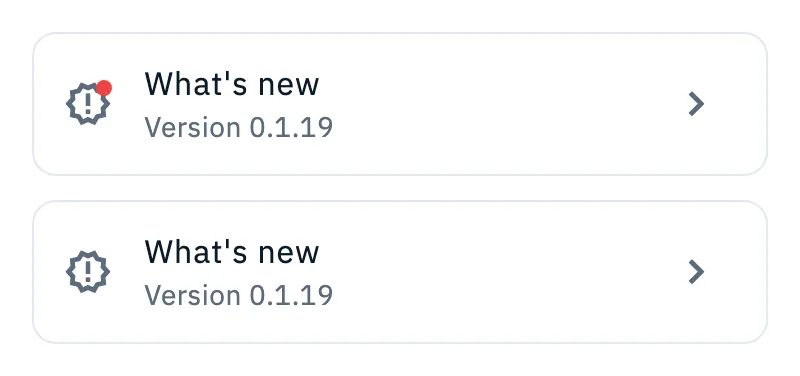
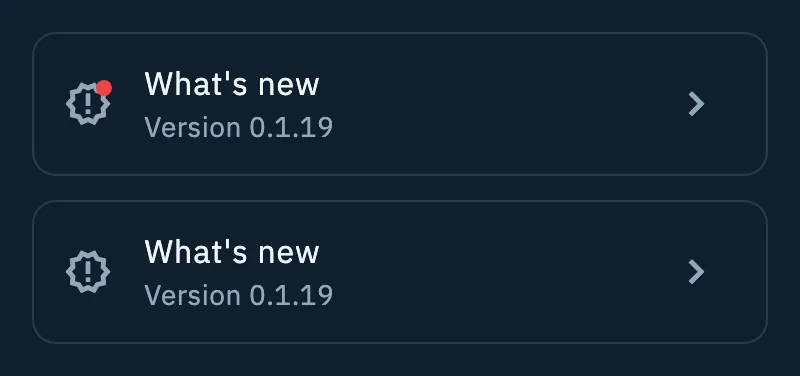
- The dot appears on the Profile icon in the navigation bar (at the bottom, or at the side on desktop and web) and on the icon of the What's new row.
- While there is news to read, the What's new row sits high in the Profile, right under the Live page row.
- When you open What's new, everything up to the installed version counts as read: the dot goes off and the row goes back to its place in the App group, after Settings.
- Versions with fixes only never light the dot.
- If you install HamQSO from scratch you don't see the dot: when you finish the first setup, the news already out counts as read.
- With a screen reader the row says "there is news to read" while the dot is on.
Finding which version you have
You need the installed version, for example, when you send feedback. You find it in three places:
| Where | What you read |
|---|---|
| Profile, What's new row | Version 0.1.19, under the title |
| Profile › Settings, at the bottom of the page | Version 0.1.19 (22): the number in brackets is the build |
| Credits and licenses, About section | The same version with the build, under the HamQSO name |
See also All settings.
Credits and licenses
The page says who and what HamQSO thanks, and where the data you see comes from.
- Open Profile.
- In the Help group, tap Credits and licenses. Or open Settings, scroll to the bottom and tap Credits and licenses.
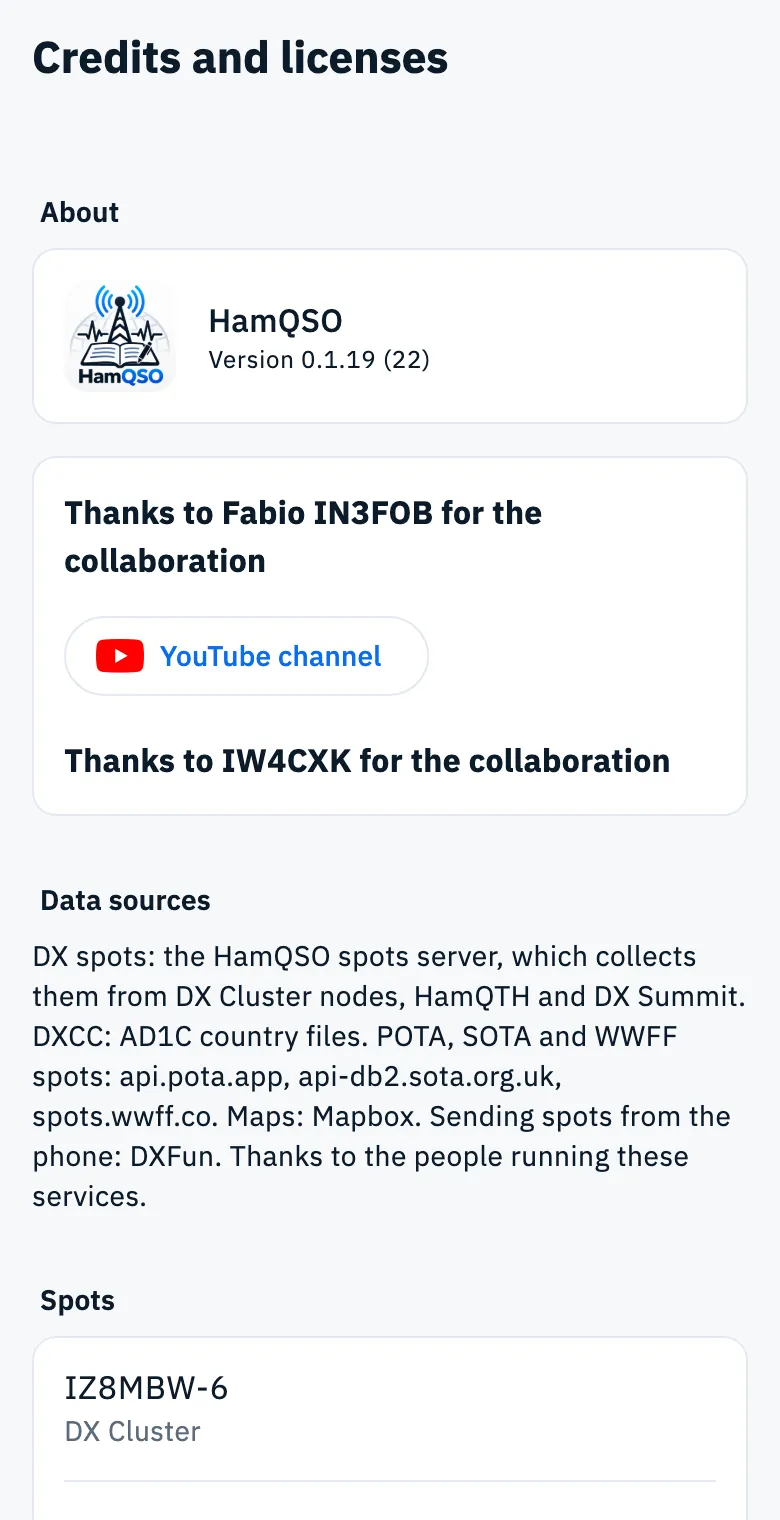
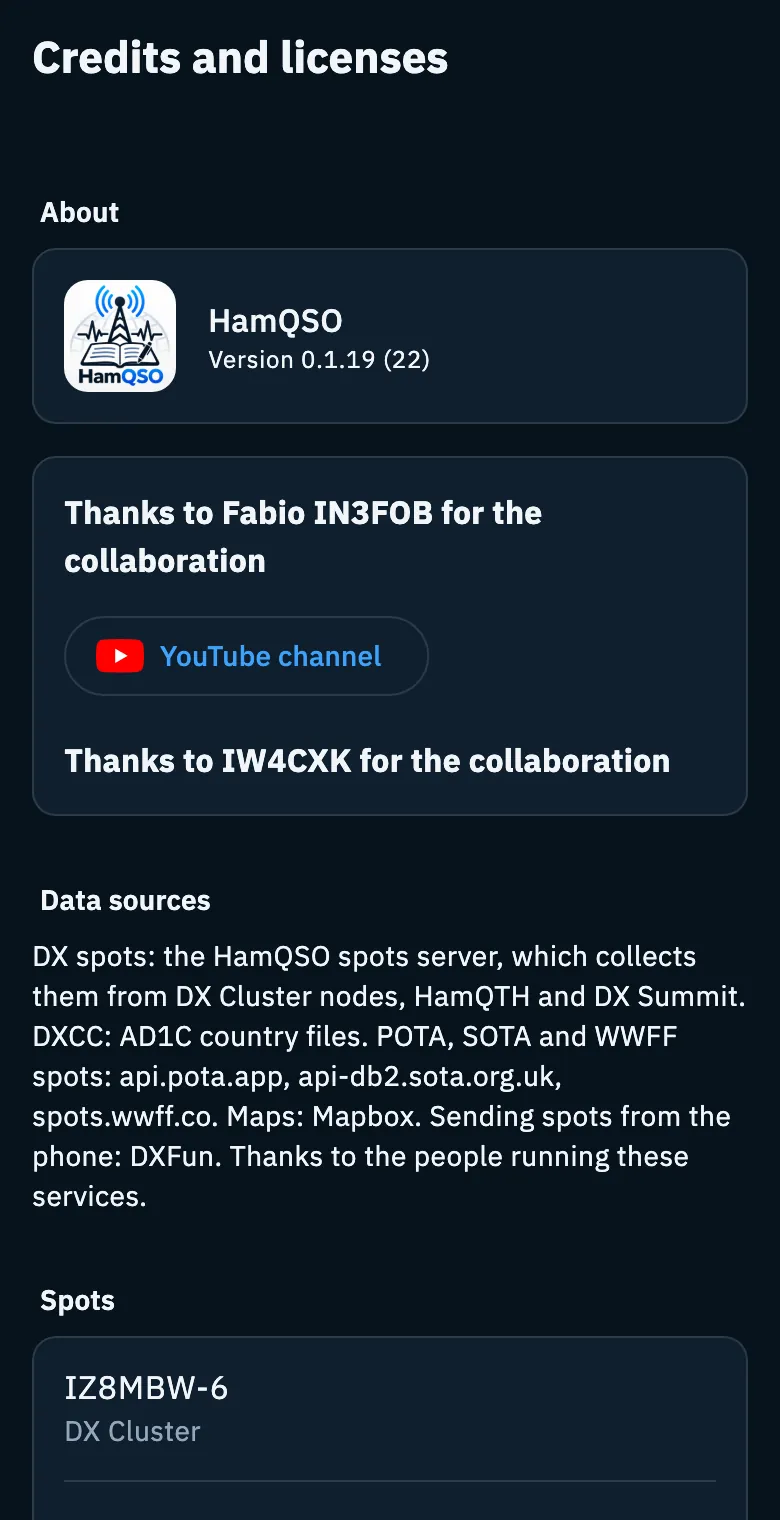
From top to bottom you find:
| Section | What it holds |
|---|---|
| About | The icon, the HamQSO name and the installed version with the build |
| Thanks | The thanks to the radio amateurs who worked on the app with us, with the YouTube channel button that opens the channel of one of them |
| Data sources | In short, where DX spots, DXCC data, POTA, SOTA and WWFF spots, maps and sending spots from the phone come from |
| Spots | The DX Cluster nodes, DX Summit, HamQTH, Reverse Beacon Network, POTA, SOTA and WWFF |
| Callbook | QRZ.com, HamQTH, HamDB and Callook |
| Logbook | LoTW, TrustedQSL, eQSL, HRDLog and QRZ Logbook |
| Amateur radio data | Country files, solar indices and space weather, propagation forecasts, ionosondes, contest calendars and ITU callsign series |
| Maps and flags | Mapbox, OpenStreetMap, NASA, Natural Earth and the sources of borders and flags |
| Software | HamQSO, Flutter, Supabase, Firebase, RevenueCat and the IBM Plex Sans font, then Open source licenses |
- Tap an item with the external link icon to open its site in the browser. DX Cluster nodes reached only by telnet have no site, so they don't open.
- Names and attributions stay in their original language, for example "Data provided by HamQTH.com".
- Open source licenses ("Every package used by the app") opens the list of the packages HamQSO uses with their licenses, the IBM Plex Sans font included.
- On tablet and web the text stays in a column of comfortable reading width; with a keyboard, Esc closes the page.
Troubleshooting
The What's new page says "Can't read what's new." The What's new texts are inside the app and it could not read them. Close the page and open it again; if the message stays, update or reinstall the app and send us feedback.
The site or the store mention a change that is not on the page The page shows only the versions up to the installed one. Update the app; on the web, tap Reload when "New version available." appears.
The What's new row does not show the version The app could not read the version number from the device. In that case the page shows every version it knows and the dot never lights up.