
Importing your QRZ.com logbook
Download your QRZ.com logbook into your log once, or let HamQSO add the QSOs you log on QRZ.com every 6 hours.
FreeUpdated for HamQSO 0.1.19
On this page
If you also keep your log on QRZ.com, HamQSO can bring those QSOs into your log in two ways: an import you start yourself, just like an ADIF file, or the automatic import, which downloads the whole logbook once and then adds the new QSOs by itself every 6 hours. Both are free in HamQSO.
Before you start: the API key
HamQSO downloads the logbook with the API key of your QRZ.com logbook. The key belongs to a station profile: if you have several callsigns, each station profile has its own.
- Open Profile, tap Linked services, then QRZ.com.
- In Logbook keys, under the station profile, paste the key you find on QRZ.com into Logbook API key and tap Link.
All the steps are in Linking QRZ.com, LoTW, eQSL.cc and HRDLog. The key stays on this device: on another device you add it again.
Importing once from the import page
- In the Log section, at the top of the Operations list, tap the ⋮ menu (Log menu) and choose Import ADIF. While your log is still empty you can also tap Import an existing log.
- Below Choose an ADIF file, after "or", tap Import from QRZ.com.
- If more than one station profile has a key, pick one in Which station profile?. With a single profile the app uses it.
- Wait while the page says "Downloading the logbook from QRZ.com…" and counts the QSOs downloaded.
- From here it works like a file: you see the preview, make your choices and tap Import N QSOs. The choices are explained in Importing an ADIF file.
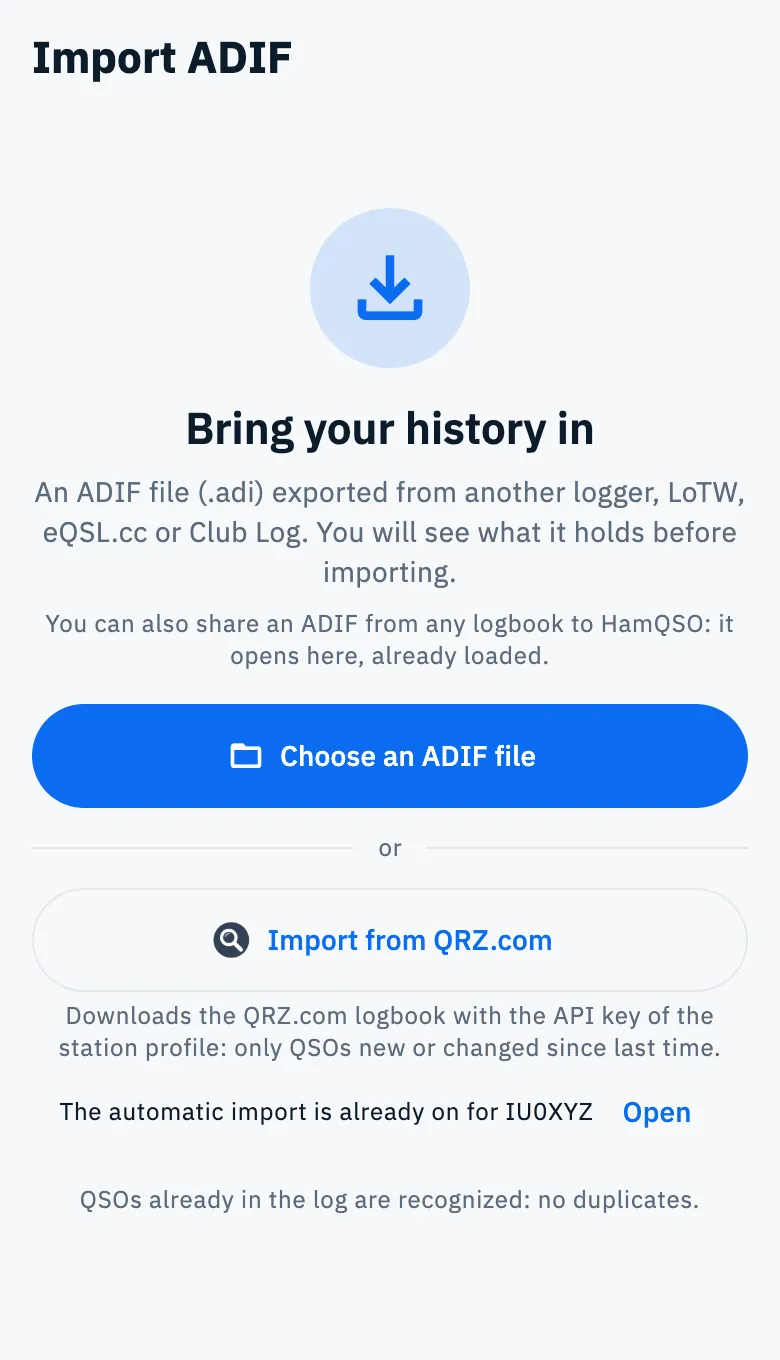
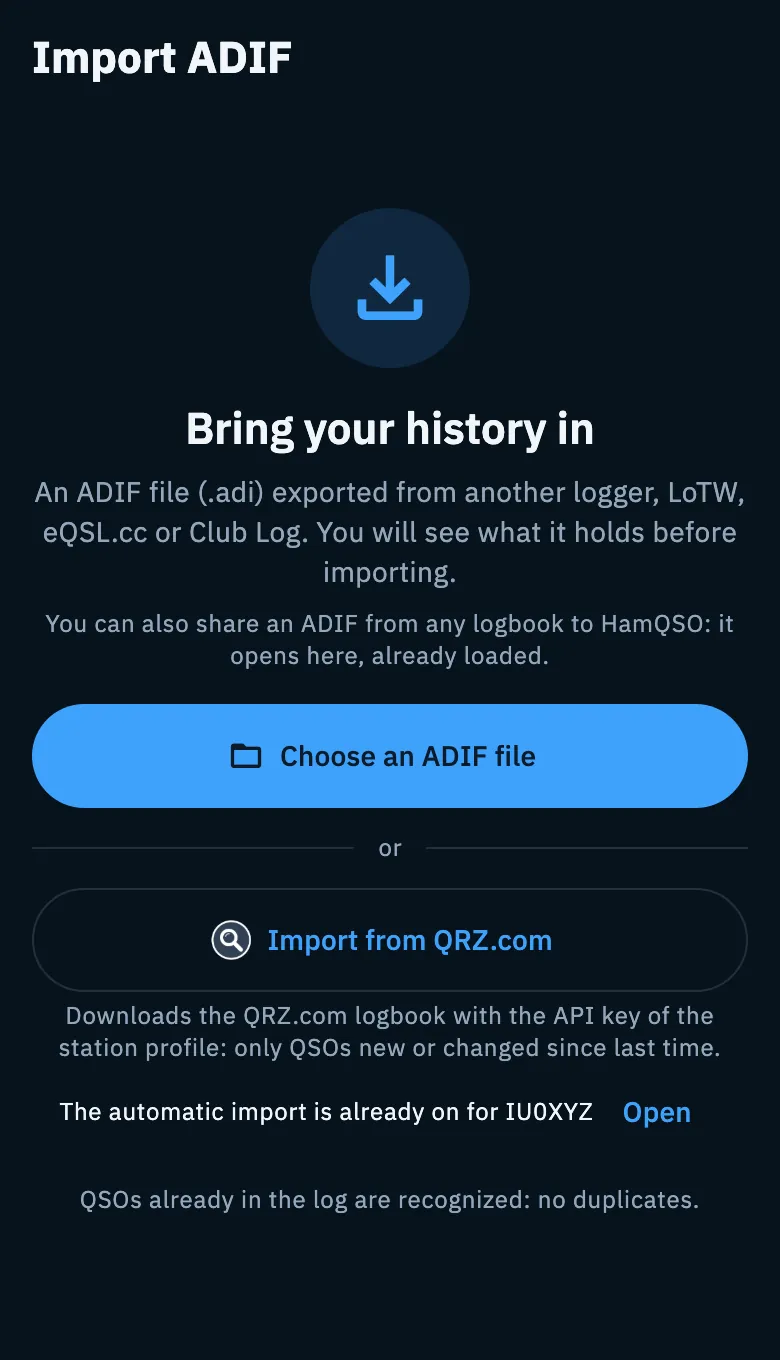
Below the button the app reminds you that it downloads only the QSOs that are new or changed since last time: the second time you don't download everything again. QSOs already in your log are recognized as duplicates.
If a profile already has the automatic import on, below the button you read "The automatic import is already on for IU0XYZ" with Open, which takes you to the QRZ.com page of your services.
If no station profile has an API key, Import from QRZ.com opens the QRZ.com page in Linked services, where you can add one.
QSOs imported from QRZ.com:
- have the origin "Import from QRZ.com" in the QSO detail, and in the filters of All QSOs you find them with the origin From QRZ.com;
- are marked as already on QRZ.com, so HamQSO does not upload them there;
- stay on QRZ.com if you delete them in HamQSO.
Adding the QSOs from QRZ.com automatically
If you also log QSOs with other apps that write to QRZ.com, you can have them arrive in your log by themselves.
- Open Profile, Linked services, QRZ.com.
- The Download from QRZ.com section has one row for each station profile with a key on this device. Turn on Add QSOs from QRZ.com automatically (it stays off until you turn it on).
- Add the QSOs from QRZ.com opens. In Where the QSOs from QRZ.com go choose New operation "From QRZ.com" (already selected) or one of your operations in use, then tap Continue.
- The app says "Counting the QSOs on QRZ.com…" and then asks, for example, "There are 1,248 QSOs on QRZ.com: import them all into "From QRZ.com"?". Below it reminds you "QSOs already in your log are skipped." and, above 5,000 QSOs, "It will take a few minutes.".
- Tap Import all, or Cancel.
- Follow the progress, "Downloaded 250 of 1,248". You can tap Keep using the app: the download goes on while you use HamQSO.
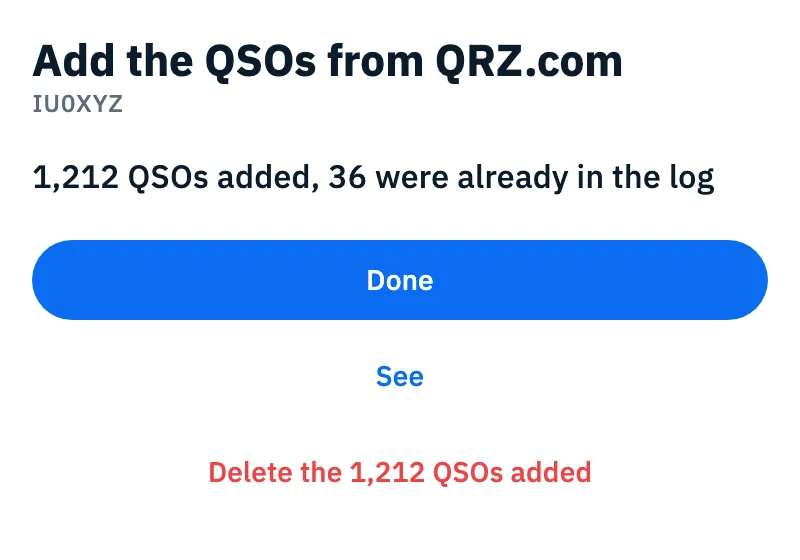
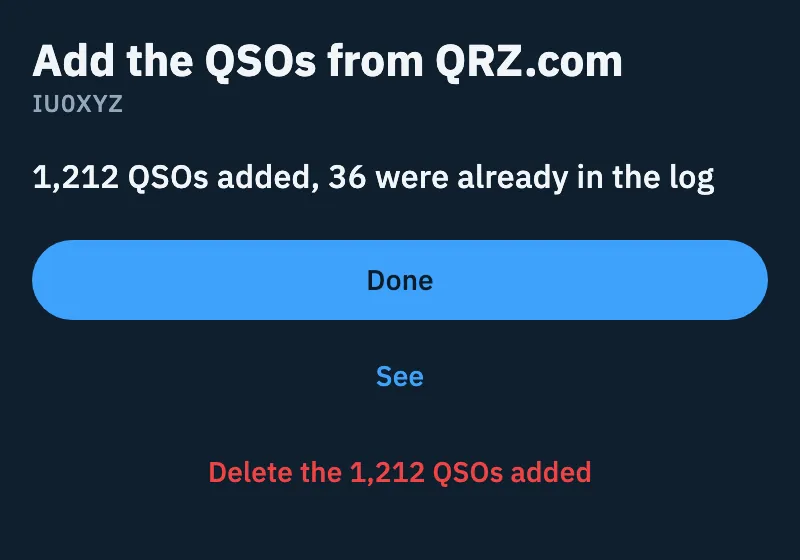
- At the end the summary says how many QSOs were added and how many were already in the log. Tap Done, See to open them, or Delete the N QSOs added if you did not want them.
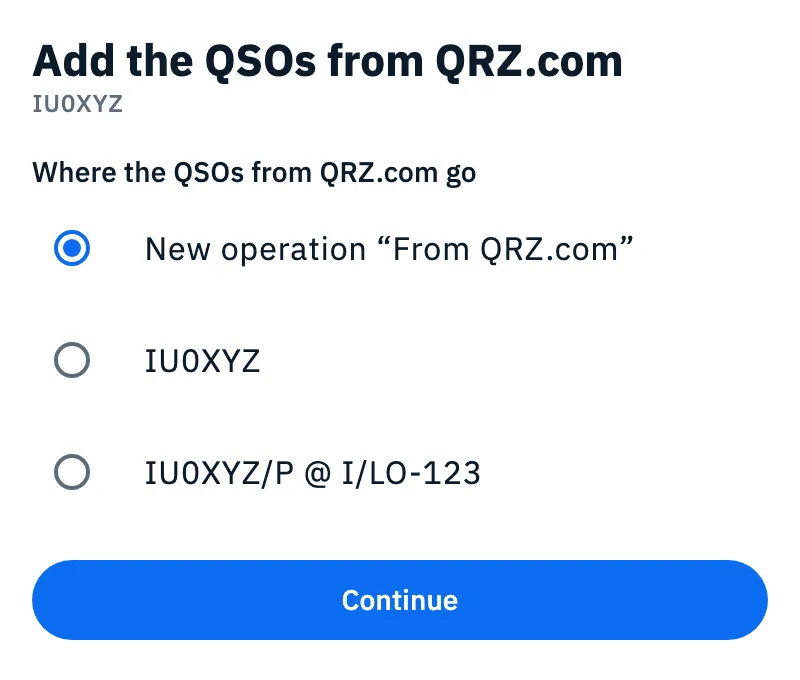
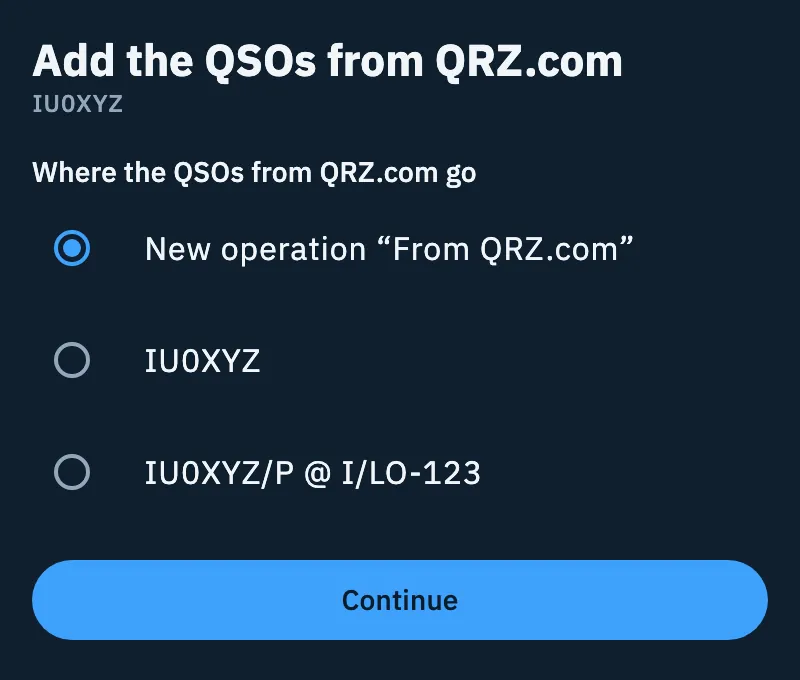
Until you tap Import all nothing changes: if you close the sheet or tap Cancel, the switch stays off. If there are no QSOs on QRZ.com yet, the app says "No QSOs on QRZ.com yet: the next ones will be added." and the automatic import stays on.
Deleting the QSOs just added
Delete the N QSOs added asks you to confirm: the QSOs go to the trash for 30 days and stay on QRZ.com. The Turn the automatic import off too box is already ticked; untick it to keep the import on. See also Deleting QSOs and the trash.
If the download stops
The full download goes on in blocks and, if it stops, it resumes from where it got to ("If it stops, it resumes from here."):
- "Stopped: 250 of 1,248, resuming": it stopped for a passing problem, such as the network, and resumes by itself.
- "Stopped: 250 of 1,248": it stopped for another error. Tap Resume in the profile's row, in the Download from QRZ.com section.
- If you closed the app halfway, the download resumes by itself when you open it again.
If you had closed the sheet, at the end "Import from QRZ.com finished" appears at the bottom with See: on the QRZ.com page See opens the summary again, in the Log section it opens the QSOs added in All QSOs.
Once it is on: the check every 6 hours
After the full download, HamQSO checks QRZ.com every 6 hours and adds only the new QSOs, skipping those already in your log. The check runs while HamQSO is open.
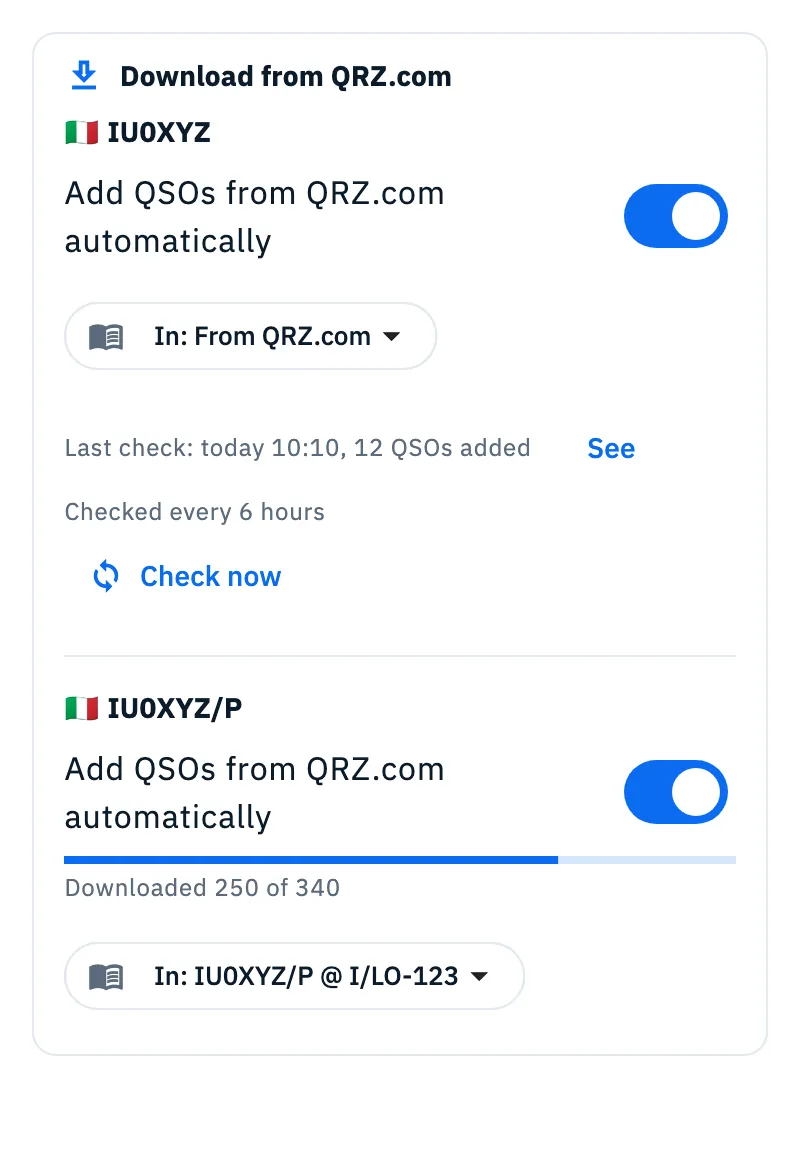
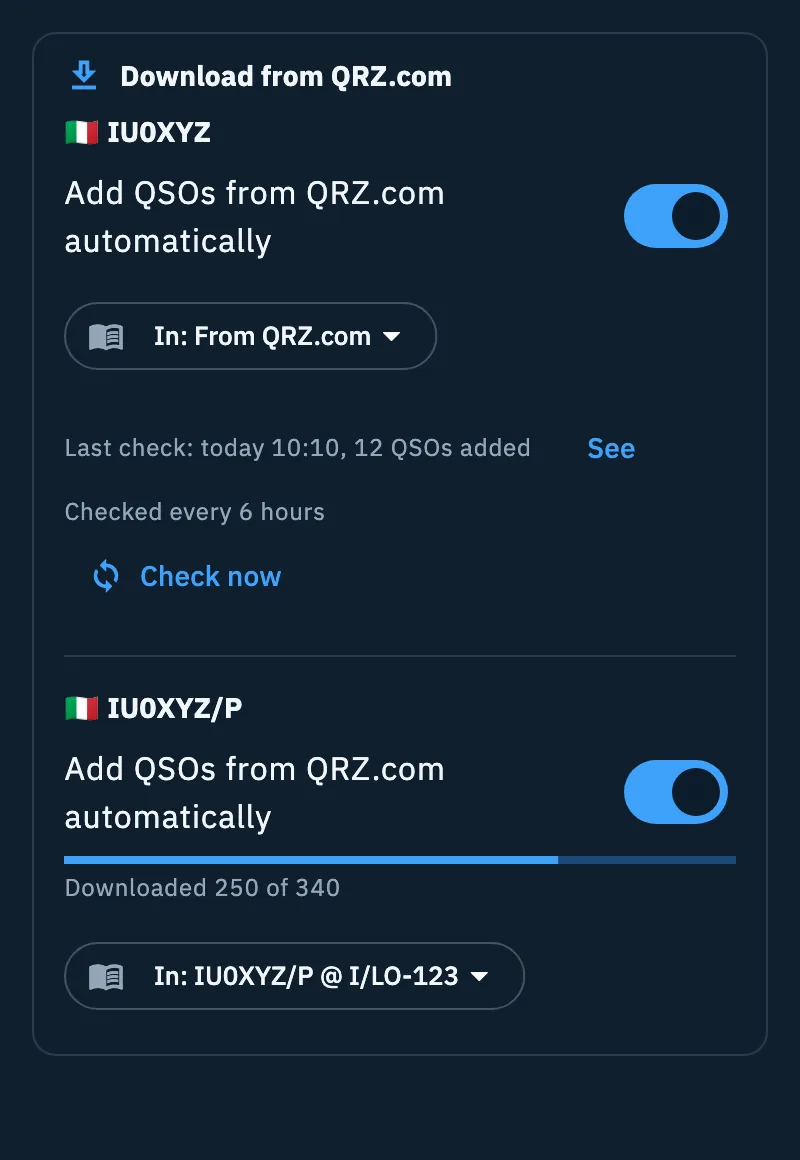
In the profile's row, with the import on, you find:
| Item | What it does |
|---|---|
| In: "operation" | Changes the operation the next QSOs go to (operations in use only). |
| "1,212 QSOs added, 36 were already in the log" | The result of the full download, with See to open the QSOs added. |
| "Last check: today 10:42, 12 QSOs added" | When the last check ran and how many QSOs it brought. Before the first one: "Not checked yet". |
| See | Opens All QSOs filtered by the origin "From QRZ.com" and by the destination operation. Shown when the last check added QSOs. |
| "Checked every 6 hours" | Reminds you how often it checks. |
| Check now | Checks right away, without waiting for the 6 hours. |
During the full download the row shows the progress and In: "operation"; the last check and Check now appear when it is finished, because the regular checks start after it.
While you are in the Log section, when a check adds QSOs the bar at the bottom says "12 QSOs added from QRZ.com" with See.
A QSO imported from QRZ.com that you delete in HamQSO is never imported again, even after the 30 days of the trash. Turn the switch off to stop the automatic import.
Several devices
One device runs the automatic import of a station profile: the one where you turned it on. On your other devices with the key the row says "Active on "device name"" (or "Active on another of your devices" while its name has not arrived yet) and the switch cannot be changed. If that device has not checked for more than 24 hours, the import moves by itself to another of your devices with the key. See also Services on several devices.
Phone, tablet, desktop and web
Everything works the same everywhere and needs a connection. Add the QSOs from QRZ.com opens as a sheet from the bottom on a phone and as a window in the middle on larger screens, such as a tablet.
Troubleshooting
| Message | What to do |
|---|---|
| "You need a connection to import from QRZ." | You are offline: the Import from QRZ.com button is off. If the connection drops during the download, the page says so and the download starts again by itself when it is back. Meanwhile you can still Choose an ADIF file. |
| "A QRZ.com subscription is needed" | QRZ.com lets only subscribers download the logbook (XML Logbook Data or higher). There is no other way: you need the QRZ.com subscription. |
| "This station profile has no QRZ.com logbook API key. …" | Tap Open QRZ.com in services and add the key to the station profile. |
| "QRZ.com refused the logbook API key. …" | Tap Open QRZ.com in services and check the key: copy it again from QRZ.com. |
| "QRZ.com is not answering. Check the connection and try again." | Tap Retry. |
| "QRZ.com does not answer." (in the sheet, while counting the QSOs) | Tap Retry. |
| "Add the API key to this profile." | In the Download from QRZ.com section: add the key in Logbook keys. |
| "Needs the QRZ.com subscription." | In the Download from QRZ.com section: the automatic import cannot start without the QRZ.com subscription. |
| "QRZ.com refused the key." | Check the key in Logbook keys. |
| "Suspended: the destination operation is gone, choose another one." | The operation was archived or deleted. Tap Choose the operation and pick one in use. |