
The desk-mode Globe
Leave a screen on with live spots as arcs on a spinning globe, filter bands and modes, and read UTC time, solar indices and band activity.
FreeUpdated for HamQSO 0.1.19
On this page
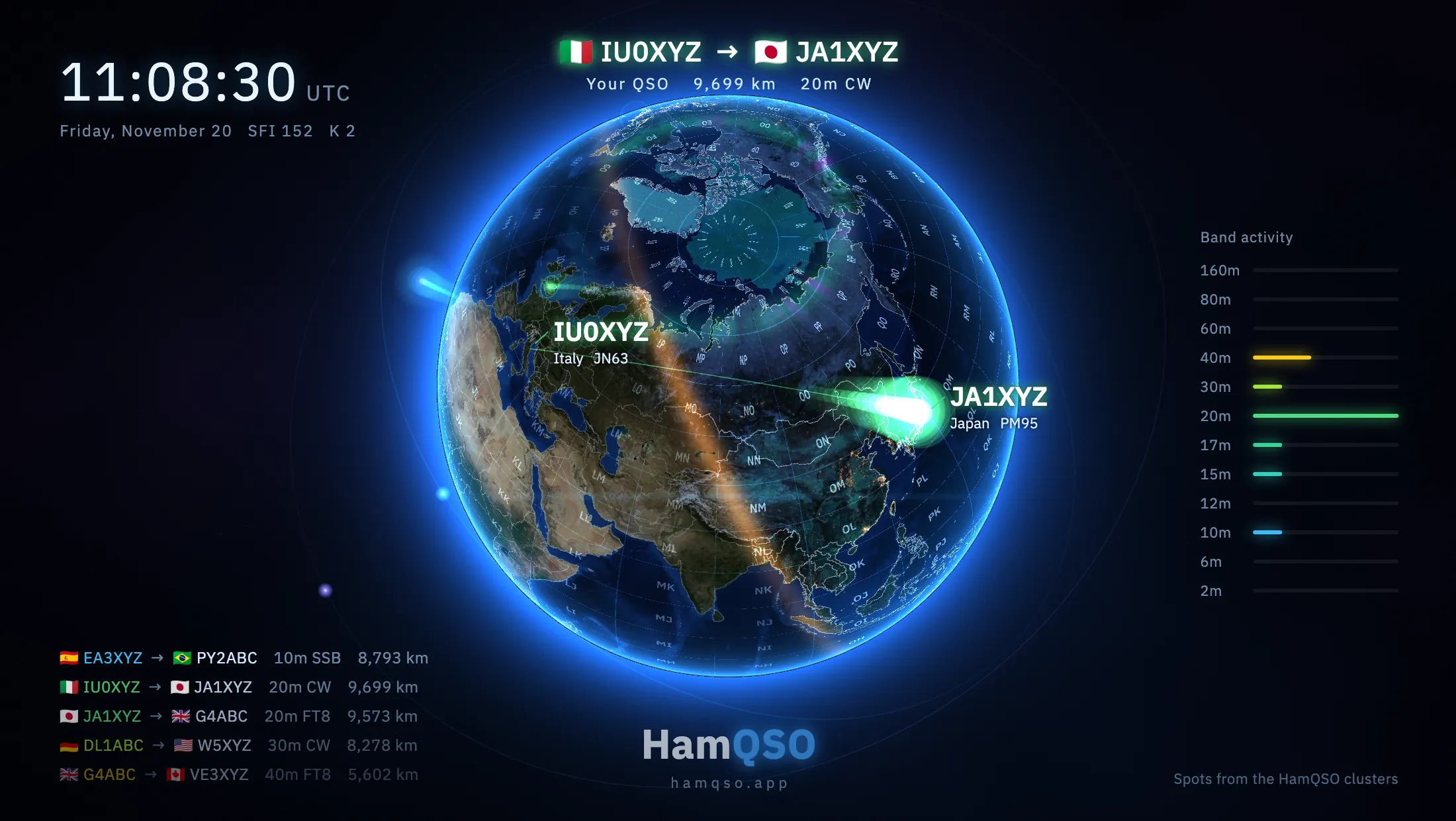
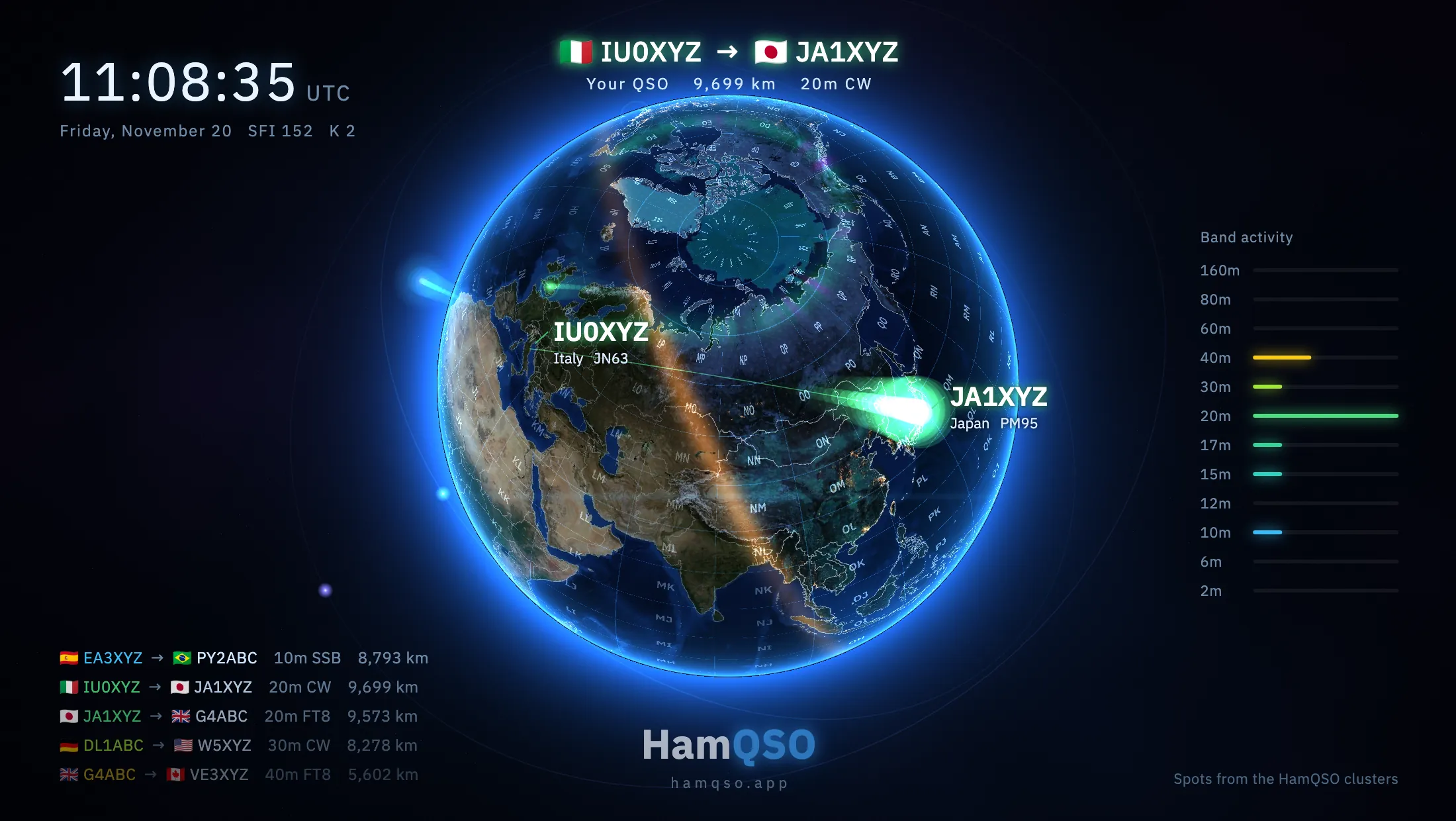
The Globe is a full-screen view to leave on at your desk: a slowly spinning globe, with today's real day and night, where the spots of the HamQSO clusters arrive as arcs of light. Around it, a few lines of text: the UTC time, the solar indices, the band activity and the latest spots. It is free.
Opening the Globe
- Open Profile.
- In the Tools group, tap Globe ("The globe with live spots, to leave on at your desk").
On the web, with the sidebar, there is also a Globe item below the sections: click it or press G (not while typing in a field). From the command palette, choose "Go to: Globe".
The Globe runs by itself: you don't need to touch anything.
What you see on the globe
- The arcs: each spot is an arc from the station on the air to the station that heard it. Its color is the band's, and a small label shows the callsign with its flag as the arc leaves and lands. A DX Cluster spot does not say where the station is: the app draws it at the center of its DXCC entity; the spotter is drawn at its locator when the node sends it, otherwise at the center of its entity too. Arcs shorter than about 200 km are not drawn.
- The link in focus: now and then the camera flies to a long link and follows it. At the top you see the two callsigns with their flags, the distance, the band and the mode; on the globe, next to both ends, the callsign, the country (in your language) and the locator, only when the source really gives it.
- Your QSOs: a QSO you log while the Globe is open comes into focus, with an arc from your locator (or the center of your entity) to the station you worked and the words "Your QSO". A spot with your callsign in it, as the station on the air or as the spotter, comes into focus the same way.
- Activations: POTA, SOTA and WWFF activations on the air pulse on their reference, in the program's color. They come from the programs you follow (see Choosing the programs you follow), are refreshed every 2 minutes only while the Globe is on screen, and QRT ones are left out.
When it opens, the Globe starts with the latest spots the cluster already has, drawn one after another, then moves on to the new ones. When the cluster is quiet it plays recent spots again, so the globe never stays empty.
The text around the globe
| Where | What it shows |
|---|---|
| Top left | The time in UTC with seconds, and below it the date and the solar indices "SFI … K …". If one of the two indices is missing, a dash takes its place; if both are missing, there is no index line. |
| Right | Band activity: one bar per band, from 160 to 2 m, with the spots of the last minute. Bands left out by the filter are faded. |
| Bottom left | The latest spots drawn: callsign → callsign, band, mode and distance. Until something arrives you see "Waiting for spots". |
| Bottom center | The HamQSO logo. |
| Bottom right | "Spots from the HamQSO clusters", followed by the bands and modes of the filter, if you chose any. |
Distances follow the units you chose in the settings. The Globe always uses dark colors, whatever the app theme. The aurora around the poles grows with the K index. The text drifts by a few pixels over time and the logo slowly pulses, so an OLED screen left on for hours keeps no mark.
Filtering bands and modes


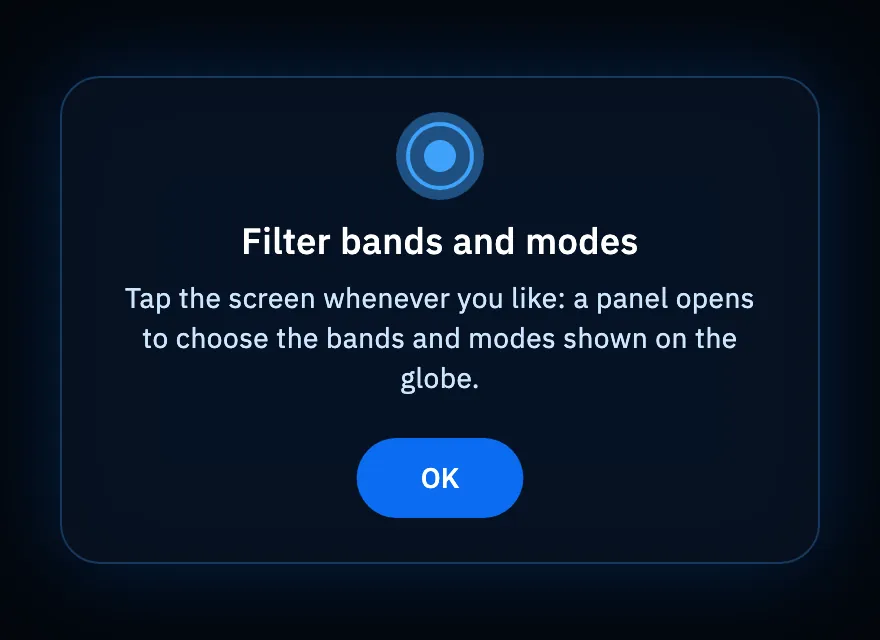
- Tap the globe: the panel with Bands and Modes slides up from the bottom.
- Tap the bands you want to see: 160m, 80m, 60m, 40m, 30m, 20m, 17m, 15m, 12m, 10m, 6m, 2m.
- Tap the modes: CW, SSB, FM, FT8, FT4, RTTY. SSB also includes USB, LSB and AM spots.
- Tap a chosen band or mode again to remove it, or tap All to see everything again.
With no band chosen you see every band; with no mode chosen you see every mode. With at least one mode chosen, spots in other modes (PSK31, for example) do not appear. Whatever the filter leaves out disappears from the globe at once, activations included.
The panel closes by itself after 6 seconds without a touch (each tap on a filter starts the count again), or with another tap on the globe. Your choice stays on this device and is there the next time.
Leaving the Globe
- Tap the globe to open the panel, then tap Exit.
- With a keyboard, press Esc: it leaves at once, even with the panel or the tip open.
Phone, tablet and web
- Phone and tablet: the Globe opens in landscape, full screen, and keeps the screen on while it is open. When you leave, the app's rules come back: the phone returns to portrait and the screen turns off as usual again, unless you turned on Screen always on in the settings.
- If the space is taller than wide (an iPad in split view, for example), you see "Rotate your device" and "The Globe works in landscape". Rotate the device or widen the window; the X at the top left leaves.
- Web: the Globe fits the browser window, whatever its shape.
Without a network, "Offline: no live spots." appears at the top: the globe keeps spinning and the spots come back when the connection does. See Using HamQSO offline.
Globe shortcuts
Besides G to open the Globe and Esc to leave it, with a keyboard you can also use the other globes of the app. These keys work while the globe has the focus: click the globe or reach it with Tab.
QSO globe (for example in the log overview and on the operation page):
| Keys | What they do |
|---|---|
| ← → | Previous or next QSO |
| Enter or Space | Show the QSO, like a tap |
| Esc | Close the QSO card |
| + − | Zoom in or out |
Coverage test globe (in the Coverage test and in My coverage): the arrows ← → ↑ ↓ rotate the globe by 12° per press, + and − zoom in and out.
All the shortcuts are in Keyboard shortcuts; on the web, with the sidebar, press ? to see them.
Troubleshooting
- "Waiting for spots" and no arcs: the cluster has not sent spots yet, or the filter leaves out everything that arrives. Open the panel and tap All.
- "Offline: no live spots.": the device has no network, or the internet does not answer. The spots come back by themselves with the network.
- No solar indices at the top: the propagation data did not arrive; the rest of the Globe works anyway.
- The globe is a blue sphere without continents: the device or browser cannot draw the detailed globe; the app shows a plain sphere, with the usual arcs and text.
- "Rotate your device": the space is in portrait. Rotate the tablet or leave split view.
- A program's activations are missing: check that the program is one you follow and that the filter does not leave out its band or mode.