
Sending eQSLs
How every QSO sends its eQSL HamQSO by itself, how to follow it in the log and how to send the eQSLs of the QSOs already in your log.
Free and ProUpdated for HamQSO 0.1.19
On this page
With automatic sending on, every QSO you log sends your eQSL HamQSO to the other station by itself: in the app to those who use HamQSO, by email to the others. This page explains how to follow each eQSL, what to do when the email is missing and how to send the eQSLs of the QSOs already in your log. What eQSL HamQSO is is explained in What eQSL HamQSO is.
Automatic sending after every QSO
- Log the QSO as usual (see Logging a QSO).
- HamQSO asks the server for the eQSL of that QSO right away, with the other station's email address taken from the callbooks you have linked: QRZ.com first, then HamQTH (see QRZ.com and callsign lookup). Without a linked callbook you write the address yourself (see below).
- The eQSL stays Sending soon and leaves by itself 5 minutes after the start of the QSO. If you move the QSO to the trash before it leaves, the eQSL does not go.
Automatic sending is on by default. You turn it off in eQSL settings, group Sending, with the Automatic sending switch (see eQSL settings). When it is off, the app says "Off: you send the eQSL yourself, from the QSO detail or from the log." and no callbook is asked. The first time a QSO requests its eQSL, the sheet "From now on every QSO sends your eQSL HamQSO" appears, with Got it and Don't send: Don't send turns automatic sending off and cancels the eQSL just requested.
Rules to know:
- Only one eQSL per callsign, band and mode in each operation leaves: a second identical QSO in the same operation does not send another one.
- The eQSLs of QSOs imported from an ADIF file never leave by themselves: at the end of the import HamQSO asks you whether to send them (see Importing an ADIF file), or you send them later from the log.
- Without network (or with a callbook that does not answer) the request stays saved on the device, even if you close the app, and leaves as soon as HamQSO finds the network: at start, when the network is back and when you return to the app.
- An eQSL that has left cannot be taken back.
- Sending eQSLs is free, with no limit on the number.
The eQSL in the QSO detail
Open a QSO from the log (see Opening and editing a QSO): the eQSL HamQSO section says where its eQSL is and offers the actions.
| Status | What you see | What you can do |
|---|---|---|
| No eQSL | "You can send JA1XYZ the eQSL HamQSO of this QSO." | Send eQSL HamQSO |
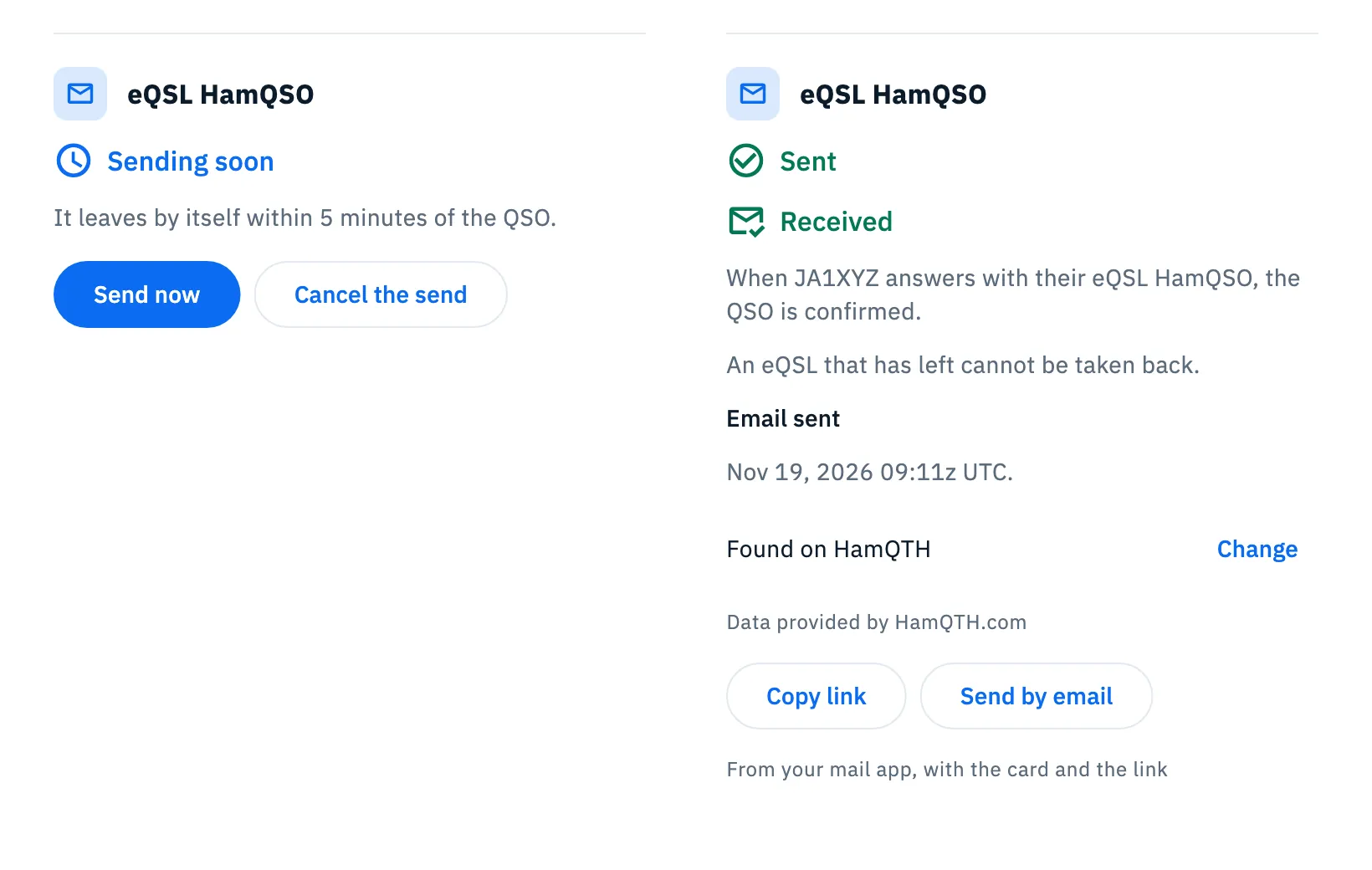
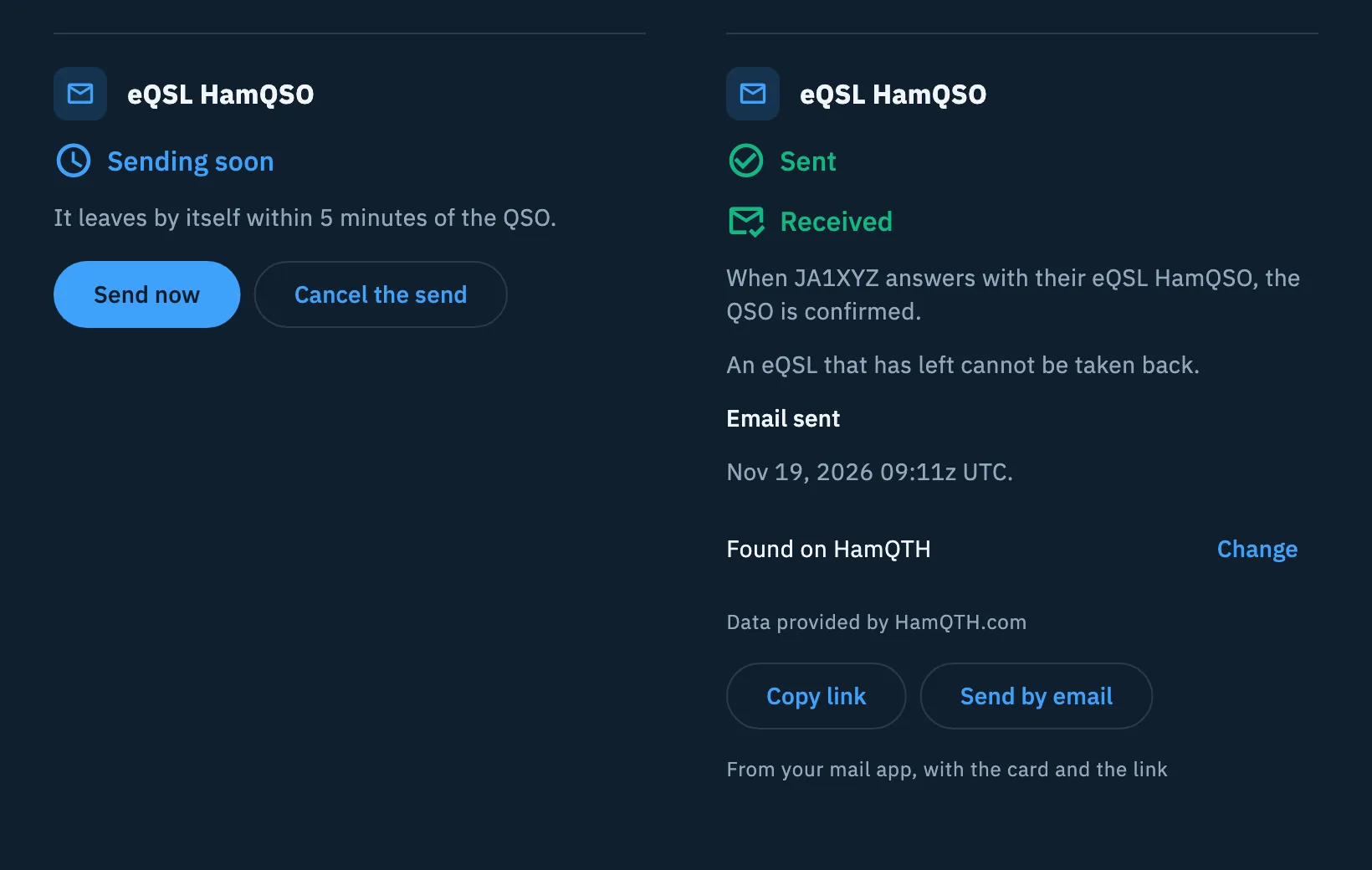
| Sending soon | "It leaves by itself within 5 minutes of the QSO." | Send now makes it leave within a minute (the detail already shows it as Sent); Cancel the send stops it |
| Sending soon, no network | "No network: it leaves as soon as it is back, even if you close the app." | Only Cancel the send |
| Sent | "When JA1XYZ answers with their eQSL HamQSO, the QSO is confirmed." and "An eQSL that has left cannot be taken back." Below, Received if the other station has already sent you theirs | Copy link, Send by email |
| Duplicate | "In this operation JA1XYZ already has the eQSL HamQSO of another QSO. Only one leaves per callsign, band and mode." | Nothing: the one of the other QSO leaves |
| No account | "The card is ready. To send it you need an account and your callsign in the profile." | Sign in to send it and Send by email take you to the Profile (see Signing in and saving your log) |
A cancelled eQSL goes back to the no-eQSL state: you can send it again with Send eQSL HamQSO. If you send by hand the eQSL of a QSO older than 5 minutes, it leaves with no wait.
When the eQSL is sent:
- Copy link copies the link of the card's page and confirms with "Link copied".
- Send by email ("From your mail app, with the card and the link") opens the system share sheet with the link of the card, so you send it yourself from your app.
The link is asked from the server each time you tap one of the two buttons, so you need the network.
What happened to the email
For stations that do not use HamQSO, below Sent the detail says what happened to the email. The other station's address is never shown: the app only shows where it comes from.
| Title | Meaning |
|---|---|
| Email queued | "Emails leave a few at a time: this one goes out shortly." |
| Email sent | Date and time it was sent, in UTC. |
| Email not sent | The reason: "JA1XYZ chose not to receive emails from HamQSO. The eQSL stays at its link.", or "In the callbook JA1XYZ wrote “eQSL: no”. The eQSL stays at its link, without an email.", or "The server could not send it." |
| No email address found | "It is not on HamQTH or QRZ. If you know it, write it below." |
| JA1XYZ uses HamQSO | "They got the notification in the app. No email." |
Where the address comes from: Found on HamQTH (with the line "Data provided by HamQTH.com"), Found on QRZ, with your subscription or Entered by you.
Writing or changing the address
- If the address is missing or the callbook says "eQSL: no", the Email of JA1XYZ field appears by itself. To fix an address already found, tap Change next to its source.
- Write the address. The field's note reminds you: "The address also applies to the next QSOs with that callsign."
- Tap Save and send (or Cancel if you were changing an address).
If the address is not complete you read "Write a complete address, for example name@example.com". An address you write wins over "eQSL: no" in the callbook, but never overrides a station that asked not to receive emails from HamQSO.
The eQSL mark on log rows
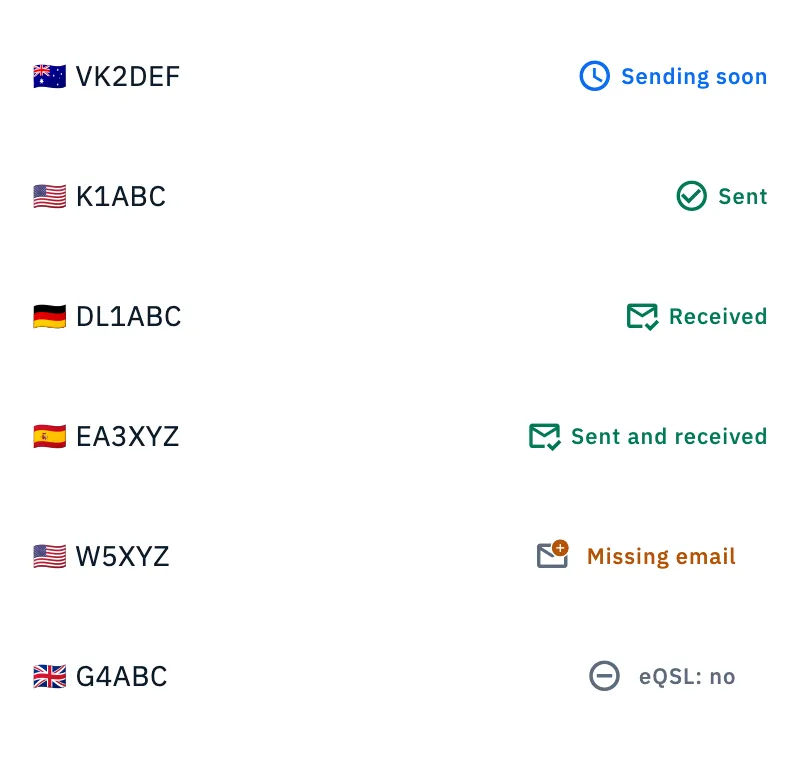
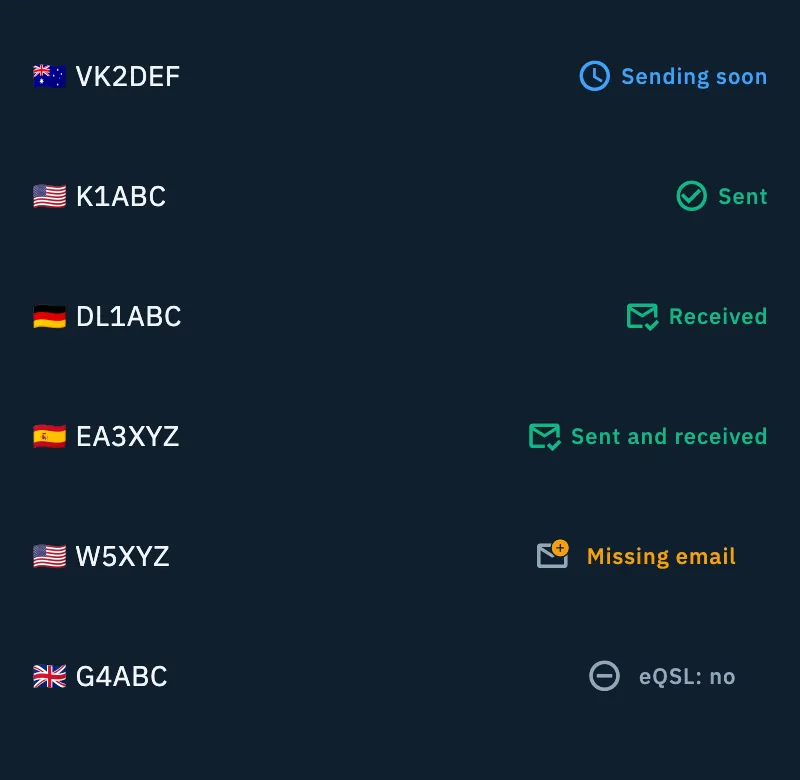
In the log, every QSO with an eQSL HamQSO shows a mark on the right of its row. In the QSO lists there is only the icon (the screen reader reads the word); in the QSO table of an operation on a computer, with a wide window, there are the icon and the word. A QSO without an eQSL has no mark.
| Mark | Meaning |
|---|---|
| Sending soon (blue clock) | The eQSL is waiting to leave. |
| Sent (green tick) | The eQSL has left. |
| Received | The other station sent you their eQSL HamQSO. |
| Sent and received | Both. |
| Missing email (envelope with an amber "+") | The eQSL has left, but there is no email address on QRZ and HamQTH. |
| eQSL: no | The eQSL has left, but in the callbook the other station wrote "eQSL: no". |
The status is updated after a send, a cancellation or a saved address.
Writing the missing email from the log
- Tap the Missing email or eQSL: no mark on the row.
- Email of W5XYZ opens (a sheet from the bottom on a phone, a dialog in the middle on tablets and large screens) with the reason: "We did not find it on QRZ and HamQTH. Write it and the eQSL goes." or the one of "eQSL: no".
- Write the address. The note says which QSOs it applies to, for example "It applies to the 3 QSOs with W5XYZ and to the next ones.".
- Tap Save and send (off while the field is empty).
At the end you read, for example, "Email of W5XYZ saved. 3 eQSL sending soon.": the eQSLs of that callsign leave again with the new address.
Sending the eQSLs of QSOs already in the log
You send by hand the eQSLs of QSOs logged before, imported or logged with automatic sending off. There are three ways:
- A whole operation: open the operation, tap More actions (the three dots at the top) and choose Send eQSL HamQSO.
- One QSO: in a QSO list (of an operation or All QSOs), long-press the QSO and choose Send eQSL HamQSO. In the same menu Select starts a selection.
- A selection: open All QSOs, tap the Select icon, tick the QSOs you want (or Select all). The bar with Send 37 eQSL HamQSO appears at the bottom.
Then:
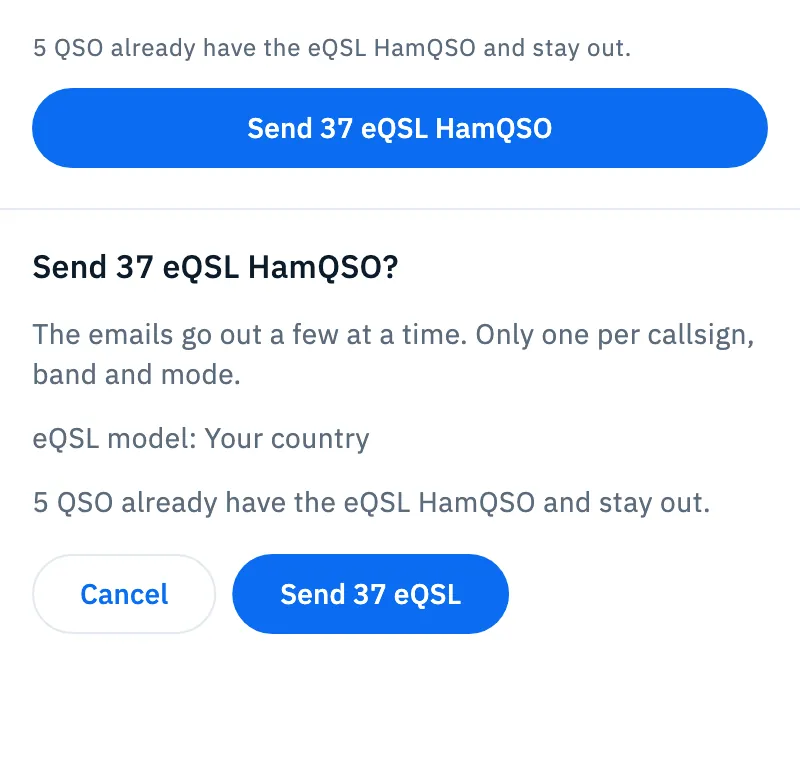
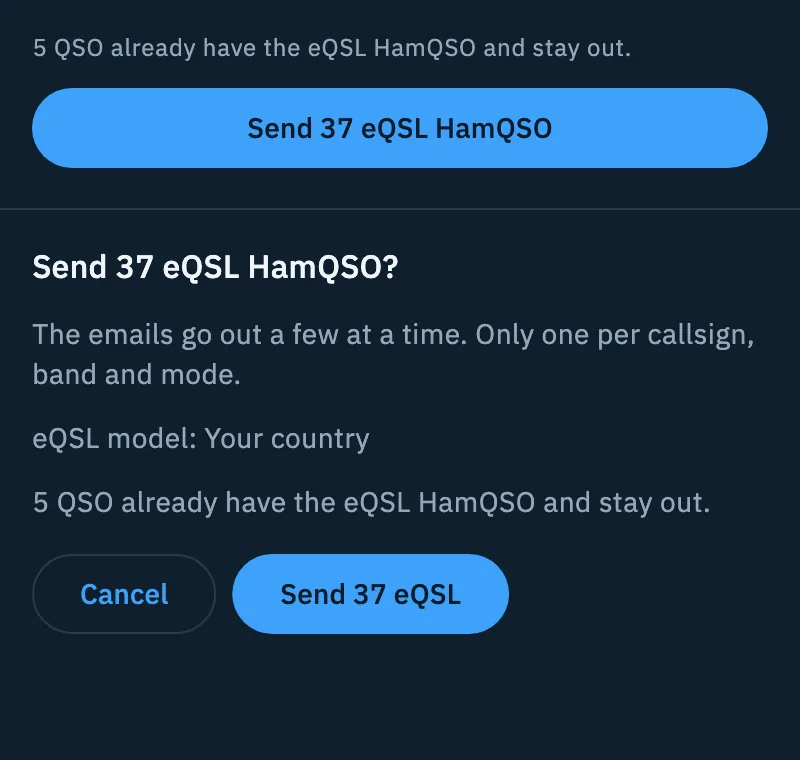
- Read in the bar how many QSOs stay out, for example "5 QSO already have the eQSL HamQSO and stay out.". If there is nothing to send, the button says "No eQSL to send" and is off.
- Tap Send 37 eQSL HamQSO.
- In the sheet Send 37 eQSL HamQSO? read "The emails go out a few at a time. Only one per callsign, band and mode." and which model they leave with: "eQSL model: Your country", or the list eQSL models with how many QSOs per model, when the operations have different models.
- Tap Send 37 eQSL (or Cancel).
- While they leave you read "37 eQSL HamQSO are leaving" and "They keep going even if you close the app.". At the end "37 eQSL HamQSO sent": tap Done.
You then find them in the log, with the status of each. The server decides the duplicates: a QSO with the same callsign, band and mode as another one of the same operation does not send a second eQSL. If something goes wrong you read "I can't send the eQSL HamQSO. Check the network and try again." with Try again.
The invitation and the email queue
At the top of Log overview (from the log menu or from the icon in All QSOs, see Log summaries and statistics) two cards can appear.
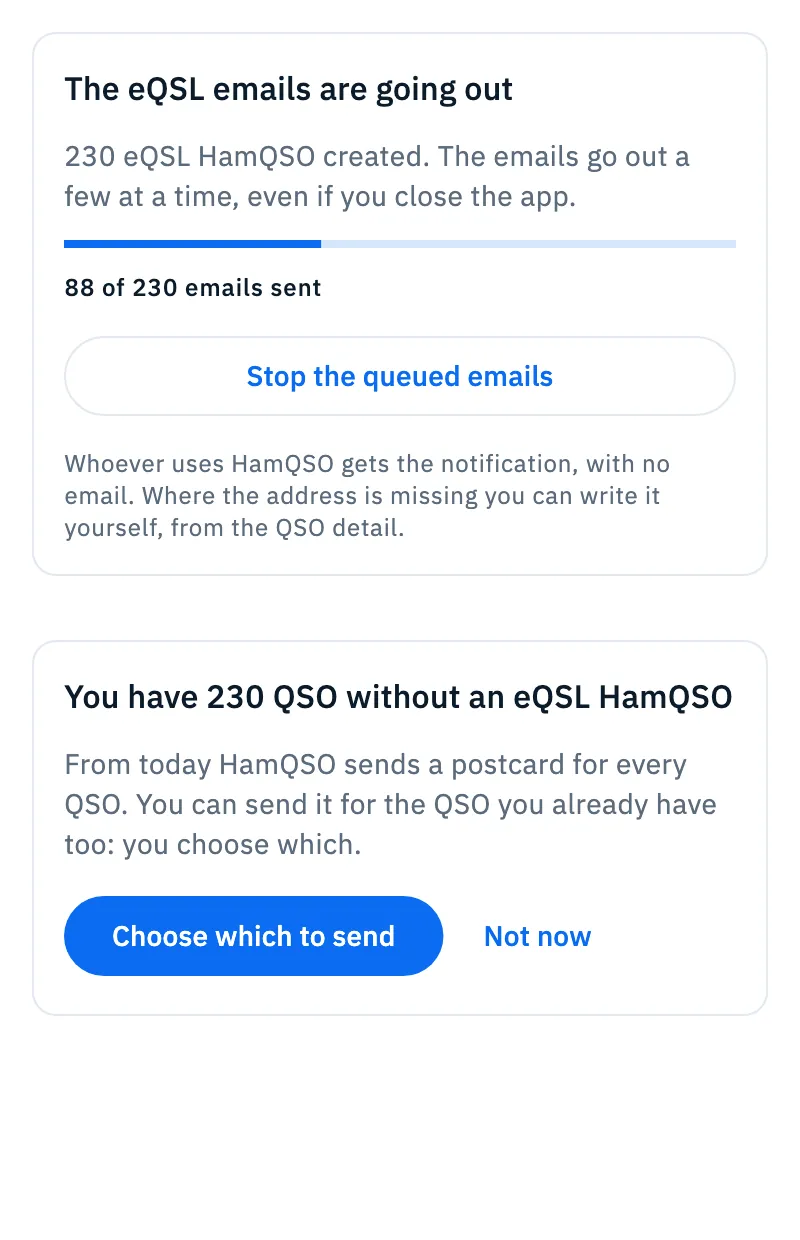
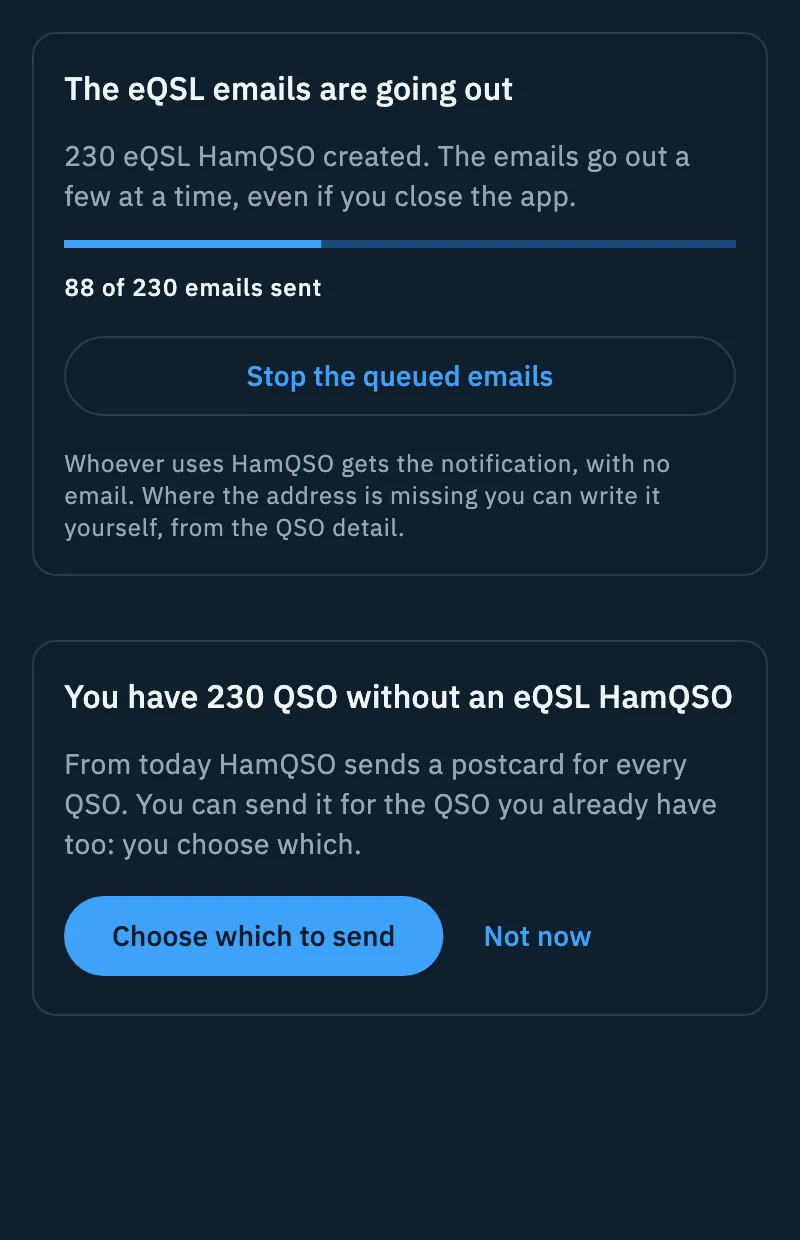
The invitation, only once per account: "You have 230 QSO without an eQSL HamQSO".
- Tap Choose which to send: All QSOs opens already in selection, and you pick which ones to send. The invitation never sends the whole log at once.
- Or tap Not now: the invitation does not come back, and you can send the eQSLs whenever you want in the ways above.
The email queue, while the emails of a send of many eQSLs are going out: "The eQSL emails are going out", with the bar and "88 of 230 emails sent".
- To stop the emails that have not left yet, tap Stop the queued emails. The card becomes "Queued emails stopped": the emails that were left do not go out and the eQSLs already created stay at their link.
- To start again, tap Resume sending: the cancelled eQSLs of the log are asked for again, with the confirmation sheet.
- When all the emails have left you read "All the emails have gone out": tap Close.
Those who use HamQSO get the notification, with no email. Where the address is missing you can write it yourself, from the QSO detail or from the mark on the row.
A model for each operation
Each operation can send its eQSLs with a different model, for example a card made for an activation. Without a choice, your account's default model leaves.
- Create an operation (step Last details, see Creating an operation) or open Operation settings of an existing one.
- In the eQSL model field tap Change.
- In the sheet ("For the eQSLs of this operation's QSOs.") choose Default: … at the top or a model. A chosen model shows "Only for this operation.".
In the settings of an existing operation the field reminds you: "Also applies to eQSLs not sent yet. Ones already sent don't change.". The field is not there if you use the app without an account.
| Notice | What it means |
|---|---|
| "“Activation IT-0123” is gone: the default model goes out instead." | The chosen model was deleted. |
| "Without HamQSO Pro, eQSLs with this model go out with "…".", with the name of the model that goes out instead, and Renew HamQSO Pro | The model is Pro and your HamQSO Pro has expired. |
| "eQSL HamQSO isn't active yet: the model applies from when you activate it." | You have not activated eQSL HamQSO yet. |
| "I can't load the models." with Retry | The models do not load; the sheet says "Meanwhile the default model goes out.". |
How to choose and create models is in Choosing your card and Designing your own card.
Troubleshooting
- "The status of the eQSL HamQSO cannot be read. Check the network and try again." The detail did not reach the server. Check the network and tap Try again.
- "The server did not accept this eQSL. Check your callsign in the profile and the chosen model." Check your callsign in Your profile and the operation's model.
- "That did not work. Try again." An action (send, cancel, link) did not work: try again with the network.
- "I can't save. Try again." The address written from the log was not saved: the sheet stays open, try again when there is network.
- "No email address found" or "Missing email". None of your linked callbooks has the address: link QRZ.com or HamQTH, or write it yourself from the QSO detail or from the mark on the row.
- The eQSL stays "Sending soon" without network. That is normal: it leaves as soon as the network is back, even if you close the app.
- A QSO does not send its eQSL. Check that automatic sending is on, that the QSO was not imported from ADIF and that the same operation does not already have a QSO with the same callsign, band and mode.