
Keyboard shortcuts
Every key of HamQSO on the web: sections, spots, radio, log, globe, contests, coverage test and My station, with the ? help and the full list.
FreeUpdated for HamQSO 0.1.19
On this page
On the web, in the wide computer window, almost all of HamQSO also works from the keyboard: switching section, spotting, moving the radio across the spots, going through the log, the contest calendar and the coverage test. Here you find every key, where it works and how to find it again in the app.
When a key works
- Keys without Ctrl (⌘ on a Mac) or Alt (⌥ on a Mac) only work when you aren't typing in a field: while you type, an S or a 1 stay letters and digits.
- Some keys with Ctrl/⌘ or Alt/⌥ also work while you type: Ctrl+K (command palette), Ctrl+\ (side bar) and, in the Log, Alt+F and Ctrl+Enter. The radio keys with Alt don't.
- Some keys only work on one page or when an element has the focus (the globe, the QSO table, a separator between panes): a focused element that uses the arrows keeps them for itself.
Keys are written the way your system writes them, which HamQSO takes from the browser: on a Mac with symbols and no "+" (⌥→, ⌘K, ⌫, Fn ←), on Windows and Linux with names and "+" (Alt+→, Ctrl+K, Del, Home, End). A screen reader reads the names of the keys, not the symbols. Keys can't be changed.
The quick help: the ? key
- Press ? on any page, outside a text field.
- Keyboard shortcuts opens with the keys of the page you are on, then those of the Radio and the General ones. The sections are in a single row, Go to a section 1–5.
- The title of the Radio group says Radio, with the radio connected when the radio is not connected, or the current tuning step (for example Radio, tuning step 1 kHz).
- Press Enter to open the full page: the All shortcuts button already has the focus. To close, press Close or Esc.
The keys of the page appear when you are in the Log (log and QSO globe), in the Contest calendar and the detail of a contest, in My station and in the pages of the Coverage test.
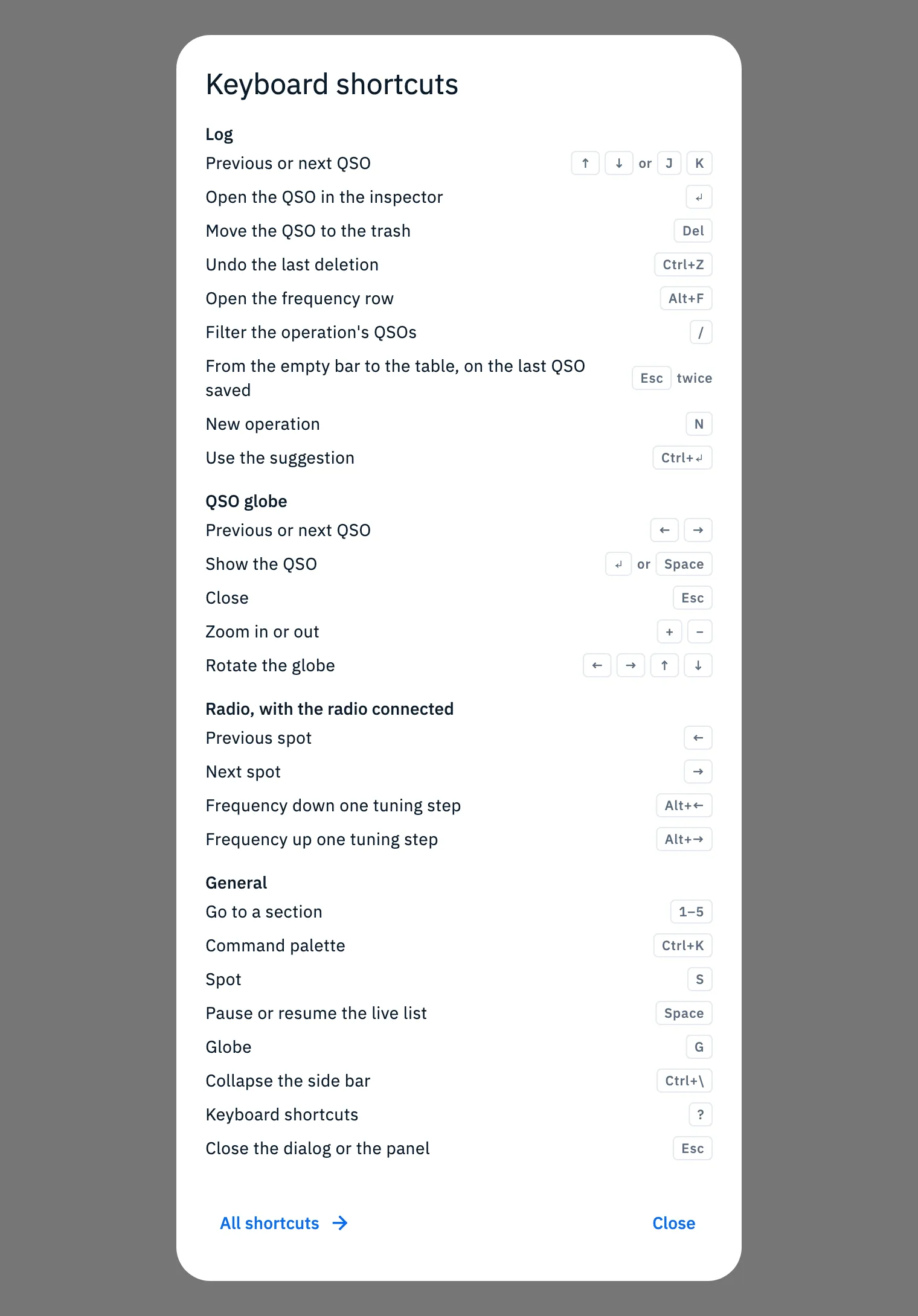
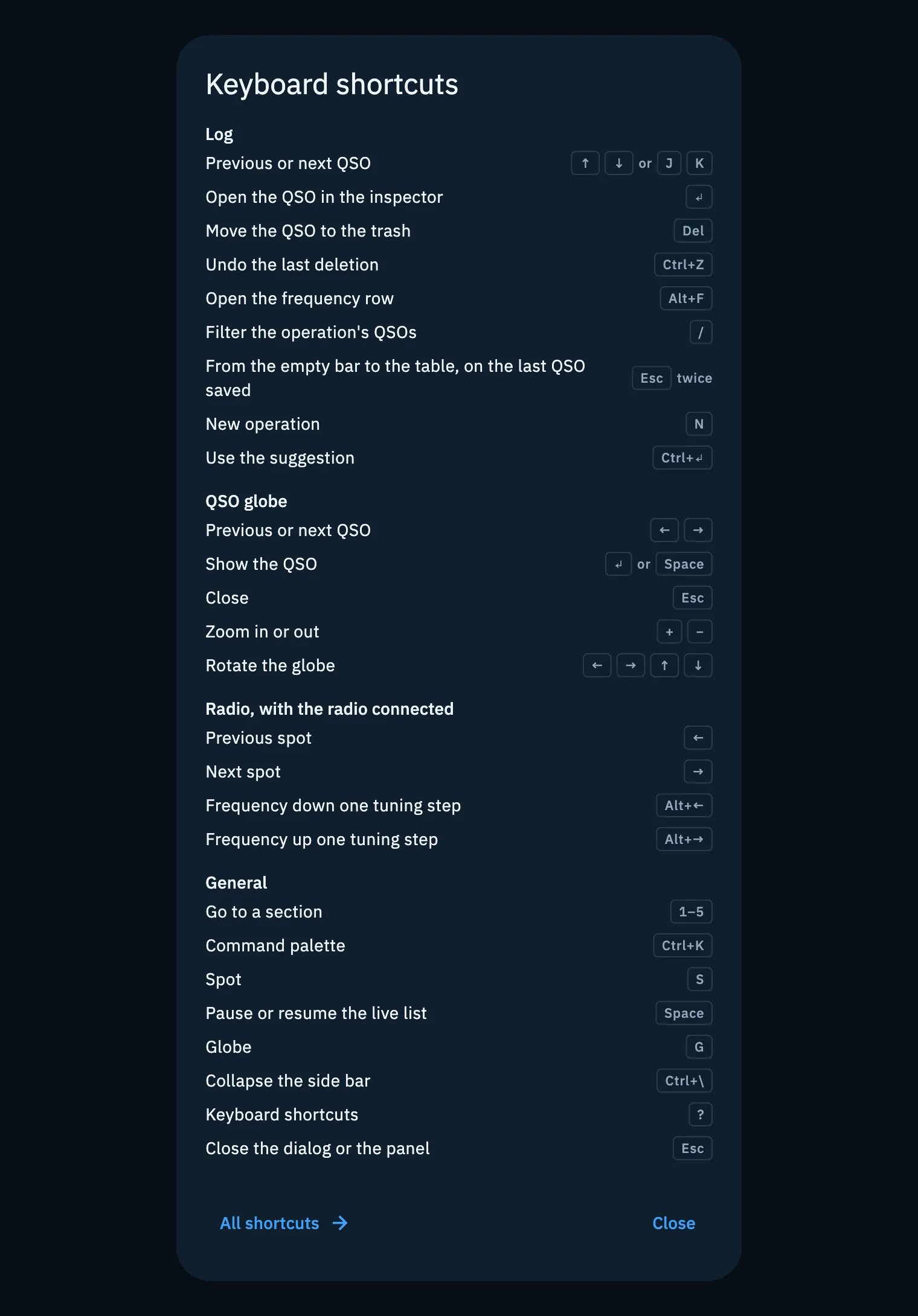
The page with all the shortcuts
- Open Profile, then Settings.
- In the Keyboard shortcuts part, click All shortcuts ("On any page, ? shows that page's shortcuts").
- Or press ? and then Enter from any page.


The page lists every key of the app, in groups: General, Sections, Radio, Log, QSO globe, Contest calendar, Coverage test, My station, Panes, Command palette and Photos, Pro and first launch. Under the title of many groups a line says when the keys work (for example "When the globe has the focus."). In a wide window the groups are in two columns, in a narrow one in a single column.
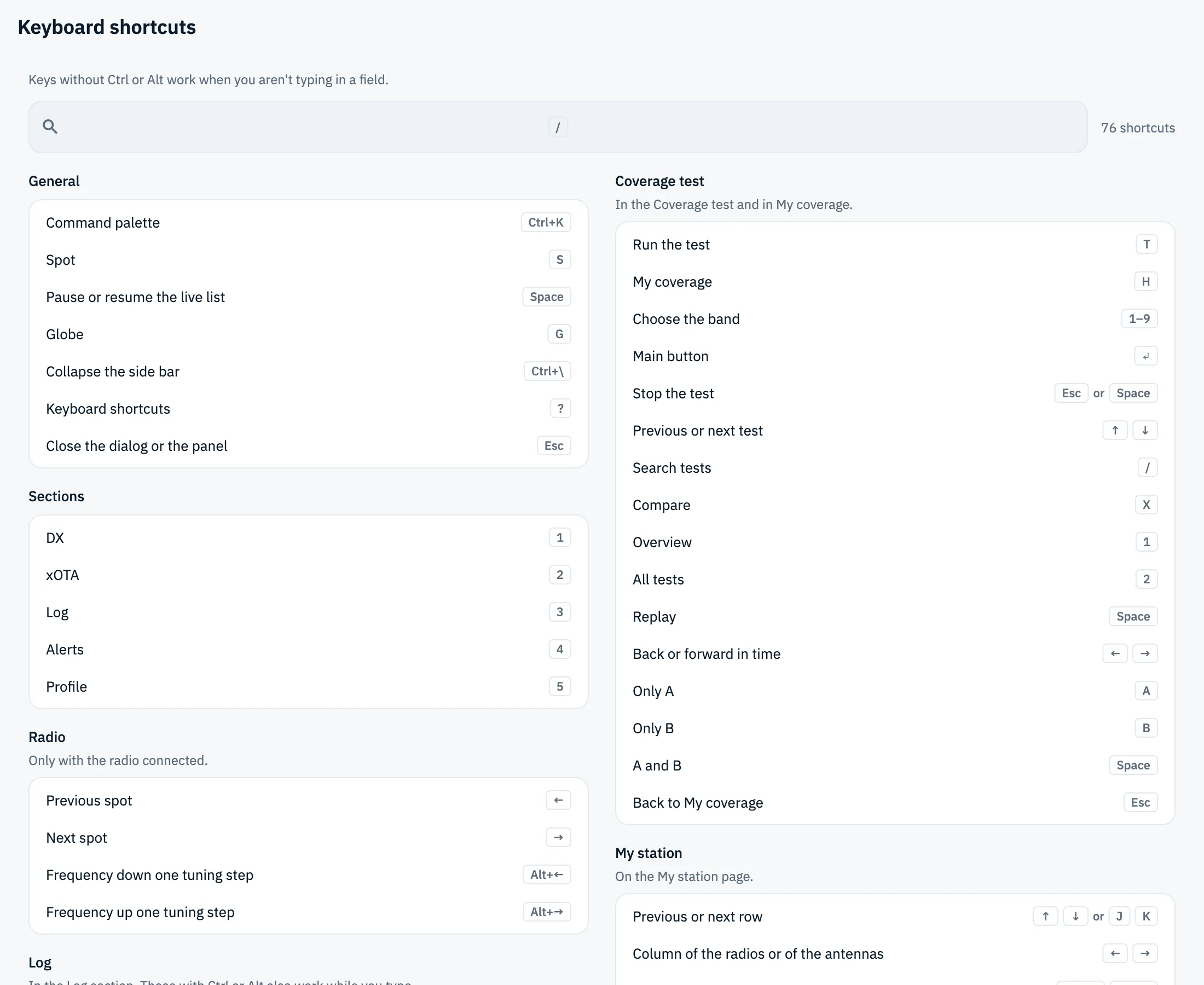
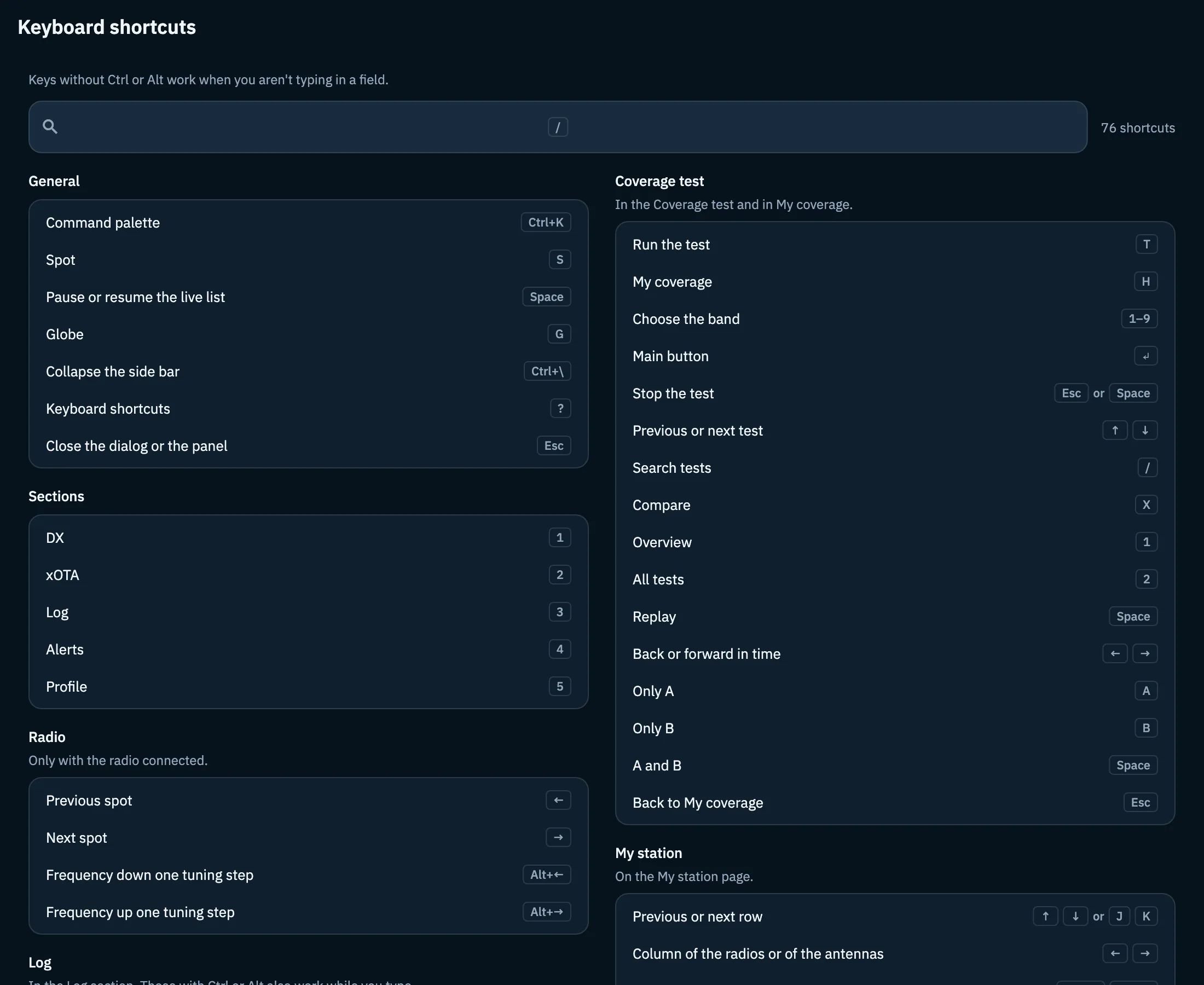
Searching an action or a key
- Press / to go to the Search an action or a key field. The field doesn't take the focus by itself: this way an arrow you try on the page reaches the radio, not the cursor.
- Type a word of the action ("spot", "frequency") or a key written in any way: "alt", "option", "⌥", "cmd", "ctrl", "arrows", "enter", "esc". Case and accents don't matter.
- Next to the field you read how many shortcuts are left.
- Press Esc to clear the search and go back to the page, or click the × in the field.
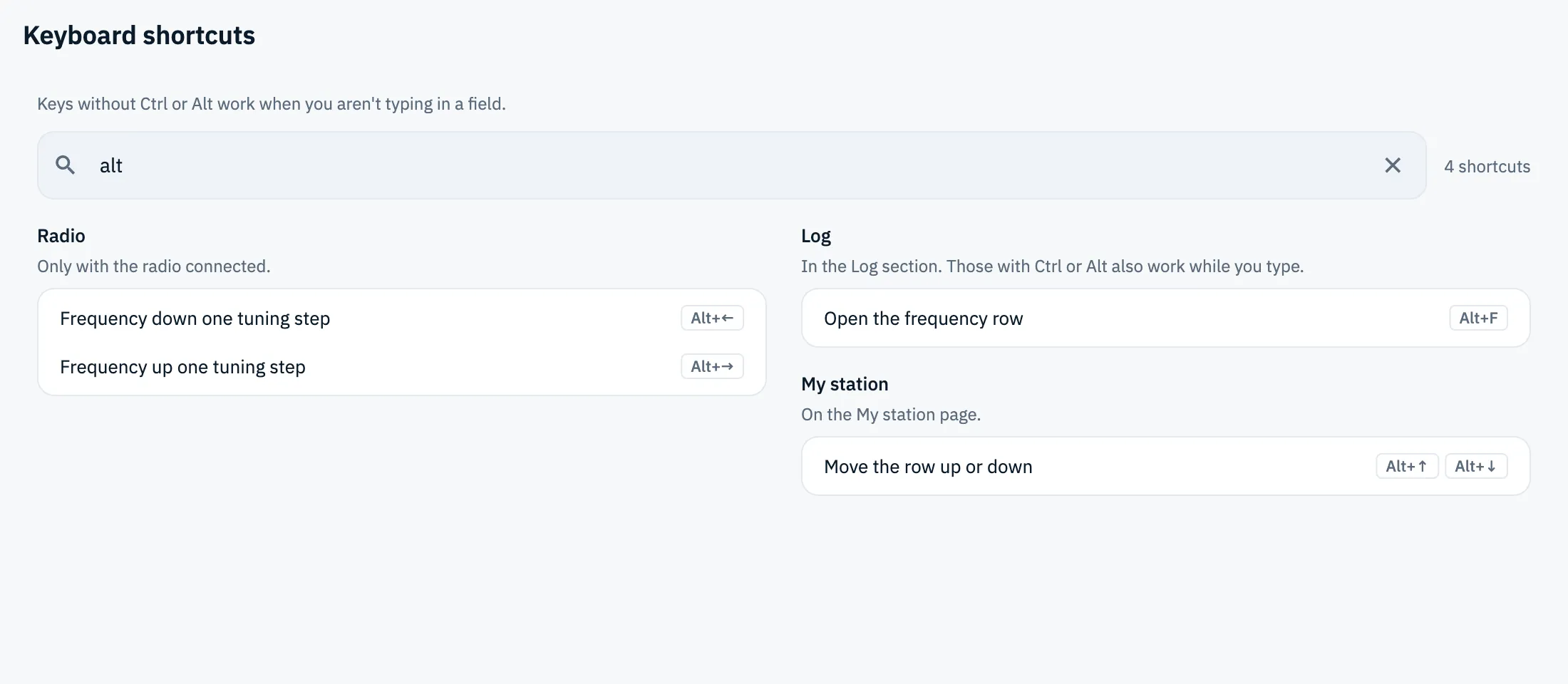
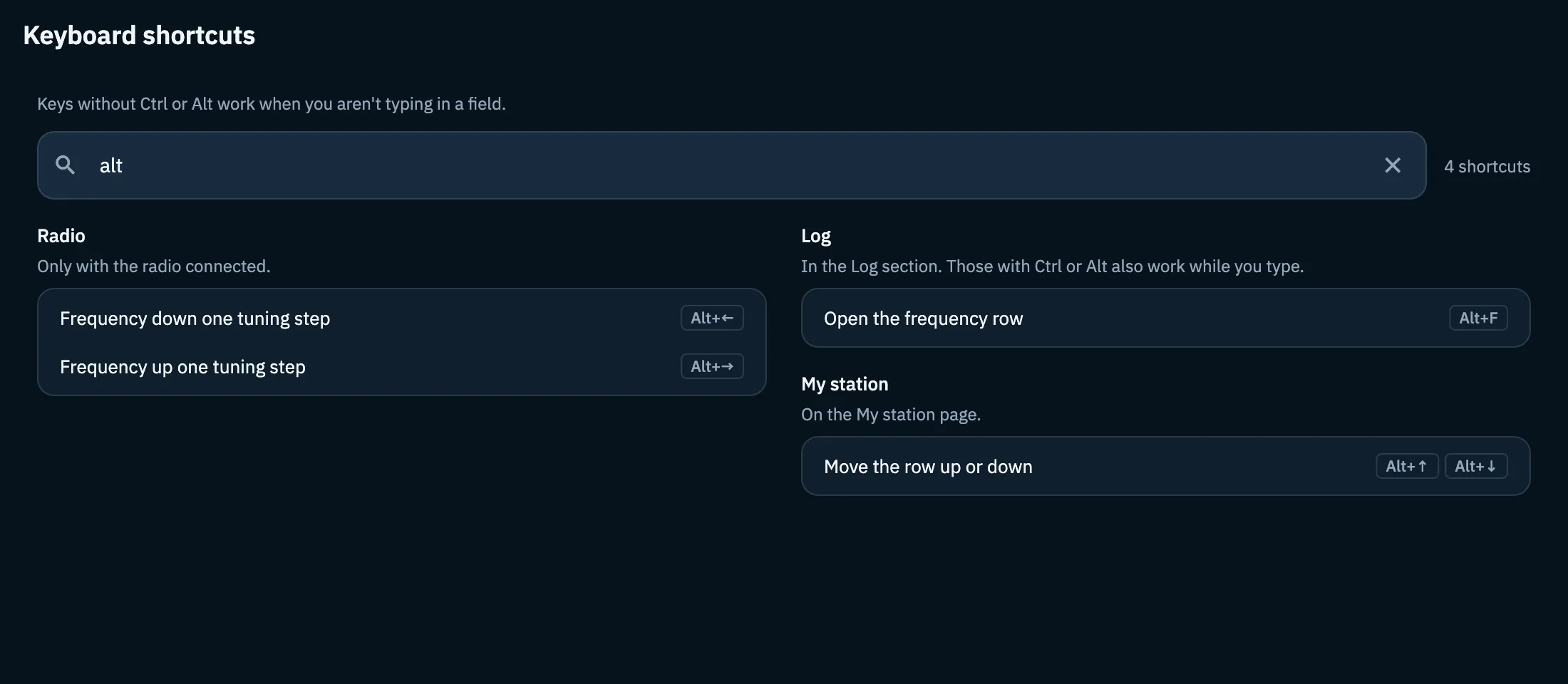
If no row matches you read "No shortcuts for "…"": press Show all to clear the search.
General and sections
They work in the whole app.
| Key | What it does |
|---|---|
| Ctrl+K (Mac ⌘K) | Opens the Command palette (see Finding anything with the command palette). Also works while you type. |
| S | Spot: opens the sending of a spot from every section (see Spotting a station). |
| Space | Pause or resume the live list: only in the DX and xOTA sections, elsewhere it does nothing. |
| G | Opens the full-screen Globe (see The desk-mode Globe). |
| Ctrl+\ (Mac ⌘\) | Collapse the side bar, or open it again. Also works while you type. |
| ? | Opens the Keyboard shortcuts help. |
| Esc | Close the dialog or the panel. |
| 1 … 5 | Go to a section: 1 DX, 2 xOTA, 3 Log, 4 Alerts, 5 Profile. |
When the section switcher of an operation (Summary, Log, Map, Statistics, Photos) has the focus, 1…5 choose the section of the operation instead of the section of the app, and ← → go to the previous or next one, wrapping round at the ends. See The operation page.
Radio
"Only with the radio connected." With the radio connected (see Connecting your radio) and outside text fields:
| Key | What it does |
|---|---|
| ← | Previous spot: the radio goes to the nearest spot lower in frequency, among those of the list on screen. |
| → | Next spot: the nearest spot higher in frequency. |
| Alt+← (Mac ⌥←) | Frequency down one tuning step. |
| Alt+→ (Mac ⌥→) | Frequency up one tuning step. |
The tuning step is the one chosen in the radio panel (see The radio panel); on the shortcuts page the line under Radio says it: "Tuning step from the radio panel: now 1 kHz.". After a step the radio bar briefly shows how far it moved (for example "+1 kHz"). If there are no more spots that way, the radio bar says "No spot higher up" or "No spot lower down". Without a radio connected the arrows do nothing for the radio. See also Tuning the radio from spots.
Log
"In the Log section. Those with Ctrl or Alt also work while you type." (⌘ or ⌥ on a Mac)
| Key | What it does |
|---|---|
| ↑ ↓ or J K | Previous or next QSO, with the QSO table focused (K goes up, J down). |
| Enter | Open the QSO in the inspector. |
| Del (Mac ⌫) | Move the QSO to the trash (see Deleting QSOs and the trash). |
| Ctrl+Z (Mac ⌘Z) | Undo the last deletion. |
| Alt+F (Mac ⌥F) | Open the frequency row of the entry bar, from any field. |
| / | Filter the operation's QSOs. |
| Esc twice | From the empty bar to the table, on the last QSO saved. |
| N | New operation (see Creating an operation). |
| Ctrl+Enter (Mac ⌘↵) | Use the suggestion: the station spotted on the QSO's frequency. In a field it uses the suggestion and doesn't save the QSO. |
For the entry bar see Logging a QSO.
QSO globe
"When the globe has the focus." Click the globe or reach it with Tab.
| Key | What it does |
|---|---|
| ← → | Previous or next QSO, from one QSO or bubble to the next. |
| Enter or Space | Show the QSO, like a tap. |
| Esc | Close the card. |
| + − | Zoom in or out. |
| ← → ↑ ↓ | Rotate the globe: on the globe of the coverage test result, 12° per press. There too + and − zoom in and out. |
Contest calendar
On the Contest calendar page, outside text fields (see The contest calendar):
| Key | What it does |
|---|---|
| ↑ ↓ or J K | Next and previous contest. |
| Enter | Open the contest. |
| P | Take part in the selected contest (see Taking part in a contest). |
| / | Search a contest. |
| Esc | Close, clear the search. |
Coverage test
"In the Coverage test and in My coverage." (see Running a coverage test)
| Where | Key | What it does |
|---|---|---|
| Test home | T | Run the test |
| Test home | H | My coverage |
| Test home and manual test without a radio connected | 1–9 | Choose the band, in the order of the bands shown; there is no key past the ninth |
| Manual test | Enter | Main button of the screen |
| During the test | Esc or Space | Stop the test (Space while on the air or listening) |
| My coverage | 1 / 2 | The Overview and All tests tabs |
| My coverage, All tests tab | ↑ ↓ | Previous or next test |
| My coverage, All tests tab | / | Search tests |
| My coverage, All tests tab | X | Compare |
| My coverage, Overview tab | Space | Replay |
| My coverage, Overview tab | ← → | Back or forward in time |
| Compare | A / B | Only A / Only B |
| Compare | Space | A and B |
| Compare | Esc | Back to My coverage |
See also My coverage and comparing tests.
My station
"On the My station page." (see My station: radios and antennas)
| Key | What it does |
|---|---|
| ↑ ↓ or J K | Previous or next row |
| ← → | Column of the radios or of the antennas |
| Alt+↑ Alt+↓ (Mac ⌥↑ ⌥↓) | Move the row up or down |
| Enter | Edit |
| Del (Mac ⌫) | Delete |
| N | New radio or antenna |
| Ctrl+Z (Mac ⌘Z) | Undo the last deletion |
| ← → | On the tabs, the other tab |
| Home End (Mac Fn ← Fn →) | On the tabs, Radios or Antennas |
| Ctrl+Enter (Mac ⌘↵) | Save the changes, in the editor of a radio or an antenna |
Panes and command palette
- Panes, "When a separator between two panes has the focus.": the arrows (← → between panes side by side, ↑ ↓ between panes one above the other) Widen or narrow the pane.
- Command palette, "While the palette is open.": ↑ ↓ Previous or next result, Enter Open the result, Esc Close the palette.
Photos, Pro and first launch
| Where | Key | What it does |
|---|---|---|
| Photos of an operation | ← → | Previous or next photo |
| Photos of an operation | Del | Delete the photo |
| One of your eQSL models, selected | Del (Mac ⌫) | Delete the selected eQSL model |
| Paywall | ← → | Previous or next plan, in Pro |
| Paywall | Enter | Subscribe to the chosen plan, in Pro (see Subscribing to HamQSO Pro) |
| First launch | ← → | Previous or next screen, at first launch |
| First launch | Esc | Back, at first launch |
| First launch | Enter | Next, at first launch |
| QSOs to import | ↑ ↓ | Previous or next QSO, in QSOs to import |
| QSOs to import | Space | Tick or untick, in QSOs to import |
| QSOs to import | Enter | Import or confirm the ticked QSOs (see Recovering QSOs waiting for you) |
Free and Pro
All shortcuts are free. Keys follow the rules of the features they use: for example the paywall keys are for subscribing to Pro (see What HamQSO Pro includes).
Troubleshooting
- A key does nothing. You are typing in a field: there, keys without Ctrl/⌘ or Alt/⌥ stay letters. Click outside the field or press Esc. Also check you are on the web in a wide window: phones and tablets have no shortcuts.
- The arrows don't move the radio. The radio is not connected ("Only with the radio connected."), or the focus is on an element that uses its own arrows (globe, QSO table, separator between panes): click an empty spot of the page.
- "No spot higher up" or "No spot lower down". The list on screen has no spot higher (or lower) than the radio's frequency: the radio stays where it is.
- Space doesn't pause. Pause only works in the DX and xOTA lists.
- 1…5 switch tab instead of section. The focus is on the section switcher of an operation: click outside the switcher.
- "No shortcuts for "…"". No row matches the search: press Show all.