
Choosing the connection: USB, rigctld or flrig
Which connection your phone, tablet or browser offers for CAT (USB cable, rigctld or flrig), how to fill in its fields and connect or disconnect the radio.
Free and ProUpdated for HamQSO 0.1.19
On this page
HamQSO reaches the radio in three ways: with the USB cable, with rigctld (Hamlib) or with flrig on a computer on the same network. Here you find which connection your device offers, what to type in the fields and how to connect and disconnect the radio.
If you are connecting the radio for the first time, start from the guide: Connecting your radio. This page is for when you want to change or check the connection by hand.
Which connection your device has
The app shows only the connections possible on the device you are using:
| Device | Connections | Notes |
|---|---|---|
| Android (phone and tablet) | rigctld, flrig, USB cable | The cable goes from the phone to the radio, with an OTG adapter if needed. |
| iPhone and iPad | rigctld, flrig | Apple does not allow a cable to the radio: it goes through a computer on the network. |
| Browser on a computer (Chrome, Edge) | USB cable | The cable goes to the computer the browser runs on. No rigctld or flrig in the browser. |
| Safari, Firefox, iPhone browsers | none | The section says "The radio over USB works in Chrome and Edge on a computer." |
CAT belongs to the device: each phone, tablet or browser has its own connection. The radio itself stays in My station on all your devices (see My station: radios and antennas).
With any connection the app controls frequency and mode, reads the meters when the radio gives them and, where possible, sends the CW of the coverage test. It does not carry audio, does not control PTT or digital modes and does not connect over Bluetooth.
The "CAT link on this device" section
- Open Profile and tap My station.
- Tap the radio.
- Scroll to CAT link on this device.
What you see depends on the radio:
- Radio without CAT on this device: "This radio has no CAT on this device. With CAT the app reads frequency and mode and tunes from spots." Tap Connect via CAT to open the guide.
- Radio with CAT, not in use: the status Not connected, the saved connection (for example "rigctld at 192.168.1.20:4532, on this device") and the Use this radio button. Tap it: the radio becomes the one in use, connects, and the bar says "… in use on this device.". Only one radio at a time is in use on a device: the previous one disconnects.
- Radio in use: the status (Connected via rigctld, Connected via USB cable… or Not connected); with the radio connected, the frequency it reads in MHz and the mode. Below are the Connection fields described here.
At the bottom of the section of a radio with CAT you always find:
- Step-by-step guide: opens the guide again for this radio.
- Remove CAT from this device: see below.
Choosing the connection and connecting
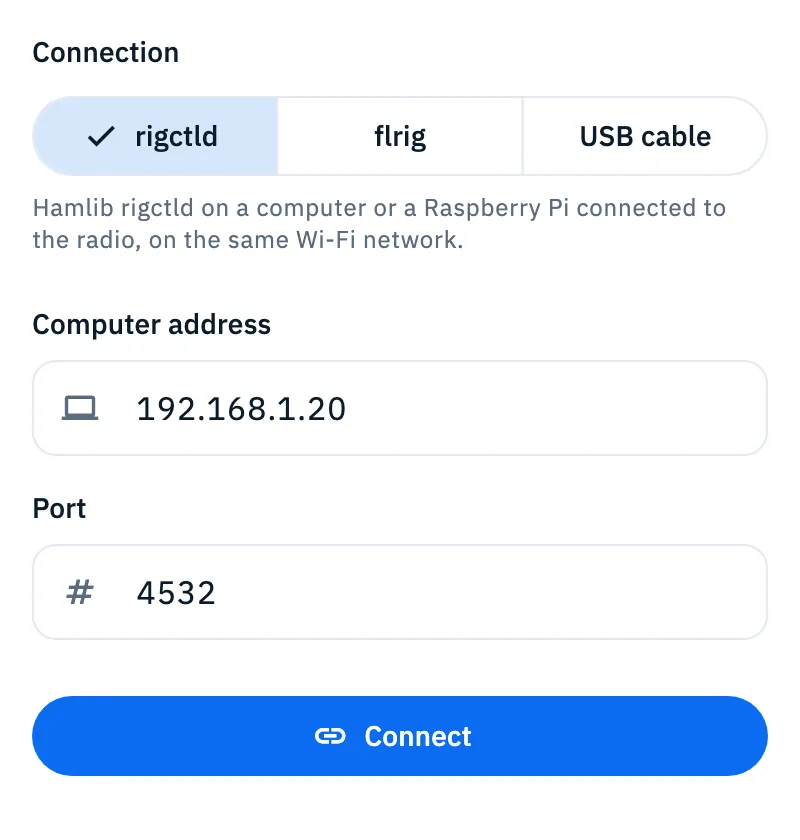
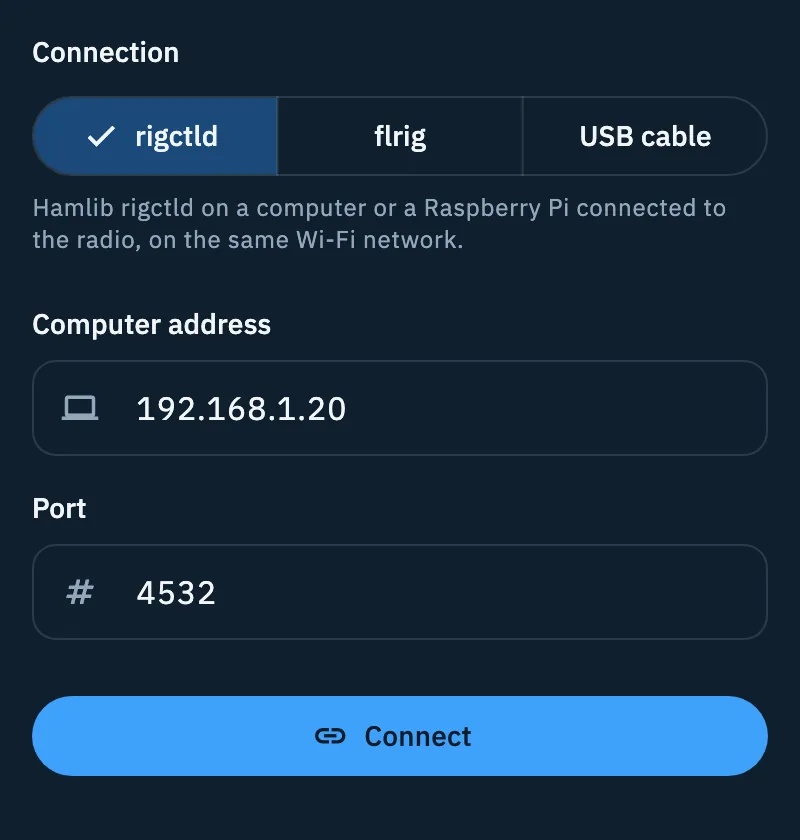
- In Connection choose rigctld, flrig or USB cable. Below the choice, a line reminds you what it needs.
- Fill in the fields of that connection (see the sections below). Each field is saved when you press Enter or leave the field.
- Tap Connect. While the app tries, the button says Connecting….
- Once the radio is connected, the status becomes Connected via … and the button becomes Disconnect.
A few rules:
- Connect stays off until the connection is complete: the network needs the computer address, the cable needs the radio model.
- While the radio is connected you cannot change the connection: tap Disconnect first.
- When you change the connection, the port goes back to the default one: 4532 for rigctld, 12345 for flrig.
- After a successful connection, the radio connects again by itself when you reopen the app. Disconnect turns this automatic reconnection off until you tap Connect again.
- If the radio stops answering for three readings in a row, the app disconnects it.
rigctld (Hamlib)
rigctld is the Hamlib program that controls the radio from a computer or a Raspberry Pi connected to it. The app talks to it over the network: this way hundreds of models work, including those the app does not control over the cable, and also on iPhone and iPad.
- Start rigctld on the computer connected to the radio.
- In the app choose rigctld.
- In Computer address type the computer's address on the network (for example 192.168.1.20).
- In Port keep 4532, unless you started rigctld on another port.
- Tap Connect.
The phone and the computer must be on the same Wi-Fi network. With rigctld the app also reads S-meter, power and SWR when rigctld provides them. If the radio can send CW text over CAT, rigctld says so at connection and the coverage test uses it; if rigctld answers that the radio does not take it, the test runs in manual mode.
flrig
flrig is the program that already controls the radio on your computer. The app reaches it over the network through its XML-RPC server.
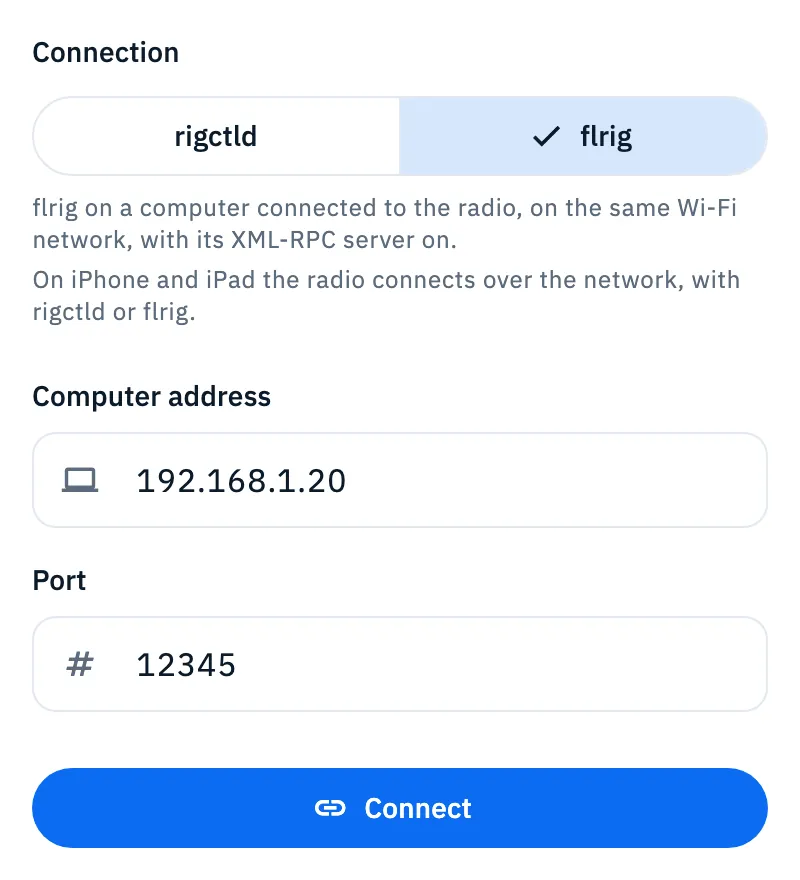
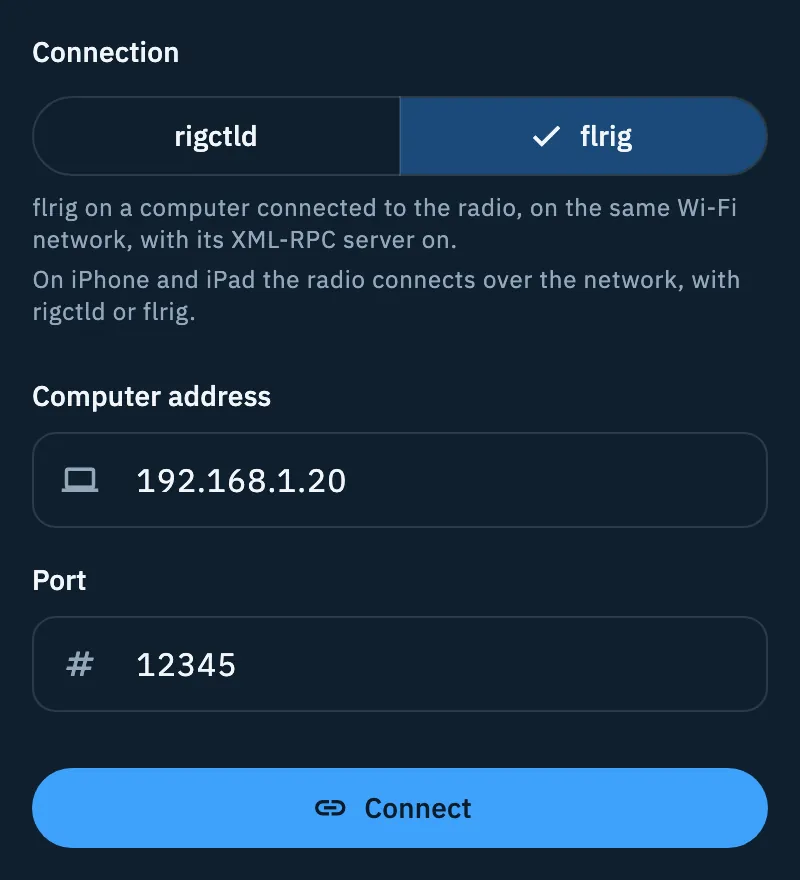
- In flrig turn on the XML-RPC server.
- In the app choose flrig.
- Type the Computer address and keep Port 12345, if you did not change it in flrig.
- Tap Connect.
With flrig the app reads frequency and mode. CW through flrig is not available: with flrig the coverage test runs in manual mode, and you transmit.
USB cable on Android
The Android phone or tablet talks directly to the radio through the USB cable, with no computer: handy when portable.
- Plug the cable into the radio's USB port, with an OTG adapter if needed.
- Choose USB cable.
- In Model choose your radio: you can type part of the name to filter the list. Models marked CW send the CW of the coverage test by themselves. Below the model you see what the app does with that radio.
- Check Speed (baud): it is the model's default, change it if the radio's menu says otherwise.
- Icom and Xiegu only: check CI-V address (two hexadecimal digits, for example 94).
- Tap Connect and, when Android asks, allow the app to use the USB device. If you refuse, the radio does not connect: tap Connect again and Android asks again.
Below the fields the app shows the adapter it found (maker and name). If it finds none: "No USB adapter found. Connect the radio with the OTG cable.": check the cable and tap Retry (the refresh icon). The app uses the first adapter it finds.
Over the cable the meters (S-meter, power and SWR) come only from Icom and Xiegu radios (CI-V); Xiegu radios do not give the output power.
USB cable in the browser
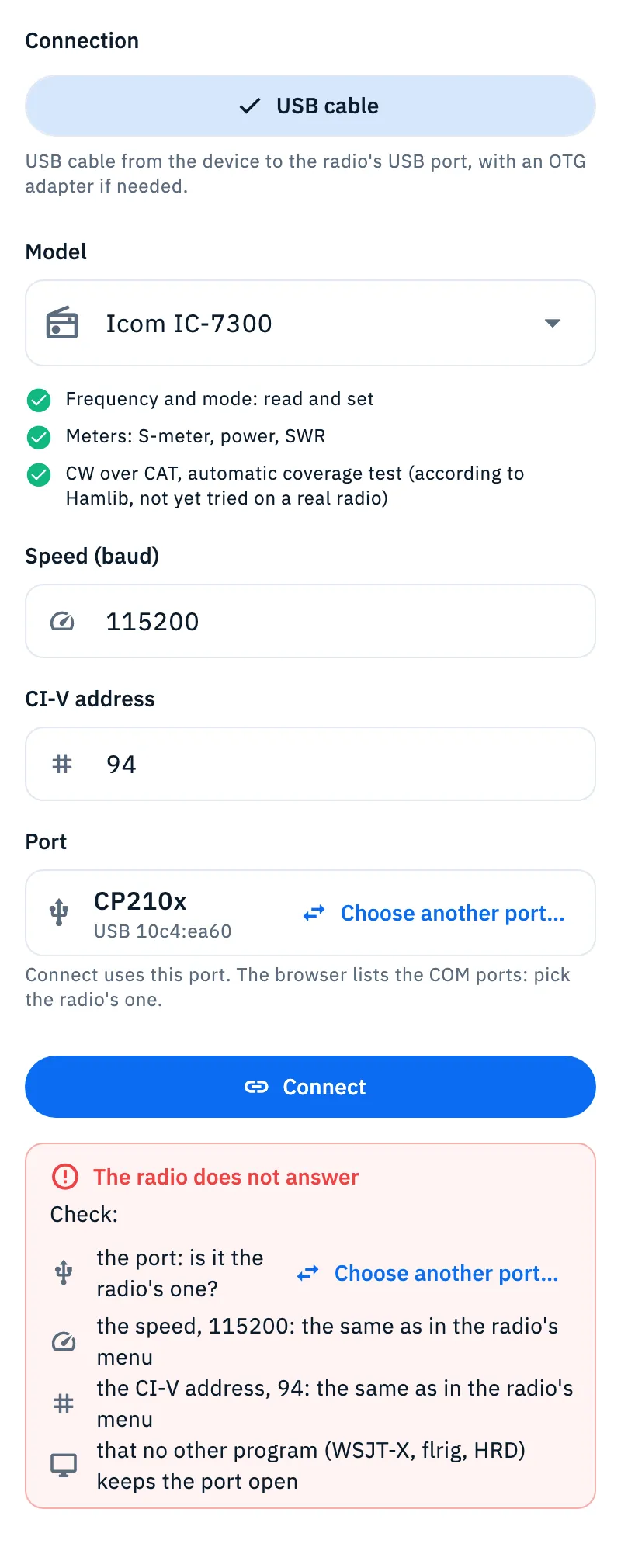
On HamQSO web, in Chrome or Edge on a computer, the radio connects with the USB cable to the computer. Each radio remembers its port.
- Plug the cable into the computer.
- Choose the Model and check Speed (baud) and, for Icom and Xiegu, CI-V address.
- Click Connect. The first time the browser opens its window with the COM ports: pick the radio's one. After that the app reuses the same port.
The Port row shows the chosen port (the adapter type, for example CP210x, and "USB" with its ids) or No port chosen. With Choose the port… or Choose another port… you open the browser's window again to change it; not while the radio is connecting or connected. If you close the window without choosing, nothing happens.
If the radio does not answer on the remembered port, the app tries by itself the other ports already allowed with the same ids (some radios, like the IC-7610, have two) and saves the right one.
Removing CAT from this device
- Open the radio in My station.
- Tap Remove CAT from this device.
The bar says "CAT removed from this device.". If the radio was connected, it disconnects. The radio stays in My station on all devices, with its data, and CAT on your other devices does not change. There is no confirmation: to put it back, tap Connect via CAT and go through the guide again.
Free and Pro
Troubleshooting
- "The radio does not answer. Check the connection and the settings." (rigctld or flrig, or the cable on Android): check that the program is running on the computer (with flrig, its XML-RPC server on), that address and port are right and that phone and computer are on the same Wi-Fi network. With the cable, check model, speed and CI-V address, and that you allowed the USB device. The app waits at most 5 seconds for an answer.
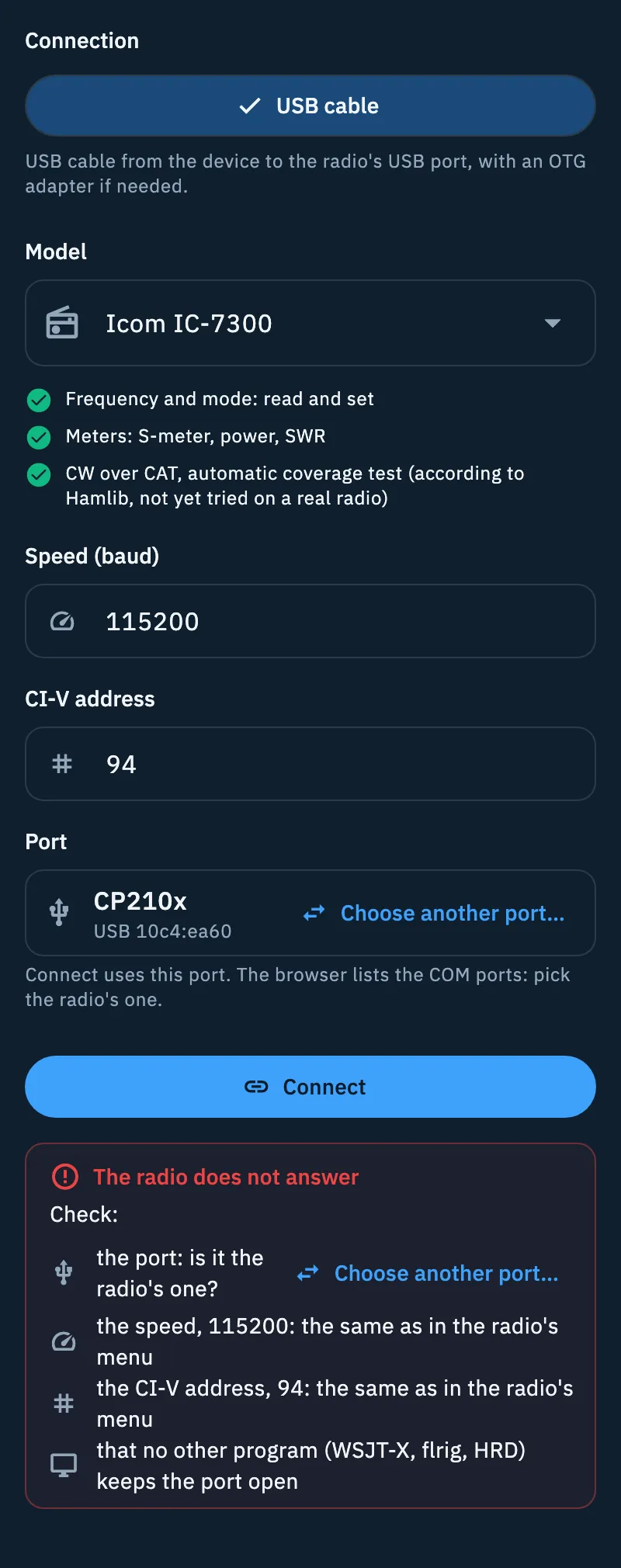
- "The radio does not answer" box in the browser: it lists what to check with your radio's values: the port (with Choose another port…), the speed, the CI-V address of an Icom or Xiegu and "that no other program (WSJT-X, flrig, HRD) keeps the port open". A port still held by a previous connection is freed by unplugging the cable or reloading the page.
- "No USB adapter found. Connect the radio with the OTG cable." on Android: plug in the cable and tap Retry.
- No USB cable on iPhone or iPad: "On iPhone and iPad the radio connects over the network, with rigctld or flrig." Use rigctld or flrig on a computer.
- No connection in the browser: "The radio over USB works in Chrome and Edge on a computer." Open HamQSO web in Chrome or Edge on a computer, or use the app.
For other cases see When the radio does not answer.