
Fixing common problems
What the error messages of HamQSO mean and what to do: network, spot lists, notifications, radio, ADIF import, linked services and purchases.
Free and ProUpdated for HamQSO 0.1.19
On this page
When something goes wrong, HamQSO tells you with a few sentences, always the same ones, and almost always offers a way out such as Retry. Here you find the most frequent messages, what they mean and what to do, with links to the pages that cover each topic in full.
Network errors and "Retry"
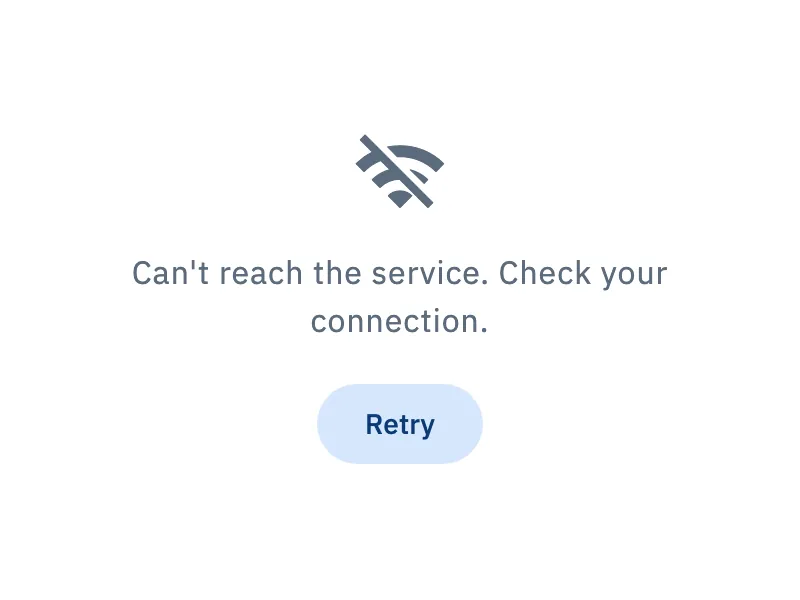
Every page that downloads data from the network (spot lists, propagation, alerts, contest calendar, linked services…) uses the same messages when loading fails.
| Message | What it means | What to do |
|---|---|---|
| "Can't reach the service. Check your connection." | The request did not get through: there is no network or the service does not answer. | Check the connection and tap Retry. |
| "The service returned an error. Try again shortly." | The service answered, but with an error: the problem is on its side. | Wait a few minutes and tap Retry. |
| "Received invalid data." | The answer cannot be read. | It usually goes away by itself. If it stays, tell us from Profile › Feedback. |
| "Server unreachable. Check your connection." | The spots server does not answer. | Check the connection: the list tries again by itself. |
If the page already had data, the error does not wipe it: it stays on screen and updates as soon as the request succeeds.
Without a network the app does not keep trying at fixed intervals: it tries again when the device says the network is back or when you open the app again. What works offline and what waits is explained in Using HamQSO offline.
Spot lists do not update
The DX Cluster and activation lists stay connected to the spots server while they are on screen and the app is in the foreground. If the connection drops, the app tries again by itself, waiting a little longer each time. A problem is shown only when it lasts: after 3 failed attempts in a row, so a short drop of the mobile network does not disturb you.
What you see depends on what was already on screen:
- At the top of the list, instead of Live, you read Connecting… while the app reconnects and "Server unreachable. Check your connection." when the server does not answer. Without a network you read Offline, or No internet when the device is on a network that does not reach the internet.
- With the list already loaded, if a refresh fails the bar "Refresh failed: showing the last downloaded data" appears with Retry. You can keep using the list: it updates when the connection is back.
- Offline, with a saved list, you see the last downloaded list with its age, for example "Offline: list updated 5 min ago. It refreshes when the network is back."
- Without a loaded list, the page shows the error message with Retry.
- Without a network and without a saved list you read "No list on this device": the list is saved when you open it online and loads by itself as soon as the network is back.
You can also pull the list down to refresh it. How to read the list is explained in Reading the DX Cluster list.
Notifications do not arrive
If HamQSO notifications are off in the phone or browser settings, alerts cannot arrive. The app tells you with a note:
- at the top of the Alerts section, when When you get spotted is on (with Pro and your callsign), when Summaries are on or when you have at least one active alert;
- in the When you get spotted card in Settings › Notifications;
- in the panel that opens when you tap Take part on a contest, here without a button.
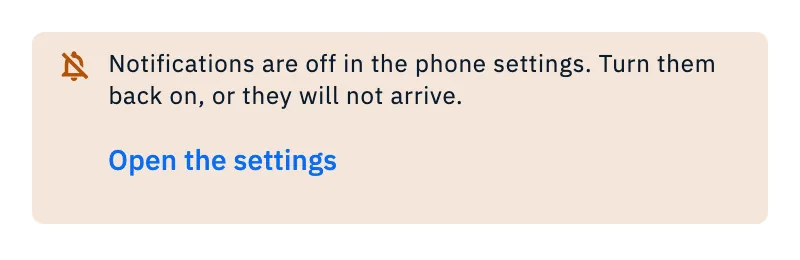
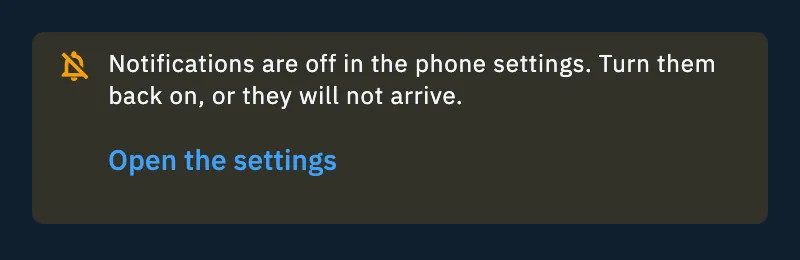
- In the app, tap Open the settings if it is there: the system settings of HamQSO open. Turn notifications on.
- On the web the note says "Notifications are off in the browser settings. Turn them back on from the padlock next to the address, or they will not arrive.": click the padlock in the address bar and allow notifications.
- Go back to HamQSO: the note disappears by itself when notifications are on again.
Everything about notifications is in Getting notifications.
The radio does not answer
After a connection attempt that failed, the reason appears under Connect:
- in the browser with the USB cable, the The radio does not answer box with your radio's values to check: the port, the speed, the CI-V address for Icom radios and that no other program (WSJT-X, flrig, HRD) keeps the port open;
- in every other case (rigctld, flrig, the USB cable in the app), a red line: "The radio does not answer. Check the connection and the settings."
Check the points, then tap Connect again. Each message, and how to send us the technical details, is explained in When the radio does not answer.
The import of an ADIF file stops
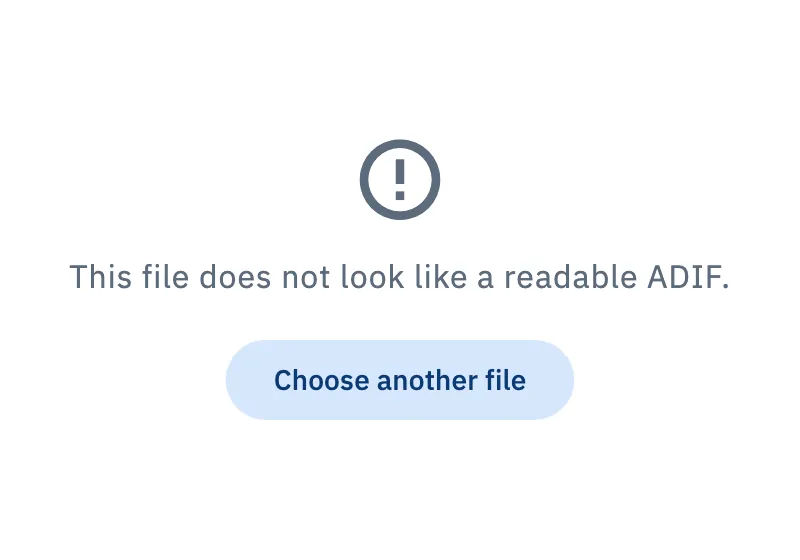
On the Import ADIF page, when the import cannot go on, the reason appears instead of the preview, with Choose another file.
| Message | What to do |
|---|---|
| "This file does not look like a readable ADIF." | Export the log again as ADIF from the program it comes from and choose the new file. |
| "The file has no QSO to import." | Under the message you find the list of skipped records, if any, with the reason. Check that you chose the right file. |
| "… is not an ADIF file (.adi or .adif)." | Choose a file ending in .adi or .adif. |
| "Choose the operation the QSOs go to." | Choose the target operation, then try again. |
| "The chosen operation was deleted. Give this import up and start again with another one." | Start the import again and choose another operation. |
| "This import is gone or already finished." | There is nothing to resume: check your log, the QSOs already written are there. |
| "Writing stopped. The blocks already written stay: you can resume." | Use the Import interrupted card to resume. |
If the file does not even open, the bar "The chosen file could not be read." appears at the bottom: choose it again.
An interrupted import shows in the Import interrupted card, with how many QSOs are already done. To resume it:
- If the card says "To resume, choose the file … again.", tap Choose an ADIF file and choose the same file. If you choose a different one you read "This is not the file of the import. Choose …"
- Otherwise tap Resume.
- To drop it, tap Give it up.
The steps of the import are explained in Importing an ADIF file; the QRZ.com errors in Importing from QRZ.com.
A linked service has stopped
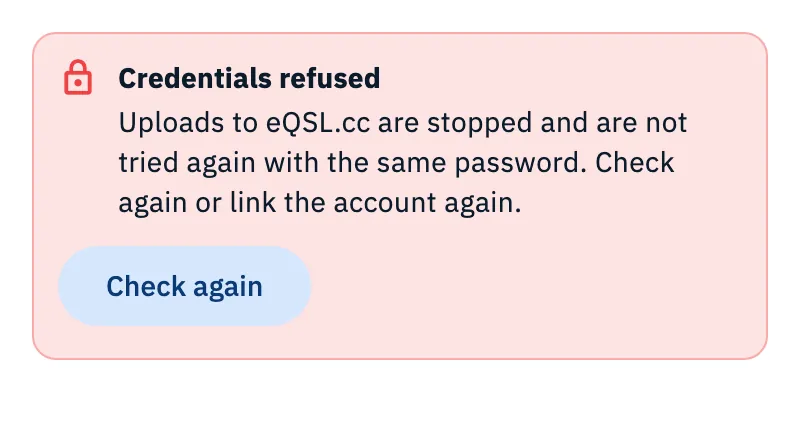
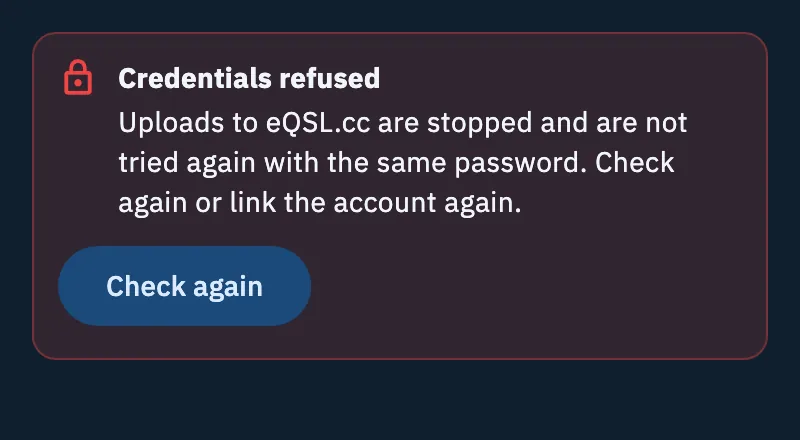
If QRZ.com, eQSL.cc or HRDLog refuse the saved credentials (for example you changed the password on their site), HamQSO stops uploads to that service on this device and does not try again with the same password, so your account does not get locked. The QSOs keep waiting and go out when you fix it.
- Open Profile and tap Linked services. The card of a stopped service has its status in red (in yellow when only the eQSL.cc QTH is missing).
- Tap the card: at the top of the service page you read the box, with the service's answer when it gave one ("The service said: "…"").
- Fix it according to the case:
| Status | What to do |
|---|---|
| Credentials refused | If you already fixed the account, tap Check again. If you changed the password, unlink the service and link it again with the new one. |
| Subscription required (QRZ.com) | "A QRZ.com subscription is needed": the key is valid, but QRZ.com accepts uploads and downloads from apps only from subscribers (XML Logbook Data or higher). After renewing, tap I renewed, check. |
| QTH missing (eQSL.cc) | The password is right, but your eQSL.cc user has more than one QTH: choose the one to use, as explained in eQSL.cc and HRDLog. |
The stop applies only to this device: another device with the right credentials keeps uploading. Other linking messages are in Linking QRZ.com, LoTW, eQSL.cc and HRDLog; how it works on several devices is in Services on several devices.
The HamQSO Pro purchase does not go through
After you tap the purchase button and pay in the store, the outcome can be:
| Outcome | What you see | What to do |
|---|---|---|
| Purchased | In the app the paywall closes and you are back where you were. On the web and on a computer you read Pro active. | Nothing: Pro is active. |
| Cancelled | In the app no message. On the web and on a computer: "Payment cancelled. You have not been charged." | Try again whenever you like. |
| Failed | "Purchase failed. You have not been charged." On the web and on a computer, if the store gives the reason, you read it after the message. | Try again later. |
| Paid, activating | In the app no message: the paywall closes by itself when Pro becomes active. On the web and on a computer: "Activating Pro…". The app reads the status again every 4 seconds, for up to 20 seconds. | Wait. |
| Paid, slow activation | On the web and on a computer: "Payment received. Pro will be active within a few minutes, even if you close this window." with Close. | You can close: Pro arrives by itself. |
If you already have a subscription but Pro is not active (for example on a new device), open the paywall and tap Restore purchases: it looks for the subscription on your store account. If it finds it, Pro is active again (on the web and on a computer you read Pro found again). Otherwise you read "No subscription to restore on this store account." or, if the request fails, "Restore failed. Try again shortly." How to subscribe is explained in Subscribing to HamQSO Pro.
If the problem stays
- Open Profile and tap Feedback.
- Tap Report a problem and tell us what happened.
- Leave Attach technical details on (it is on by default): they help us understand the problem without asking you questions.
The form is explained in Sending feedback.