
What eQSL HamQSO is
How eQSL HamQSO sends a card for every QSO, the four tabs of the section, and what stations without HamQSO receive by email.
Free and ProUpdated for HamQSO 0.1.19
On this page
eQSL HamQSO is the HamQSO service that sends an electronic card (eQSL) to every station you work. Stations that use HamQSO receive it in the app, the others by email, with a link to the card's page. The eQSLs you receive go into your Collection and confirm the QSO.
How it works
- Log a QSO as usual.
- With Automatic sending on, the eQSL HamQSO leaves by itself 5 minutes after the QSO, so there is time to fix or delete the QSO before it goes.
- If the station you worked uses HamQSO, the eQSL reaches it in the app; otherwise HamQSO sends it by email.
- When the other station answers with its own eQSL HamQSO, you find it in your Collection and the QSO is confirmed.
A few rules always apply:
- Only one eQSL leaves per callsign, band and mode in each operation.
- The back of the card and the email are always in English, so anyone in the world can read them.
- To send, you need a HamQSO account and your callsign in your profile (see Signing in and saving your log and Your profile).
- Whether and when an eQSL leaves is decided by the HamQSO server: the app asks for the send and shows you its state.
You can also send eQSLs yourself, from the QSO detail or from the log: see Sending eQSLs.
Opening eQSL HamQSO
- Open Profile.
- Tap the eQSL HamQSO card ("Create and send your eQSL HamQSO").
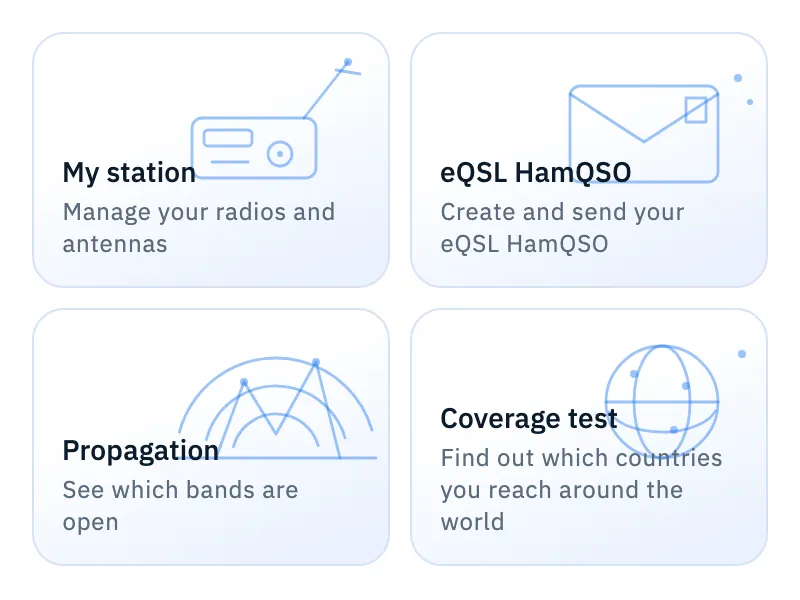
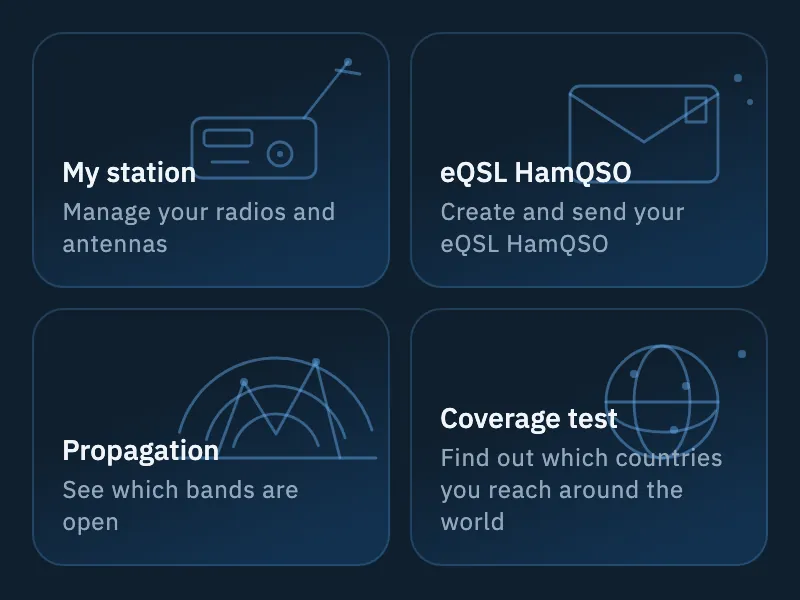
On the web, in a computer window, the side bar also has an eQSL HamQSO entry. When you receive an eQSL or complete a series, tapping the notification opens the section directly.
The four tabs
The section has four tabs. When you move from one to another, each keeps its state, scroll position included.
| Tab | What you find | Read more |
|---|---|---|
| Shop | Card models to add to your models. The section opens here. | Choosing your card |
| Collection | The eQSL HamQSO you received and the series to complete. | Received cards, collection and series |
| Models | Your models and the default one, which your eQSLs leave with. | Choosing your card, Designing your own card |
| Sent | The eQSLs you sent and their state. | Sent cards |
Numbers can appear next to the tab names:
- N new on Collection: received eQSLs you have not opened yet.
- N to check (in amber) on Sent: eQSLs that did not arrive.
With zero there is no number. The server counts them: without a connection they keep their last value.
At the top you also find:
- the gear, which opens eQSL settings (see eQSL settings);
- the Default: … chip, with a thumbnail of the model your eQSLs leave with. Tap it to open the Models tab and change it. If you never chose a model, the default is Your country. Until the models are loaded, the chip is not shown.


The layout depends on the screen:
- Phone: title and gear in the bar, the tabs under it; the default model chip is at the top of the Shop.
- Tablet: the same bar, with the tabs on the left and the chip on the right.
- Web and desktop: the title in the bar, then one row with the tabs, the chip and the gear.
When the tabs do not fit, the row scrolls sideways. With a keyboard, Tab moves to the active tab, the ← and → arrows change tab, Home and End go to the first and the last.
The first time
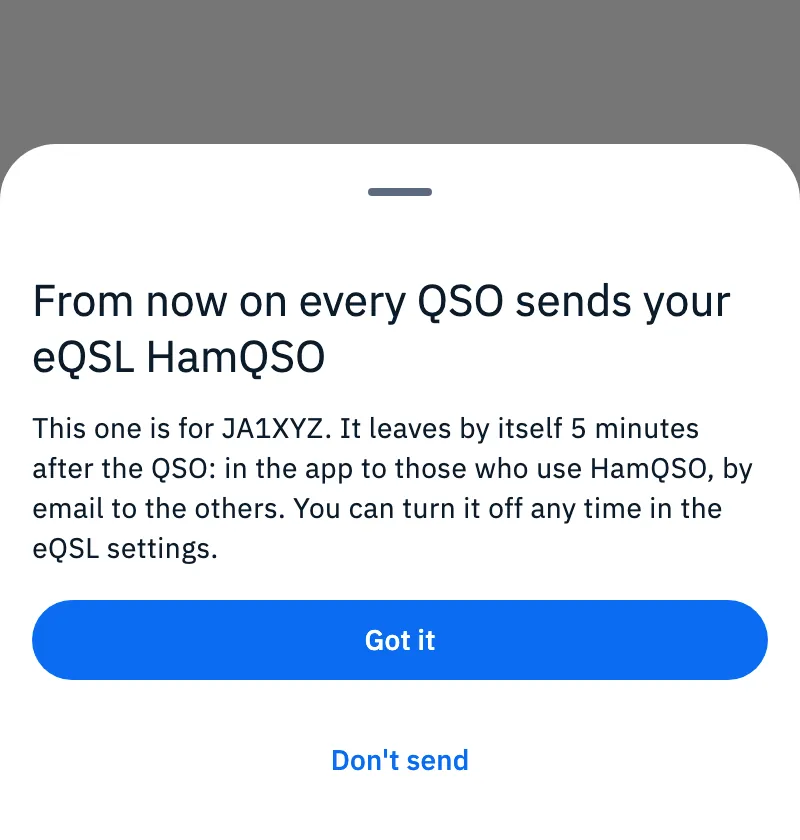
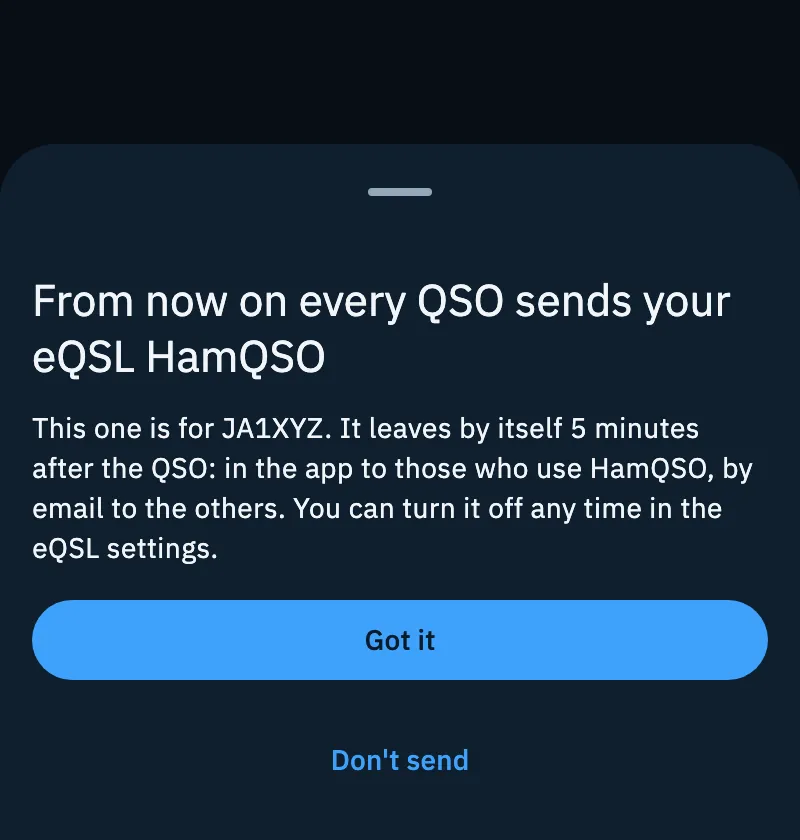
At the first QSO you save after eQSL HamQSO arrived, From now on every QSO sends your eQSL HamQSO opens, only once for your account. It says who the first eQSL is for: "It leaves by itself 5 minutes after the QSO: in the app to those who use HamQSO, by email to the others. You can turn it off any time in the eQSL settings."
| Choice | What happens |
|---|---|
| Got it | Automatic sending stays on. Closing the sheet without answering does the same. |
| Don't send | Turns Automatic sending off and cancels the eQSL just requested, if it has not left yet. |
On a phone it is a bottom sheet; on larger screens (tablet, computer window) it is a window in the middle. You can change your mind at any time with Automatic sending in eQSL settings.
What stations without HamQSO receive
The email
A station that does not use HamQSO receives an email in English, with the subject "IU0XYZ sent you an eQSL" (with your callsign). It contains:
- the line "QSO between IU0XYZ and JA1XYZ." and, when the operator differs from the station callsign, the operator's callsign;
- the card, which opens its web page;
- the QSO data: date, time (UTC), band, mode, frequency, reports, distance, locator, country and reference, when they exist;
- the "Reply with your eQSL" button;
- your email address, only if you turned on Show my email in the settings;
- at the bottom, "There is no need to reply" and the link "I don't want to receive eQSL HamQSO".
HamQSO looks up the station's email address in the callbooks (QRZ.com and HamQTH). No email goes to stations that use HamQSO (they get the eQSL in the app), to those who asked not to receive any, to those with "eQSL: no" in the callbook and to those without an address. To see an email as it arrived, open the eQSL in Sent (see Sent cards).
The card's page
Every eQSL has its own page on hamqso.app, in English, titled "eQSL from IU0XYZ to JA1XYZ". It opens from the link in the email, or with Copy link and Send by email in the QSO detail. On the page, anyone who opens it can:
- turn the card over ("Turn the card over", "Show the front", "Show the back") and download the front and the back;
- read the QSO data (From, To, Date, Time, Band, Mode, Frequency, RST, Reference, Locators) with the map;
- follow the invitation "Reply with your QSL": "Add this QSO to your log in HamQSO and send your own eQSL back."
If the page does not load, it shows "This eQSL did not load": try again after a minute.
The recipient, opening the page from the link in their own email, also sees "Hide this page": the page then shows only to them, with that link ("This page is hidden"), and anyone else gets a page not found. "Show this page again" makes it public again.
Stopping the emails
Anyone who no longer wants eQSL HamQSO taps the link "I don't want to receive eQSL HamQSO" at the bottom of the email. No account is needed:
- The page "No more eQSL HamQSO emails to this email address." opens, saying that other emails from radio friends are not touched.
- Only the "Stop eQSL" button stops the emails, so a mail program that opens the link by itself stops nothing.
At the end the page says "Done, no more eQSL". The unsubscribe button some mail programs show next to the sender works too. The stop applies to that email address, not to the callsign; the eQSL itself stays at its link. If the address was already stopped, the page says "eQSL HamQSO to this email address are already stopped."; with an incomplete or too old link, "This link is not valid".
On your side, the QSO detail says "JA1XYZ chose not to receive emails from HamQSO. The eQSL stays at its link." and Sent shows "Asked not to receive any".
Free and Pro
Sending and receiving eQSL HamQSO is free, with no sending limits, with the standard models: Your country and the Shop models marked For everyone.
Troubleshooting
- "The card is ready. To send it you need an account and your callsign in the profile." Sign in with your account and enter your callsign in your profile: see Signing in and saving your log and Your profile.
- No eQSL leaves for a station you already worked. Only one leaves per callsign, band and mode in each operation: if you already sent the eQSL of another QSO with the same station on the same band and mode, no second one leaves.
- eQSLs no longer leave by themselves. You may have chosen Don't send in the first-time sheet. Turn Automatic sending back on in eQSL settings.
- The first-time sheet comes back at every QSO. Your answer was not saved, usually because there was no connection: the sheet comes back with the next QSO until the answer reaches the server.
- Sent shows "N to check". Some eQSLs did not arrive. Open Sent to see why, for example "Asked not to receive any". See Sent cards.
- A log row shows "Missing email" or "eQSL: no". With "Missing email" HamQSO did not find the station's address: tap the mark to enter it. With "eQSL: no" the station wrote in the callbook that it does not want eQSLs. See Sending eQSLs.
- You do not see the eQSL HamQSO card in the Profile. Your version of the app is not connected to the eQSL HamQSO server.