
Sending feedback
Suggest a feature or report a problem to the developers, with images and, for a problem, the technical details that help reproduce it.
FreeUpdated for HamQSO 0.1.19
On this page
From Profile you can write directly to the developers of HamQSO: suggest an idea for the app or report something that is not working, with screenshots and, for problems, the technical details needed to reproduce it. Feedback is free for everyone. There is no reply to follow in the app: the message goes to the developers, who read every suggestion even if they cannot reply to each one.
Opening feedback
- Open Profile.
- In the Help group, tap Feedback ("Suggest a feature or report a problem").
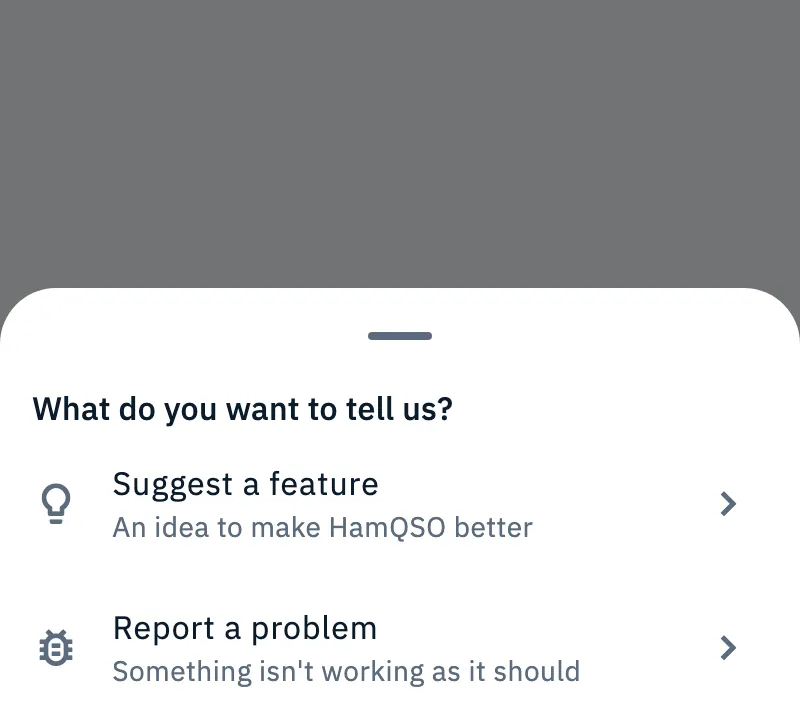
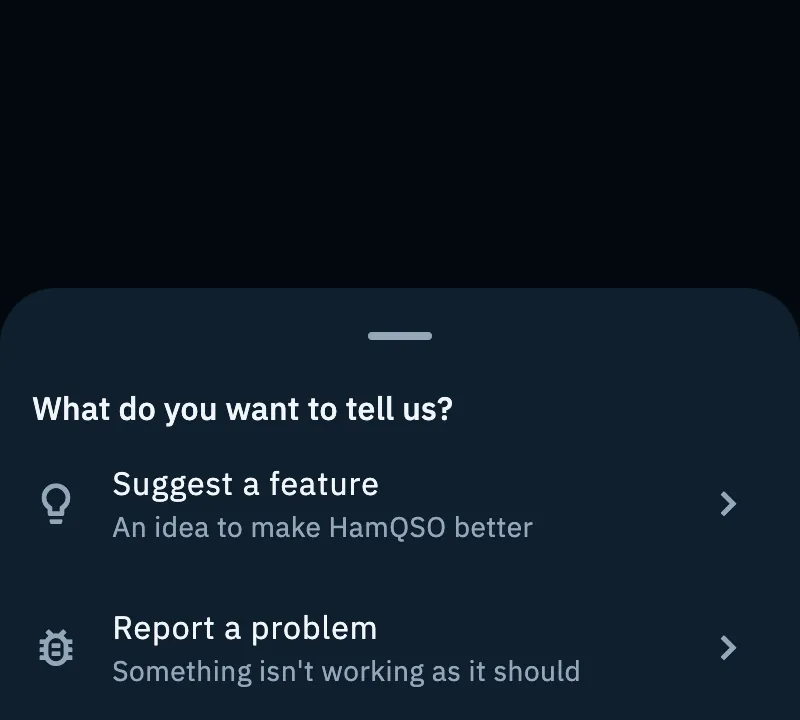
- In the What do you want to tell us? sheet, choose:
- Suggest a feature ("An idea to make HamQSO better");
- Report a problem ("Something isn't working as it should").
Suggesting a feature
The form opens with "What would you like to see in HamQSO? We read every suggestion, even if we can't reply to each one."
- Write the Title: your idea in a few words.
- Choose the Category.
- Write the Description: how it would work, when you would use it.
- If you like, check Your callsign and add Images (see "Images" below).
- Tap Send suggestion.
| Field | What it holds | Limits |
|---|---|---|
| Title | Your idea in a few words. | Required, 5 to 80 characters. |
| Category | One of DX cluster, xOTA, Radio, Logbook, Alerts, Contest, eQSL, Coverage test, Station, Other. | Required. |
| Description | How it would work and when you would use it. | Required, 20 to 2000 characters. |
| Your callsign | Already filled in with the callsign of your profile. | Optional, up to 15 characters. |
| Images | "Screenshots, a sketch, or a photo of another app or your radio." | Optional, up to 5. |
Under the text fields a counter such as "12 / 80" shows how many characters you have written; until you reach the minimum, the field also says, for example, "8 more characters (min 20)". Spaces at the start and end do not count towards the minimum; an emoji counts as one character.
A suggestion only carries the app version and the operating system, as the note at the bottom of the form says: "Along with your suggestion we send the app version and operating system."
Reporting a problem
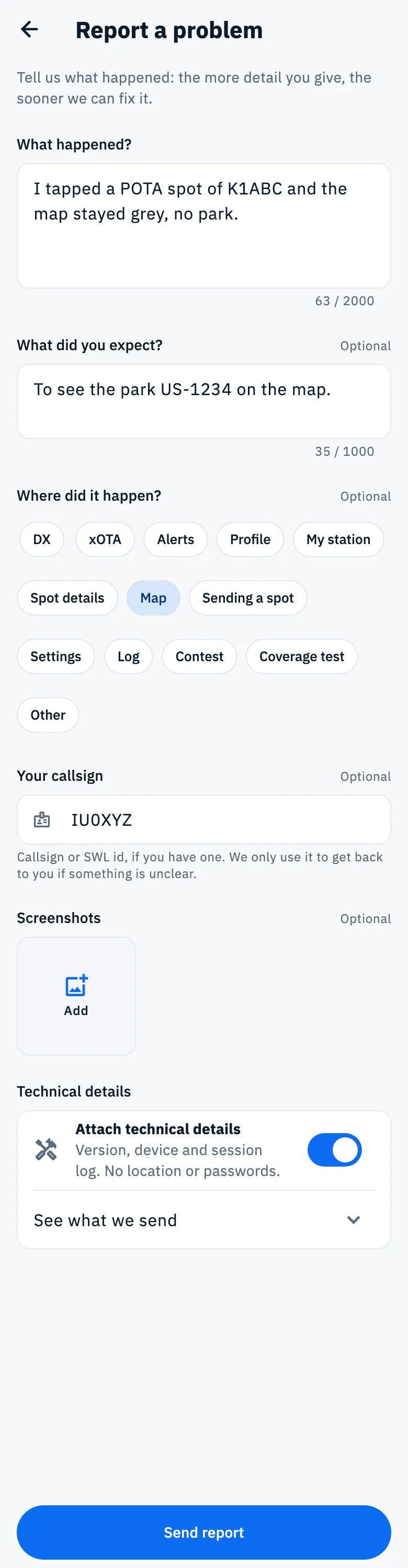
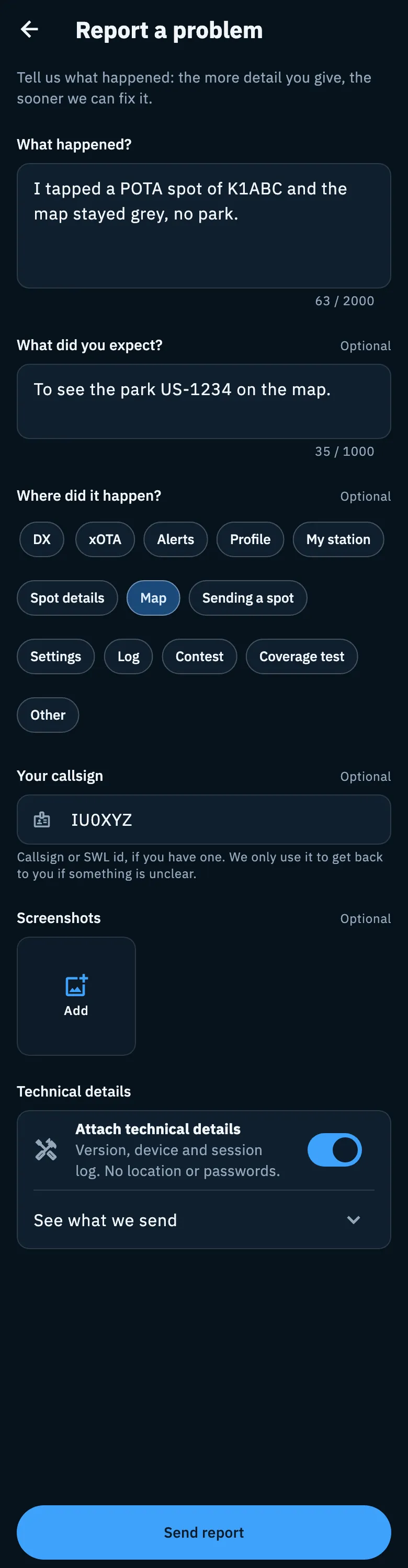
The form opens with "Tell us what happened: the more detail you give, the sooner we can fix it."
- Write What happened?, for example "E.g. I tapped a POTA spot and the map stayed grey".
- If you like, write What did you expect?.
- If you like, choose Where did it happen?.
- Check Your callsign and add one or more Screenshots.
- Check the Technical details (see "Technical details" below).
- Tap Send report.
| Field | What it holds | Limits |
|---|---|---|
| What happened? | What you did and what you saw. | Required, 20 to 2000 characters. |
| What did you expect? | What should have happened. | Optional, up to 1000 characters. |
| Where did it happen? | One of DX, xOTA, Alerts, Profile, My station, Spot details, Map, Sending a spot, Settings, Log, Contest, Coverage test, Other. Tap the choice again to clear it. | Optional. |
| Your callsign | "Callsign or SWL id, if you have one. We only use it to get back to you if something is unclear." Already filled in with the callsign of your profile. | Optional, up to 15 characters. |
| Screenshots | Images of the problem. | Optional, up to 5. |
| Technical details | Version, device and session log. | On by default. |
Images
Both forms take up to 5 images: screenshots, a sketch, a photo of your radio.
- Tap Add in the Images or Screenshots section.
- If the device has a camera, choose Choose from gallery or Take a photo; otherwise the image picker opens straight away. From the gallery you can pick more than one.
- Tap a thumbnail to see it full size.
- To remove one, tap the × on the thumbnail (Remove image): "Image removed" appears with Undo to put it back in its place.
Under the thumbnails you see how many you have, for example "2 of 5"; at the limit, "5 of 5, limit reached" and the Add box goes away. If you pick more than fit, the extra ones are not added and a message says so, for example "1 image not added: you can attach up to 5."
Before sending, each image is resized (long side at most 1920 pixels) and saved as JPEG without EXIF data: the GPS location of a photo is never sent.
Technical details
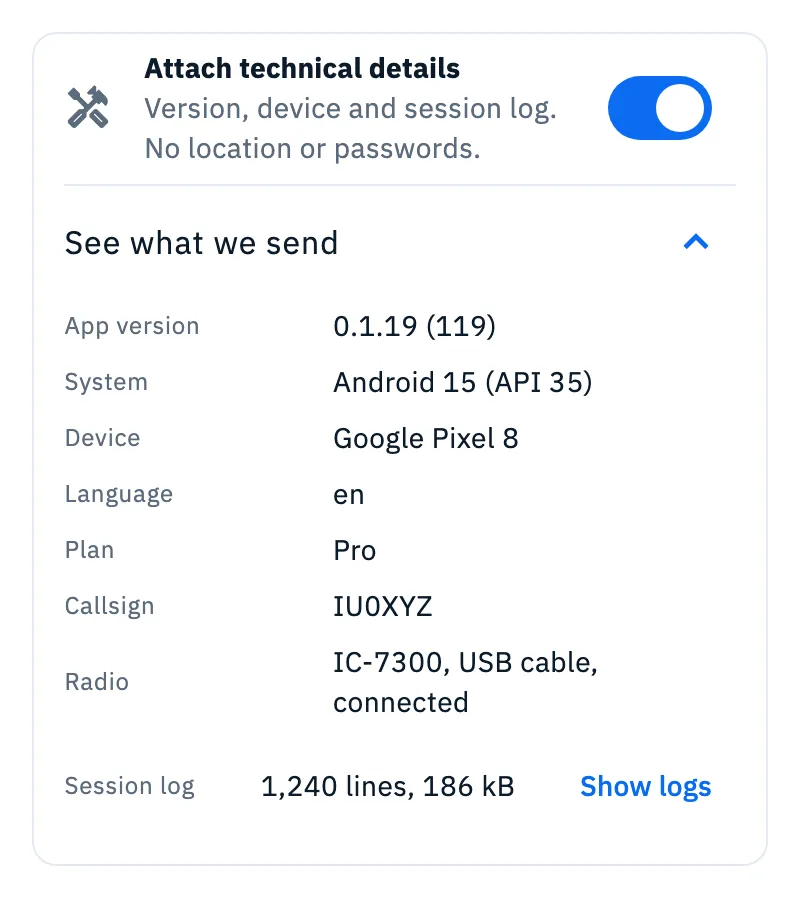
Only in Report a problem. With the technical details the developers can reproduce the problem; before sending you see what goes.
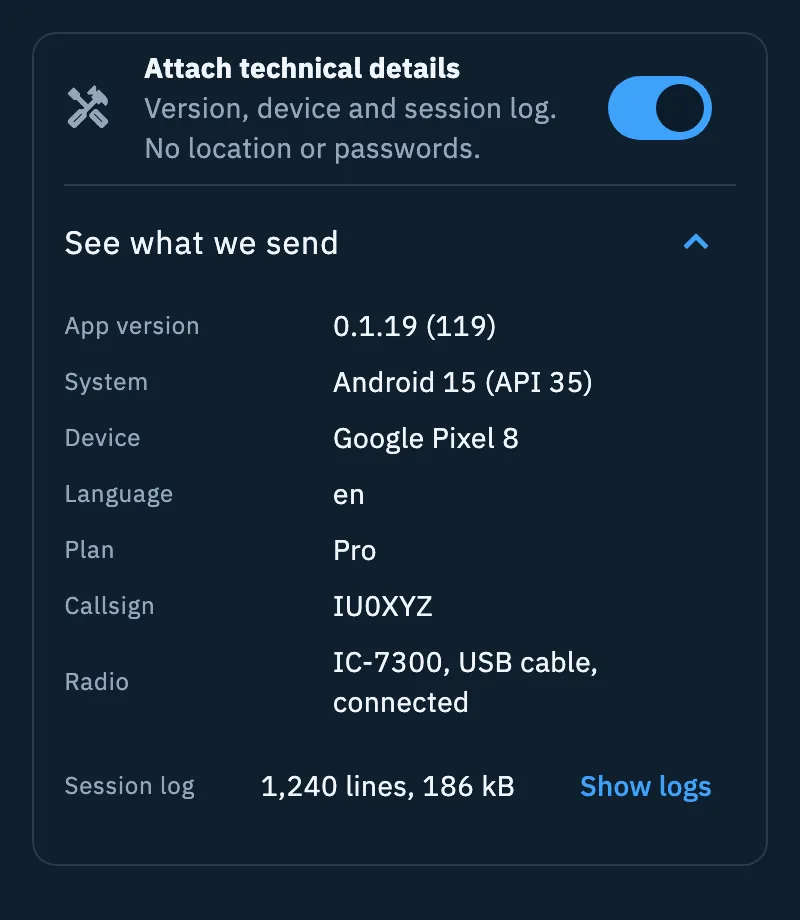
- Leave Attach technical details on ("Version, device and session log. No location or passwords."), or turn it off. When it is off you read "Without these details we may not be able to reproduce the problem."
- Tap See what we send for the list.
- In the Session log row, tap Show logs to read the log.
| Row | What it shows |
|---|---|
| App version | The HamQSO version and build number. |
| System | The operating system and its version. |
| Device | The model of the phone or tablet (iOS and Android only). |
| Language | The language of the app. |
| Plan | Pro, Pro (trial) or Free. |
| Callsign | The one in the Your callsign field, or Not set. |
| Radio | Model, connection type and connected or not connected; No radio when you have none set up. |
| Session log | How many lines and how large the log is, with Show logs. |
The technical details also carry the codes of the latest errors recorded on the device: they have no row in the list because they point to errors already in the session log.
The session log
The log covers the session since the app started ("Since the app started, today at 10:42"). The Session log sheet tells you: "Already cleaned: passwords, tokens, email addresses, location and locators are removed. It's compressed before sending. Lines written from now until you send are added at the end." Warnings and errors have an icon and their level in bold; Start and End take you to the start or the end of the log.
- On phones and tablets the log is kept in a file, up to 20 MB; on the web it stays in memory, for the current session only, up to 5 MB.
- Past the limit the log keeps the start of the session and the most recent part: the row says, for example, "Trimmed to 20 MB", the sheet explains it ("The log went over 20 MB: it keeps the start of the session and the most recent part.") and "N lines removed here" marks where lines are missing.
- When the session has no lines yet, the row says No lines and there is no Show logs.
Sending
- Tap Send suggestion or Send report.
- If something is missing, the Suggestion not sent yet or Report not sent yet notice appears above the button, with what is missing: for one field a line such as "13 more characters in “What happened?”", for more fields "Complete 2 fields" and one line per field. The errors also appear under the fields: Required, "Write at least 20 characters", Choose a category.
- Tap a line of the notice: the cursor goes to that field. When everything is in order the notice goes away.
- Tap the button again: while it goes you read Sending… and the form is locked; with images, a bar under the title follows the upload.
- At the end Thank you! appears with "We've received your report. It helps us make HamQSO more reliable." or "We've received your suggestion. Ideas from HamQSO users shape the next versions." Tap Done to close.
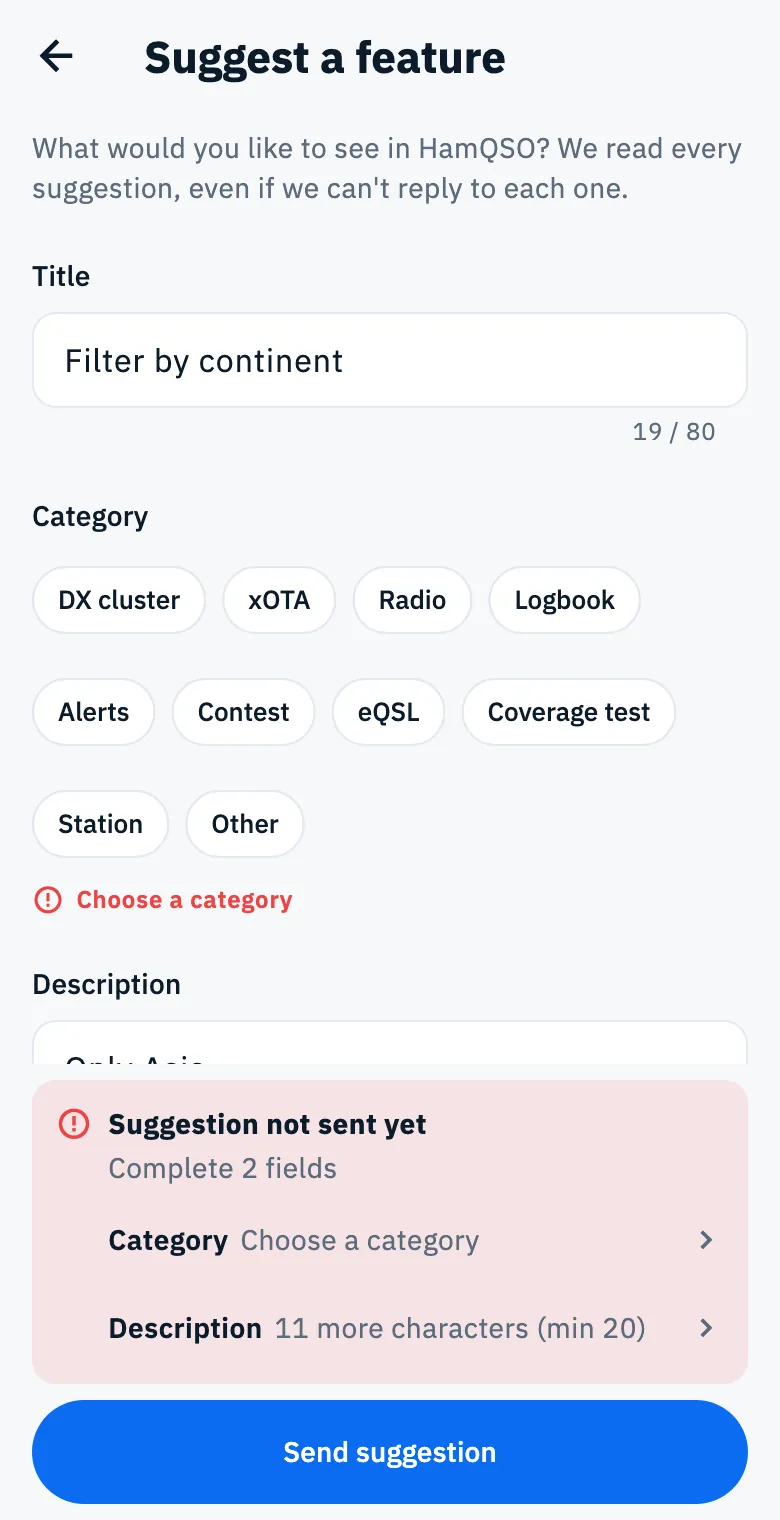
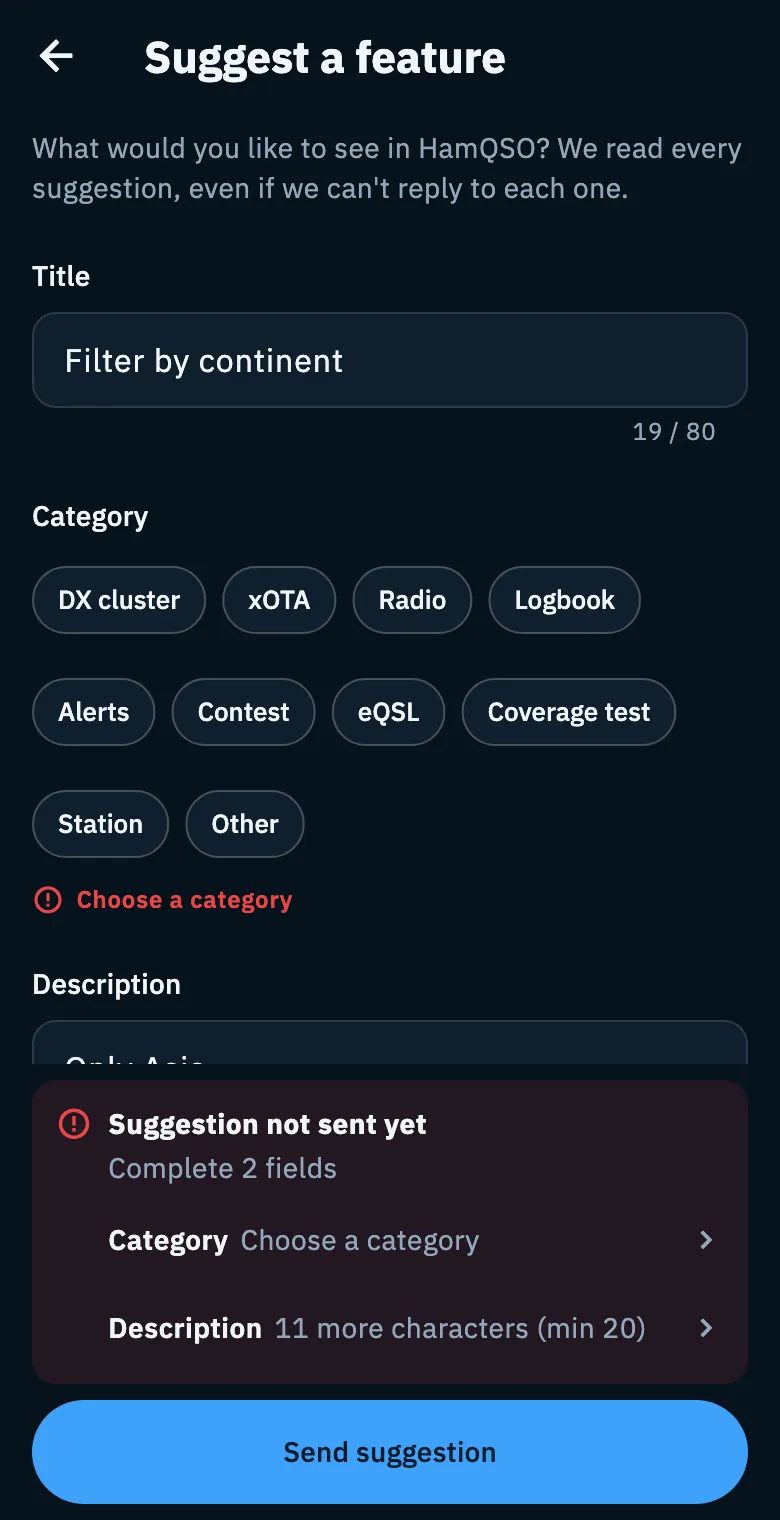
When you tap the button, the page scrolls to the first field to complete. With a mouse and keyboard that field also gets the cursor; on phones and tablets it does not, so the keyboard does not cover the notice.
A second tap while sending does not send the message twice. If sending fails, what you wrote stays in the form, and a new attempt does not upload again the images already uploaded.
Without network
Without a connection the button becomes Send when the network is back.
- Fill in the form as usual.
- Tap Send when the network is back.
- You read "Message queued: I'll send it when the network is back." and the form closes.
The message stays queued on the device, even if you close the app, and goes out by itself when the network is back, with no time limit. While it waits, the log's Waiting list shows it as "Message to HamQSO". The same happens if the network drops while sending. See also Using HamQSO offline.
Discarding a draft
If you go back from a form where you wrote something, chose a category or a place in the app, changed the callsign or added images, HamQSO asks Discard draft?: "If you leave, the text and images you added will be lost."
- Keep writing takes you back to the form.
- Discard closes the form without sending.
The technical details switch alone does not count as a change. While sending you cannot leave the form.
The store review
On phones and tablets (iOS and Android) HamQSO may ask you for a review with the system window of the App Store or Google Play. There is no menu to open it: it appears by itself, and only after a moment when an alert did its job.
- Positive moments are: opening the notification of an alert and coming back from a spot opened from the alert history. Each notification counts once, even if you later open the same spot from the history. Callsign protection notifications do not count.
- After a notification, the request comes only if you are still in the app 30 seconds later.
- Never in the first session: it comes at the third positive moment, or at a positive moment after 7 days of use and at least 5 launches; at most once every 120 days.
- The system decides whether to really show it (iOS at most three times a year) and the app does not know whether you rated it. There is none on the web.
To describe a problem, use Report a problem: a store review does not reach the developers as a report.
Phone, tablet and web
- On tablets and on the web the form keeps a comfortable reading width, centred on the page.
- On the web the session log stays in memory and covers only the current session; the technical details have no Device row.
- The review request exists only in the iOS and Android apps.
Troubleshooting
| Message | What to do |
|---|---|
| "Image too large: the limit is 20 MB." | Choose a lighter image, or take a screenshot. |
| "We can't open this image. Try a JPEG or PNG." | Save the image as JPEG or PNG and try again. |
| "HamQSO can't access your photos. You can allow it in your phone's settings." or "HamQSO can't access the camera…" | Tap Settings in the message and allow access for HamQSO. |
| "You've sent a lot of messages in a short time. Try again in a few minutes." | Wait a few minutes: the form stays filled in. |
| "Couldn't send. Please try again shortly." | Tap Retry in the message. |
| Log can't be read: "If you send now, the report goes without the log." (in the log sheet: "We can't read the log.") | You can send anyway; if the problem comes from something that happened earlier, describe it well in What happened?. |