
Cards received from eQSL.cc
Browse the eQSL.cc cards that confirm your QSOs, open and share them, and with Pro add the cards without a QSO to your log or match them.
Free and ProUpdated for HamQSO 0.1.19
On this page
When eQSL.cc confirms one of your QSOs, HamQSO downloads its card and keeps it on the device: you find it in the eQSL received gallery and in the QSO detail, offline too. With Pro you also see the cards that match no QSO of your log, and you can add them to the log or match them to a QSO.
To download the cards, eQSL.cc must be linked on this device: see eQSL.cc and HRDLog. The HamQSO eQSLs you receive from other users of the app are a different thing and live in the Collection.
Opening the gallery
- Open Profile.
- In the Station and log group, tap eQSL.cc.
You can also get there from Profile → Linked services: in the eQSL.cc card, tap eQSL received.
On phone and tablet the eQSL.cc row of the Profile tells you where you stand:
| What you see | When | What a tap does |
|---|---|---|
| "N cards received" | eQSL.cc is linked. The number also counts the cards without a QSO, not the SWL reports. | Opens the gallery. |
| A number on the icon (up to "9+") | With eQSL.cc linked: the cards that arrived since you last opened the gallery. Without: the new cards waiting for you on eQSL.cc. | Opening the gallery marks the new cards as read and the number goes away. |
| "N new cards to read", highlighted | eQSL.cc is not linked, but eQSL.cc has new cards for the callsign set in the app. | Opens the eQSL.cc page, where you link it. |
| "Link eQSL.cc to see every card you received" | eQSL.cc is not linked. | Opens the eQSL.cc page. |
Without a linked account, the app asks eQSL.cc how many cards wait for your callsign at most every 6 hours, and shows the last number offline too.
On desktop and on the web, in a wide window, the eQSL.cc row is a plain row, without numbers, that always opens the gallery.
Browsing the cards
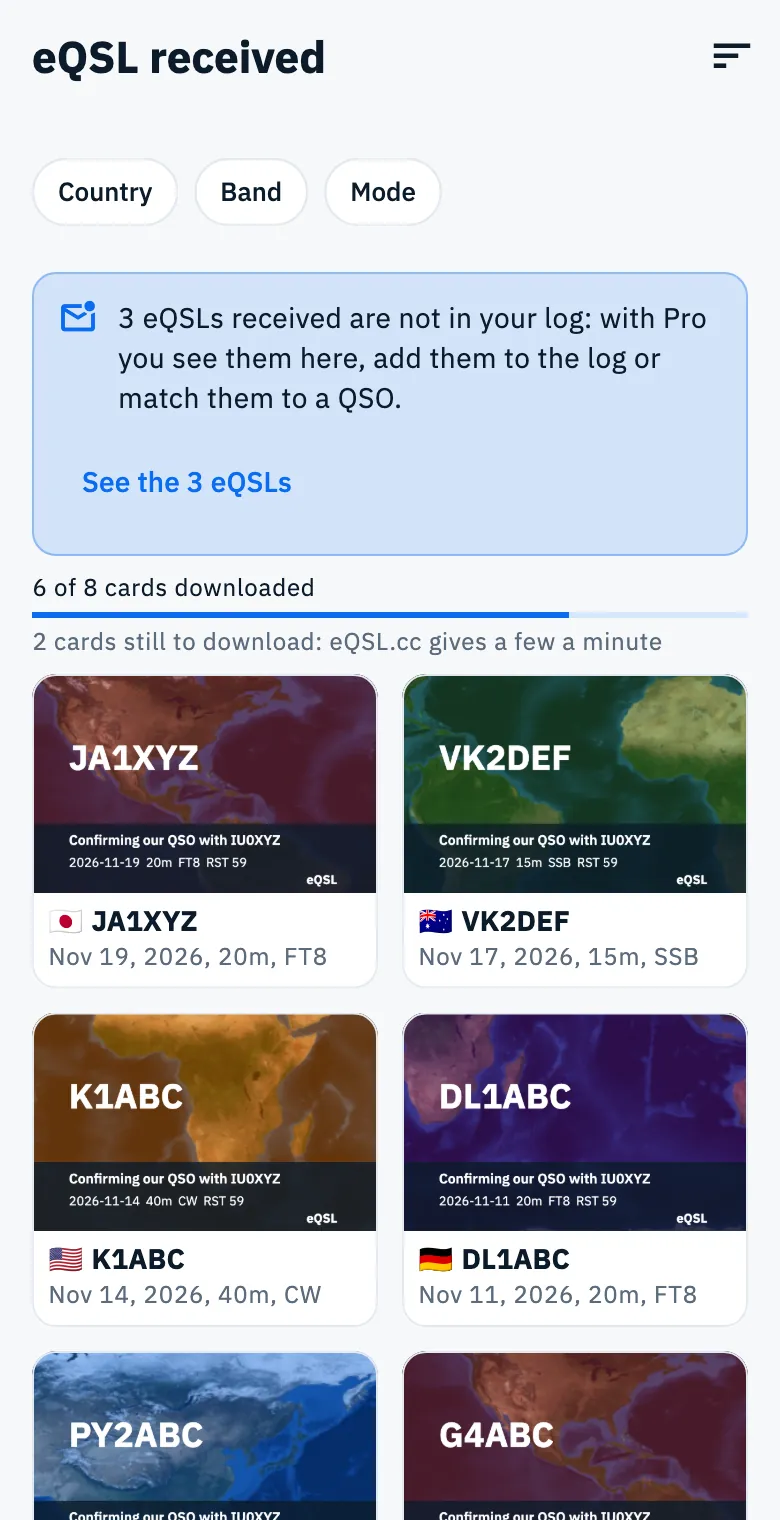
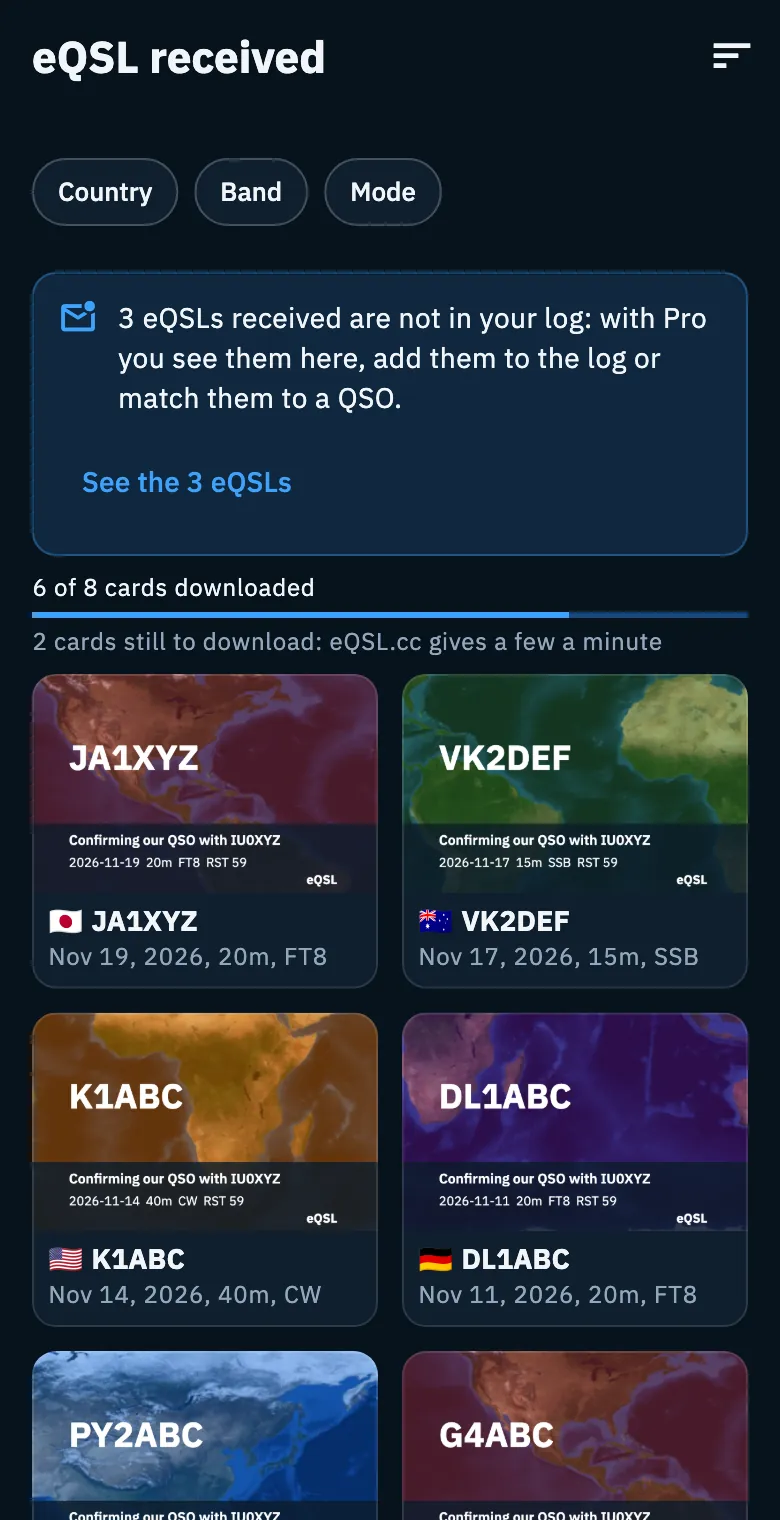
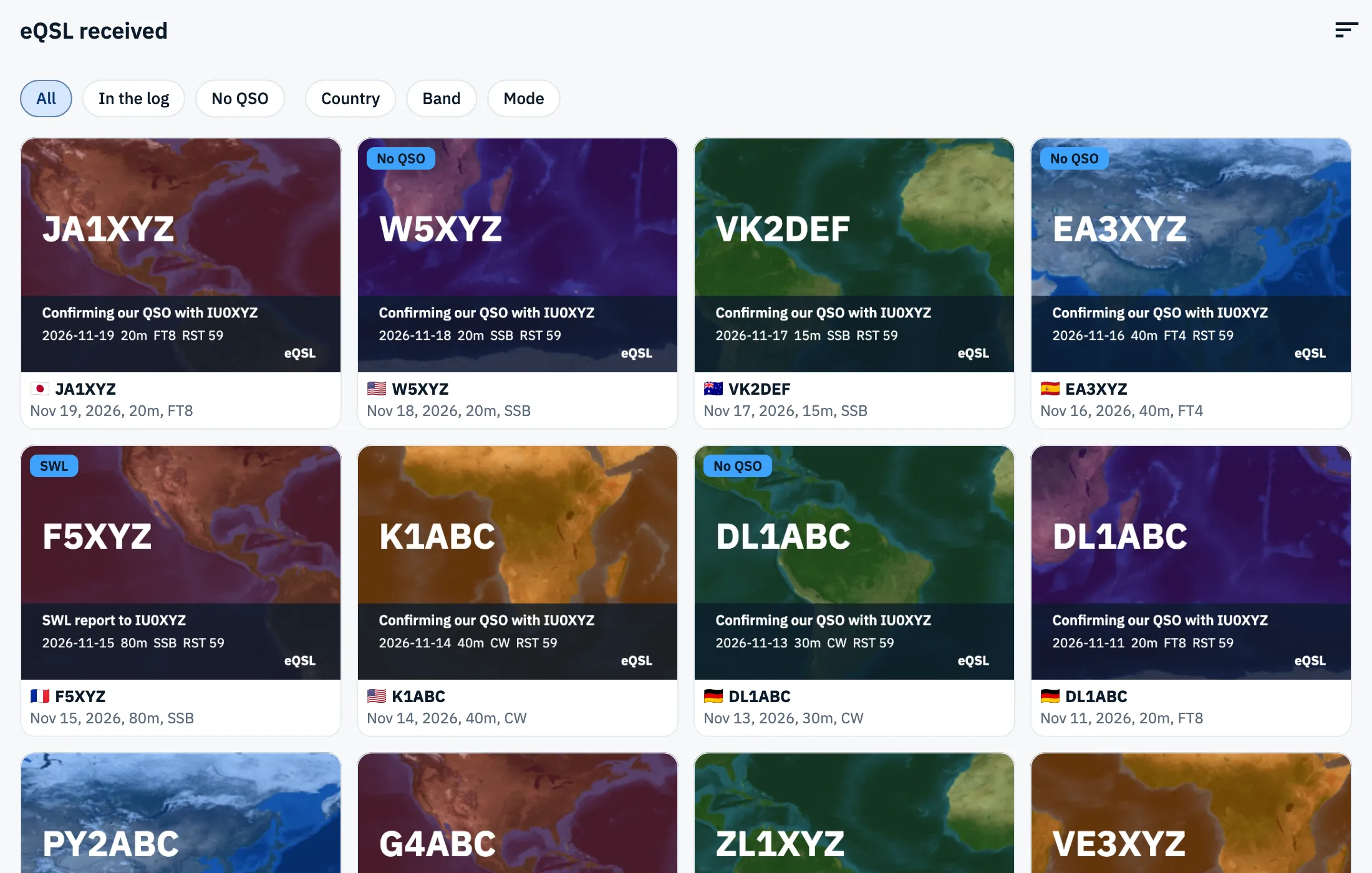
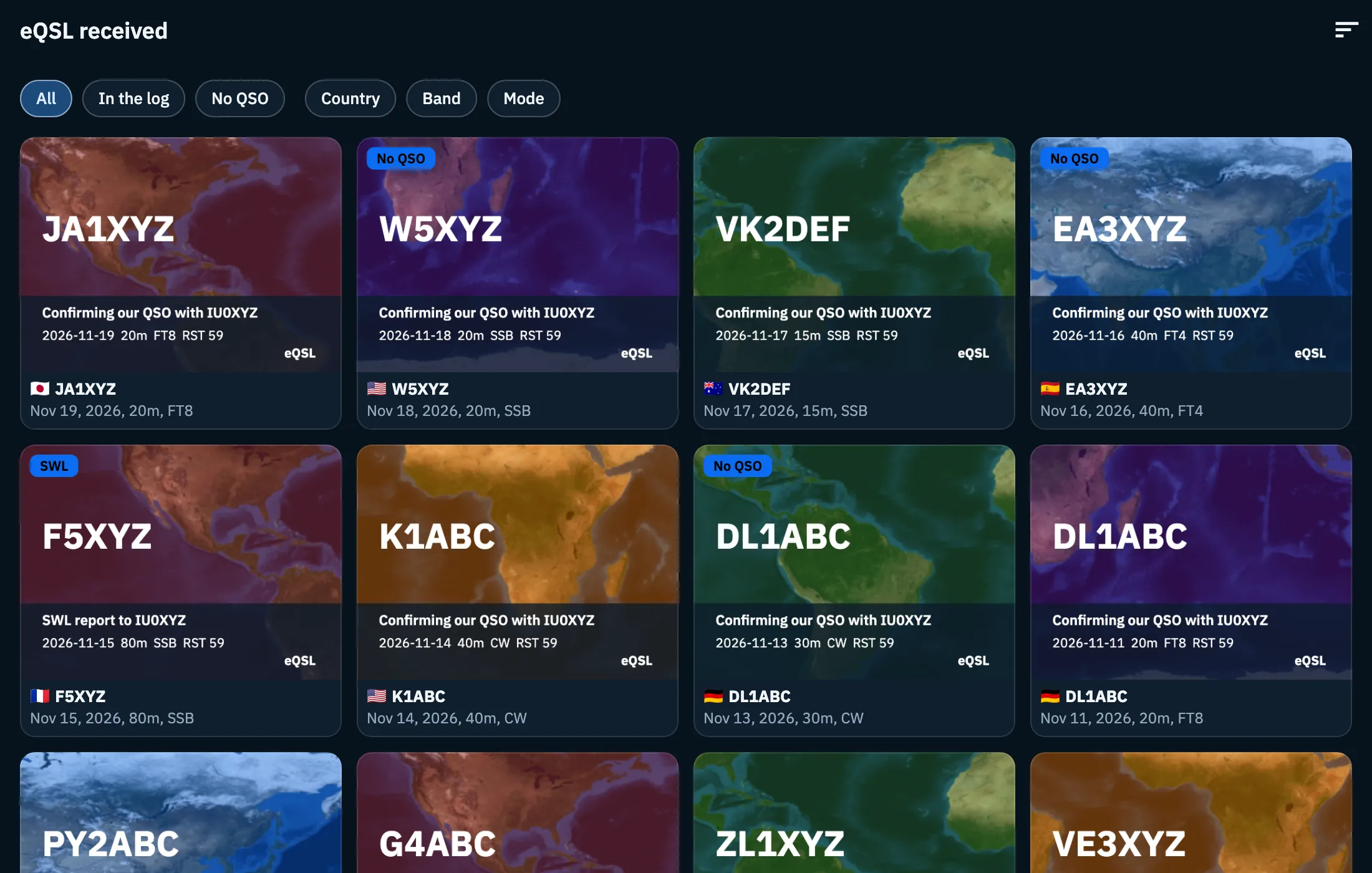
Each card shows the image, the callsign, and the date, band and mode of the QSO. Until the image arrives you see "Not downloaded yet". The grid adds columns on wider screens (tablet, desktop, web).
While the gallery is open, HamQSO:
- downloads the new confirmations from eQSL.cc right away (the whole inbox the first time);
- tries again to match the cards without a QSO to your QSOs: if you have logged or imported that QSO in the meantime, the card moves to the cards of the log by itself;
- downloads the missing images, 5 at a time, and keeps going as long as eQSL.cc gives them.
eQSL.cc gives a few images a minute, so a large archive arrives slowly. While images are missing, at the top of the grid you see "6 of 8 cards downloaded" with a bar, and "2 cards still to download: eQSL.cc gives a few a minute". A thin bar under the title tells you a download is running. To ask for news right away, pull the grid down.
Downloaded images stay on the device: they are not downloaded twice and you see them offline too.
Sorting and filtering
- Tap the Sort icon in the top bar and choose Newest first (the default) or Oldest first. The order follows the date of the QSO.
- Tap Country, Band or Mode in the row at the top and pick a value. Any removes that filter.
The menus list only the values found in your cards. An active filter shows a check mark and its value, for example Band: 20m. The Mode filter uses the ADIF mode of the card: an FT4 card, for example, is under MFSK. The filter row scrolls sideways.
When no card matches you see "No card matches these filters": tap Clear filters to remove country, band and mode.
Opening and sharing a card
- Tap a card already downloaded: it opens full screen on a dark background, titled "eQSL card from" followed by the callsign.
- Spread two fingers to zoom in (up to 5 times).
- Tap the share icon (Share the card).
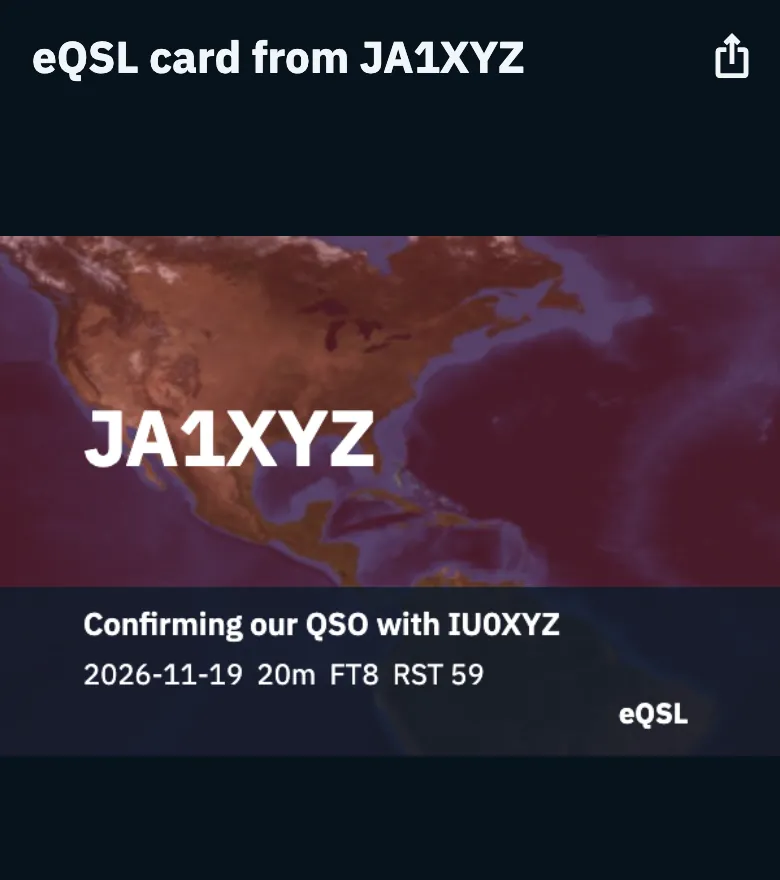
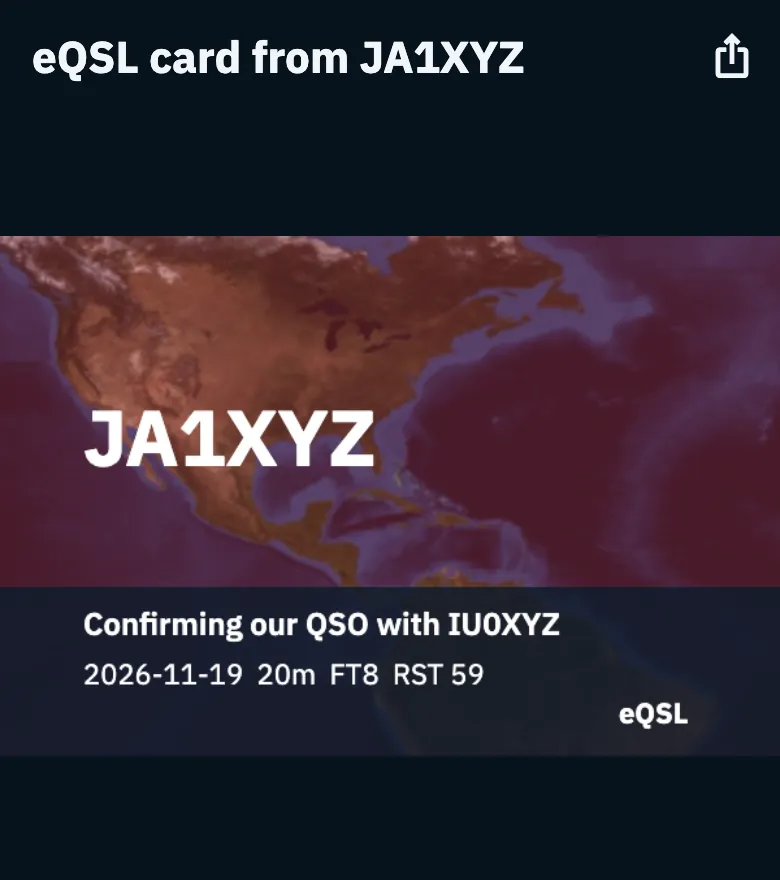
The card is shared as an image, with the text "eQSL received from JA1XYZ, 20M FT8" (callsign, band and mode of the QSO). In the app on phone, tablet and desktop the system share sheet opens (on iPad it starts from the button); on the web the image is downloaded. A card not downloaded yet does not open.
The card in the QSO detail
- Open a QSO confirmed by eQSL.cc (see Opening and editing a QSO).
- Open the Uploads and confirmations section.
- Under the eQSL.cc row you see a preview of the card: tap it to open it full screen, or tap the icon next to it (Share the card) to share it right away.
If the image has not arrived yet you see "Confirmed by eQSL.cc: the card will be downloaded as soon as possible.". The other states of the section are explained in A QSO on your services.
Cards without a QSO
Some cards match no QSO of your log: QSOs logged elsewhere, different data, a wrong callsign. HamQSO keeps them aside instead of losing them.
With Pro the cards without a QSO show up in the gallery with the No QSO badge. When there are some, at the start of the filter row you find three groups: All (the default), In the log and No QSO.
Adding the QSO to the log
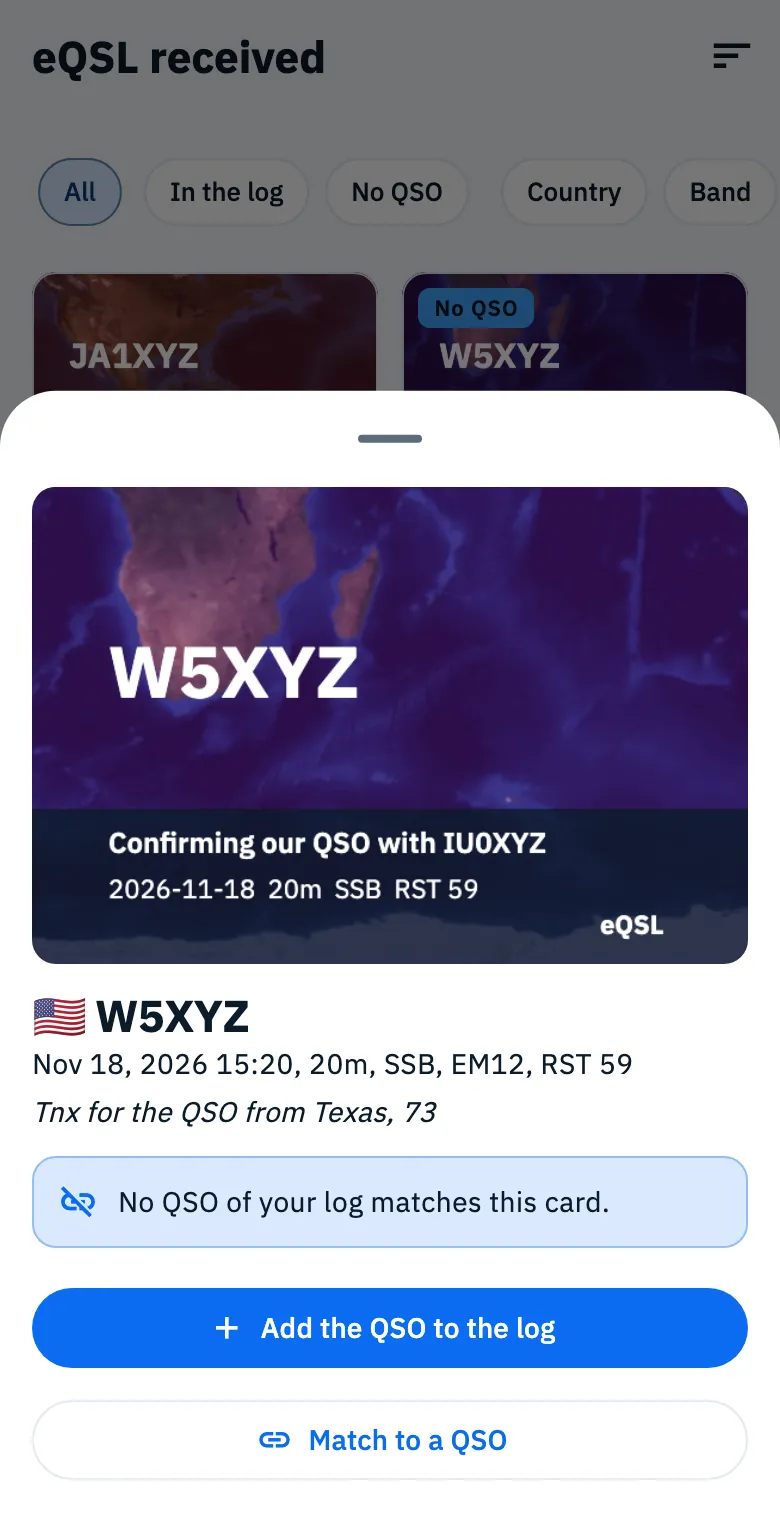
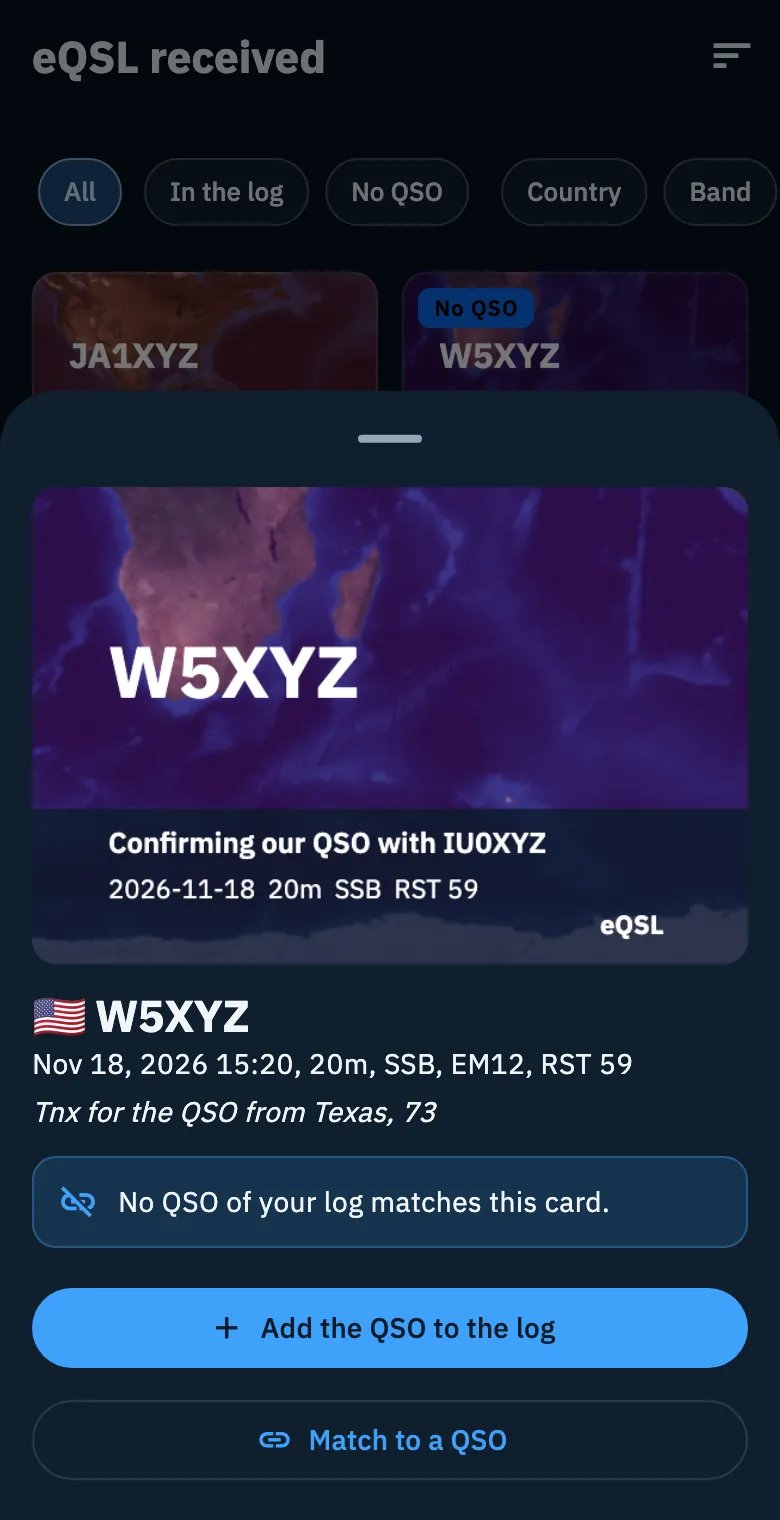
- Tap a card with the No QSO badge. The card opens with date and time, band, mode, locator, the report they gave you (RST), their message and the notice "No QSO of your log matches this card.". Tap the image to see it full screen.
- Tap Add the QSO to the log.
- On the Which operation? page, choose the operation to save it in.
The new QSO takes from the card the callsign, time, band and mode, their report as the report received and their locator, and it is already confirmed by eQSL.cc. At the end you see "QSO added to the log, already confirmed by eQSL.cc". If you close the operation choice without picking one, nothing happens.
Matching the card to a QSO
If the QSO is already in your log but with slightly different data (the time, for example), match it:
- Tap the card with the No QSO badge.
- Tap Match to a QSO.
- In the list "Match the card of W5XYZ", tap the right QSO. The list shows the QSOs of your log with the same callsign (or the same base callsign), the closest in time first, with date and time, band and mode.
At the end you see "Card matched to the QSO". When your log has no QSO with that station you see "No QSO with W5XYZ in the log".
Listener reports (SWL)
A card with the SWL badge is a report from a listener: when you tap it you read "Listener report (SWL): not a QSO." and has no buttons to add it to the log or match it. Without Pro, SWL reports are not counted among the cards outside your log.
Phone, tablet, desktop and web
- A card without a QSO and the list of QSOs to match open from the bottom on a phone; on tablet, desktop and web, when the screen is large enough, in a window in the middle.
- On desktop and on the web, in a wide window, the eQSL.cc row of the Profile shows no numbers.
- On the web the downloaded images stay in memory while the page stays open in the browser: on your next visit they are downloaded again.
Troubleshooting
| Message | What it means | What to do |
|---|---|---|
| "No eQSL cards yet" | eQSL.cc has not confirmed any of your QSOs yet, or eQSL.cc is not linked on this device. | Check the link in eQSL.cc and HRDLog and that your QSOs are uploaded to eQSL.cc. |
| "Offline: you are seeing the cards already downloaded." | The last download did not reach eQSL.cc (no network, or eQSL.cc does not answer or is overloaded). | The cards on the device stay. Pull down to try again when you are online. |
| "eQSL.cc cannot be reached" | There are no cards on the device and no network to download them. | Tap Retry when you are online. |
| "Not downloaded yet" | The image has not arrived yet: eQSL.cc gives a few a minute. | Keep the gallery open or pull down: the images arrive a few at a time. |
| "That did not work. Try again." | The QSO could not be added to the log, or the card could not be matched. | Try again. |
| "The card could not be shared." | The image could not be read or shared. | Try again. |
See also Using HamQSO offline.