
Finding and choosing references
Find a POTA park, a SOTA summit or a WWFF area by code or name, or among those near you, and add it to an alert, a spot or your log.
FreeUpdated for HamQSO 0.1.19
On this page
You don't need to remember the code of a park, a summit or an area: everywhere in the app, references are chosen with the same picker. It shows the ones near you, searches the POTA, SOTA and WWFF catalog by code or name, and also accepts a code the catalog doesn't know.
Where the picker opens
| From | How you open it | What changes |
|---|---|---|
| An alert | in the alert editor, on the Parks, summits and references row, tap Add | also shows On the air now; no limit on the number of references |
| I'm on the air | in the References (parks and summits) section, tap the Search by code or name, e.g. US-1105 field | at most 6 references |
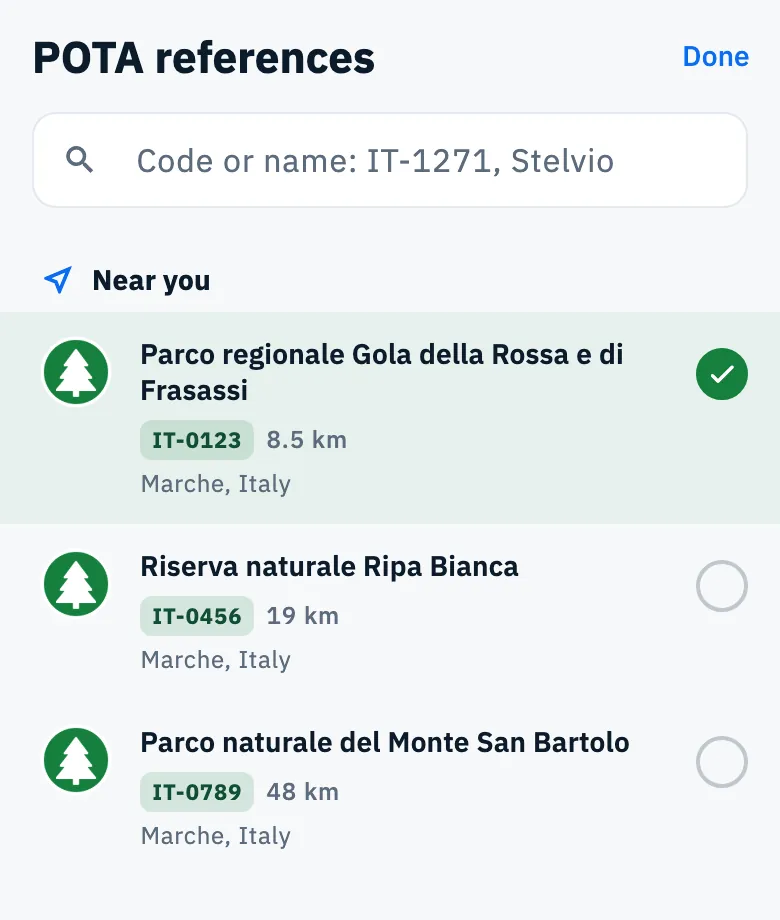
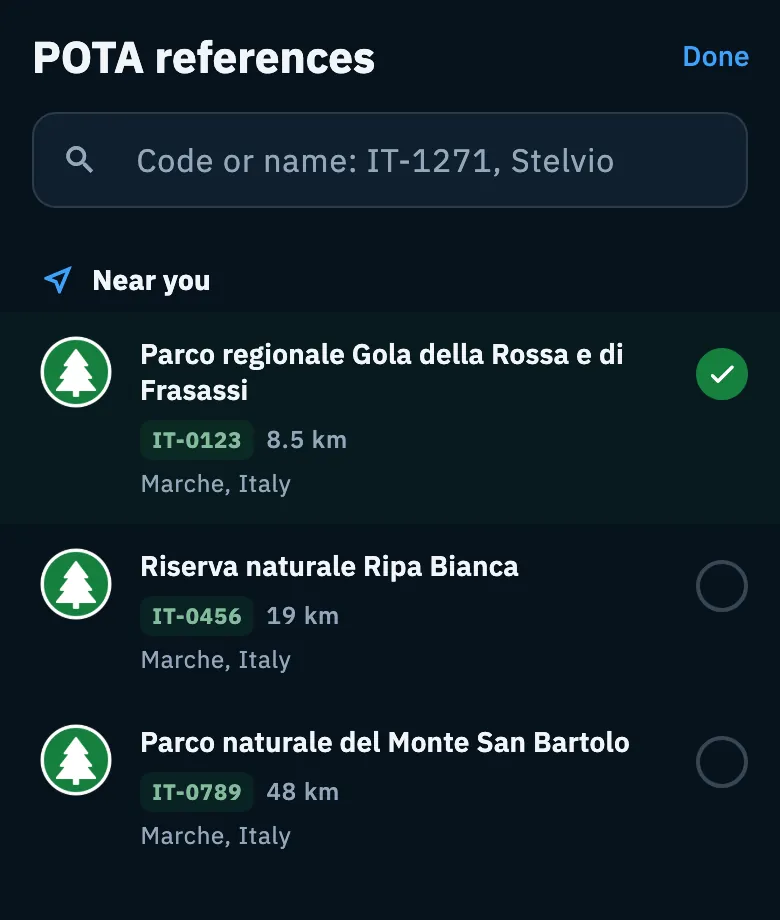
| The log | in the operation settings, or at the References step of New operation: choose the program and tap Search by name or code or Find near me | opens as a page, titled POTA references (or SOTA, WWFF), and shows that program only |
| A station profile | in the Default references section, tap Add reference and choose the program | as from the log, titled Add reference |
For each starting point see Creating an alert, Activating a POTA park or a SOTA summit, Creating an operation and Station profiles.
Choosing a reference
- Open the picker from one of the places above. The search field is already active.
- Before typing, look at Near you: the references within 50 km of your location, nearest first, each with its distance.
- If the one you want isn't there, type part of its code or name in the Code or name: IT-1271, Stelvio field.
- Tap a row to choose it: the circle on the right fills with the program color. Tap it again to remove it. You can choose more than one.
- Tap Done (or go back): the chosen references stay.
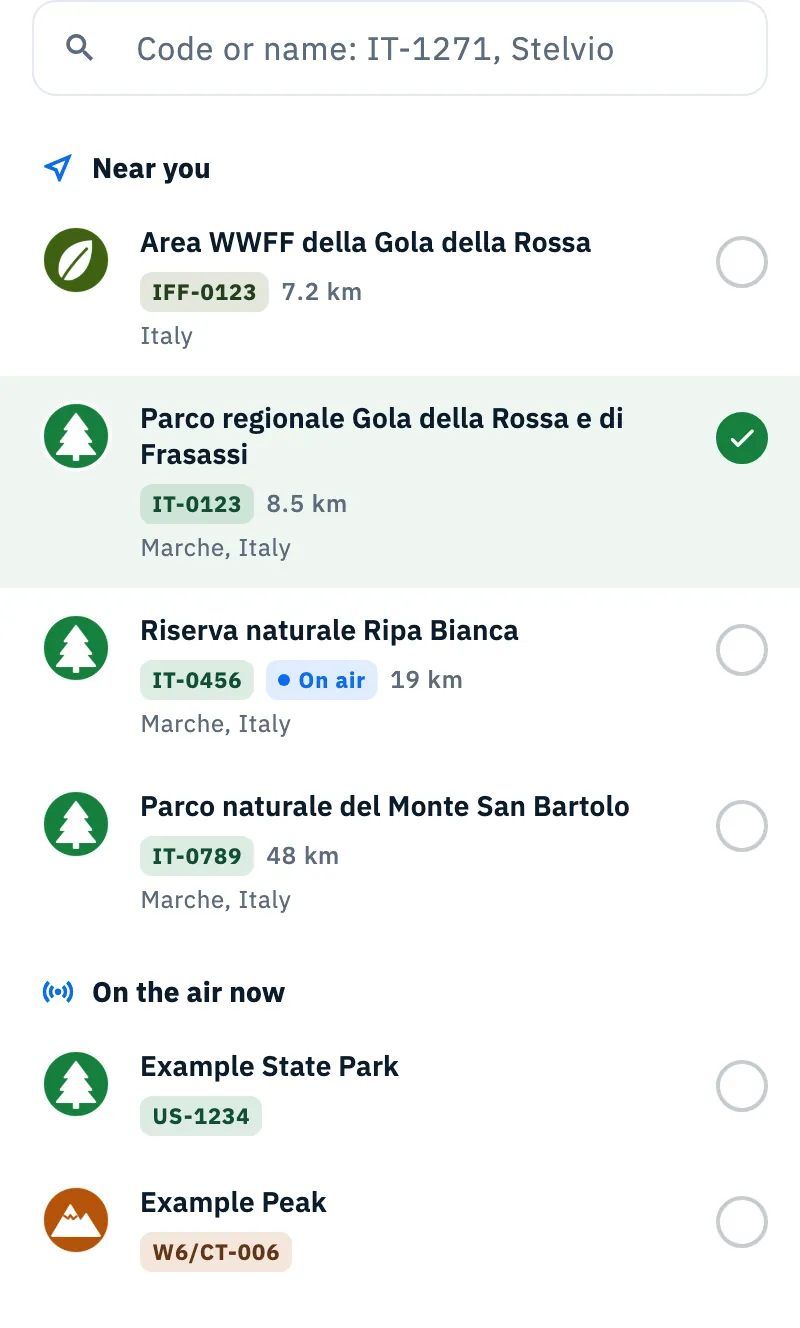
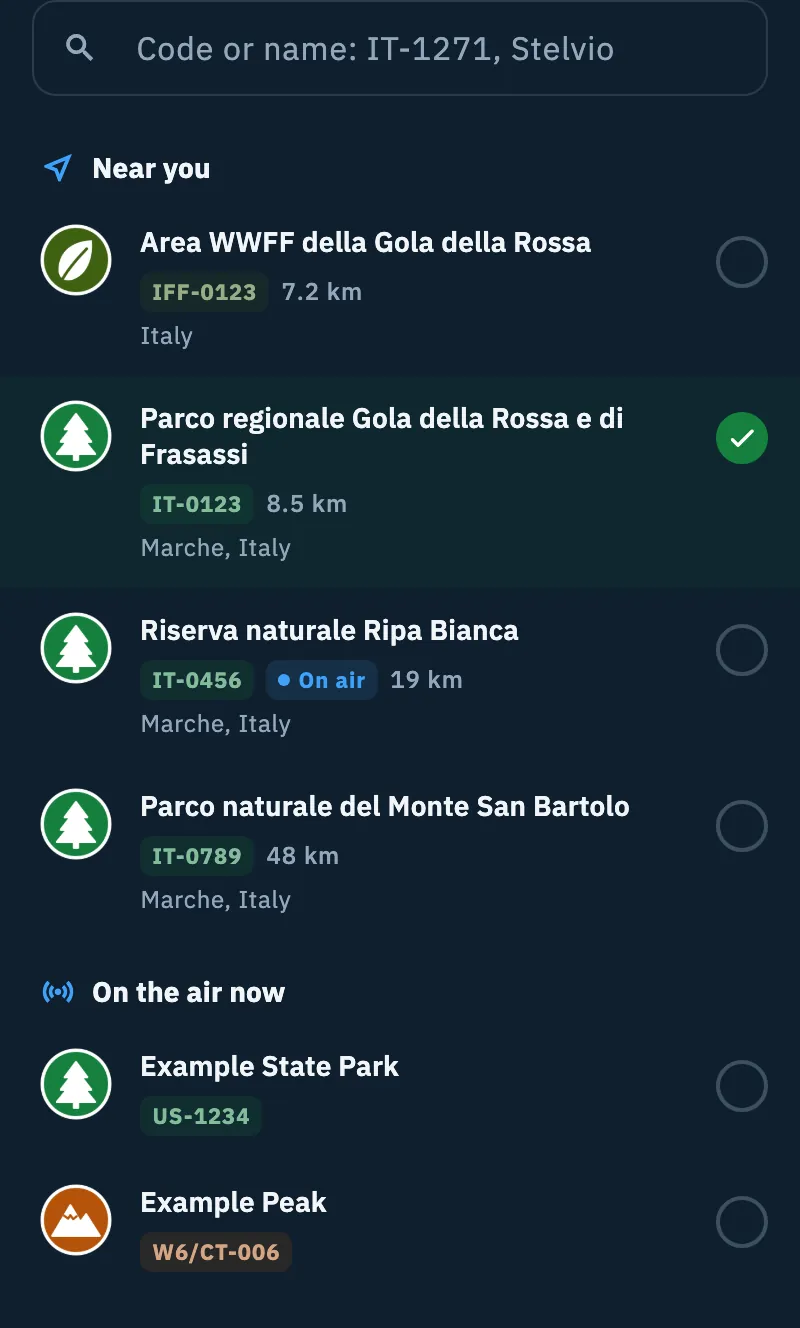
Near you
- Your location comes from GPS; when it isn't available (permission denied or GPS off), from the center of your saved locator. Without either, the section doesn't appear, but searching still works.
- It shows up to 10 references. Your location leaves the device rounded to about 1 km; the app sorts by distance using the exact location.
- If the network comes back while the picker is open, the section reloads by itself.
On the air now
Only in alerts: under On the air now you find the references of the current spots that aren't already in the list above, also filtered by what you type. A reference near you or found by the search that is on the air carries the On air badge.
Searching
- It starts shortly after the last key (about a quarter of a second). From 2 characters it searches codes, from 3 names too, with the matching text colored in the name. While searching, a thin bar appears under the field and the previous results stay visible.
- It shows up to 30 results: the exact code first, then the codes that start with what you typed, then the names. Within each group the nearest come first, when your location is known.
- It also finds references retired by their program, marked No longer valid: they are needed for old alerts and old QSOs.
What each row shows
- the program mark (POTA, SOTA, WWFF);
- the name, and under it the code in the program color;
- the On air badge, if the reference is in a current spot (in alerts);
- the distance from you, in the units you chose (see Language, theme and units);
- the region and, for summits, the altitude and points; No longer valid if the reference was retired.
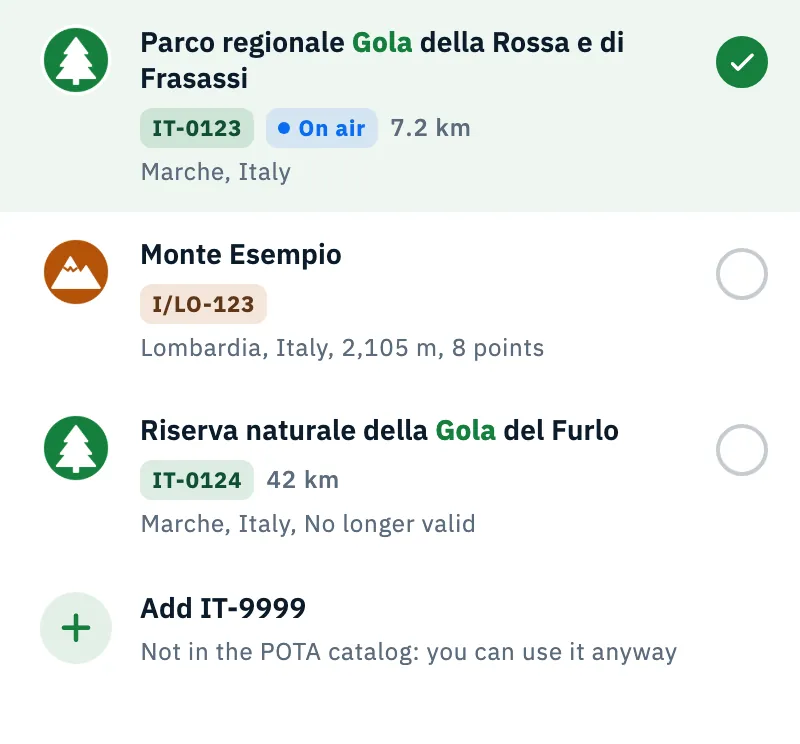
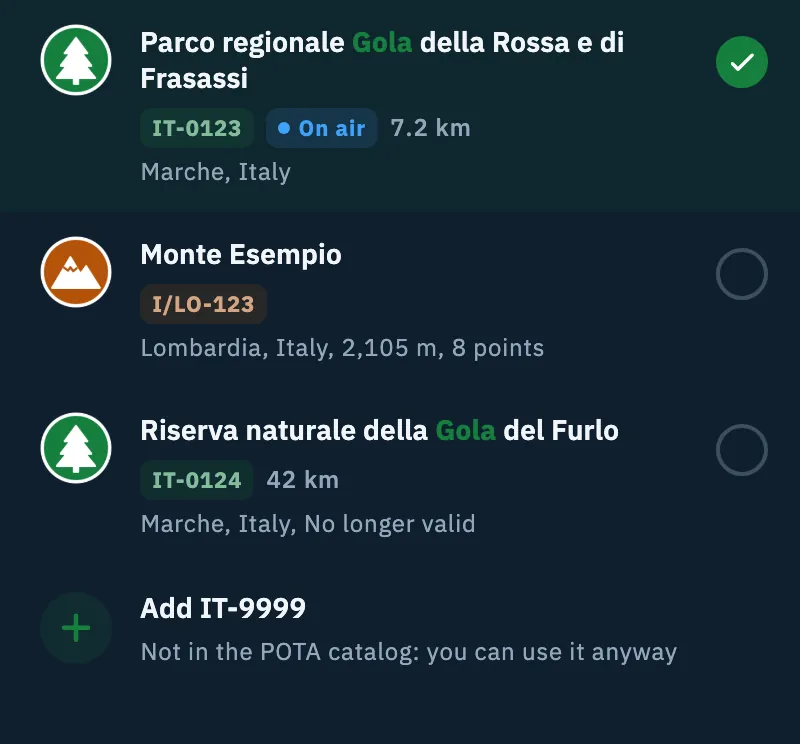
A code that isn't in the catalog
If you type a code the catalog doesn't have (a new reference, or the catalog can't be reached), the Add IT-9999 row appears:
- Type the whole code, for example
IT-9999. - Tap Add IT-9999, or press Enter.
The text is accepted only if it looks like a code: letters and digits with a dash or a slash and at least one digit (IT-0123, I/LO-123). A name can't be added this way. The program of the code is worked out from its shape; from the log, when the shape isn't enough, the program you chose is used.
When the catalog answered but doesn't know the code, a note appears under the row, depending on where you are:
| From | Note |
|---|---|
| Alert | "Not in the POTA catalog: the alert works anyway" |
| I'm on the air | "Not in the POTA catalog: the spot goes out anyway" |
| Log and station profile | "Not in the POTA catalog: you can use it anyway" |
References in the log
From the operation settings the picker opens as a page and searches one program only: with POTA references you see only POTA parks, both in Near you and in the search, even when a WWFF area is right next to them. This way you don't mix programs.
- In the operation settings, under Add reference, choose the program (POTA, SOTA or WWFF).
- Tap Search by name or code or Find near me: both open the same page.
- Choose one or more references.
- Tap Done or go back: your choices are saved either way.
IOTA has no catalog: choose IOTA, type the code in the field, then tap the + button.
The dash in codes
While you type a code, the app adds the dash at the first digit by itself:
| You type | It becomes |
|---|---|
IT1 | IT-1 |
IFF0 | IFF-0 |
W6/NE1 | W6/NE-1 |
It works for POTA, SOTA, WWFF and IOTA, for every code in a field (separated by a comma, a semicolon or a space), and when you paste too. It applies in the picker's search field, in the other station's reference field while you log a QSO, and in the reference fields of a QSO (see Logging a QSO and Opening and editing a QSO). It acts only while you add text: if you delete the dash, the app doesn't put it back.
Phone, tablet, desktop and web
- On a phone the picker is a bottom sheet, with its title and Done at the top. On a screen less than 600 points high (a phone in landscape) it becomes a full screen page, to leave room for the results above the keyboard.
- On tablet and desktop (a screen or window whose short side is at least 600 points) it opens as a window in the middle.
- While you type its height stays fixed, so the results don't make the sheet jump.
- From the log the picker is a page; on tablet and desktop its content keeps a readable width.
Troubleshooting
"No park or summit with this name or code" The catalog answered but found nothing. Check the code or try another part of the name. If it's a new code, type it in full and add it with Add.
"The parks and summits catalog can't be reached: you can still add the code." You are online but the catalog doesn't answer. Type the whole code and tap Add, or try again later.
"Catalog not available offline: type the code." You are offline and the catalog isn't on the device. It also appears under Near you. Type the whole code and add it; when the network is back, Near you fills by itself. To have the catalog on a summit, keep it on the device (see Choosing the programs you follow).
"Offline: searching the catalog on this device (updated …)." This isn't an error: offline, searching and Near you use the catalog saved on the device, updated on the date shown.
Near you doesn't appear The app doesn't know your location: allow location access or save your locator in your profile (see Your profile: name, callsign and locator). There may also be no reference within 50 km.
Tapping a row does nothing in I'm on the air You have already chosen 6 references, the maximum for I'm on the air. Remove one to add another.