
Browsing the contest calendar
See which contests are in progress today and in the coming days, in the Days, Timeline and Month views, with local and UTC times, also offline.
FreeUpdated for HamQSO 0.1.19
On this page
The Contest calendar brings together the amateur radio contests of the whole world and the Italian VHF and UHF contests. It tells you what is in progress now and what starts today and in the coming days, with local time and UTC side by side. Contesters use it to get ready; everyone else uses it to understand why the band is full. It is free.
Opening the calendar
- Open the Profile section.
- In the Tools group, tap Contest calendar.
On phone and tablet the row is live: you see what is going on without opening the calendar.
| The row shows | When |
|---|---|
| "In progress" and "CQ WW DX CW ends in 39 h 19 min" | One contest in progress |
| Stacked logos and "8 in progress, … ends first in …" | Several contests in progress |
| "… today at 17:00" | None in progress, the next one starts today |
| "… in 3 d 6 h" | None in progress, the next one starts on another day |
| "Dates, rules and notifications of the contests" | No contest ahead, or the calendar never loaded |
| In blue, with the bell: "You take part in …, ends in …" or "You take part in 2, the first ends in …" | You take part in one or more contests in progress |
| In orange: "… log due by …" | A contest you take part in has ended, its log deadline has not passed and your hints are on |
The countdown uses "d", "h", "min" and "s"; beyond 48 hours it is shown in days and hours. Weekly series count neither among those in progress nor as the next contest.
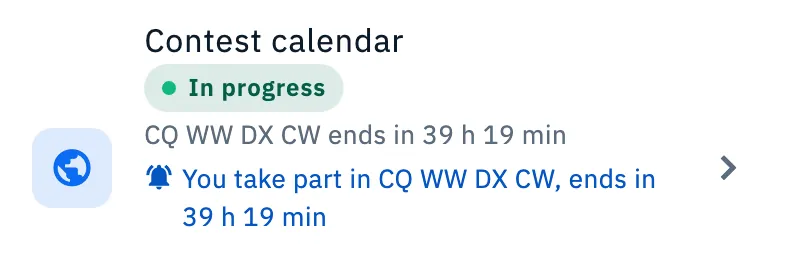
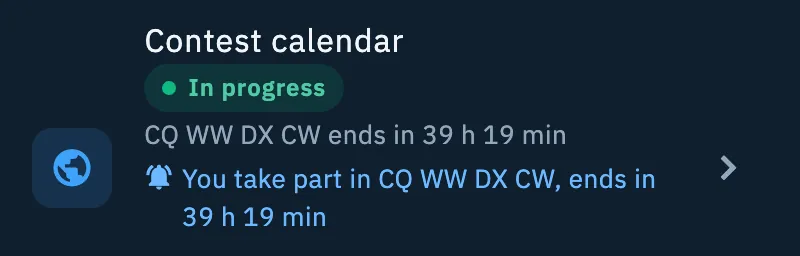
On the web and in the desktop window the row is plain, with the trophy icon and no countdowns: a click opens the calendar.
Choosing the view
At the top there is the Days, Timeline and, on tablet and web, Month switch: the same calendar at three scales.
- The first time, the calendar opens on Timeline if at least 2 contests are in progress, otherwise on Days.
- Tap another view: the calendar remembers it on the device and opens it next time.
- If you chose Month on a tablet and open the calendar on a phone, you get Days.
All times are in your device's time, with the UTC time written below or beside them.
The Days view
The agenda of the next 30 days, day by day.
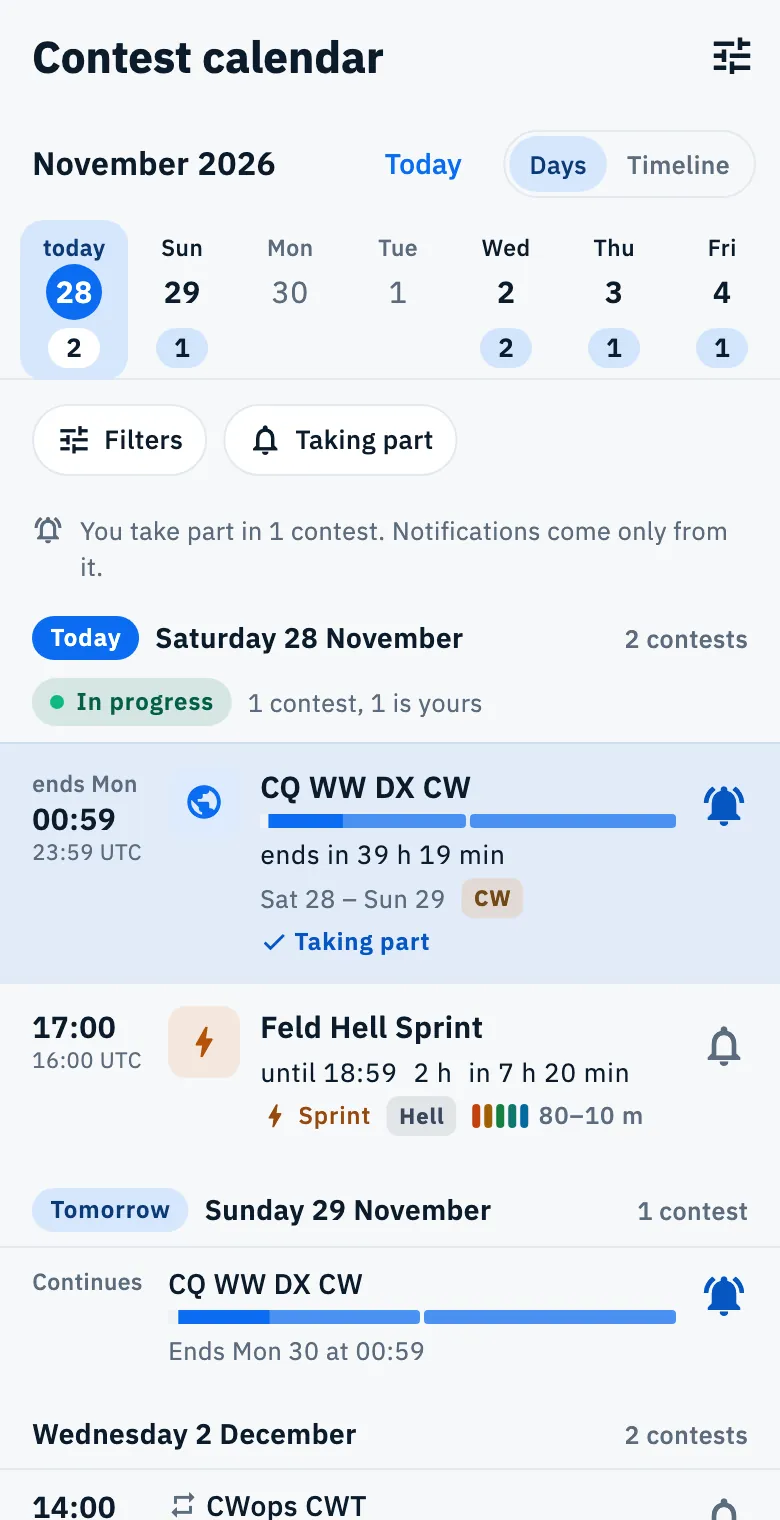
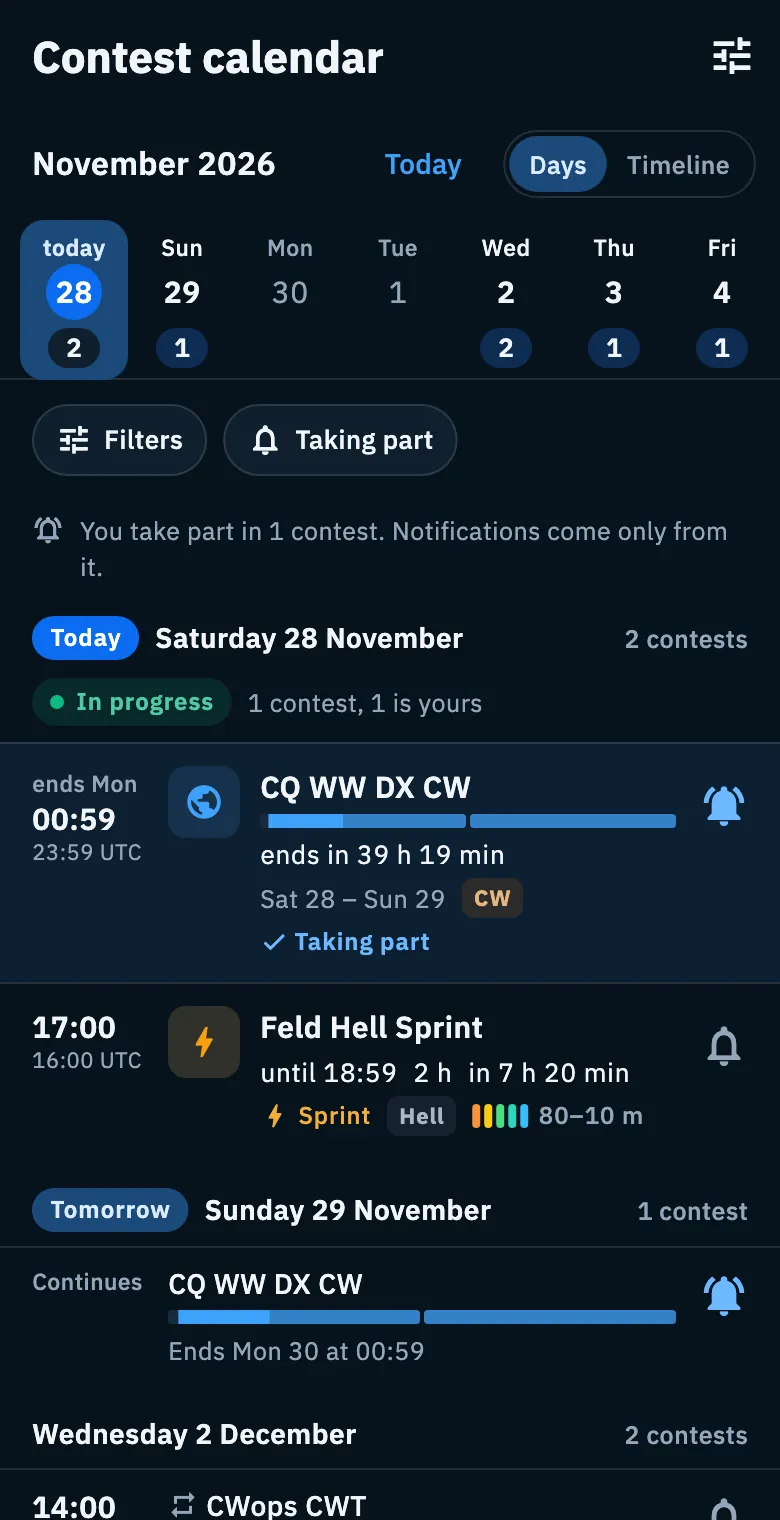
- At the top you read the month and year, the Today button and the view switch.
- Below is the day strip: each day with contests has their number in a pill; days without contests have no mark. Today has the word "today" and the blue circle; the selected day has a background. The strip shows at least 7 days and goes as far as the contests of the agenda.
- Tap a day in the strip: the agenda jumps there. If that day has no contests, a bar at the bottom says, for example, "No contests on Tue 15. The next is Sat 19." and the agenda goes to the next one; after the last one you read "No contests after …".
- Scroll the agenda: the day header stays at the top, and the selected day in the strip follows the scroll.
- Tap Today to go back to today.
- At the bottom, tap Show the days after for 30 more days.
Each day has a header with the date ("Saturday 28 November"), Today or Tomorrow when it applies, and the count, for example "3 contests". Within a day the order is: those in progress first (yours on top, then the one ending first), then those that started on earlier days, then those that start, by start time; at the same time, major contests come first.
| Row | What it shows |
|---|---|
| In progress | "ends" (or "ends Sun") with the local and UTC end time, the name, a running "ends in …", the day bar and range of days if it lasts several days, the modes and Taking part if it is yours. If you take part, the row is tinted |
| Continues | Compact: "Continues", the name, the day bar and "Ends Sun 29 at 00:59" |
| Starts | Local and UTC start time, the name, "until 18:59" or the range of days ("Sat 28 – Sun 29"), the length ("48 h"), "in …" if it starts within 48 hours, and the labels |
| Weekly series | Compact, with the repeat icon and, for example, "1 h, weekly series" |
A contest that ends at night, by 03:00, counts as ending the day before: one running from Saturday to Monday at 01:00 is written "Sat 28 – Sun 29", but the end time written is the exact one.
On crowded days the agenda folds rows, but hides nothing:
- with more than 4 contests in progress you see 3 (yours always), the others are under … more in progress (for example "5 more in progress"); Show less folds them again. The header of the group says, for example, "8 contests, 1 is yours";
- with at least 2 contests continuing from the day before, they are folded under … more contests continue, with "… ends first"; yours stay visible.
Tap a row to open the contest's detail (see Opening a contest). Tap the bell on the right to Take part and get its notifications (see Taking part in a contest).
The Timeline view
The band now: a dark panel with the contests as bars on an axis of days and hours, and a line marking now.
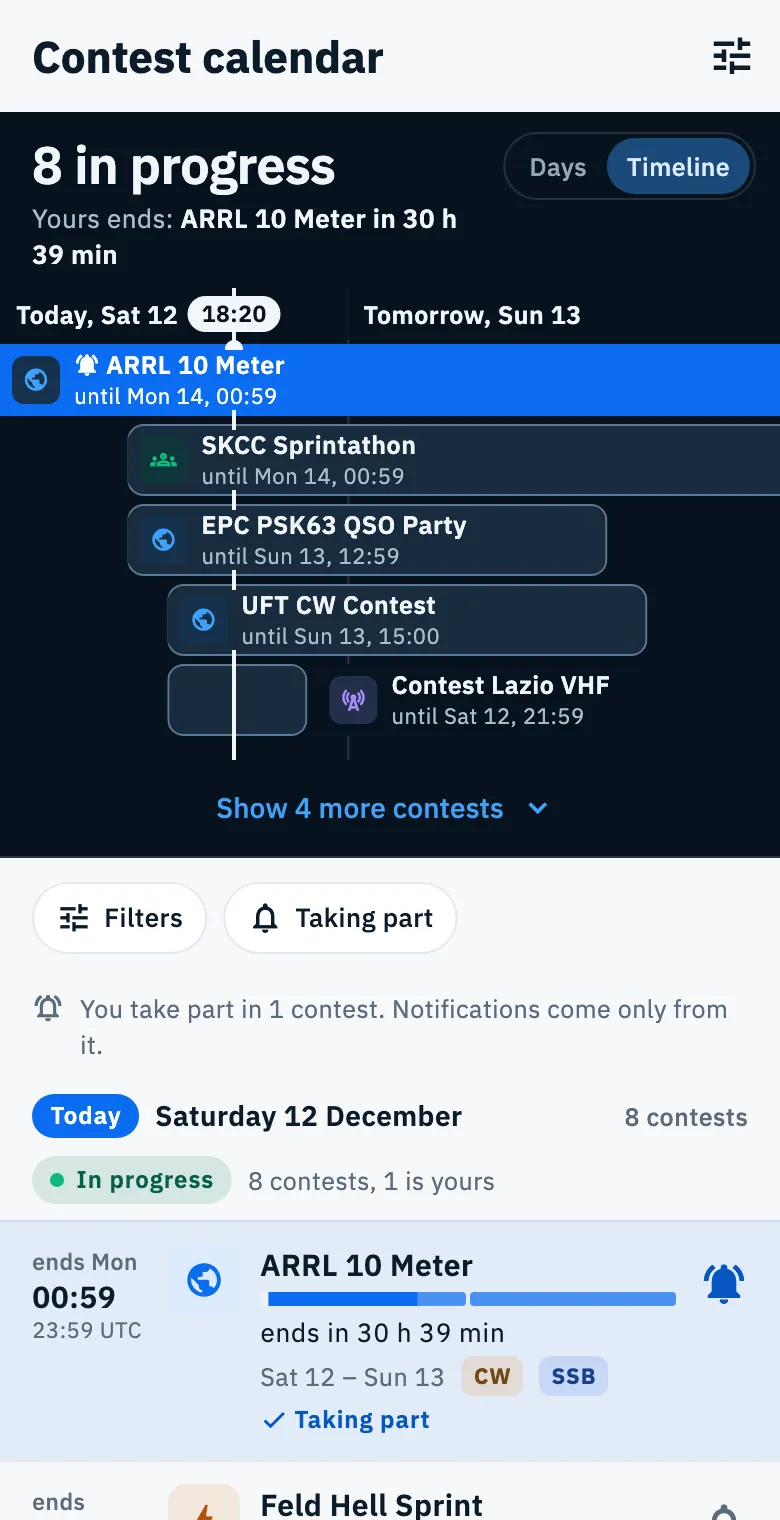
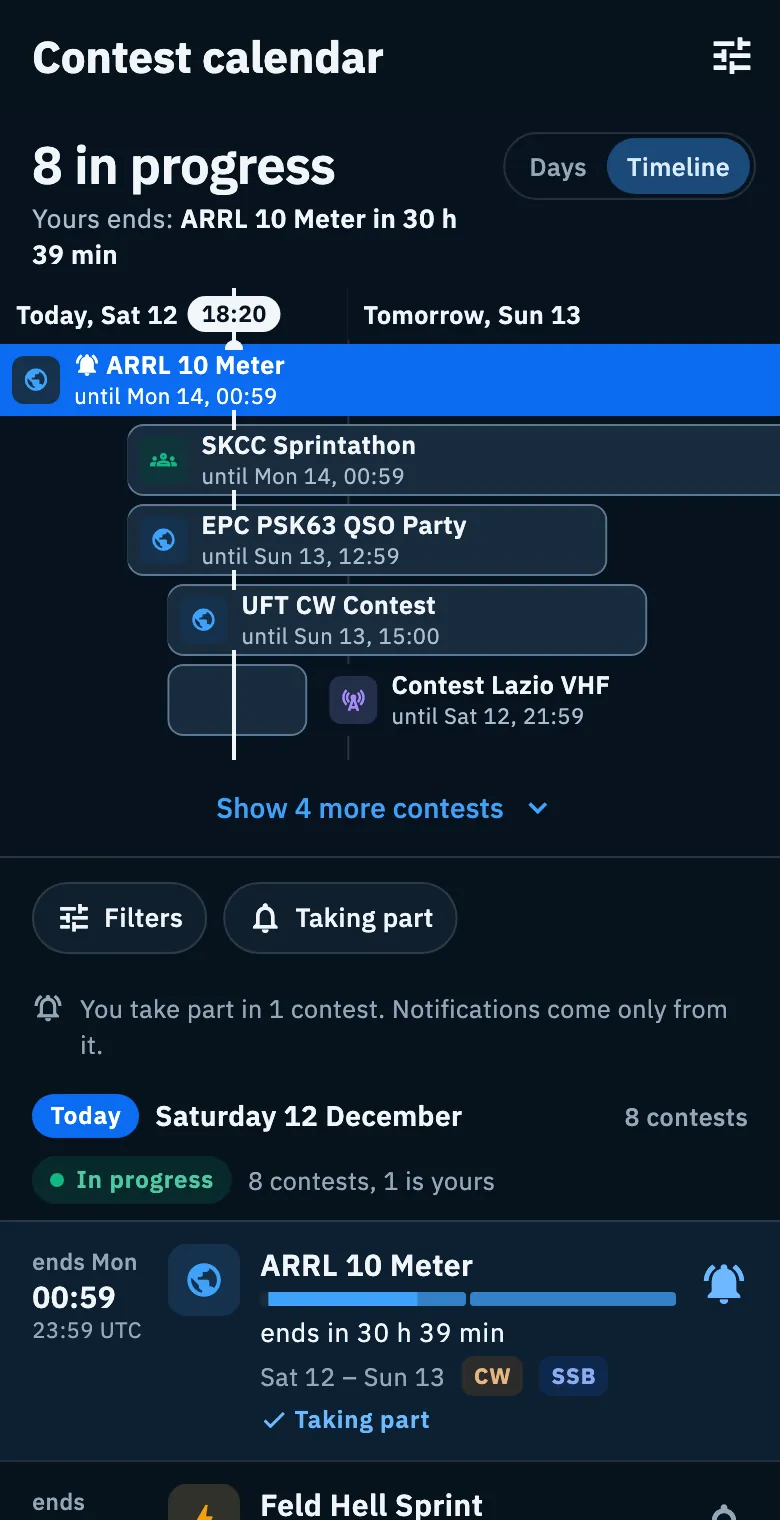
- Tap Timeline.
- Read the headline: "8 in progress" or "None in progress" ("None in progress with these filters" when filters are on).
- Below the headline a line says what happens next, with a countdown to the second: Yours ends, First of yours to end, Ends first or Next, with the contest's name.
- Scroll sideways for the following days. The axis reads "Today, …" and "Tomorrow, …"; tap a day on the axis to bring the agenda to that day.
- Tap a bar to open the contest's detail.
Full blue bars, with the bell, are the contests you take part in; grey bars are the others. Each bar has the logo, the name and the end, for example "until Sat 12, 18:59": inside the bar, or beside it when the bar is short. Lanes never overlap: yours first, then those in progress, then the major contests.
You see 5 lanes on a phone, 6 on a tablet and 8 on the web and in the desktop window. When more are needed, tap Show … more contests; Show fewer lanes folds them again. Weekly series do not appear in the Timeline and do not count among those in progress.
On a phone the Timeline scrolls away with the agenda below it, so the list gets all the room. Once it has left the screen, a compact bar stays at the top with the headline ("8 in progress"), "The first ends in …" or "The next starts in …" and the view switch. Tap the text of the bar to go back to the top, where the Timeline opens again. On tablet and web the Timeline stays fixed at the top, full width.
The Month view (tablet and web)
A grid of the month, one row per week from Monday to Sunday, with the contests as bars across the days.
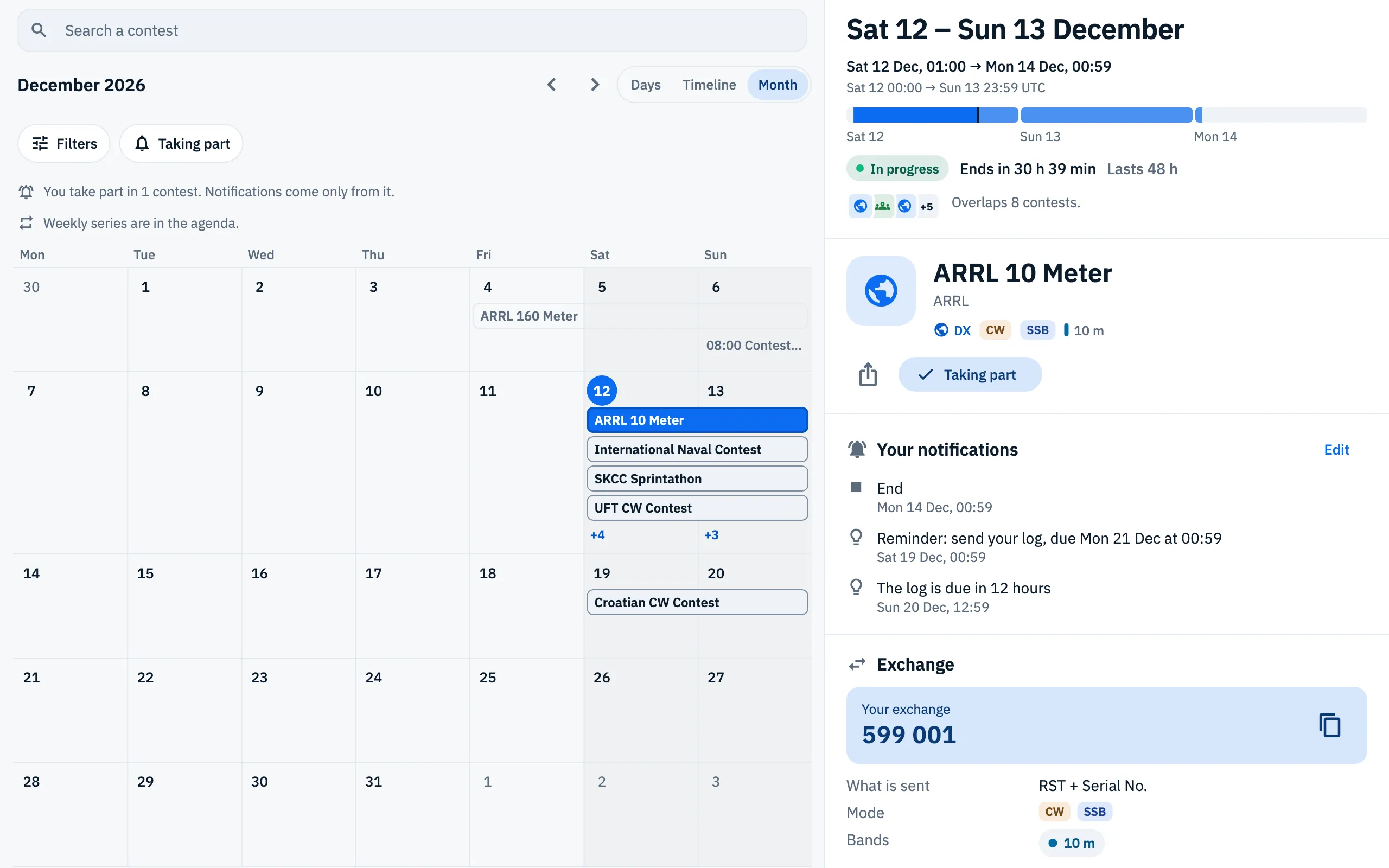
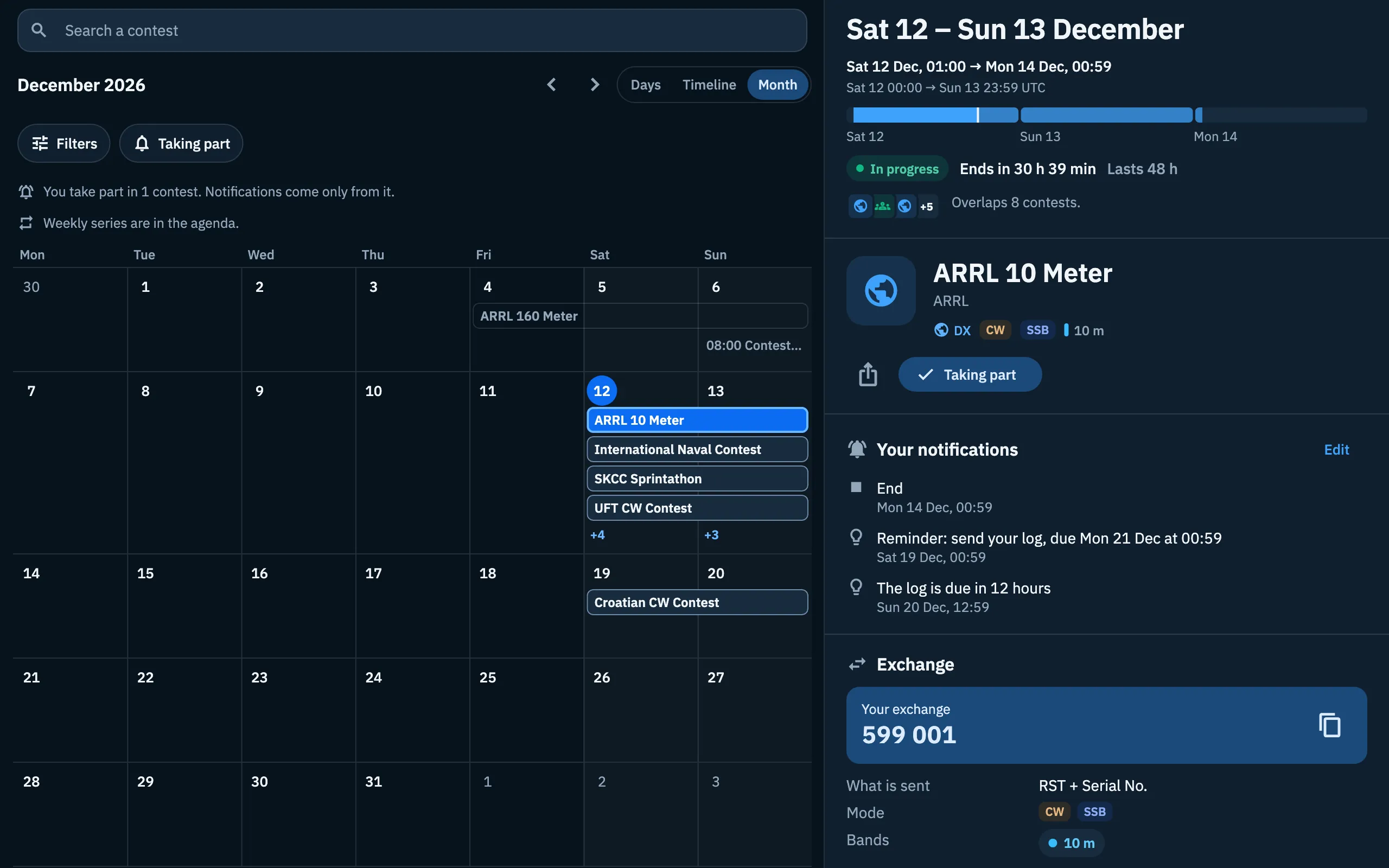
- On a tablet or on the web, tap Month.
- Use the Previous month and Next month arrows to change month.
- Tap a bar: the contest's detail opens on the right.
- Tap a day number, or the "+N" under a day: the calendar switches to Days on that day.
Contests you take part in are full blue and come first. Each week has at most 4 lanes; the other contests of the day are counted in the "+N". One-day contests show their start time before the name. Weekly series are not in the grid, as the note "Weekly series are in the agenda." reminds you.
Phone, tablet and web
- Phone: one column. A contest's detail opens as a page. Filters open from the sliders icon in the top bar, which shows the number of active filters.
- Tablet and web (a window at least 840 points wide): the list on the left and the detail on the right, on the same page; the chosen row is highlighted. When there is no contest to show, the right side reads "Choose a contest from the list to see its dates, exchange and rules.".
- Web and desktop window: the Search a contest field sits at the top of the list, and hovering a row shows the Open the rules button.
Above the list there are always the Filters chip and the Taking part chip: they are explained in Filtering the calendar.
At the top of the agenda some notices can also appear: "You are offline." (see below), notifications turned off in the phone or browser settings, a contest log to send, a line saying which contests send you notifications (for example "You take part in 1 contest. Notifications come only from it.") and, with band or mode filters, how many contests do not say their bands or mode. For notifications see Taking part in a contest.
Searching a contest (web and desktop)
- Click the Search a contest field, or press /.
- Type part of the name, for example "CQ WW": the list narrows as you type, ignoring upper and lower case.
- Press Esc to clear the search and leave the field.
The search looks only at the contest's name and adds to the filters.
Keyboard shortcuts
With a keyboard, outside text fields:
| Key | What it does |
|---|---|
| ↓ or J, ↑ or K | Next and previous contest |
| Enter | Open the contest |
| P | Take part in the selected contest |
| / | Search a contest (where the search field is) |
| Esc | Close, clear the search: closes the page; in the search field it clears the search |
The selection shows on tablet and web, where the chosen row is highlighted and its detail is on the right. All of the app's shortcuts are in Keyboard shortcuts.
Logos and labels
Each contest has a logo: its own, the sponsor's or, almost always for now, the icon of its type in its color. Next to it you find the labels:
- the type: DX, QSO party, Sprint, VHF and UHF;
- the modes (CW, SSB, RTTY, FT8…);
- the bands in short, with a colored mark per band, for example "160–10 m" or "2 m, 70 cm";
- ARI recommended and Taking part;
- In progress, with the dot, for contests running now.
Where the data comes from
The calendar combines the WA7BNM Contest Calendar (contests from all over the world) and the ARI VHF & Up calendar (Italian VHF and UHF contests). At the bottom of the list the line "Data: WA7BNM Contest Calendar and ARI VHF & Up" links to both sources.
- The app reads the calendar again at most once an hour; the sources are updated daily.
- The full list of the world's contests may reach only a few days ahead. When it ends before the end of the agenda, a line at the bottom says so: "The list goes as far as …", or "The full list goes as far as … After that only ARI and sponsors' contests.". This is why the agenda can empty further on.
- In each contest's detail, under each section, you read which source the data comes from and when it was read.
- Contests that ended more than 60 days ago are not downloaded.
Without a connection
After the first load the calendar stays saved on the device (on the web too, in the browser) and opens without a connection.
- Open the calendar offline: at the top you see "You are offline." with "You see the calendar saved Sat 28 Nov, 08:00. Take part works: it is saved when you are back online.".
- Use the calendar and Take part as usual.
- When the connection is back, the changes go out by themselves.
The saved copy is the one of the last read: if a date changes afterwards, you will not see it until you are back online. See also Using HamQSO offline.
Troubleshooting
"The calendar did not load" with "It needs a connection the first time. Then it stays saved and opens offline too.": the first load failed and there is no copy on the device yet. Connect to the network and tap Retry.
"No contests with these filters": the active filters, or the search, leave no contest. The message lists the filters together ("Nothing in the list is all of …"; with Taking part it adds "among those you take part in"). You can:
- tap the button that removes one filter at a time, in this order: Remove the duration filter, Remove the area filter, Remove the mode filter, Remove the band filter;
- tap Clear all filters, or Clear the search if you only searched;
- tap Show the days after, when there are more contests further on;
- open the nearest contest, shown under "The nearest without filters, …".
"You take part in no contest": you turned on Taking part but you take part in no contest. Tap Show all contests.
"No contests in these days" with "When the list has new ones they appear here.": without filters there are no contests in the days of the agenda. Tap Show the days after if it shows, or come back later.
The agenda empties after a few days: the full list of contests goes no further, as the line "The list goes as far as …" says (see above).
I can't see the Month view: it is only on tablet and web, in a window at least 840 points wide.
I can't see the Search a contest field: it is only on the web and in the desktop window.