
Linking QRZ.com, LoTW, eQSL.cc and HRDLog
Link your QRZ.com, HamQTH, eQSL.cc, HRDLog and LoTW accounts in Linked services, read each service at a glance and unlink it.
FreeUpdated for HamQSO 0.1.19
On this page
Link your accounts once and HamQSO sends your QSOs to the services you use, downloads the confirmations and looks up callsigns. Every external account is on one page, Linked services: the logbooks your QSOs are uploaded to (QRZ.com, eQSL.cc, HRDLog, LoTW) and the callbooks for callsign lookup (QRZ.com and HamQTH).
Opening Linked services
- Open Profile.
- In the Station and log group, tap Linked services.
You also get there from the Log section: tap the ⋮ menu of the operations list and choose Linked services. The Link an account buttons the app shows where a callbook would help (for example in the operator section of a QSO) lead there too.
In the Profile, under Linked services, you read how many services are still missing on this device, for example "3 to complete". When they are all linked the row says "QRZ.com, HamQTH, eQSL.cc, HRDLog, LoTW". The count:
- covers five services: QRZ.com, HamQTH, eQSL.cc, HRDLog and LoTW;
- counts QRZ.com as linked when you have the callsign lookup account or at least one logbook key;
- counts LoTW as linked when there is a valid certificate;
- does not count a stopped service (for example with refused credentials): it waits for you;
- updates when you come back from Linked services.
On the web, in a wide window, the row does not show the count.
What is on the page
From top to bottom:
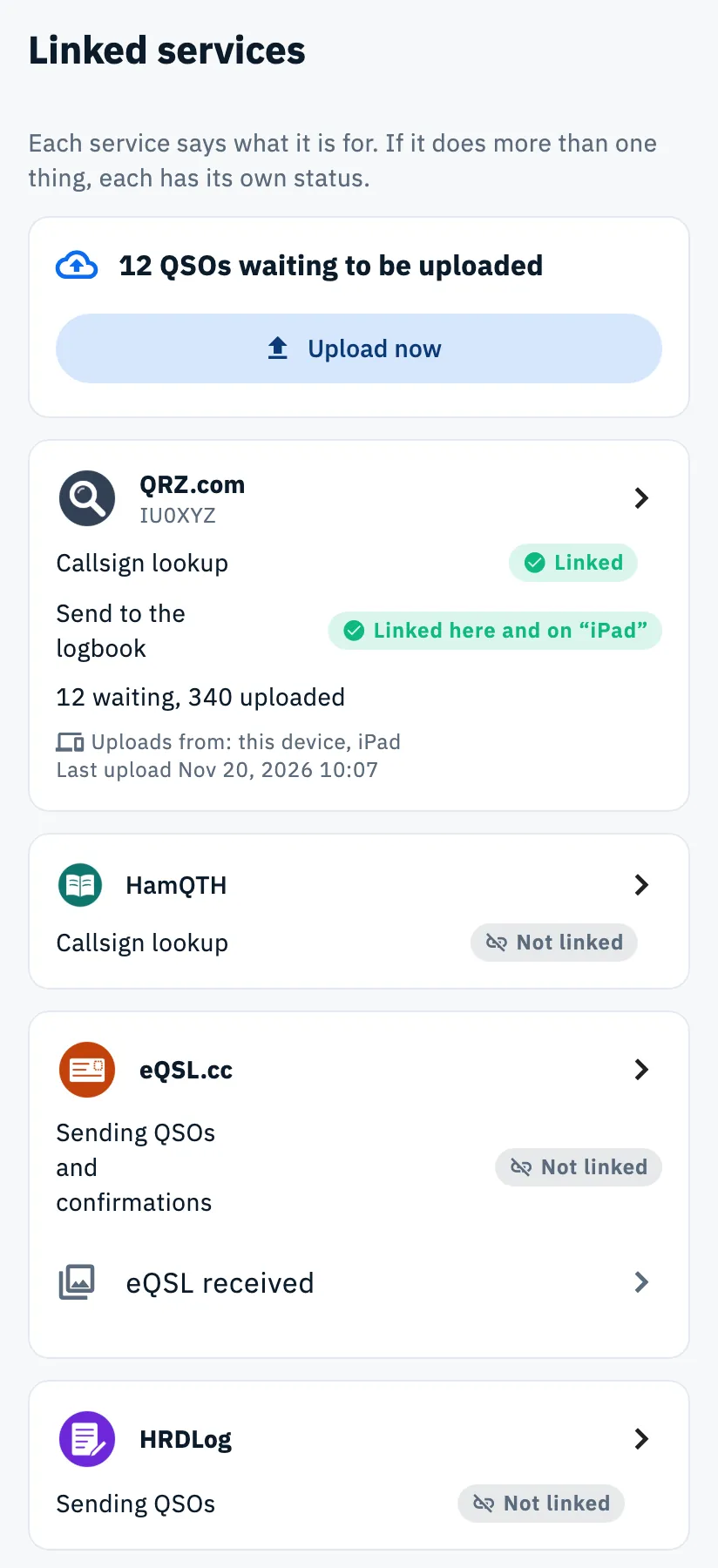
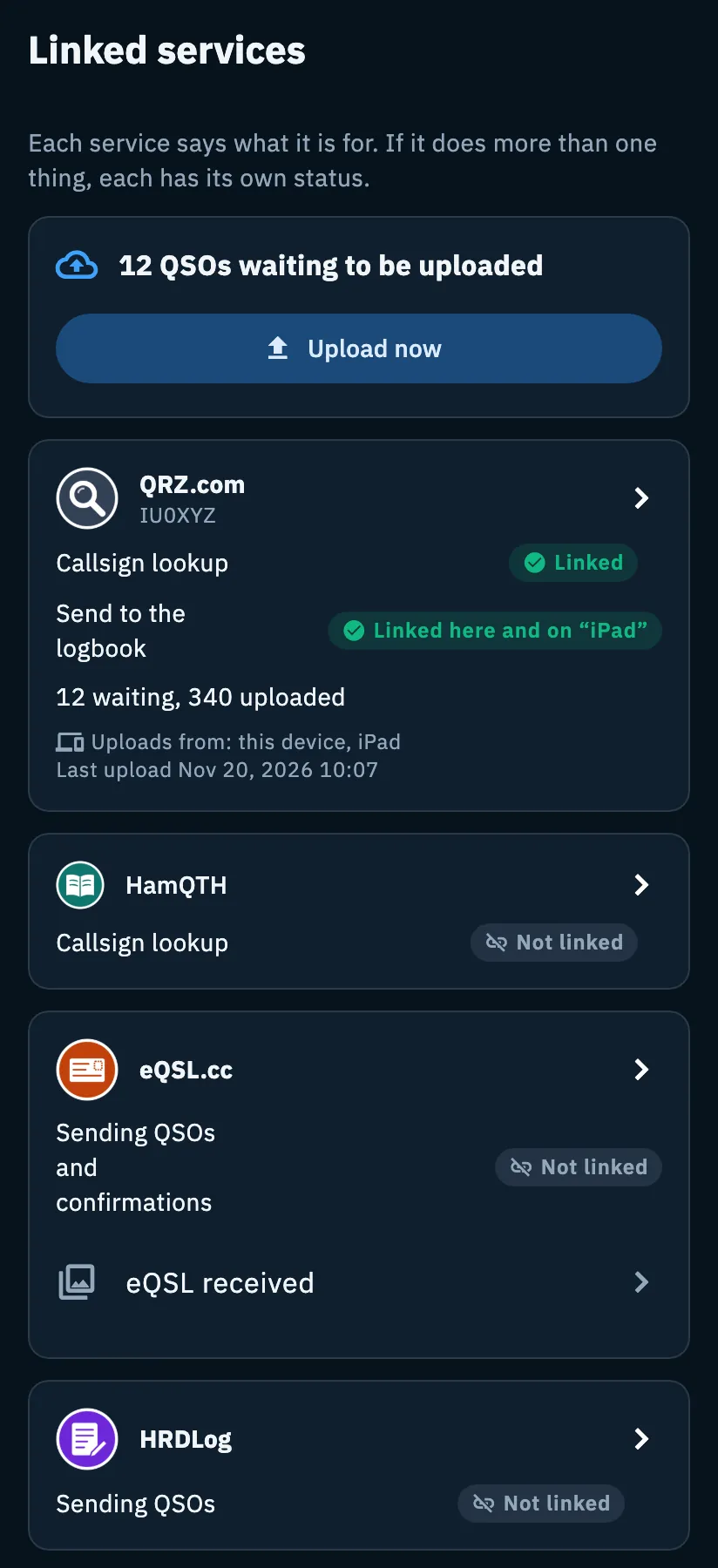
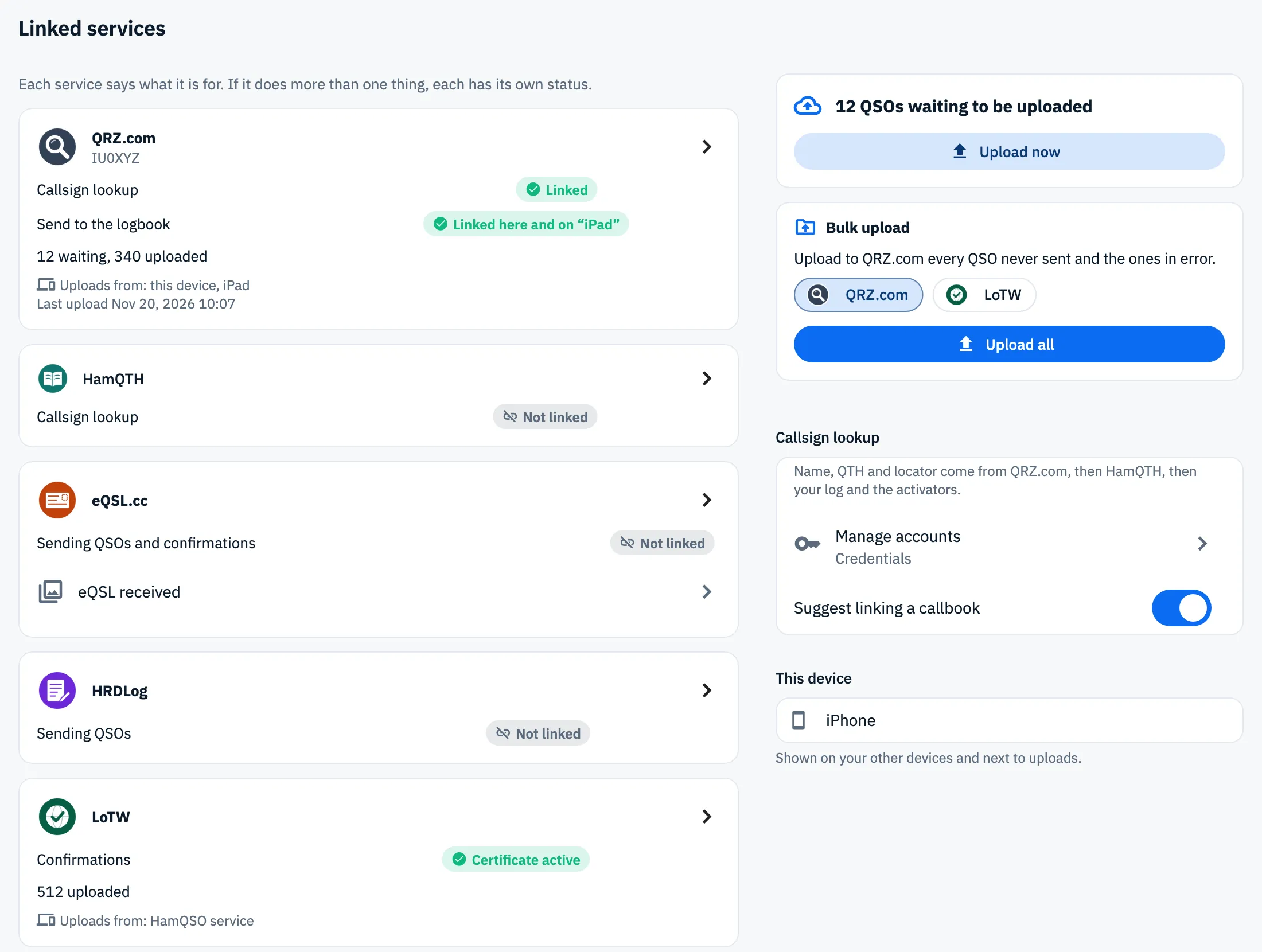
- a sentence: "Each service says what it is for. If it does more than one thing, each has its own status.";
- the summary of the QSOs waiting, with Upload now;
- the notices of the services that are waiting for something;
- one card per service, in this order: QRZ.com, HamQTH, eQSL.cc, HRDLog, LoTW;
- Bulk upload, Callsign lookup (the callsign archive) and This device.
QSOs waiting and "Upload now"
The first card says how many QSOs are waiting to go to at least one service: "12 QSOs waiting to be uploaded", or "No QSO waiting" with the green cloud. The number includes the QSOs that failed and wait for the next attempt.
- Tap Upload now to upload them right away, without waiting for the automatic round.
- Follow the bar and the count "Uploading: 3 of 12".
Upload now shows only when at least one service is linked on this device (LoTW aside), and it is off while uploading or when nothing is waiting.
If some QSOs have estimated values, the yellow box "2 QSOs to confirm" appears: "They have estimated values: confirm them in the QSO detail and they will go." Until you confirm them, those QSOs do not go out. Offline, with QSOs waiting, you read "Queued: they go out when the network is back."
How automatic uploads, bulk upload and waiting QSOs work is explained in Automatic uploads and waiting QSOs.
The notices
Under the summary a yellow box can appear for a service with QSOs waiting that this device does not upload:
- no device has the service: "Waiting: open HamQSO on a device linked to eQSL." (the name changes with the service);
- for LoTW, no valid certificate: "Waiting: import a valid LoTW certificate.";
- the service is linked on another of your devices but not here: "4 QSOs are waiting for eQSL: it's linked on “iPad”. Link it here too to upload them now.", with the Link here too button.
The card of a service
Each card sums up a service: its mark and name, the linked account, the status of each thing the service does, the QSOs and the devices. Tap the card to open the page of the service.
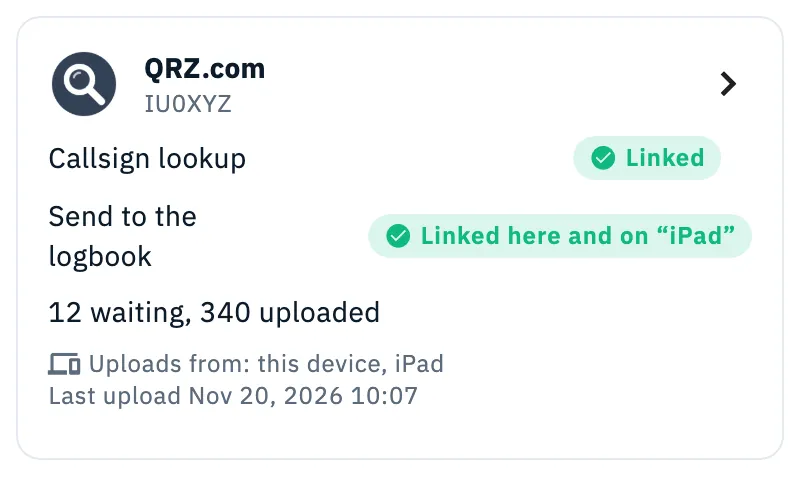
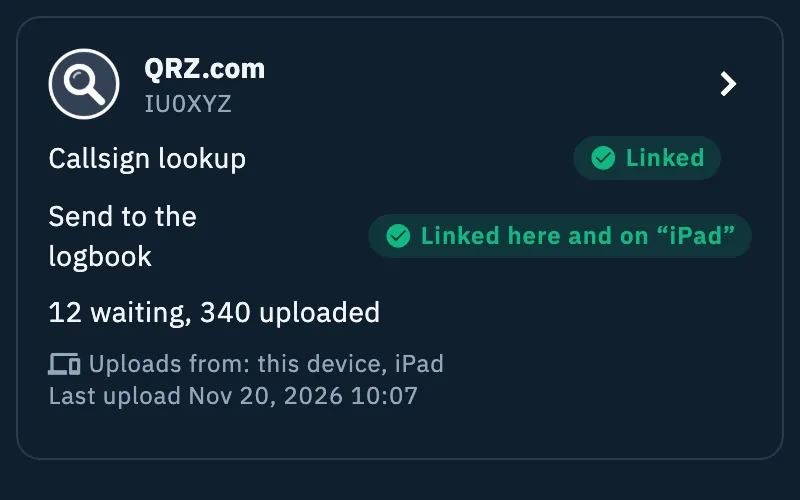
Each service says what it is for, with its status on the right:
| Service | Uses shown |
|---|---|
| QRZ.com | Callsign lookup and Send to the logbook |
| HamQTH | Callsign lookup (HamQTH does not receive QSOs) |
| eQSL.cc | Sending QSOs and confirmations |
| HRDLog | Sending QSOs |
| LoTW | Confirmations |
The statuses you can read:
| Status | Color | Meaning |
|---|---|---|
| Linked | green | works on this device |
| Not linked | grey | you have not linked the account yet |
| No API key | grey | QRZ.com without a logbook key: sending to the logbook is off |
| Credentials refused | red | the service no longer accepts the password or key: uploads are stopped |
| Subscription required | red | QRZ.com accepts uploads only from subscribers |
| QTH missing | yellow | eQSL.cc: the QTH to use must be chosen |
| Certificate active | green | LoTW: there is a valid certificate |
| Certificate to renew | yellow | LoTW: you have certificates, but none is valid |
| Linked on “iPad” | blue | linked on another of your devices, not on this one |
| Linked here and on “iPad” | green | linked here and on other devices of yours |
Under the status the card can show:
- the QSO counts: "12 waiting", "1 error", "2 refused", "340 uploaded";
- in yellow, "2 QSOs to confirm" (estimated values), "1 QSO in the trash is still on eQSL: delete it by hand on the website." and, for eQSL.cc and LoTW, "3 QSOs changed after the upload: fix them on LoTW too.";
- the devices that can upload: "Uploads from: this device, iPad", or "No linked device". For LoTW you read HamQSO service, because the HamQSO service signs the QSOs with your certificate;
- "Last upload" with the date and time of your device;
- when the service has stopped, the words the service answered with, in red.
The eQSL.cc card also has the eQSL received row, which opens the cards received from eQSL.cc (see Cards received from eQSL.cc).
When the service is linked on another of your devices but not on this one, the card says "For your security the password stays only on the device where you typed it." (or "the key") and shows Link here too. The whole path is in Services on several devices.
Linking a service
- In Linked services, tap the card of the service.
- At the top of the service page read its status and a sentence on what it does and what it needs.
- Type the details it asks for (see the table).
- Tap Link.
- Wait: while HamQSO tries the details on the service right away, the button shows a spinner.
- Read how it went (see below).
| Service | What you type | Where |
|---|---|---|
| QRZ.com, callsign lookup | QRZ callsign or username and Password | Callsign lookup section |
| QRZ.com, logbook | one Logbook API key for each station profile (a QRZ.com subscription is needed) | Logbook keys section |
| HamQTH | HamQTH callsign and Password | Callsign lookup section |
| eQSL.cc | eQSL.cc user name, Password and eQSL.cc QTH nickname (optional), required if your eQSL.cc user has more than one QTH | Account section |
| HRDLog | Callsign and Upload code: it is not your HRDLog password, it is the code HRDLog emails you; Open your profile on hrdlog.net takes you where you can ask for it again | Account section |
| LoTW | your LoTW certificate: tap Import the certificate | LoTW certificates section |
The details of each service are in QRZ.com and callsign lookup, Uploading to LoTW and eQSL.cc and HRDLog.
How it went
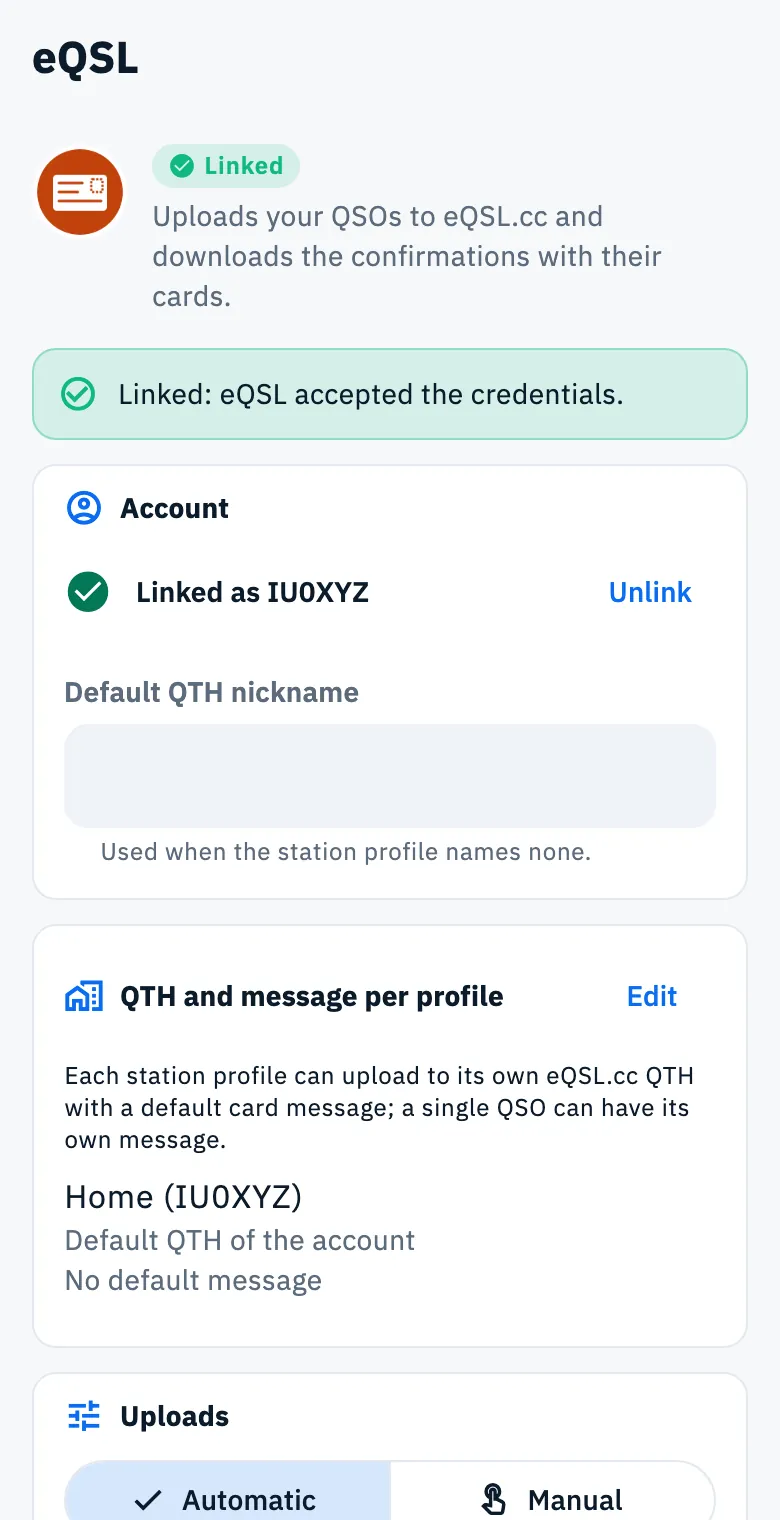
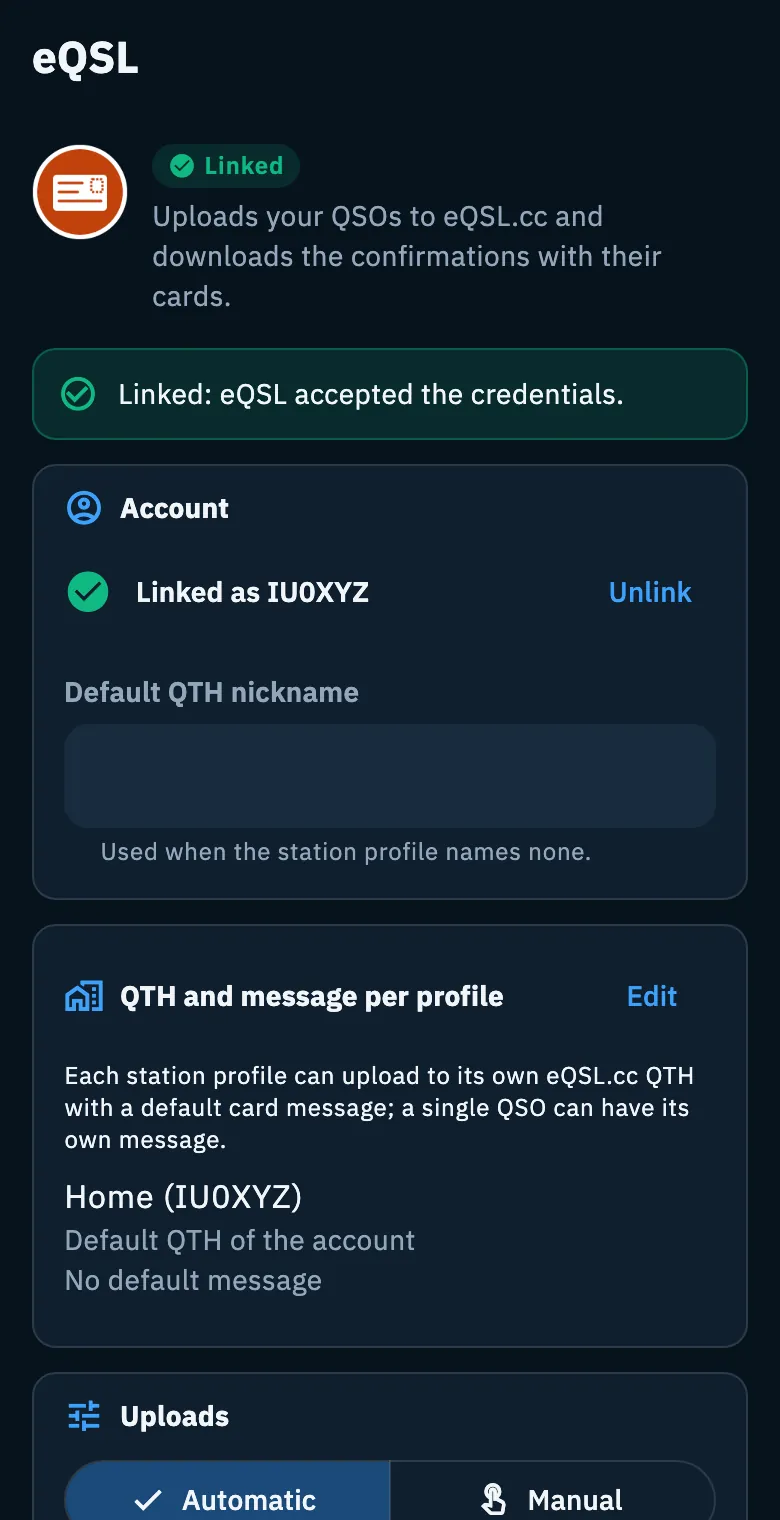
For QRZ.com (logbook keys), eQSL.cc and HRDLog a box at the top of the page tells the outcome, with the service's own words when it gives some:
- green: "Linked: eQSL accepted the credentials.";
- red: "HRDLog refused the credentials.", or with the service's answer in quotes;
- yellow: "QRZ.com does not answer. Try again shortly.";
- yellow, for eQSL.cc with more than one QTH: "Your eQSL.cc user has more than one QTH: type the nickname of the QTH to use (you find it on eqsl.cc under My Profile)", or Choose the eQSL.cc QTH opens so you pick the one to link;
- yellow, for QRZ.com without a subscription: "A QRZ.com subscription is needed", with the explanation.
For callsign lookup (QRZ.com and HamQTH) the outcome shows in red under the fields: "Wrong username or password." or "QRZ.com is not answering. Try again shortly."
The service page
Under the account, the page of the service shows these sections:
- Uploads, when the service is linked here: how and what to upload;
- QSOs on this service: the queue and the QSOs in error;
- for QRZ.com only, Download from QRZ.com (see Importing from QRZ.com);
- Devices that can upload, when at least one device has the service;
- Confirmations (not for HRDLog, which sends no confirmations).
How to set them is explained in Automatic uploads and waiting QSOs and in A QSO on your services.
Passwords and keys stay on the device
The passwords, API keys and codes you type stay only on the device where you type them: in the keychain on iOS, in encrypted preferences on Android, encrypted in this browser on the web. HamQSO only knows which accounts are linked and on which devices. On another device or browser you type them again, with Link here too.
LoTW is the exception: the HamQSO service signs the QSOs with your certificate, so the certificate works for all your devices.
In the password fields:
- tap the eye (Show password / Hide password) to check what you typed;
- there is no autocorrect, no suggestions and no offer to save the password.
Unlinking a service
- Open the page of the service.
- Tap Unlink next to the linked account. For QRZ.com there is an Unlink button next to each logbook key.
- Confirm with Unlink in the "Unlink …?" dialog: "The credentials are deleted from this device. QSOs already uploaded stay on the service."
For QRZ.com callsign lookup and for HamQTH, Unlink is under the account and acts at once, without a dialog. In every case the credentials go only from this device: your other devices stay linked. LoTW certificates are handled with Manage certificates (see Uploading to LoTW).
Free and Pro
Linking services, uploading QSOs, downloading confirmations and looking up callsigns are free for everyone. Among the cards received from eQSL.cc, only those without a QSO in your log are Pro (see Cards received from eQSL.cc).
Phone, tablet and computer
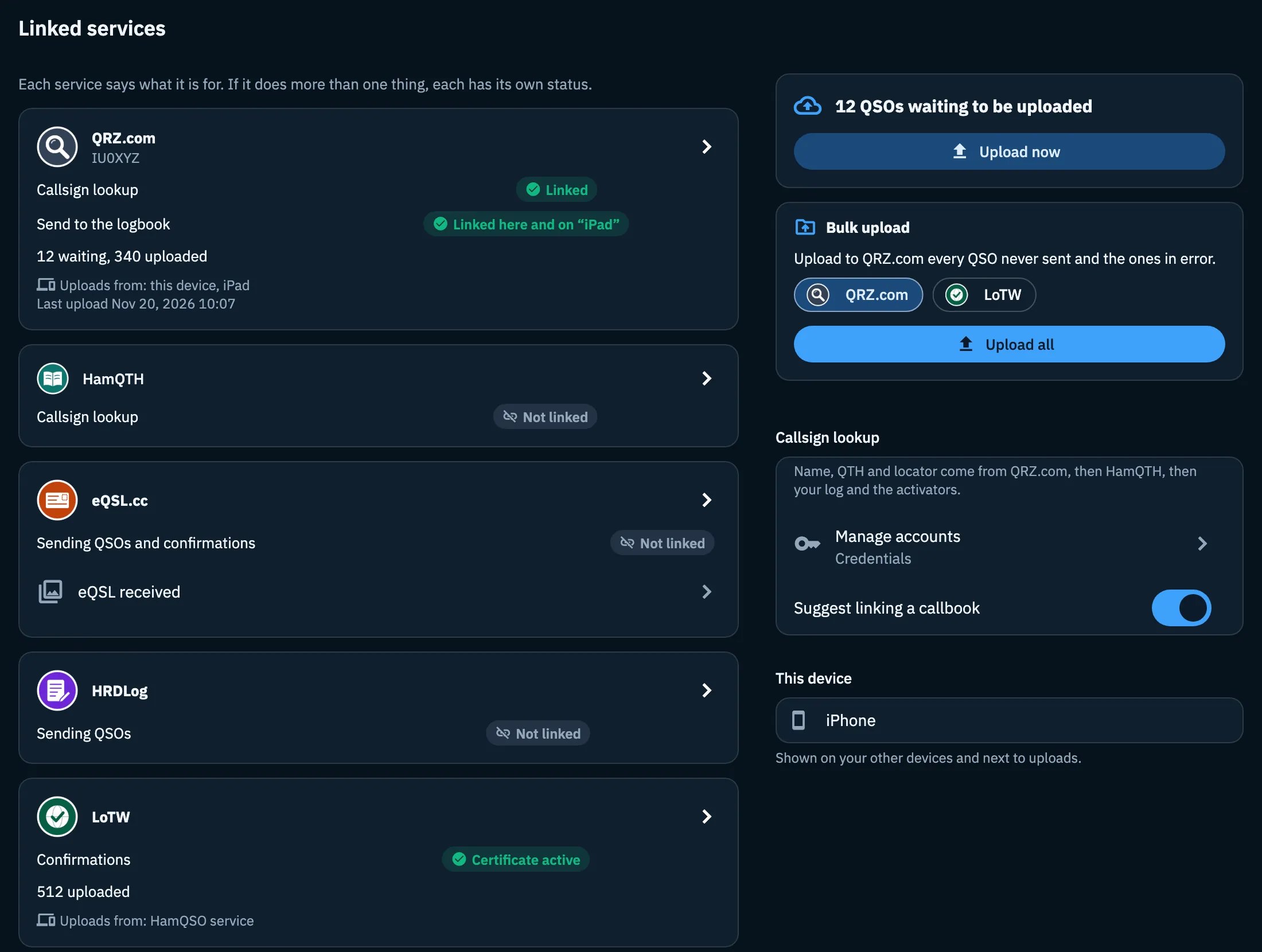
It works the same on iOS, Android and the web. On a phone the page is one column. From 840 points wide (tablet, computer, browser) Linked services has two columns: on the left the sentence and the service cards, on the right the summary, the notices, bulk upload, callsign lookup and this device. The page of a service has two columns too: on the left status, notices and account, on the right uploads, queue, devices and confirmations.
Troubleshooting
| Message | What to do |
|---|---|
| "The state of the services could not be read." | Tap Retry. |
| "… refused the credentials." | Check the details and tap Link again. For HRDLog the fields stay as you typed them: fix only the wrong one. |
| "The upload code is not right. …" (HRDLog) | You typed your HRDLog password: use the upload code HRDLog emailed you. |
| "HRDLog doesn't know this callsign. …" | Type the callsign you registered with on hrdlog.net. |
| "… does not answer. Try again shortly." or "… is not answering. Try again shortly." | The service cannot be reached or you are offline: try again later. |
| "Wrong username or password." (callsign lookup) | Fix the QRZ.com or HamQTH username or password. |
| Credentials refused box: "Uploads to … are stopped and are not tried again with the same password." | Tap Check again, or unlink and link the account again. |
| A QRZ.com subscription is needed | The key is valid, but QRZ.com accepts uploads only from subscribers (XML Logbook Data or higher). After renewing, tap I renewed, check. |
| "Link the account first." | Link the account before using that feature. |
| "The QRZ.com key for this station profile is missing." | Add the API key in Logbook keys for that station profile. |
| "The service does not allow it." | That service does not offer what you asked for. |
| "Unknown service." | The link leads to a service the app does not know: open Linked services from the Profile. |
A service that stops by itself and other cases are collected in Troubleshooting.