
Spotting a station
Report a station you are hearing on the DX Cluster, POTA and WWFF in one go, signed with your callsign, and see which networks took it.
FreeUpdated for HamQSO 0.1.19
On this page
You are hearing a station and want others to know: with Spot a station you send the spot to the DX Cluster, POTA and WWFF in one go. The spot is signed with your callsign, you need no account or password on those networks, and at the end you see, row by row, which networks took it.
Where the Spot button is
The Spot button (megaphone icon) is always in the same place for each screen size:
- Phone: the floating Spot button at the bottom right of the DX and xOTA sections. In the Log section it is the megaphone icon in the header of the operations list and of the operation page (its tooltip says Spot): a floating button would cover the other controls of the log.
- Tablet: the Spot button at the top of the side bar, under the logo, in the DX, xOTA and Log sections.
- Web on a computer (a browser window at least as wide as a tablet): the Spot button at the top of the side bar, in every section, with the S key next to it. When the bar is narrow only the icon is left, with the tooltip Spot (S). You can also press S anywhere, except while you are typing in a field.
On phones and tablets the button is not in Alerts and Profile.
Choosing what to spot
- Tap Spot (or press S on the web on a computer).
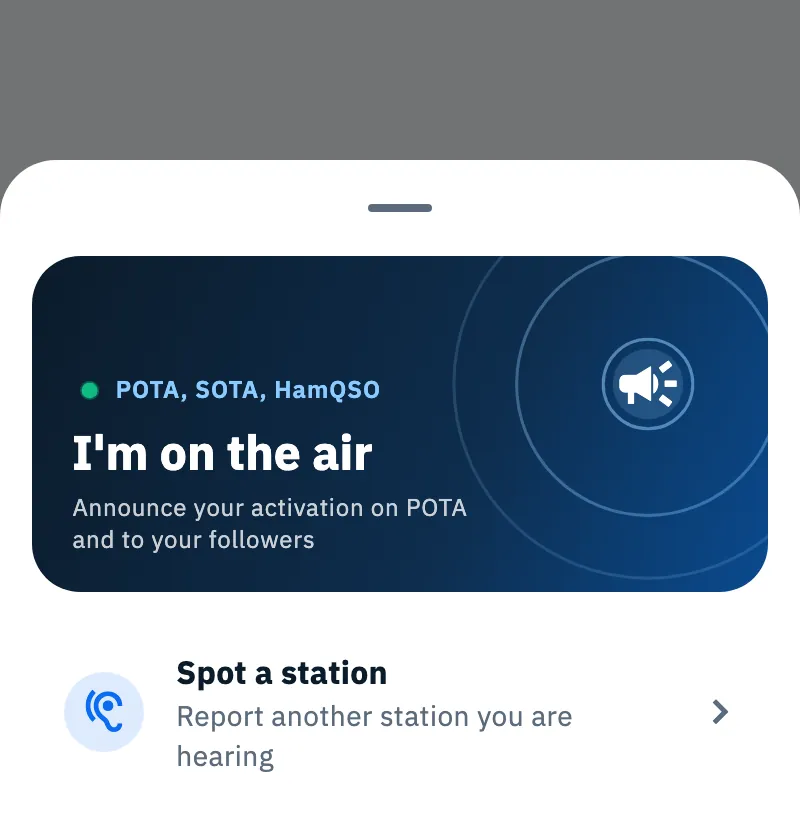
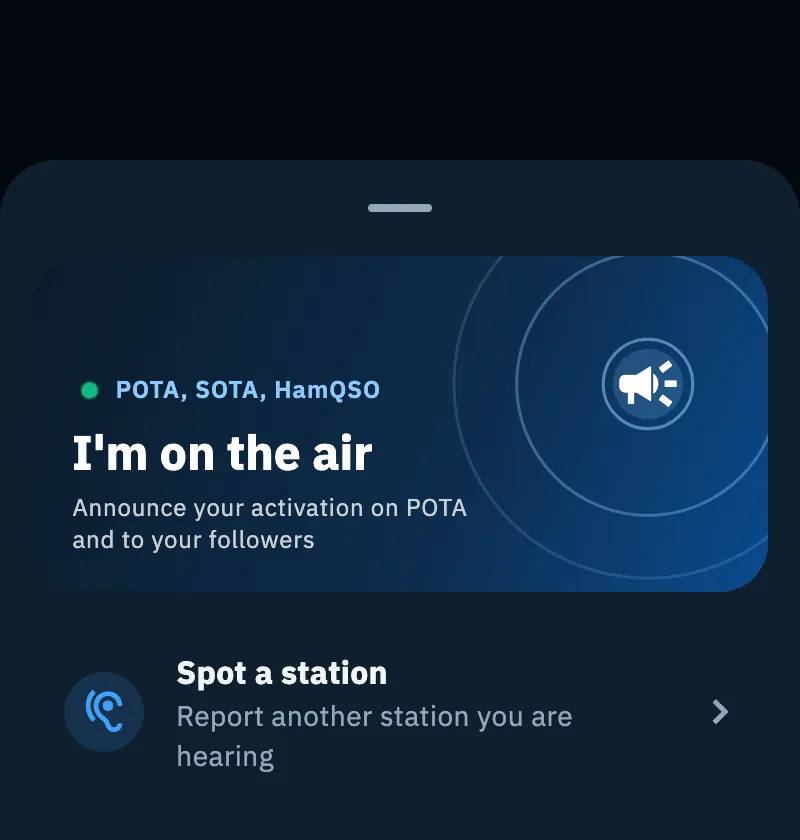
- In the sheet that opens, choose:
- I'm on the air, the big blue card, to announce your activation (see Activating a POTA park or a SOTA summit);
- Spot a station ("Report another station you are hearing") to report another station. This is what this page explains.
If you close the sheet without choosing, nothing happens. On a phone the sheet slides up from the bottom; on a tablet and on the web on a computer it shows as a window in the middle of the screen.
Filling in the spot
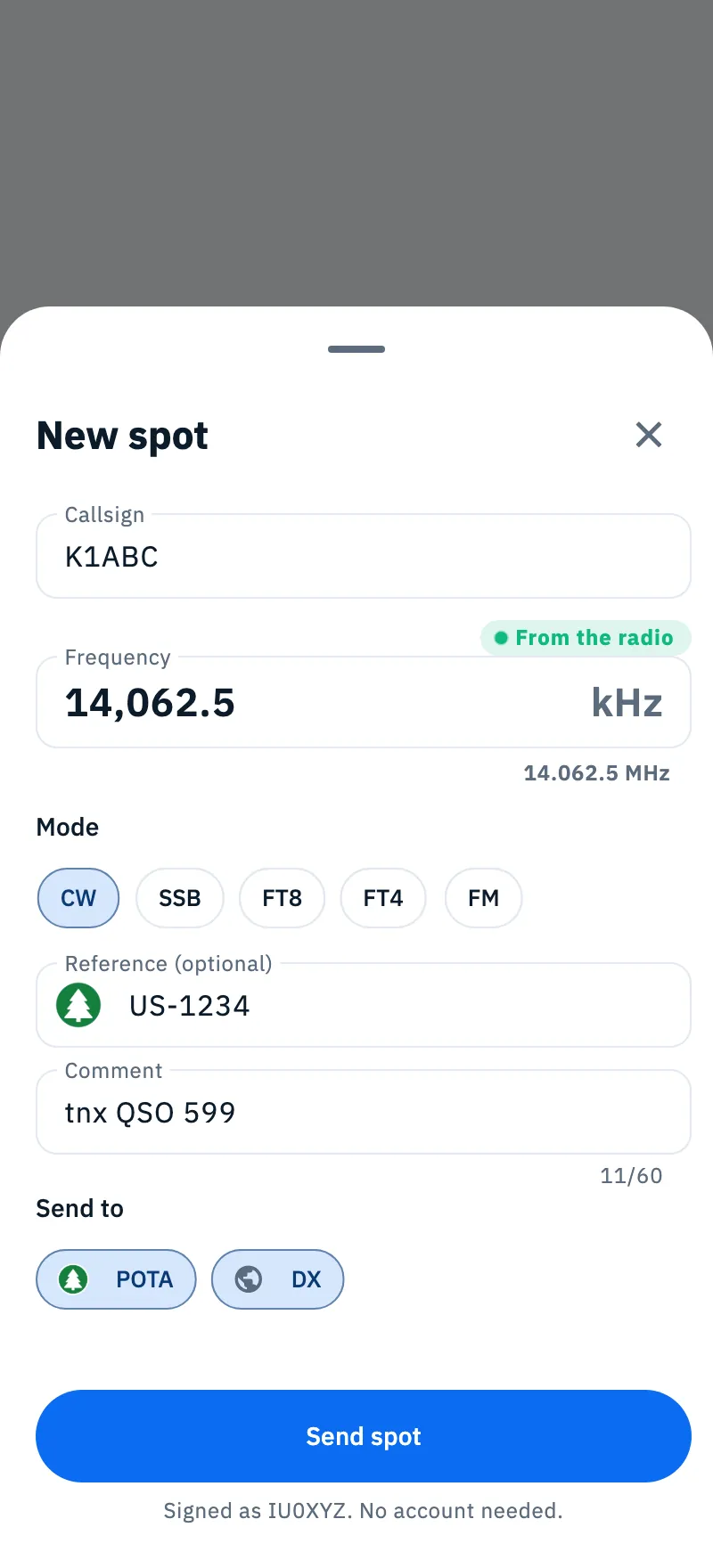
The New spot form opens.
- Type the station's callsign in Callsign: letters turn uppercase by themselves.
- Check the Frequency, in kHz. With a radio connected it is already filled in (see below); otherwise type it, with the decimal if needed (for example 14,062.5): under the field you read it back in MHz. A number under 1000 is read as MHz, so 14 becomes 14,000 kHz (except on the 2200 m and 630 m bands). The frequency counts down to a tenth of a kHz.
- Pick the Mode: CW, SSB, FT8, FT4 or FM. SSB is already picked, or the mode of the log if you are looking at it.
- If the station is in a park, a WWFF area or on a summit, type the reference in Reference (optional), for example US-1234, IFF-0123 or W6/CT-006: the program's mark appears next to it. One reference per spot.
- If you like, add a Comment (for example "e.g. 59 from Milan"): 60 characters at most, the counter under the field tells you how many are left.
- In Send to, turn on the networks to send it to: POTA, DX (the DX Cluster) and WWFF.
- Tap Send spot. While it goes out, a spinner turns on the button.
At the bottom of the form you read "Signed as IU0XYZ. No account needed.": the spot carries the callsign of your profile. From the browser this line shows only once you are signed in.
Frequency and mode from the radio
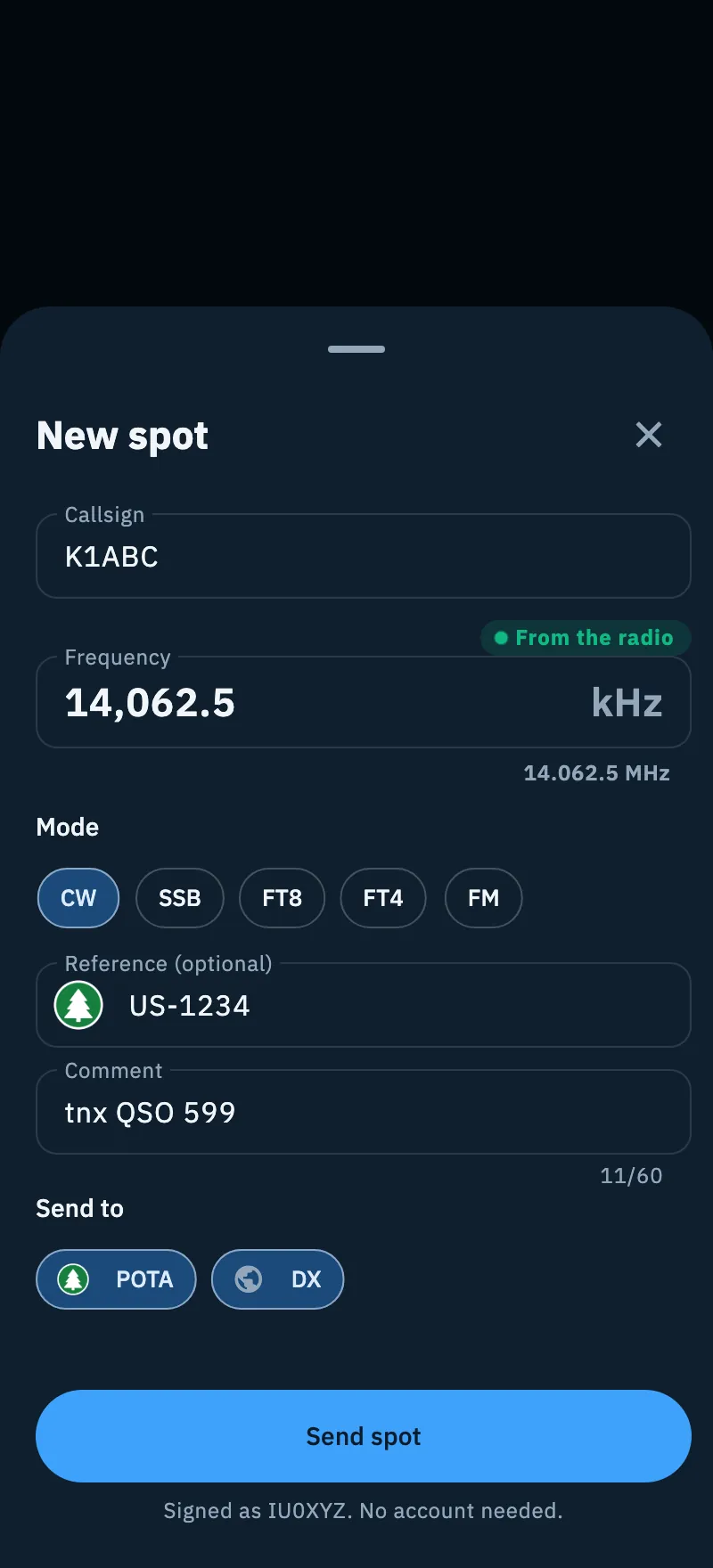
If a radio is connected over CAT (see Connecting your radio), when the form opens the frequency and mode come from the radio, and the green dot From the radio shows above the frequency. Until you type a frequency yourself, the form follows the radio as you turn the dial.
- If you type a frequency by hand, the radio no longer overwrites it. To go back to the radio, tap Use the radio.
- The radio's frequency is taken to a tenth of a kHz.
- The mode is read like this: LSB and USB become SSB, CW and CW-R become CW, FM stays FM. DATA becomes FT8 or FT4 only on the calling frequencies of those modes; otherwise the mode you picked stays. AM and RTTY have no button in the form and are not taken.
Without a radio connected, neither From the radio nor Use the radio shows. Then, if you opened the form while looking at the log, frequency and mode start from the ones set in the log; a connected radio wins over the log.
Where the spot goes
Each button of Send to turns on only when that network can take the spot; a grey line under the buttons says why a network is off.
| Network | When you can pick it | What the app does |
|---|---|---|
| POTA | Only with a POTA park reference. Grey line: "POTA needs a park reference." | Sends the spot to POTA in the name of your callsign. |
| DX (DX Cluster) | With the callsign set in your profile; from the browser, also signed in to HamQSO. | Sends to the cluster the line "DX", frequency in kHz, callsign, reference, mode and comment. |
| WWFF | Only with a WWFF reference. Grey line: "WWFF needs a WWFF reference." | The spot goes from the HamQSO server to WWFF: the app does not use a WWFF account of yours. |
When the form opens, DX is on if the DX Cluster is available. A park or WWFF reference does not turn POTA or WWFF on by itself: tap the button. With a SOTA reference the spot does not go to SOTAwatch: the reference only goes in the text of the DX Cluster spot.
If you turn every network off, Send spot cannot be tapped.
The DX Cluster
The spot on the DX Cluster goes out with your callsign:
- App on iPhone, iPad and Android: HamQSO opens a link to the DXFun node only to send the spot, with your callsign followed by an SSID picked at random once per installation (2 to 15), so it does not clash with your logging program connected to the same node. No password is needed. The link closes by itself 3 minutes after the last spot.
- Web: the HamQSO spots server sends the spot for your account. If you are not signed in, the top of the form says "From the browser, DX cluster spots are sent for your account: sign in with Apple or Google.": tap Sign in (see Signing in and saving your log).
The app waits for the node's answer to tell you whether it took the spot; if the node does not answer within 3 seconds, the spot counts as sent.
What you need
- Your callsign in your profile. Without it, the top of the form says "Your callsign is needed to spot." and Send spot cannot be tapped. Tap Your profile: your profile opens with the callsign field ready (see Your profile: name, callsign and locator).
- Only from the browser, for the DX Cluster: signing in to HamQSO with Apple or Google.
You need no account or password on POTA, WWFF or the cluster.
The outcome
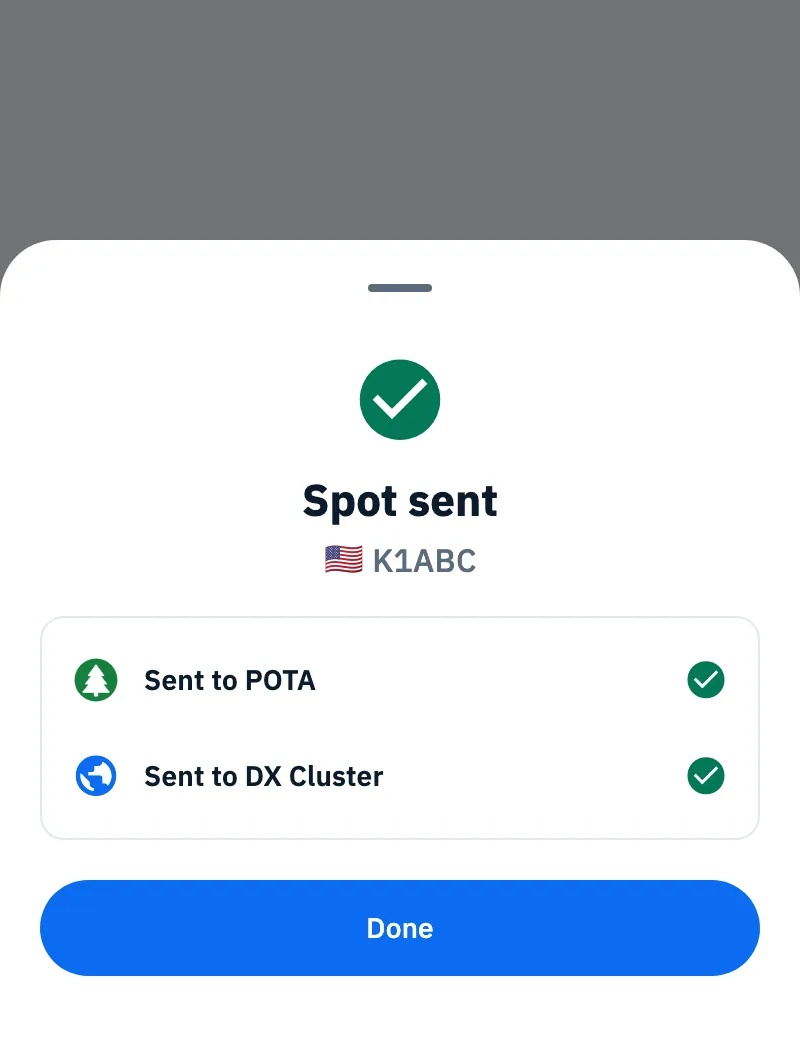
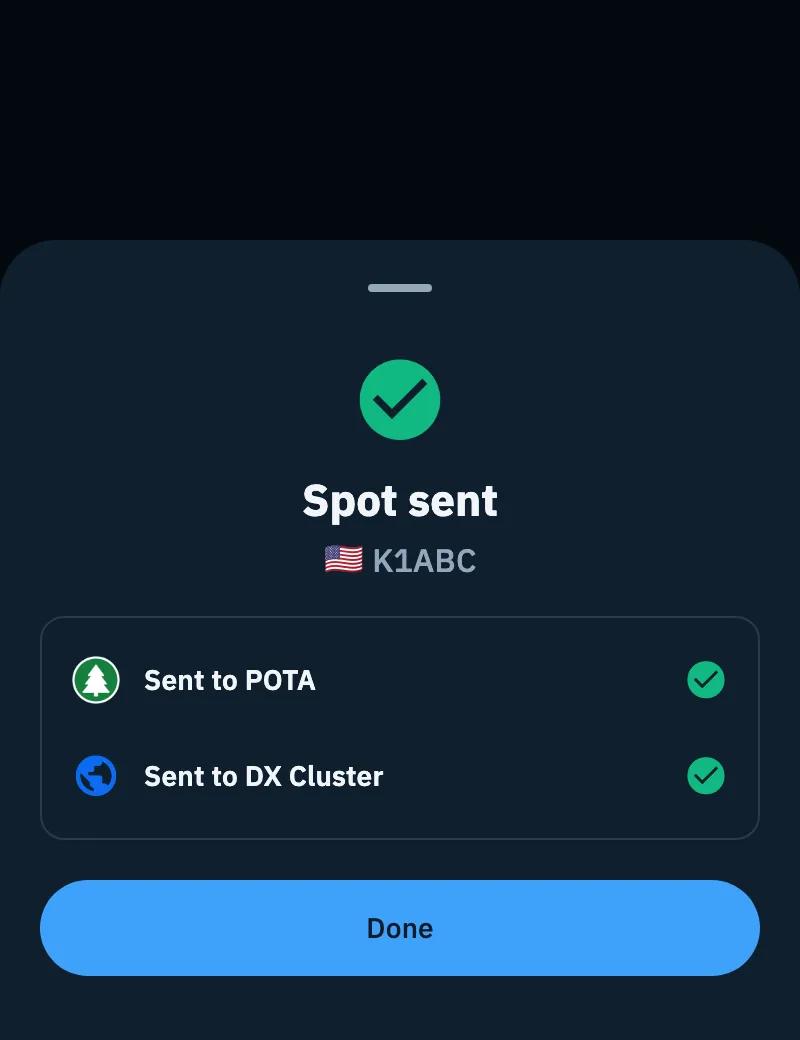
When at least one network took the spot, Spot sent replaces the form, with the callsign spotted and one row per network:
- a green tick and Sent to POTA, Sent to DX Cluster, Sent to WWFF;
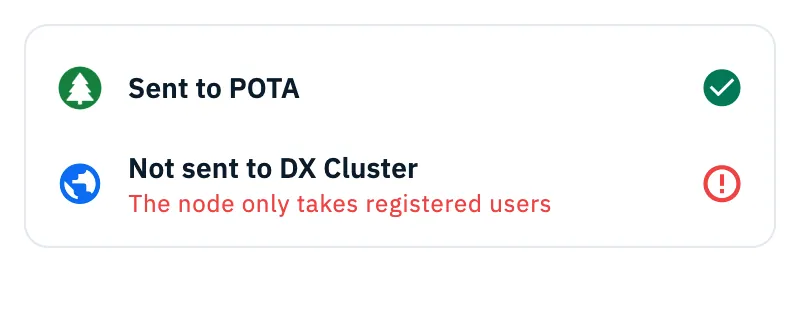
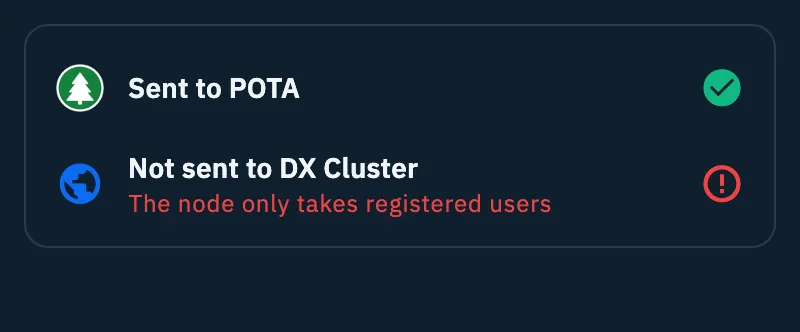
- Not sent to … with the reason, if that network did not take it: then the title becomes Spot partly sent;
- if the cluster already had the station on that frequency, the DX Cluster row is grey with "The cluster already has this station on this frequency: someone just spotted it.": the spot is already there, it is not an error and does not make the spot "partly sent";
- if WWFF already had the spot, the WWFF row is green with "Already spotted on WWFF".
Tap Done to close.
If no network took it, the form stays open with what you typed, and a card under it gives each network's reason: fix it and tap Send spot again.
No duplicate spots
A spot you already sent less than 2 minutes earlier (same station, frequency within 1 kHz) does not go out again. It is not an error: the sheet shows a green double tick with "Your spot already went out at 14:23z." (the time is UTC) and "We won't send it again.". If it had gone out by itself from a queued spot, you read "Your spot already went out at 14:23z, as soon as the network came back.". When the time is not known: "Your spot already went out less than 2 minutes ago.". The 2-minute window and the 1 kHz tolerance cannot be changed.
Without network
If the device has no network, the button becomes Queue spot: the spot stays on the device and goes out by itself when the network is back. See Spots sent while offline.
Free for everyone
Spotting a station is free for everyone, on every network.
What is kept of a spot
Each spot is recorded on the HamQSO server with your account and the outcome on each network: it is used for the duplicate check and to send to WWFF. If recording it fails, the networks are tried anyway; if the server does not answer at all, the spot does not go out (see "Troubleshooting"). The app's usage statistics count only the kind of spot and how many networks took it or not, never the station spotted nor the comment.
Troubleshooting
"Your callsign is needed to spot." Tap Your profile and type your callsign. While it is missing, under the networks you also read "The DX Cluster needs the live session with your callsign.".
"That does not look like a valid callsign" The station's callsign does not have the shape of an amateur callsign: check you typed it right.
"The frequency is not in an amateur band." Check the frequency: it is typed in kHz, and the MHz line under the field tells you how the app read it.
"Sending failed. Check the connection and try again." The spot did not go out: check the connection and tap Send spot again. If the HamQSO server does not answer within 6 seconds, the app tries no network, so the same spot never goes out twice.
Not sent to DX Cluster, with one of these reasons:
- "No connection to the cluster": the node cannot be reached; try again when you have a network.
- "The node only takes registered users": the node takes spots only from registered callsigns.
- "The node refused the frequency or the callsign": check the frequency and the callsign.
- From the browser only: "From the browser, DX cluster spots are sent for your account: sign in with Apple or Google." (tap Sign in); "Your profile's callsign is missing or not valid: check it in Settings." (the callsign is the one in Your profile); "Too many spots in a short time: try again in a few minutes."; "The spots server is busy: try again shortly."; "The DX cluster does not answer: try again shortly.".
Not sent to WWFF with WWFF's message (for example an inactive reference): check the reference. Not sent to POTA or to WWFF with "Failed, try again shortly": the network did not answer, try again later.
The POTA or WWFF button is off. The right reference is missing: POTA wants a park reference, WWFF a WWFF reference.
The mode does not follow the radio. The radio is in a mode the form does not offer (AM, RTTY, or DATA outside the FT8 and FT4 calling frequencies): pick the mode yourself.