
Organizing your operations
Keep activations, contests and days on the air in order: search, sort and filter operations, pin the ones you use, archive the old ones.
FreeUpdated for HamQSO 0.1.19
On this page
Your log is split into operations: the station log of your home station, a POTA activation, a contest, a day out portable. This page shows how to read the Operations list, how to search, sort and filter it, how to pin the operations you use often and how to archive old ones without losing anything.
The operation list
- Tap Log: the Operations list opens (on a phone, if an operation is open, go back with the arrow).
- Tap a card to open the operation and see its log.
- On the card of the operation in use, tap Log: it opens with the callsign field ready.
- Tap All QSOs to see the whole log in one list (see Browsing and searching your log).
- Tap New operation, bottom right, to create one (see Creating an operation).
The list is split into sections:
| Section | What it holds |
|---|---|
| Station logs (always open) | Operations of type Station log: they are never closed. When the one in use is a station log, its Log button is here. |
| In use | First the operation in use, with its Log button, then the others left open. |
| Closed | Operations that have ended, closed by hand or by themselves. See Closing, reopening and deleting an operation. |
| Archived (n) | At the bottom, only when you have archived operations. |
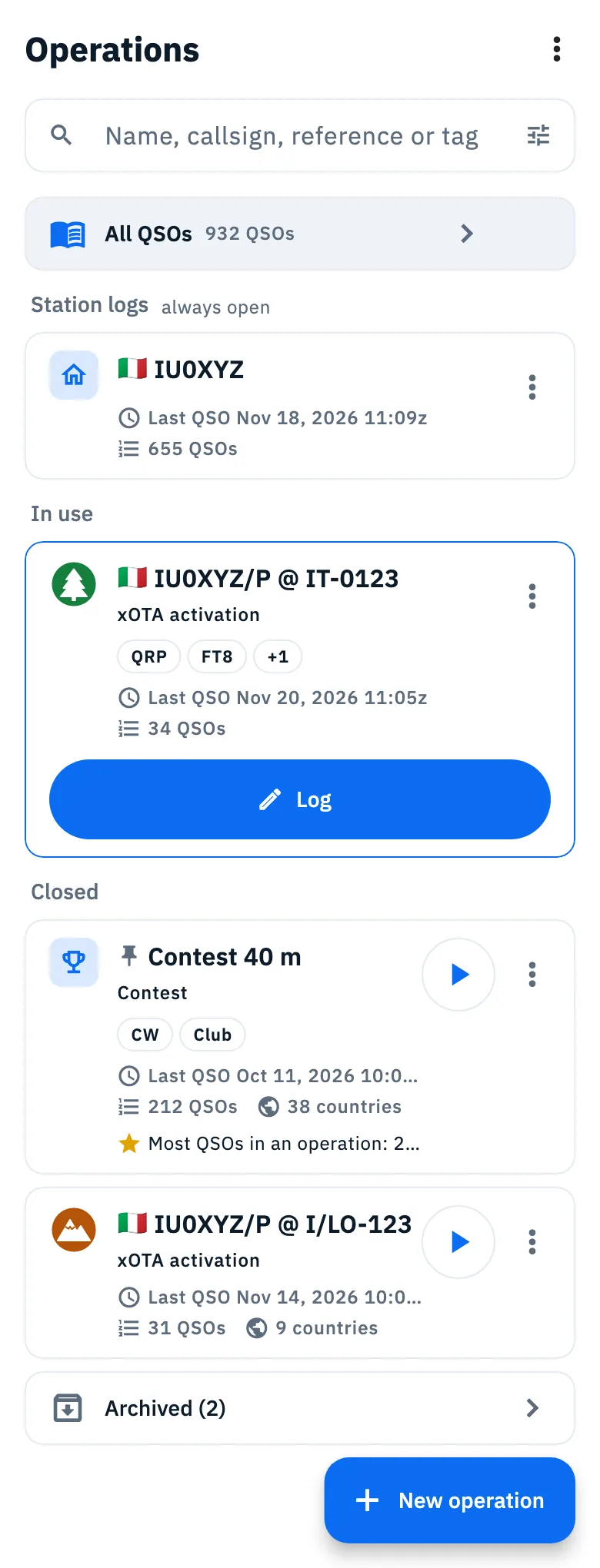
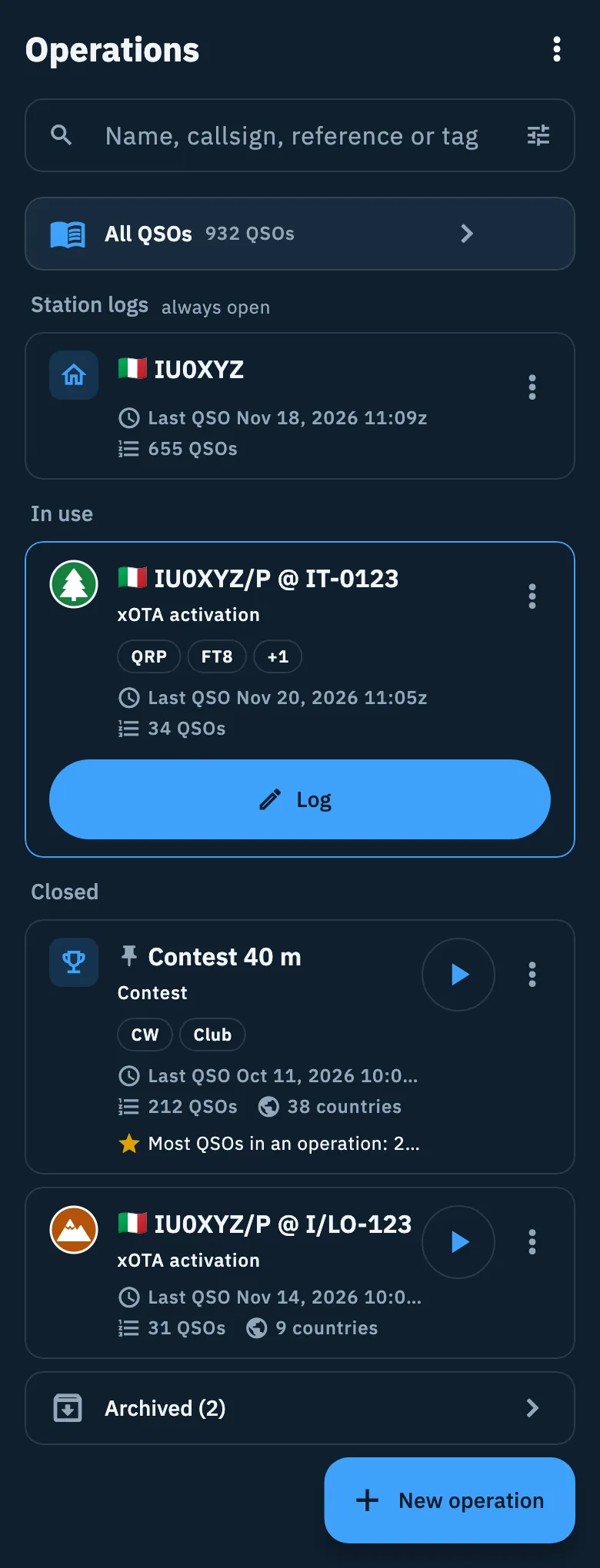
Each card shows:
- the title: the name you gave the operation, otherwise the callsign followed by
@and the references (for example "IU0XYZ/P @ IT-0123"); - the type (Station log, Portable, xOTA activation, Contest, Other), except under Station logs, where the section already says it;
- the In use badge on the current operation, only in the results of a search or a filter (in the normal list it already has its Log button);
- a pin icon when it is pinned to the top;
- up to two tags, then "+1", "+2"…;
- "Last QSO" with date and time in UTC, or "No QSOs yet", and the number of QSOs.
Closed operations also show the countries worked, the main milestone (for example "Most QSOs in an operation") and, when they have at least one QSO, the ▶ button of the DX Replay (see Sharing an operation and DX Replay). Countries and milestone are worked out when the card comes on screen, so they can appear a moment later.
Operations in the trash are not in the list.
Searching for an operation
- Type in the "Name, callsign, reference or tag" field. Letters turn to capitals by themselves.
- The list narrows as you type: the search looks at the name, the station and operator callsigns, the reference codes, the tags and the notes.
- Tap ✕ (Clear search) to empty the field.
While you search the sections go away: you see one list of the operations found.
The search does not look inside QSOs. When what you type looks like a callsign (at least 3 characters), Search IU0XYZ in all QSOs (with the callsign you typed) appears below the results: tap it to search the whole log.
Sorting and filtering
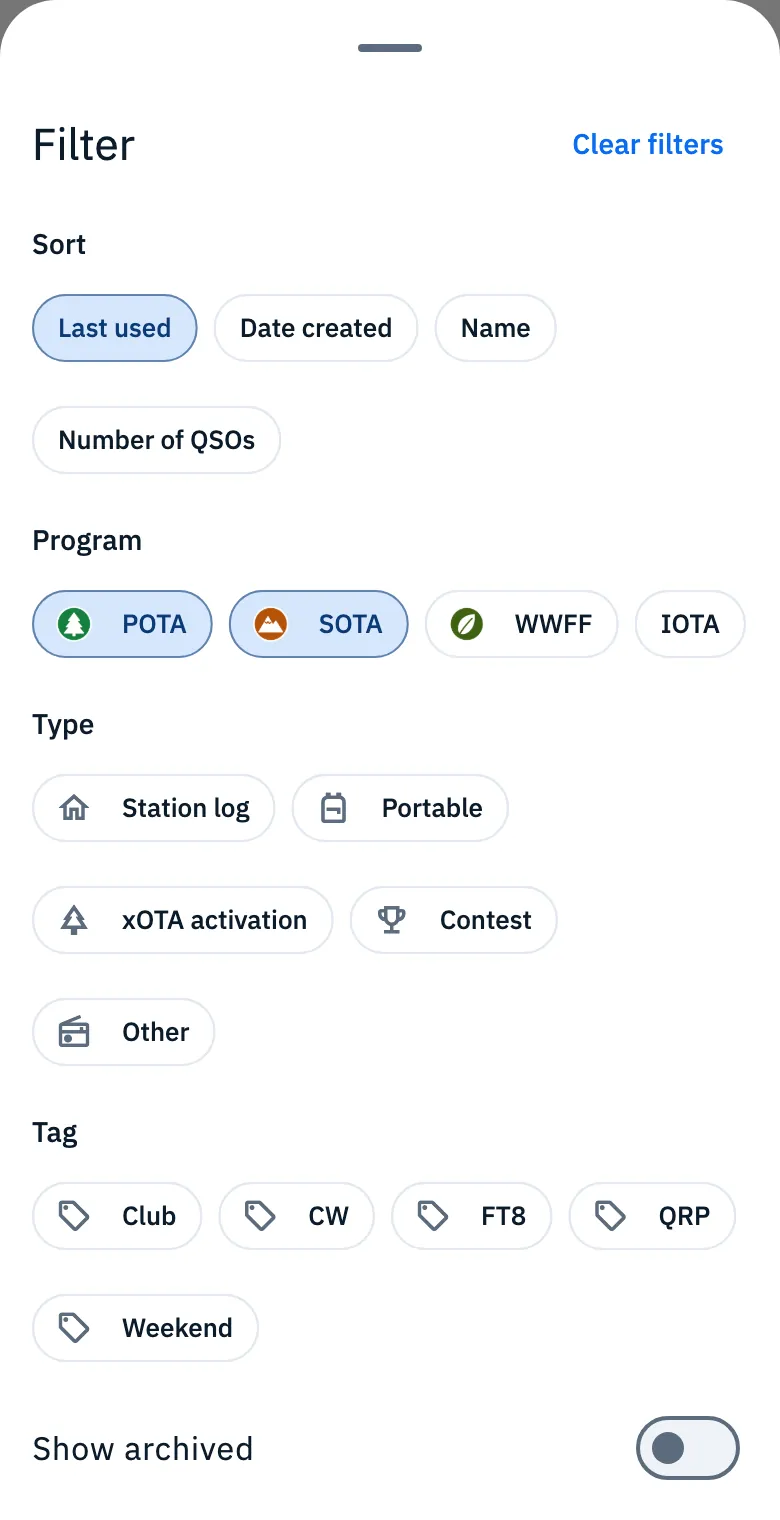
- Tap the Filter icon on the right of the search field.
- Pick the order and the filters: they apply right away, as you tap.
- Close the sheet when you are done.
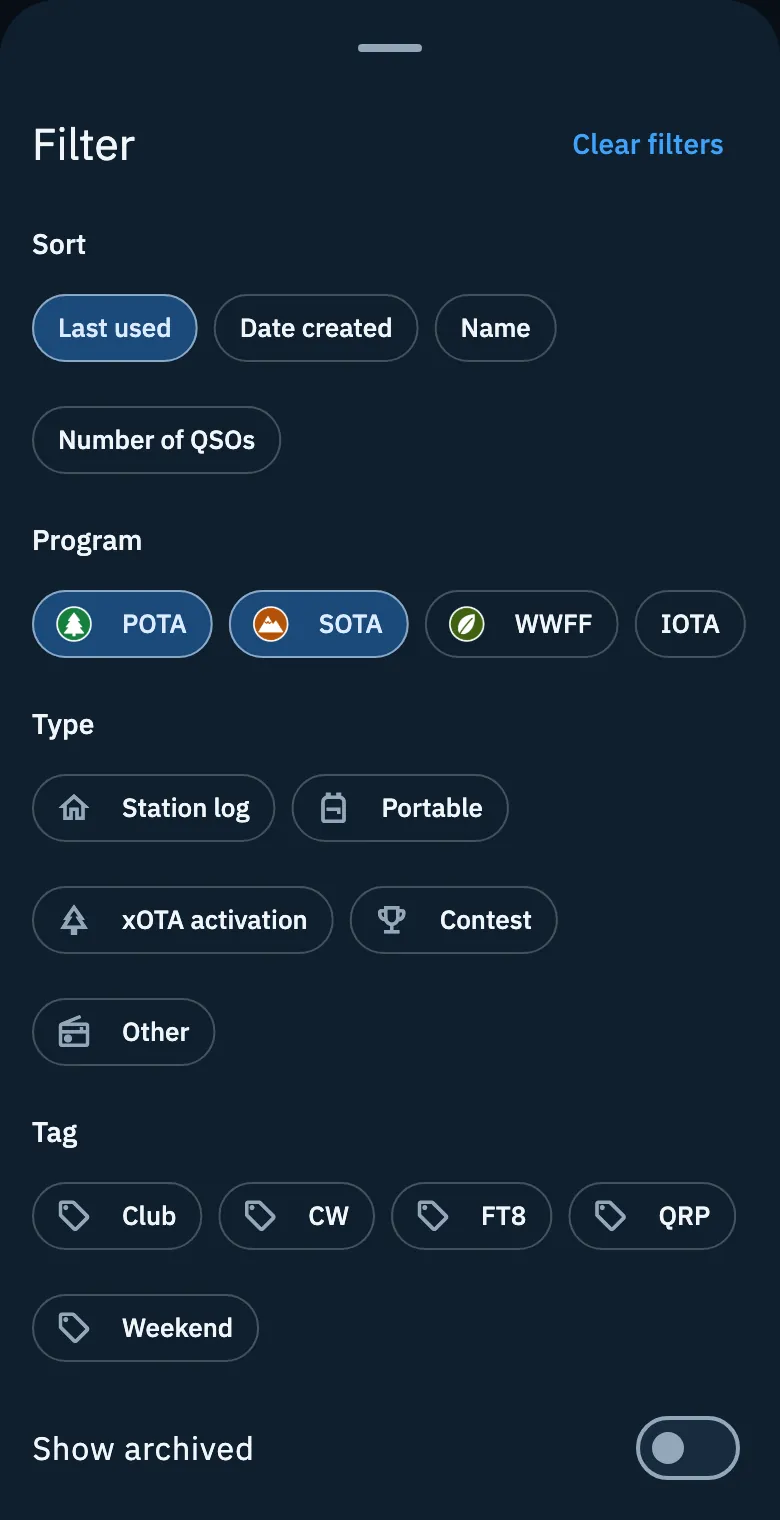
| Option | What it does | Default |
|---|---|---|
| Sort | Last used (last QSO, otherwise creation), Date created (newest first), Name (A to Z), Number of QSOs (largest first). | Last used |
| Program | POTA, SOTA, WWFF and IOTA. It goes by the operation's references: an activation with a POTA park and a WWFF area matches both. | None |
| Type | Station log, Portable, xOTA activation, Contest, Other. | None |
| Tag | The tags of your operations, most used first. Shown only when you have at least one tag. | None |
| Show archived | Mixes archived operations in with the others. | Off |
With several choices in the same group the list shows the operations that have at least one of them. When a filter is on, the Filter icon has a dot and the sections go away. Clear filters, at the top of the sheet, resets program, type, tag and archived: the search you typed and the order stay.
Pinned operations always stay on top, whatever order you pick.
You add tags to an operation from its menu, with Station, tags and notes: up to 10 tags, 32 characters each at most.
The card menu
Tap ⋮ (More actions) on a card, or long-press the card, to act on the operation without opening it.
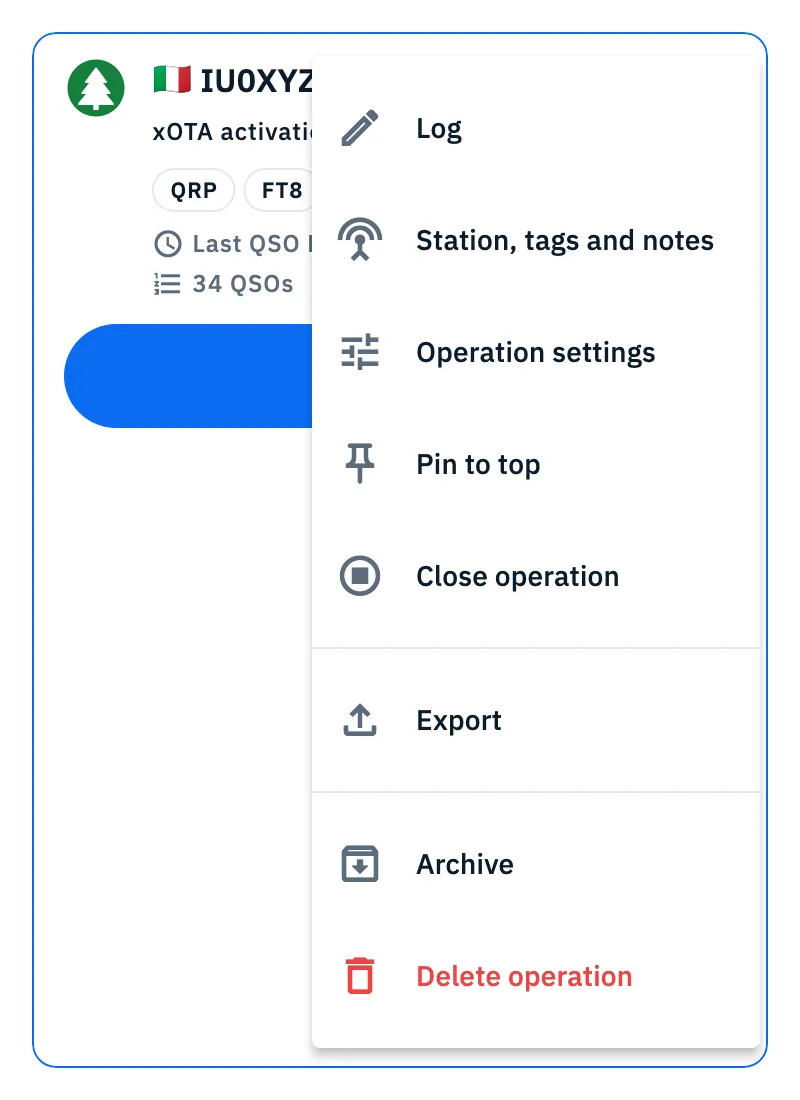
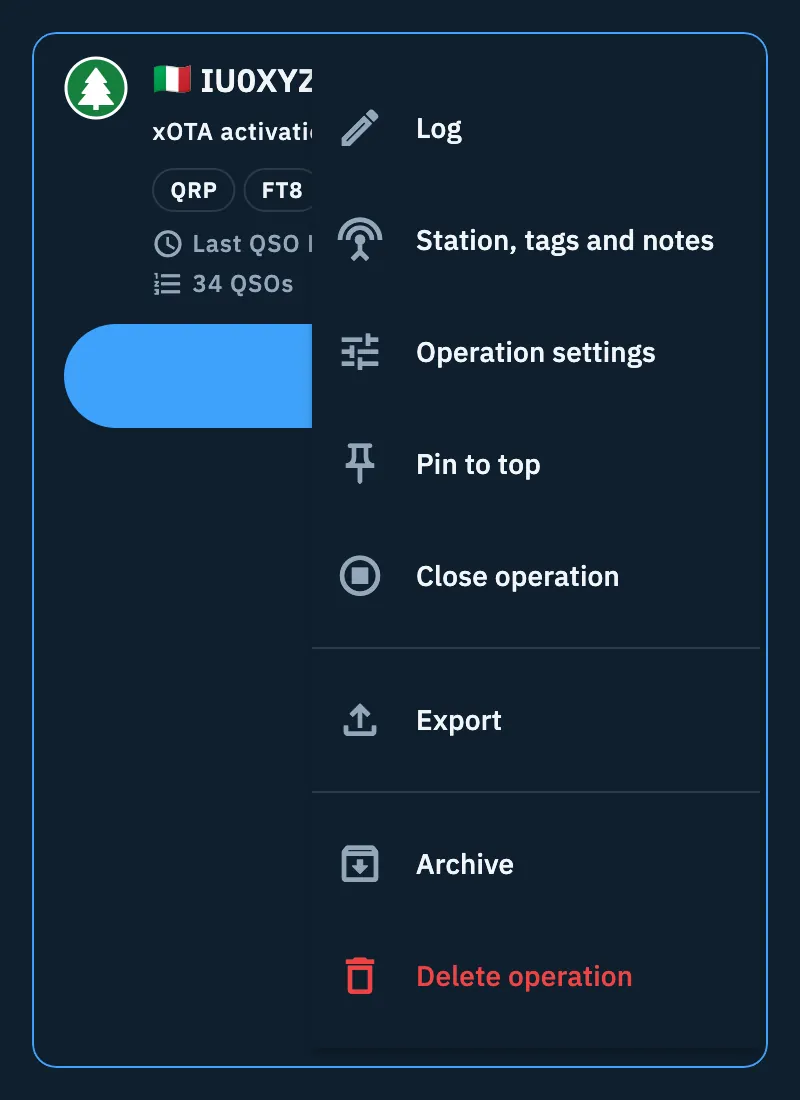
| Item | What it does |
|---|---|
| Log | Opens the operation with the callsign field ready. |
| Station, tags and notes | Radio, antenna and power, the tags and the notes of the operation. See The operation page. |
| Operation settings | All the settings of the operation. See The operation page. |
| Pin to top / Unpin | See below. |
| Close operation | Only when it is open, not archived and not a station log. |
| Reopen operation | In place of Close operation, when it is closed, not archived and can be reopened (an xOTA activation only on the UTC day of its last QSO). See Closing, reopening and deleting an operation. |
| Export | With references: the ADIF file of its QSOs, choosing One file per reference or Everything in one file. |
| Export ADIF | In place of Export, when the operation has no references. See Exporting your log as ADIF. |
| Archive / Restore | See below. |
| Delete operation | In red: asks what to do with its QSOs. See Closing, reopening and deleting an operation. |
An item that is off says why under its name: Export and Export ADIF are off with "No QSOs yet" while the operation is empty.
Pinning an operation to the top
A pinned operation stays at the top of its section, whatever order you pick: handy for a long contest or an activation you repeat often.
- Tap ⋮ on the card (or long-press it).
- Tap Pin to top. A pin appears next to the title.
- To undo it, tap Unpin in the same menu.
When you pin several operations, they follow the chosen order among themselves. The pin is part of the log: with sync you find it on all your devices (see Your log on all your devices).
Archiving and restoring
Archiving takes an operation off the list without deleting anything: its QSOs stay in the log and in All QSOs, and the operation opens and works as before.
- Tap ⋮ on the card (or, on the operation page, its ⋮ menu).
- Tap Archive.
- "Operation archived" appears at the bottom: tap Undo if you change your mind.
To find archived operations again:
- Scroll to the bottom of the list and tap Archived (n).
- The Archived view opens: tap a card to open it.
- To bring one back to the list, tap ⋮ and then Restore.
- Go back to the list with the back arrow (on Android also with the phone's back button).
Or turn on Show archived in the Filter sheet to mix them in with the others.
If you log a QSO in an archived operation it comes back to the list by itself: the entry bar says "Back among your operations".
Choosing operations from another feature
Some features ask you to choose operations, for example Add operation under Operations to upload of a linked service (see Automatic uploads and waiting QSOs) or "Where the QSOs from QRZ.com go" (see Importing from QRZ.com).
- A list of all your operations opens, the most recent activity on top, each with its number of QSOs.
- When you can choose more than one, tick the ones you want and tap Done. The back arrow leaves without changing anything.
- When only one operation is needed (where the QSOs go), tap its row and the choice is made. The one chosen before has a check mark; archived operations are not listed here.
Phone, tablet and web
- On a phone the list takes the whole page.
- On a tablet the list is on the left and the open operation on the right, with its card highlighted. On an iPad in portrait, with an operation open, the list hides: bring it back with Show the list at the top left of the operation (Hide the list hides it again).
- On a tablet and in a large enough window, Filter opens as a window in the middle of the screen instead of from the bottom.
- On the web and on a computer, with a wide window, the list is on the left and you can widen or narrow it by dragging its edge. Outside a text field / puts the cursor in the operation search (when an operation is open beside it, in its "Filter QSOs" field) and N opens New operation.
The rest is in The Log section and Keyboard shortcuts.
Troubleshooting
- "No operations yet": the log is empty. Tap New operation to create one, or Import an existing log to bring in an ADIF file (see Importing an ADIF file).
- "No operation found": the search or the filters match nothing. If a filter is on tap Clear filters, otherwise clear the search with ✕.
- "All operations are archived": your operations are there, in the archive. Tap Archived (n) at the bottom of the list.
- "No archived operations": the Archived view is empty. Go back with the arrow.
- "Could not complete the action, try again": pinning, archiving, closing or deleting failed. Try again from the card menu.
- "Couldn't read the log": the list did not load. Tap Retry.
- I don't see the In use and Closed sections: a search or a filter is on. Empty the search and tap Clear filters.
- I can't find an operation I pinned: a pinned operation stays at the top of its own section, not above everything: look under In use or Closed.