
Activations on the map and globe
See where POTA, SOTA and WWFF activations are on a map, on the phone too, or on a globe beside the list on tablet and computer.
FreeUpdated for HamQSO 0.1.19
On this page
The xOTA section can show you POTA, SOTA and WWFF activations on a map, each at the place of its park, summit or area. On a phone the map is a page of its own; on a tablet and a computer it opens above the detail, beside the list, and there you can choose the globe too. The map and the globe show the same activations as the list, with its filters, and update live.
The map on a phone
- Open the xOTA section (see Following activations on the air).
- At the end of the mode row, above the list, tap Map.
- The Activations map page opens. Under the title you read how many activations are on the map, for example "6 activations on the map".
- Move and zoom the map with your fingers.
- To go back to the list, use the back arrow at the top.
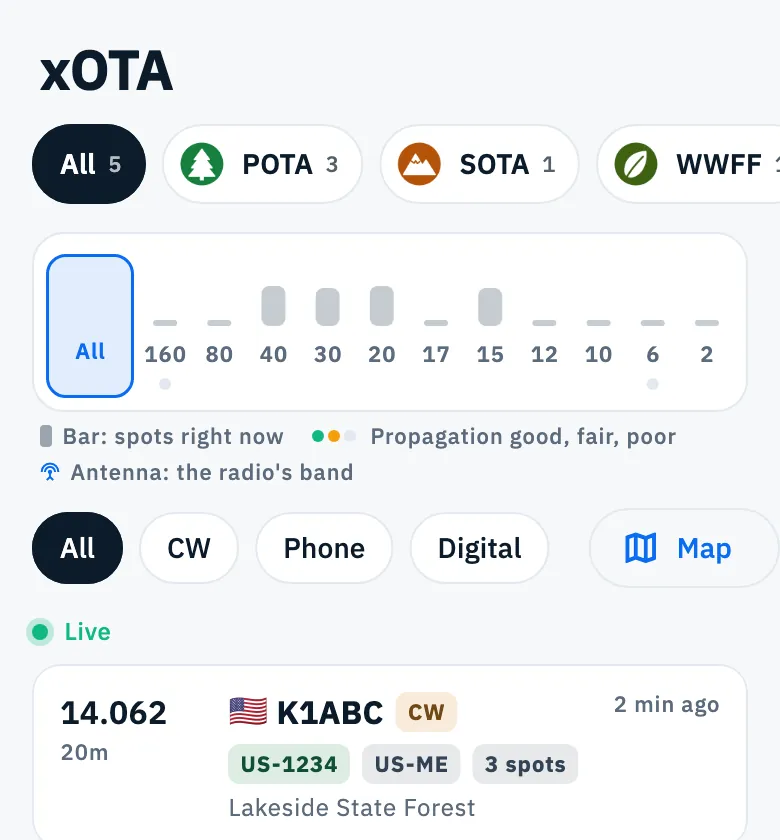
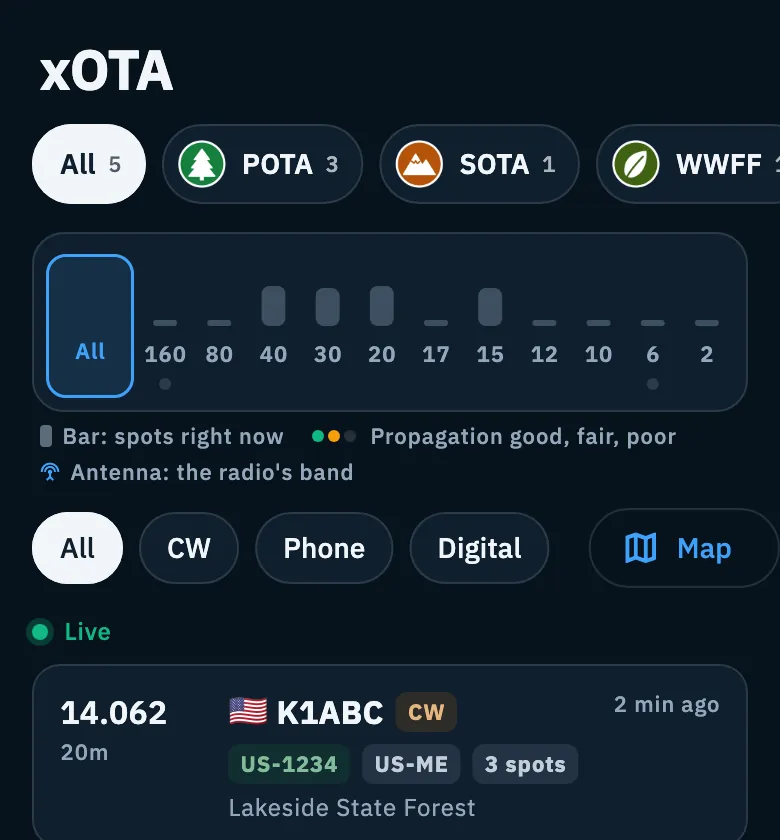
Program tabs on the map
Under the title there are the tabs of the list: All and one tab for each program you follow, the most active first, each with the number of activations on the air (ended ones, QRT, are not counted). Tap a tab to see only that program on the map.
The tab you choose on the map applies to the list too: when you go back you find it on the same program, and the app remembers it next time. The Programs button, to turn programs on and off, is not on the map: you find it in the list (see Choosing the programs you follow).
Tapping an activation
- Tap the marker of an activation.
- Its card appears at the bottom, the same one as in the list, with the program logo.
- Tap the card to open the detail of the park, summit or area (see Opening a park, summit or area). If a radio is connected and When you tap a spot is set to Automatic, the radio also moves to the frequency of the activation (see Tuning the radio from spots).
- To close the card without opening the detail, tap the X above it.
If the activation leaves the list while you look at it (a filter, or the spot got too old), the card closes by itself.
What you see on the map
- One marker per activation, with the logo of its program (POTA, SOTA, WWFF) and the activator's callsign under it. If the logo cannot be loaded, the activation is a dot in the program's color, without the callsign.
- Ended activations (QRT) are faded.
- Framing: when it opens, the map frames the area with the most activity, leaving out the few farthest activations, so the view does not end up in the middle of an ocean. After that you move it: updates do not change it.
- Style: a terrain map in the light theme, a dark map in the dark theme.
- Filters and updates: the map shows only the activations visible in the list, with the bands and modes you chose there (see Filtering spots by band and mode). While it is on screen it keeps receiving new spots.
The place of each activation is the place of its reference, which comes with the spot: activations without coordinates stay in the list but do not appear on the map (nor on the globe).
Map and globe on tablet and computer
On a tablet and in a browser, when the window is at least 840 px wide, the xOTA section has the list on the left and the detail on the right. Above the detail you can open a pane with the map or the globe. At the start the pane is closed.
- At the end of the mode row, tap the map icon (named Show the map for screen readers). The icon reopens the last view you used, otherwise the map; if the last one was the globe, the icon is a globe (Show the globe). In a wide computer window the icon is on the right, next to the other buttons of the list.
- The pane opens above the detail. In its top right corner there are three icons: the map (Map), the globe (Globe) and the empty pane (None). The open one is filled.
- Tap Map or Globe to switch view, None to close the pane.
- Drag the divider between the pane and the detail to give more room to one or the other (from a quarter to four fifths of the column).
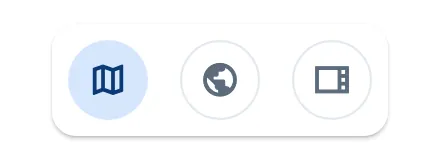

The view you choose is saved in the app settings, separately from the DX list: the xOTA section reopens with the map, the globe or no pane, as you left it.
The map in the pane
It is the same map as on the phone, with the same markers, but without title, tabs and card: it follows the tab chosen in the list. Tap a marker to choose the activation: its detail appears under the map and, with When you tap a spot set to Automatic, the connected radio moves to its frequency.
The globe
The globe shows the same activations at the place of their reference, each with an arc from your station (the locator in your profile). Points and arcs are colored by band; the legend at the bottom left gives the colors. QRT activations are not faded on the globe.
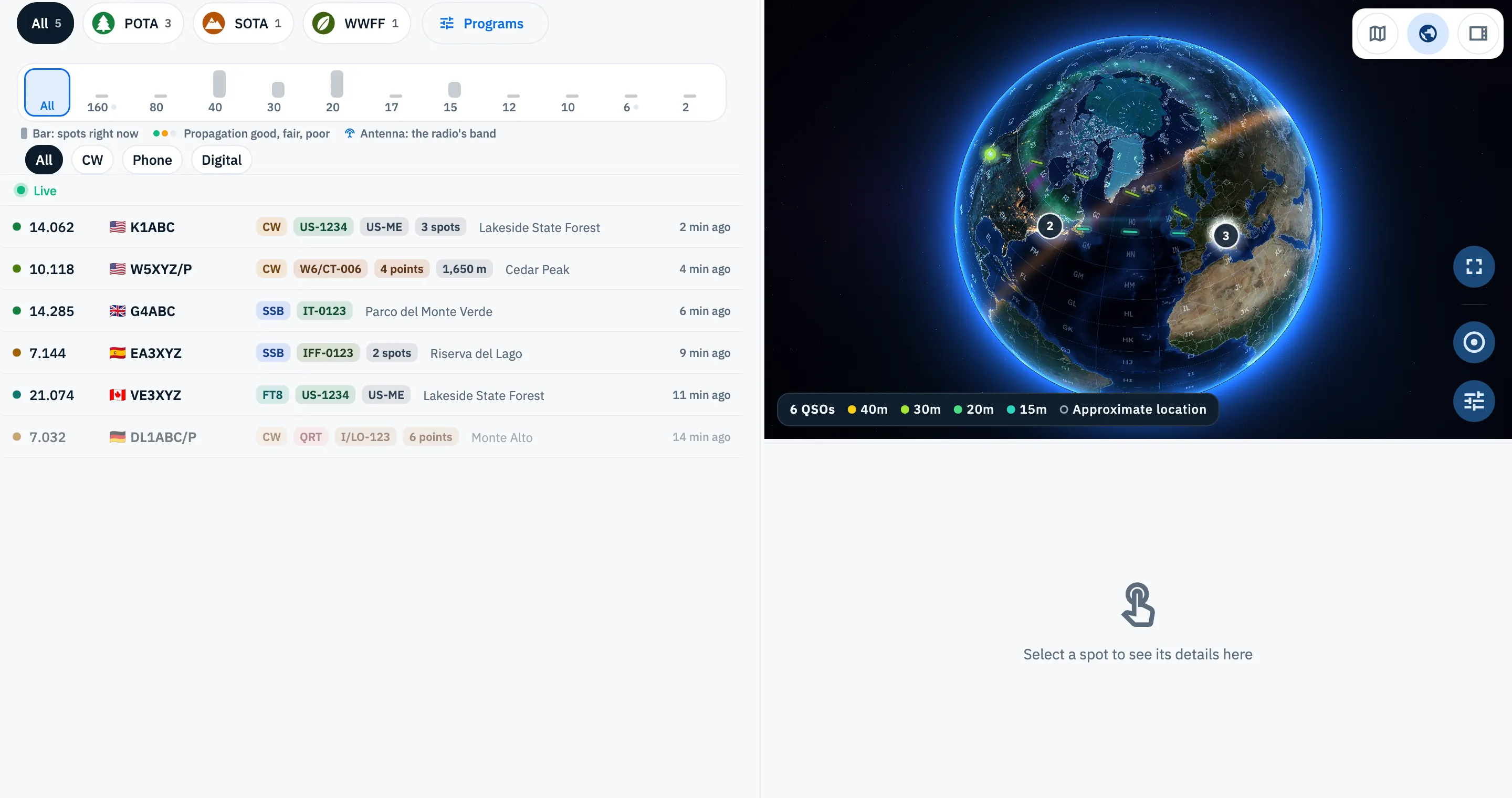
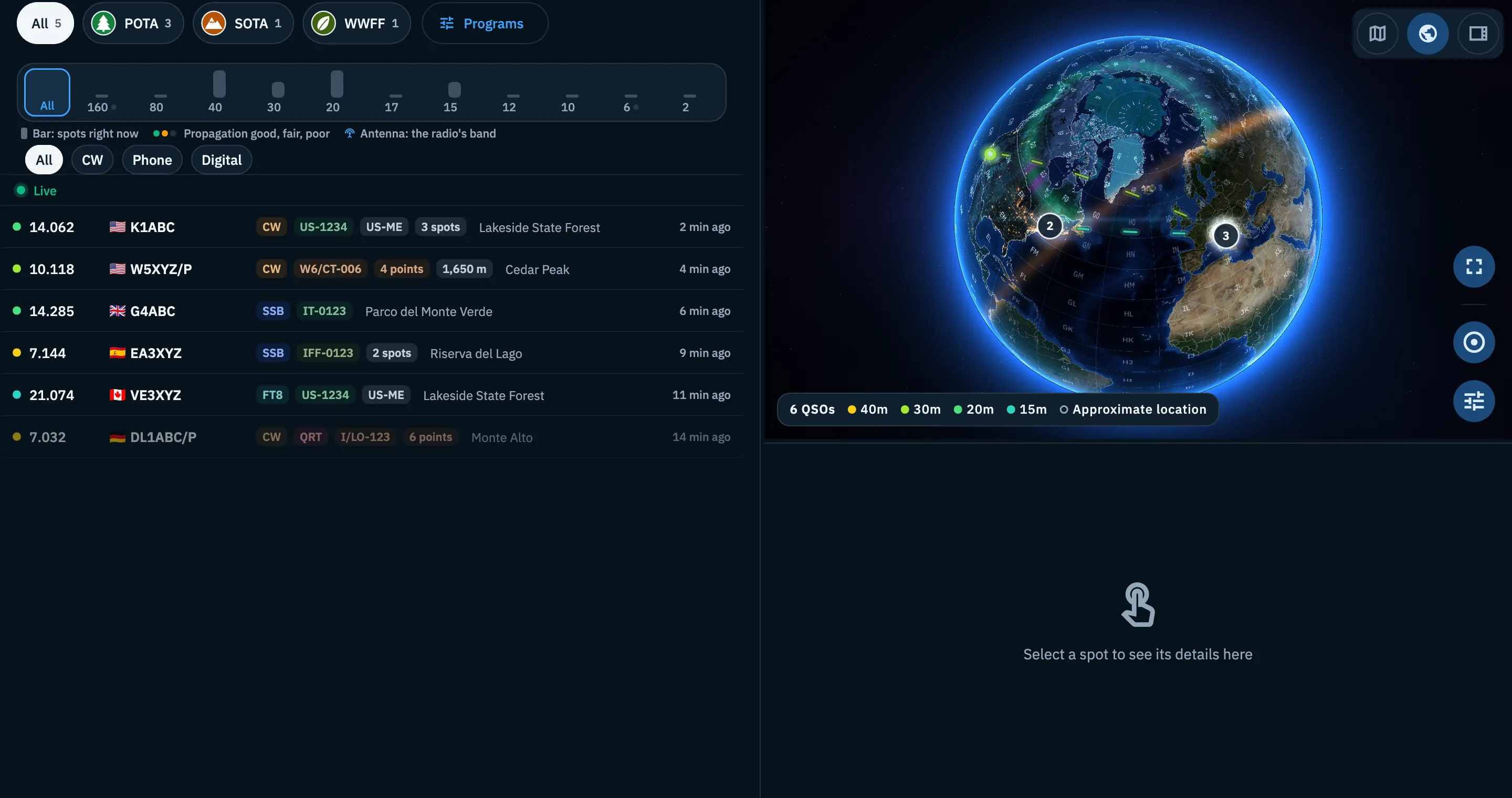
The buttons are at the bottom right:
- Choosing an activation: tap or click its point. The detail appears under the globe, which stays open. The globe does not tune the radio: a tap in the list or on the map does.
- Show all spots: the button with the circle brings the view back to all the activations.
- Map settings: Lines from my station (on at the start; without a locator you read "Needs the station location") and Color, By band or By mode.
- Full screen: opens the globe over the whole page with the same activations; tapping an activation takes you back to the pane with its detail, while Exit full screen, Esc or the browser's back arrow take you back without choosing.
If the pane is short (less than 360 px), only Full screen and Show all spots remain: make the pane taller with the divider to get the settings.
Gestures, bubbles of overlapping points and the globe's keys are the same as on the DX Cluster globe: see Spots on the map and on the globe.
Phone, tablet and web
| Where | Map | Globe |
|---|---|---|
| Phone, and windows narrower than 840 px | Activations map page, with the tabs and the card of the tapped activation | No |
| Tablet, and browser from 840 to 1200 px | In the pane above the detail | In the pane above the detail |
| Browser from 1200 px | In the pane above the detail, with list and detail split by a handle | In the pane above the detail |
Free and Pro
The map and the globe of the activations are free.
Troubleshooting
"Map not available offline". You opened the map without a connection: the map needs the network to draw itself and comes back by itself when you are online. A map already open stays visible if the network drops. The globe is drawn without the network too. See Using HamQSO offline.
An activation is in the list but not on the map. The spot does not carry the place of the reference, so the app does not know where to put it. Check the filters and the tab too: the map and the globe show only what you see in the list.
A program is missing. The map shows only the programs you follow: turn it on as explained in Choosing the programs you follow.
I cannot find the globe on my phone. On a phone there is only the map. The globe is in the pane on tablet and computer.
The globe has no arcs. Your profile has no locator, or you turned off Lines from my station. See Your profile: name, callsign and locator.