
Sharing an operation and DX Replay
Post the summary image, the DX Replay video on the globe or the live page link of your operation on social apps or in a chat.
FreeUpdated for HamQSO 0.1.19
On this page
Every operation can be shared in three ways: an Image of the summary, a Video (the DX Replay, your operation on the globe) and the Link to your live page. Everything is made on your device and goes out through the system share sheet or straight to the app you pick.
Opening "Share"
There is one Share sheet, and it opens from three places of the operation page:
- In the Summary section of a closed operation, tap Share: on a phone it is fixed at the bottom, on a wide window it is at the top of the right column, next to DX Replay.
- In the Statistics section, in the "Share how it went" row, tap Share.
- From the ⋮ menu (More actions) at the top, tap Share. While the operation has no QSOs the item is off, with "No QSOs yet".
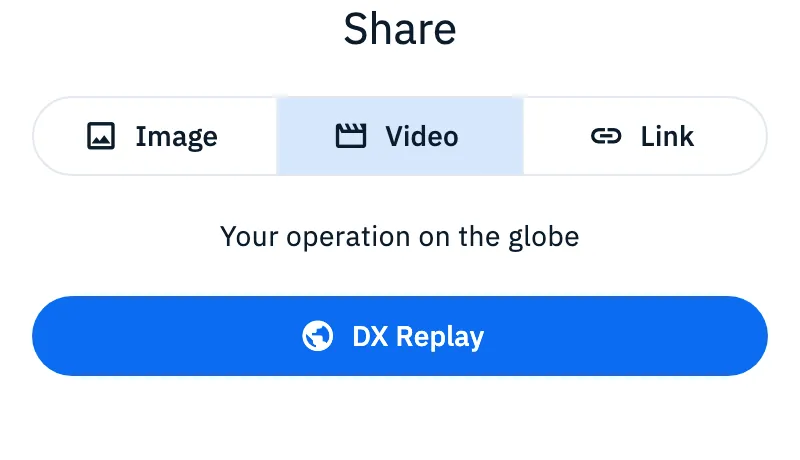
At the top, choose what to share: Image, Video or Link. Video is there only once the operation is closed: while it is open the DX Replay does not exist yet.
Sharing the image
- In the Share sheet choose Image: you see the preview.
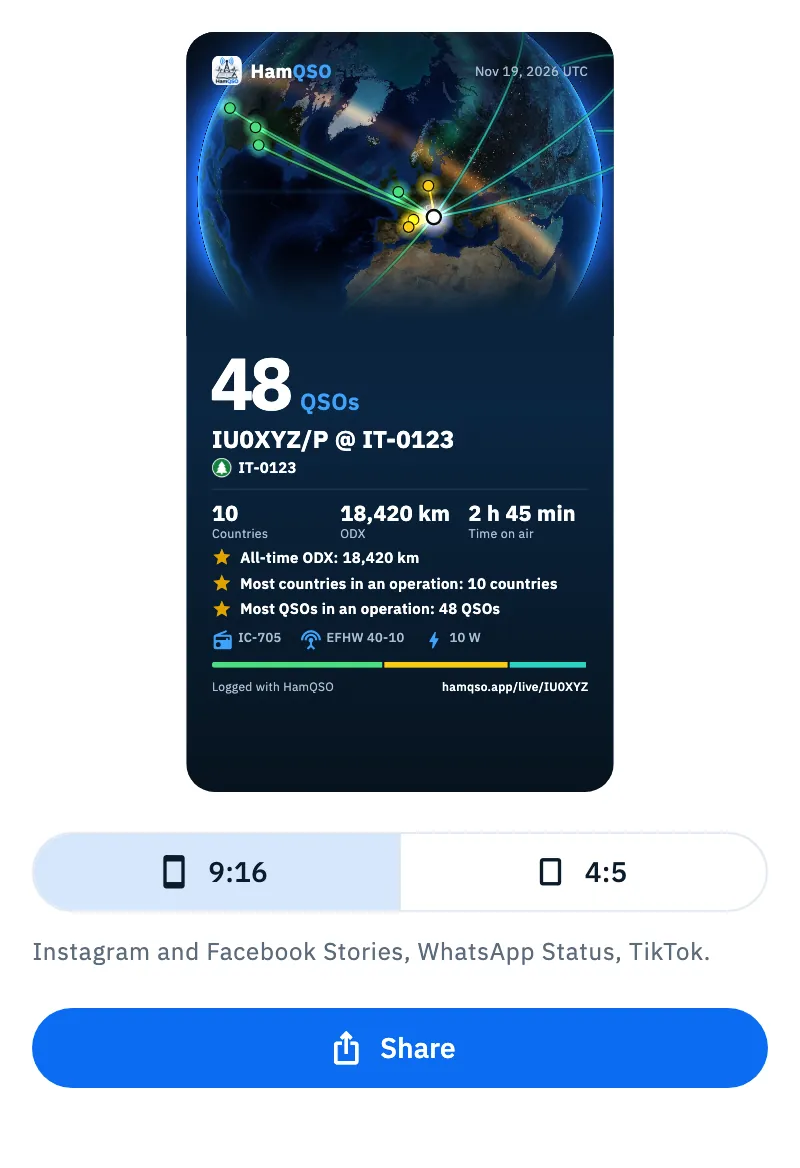
- Choose the format: 9:16 (under it: "Instagram and Facebook Stories, WhatsApp Status, TikTok.") or 4:5 ("Instagram and Facebook feed."). HamQSO remembers the last format on this device.
- Tap Share: the system share sheet opens with the image and a ready-made text.
The image shows:
- the globe with your QSOs and your station;
- the title of the operation, the dates in UTC and the references;
- the numbers: QSOs, Countries, ODX (or ODX, estimated when the distance is estimated) and Time on air (with a single QSO, its UTC time);
- up to three milestones of the operation (see Operation summary, milestones and photos);
- the station (radio, antenna, power) and, in the 9:16 format, the band strip with its legend;
- the address of your live page.
When there is not enough room, the image drops, in this order, the band legend, the band strip, the station, the third milestone and the second. The QSO count and the title never shrink, and one milestone, if there is one, always stays.
While the operation is still open, the image carries the numbers of the moment and, instead of the milestones, the line "On the air for 1 h 20 min, figures at 14:35 UTC".
The text that goes with the image is "Title: 48 QSOs, 10 countries. Logged with HamQSO" followed by a link: to the operation's page on your live page, if the closed operation is published there, otherwise to your live page.
Sharing the live page link
- In the Share sheet choose Link: you read "Share the live page".
- Tap Live page: the sharing of your live page opens, with image, text and QR.
The same sharing opens from the ⋮ menu with Live page. What it contains and how to share it is explained in The activation live page.
Opening the DX Replay
The DX Replay is a video of your operation on the globe: the QSOs appear one after the other as arcs from your station, the key moments are highlighted (first QSO outside the continent, ODX of the operation, best hour, 10 countries, all continents, valid activation, P2P QSOs) and the video ends on a card with the numbers. You open it:
- in the Summary, with the DX Replay button on the globe at the top (it shows the recommended length of the video);
- from the ⋮ menu with DX Replay, which is there only for closed operations (see Closing, reopening and deleting an operation) and for the Station log (there, the video is of the period you chose), always with at least one QSO;
- with the ▶ button on the card of a closed operation in the operations list;
- from the Share sheet: choose Video and tap DX Replay.
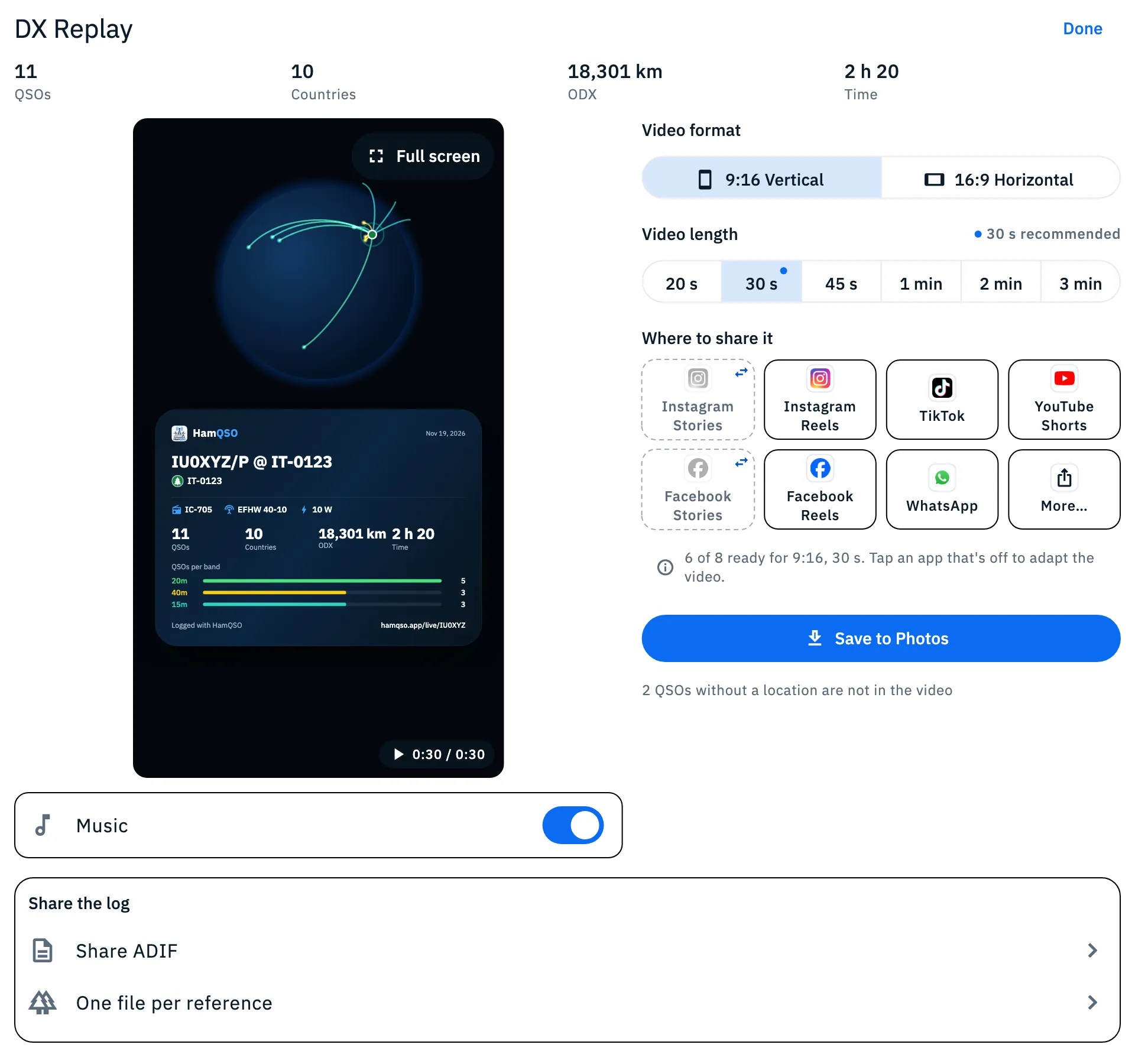
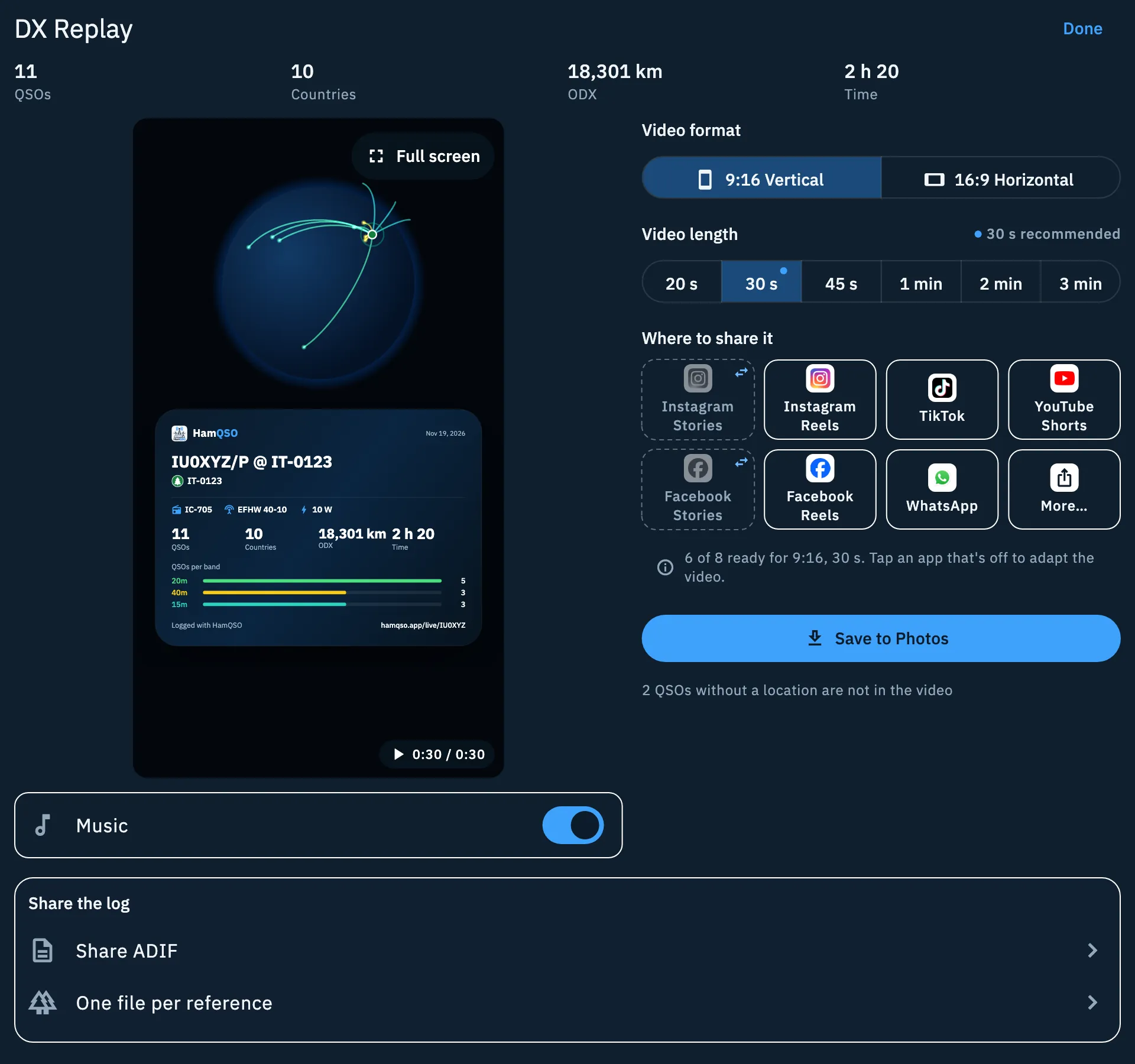
The page is titled DX Replay. At the top it shows the row of numbers (QSOs, Countries, ODX, Time) and under it the preview, which starts at once and loops. Tap Done to close it.
Choosing format, length and music
- In Video format choose 9:16 Vertical or 16:9 Horizontal. It always starts at 9:16.
- In Video length choose among 20 s, 30 s, 45 s, 1 min, 2 min and 3 min. A dot marks the recommended length, also written to the right of the title ("30 s recommended"): 30 s up to 50 QSOs, 45 s up to 100, 1 min above. It always starts at the recommended one.
- Turn Music on or off (on at the start). On a phone it is the switch in the bar under the video; on a tablet and on the web it is the row under the preview.
- To watch it big, tap Full screen. To leave, tap Exit full screen, press Esc or go back. In a browser the page also asks for the browser's full screen.
Format and length are not remembered from one operation to the next. With reduced motion turned on on your device, the preview shows the ending, still.
The actual video is made only when you share or save it: the preview shows "Making the video… 40 %" with "30 s video in 9:16" and Cancel to stop it. Meanwhile the choices are locked. The video is made on your device and is not uploaded anywhere. A video already made in the same format and length is reused; if you change Music, it is made again.
Sharing the video on social apps
Under Where to share it there are eight apps, always in the same order: Instagram Stories, Instagram Reels, TikTok, YouTube Shorts, Facebook Stories, Facebook Reels, WhatsApp and More… (the system share sheet).
An app is ready when it takes the format and length you chose; otherwise it is off: dashed border and grey logo.
| App | Format | Longest video |
|---|---|---|
| Instagram Stories, Facebook Stories | 9:16 only | 20 s |
| Instagram Reels, Facebook Reels | 9:16 only | 1 min |
| TikTok, YouTube Shorts | 9:16 only | 3 min |
| WhatsApp, More… | 9:16 and 16:9 | No limit (WhatsApp Status keeps only the first 90 s) |
- Tap a ready app: the video is made, if needed, and the app opens with it.
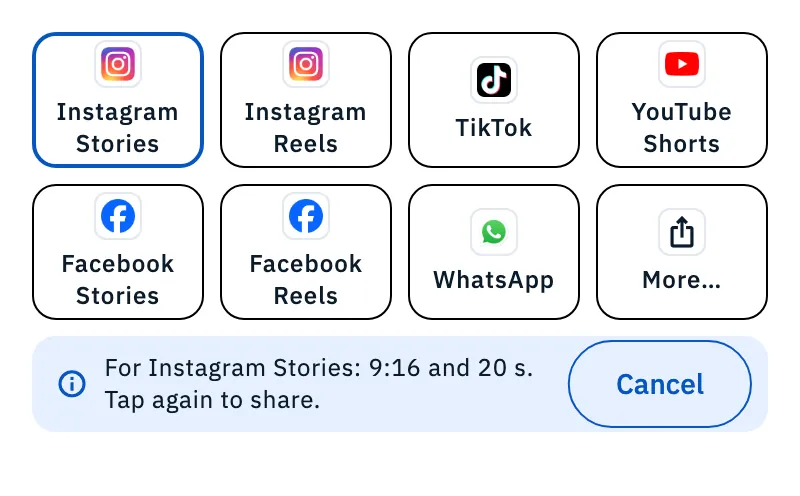
- Tap an app that is off: it shares nothing, but adapts format and length to that app (the video is never made longer). Under the apps you read, for example, "For Instagram Stories: 9:16 and 20 s. Tap again to share."; Cancel brings back your previous choice.
- Tap the app again, now ready, to share.
Under the apps a line sums it up, for example "6 of 8 ready for 9:16, 30 s. Tap an app that's off to adapt the video." With a length above 90 s, instead of the hint you read "Only the first 90 s fit in WhatsApp Status."
What else happens with some apps:
- Instagram and Facebook Stories also get the "star" of the operation as a sticker you can move over the story: each QSO is a line from your station in its direction, with your callsign, the references and the numbers, on a transparent background.
- Instagram, Facebook and TikTok take no text: after sharing you read "Caption copied: paste it in the post", and you paste the caption in the post. The caption sums up the operation (for example "IU0XYZ/P @ IT-0123: 48 QSOs in 10 countries, ODX 18,420 km"), then adds the hashtags (such as #POTA #hamradio #HamQSO) and the address of your live page.
- YouTube Shorts, More… and, on iPhone, TikTok and WhatsApp go through the system share sheet: pick the app there. The same happens with any app that is not installed or cannot be opened directly.
On iPad the share sheet opens next to the app you tapped.
Saving the video and sharing the log
- Tap Save to Photos: the video in the chosen format and length goes to the device's photos and you read "Video saved to Photos". On a phone the button is fixed at the bottom of the page, on a tablet it is under the apps.
- Under the video, in the Share the log box, tap Share ADIF for the ADIF file of the operation or, if the operation has references, One file per reference for the files to upload to POTA, WWFF or SOTA. See Exporting your log as ADIF.
The outcome of the last action stays under the preview until you take another action or change a choice; "Caption copied" and, on the web, "The video is ready" go away by themselves.
On the web
In a browser you watch the DX Replay the same way, but there are no apps and no Save to Photos. The MP4 video is made in the browser, on your device:
- Choose format, length and music.
- Tap Download: the file is named, for example,
dx-replay-iu0xyz-p.mp4and you read "Video downloaded: dx-replay-iu0xyz-p.mp4. You'll find it in your downloads." - Or tap Share, which is there only in browsers that can share files. If the browser wants a new tap after making the video, you read "The video is ready: tap Share again."
If the browser cannot make the video, Download stays off with "This browser can't create the video. To download it, use the HamQSO app." If it cannot add the music you read "This browser can't add the music: the video will have none."
Phone, tablet and web
- Phone: the DX Replay is a full page, in landscape too. In portrait, under the video there is a bar with the time, Music and Full screen, and Save to Photos is fixed at the bottom; in landscape the page has two columns, as on a tablet.
- Tablet: the DX Replay opens in a large dialog, in two columns: preview and music on the left, choices on the right.
- Web: two columns as on the tablet when the window is wide, with Download and Share instead of the apps.
Week and month summaries
"Your week on the air" and "Your month on the air" have Share too, with every QSO of the period: they offer Image and Video, but no Link. See Log summaries and statistics.
What goes into the video
- Each QSO goes on the globe at its locator, never more precise than 6 characters, or at the center of the country of its prefix.
- QSOs without a location are left out; under the choices you read "2 QSOs without a location are not in the video".
- One QSO with a location is enough to make the video.
Troubleshooting
| Message or situation | What to do |
|---|---|
| Share is off in the ⋮ menu, with "No QSOs yet" | Log at least one QSO in the operation. |
| The sheet has no Video | The operation is still open: the DX Replay comes after closing it. |
| "I couldn't create the image" | Tap Retry, or Go to the text to share only the text with the link. |
| "The station has no location: add the locator in the operation settings" | Open the operation settings, enter your locator, then open the DX Replay again. |
| "No QSO has a location (locator or known prefix): the video can't be made" | Add the locator to at least one QSO (see Opening and editing a QSO). |
| "Couldn't prepare the replay" (in the DX Replay or in the Share sheet) | Close the DX Replay or the Share sheet and open it again. |
| "Couldn't make the video" | Tap Retry. |
| "Couldn't open the app" | Tap Retry, or choose More… and the app from the share sheet. |
| "Saving the video needs access to your photos" | Tap Open the settings and allow HamQSO to access your photos. |
| Web: "Couldn't download the video." or "Couldn't share the video." | Tap Retry. |