
Logging a QSO
Log a QSO in a few seconds with the entry bar: callsign, reports, their reference or exchange, a past date and time, and every other field.
FreeUpdated for HamQSO 0.1.19
On this page
All you need to log a QSO is the callsign: the entry bar fills in the UTC time, frequency, band, mode and reports by itself, and the QSO is saved on the device at once, even offline. From here you can also log QSOs made earlier, with their own date and time, and add every other field.
Where you log a QSO
- In an operation's log: the entry bar is always there, at the bottom of the Log section on a phone and a tablet, at the top of the log in the desktop window. The QSO goes into that operation. While the log is still empty the Log section shows the bar of "Main station", the operation the first QSO creates by itself (see The Log section).
- From a spot: in the spot detail tap Log QSO (see Opening a spot).
- From the connected radio: the pencil button in the radio bar, or Log QSO in the radio panel (see Using the connected radio).
From a spot and from the radio the New QSO panel opens: on a phone as a sheet from the bottom, above the keyboard; on a tablet and a computer (from 840 points wide) as a side panel on the right. Close it with the X (Close) or by tapping outside.
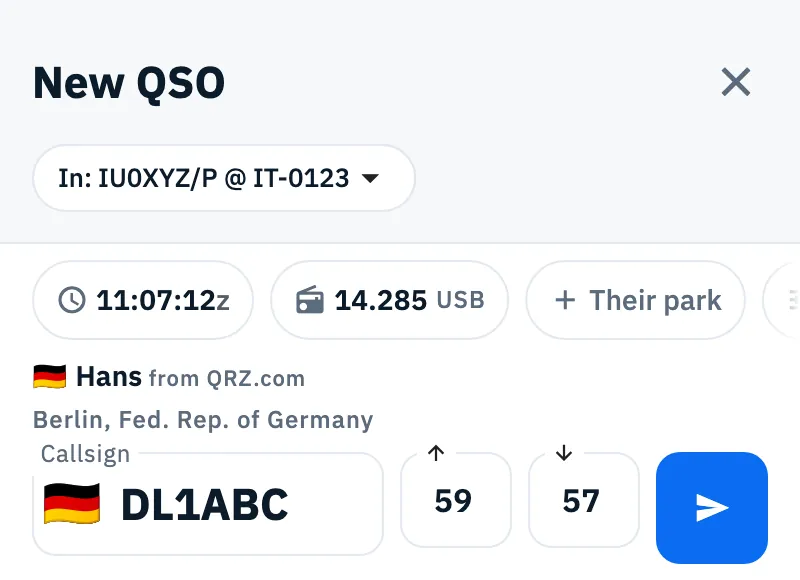
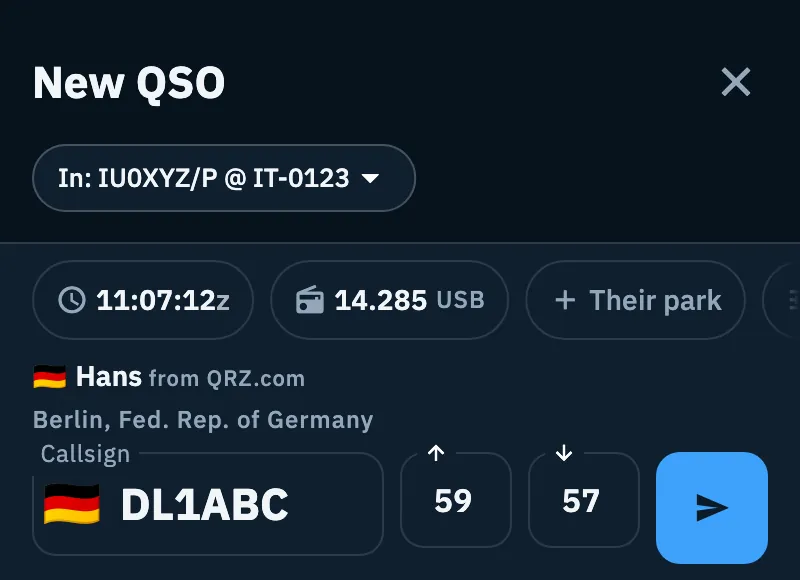
When you come from a spot, callsign, frequency, mode and the other station's reference are already filled in and the cursor goes straight to the reports, with the report keypad instead of the keyboard. After saving, the panel shows the check mark and closes by itself. When the panel opens without a callsign (for example from the radio with no spot tuned) the cursor is on the callsign and the panel stays open for the next QSO.
Which operation the QSO goes to
At the top of the New QSO panel the In: … chip tells you where the QSO will be saved: the operation in use, or Main station if you have none yet.
- Tap the In: … chip.
- In the Where the QSO goes sheet pick an operation. The list shows only the operations that take QSOs (not archived and not closed), most recent first.
- The callsign you typed stays; frequency, mode and fields follow the new operation.
The change is for this QSO; saving it makes that operation the one in use. The bar fixed inside an operation has no such chip: the QSO always goes into that operation. To create and pick operations see Creating an operation.
Logging the QSO
- Type the callsign in the Callsign field. Letters turn uppercase and spaces are left out; the country flag shows from the first letters.
- Move to the Sent and Received reports with a tap (in the narrow bar of a phone the two fields show the ↑ and ↓ arrows instead of their label).
- If the operation has one, fill in the context field (reference or exchange, see below).
- Tap Save QSO (the paper plane button), or press Enter on the keyboard or Log on the keypad.
Only the callsign is required. The app works out the rest: the band from the frequency, country, DXCC and zones from the callsign, your station's data from the operation, distance and heading from both locators. The other operator's name is not waited for: if the QSO is saved without it, it is filled in later, in the background.
After saving, the button turns green with a check mark, the phone vibrates and the screen reader says "QSO saved". Under the chips Saved shows for a few seconds with the callsign and time, with the cloud icon until the QSO is synced (see Your log on all your devices). The cursor goes back to the callsign: frequency, band, mode, power and (for a past QSO) date and time stay for the next QSO.
The chips above the fields (time, frequency and mode, references, More fields) are tapped to change their values. For the frequency row see Frequency, band and mode of a QSO; for what the bar shows about the station (name, earlier QSOs, dupes) see Who you are working, and dupes.
The callsign key row
On a phone and a tablet, while you type the callsign with the on-screen keyboard, a row of large keys shows above it with the digits 1 to 0, the dot and the slash "/": they are there for /P or prefixes like HB0/ without switching keyboard. In the reference field the row has the digits, "-" and "/" (for codes like IT-0123 or W6/CT-006). With a hardware keyboard, and so in the desktop window, the row does not show.
The report keypad
The report fields never open the system keyboard: under the bar the report keypad shows, lower than a keyboard.
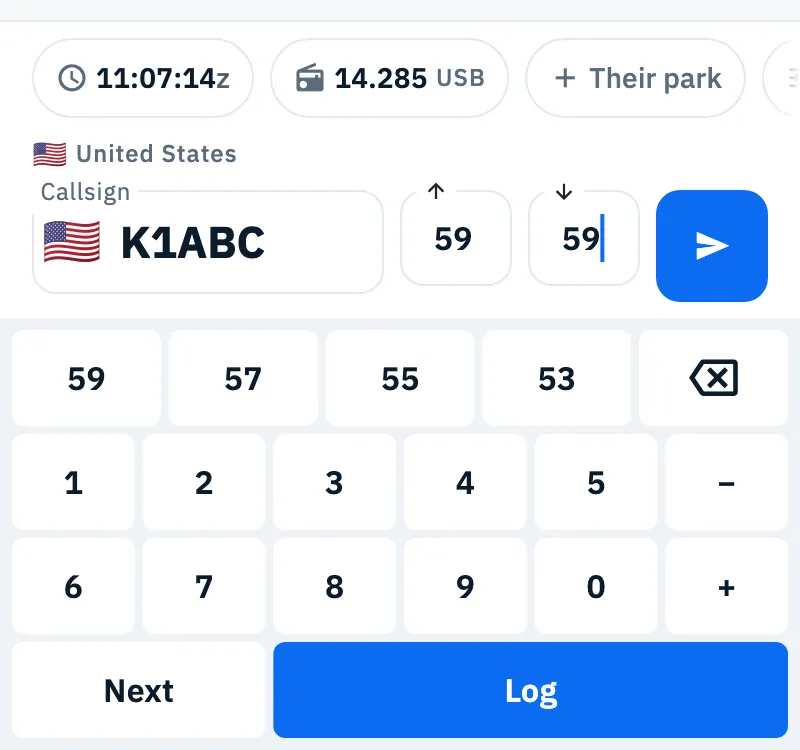
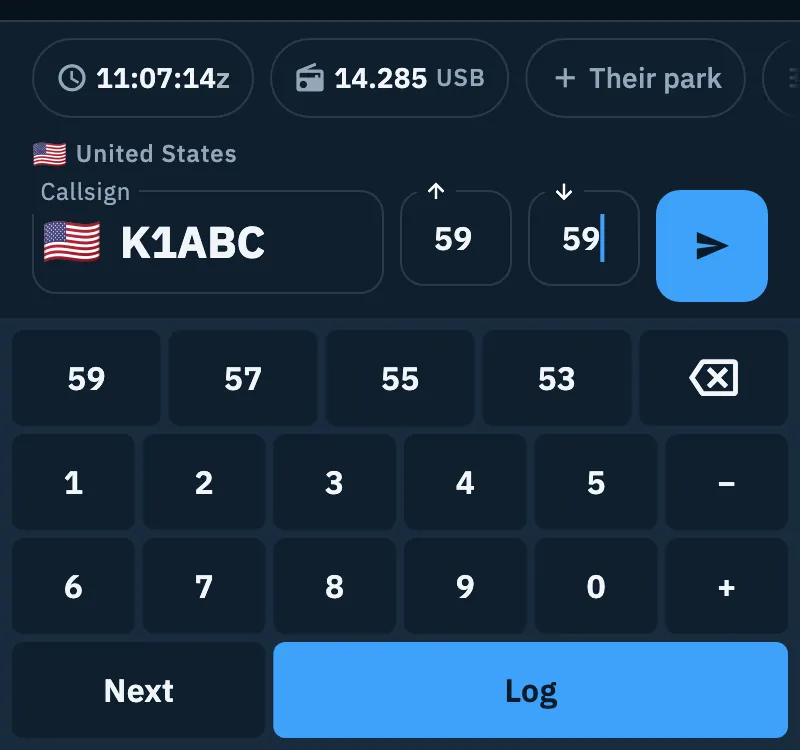
- Tap a report field: its whole value is selected, so the first key replaces it. From a spot the cursor starts on Received.
- Tap a shortcut in the first row: it writes the whole report and moves to the next field. Or type the digits one by one.
- Next goes from Sent to Received and then to the context field; Log saves the QSO.
| Key | What it does |
|---|---|
| Shortcuts | The reports most given in the mode: 59, 57, 55, 53 on phone; 599, 579, 559 in CW and keyboard digital modes; -10, -15, -05, +00 in modes like FT8, FT4 and JS8 |
| Key with the back arrow | Deletes the last character (or the selected part) |
| 0-9, − and + | Type at the cursor; − and + are for dB reports (-12, +05) |
| Next | Goes to the next field; off when there is none |
| Log | Saves the QSO; off while the callsign is missing |
The keypad is there on phones and tablets. As soon as you type in a report on a hardware keyboard the keypad goes away; in the log bar of the desktop window it never shows and the reports are typed on the keyboard.
Default reports
Reports start filled in for the mode: 59 on phone, 599 in CW and keyboard digital modes (RTTY, PSK31…), -10 in dB modes (FT8, FT4, JS8, FST4, Q65, JT65, JT9, MSK144). When you change mode the reports follow it, until you type one yourself: from then on that report stays as it is. You can change the starting values per mode in Default RST per mode in the Logbook settings, and an operation can have its own. If you hid the report fields in Fields in the entry bar, the default value is saved anyway.
The context field: reference or exchange
The field after the reports changes with the operation:
- In a POTA, SOTA or WWFF activation it is the other station's reference, for a park to park: Their park, Their summit or Their area depending on the operation's references. You can type more than one, separated by a comma or a space. While you type, "IT0123" becomes "IT-0123".
- In a contest it is the Exchange (or the name the contest gives its exchange), When the contest has a serial, the field shows the example "Serial and exchange, e.g. 123 MI": the leading number becomes the serial received, the rest the exchange. The chip with the hash shows the serial you are about to send; tap it to change it in More fields. See Logging in a contest.
- In the other operations (home, portable, other, with no POTA, SOTA or WWFF reference) there is no context field.
When the bar is narrow, as on a phone, in an activation the field is a + Their park chip (or summit, area) in the chip row: tap it and the field opens under the reports; when you leave it, it folds back into a chip showing what you typed. The references you typed show as chips in the program's color. In a contest the exchange sits on a second line, always open. When the bar is wide (from 600 points, for example in the Log section on a tablet or a computer) the field is on the same line as the callsign.
Enter in the reference field, while you are typing a code, puts the reference in (the code you typed when it is complete, else the first suggestion) and does not save; after the comma, or with the field empty, Enter saves the QSO.
Suggestions from the catalog
From 2 characters, code or name, the matching parks, summits and areas of the catalog show under the bar as chips, of any program and in the program's color (up to 8). Tap the right one: it goes into the field followed by a comma, ready for the next reference. References already typed are not offered again. If the catalog does not answer, for example offline, no suggestions show but you can type the code yourself. For the catalog see Finding and choosing references.
Logging a past QSO
Normally the QSO takes the UTC time of the moment you save it: the first chip of the bar is a running UTC clock. To log QSOs made earlier, for example from a paper log:
- Tap the clock chip.
- In the Date and time of the QSO sheet pick Past QSO ("Pick the UTC date and time; the next QSOs keep them").
- Pick the UTC date of the QSO (from 1900 to tomorrow) and then the UTC time of the QSO, always in 24 hours. If you close the picker without choosing, the QSO takes the last date and time you used, or those of the last QSO.
- The chip now has the history icon, shows date and time and the word past.
The next QSOs keep the same date and time, so you can log many in a row. To go back to the current time tap the chip again and pick Now. With a past QSO the connected radio does not change the bar's frequency and mode and no station suggestions are offered. Times are always UTC, never local.
Saving without a band
If you press Save QSO while the QSO has neither a frequency nor a band yet (the frequency chip says Pick band), instead of an error the frequency row opens with the message "Pick the mode if needed, then the band: the QSO is saved right away.".
- Pick the mode, if needed.
- Tap the band: the QSO is saved at once, with the callsign you typed. Or type the frequency and tap Done.
More fields
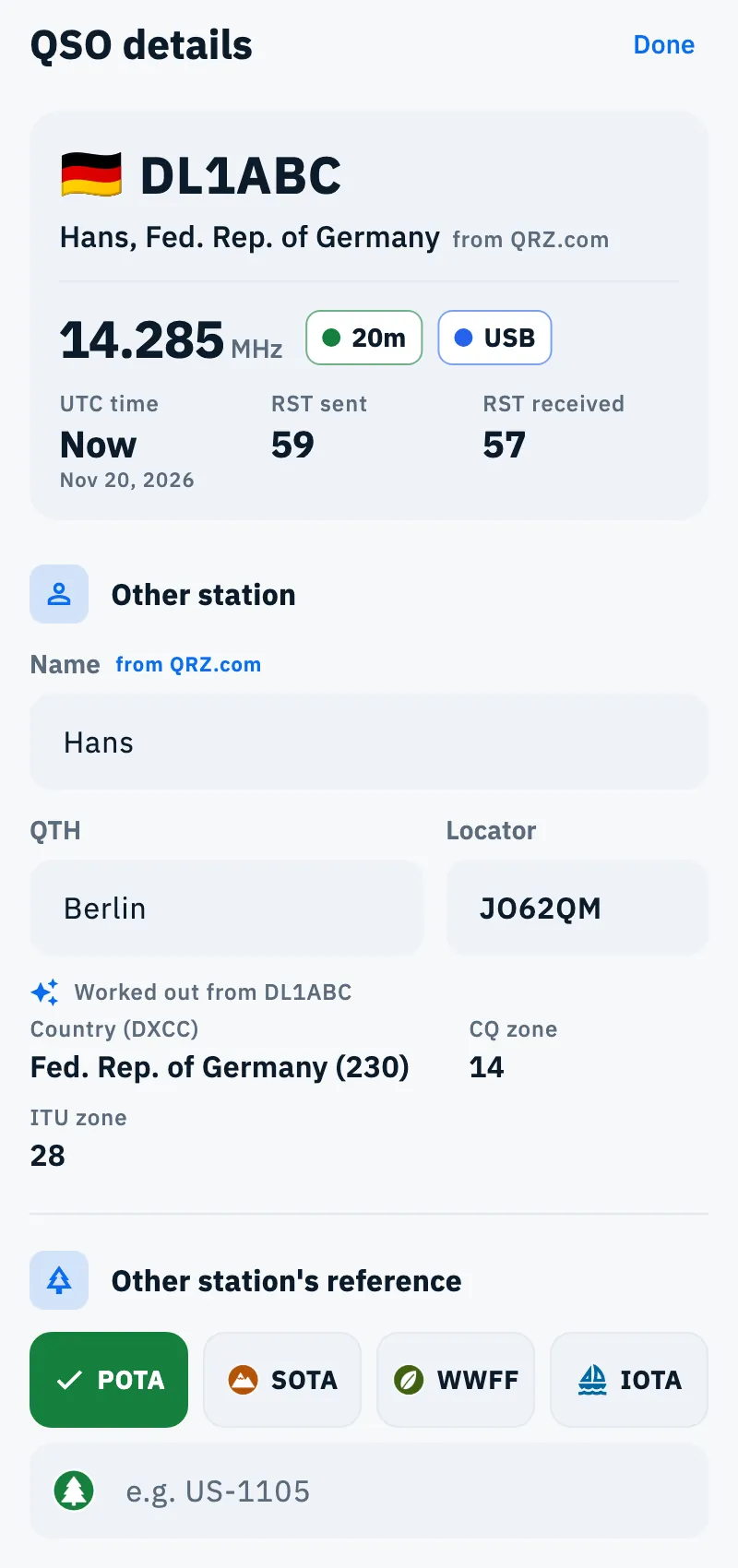
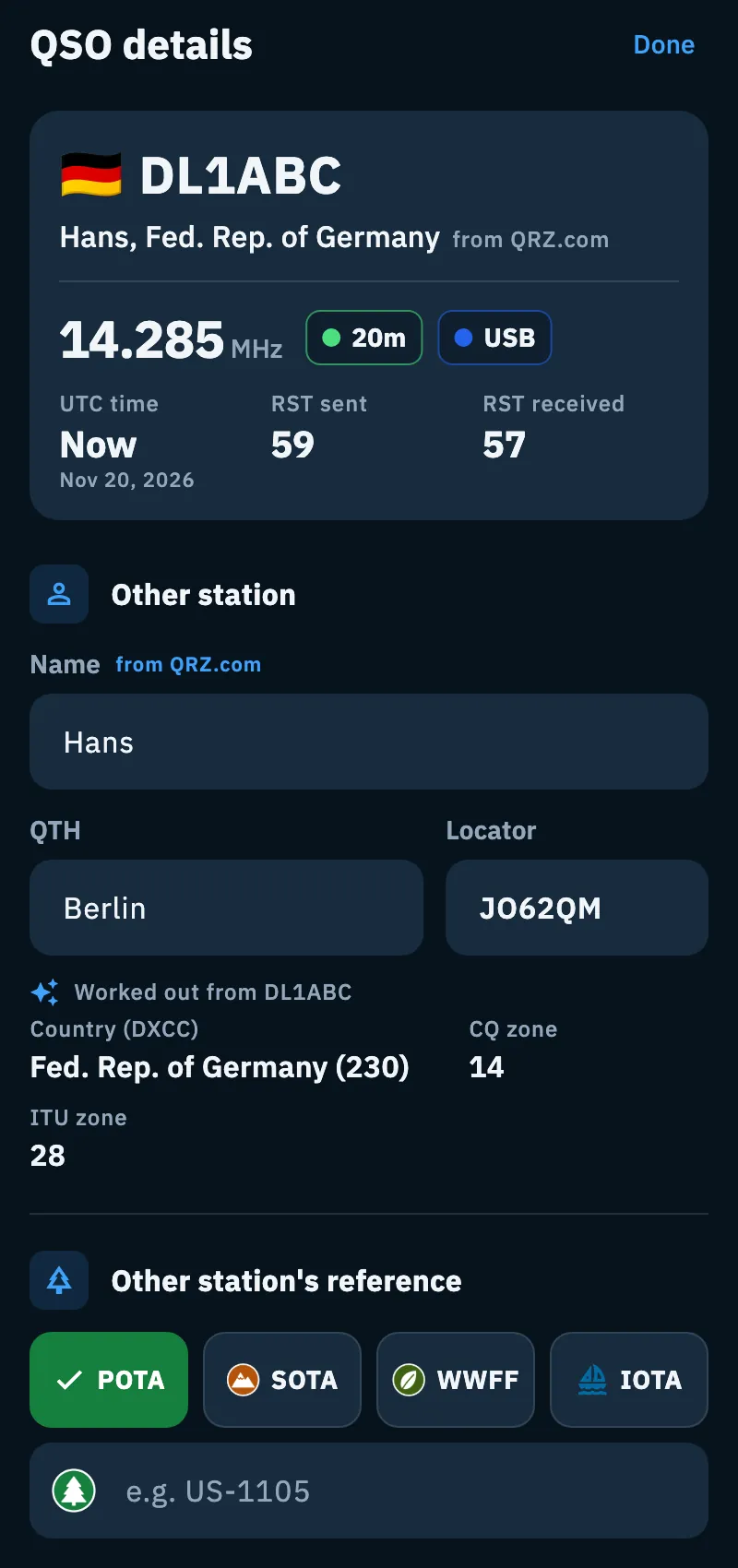
- Tap the More fields chip at the end of the chip row.
- QSO details opens: on a phone as a sheet you can drag, on a tablet as a dialog.
- Fill in the fields you need and tap Done.
- Save the QSO from the bar with Save QSO: the form has no save of its own, what you type goes with the next save.
At the top is the summary: callsign with flag and name, frequency, band and mode, UTC time ("Now" for a live QSO), RST sent and RST received. Tap the frequency to change it, or the time to pick a UTC date and time (the QSO becomes a past QSO). Then the sections:
| Section | Fields |
|---|---|
| Other station | Name (with its source, for example QRZ.com), QTH, Locator; State (USA) for stations in the United States ("Pick the state"; "prefilled" when you did not pick the state yourself and it comes from the spot, the callbook or the log). Country (DXCC), CQ zone and ITU zone are not typed: they are "Worked out from …", or "From the callsign prefix" |
| Other station's reference | The other station's references in the program's colors, to add and remove, with suggestions from the catalog |
| Time and frequency | End (UTC) ("None" until you pick it, Clear to remove it), RX frequency (split) in kHz, Power (W) |
| Contest | Serial sent, Serial received, Exchange sent, Exchange received. Open in a contest or when it already has values, folded otherwise ("Contest serials and exchanges") |
| Notes | Comment ("Goes into the exported log and uploads") and Personal notes ("Only for you: they stay in your log"). Folded while empty |
When a station in the United States has a known state, the bar shows it in a chip with the state's flag; tap it to open More fields. Fields you hid in Fields in the entry bar of the Logbook settings do not show, but their prefilled values are saved.
With the keyboard, in the desktop window and on the web
In the desktop window the bar sits at the top of the log and works entirely from the keyboard:
| Keys | What it does |
|---|---|
| Tab | Goes from callsign to reports, context field and send |
| Enter | Saves the QSO |
| Esc | Clears the QSO you are typing; with the bar already empty it goes to the table, on the last QSO saved |
| Alt + F | Opens or closes the frequency row (on a Mac too, where you press Option + F) |
| Ctrl + Enter (⌘ + Enter on a Mac) | Uses the station suggested on the frequency |
Ctrl/⌘ + Enter also works on phones and tablets with a hardware keyboard. All the shortcuts are in Keyboard shortcuts.
On the web, if you tap Reload to move to a new version while you are typing a callsign, the callsign is not lost: you find it again in the bar of the same operation. Only the callsign is kept, not the other fields.
Troubleshooting
| Message | What to do |
|---|---|
| "Type the callsign" | You pressed Enter with an empty callsign (without a callsign Save QSO is off): type the callsign. |
| "This callsign doesn't look valid" | Check the callsign: it needs letters and digits, at least one of each, separated only by "/" (like EA8/DL1ABC/P). |
| "The band is missing: enter the frequency or pick the band" | Tap the frequency chip and pick the band or type the frequency, then save again. |
| "This operation is closed: no more QSOs are logged here." | The operation was closed: reopen it with Reopen operation (see Closing, reopening and deleting an operation) or pick another operation in In: …. |
| "This operation no longer exists: the QSO was not saved" | The operation was deleted, for example on another device: pick another one in In: … and save again. |
| "Couldn't save the QSO, try again" | The device could not write the QSO: tap Save QSO again. |
While the QSO is saving the button shows a spinner instead of the paper plane. If you save a QSO into an archived operation, the operation comes back among those in use and under Saved you read "Back among your operations".