
Reading the DX Cluster list
See who is on the air now in the live DX Cluster list and what each spot tells you: frequency, mode, country, comment and age.
Free and ProUpdated for HamQSO 0.1.19
On this page
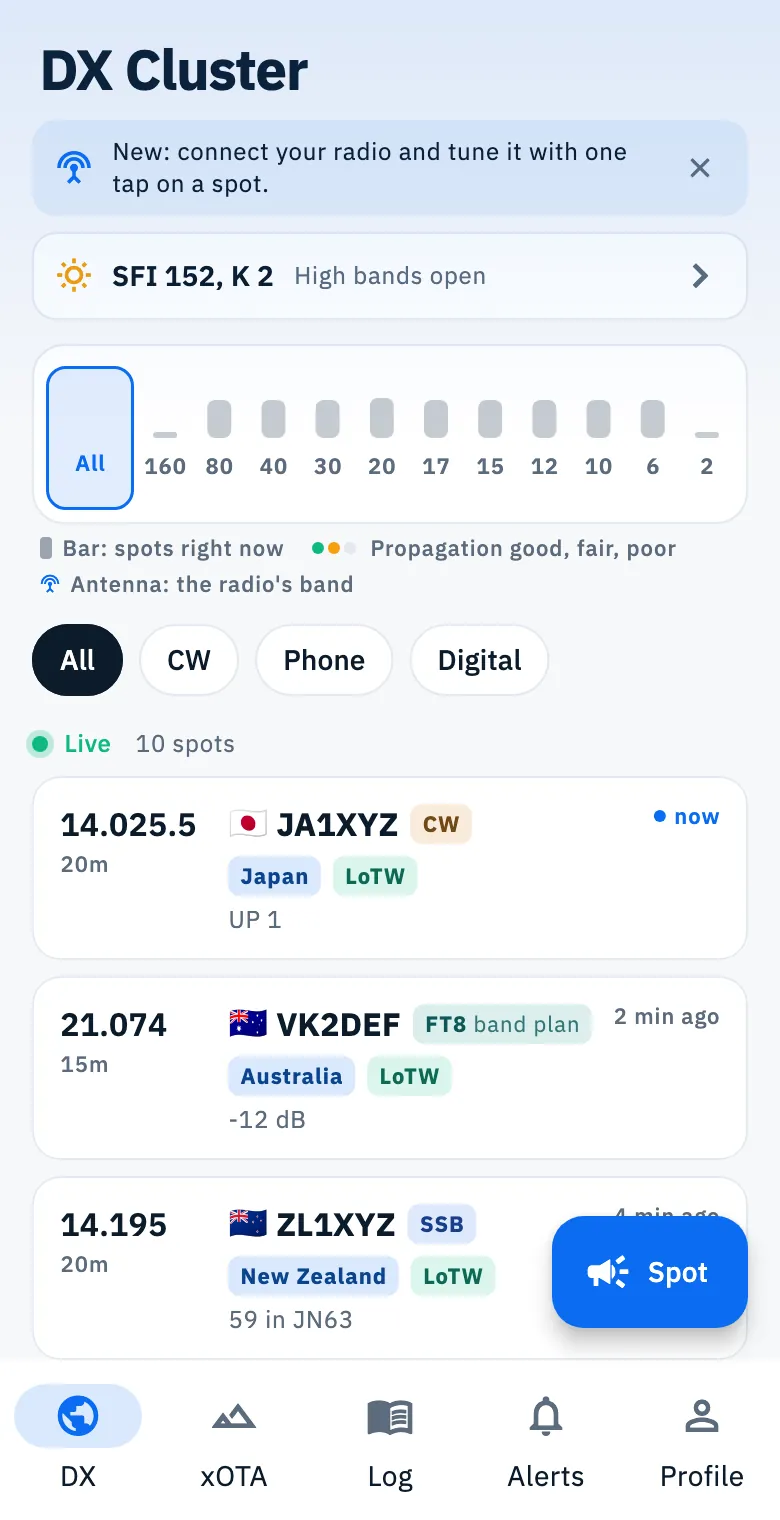
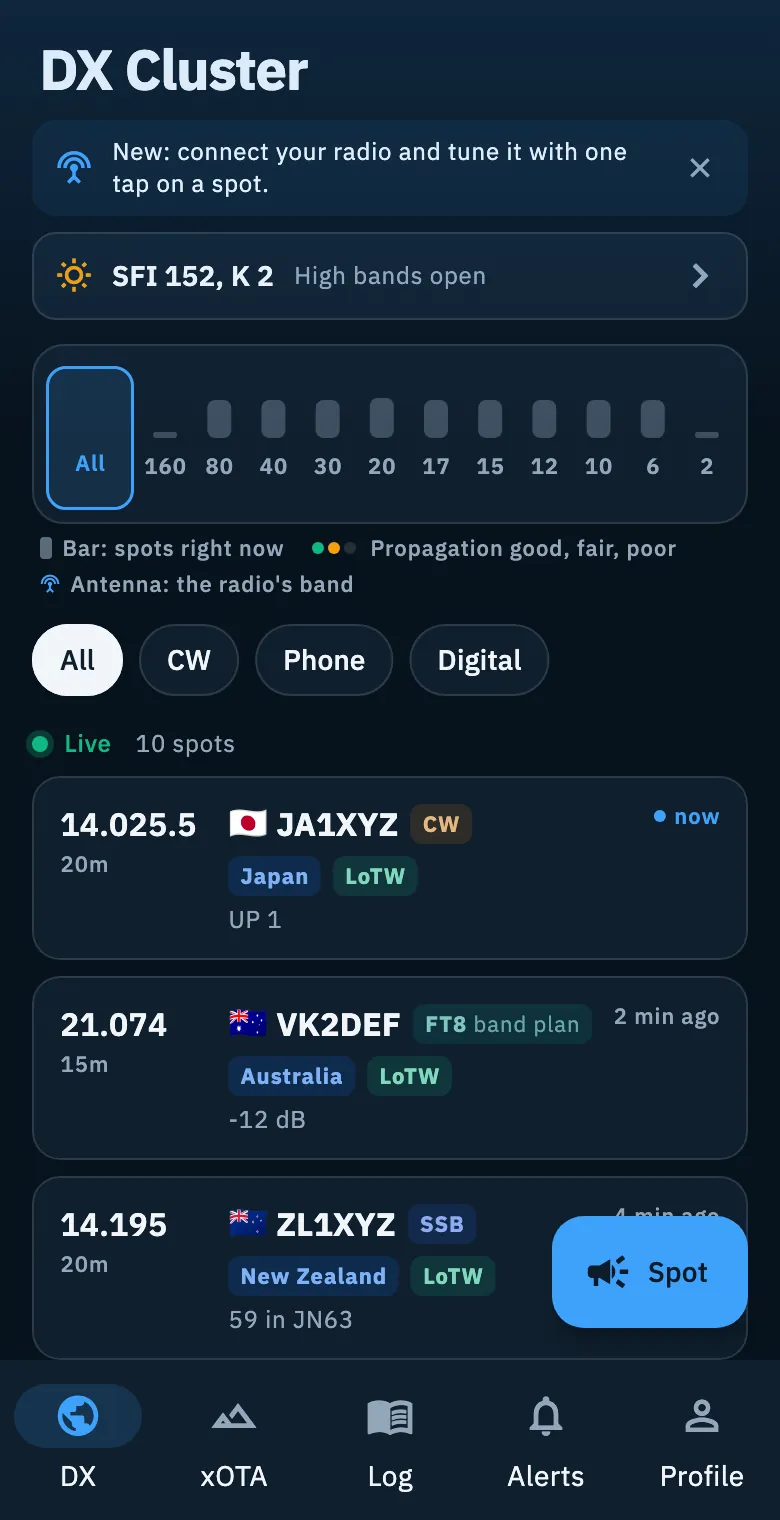
The DX Cluster list shows you, live, the DX stations being spotted right now, newest at the top. This page explains how to open it, how to tell whether it is really live and what each spot says.
Opening the list
- Open the DX section: it is the first one, and the app opens on it. The page is called DX Cluster.
- Look at the first row of the list, above the first spot: when it says Live, new spots appear at the top as they arrive.
- Narrow the list with the band strip and the mode chips: see Filtering spots by band and mode.
- Tap a spot. On a phone its detail opens; on a tablet and on the web in a wide window the detail appears beside the list (see Opening a spot).
The list updates by itself while it is on screen. There is no sort option (new spots are always at the top) and no search field. To look for a callsign on the web, use the command palette.
Live status and spot count
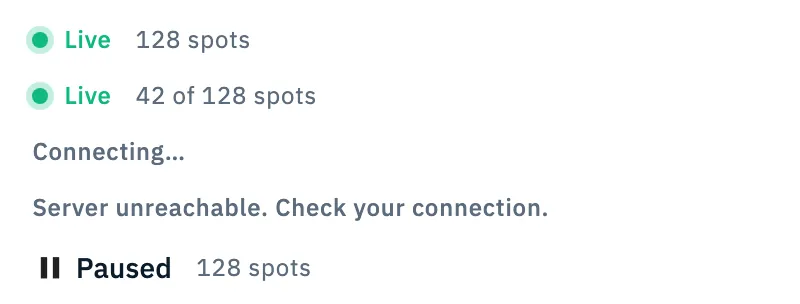
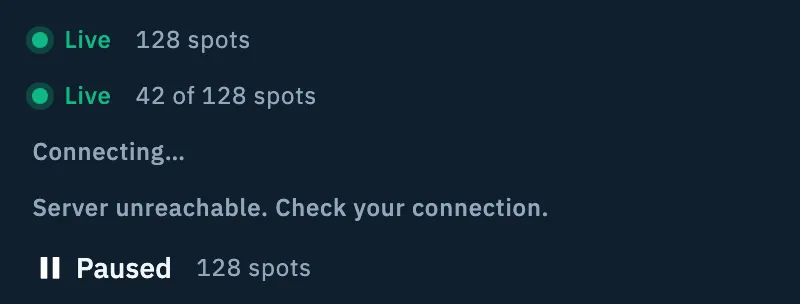
The first row of the list tells you whether you can trust what you see: the green dot is there only when spots are arriving live from the HamQSO spots server and the list is up to date.
| What you read | What it means |
|---|---|
| Live | Spots are arriving live. |
| Connecting… | The app is reaching the server: wait a moment. |
| Server unreachable. Check your connection. | The server has not answered three times in a row. The app keeps trying by itself. |
| Offline / No internet | The device has no network, or it is on a network without internet. See Using HamQSO offline. |
| Paused | Only on the web, in the dense-row list, after you press Space (see below). |
Next to it is the count: 128 spots without filters, 42 of 128 spots with a filter on. It counts the spots the app holds in the list (at most 200), not every spot of the cluster. Until the list is loaded there is no number.
What each card says
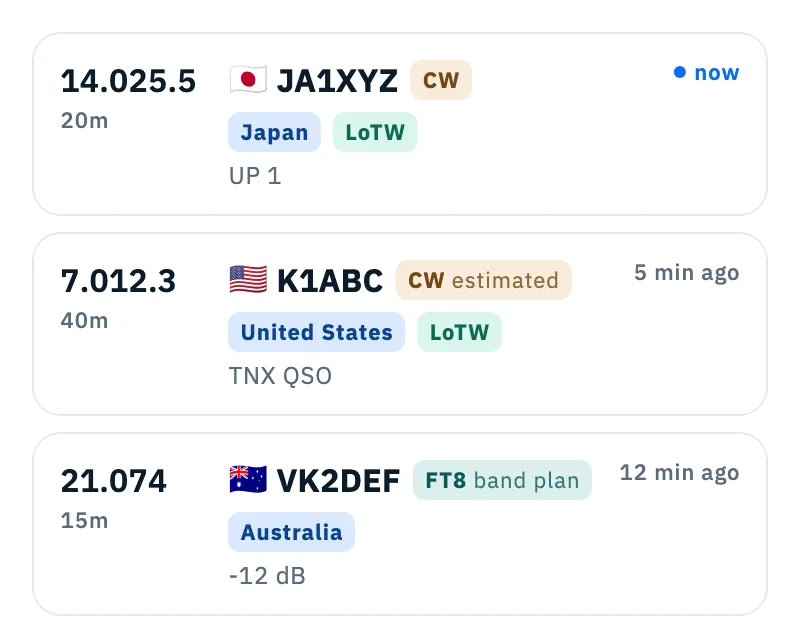
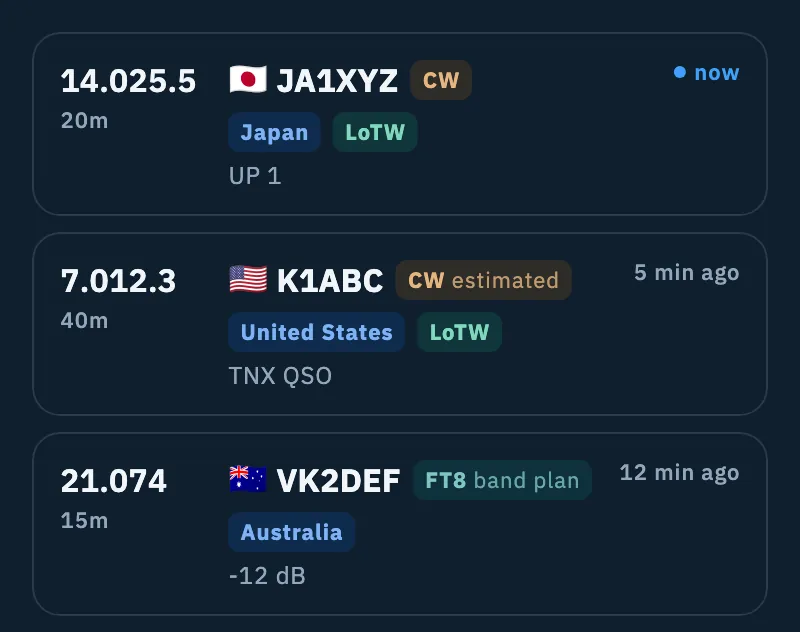
Each spot is a card with this information:
| Part | What it shows |
|---|---|
| Frequency and band | The frequency in MHz as the app writes it, never rounded (for example 14.025.5), with the band below it (for example 20m). |
| Callsign | The spotted station, the one on the air. |
| Mode | CW, SSB, FT8… If the spot does not state it, the mode is estimated and carries a mark (see below). |
| Country | The DXCC entity of the callsign. |
| LoTW | The station uses LoTW. |
| Already worked | If the station is already in your log its mark appears: see Spotting what you have already worked. |
| It's you | The spot is of your own callsign; before the comment you read who spotted you. See Knowing when you are spotted. |
| Comment | What the spotter wrote, on one line. It is hidden when it only repeats the mode, which is already in the mode badge. |
| Age | now, 5 min ago, 2 h ago, 1 day ago. It updates by itself. |
A spot less than a minute old has a blue dot and its age in blue. A spot of a station already worked on that band and mode becomes a shorter grey card: it stays in the list, but the ones still to work stand out. The spotter and the source (Source) are in the detail.
If you have a connected radio with tune on tap turned on, tapping a spot also tunes the radio: see Tuning the radio from spots.
The estimated mode
Many DX Cluster spots do not state the mode. HamQSO gives them one anyway and marks it as estimated. It looks for it in this order:
- The mode written in the comment, or decoded by an RBN skimmer: this is not an estimate and carries no mark.
- The mode of a recent spot of the same station on the same frequency (within the last 15 minutes).
- A frequency busy with digital spots (at least three within 1 kHz in the last 20 minutes): the mode becomes DIGI.
- The band plan of the station's region.
The mode badge then reads estimated (cases 2 and 3) or band plan (case 4). Tap the badge to read why: "The spot does not state the mode: it comes from the band plan for this frequency or from recent spots of the same station." The explanation opens on a tap or a click, never on hover. When nothing can be worked out, the spot has no mode badge.
Where the spots come from
You do not choose any cluster or node. The HamQSO spots server gathers spots from several DX clusters and sends them to the app live; the source of each spot is in the detail, under Source. The app and the web use the same server.
- The app asks the server only for the bands and modes you filter.
- The app holds at most 200 spots, one per callsign and frequency: a spot repeated by another cluster keeps its place.
- The list receives spots only while it is on screen and the app is in the foreground.
Your callsign for the DX Cluster
Receiving spots needs nothing. To send them (see Spotting a station) HamQSO logs in to the DX Cluster with your callsign plus an SSID chosen for this install, so it does not disconnect the logger you use on your computer with your plain callsign.
- Open Profile and tap the card at the top with your callsign (or Callsign not set): Your profile opens.
- Under Station, enter Your callsign.
- Below the field you can read the login the app uses, for example: "Used for the live DX Cluster. HamQSO logs in as IU0XYZ-12, so it does not disconnect your logger."
The SSID (2 to 15) is picked at random the first time and then kept; you cannot change it. If another device of the same account already uses that SSID, the app takes a different one. On phones and tablets the app logs in to the cluster only to send a spot and logs out after 3 minutes without sending; on the web the HamQSO server sends the spot for you. Without a callsign you cannot send spots. More in Your profile: name, callsign and locator.
Radio and propagation at the top of the list
Between the title and the band strip there are two rows:
- The radio: until you set up a radio, a tip says "New: connect your radio and tune it with one tap on a spot." Tap it to open the guide, or tap the ✕ (Don't show again) to remove it for good. See Connecting your radio.
- Propagation (phones and tablets): the sun icon, the solar flux and the K index (for example SFI 152, K 2) and a sentence such as High bands open. The sun turns red during a geomagnetic storm (K of 5 or more). Offline, the sentence also gives the age of the data. Tap the row to open Propagation (see Reading propagation). Until the data arrives the row is not there, and the list works anyway.
Refresh and retry
The list updates by itself, but you can restart it at once:
- Pull the list down and release (on touch screens).
- Or, after an error, tap Retry on the error page or in the banner.
A failed refresh never empties the list: the last spots downloaded stay on screen.
Tablet and web
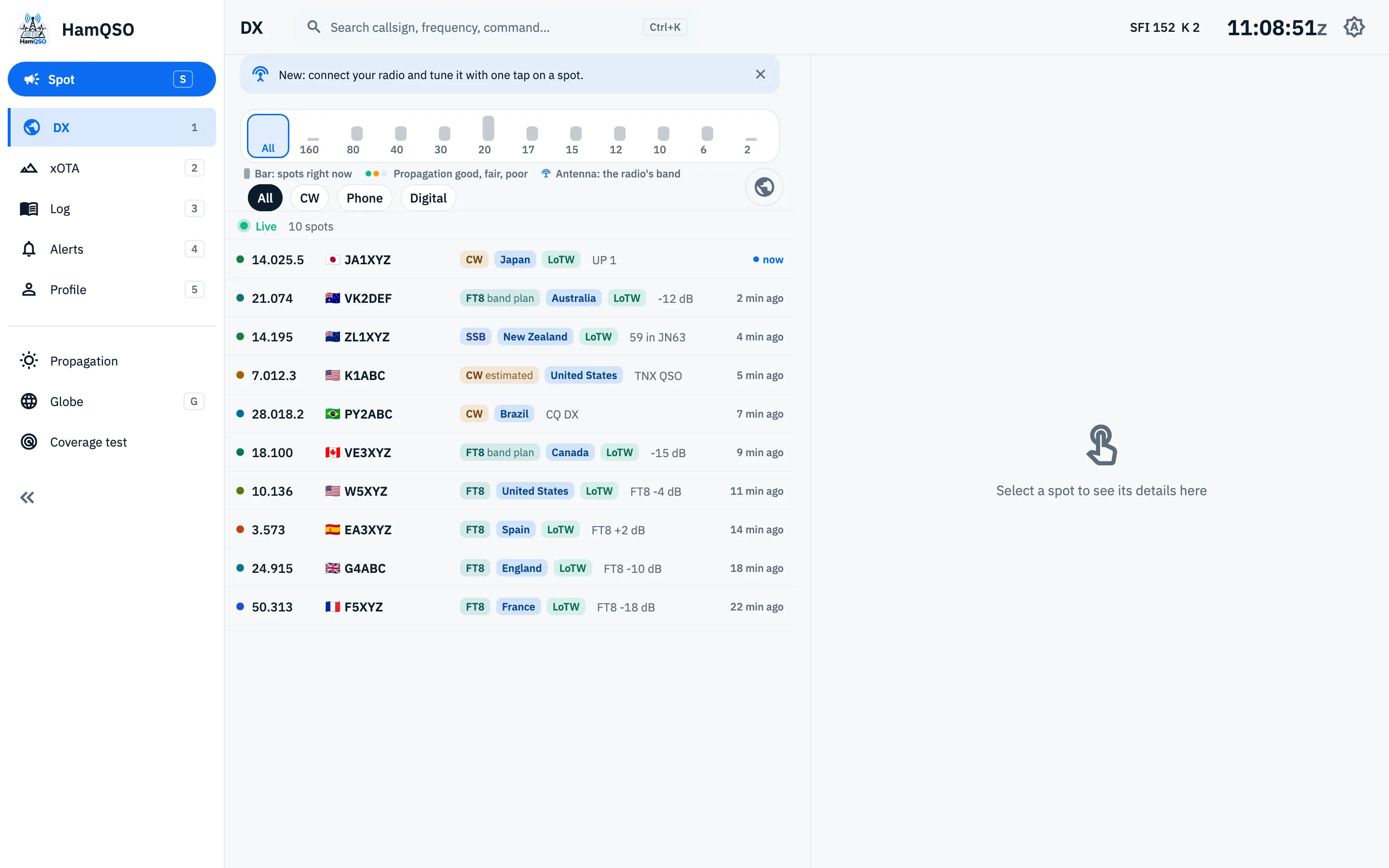
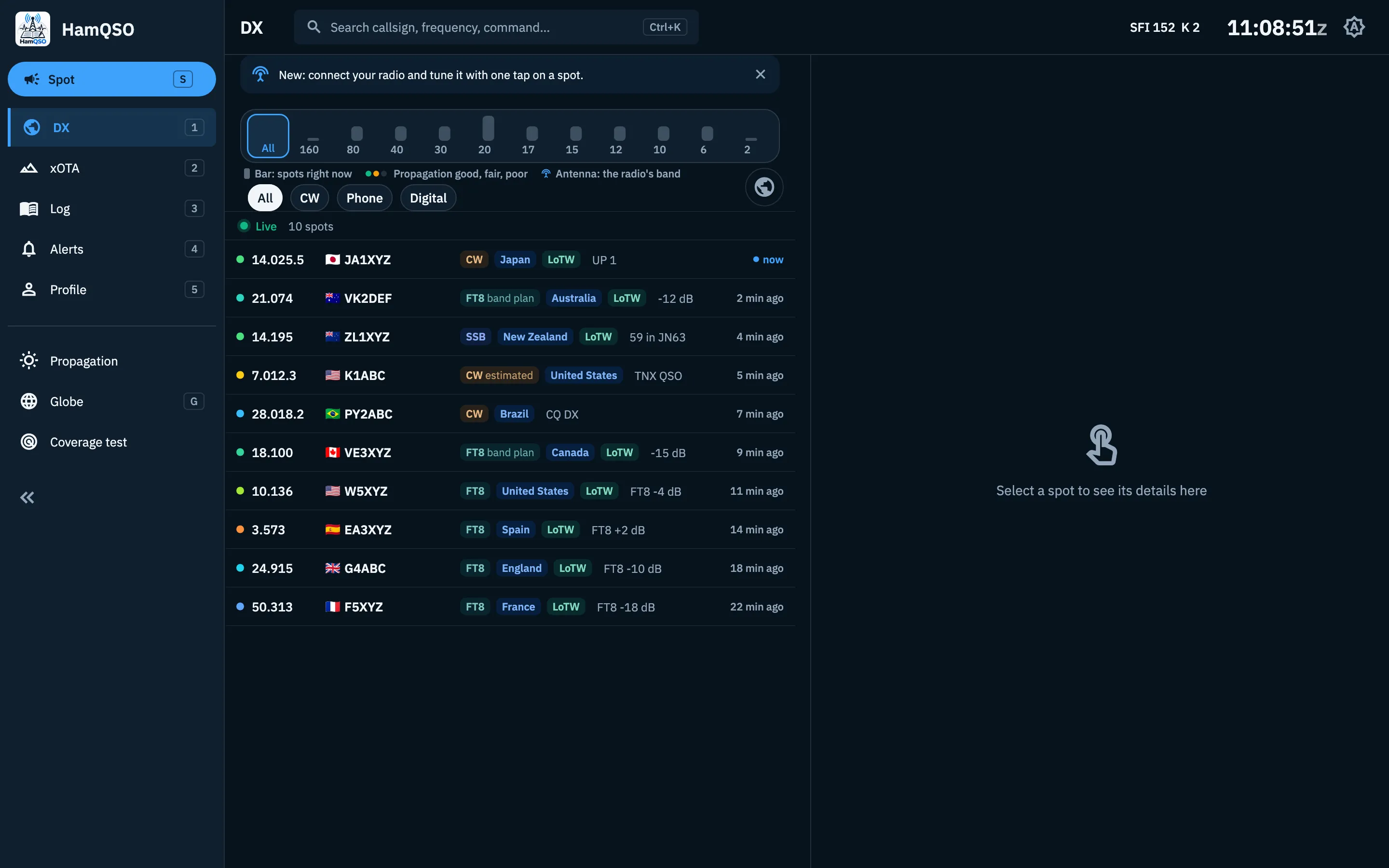
- Tablet (and on the web a window narrower than 1200 px, when there is room): the list is on the left, the detail of the selected spot on the right. Before you choose a spot it says "Select a spot to see its details here". The selected card has a blue border.
- Web, window at least 1200 px wide: spots are dense one-line rows (40 px, 36 px in a window shorter than 700 px), with a dot in the band colour, frequency, callsign, mode, the badges that fit whole, comment and age in a fixed column. The selected row has a blue bar on its left; a spot already done is faded. There is no title (the top bar names the section) and no propagation row: the indices SFI 152 K 2 are in the top bar, and a click opens propagation at the side. List and detail start at half each, and you can drag the divider.
- In a window shorter than 700 px the band legend moves into the first row of the list, and the radio tip becomes an antenna icon next to the filters.
- When you scroll down, the rows you are reading stay still while new spots arrive above them. Hovering with the mouse does not stop the list and shows no tooltips.
Pausing the list
On the web, in the dense-row list, the list never stops by itself. To read it calmly:
- Press Space with the DX (or xOTA) section open: the first row says Paused.
- Spots already on screen still update (their age, for example) and those that left the list disappear; new ones are only counted in a button at the bottom, for example 3 new spots, press Space.
- Press Space again or click the button to show them. Changing a filter also resumes the list.
Space does nothing while you are typing in a field or in the other sections. Phones and tablets have no pause. All the keys are in Keyboard shortcuts.
Troubleshooting
| What you see | What to do |
|---|---|
| "Server unreachable. Check your connection." | Check your connection. The app retries by itself; you can also pull the list down. |
| A page with "Can't reach the service. Check your connection." (or another error message) and Retry | The first load failed. Check the network and tap Retry. |
| "Refresh failed: showing the last downloaded data" with Retry | The spots on screen are those of the last successful update. Tap Retry. |
| "No spots right now. Pull down to refresh." | There are no spots at the moment: pull down or wait. |
| "No spots match your filters" | Tap Clear filters or choose other bands and modes. |
| "Offline: list updated 12 min ago. It refreshes when the network is back." | You are looking at the saved list: it updates as soon as the network is back. If there is no saved list you read "No list on this device". See Using HamQSO offline. |
| A spot's mode looks wrong | If it carries estimated or band plan it is an estimate: listen before calling and check the mode when you log the QSO. |