
Operation summary, milestones and photos
See how a closed operation went: QSOs, countries, ODX, milestones, bands and modes. Add up to three photos and get a notification when a summary is ready.
FreeUpdated for HamQSO 0.1.19
On this page
When an operation ends, HamQSO prepares its summary: the globe with your QSOs, the main numbers, the milestones you reached compared with your whole log, bands and modes, the station and the photos. This page shows how to open it, how to read it, how to add photos and how to get a notification when a summary is ready.
Opening the summary
Only an ended operation has a summary: while the operation is open you find its statistics, not the summary. When you close it, Summary becomes the first section of the operation page and the page opens there. On a tablet the log stays at the left and the summary opens in the right column.
- Close the operation with Close operation (see Closing, reopening and deleting an operation). If you logged at least one QSO, the finale plays: for a few seconds the globe with your QSOs, the numbers and up to 3 milestones. Tap the screen to skip to the end, then tap See the summary (or tap again, or press Esc, Enter or the space bar).
- Later, open the closed operation from the Operations list: it opens on the Summary section.
- When an operation closed by itself, or you closed it from the "… is still open" question while creating a new one, and you have not seen its summary yet, the top of the Operations list shows the "Your summary is ready" card with the operation's name, QSOs and countries. The card appears only when the last QSO is less than 3 days old, and one at a time. Tap it to open the operation, or tap ✕ to dismiss it: it does not come back. When an operation closes by itself you also get a notification (see below).
A Station log, which never closes, has a Summary section too: it shows the period you choose. See Log summaries and statistics.
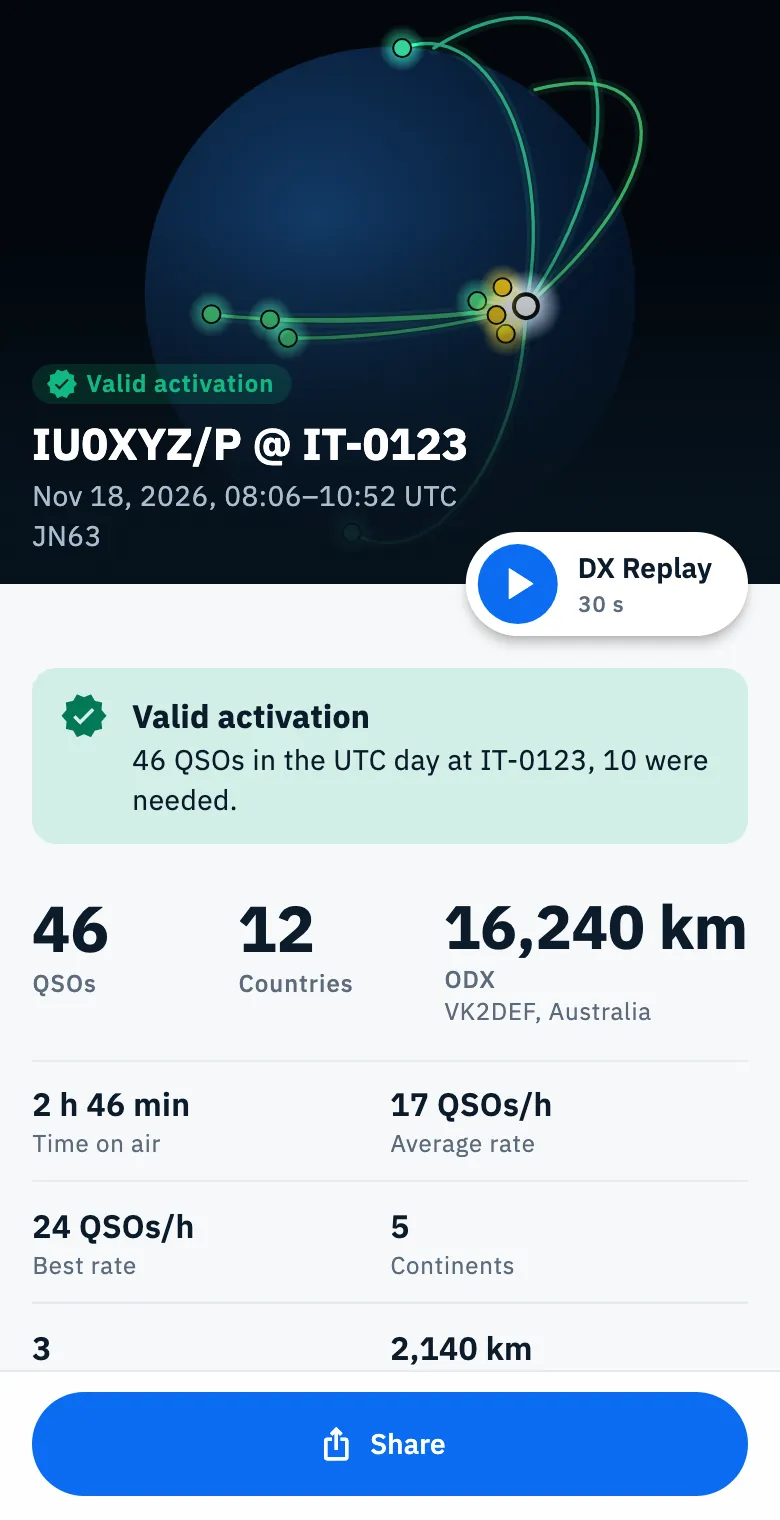
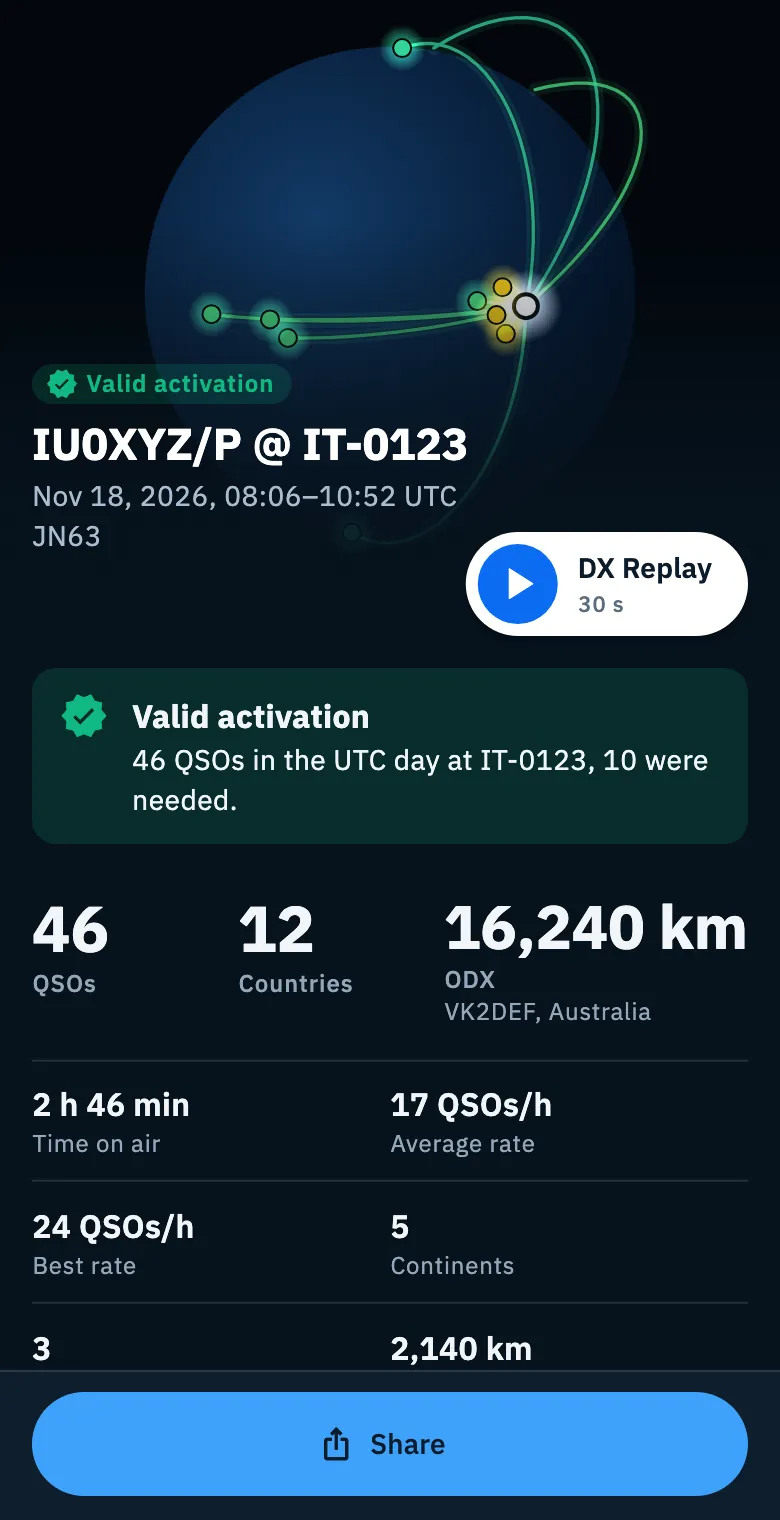
Reading the summary
From top to bottom the summary shows these blocks. A block with no content is left out: with a single QSO there is no chart, with no photos there is no photo block.
| Block | What it shows |
|---|---|
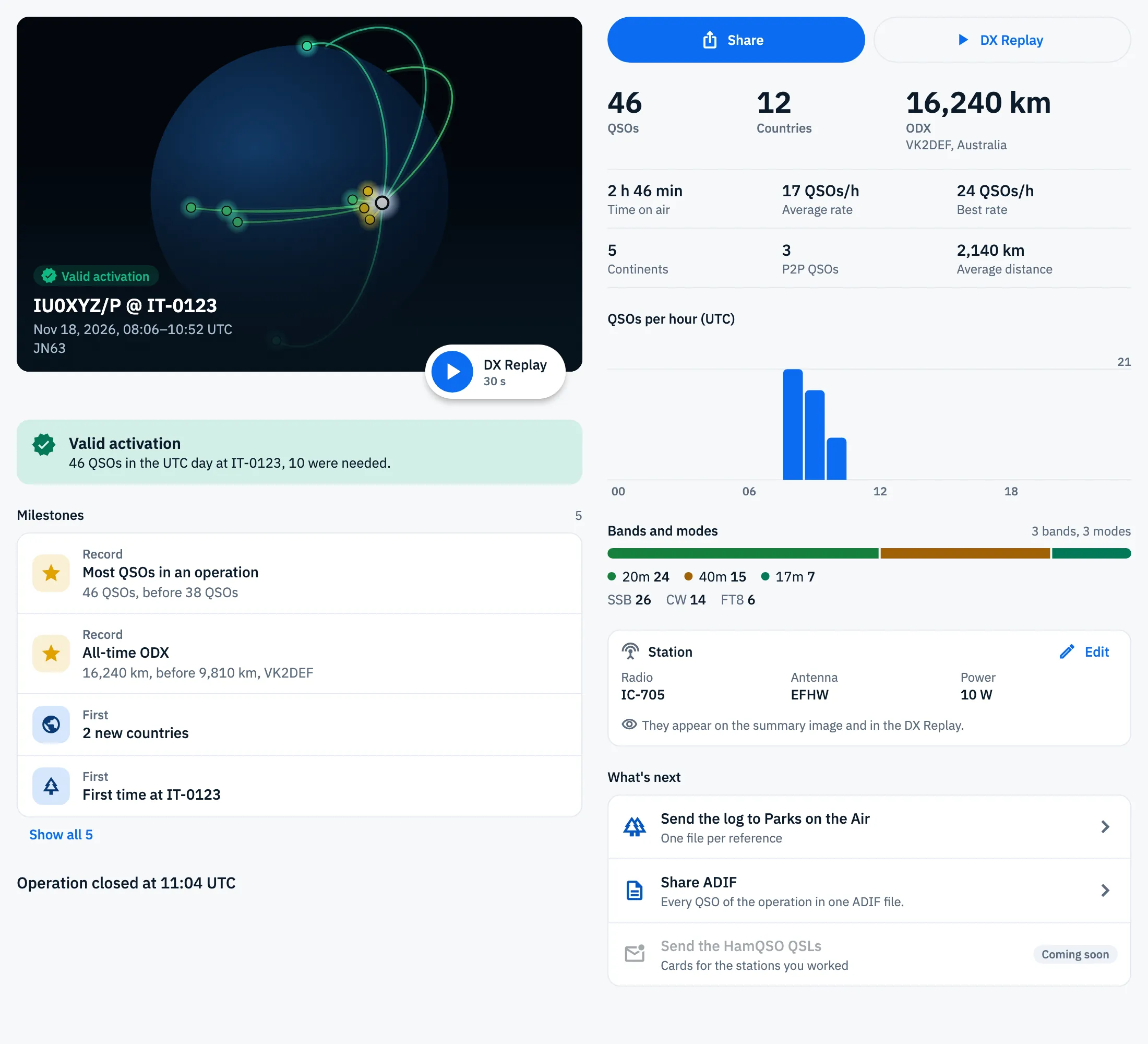
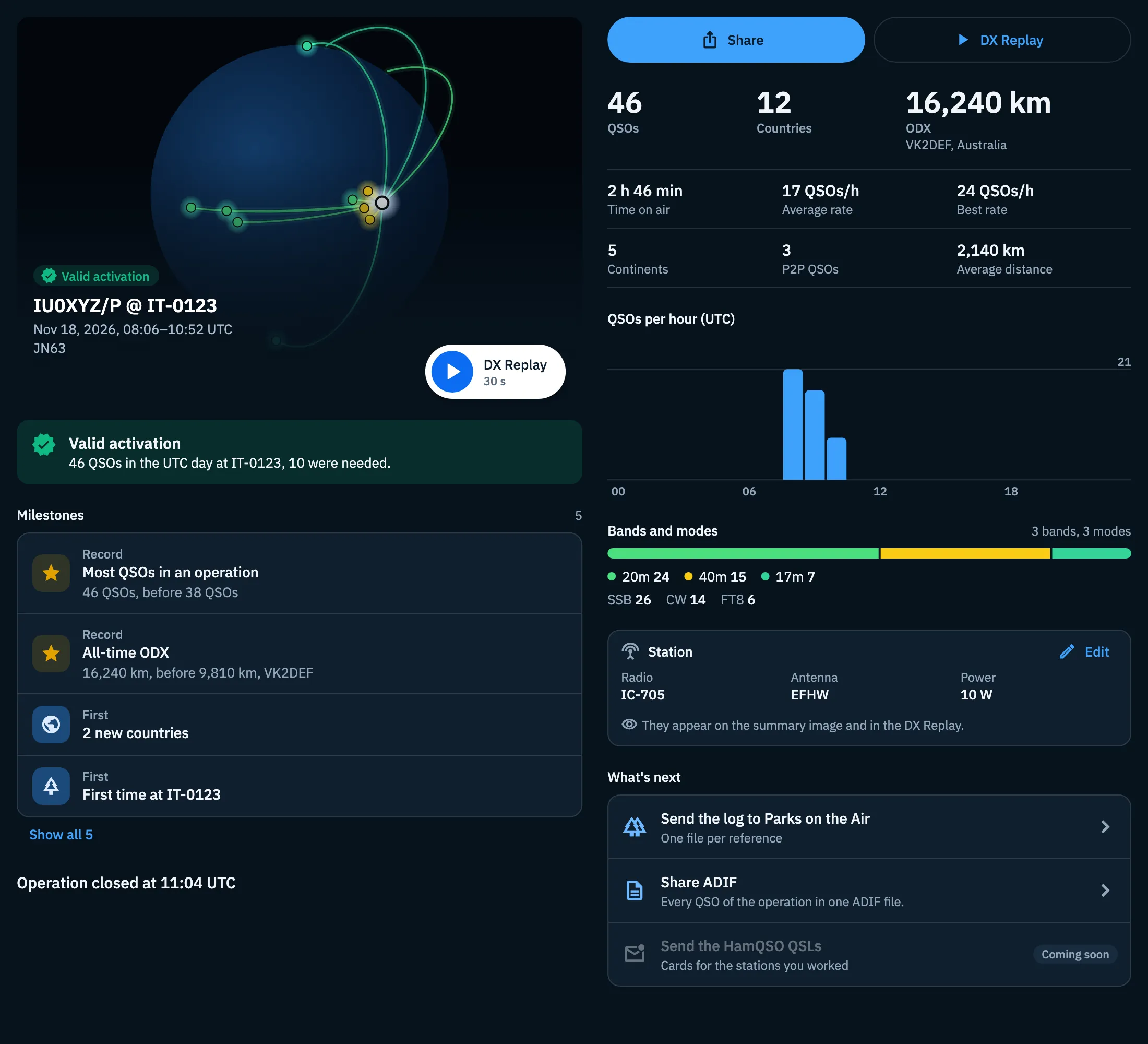
| Head | The dark globe with your QSOs, in the light theme too. At its foot: the status (the outcome of the activation, or Operation closed), the title, the date with the time of the first and last QSO in UTC, the references and the locator. The DX Replay button shows the length of the video under it. |
| Outcome | For each POTA, SOTA or WWFF reference of the operation: Valid activation, with "46 QSOs in the UTC day at IT-0123, 10 were needed.", or, in amber, "3 QSOs short" with the reference and the count ("7 of 10"). |
| Big numbers | QSOs, Countries and ODX: the distance of the farthest station, with its callsign and country. |
| Small numbers | Time on air, Average rate, Best rate, Continents, P2P QSOs (only for activations with at least one P2P QSO) and Average distance. Shown from 2 QSOs up, in full rows (2 per row on a phone, 3 on a wide screen): when the last number does not fill its row, it is left out. |
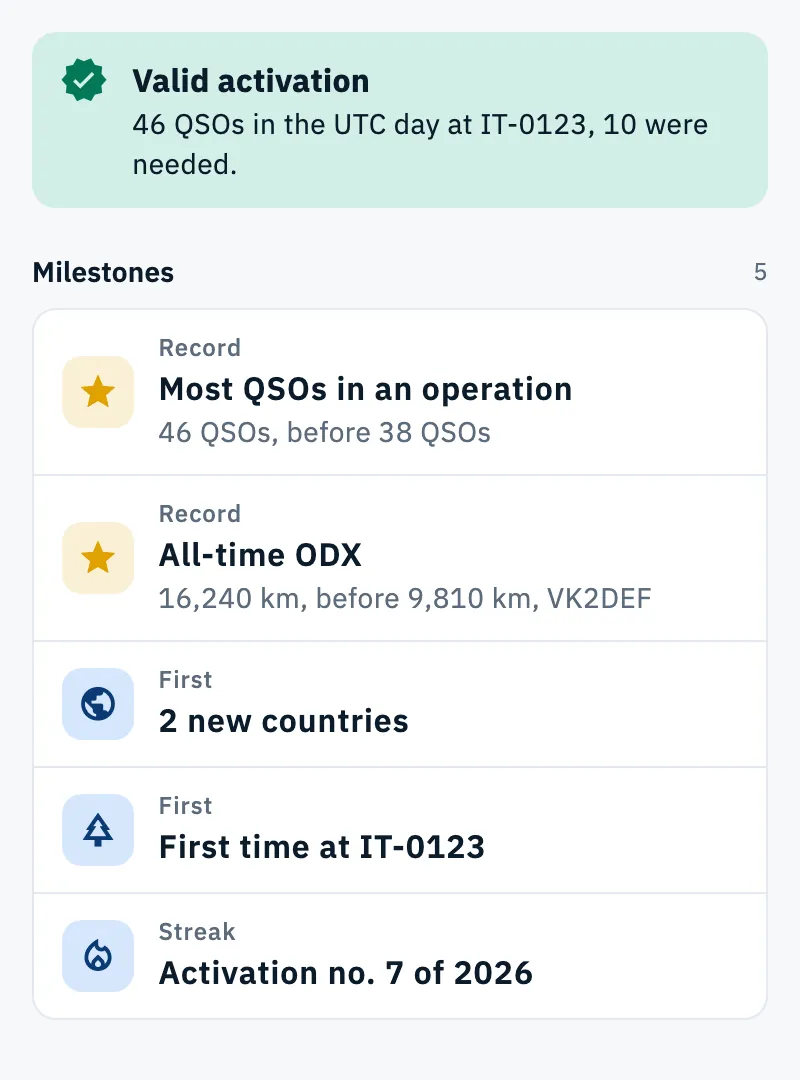
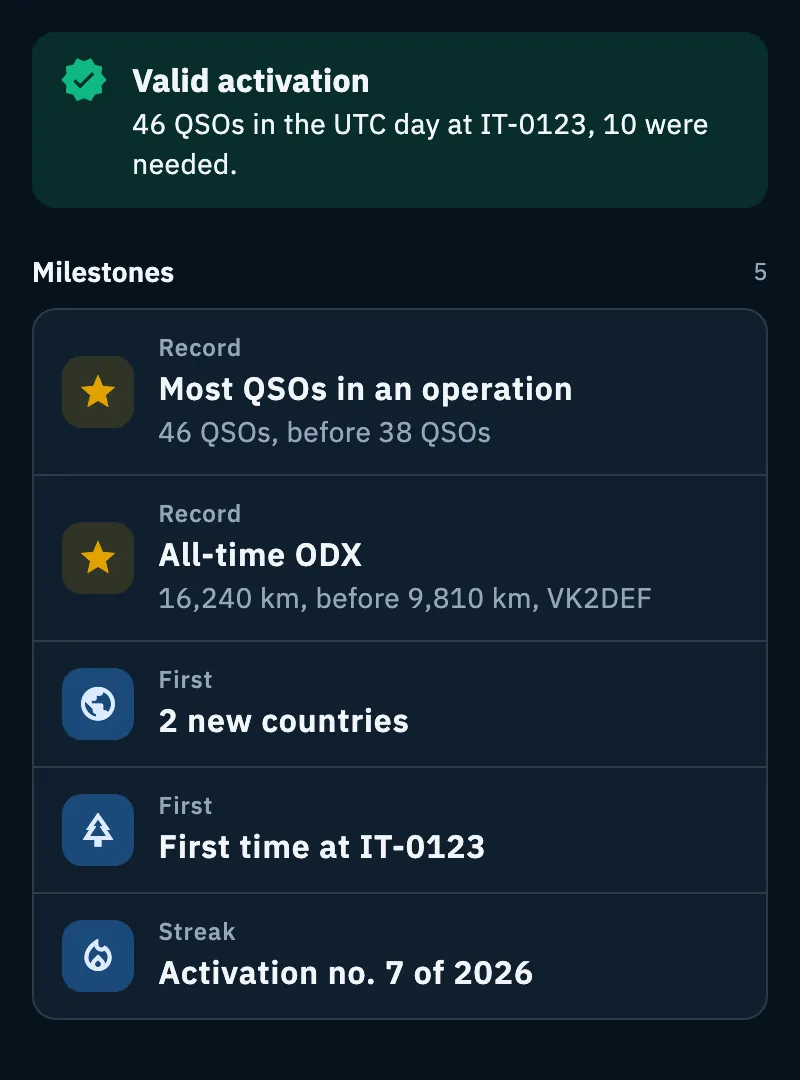
| Milestones | Records, firsts and streaks (see below). The number at the right says how many there are. |
| QSOs per hour (UTC) | The chart of QSOs hour by hour, in UTC. From 2 QSOs up. |
| Bands and modes | A bar split by band in the band colors, the legend with the QSOs of each band, then the modes with their QSOs. |
| Station | Radio, Antenna and Power as the QSOs logged them, when there is at least one. Where one is missing there is Add; Edit and Add open Station, tags and notes. |
| Operation photos | The photos of the operation, with "2 of 3". Tap a photo to open it full screen. |
| What's next | What to do with the log (see below). |
| How it ended | "Operation closed at 11:04 UTC" or "Closed by itself after 12 hours without QSOs". If the operation can still be reopened, under it: "No more QSOs are logged here. If you reopen it, the summary updates when you close it again." |
The summary is calculated again by itself when a QSO of the operation is corrected, deleted, imported or synced from another device.
Milestones
HamQSO compares the operation with the operations you started before it and highlights what matters. Green is for what you reached, amber for what was missed, gold on the icon of a record; never red.
- Scroll to Milestones: you see the first 4.
- If there are more, tap Show all 5 (with their number) to see them all.
| Kind | Milestone | When it appears |
|---|---|---|
| Outcome | Valid activation / "N QSOs short" | Activations only, one row for each POTA, SOTA or WWFF reference you made QSOs from. The best UTC day of the operation counts; for WWFF every activation of the reference counts. In the summary the outcome has a block of its own, above the numbers. |
| Record | Most QSOs in an operation | More QSOs than any earlier operation, with "46 QSOs, before 38 QSOs". |
| Record | All-time ODX | The farthest contact of your whole log, with the callsign. Only an exact distance counts, measured from your locator. |
| Record | All-time peak rate | The best 60 minutes of all your operations. |
| Record | Most countries in an operation | More countries than any earlier operation. |
| First | "New country: New Zealand" / "2 new countries" | A DXCC entity never worked before. One new country is named, several are counted. |
| First | "First time at IT-0123" | The first time you make QSOs from that reference. |
| First | First P2P | The first P2P QSO of your whole log. |
| Streak | "Activation no. 7 of 2026" | Activations only: how many you made in the UTC year. |
A tie is not a record, and the first operation of your log has no records: there is nothing to beat.
What's next: sending the log
At the end of the summary, the What's next block gathers what to do after the operation:
- Send the log to POTA (or to the program of the first reference): "One file per reference", an ADIF file for each reference to upload to the program's site. Shown only when the operation has references.
- Share ADIF: "Every QSO of the operation in one ADIF file."
- Send the HamQSO QSLs, with the Coming soon badge: for now the row is off.
The first two open the export of the operation: see Exporting your log as ADIF.
Sharing and DX Replay
- Tap DX Replay in the head of the summary to watch the video of the operation.
- Tap Share to share the summary image, the video or the link.
On a phone Share is fixed at the bottom of the screen. Everything is explained in Sharing an operation and DX Replay.
Operation photos
You can add up to 3 photos to each operation: the radio, the antenna, the place you transmit from. You find them on all your devices and, when the operation is on the live page, anyone with the link sees them too (see The activation live page).
- Open the operation and tap the Photos section. The operation can be open or closed.
- Tap Add photo.
- The Add a photo sheet first tells you where the photo will go:
- This photo goes online at once: the operation is on the live page, anyone with the link sees it as soon as it is loaded;
- It will go online when you close the operation: you turned on "Show on the live page", until then only you see it;
- Only you see it: the operation is not on the live page.
- Tap Take a photo or Choose from the gallery. On the web and on a computer, in their place, there is Choose a file.
Before sending, HamQSO removes the GPS location and the other data from the photo.
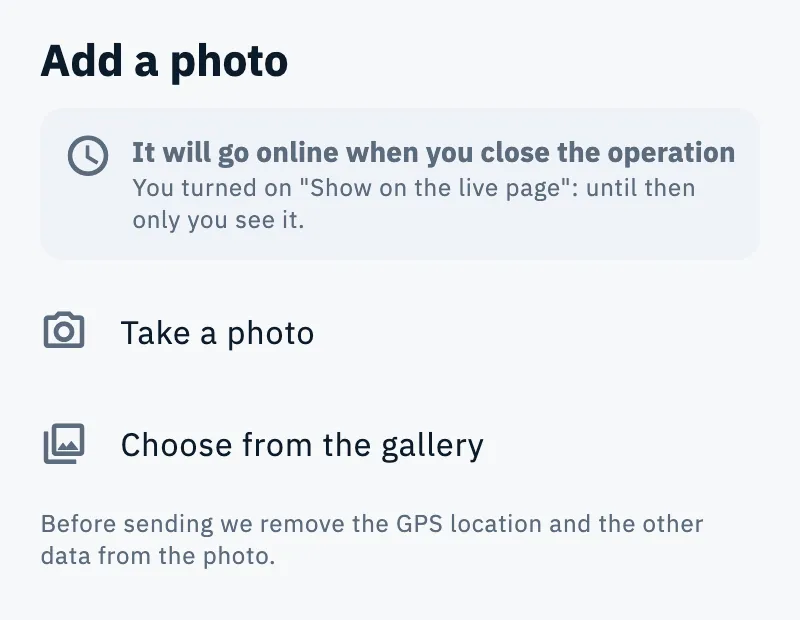
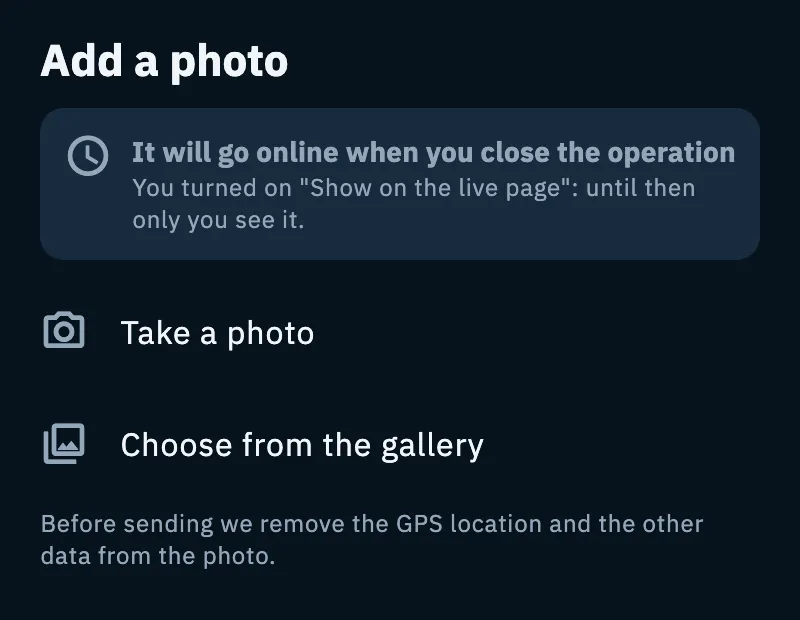
In the Photos section you see:
- the counter, for example "1 of 3", and three fixed places: the photos, the Add photo place and the free ones;
- where the photos are: "They are on the live page: anyone with the link sees them.", "They will go online when you close the operation: until then only you see them." or "Only you see them. To show them, there is "Show on the live page" in the operation settings.";
- over each photo, its state while it is not done yet: Sending, Waiting for network, Not sent, or Hidden from the page.
With 3 photos the Add photo place goes away: "You have 3 photos, the most for an operation. To add another, delete one."
Viewing and deleting a photo
- Tap a photo: it opens full screen, with "Photo 1 of 3" at the top.
- Use the Previous photo and Next photo arrows to move. With a keyboard: ← and → move, Esc closes, Delete deletes.
- Tap Delete to remove the photo. It also disappears from the live page and from your other devices.
- In the Photos section "Photo deleted" appears with Undo for 4 seconds: tap it if you deleted it by mistake.
Summary notifications
HamQSO can send you a notification when an operation left open closes by itself, and with your week and month on the air. Only if there were QSOs, never for anything else.
- After the finale of the first operation you close, the sheet "Want to know when a summary is ready?" appears.
- Tap Continue: the system asks for the notification permission.
- Or tap Not now (or tap outside the sheet): the sheet comes back only once, at the next closing.
The sheet appears at most twice, and never when notifications are already allowed or you refused them when the system asked.
To change your mind at any time, open Alerts and use the Summaries switch. It is on for everyone from the start, no Pro needed.
| Notification | When it arrives (your time zone) |
|---|---|
| "Your summary is ready" | When an operation left open closes by itself, if the last QSO is less than 3 days old. Between 22:00 and 08:00 it waits until 08:00. |
| "Your week on the air" | Monday at 09:00, if there were QSOs in the week just ended. |
| "Your month on the air" | The first of the month at 09:00 (18:00 when the first is a Monday), if there were QSOs in the month just ended. |
Tap "Your summary is ready" to open the operation on its Summary; tap the week or the month to open the summary of every QSO of that period. For the notification permission see Getting notifications.
Free and Pro
Summary, milestones, photos (3 per operation) and summary notifications are for everyone, no Pro needed.
Phone, tablet and computer
- Phone: one column, with Share fixed at the bottom of the screen.
- Tablet: the log at the left and the summary in the right column, in one column as on a phone.
- Computer (when the summary is at least 840 points wide): two columns. At the left the globe, the outcome, the milestones and the photos; at the right Share and DX Replay side by side, the numbers (the small ones in three columns), the chart, bands and modes, the station and What's next.
Troubleshooting
- "Could not compute the statistics": the summary could not calculate the numbers. Tap Retry. If only the milestones failed, the summary still shows the numbers, without milestones.
- "No QSOs": the operation was closed with no QSOs. If it can be reopened you see "For more QSOs, reopen it": see Closing, reopening and deleting an operation.
- Estimated ODX and distances: the operation has no locator. Tap Set your locator in the note under the head of the summary.
- No outcome for the activation: the outcome exists only for POTA, SOTA and WWFF activations with at least one QSO from the reference.
- "No network. The photo stays on this device and goes by itself when the connection is back.": nothing to do, the photo goes by itself.
- "Photo not sent" – "The server did not answer. The photo is still here.": tap Retry, or Remove to give up the photo.
- "Without the permission I can't add photos.": allow HamQSO to use the camera or the photos in the device settings.
- "I couldn't add this photo.": try another photo or try again later.
- "A photo is hidden from the live page": after some reports, anyone with the link no longer sees it. It stays in your log and you can delete it. If you think it is a mistake, tap Report a problem.
- The summary notification does not arrive: check that Summaries is on in Alerts and that HamQSO notifications are allowed on the device.