
Finding everything in the Profile
What the Profile holds: your card, the Live page, the four big cards, the Station and log, Tools, App and Help groups, and how it looks on each device.
Free and ProUpdated for HamQSO 0.1.19
On this page
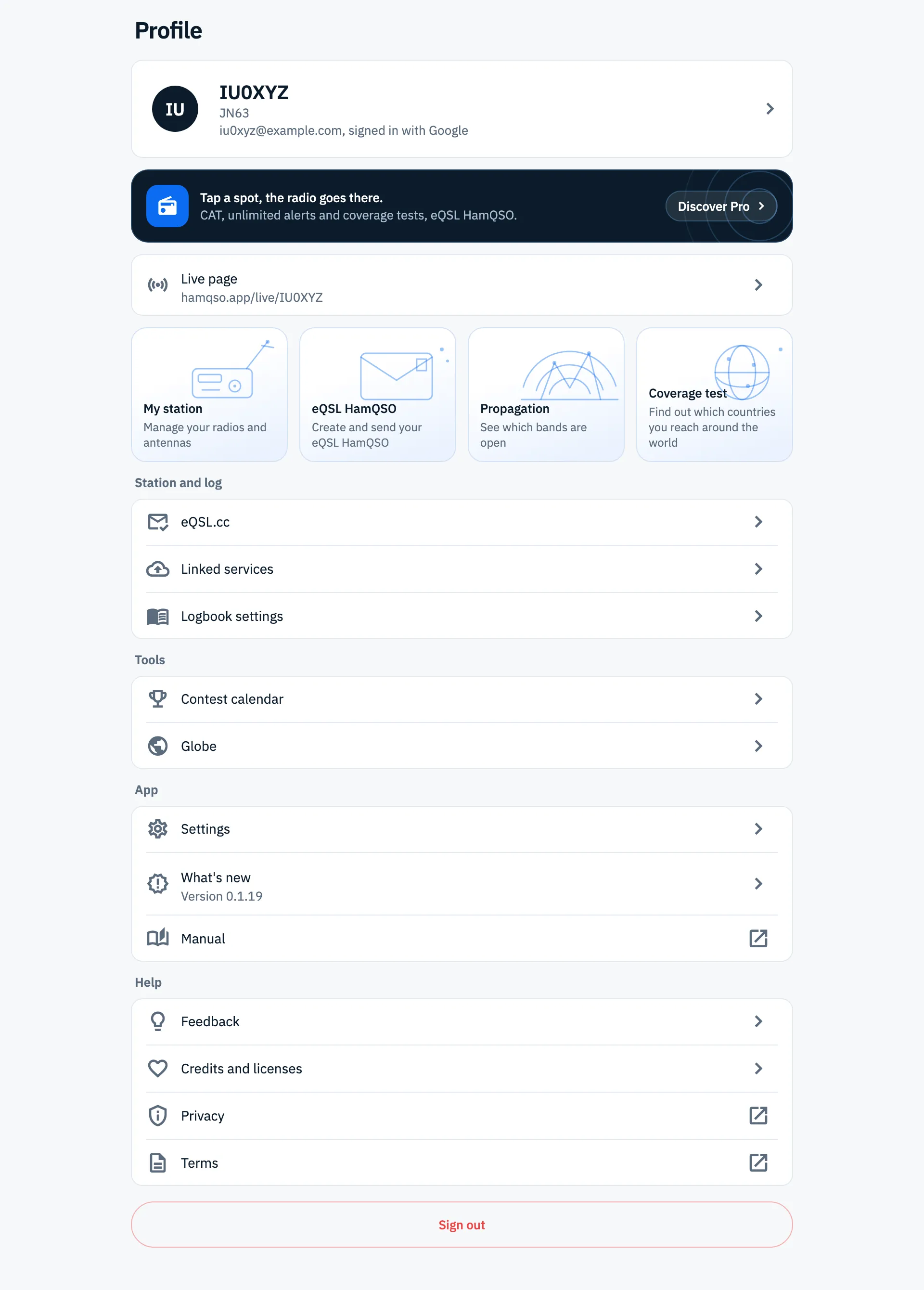
The Profile is the section about you and your station: at the top who you are and which account you use, then your live page, shortcuts to the main features and, in groups, everything else in the app (linked services, settings, contests, feedback). This page lists what is there, in the order you see it, and what each entry opens.
Opening the Profile
- On a phone, tap Profile, the last icon of the bottom bar.
- On a tablet, tap Profile in the side bar on the left.
- On the web, click Profile in the side bar, or press 5 outside a text field.
If the Profile icon has a red dot, there is news to read: you find it in the What's new row (see below). For the other sections see Finding your way around.
What you find, from top to bottom
The page always keeps the same order. Some items appear only in some situations:
| Item | When you see it | What a tap does |
|---|---|---|
| Your card | Always | Opens Your profile |
| Pro invitation | Only without Pro | Opens the subscription page |
| Live page | Always | Opens the sharing of your live page |
| What's new with the dot | Only with news to read | Opens What's new |
| 30% off HamQRG | Only with a paid annual or Lifetime Pro | Opens HamQRG with your discount |
| The four big cards | Always | Open My station, eQSL HamQSO, Propagation, Coverage test |
| The groups Station and log, Tools, App, Help | Always | Each row opens a page or a link |
| Sign out | Only when signed in with an account | Signs you out, after a confirmation |
Your card
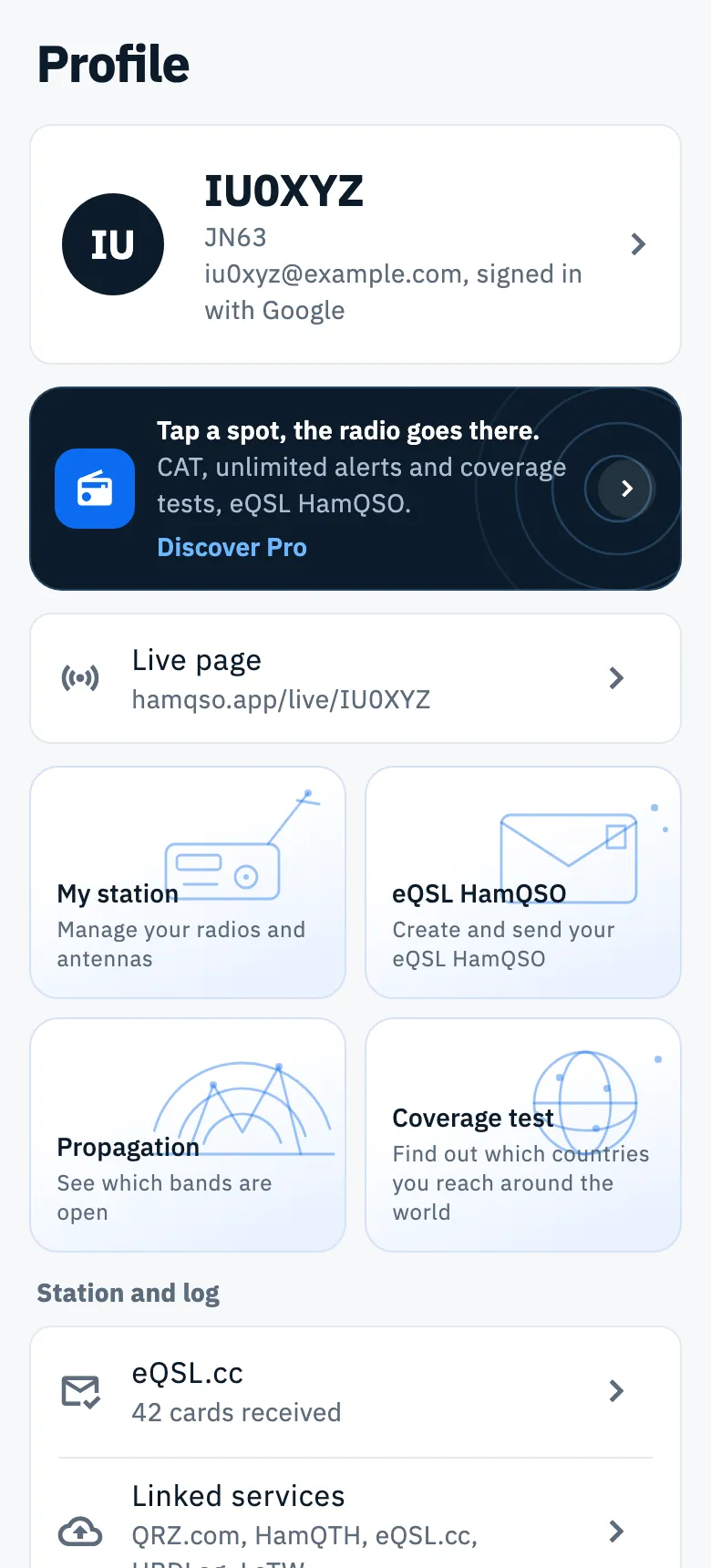
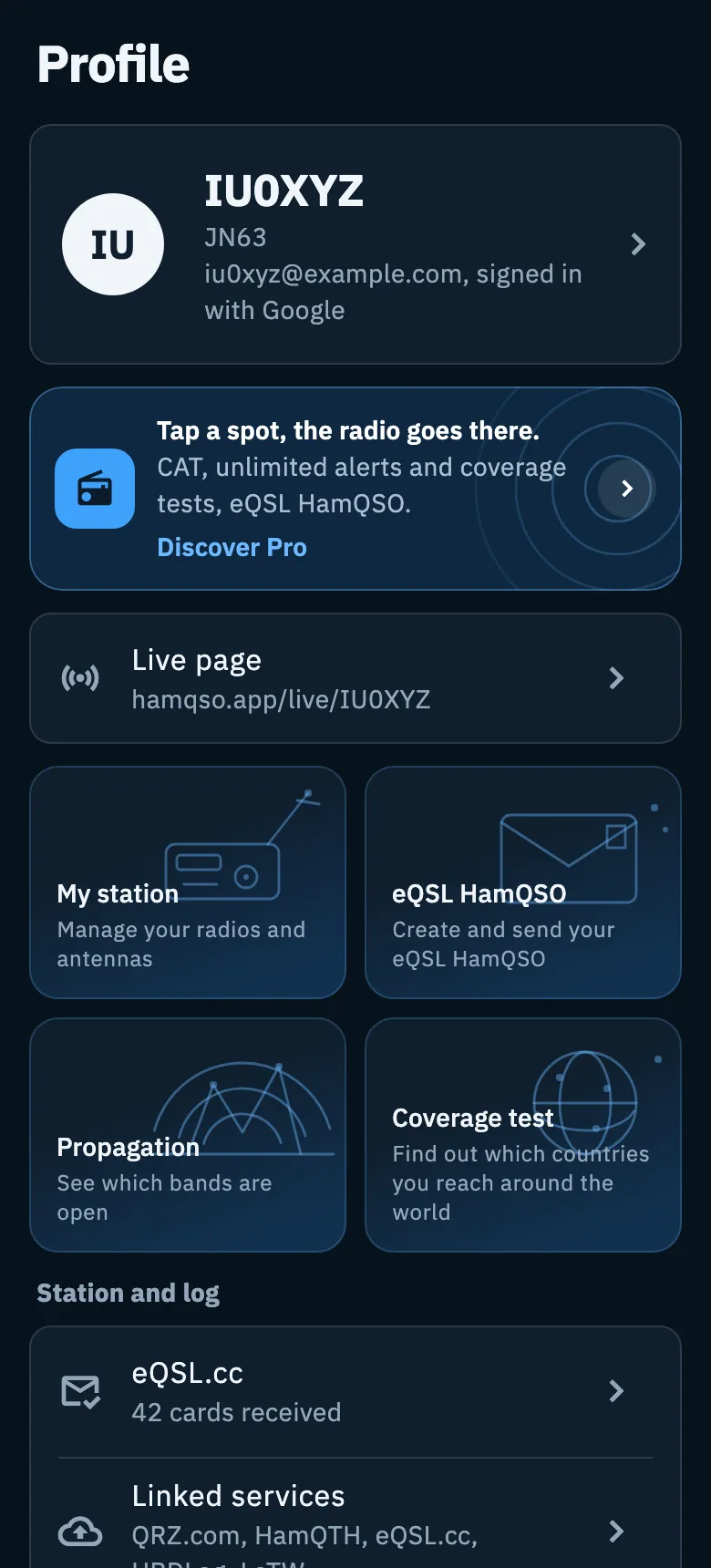
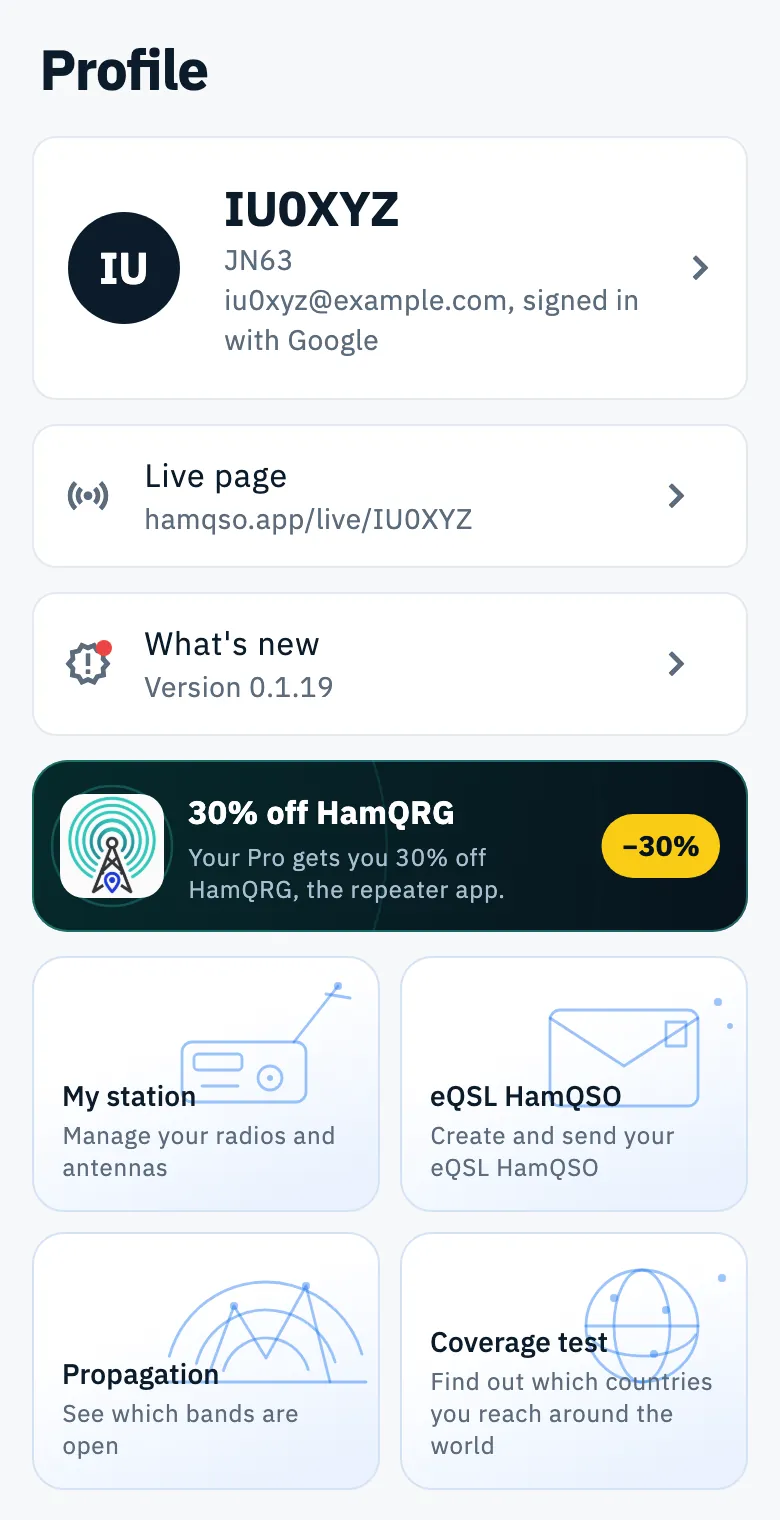
At the top is your card: a circle with the first two letters of your callsign, your callsign in large type and below it, on two lines, the locator of your QTH and the account you signed in with, for example "iu0xyz@example.com, signed in with Google". The sign-in method can be Google, Apple or Email.
- If you have not set your callsign yet, it reads Callsign not set and the circle takes the first two letters of your email.
- If you use the app without an account, the account line is not there.
- Tap the card.
- Your profile opens, where you change your name, callsign and locator: see Your profile: name, callsign and locator. Email, signing out and deleting the account are in Account: email, signing out and deleting.
The Pro invitation
Without HamQSO Pro, a dark card sits under yours: Tap a spot, the radio goes there. with the list CAT, unlimited alerts and coverage tests, eQSL HamQSO. The action reads Try Pro, N days free when the store offers you a free trial, otherwise Discover Pro. On a phone the action is a third line, with a round arrow on the right; on a tablet and the web it is a rounded button on the right.
Tap anywhere on the card to open the subscription page. Once Pro is active the card goes away. For the plans see What HamQSO Pro includes and Subscribing to HamQSO Pro.
The live page and the news
The Live page row shows the address of your public page, for example hamqso.app/live/IU0XYZ. Tap it to open the sharing sheet of the page. Without a callsign the row reads Set your callsign and a tap opens Your profile, because the address comes from your callsign. Everything else is in The activation live page.
The What's new row moves:
- with news you have not read yet it stands right under Live page, with a dot on its icon;
- once you have read it, it goes back to the App group.
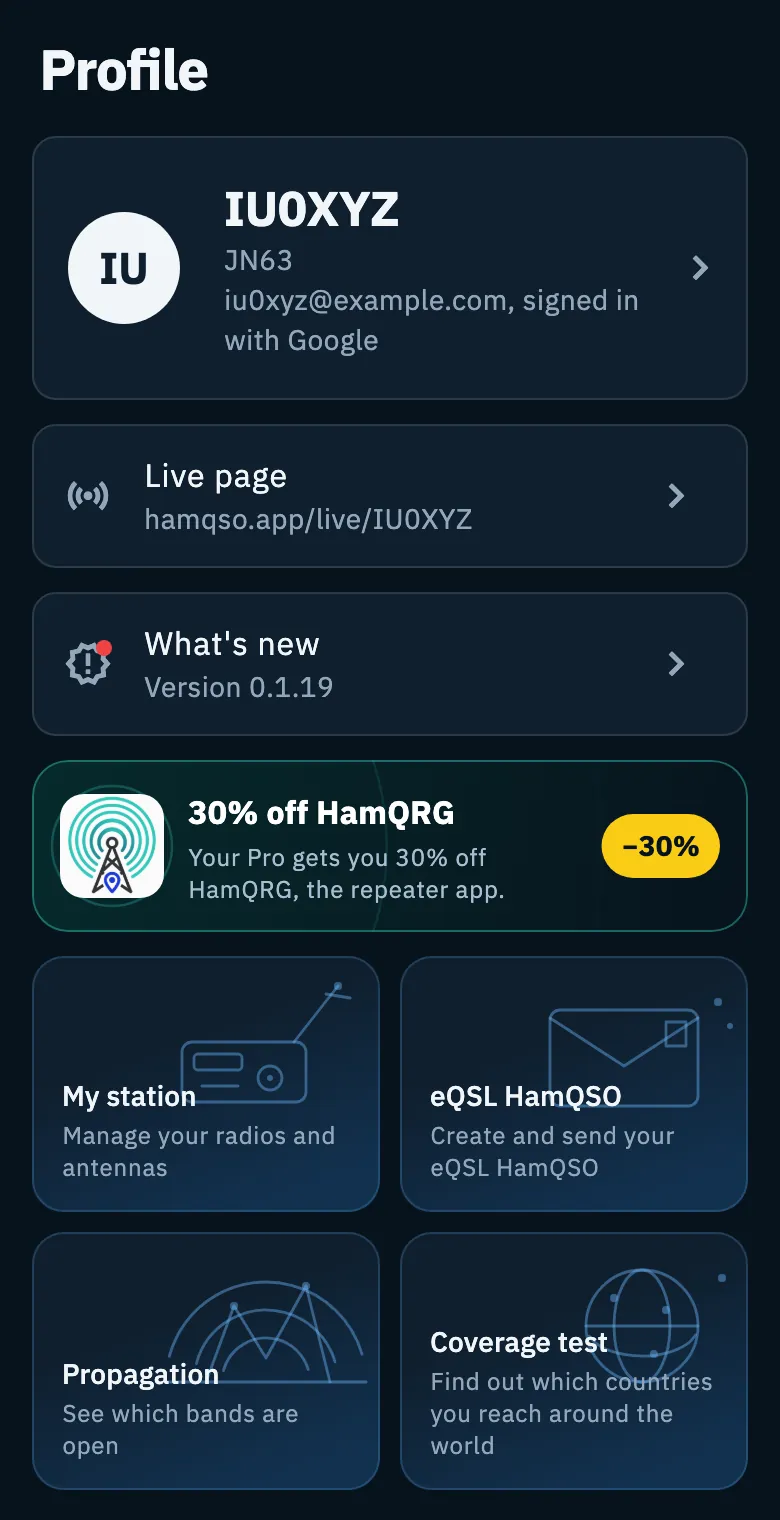
Under the title you read the app version, for example "Version 0.1.19". See What's new, version and credits.
The HamQRG discount
With a paid annual or Lifetime Pro subscription (not during the free trial, and not with Pro given by a promotion) the 30% off HamQRG card appears: "Your Pro gets you 30% off HamQRG, the repeater app." Tap it: the app prepares a discount link and opens it outside HamQSO.
The four big cards
Four cards with a drawing lead to the features you use most:
| Card | Sentence | Where it leads |
|---|---|---|
| My station | Manage your radios and antennas | My station: radios and antennas |
| eQSL HamQSO | Create and send your eQSL HamQSO | What HamQSO eQSL is |
| Propagation | See which bands are open | Reading propagation |
| Coverage test | Find out which countries you reach around the world | Running a coverage test |
The cards show no numbers and load nothing: they are only shortcuts. On a phone they are in two columns, on a tablet and the web in four. With the keyboard, when a card has the focus you open it with Enter or Space. The eQSL HamQSO card is there only in the versions of the app connected to the eQSL HamQSO service.
The groups
Under the cards, four groups of rows lead to the rest of the app. Rows with an arrow open a page of the app; rows with the external link icon open the browser.
Station and log
| Row | What it shows | What it opens |
|---|---|---|
| eQSL.cc | With eQSL.cc linked, how many cards you received ("42 cards received") and, on the icon, how many arrived since you last opened the cards (up to "9+"). Not linked: "Link eQSL.cc to see every card you received", or how many new cards wait for you on eQSL.cc ("3 new cards to read") | The received cards (Cards received from eQSL.cc); when not linked, the eQSL.cc service page to link it |
| Linked services | "QRZ.com, HamQTH, eQSL.cc, HRDLog, LoTW", or "N to complete" when a service waits for you to finish linking it | Linking QRZ.com, LoTW, eQSL.cc and HRDLog |
| Logbook settings | "Station profiles, defaults, dupes" | Logbook settings |
Tools
| Row | What it shows | What it opens |
|---|---|---|
| Contest calendar | The logo and countdown of the next contest, or the ones in progress and when they end; when there is none, "Dates, rules and notifications of the contests". Below, when needed, the contest you take part in ("You take part in …, ends in …") and the log to send ("… log due by …") | The contest calendar |
| Globe | "The globe with live spots, to leave on at your desk" | The desk-mode Globe |
App
| Row | What it shows | What it opens |
|---|---|---|
| Settings | All settings | |
| What's new | The app version (here only when you have no news to read) | What's new, version and credits |
| Manual | This manual, in the browser | |
| Invite friends | "7 days of Pro for you and each friend" | Inviting friends and discounts |
Help
| Row | What it shows | What it opens |
|---|---|---|
| Feedback | "Suggest a feature or report a problem" | A sheet to write in: see Sending feedback |
| Credits and licenses | The credits page | |
| Privacy | The privacy policy in the browser | |
| Terms | The terms of use in the browser |
At the bottom, when you are signed in with an account, there is the red Sign out button. It always asks for confirmation and, if you have changes not uploaded yet, offers to upload them first: details in Account: email, signing out and deleting.
Phone, tablet and web
- Phone: one column; the big cards in two columns; rows show subtitles and changing numbers (eQSL.cc cards, services to complete, contest countdown).
- Tablet: at the top your card, the Pro invitation, Live page and the cards in four columns; below, the groups in two columns, Station and log on the left and Tools, App, Help and Sign out on the right.
- Web (a wide window, with mouse and keyboard): a single column of comfortable reading width, the cards in four columns and plain rows, without changing numbers and without subtitles (only the version under What's new stays). The eQSL.cc row opens the received cards directly. In a narrow browser window the Profile takes the phone layout.
Troubleshooting
- "Sign-in failed. Try again.": signing in to your account did not work. Check the connection and try again; see Signing in and saving your log.
- "Sign-out failed. Try again.": signing out did not work. Try again with the network on.
- "No connection. Your changes stay on this device.": you chose Upload and sign out without network, so you stay signed in and the changes stay on the device. Try again with the network on, or choose Sign out anyway.
- "Deletion failed. Try again.": deleting the account did not work; try again later from Your profile.
- "The discount is for annual or Lifetime Pro members." or "Couldn't prepare the discount. Try again shortly.": the HamQRG link was not prepared. In the first case your plan does not give the discount; in the second, try again later.
- The Live page row reads "Set your callsign": you have no callsign yet. Tap the row and write it in Your profile.
- You do not see the eQSL HamQSO card or the Invite friends row: these entries appear only when the app is connected to the HamQSO services that make them work.