
Creating an operation
Set up an activation, a portable outing or a contest step by step: references, location, callsign, radio and QSO defaults ready before the first QSO.
FreeUpdated for HamQSO 0.1.19
On this page
An operation groups the QSOs of one session: an activation, a portable outing, a contest. If you create it before going on the air, every QSO starts with the right references, location, callsign, radio, antenna, power, band and mode, and all you type is the callsign of the station you work.
Opening «New operation»
- Open Log.
- In the list of operations, tap the New operation button at the bottom.
You can also get there from:
- the log of a fresh install: under «Log your first QSO down here», tap Create an operation;
- on desktop and web with a keyboard, press N in the Log section (not while typing in a field);
- the ADIF import, when you choose where the QSOs go, you can create a new one (see Importing an ADIF file).
On a phone it opens as a full-height sheet that you can drag down. On tablet, desktop and web (a window at least 840 points wide) it opens as a panel on the right side. The ✕ at the top (Close) leaves without creating anything.
If another operation is still open
If the operation in use is not closed yet and has an end (Portable, xOTA activation, Contest or Other: never a Station log, which is always open), the app first asks what to do with it.
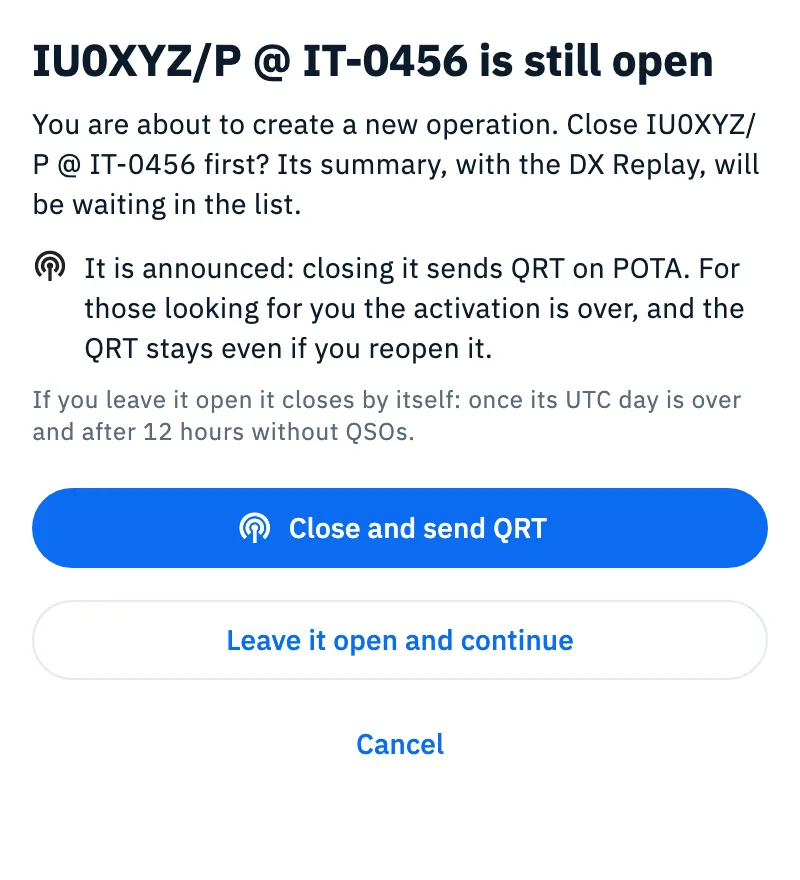
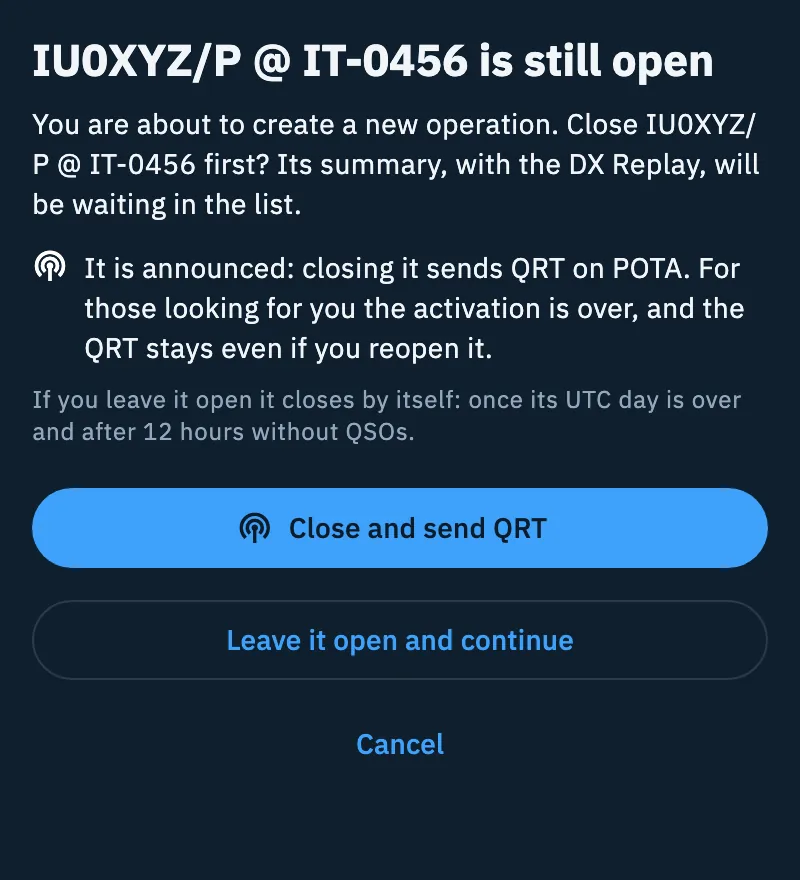
- Read the title, for example «IU0XYZ/P @ IT-0456 is still open»: the text reminds you that if you close it, its summary, with the DX Replay, will be waiting in the list.
- Choose:
- Close IU0XYZ/P @ IT-0456 and continue (with the name of your operation): closes it and moves on to the new one. If the operation is announced the button becomes Close and send QRT and a line says which networks the QRT goes to.
- Leave it open and continue: moves on to the new one without touching it.
- Cancel (or a tap outside the sheet): the new operation is not created and everything closes.
If you leave it open it closes by itself: once its UTC day is over and after 12 hours without QSOs.
The guided path
New operation asks one question per screen. At the top the step bar says where you are, for example «Step 2 of 5: References»; tap a segment to go back to a step you have done. At the bottom Continue moves on and Back goes to the previous step; on the last step the button becomes Create operation.
There are five steps for an activation and four for the other types (the References step is there only for xOTA activation). Almost everything is already filled in: often you only tap Continue.
1. Type: «What kind of operation?»
Tap one of the tiles:
| Type | What it is for |
|---|---|
| Station log | Always open: for your home or club station |
| Portable | On the move, radio in the backpack or the car |
| xOTA activation | Parks, summits, nature areas, islands: POTA, SOTA, WWFF and IOTA, even together |
| Contest | Serials, exchanges and contest dupe checking |
| Other | Special events, tests and everything else |
If you switch from xOTA activation to another type, the references you chose are set aside and come back if you return to xOTA activation; an operation saved with another type has no references.
2. References: «Where are you activating?»
Only for xOTA activation. Add one or more references, even from different programs (for example a POTA park that is also a WWFF area).
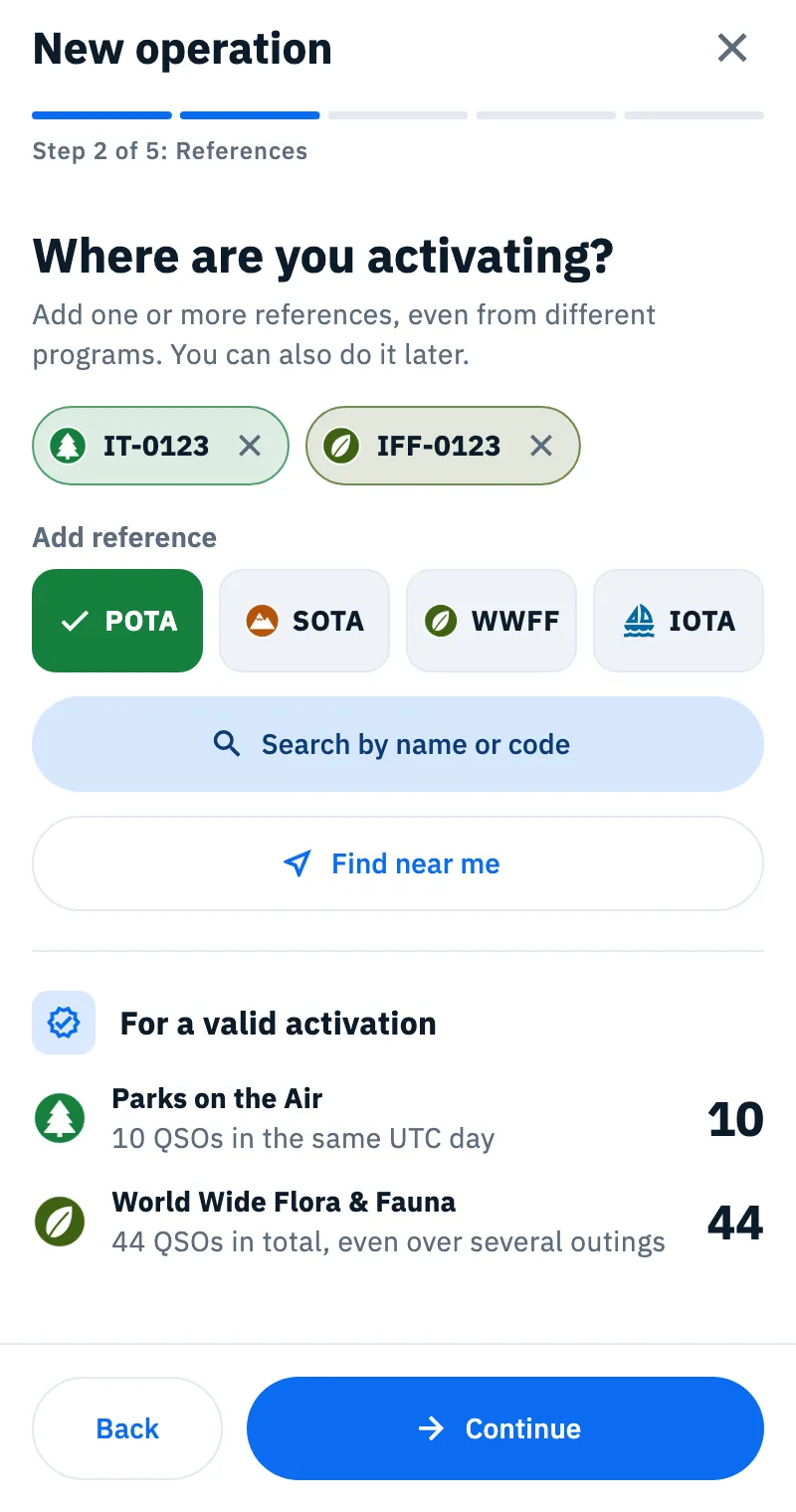
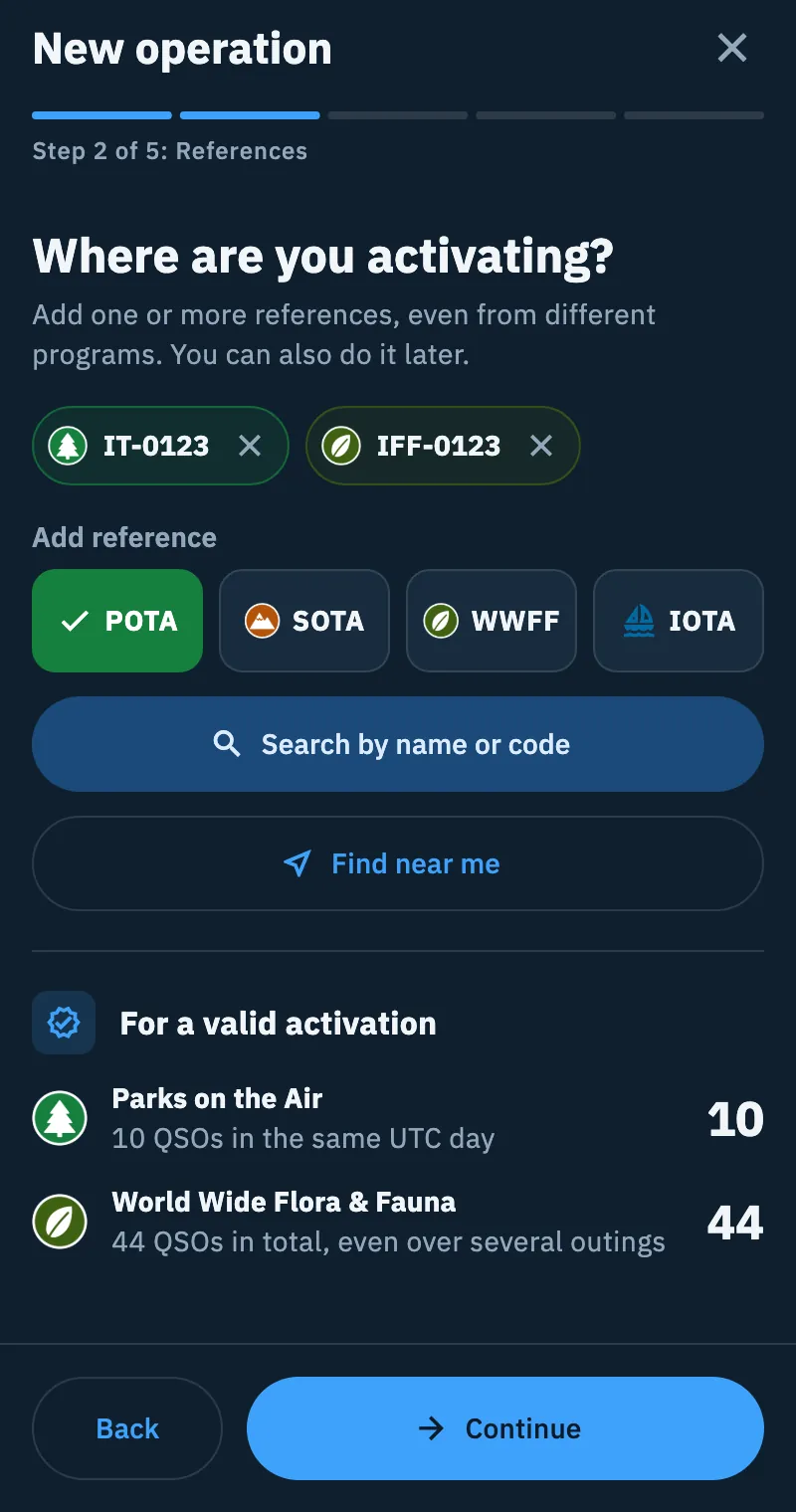
- Under Add reference, tap the program: POTA, SOTA, WWFF or IOTA.
- Tap Search by name or code or Find near me: the reference search opens (see Finding and choosing references). For IOTA, which has no catalog, type the code (e.g. EU-130) and tap +.
- Each reference you choose becomes a chip with the program mark; tap its ✕ to remove it.
Below, For a valid activation shows the threshold of each program of your references:
| Program | Threshold shown |
|---|---|
| POTA | «10 QSOs in the same UTC day» |
| SOTA | «4 different stations in the same UTC day» |
| WWFF | «44 QSOs in total, even over several outings» |
| IOTA | «No threshold: every QSO counts» |
References are not required: you can go on without any («No reference chosen») and add them later from the operation settings. How the QSOs of the activation are counted is explained in Activating a POTA park or a SOTA summit.
3. Location: «Where are you?»
The location (locator, state or province, country) goes into every QSO of this operation and is used for distances, the map and the DX Replay. You find it already filled in, and a line says where it came from:
- «Filled from your current location»: from the device's location, if you already gave the permission (the app does not ask for it at this point);
- «Filled from the location of the reference»: for an activation, when the device gives no location;
- «Filled from your profile»: from the locator of the station profile or of the settings.
With the device's location, the country comes from the callsign on the air (for the United States the state too); you type the province yourself.
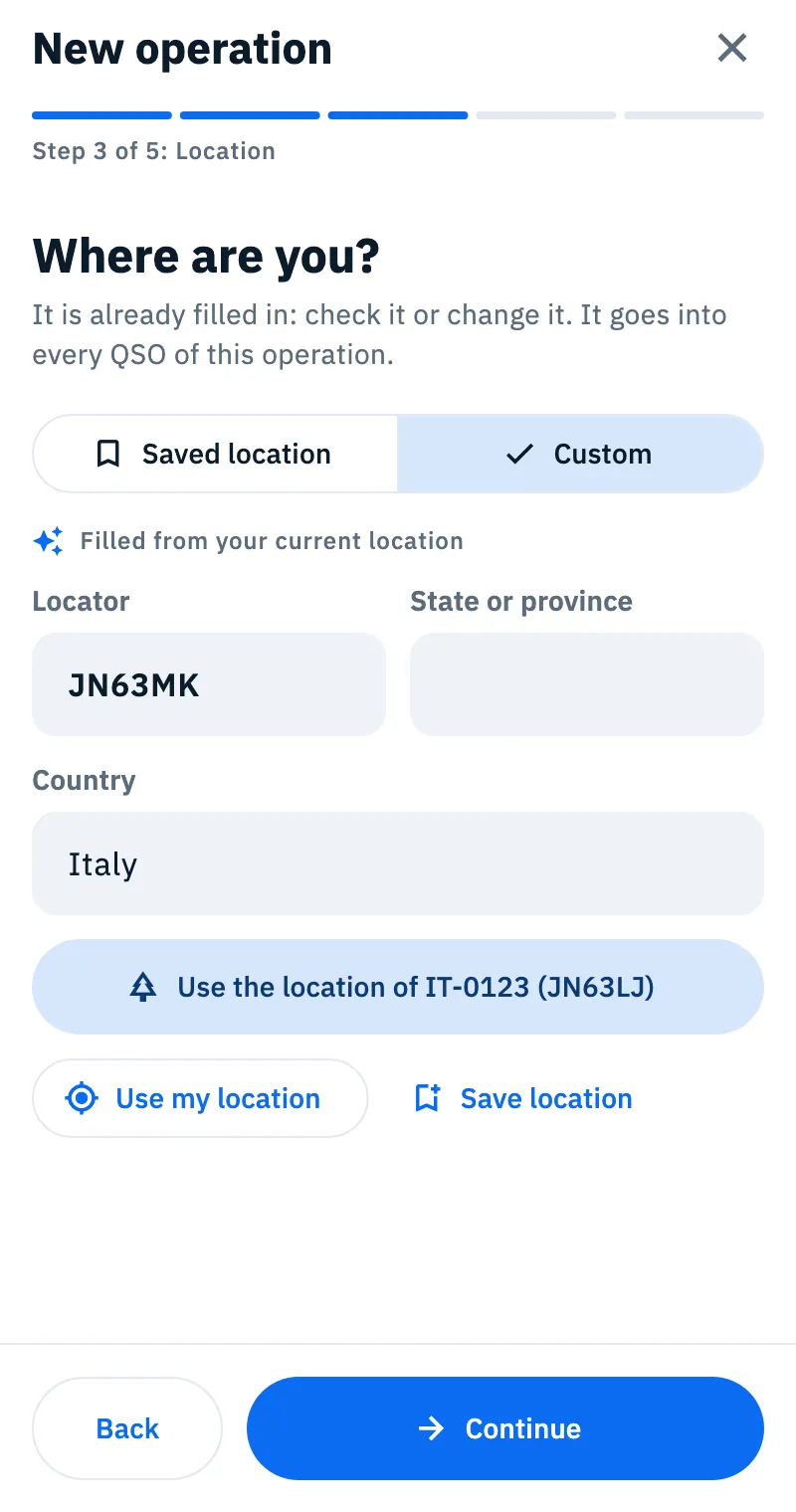
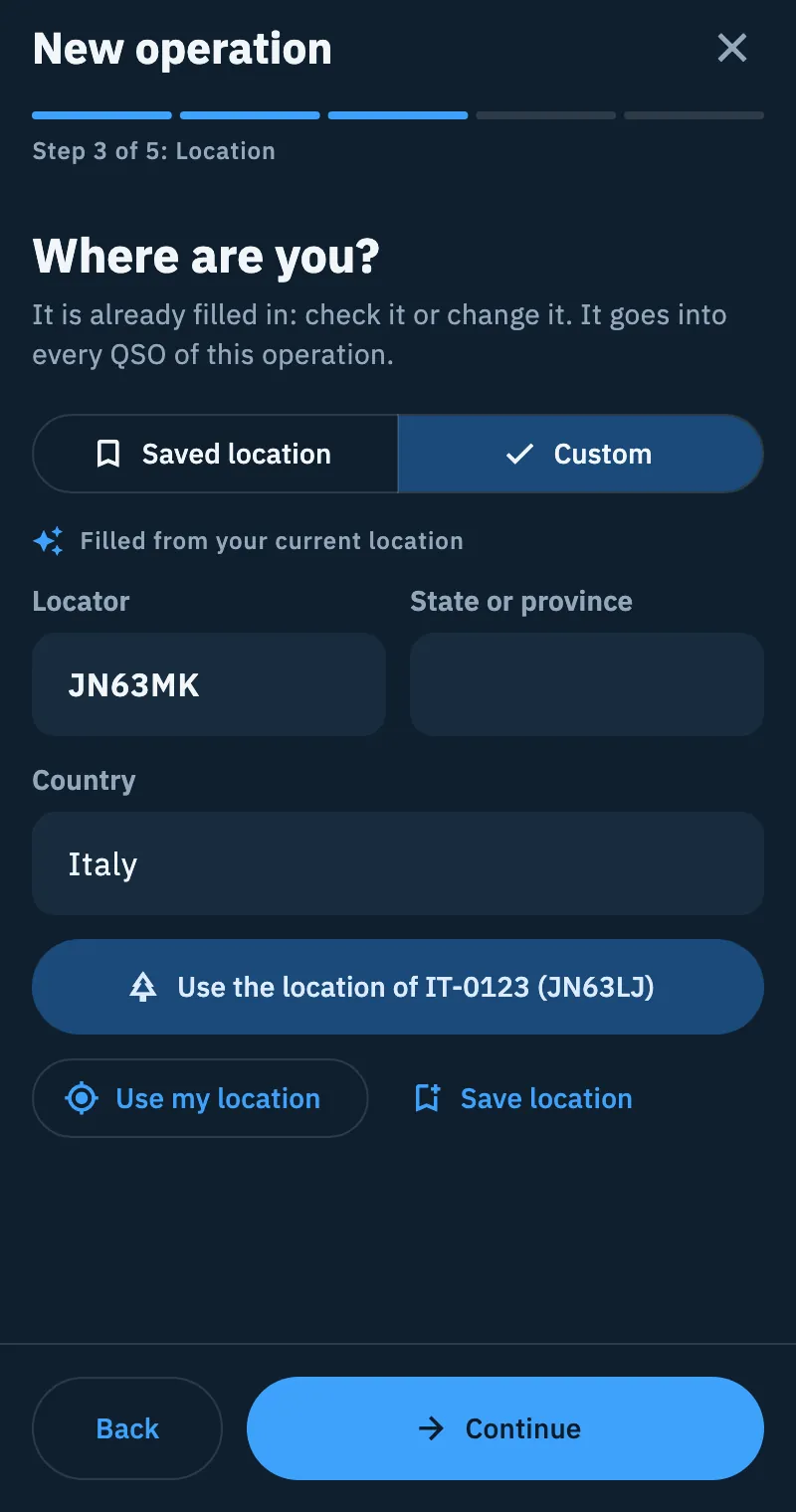
- Check Locator, State or province and Country, and correct them if needed.
- For an activation, if the reference's location is different, Use the location of IT-0123 (JN63LJ) (with your reference and its locator) appears: tap it to use it.
- Use my location asks the device for its location again, with the permission prompt if needed.
- To use it again another time, tap Save location, type the Location name (e.g. Home, Second home) and tap Save. While the name is empty, Save does nothing.
At the top you can switch from Custom to Saved location and pick one of the locations you saved. If you have none yet you read «No saved locations: choose Custom and save it with a name.»
With an invalid locator Continue does not move on: under the field you read «The locator is not valid (e.g. JN55)».
4. Name and callsign: «What shall we call it?»
- Name: the field shows the proposed name in grey. With references it is callsign @ references (for example IU0XYZ/P @ IT-0123, IFF-0123) and, if you leave the field empty, the title follows the references even when you change them. Without references the operation is named with the callsign and the UTC date and time of creation, for example IU0XYZ 20/11/2026 14:05. Type a name if you want another one.
- For Portable and xOTA activation, choose between the two chips the callsign with /P (proposed) or without, for example IU0XYZ/P and IU0XYZ.
- Callsign on the air: empty means your profile's (with /P for portable and activations). Type another one for a club, a special event or a different /P.
- Operator, if not the on-air callsign: your own callsign when you operate a club station or a special callsign.
If a callsign is not valid you read «This callsign does not look valid». If there is no callsign anywhere (neither typed nor in the profile) you read «Enter the callsign». For profiles see Station profiles.
5. Other settings: «Last details»
All optional: you can change it any time from the operation settings. Station, QSO defaults and Duplicate check are folded with a one-line summary: tap them to open them.
| Section | What it does | Proposed for a new operation |
|---|---|---|
| eQSL model | The model of the HamQSO eQSLs of this operation's QSOs; Change opens the models. Only there when you are signed in | The Default model of your account |
| Contest | Contest name, serial sent, exchange. There for the Contest type, and open | See Logging in a contest |
| Station | Radio, antenna and power of the new QSOs | The radio connected via CAT, else the last one used for this type |
| QSO defaults | Band and Mode the new QSOs start with (modes: SSB, CW, FM, AM, FT8, FT4, RTTY) | None |
| Duplicate check | When the entry bar warns you about a dupe | Once per band and mode |
| Sharing | Show on the live page: the operation on your live page | Off: nothing becomes public by itself |
Under Duplicate check choose a rule:
- No check: no warning;
- Once across all bands: the same callsign counts only once;
- Once per band: once on each band;
- Once per band and mode: once for each band and mode pair.
In a POTA, SOTA or WWFF activation dupes are counted per UTC day.
Under Show on the live page a line says why it is on or off and lists what anyone with the link would see. Without a callsign the switch is off and you read «Your callsign is needed.»
Tap Create operation. The new operation opens with the keyboard ready for the first QSO and becomes the one in use: the QSOs you log go there.
Station: radio, antenna and power
Radio, antenna and power go into the new QSOs (MY_RIG, MY_ANTENNA and TX_PWR), onto the summary image and into the DX Replay.
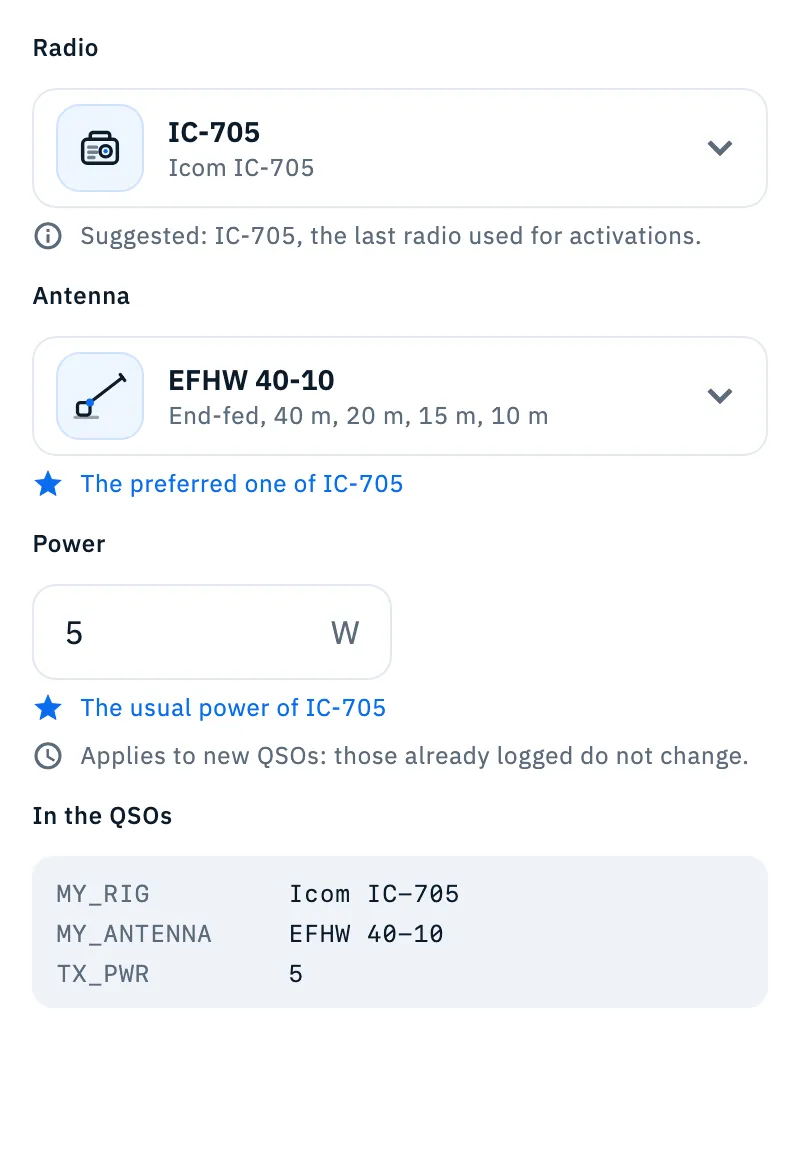
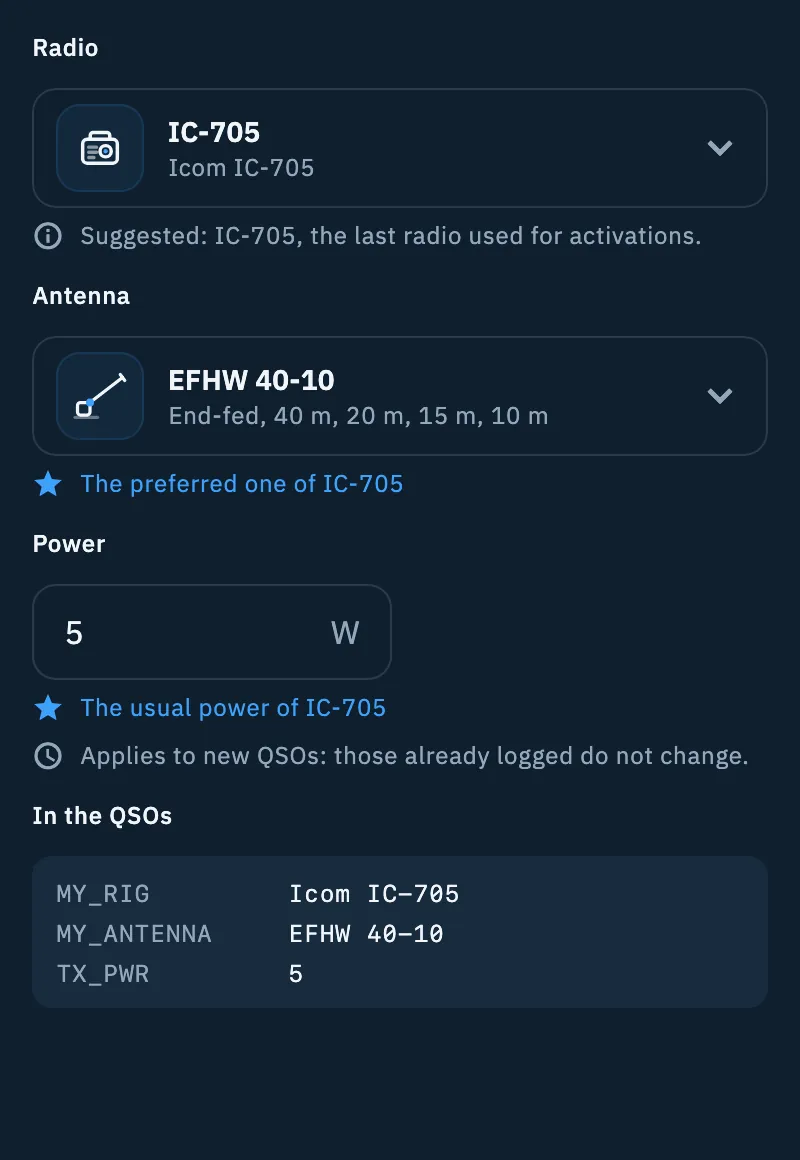
- Tap Choose the radio (or the radio already chosen). In the sheet each radio of My station shows its model and antenna, for example «Icom IC-705, with EFHW 40-10». You can also tap New radio to add one to the station, or Write on the fly to type a radio only for this operation (e.g. the club's FT-817) and tap Use.
- The radio brings its preferred antenna (for example «The preferred one of IC-705»). To change it, tap the antenna and choose another one, No antenna, New antenna or Write on the fly (e.g. 20 m wire on the pine).
- In Power type the watts (e.g. 5). Optional. With the radio's usual power you read for example «The usual power of IC-705».
- Below, In the QSOs shows what will go into MY_RIG, MY_ANTENNA and TX_PWR as you type.
What the lines under the fields mean:
- «Suggested: IC-705, the last radio used for activations.»: the app remembers the last radio chosen for each type of operation, the same on all your devices.
- «Only for this operation.»: you changed the antenna or the power only here; the radio in My station does not change. Put back followed by the value (for example Put back 5 W) returns to the preferred antenna or the usual power.
- «Only for this operation: it is not in your station.»: a radio or antenna written on the fly. Save to the station adds it to My station.
- «Follows the radio connected via CAT»: with a radio connected, the operation uses that one and follows it by itself.
With a radio connected via CAT the radio sheet explains it at the top: you can only choose another radio with CAT (chip CAT here), and choosing it connects that one; the other rows say «Not available while a radio is connected via CAT». For a radio without CAT or written on the fly, disconnect the radio first. See My station: radios and antennas and Connecting your radio.
Changing an operation later
Everything you choose in the guided path can be changed later, on one page.
- Open the operation, tap ⋮ and choose Operation settings. Or, in the list, tap ⋮ on the operation's card and choose the same item.
- Change what you need. The sections are, in order: Operation (type, name, callsign on the air, operator), References (only for an activation), Location, Contest (for a contest), Station, eQSL model, Tags and notes, QSO defaults, Duplicate check, Sharing.
- Tap Save. The entry bar starts again with the new settings.
Changes to location, station and defaults apply to new QSOs: those already logged do not change. For the location the app says so under the section, together with «Statistics and map also use it for logged QSOs without your locator.»
When editing, Callsign on the air cannot be left empty.
Station, tags and notes
To change radio, antenna and power quickly, or to label the operation, there is a faster sheet.
- Tap ⋮ on the operation (or on its card in the list) and choose Station, tags and notes. You also get there from Edit tags and notes in the operation settings.
- Under Station you find the same fields as in the Station section.
- Under Tags type in Add a tag and press enter. Tap a tag under Already used: to reuse it; remove a tag with its ✕.
- Under Notes write what you want to remember (e.g. «Location, conditions, equipment…»).
- Tap Done. The sheet is also saved if you close it another way.
At most 10 tags of 32 characters and notes up to 2000 characters; the same tag cannot be added twice, even with different capitals. Tags help you search and filter operations (see Organizing your operations).
Troubleshooting
- «The locator is not valid (e.g. JN55)»: the Location step does not move on. Type a valid locator (e.g. JN63 or JN63MK), or tap Use my location.
- «Could not read the location: check the permission or the GPS»: the device gave no location. Give the app the location permission in the phone's settings (or the browser's on the web), turn on the GPS and try again, or type the locator by hand.
- «Enter the callsign»: there is no callsign in the field nor in the profile. Type it in Callsign on the air or set it in your profile (see Your profile: name, callsign and locator).
- «This callsign does not look valid»: check the callsign on the air or the operator's.
- «Write a number in watts, for example 5.»: the power is not a valid number. With a power above the radio's maximum you read for example «More than the maximum power (10 W). Check the value.»
- «Write the name to put in the QSOs.»: in Write on the fly you tapped Use without typing anything.
- «Could not save, try again»: saving failed; tap Create operation or Save again.
- «Could not complete the action, try again»: the Station, tags and notes sheet was not saved; open it again and redo the change.
- «This operation no longer exists»: the operation was deleted, also from another device.
- «At most 10 tags» or «This tag is already there»: remove a tag or choose a different one.