
Terms and conventions
How HamQSO writes times (UTC), frequencies (kHz in, MHz out), how it marks estimated values and how you recognise a Pro feature.
Free and ProUpdated for HamQSO 0.1.19
On this page
HamQSO follows a few rules everywhere in the app: times are in UTC, frequencies are typed in kHz and shown in MHz without rounding, values it works out by itself are marked as estimated, and Pro features carry the Pro badge. Here you find what they mean and where you see them.
Times are in UTC
Every radio time in the app is in UTC, as in amateur radio logs: spots, QSOs, the log and the clocks. The clock writes the time with a trailing "z", for example "16:11:05z"; in the log and in the detail QSOs show their time the same way, for example "16:11z". The spot lists instead show how long ago the spot came out, for example "2 min ago".
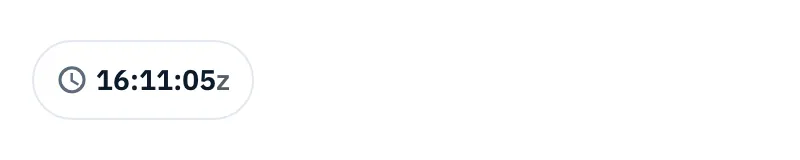
Where you find the UTC clock:
- in the QSO entry bar, the first chip at the top: tap it to open Date and time of the QSO and choose Now or Past QSO;
- on the web, in a wide window on a computer, in the top bar on the right, next to the theme button.
The day is the UTC day too: it changes at 00:00z, not at local midnight. The log of an operation is grouped by UTC day and the activation counters count the UTC day (for example "New UTC day: 3/10"). If you are in Italy in summer, a QSO made at 01:30 local time is at 23:30z of the day before.
How frequencies are typed and shown
In the fields a frequency is typed in kHz; in lists and details it is shown in MHz, with every digit there is and never rounded.
Typing a frequency
- Tap a frequency field: when you send a spot, when you log a QSO or when you edit one. The field is always in kHz.
- Type the frequency in kHz, for example
14074.5. The app adds the separators of your language as you type. - In the Frequency field of a spot, under the field you read the same frequency in MHz, as you will see it in the app: "14.074.5 MHz".
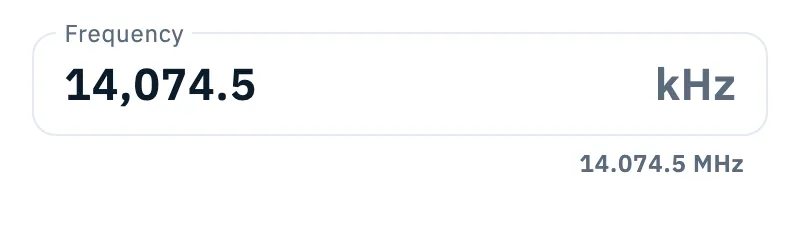
Two rules:
- a number under 1000 is read as MHz: if you type
14you get 14,000 kHz, so the band is clear from the second digit. The 2200 m (135.7-137.8) and 630 m (472-479) bands are the exception and stay in kHz; - in the fields you can type down to a tenth of a kHz (100 Hz). A frequency read from the radio via CAT keeps every hertz the radio gives.
Reading a frequency
The app shows frequencies the way a radio does: MHz, then kHz, then hertz, separated by dots.
| Frequency | How the app shows it |
|---|---|
| 14,074 kHz | 14.074 |
| 14,025.5 kHz | 14.025.5 |
| 7,072,750 Hz | 7.072.75 |
Zeros after the kHz are left out: a spot on 14,065 kHz stays "14.065". The digits that are there are never dropped or rounded. When a QSO has only a band and no frequency, the log shows the band (for example "20m") instead. For the fields of a QSO see Frequency, band and mode of a QSO.
Estimated values
When the app does not receive a value but works it out, it marks it as estimated. An estimated value is never uploaded to your services, shared or exported as if it were real.
The mode of spots
Many DX Cluster spots do not state the mode. HamQSO gives them one, in this order:
| Where the mode comes from | What you see |
|---|---|
| Written in the spot comment or decoded by an RBN skimmer | The mode, with no mark |
| Reported by recent spots of the same station on the same frequency (last 15 minutes) | The mode with the note "estimated" |
| A frequency busy with digital spots (at least 3 digital spots within about 1 kHz in the last 20 minutes) | "DIGI" with the note "estimated" |
| The band plan of the frequency, for the station's region | The mode with the note "band plan" |
If nothing can be worked out, the spot shows no mode.
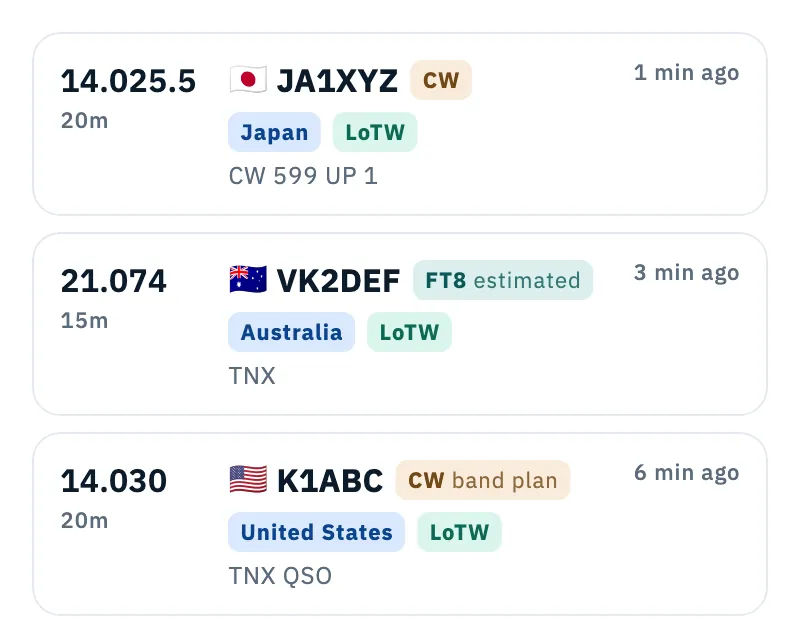
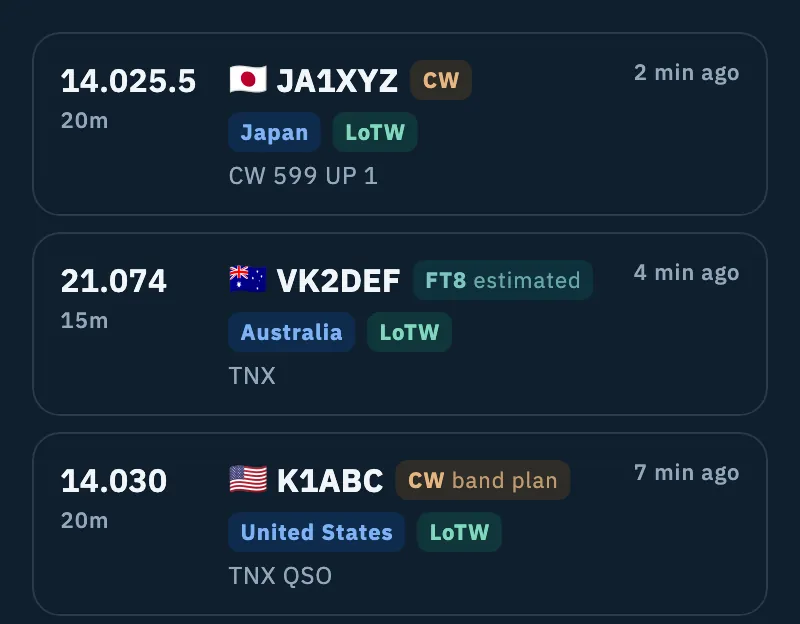
- In the list or in a spot's detail, tap the mode with the note "estimated" or "band plan".
- Read why: "The spot does not state the mode: it comes from the band plan for this frequency or from recent spots of the same station."
- Tap the mode again, tap outside or press Esc to close the explanation.
In the detail of a spot with an estimated mode, under Log QSO you read for example "CW guessed from the frequency: confirm it in the QSO". When you share the spot, the estimated mode is left out of the text and the link (see Sharing a spot).
In the log: values to confirm
A QSO logged from a spot with an estimated mode keeps its mode to confirm. The same happens when you import an ADIF file with a QSO without a mode: the app takes the mode from the band plan of the frequency, when there is only one, and marks it as estimated.
- In the log a mode to confirm is coloured orange.
- In the QSO detail there is the To confirm box: "These values are estimated: confirm or fix them before exporting or uploading." Each value has its own line, for example "Mode CW, from the band plan", "Band 20m, estimated" or "Frequency 14.025.5 MHz, estimated".
To confirm:
- Open the QSO from the log.
- In the To confirm box tap Confirm next to the right value. When there is more than one value, Confirm at the top confirms them all.
- If the value is wrong, edit it: a value you change by hand is no longer estimated.
See also Opening and editing a QSO.
Uploads and export
- Uploads: a QSO with estimated values does not go to QRZ.com, LoTW or your other linked services. On the services page you read for example "2 QSOs to confirm" and "They have estimated values: confirm them in the QSO detail and they will go." (see Automatic uploads and waiting QSOs).
- Export: with ADIF for other programs QSOs with estimated values are left out. The Include QSOs with guessed values anyway switch (off by default) puts them in the file, where they stay marked as estimated. With ADIF for LoTW (TQSL) and in the POTA, SOTA and WWFF program files they are always left out (see Exporting your log as ADIF).
Estimated distances
When a station has no locator, the app puts it at the home written in the callbook, at the center of its US state or at the center of its country, and the distance is estimated. You see it with "≈" in front and where the estimate comes from, for example "Estimated from the center of the country: the callbook gives no locator." In the operation summary the farthest distance, when estimated, is called "ODX, estimated".
Distances also need your own location: your locator, the reference you activate or the location of the operation. When it is missing, instead of the distance you read "Distance and bearing need your location." with the Set your locator button.
Free and Pro
Most of the app is free. HamQSO Pro features are never hidden: without Pro you see them with the Pro badge next to them.
- Tap a feature with the Pro badge: the paywall of that feature opens.
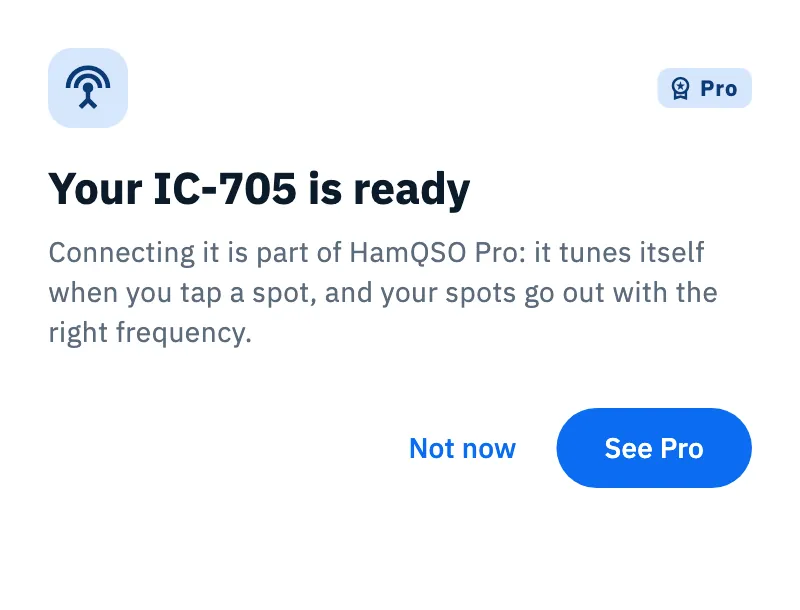
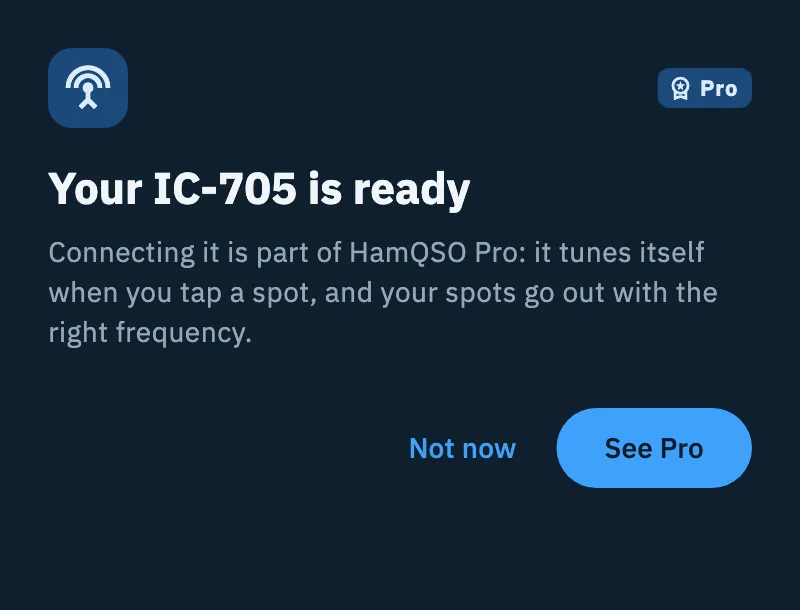
- For some blocks a sheet opens first, saying what is already ready and why it needs Pro: when you connect a radio via CAT ("CAT comes with HamQSO Pro"), when you choose a saved radio with CAT for an operation ("Your IC-705 is ready": the radio is chosen but does not connect) and when you create or resume a second alert ("You already have an active alert").
- In the sheet tap See Pro to open the paywall, or Not now to close it and carry on without Pro.
- If you subscribe from the paywall, you go back where you were and the action carries on: for example the chosen radio connects.
Phone, tablet and web
These rules are the same on phone, tablet and web. The explanation of an estimated mode opens with a tap or a click, never by hovering with the mouse. The Pro sheet, like the other sheets, slides up from the bottom on a phone; on a tablet and in a large browser window it opens as a window in the middle. On the web, in a wide window on a computer, the UTC clock is always visible in the top bar.
Troubleshooting
The export says "2 QSOs left out: they have guessed values to confirm". Open those QSOs and tap Confirm in the To confirm box. Or, with ADIF for other programs, switch on Include QSOs with guessed values anyway; in the export of an operation with Everything in one file, tap Include QSOs with guessed values anyway under the notice.
The services page says "1 QSO to confirm" and the QSO does not go. The QSO has an estimated value: confirm or fix it in the QSO detail and the upload starts again.
The mode of a spot is wrong. If it has the note "estimated" or "band plan" it is a guess: whoever sent the spot did not write the mode. Fix it when you log the QSO.
I typed 14 and the frequency became 14,000 kHz.
That is intended: a number under 1000 is read as MHz. For the 2200 m and 630 m bands type the kHz, for example 475.
The QSO time is not the time on my watch. The app uses UTC. Work out your offset from UTC: in Italy, for example, UTC is one hour behind in winter and two in summer.