
Language, theme and units
Choose the language of HamQSO, a light or dark theme, kilometres or miles, and keep the screen on while the app is open.
FreeUpdated for HamQSO 0.1.19
On this page
Language, theme and units are chosen in one place, Settings, and change the whole app at once. They are free and stay on that device: on another phone, tablet or browser you choose them again.
Opening Settings
- Open Profile.
- Tap Settings.
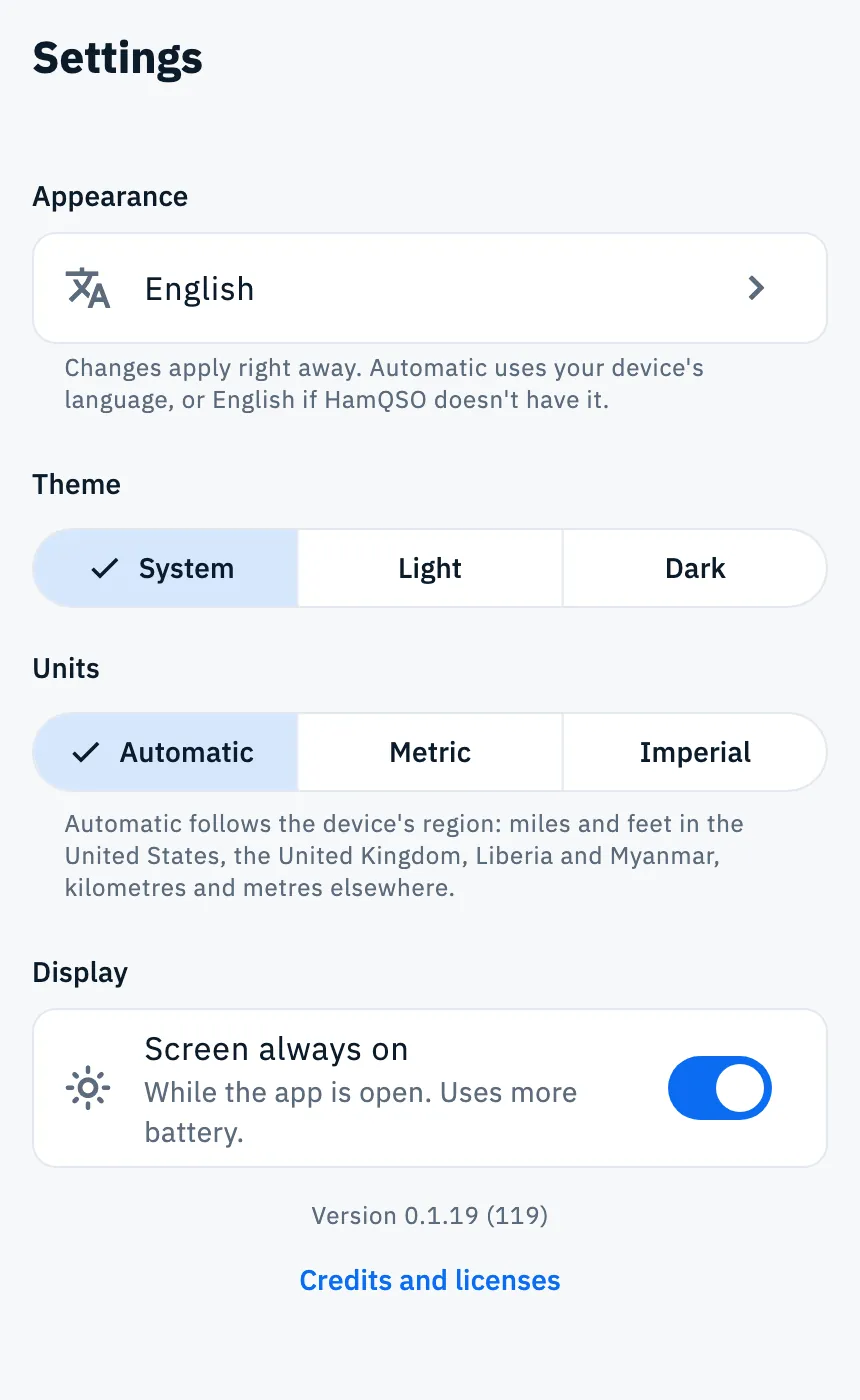
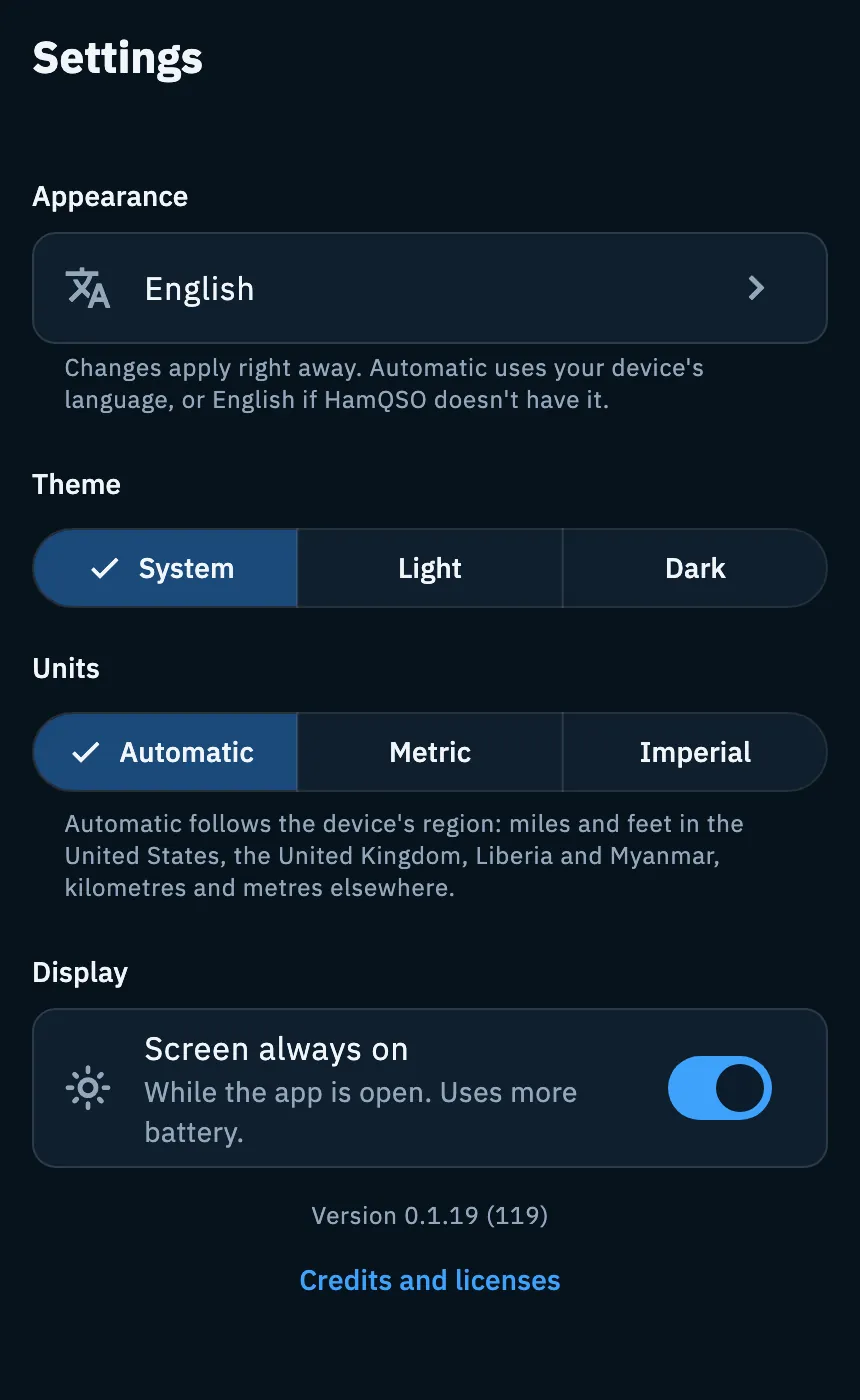
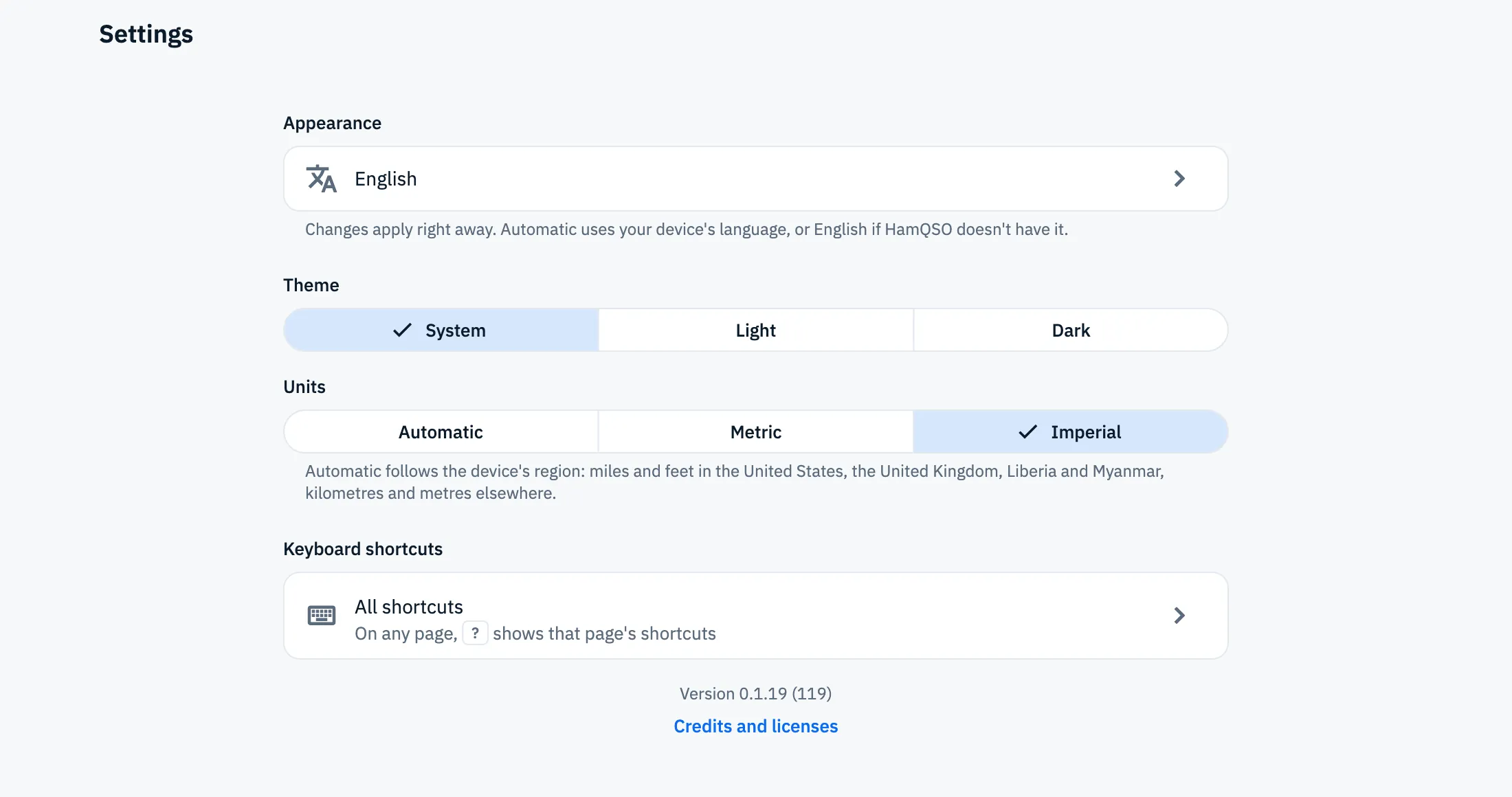
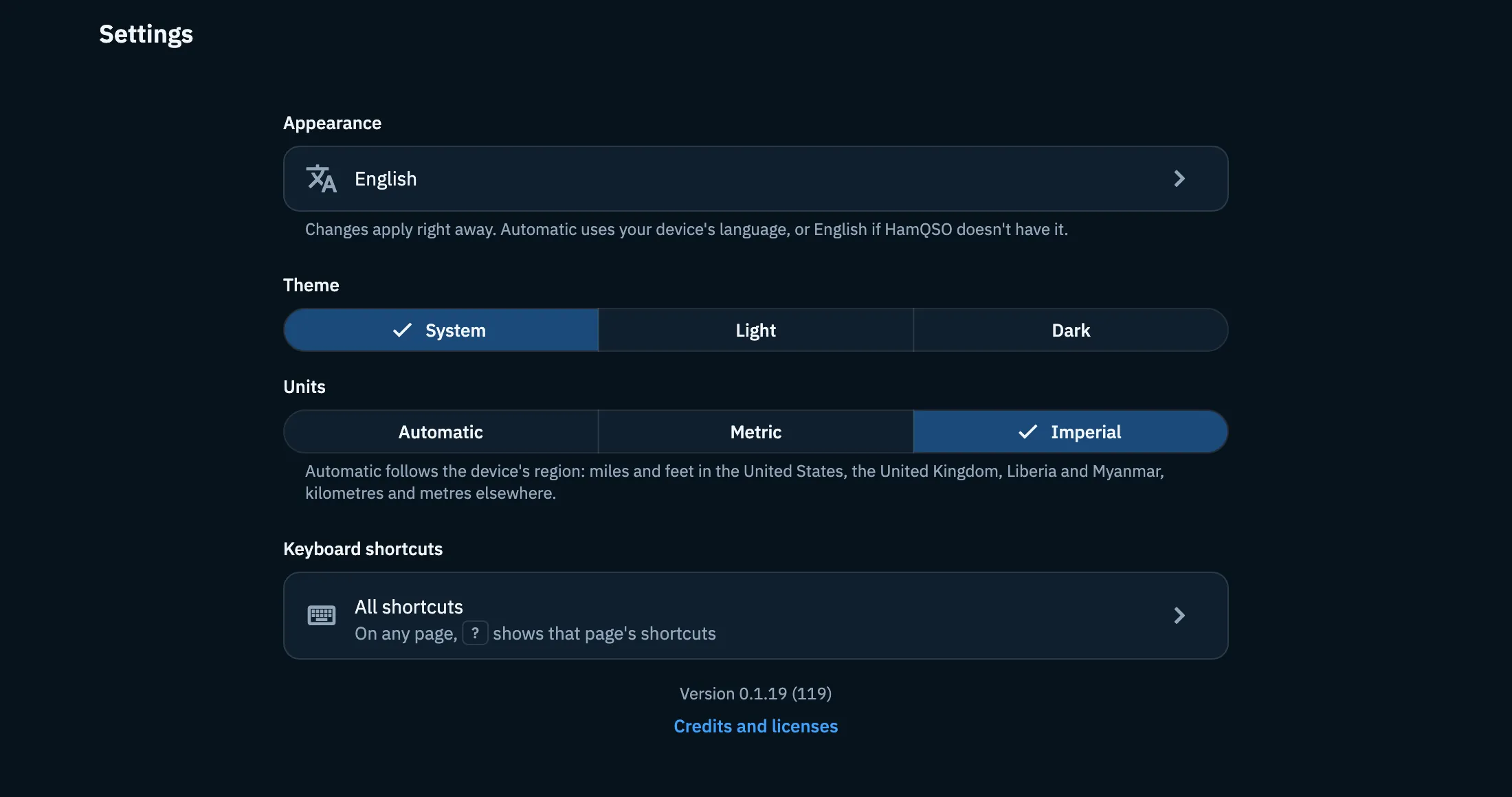
- Scroll to Appearance, with the language row. Below it are Theme and Units and, on a phone or a tablet, Display.
On a computer you can also open the command palette and choose Go to: Settings.
Choosing the language
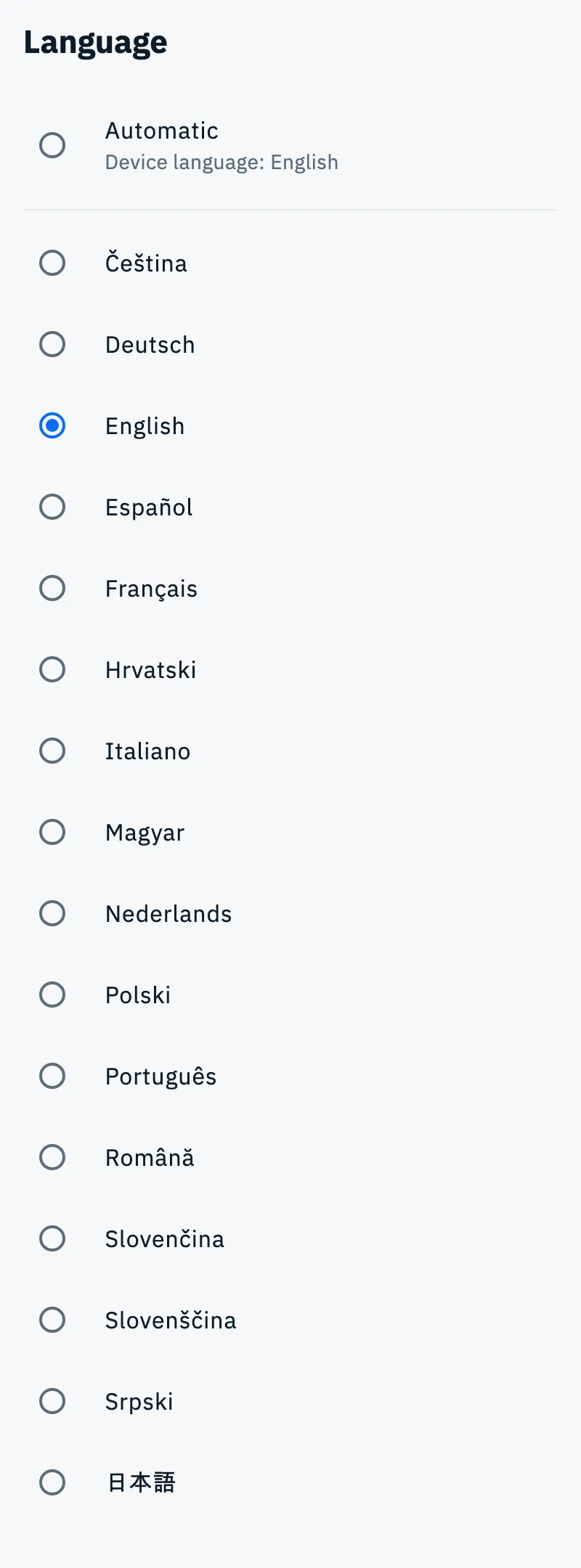
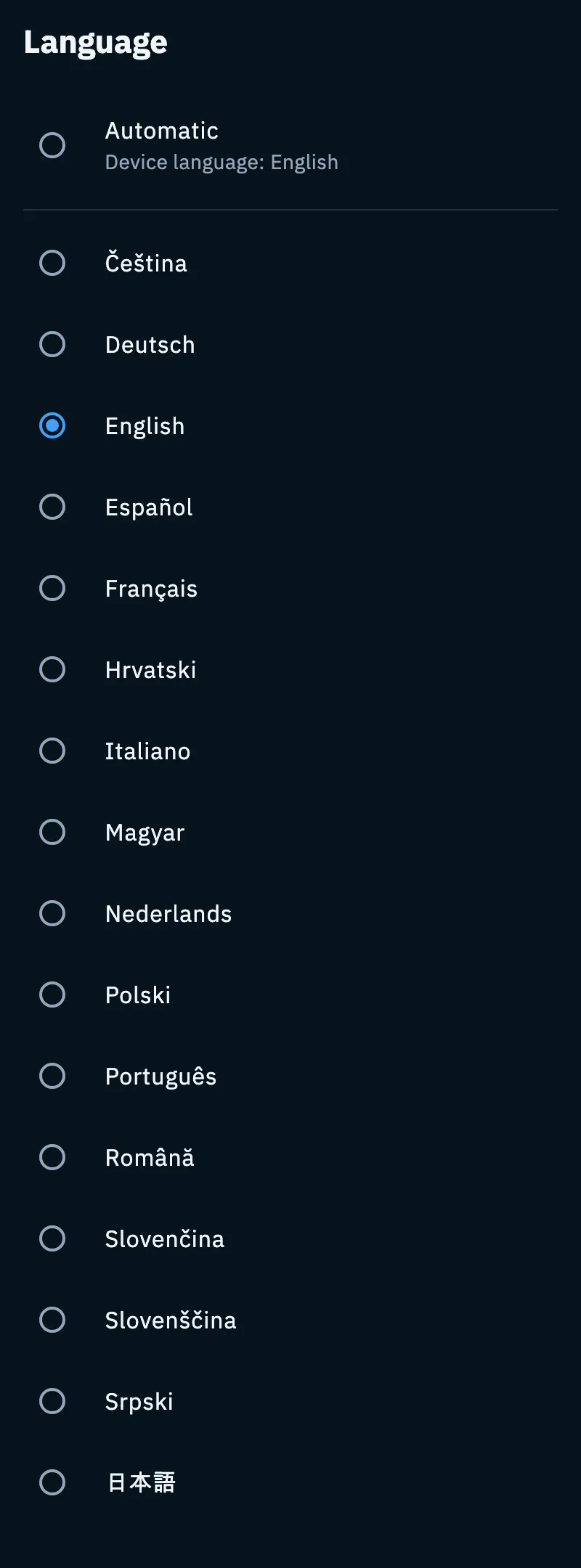
HamQSO comes in 16 languages. Each one is written in its own language, so you find yours even if you picked one you cannot read by mistake.
- In Appearance, tap the language row. It shows the language in use, or Automatic with your device's language.
- Choose Automatic or a language.
- The app switches language at once. The list stays open: if you tapped the wrong one, yours is still right under your finger.
| Choice | What it does |
|---|---|
| Automatic (default) | Uses your device's language; on the web, your browser's. If HamQSO does not have it, it uses English. Under the choice you read "Device language: …" or "Device language not available, uses English". |
| A language | Overrides the device's language until you go back to Automatic. |
The languages are: Čeština, Deutsch, English, Español, Français, Hrvatski, Italiano, Magyar, Nederlands, Polski, Português, Română, Slovenčina, Slovenščina, Srpski, 日本語.
Numbers and dates follow the language of the app too (for example 1,872 in English, 1.872 in Italian). The word QSO is never translated.
Choosing the theme
Under Theme, choose one of three:
| Choice | What it does |
|---|---|
| System (default) | Follows the theme of your device or browser, and changes by itself when the system does. |
| Light | Always light. |
| Dark | Always dark. |
Choosing the units
Under Units, choose how distances and heights are shown:
| Choice | What it does |
|---|---|
| Automatic (default) | Follows your device's region (on the web, the browser's): miles and feet in the United States, the United Kingdom, Liberia and Myanmar, kilometres and metres elsewhere. |
| Metric | Kilometres and metres. |
| Imperial | Miles and feet. |
The choice applies to the distances of spots and QSOs, operation statistics, the coverage test, the radius of alerts and the height of summits and references.
Keeping the screen on
On a phone or a tablet, in the Display section, the Screen always on switch keeps the screen from turning off while the app is open: handy during an activation or while you follow spots.
- Open Profile › Settings.
- Turn Screen always on on or off.
It is on by default. It works only while the app is in the foreground, and the app applies it again every time you come back. It uses more battery: turn it off if you need to save it.
On a computer
On the web, in a wide window, the Display section is replaced by Keyboard shortcuts, with the All shortcuts row: see Keyboard shortcuts. Language, theme and units work as on a phone or a tablet.
Accessibility
HamQSO has no accessibility settings of its own: it follows those of your device or browser.
- Reduce motion: with this system option, large animations (for example the logo at start, the globe, DX Replay, the contest calendar) become fades or jumps.
- Screen readers (VoiceOver, TalkBack or your computer's): buttons and rows have a name, charts read out their values and some changes are announced. Language names are read each in its own language.
- Text size: texts follow the size chosen in the system.
- Keyboard: on the web you move with Tab and the app's shortcuts; the focused element is highlighted.
The globe and the maps are drawings: the same information is also in the lists and the details.
Troubleshooting
Under "Automatic" you read "Device language not available, uses English". HamQSO does not have your device's language, so it uses English. If you prefer another of the 16 languages, choose it by hand.
Another device shows a different language, theme or units. These choices stay on the device where you make them and do not travel with your account: set them there too.
Distances are in miles but you want kilometres (or the other way round). With Automatic the app follows your device's region, not its language. Choose Metric or Imperial.
The screen turns off anyway. Check that Screen always on is on and that HamQSO is in the foreground: in the background the screen follows the system's rules again.