
Automatic uploads and waiting QSOs
When HamQSO uploads your QSOs, how to choose what goes to each service, bulk upload, and why a QSO is waiting and how to unblock it.
FreeUpdated for HamQSO 0.1.19
On this page
- When an upload starts
- Automatic or manual, profiles and operations
- QSOs on this service and "Retry"
- Bulk upload
- Why a QSO is waiting
- Stopped service: credentials refused or subscription
- QSO changed after the upload
- QSOs in the trash and deletion on the services
- Free and Pro
- Phone, tablet and computer
- Troubleshooting
Once your services are linked, HamQSO sends your QSOs by itself: you do not have to remember to upload them. This page explains when an upload starts, how to choose what goes to each service, how to upload the whole log in bulk and what to do when a QSO stays waiting.
Everything starts from Linked services: open Profile and, in the Station and log group, tap Linked services. The rules of a single service are on its page: tap the service's card. How to link the accounts is in Linking QRZ.com, LoTW, eQSL.cc and HRDLog.
When an upload starts
There is no button to press: HamQSO uploads your QSOs after each sync of the log. With the app open, a sync starts:
- when the app starts and when you come back to it;
- when the network comes back;
- shortly after you save a QSO;
- when another of your devices changes the log.
After the sync HamQSO sends the waiting QSOs, one QSO at a time, to each service linked on this device in Automatic mode.
Which services a new QSO goes to
When you log a QSO, HamQSO queues it for:
- every service linked on this device in Automatic, when the QSO is within the chosen station profiles and operations (see below). For QRZ.com the logbook key of the QSO's station profile is needed too;
- every service linked only on another of your devices: that device will upload it;
- LoTW, when you have a valid certificate for the QSO's station profile.
A QSO goes to each service only once, even when the service is linked on several devices: the first device that takes it uploads it. Details in Services on several devices.
Errors and network
- When the service does not answer or the network drops, the QSO goes to the state "Error, next try" with a date and time, and HamQSO stops on that service until the next round. The next try comes after 1, 2, 4, 8… minutes, at most after 60 minutes, or after the time the service asks for when it is longer.
- Without network the QSOs stay queued: in Linked services you read "Queued: they go out when the network is back."
- With the app open HamQSO tries again by itself when the wait is over.
LoTW
QSOs for LoTW are signed and uploaded by the HamQSO service with your certificate, with the app closed too. When QSOs are waiting for LoTW, the app asks the service for an upload round, at most every 5 minutes. The state of the certificates is read again once a day. See Uploading to LoTW.
With the app closed
- Android: a background task about every 15 minutes, when there is network.
- iOS: when the system allows it, with no fixed time.
- Web and computer: uploads start only with the app open.
In the background HamQSO only uploads the queue and asks for the LoTW round, for a few seconds: the rest waits until you open the app.
The other automatic checks
With the app open HamQSO also checks, at most every 6 hours, the confirmations of the services and the QRZ.com log, and downloads a few cards from eQSL.cc at each round (3 at a time). Confirmations are explained in A QSO on your services, the cards in Cards received from eQSL.cc.
"Upload now"
Don't want to wait for the automatic round? In Linked services tap Upload now in the summary at the top. It uploads right away the queued QSOs to every service linked here, the ones in Manual too, and shows "Uploading: 3 of 12".
Automatic or manual, profiles and operations
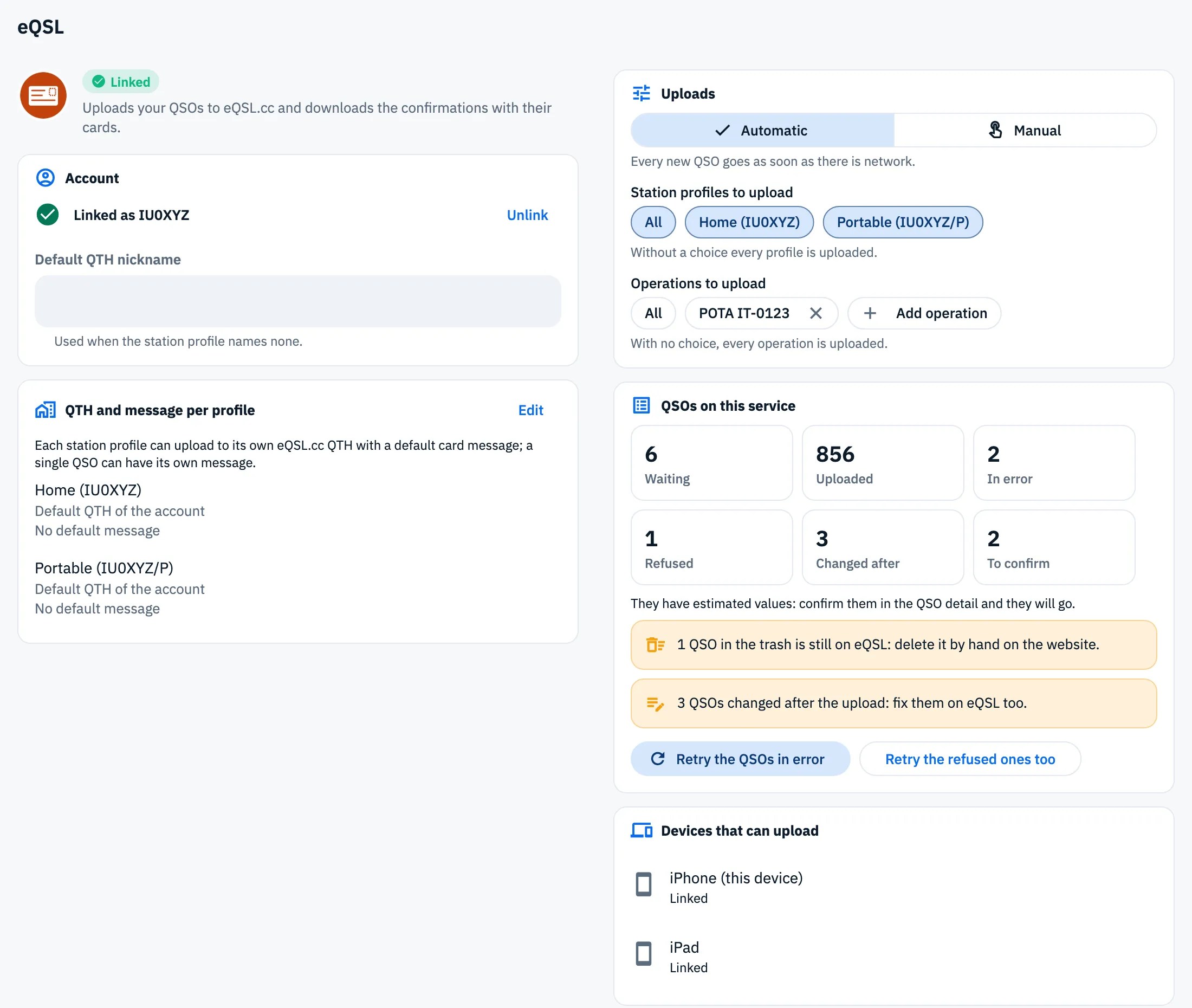
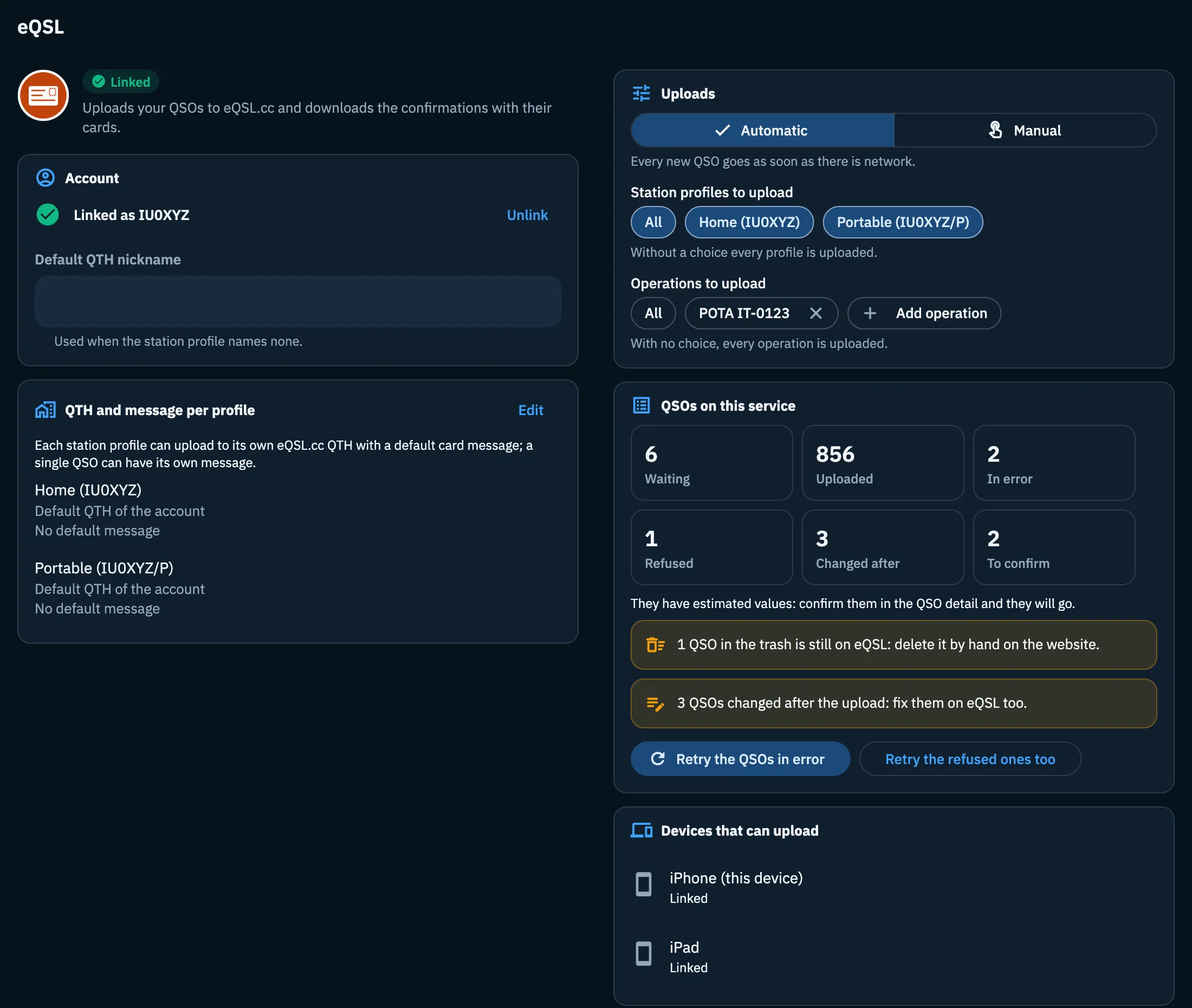
Each service has its own Uploads section, shown when the service is linked on this device.
- Open Linked services and tap the service's card.
- In Uploads choose Automatic or Manual.
- If you have more than one station profile, choose in Station profiles to upload which ones to send.
- In Operations to upload tap Add operation and pick the operations, if you want to upload only some of them.
| Option | What it does | Default |
|---|---|---|
| Automatic | "Every new QSO goes as soon as there is network." | yes |
| Manual | New QSOs logged on this device are not queued for that service: you upload them with Bulk upload or with Upload in the QSO detail. | no |
| Station profiles to upload | Shown only with more than one station profile. The All chip and one chip per profile, with name and callsign. Choosing all of them or none uploads every profile. | All |
| Operations to upload | The All chip, one chip per chosen operation (tap the x to remove it) and Add operation, which opens the list of the operations of your log. A deleted operation shows as "Deleted operation". | All |
For QRZ.com the choice between automatic and manual is the Send QSOs automatically switch, in the Logbook keys section. It can be turned on only when there is an API key ("Turns on when the API key is there").
QSOs on this service and "Retry"
On the service's page the QSOs on this service section shows the counts of its queue.
| Tile | What it counts | When it shows |
|---|---|---|
| Waiting | QSOs still to upload | always |
| Uploaded | QSOs already on the service (the ones the service already had too) | always |
| In error | temporary errors, which HamQSO retries by itself | when more than 0 |
| Refused | QSOs the service turned down for good | when more than 0 |
| Changed after | QSOs changed after the upload | when more than 0 |
| Excluded | QSOs you chose not to upload to that service | when more than 0 |
| To confirm | QSOs with estimated values, waiting for you | when more than 0 |
To queue again the QSOs that did not go:
- Retry the QSOs in error: HamQSO uploads them right away, without waiting for the next try. The ones for LoTW are uploaded by the HamQSO service at its round.
- Retry the refused ones too: tap it only after fixing the QSOs. The service turned them down and without changes it would turn them down again.
The buttons show only when there are QSOs in error or refused, and they are off while an action is running. The reason of each refused QSO is in the QSO detail: see A QSO on your services, which also explains how to exclude a QSO from a service.
Bulk upload
Use it to send a whole log to a service: an old or imported log, or the QSOs logged while the service was in Manual. It uploads the QSOs never sent to that service and the ones in error.
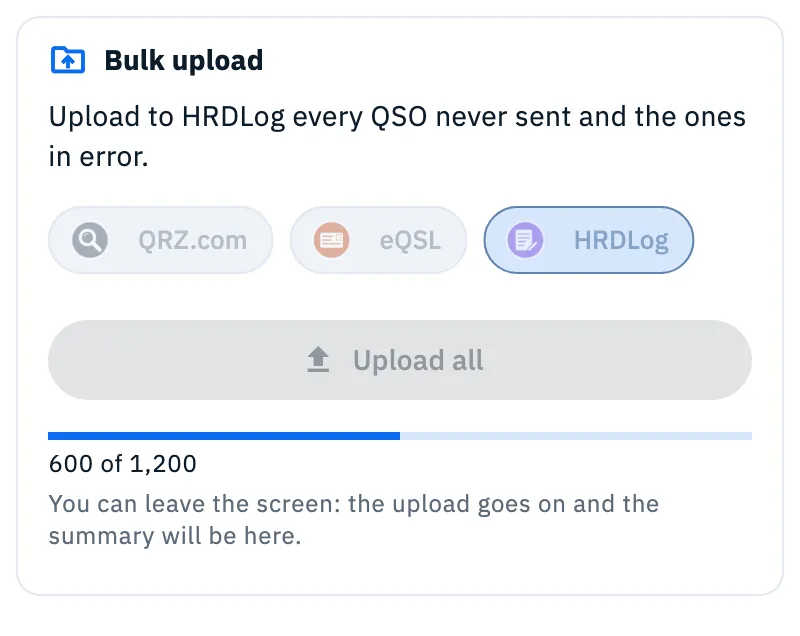
- In Linked services scroll to Bulk upload. On a tablet and a computer it is in the right column.
- Pick the service among the chips. Only the services linked on this device are there, plus LoTW when you have a valid certificate. The first one is already picked.
- Tap Upload all.
- Follow the bar and the count, for example "600 of 1200". You can leave the screen: the upload goes on and the summary is there when you come back.
At the end you read "Upload to HRDLog finished" with the counts: "Uploaded 1180, duplicates 12, errors 3, refused 5". Duplicates are QSOs the service already had, and they count as uploaded. There can also be:
- "… left to another of your devices": another device was already uploading them, they do not go twice;
- "… without a QRZ.com key for their station profile": add the key in Logbook keys;
- "Stopped: …" with the reason: "credentials refused", "a QRZ.com subscription is needed", "the eQSL.cc QTH is missing", "the service does not answer, try again later" or "the HamQSO service cannot be reached". The last two add "Queued: they go out when the network is back."
For LoTW there is no bar: you read "QSOs queued for LoTW: the HamQSO service signs and uploads them, with the app closed too."
QSOs in the trash and QSOs with estimated values do not go, not even with a bulk upload.
Why a QSO is waiting
QSOs to confirm
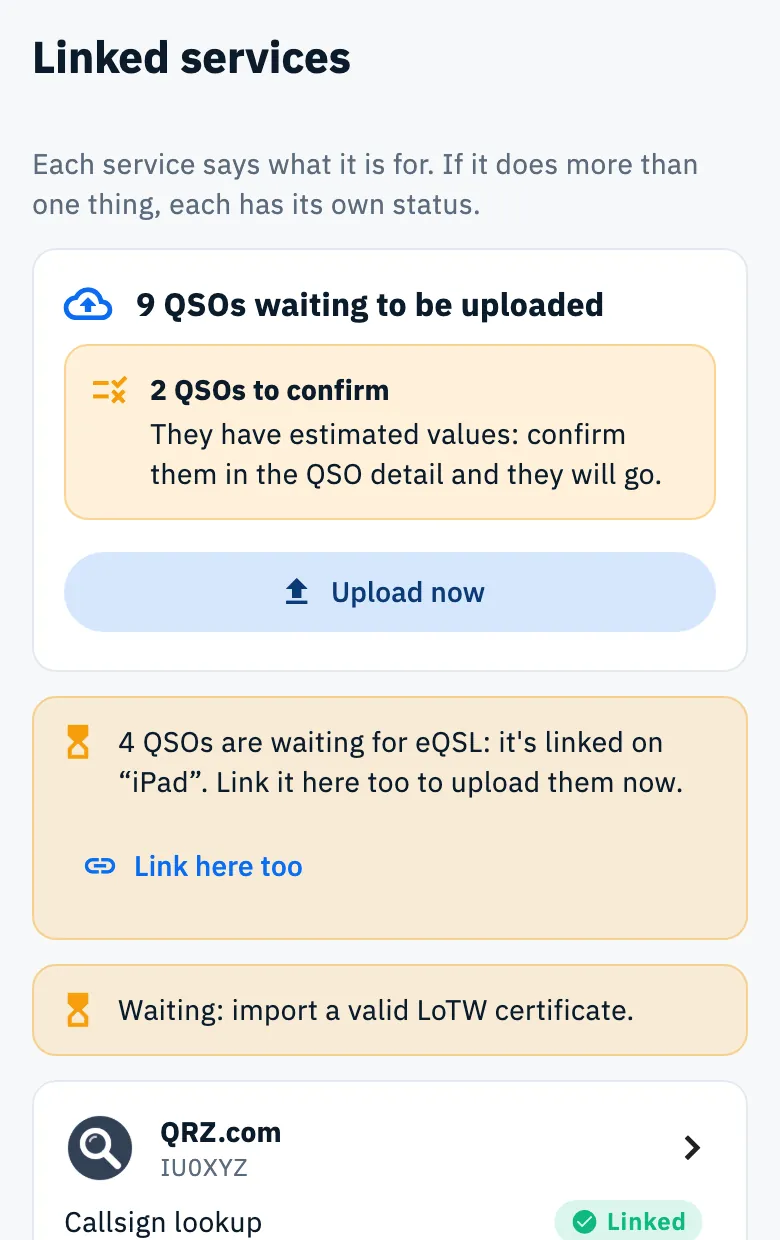
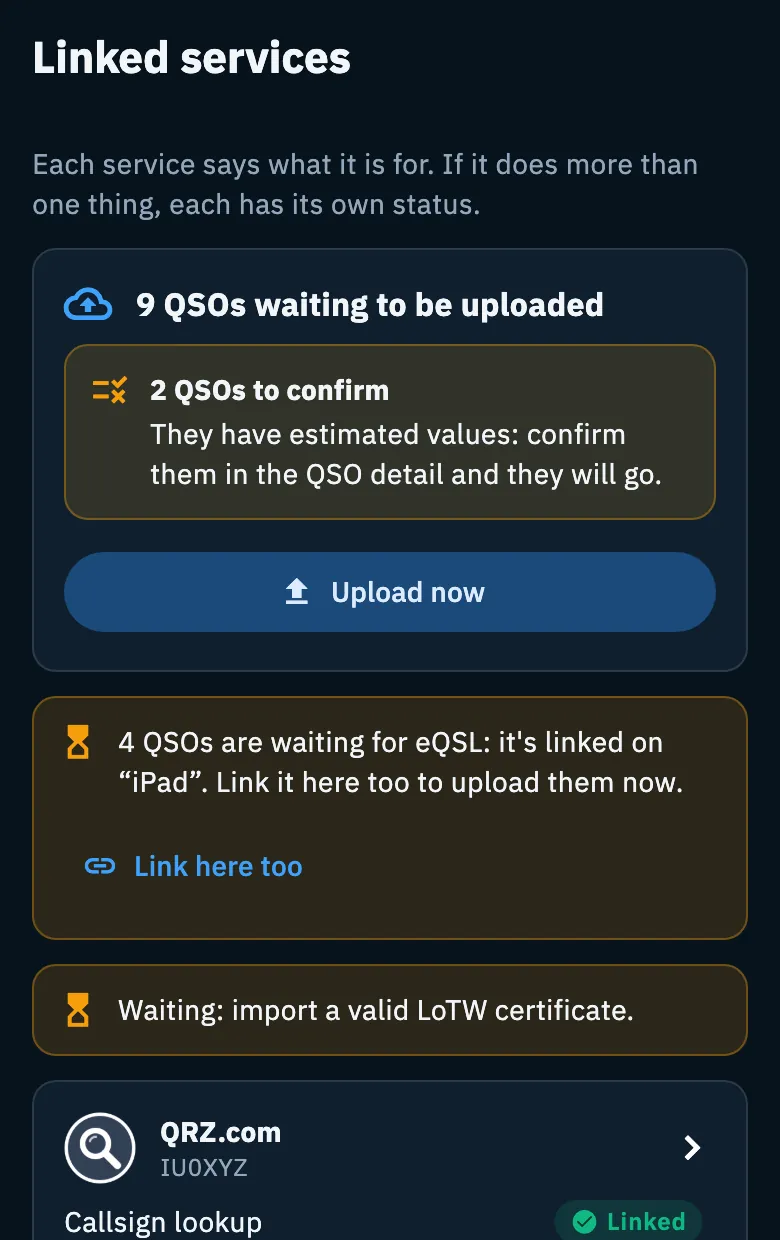
HamQSO never uploads estimated values as real (for example a mode or a place the app worked out). A QSO with an estimated field stays put until you confirm it. In the summary of Linked services you read "2 QSOs to confirm" with "They have estimated values: confirm them in the QSO detail and they will go."
- Open the QSO from the log.
- Confirm or fix the estimated values: the QSO goes by itself at the next round.
How to confirm them is in Opening and editing a QSO.
QSOs without a band
eQSL.cc and LoTW do not accept a QSO on a frequency outside every amateur band. HamQSO does not send it and marks it as refused: "No band: this service does not accept it". Fix the QSO's frequency, then tap Retry the refused ones too on the service's page.
A device or a certificate is missing
When QSOs are waiting for a service that this device cannot upload, a yellow notice with an hourglass shows under the summary of Linked services:
- "Waiting: open HamQSO on a device linked to eQSL.": none of your devices has the service linked and working (for example it stopped because the credentials were refused). Link it here, or fix it on the device where it is linked;
- "Waiting: import a valid LoTW certificate.": LoTW needs a valid certificate (see Uploading to LoTW);
- "4 QSOs are waiting for eQSL: it's linked on “iPad”. Link it here too to upload them now.": the service is linked only on another of your devices. Tap Link here too to link it on this one as well, or let the iPad upload them the next time you open HamQSO there.
The two "Waiting: …" notices show on the service's page too, in the Devices that can upload section. QSOs to confirm do not count for these notices.
Stopped service: credentials refused or subscription
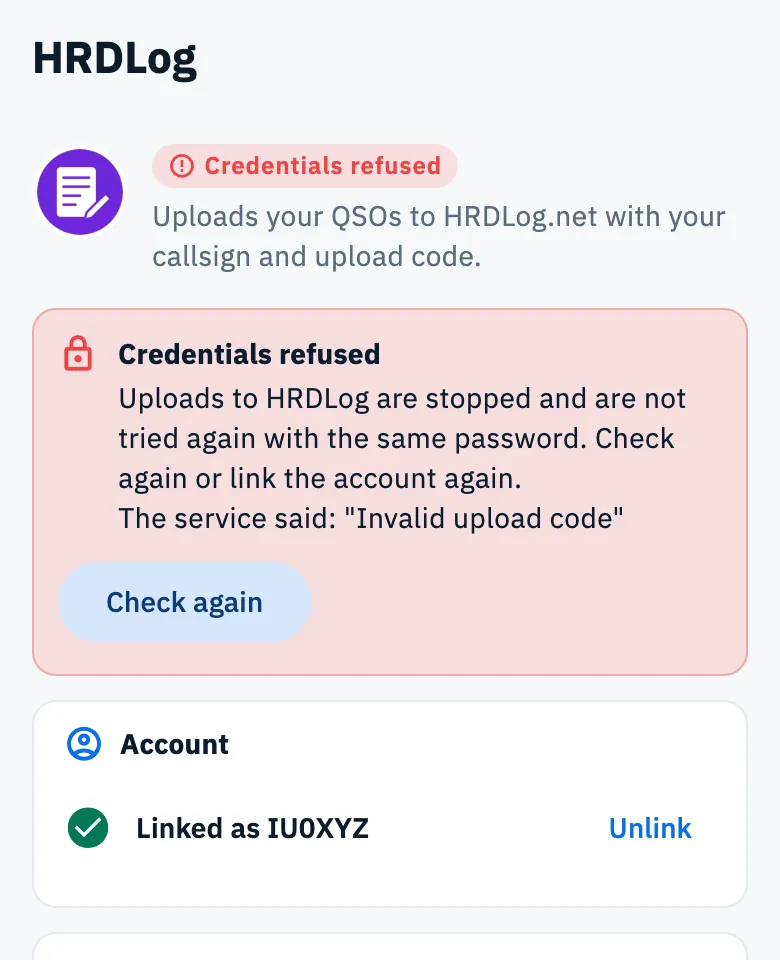
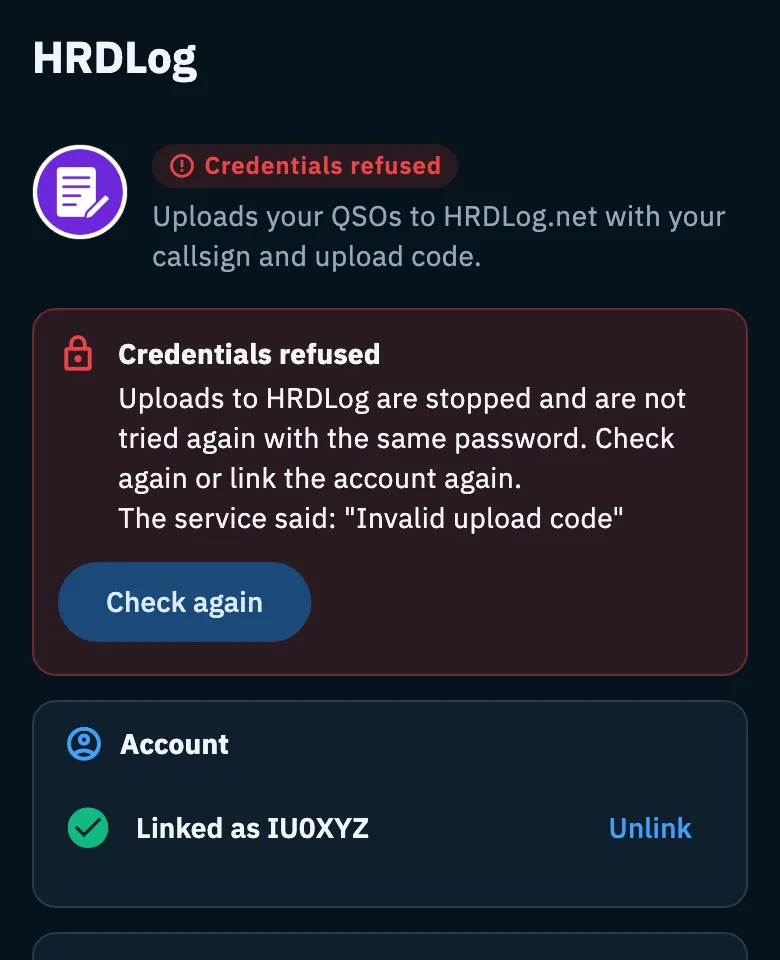
When a service refuses the saved credentials (for example you changed the password on its website) or QRZ.com says the subscription is missing, HamQSO stops the uploads to that service from this device. It does not try again by itself with the same password. The QSOs stay waiting and go when you fix it.
The service's card shows the state in red, and a notice shows at the top of the service's page:
- Credentials refused: "Uploads to HRDLog are stopped and are not tried again with the same password. Check again or link the account again.", followed by "The service said: "…"" with the service's words;
- A QRZ.com subscription is needed: "The key is valid, but QRZ.com accepts uploads and downloads from apps only from subscribers (XML Logbook Data or higher).";
- for eQSL.cc, a yellow notice "eQSL.cc has stopped: the QTH is missing": the password is right, but your user has more than one QTH. Tap Choose the QTH (see eQSL.cc and HRDLog).
To get it going again:
- Open the service's page.
- Read the notice and the service's answer.
- If you fixed the account on the website, tap Check again. For QRZ.com, after renewing, tap I renewed, check.
- If the password changed, unlink the account and link it again with the new password.
The stop applies to this device only: another of your devices with the right credentials goes on uploading.
QSO changed after the upload
When you change a QSO already uploaded:
- QRZ.com and HRDLog get the new version by themselves at the next upload;
- eQSL.cc and LoTW take no changes from apps: fix it on their website too.
When you save the change, the bar at the bottom says "Changes saved. Fix the QSO on eQSL, LoTW too: it does not update by itself." Then you are reminded by:
- the QSO detail: "You changed this QSO after the upload: eQSL, LoTW takes no changes, fix it there too.";
- the service's card and page: "3 QSOs changed after the upload: fix them on LoTW too."
In the QSO detail the state on that service becomes "Changed after the upload".
QSOs in the trash and deletion on the services
When you delete a QSO already uploaded, it goes to the trash for 30 days. After 2 minutes, the time to undo, HamQSO deletes it from QRZ.com and HRDLog too: the state goes from "To delete from the service" to "Deleted from the service". The deletion is done by a device linked to that service.
eQSL.cc and LoTW do not allow apps to delete a QSO: you do it on their website. HamQSO reminds you:
- in the detail of the QSO in the trash: "This QSO is in the trash but stays on eQSL: delete it there by hand too.";
- on the service's card and page: "1 QSO in the trash is still on eQSL: delete it by hand on the website."
Special cases of QRZ.com:
- HamQSO can delete a QSO only when it knows its id on QRZ.com. When it does not (this can happen with a QSO QRZ.com already had), the same "delete it by hand" notice shows;
- a QSO imported from QRZ.com is never deleted from QRZ.com.
When you restore a QSO from the trash and the service had already deleted it, HamQSO uploads it again. When the service had not deleted it yet, the QSO stays on the service. The trash is explained in Deleting QSOs and the trash.
Free and Pro
Automatic uploads, bulk upload, retries and notices are free for everyone. Only the images of the eQSL.cc cards without a QSO in your log are Pro (see Cards received from eQSL.cc).
Phone, tablet and computer
The rules are the same everywhere. Two things change:
- with the app closed only Android and iOS devices upload; on the web and on a computer uploads start with the app open;
- from 840 points wide (tablet, computer, browser) Linked services and the service's page have two columns: Bulk upload and the Uploads section are on the right.
Troubleshooting
| Message | What to do |
|---|---|
| "Queued: they go out when the network is back." | Nothing: the QSOs go by themselves when the network is back. |
| "Error, next try …" | HamQSO tries again by itself at the time shown. To skip the wait, tap Retry the QSOs in error on the service's page. |
| "Refused by the service" | Read the reason in the QSO detail, fix the QSO, then tap Retry the refused ones too. |
| "No band: this service does not accept it" | Fix the QSO's frequency, then tap Retry the refused ones too. |
| "2 QSOs to confirm" | Open the QSOs and confirm the estimated values. |
| "Waiting: open HamQSO on a device linked to …" | Open HamQSO on the device linked to that service, or link it here. |
| "Waiting: import a valid LoTW certificate." | Import a valid LoTW certificate. |
| Credentials refused | Tap Check again, or unlink and link the account again with the new password. |
| A QRZ.com subscription is needed | Renew your QRZ.com subscription, then tap I renewed, check. |
| "Link a service first to upload the log in bulk." | Link at least one service on this device, or import a valid LoTW certificate. |
| "The upload could not start. Try again shortly." | Try again later, with network. |
| "… left to another of your devices" | Nothing: the other device uploads them. |
| "… without a QRZ.com key for their station profile" | Add the API key of that station profile in Logbook keys. |
More cases are collected in Troubleshooting.