
Choosing your card
Add models from the Shop and the special editions, pick the default model your eQSLs go out with, change country or delete your own models.
Free and ProUpdated for HamQSO 0.1.19
On this page
Every eQSL you send goes out with a model, the design of the card. In eQSL HamQSO you find models in the Shop, add them to your Models and pick the one your eQSLs go out with: the Default model. If you are new to it, start from What HamQSO eQSL is.
The Shop
- Open eQSL HamQSO.
- The Shop tab opens, the first of the four tabs at the top (Shop, Collection, Models, Sent).
- Scroll through the sections and tap a card to see it up close.
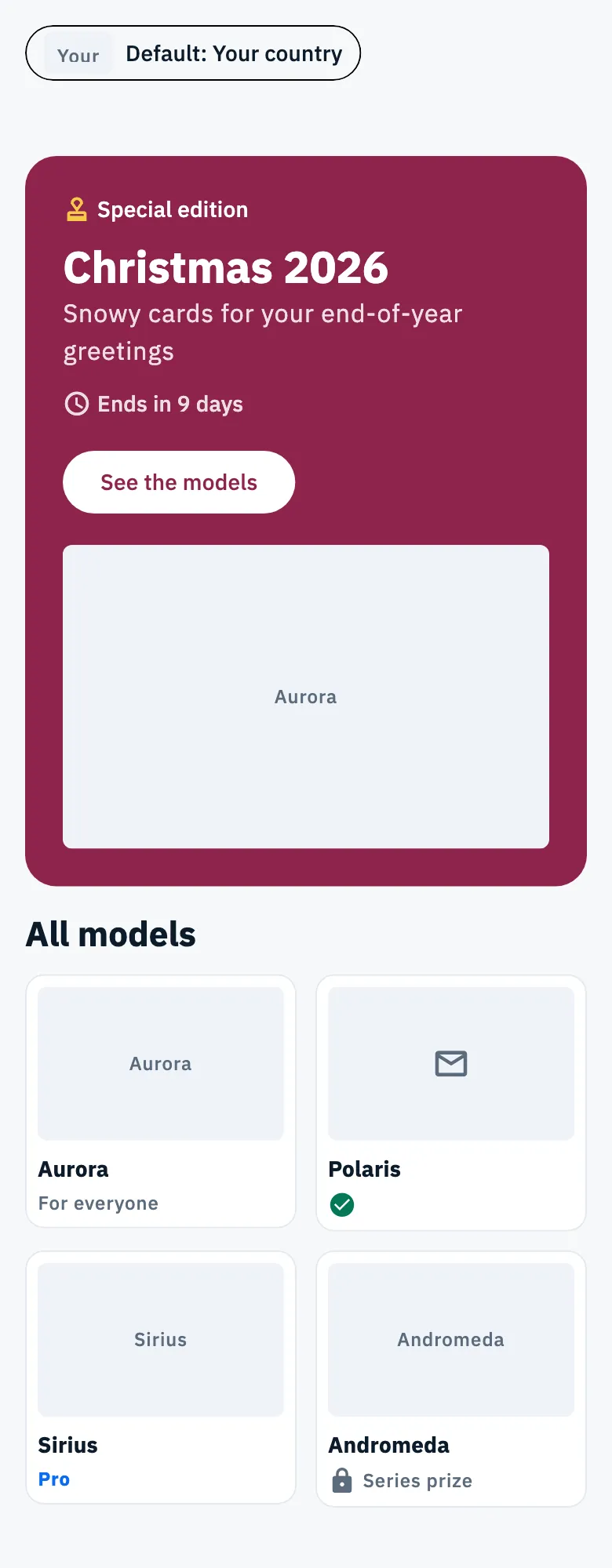
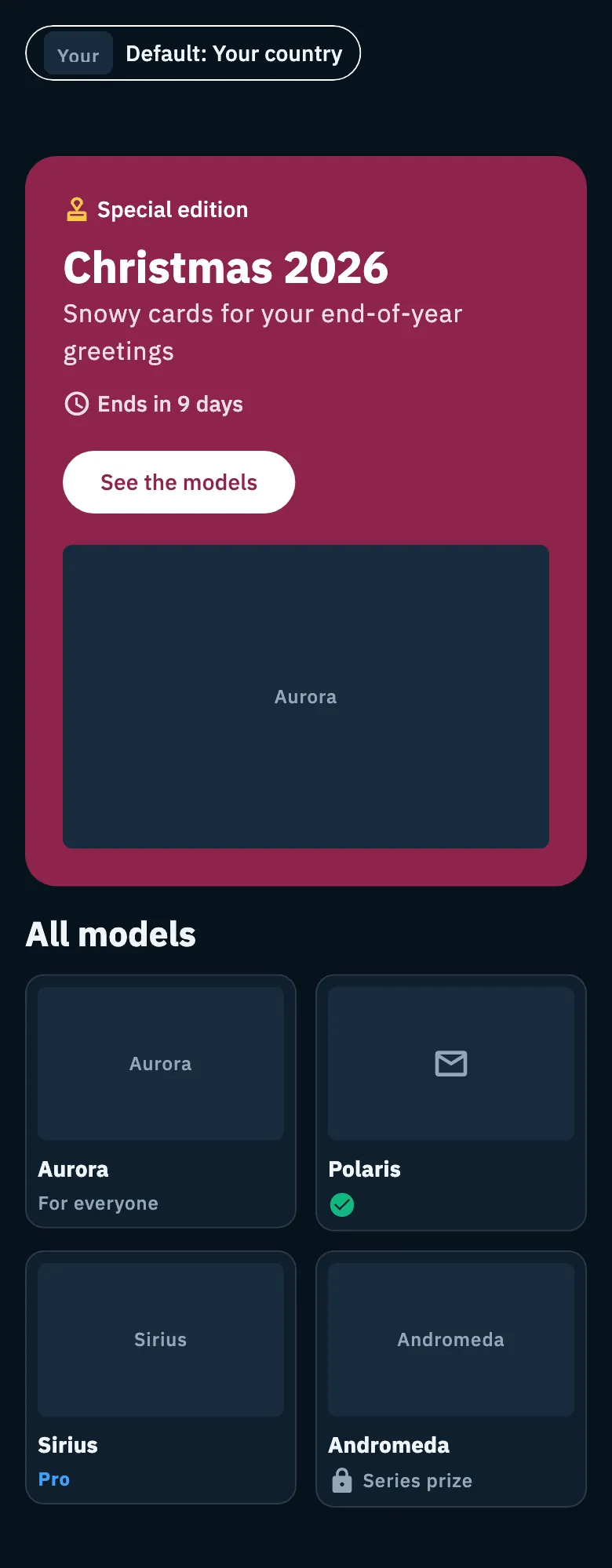
What appears in the Shop, in which order and until when, is decided by the HamQSO server, and it can change from week to week. You may find:
- the eQSLs you have just received, with Open the Collection (see Received cards, collection and series);
- a large block with the special editions on now, one per page (see below). When no edition is on, a block that opens the Models takes its place;
- the blocks of single editions, with all their models;
- rows that scroll sideways and grids of models;
- banners with a button that leads to a tab, a model, an edition, a series or HamQSO Pro;
- the series to complete.
Under each card you see the model's name and its state:
| Label | What it means |
|---|---|
| For everyone | Added to your models for free. |
| Pro | Needs HamQSO Pro. |
| Green check (In your models) | The model is already in your models. |
| Padlock, Series prize | It can't be added by hand: you win it by completing a series. |
In grids the cards are always small and show only the label. In rows and edition blocks they are small on a phone; on a tablet and on the web in a wide window they are large and carry the button: Add to models, With HamQSO Pro (opens the HamQSO Pro page) or Renew HamQSO Pro if your Pro has ended.
Adding a model from the Shop
- In the Shop tap the model's card.
- The model opens: the front of the card in large, its name and what you get ("You use it for all the eQSL you send, like the other models" and "It stays in your models, among the ones you added"). At the bottom you read For everyone and "Added to your models".
- Tap Add to models.
- At the bottom you see "“Name” is in your models. You find it among the models." and the button is replaced by the In your models check.
On a tablet and on the web in a wide window you can also tap Add to models right on the large card, without opening it.
The opened model is asked again from the server, so you see its state right now. A model of a special edition has the Special edition badge and a box that says until when it can be added ("Available until …"); if the edition has already ended, you read Edition ended instead of the button. Only the front of the card is shown.
On a phone, on a tablet and in the apps the model opens as a page with the button in a bar at the bottom; on the web, in a wide window, it opens in a window over the Shop.
Added models go to the Models tab, in the In your models group. To use one you still have to make it your default (see below).
Special editions
A special edition is a group of models HamQSO publishes for a while, for example for Christmas. It has the Special edition badge, its own colours and a countdown.
- It is added right away, without completing a series.
- After its end date it can no longer be added, but whoever added it keeps it in their models, and the eQSLs already sent keep their postmark.
In the large block of the Shop each page is an edition on now:
- the time line says for example "Ends in 9 days"; in the last days (the server sets when) it gets more precise, for example "Ends in 2 d 3 h 04 min";
- tap the block to see the models of the edition: the page scrolls to the edition's block or, when the Shop has none, its first model opens. The server chooses the button's text (for example "See the models");
- if you already have every model of the edition you see In your models with a check and the button becomes Use as default, which makes the first model of the edition your default. If a model of the edition already is your default, you see Default model with a check instead of the button.
When more than one edition is on, move between them with the dots under the block or, on a phone and a tablet, by swiping. On a tablet and on the web there are also the Previous edition and Next edition arrows; on the web, in a wide window, the editions are also listed at the side and the ← and → keys work too.
The block of an edition shows the countdown in days, hours and minutes, the series it belongs to ("With this period's eQSLs you also move forward in the series …", which opens the series) and all its models: in a row that scrolls on a phone, in a grid on a tablet and on the web in a wide window.
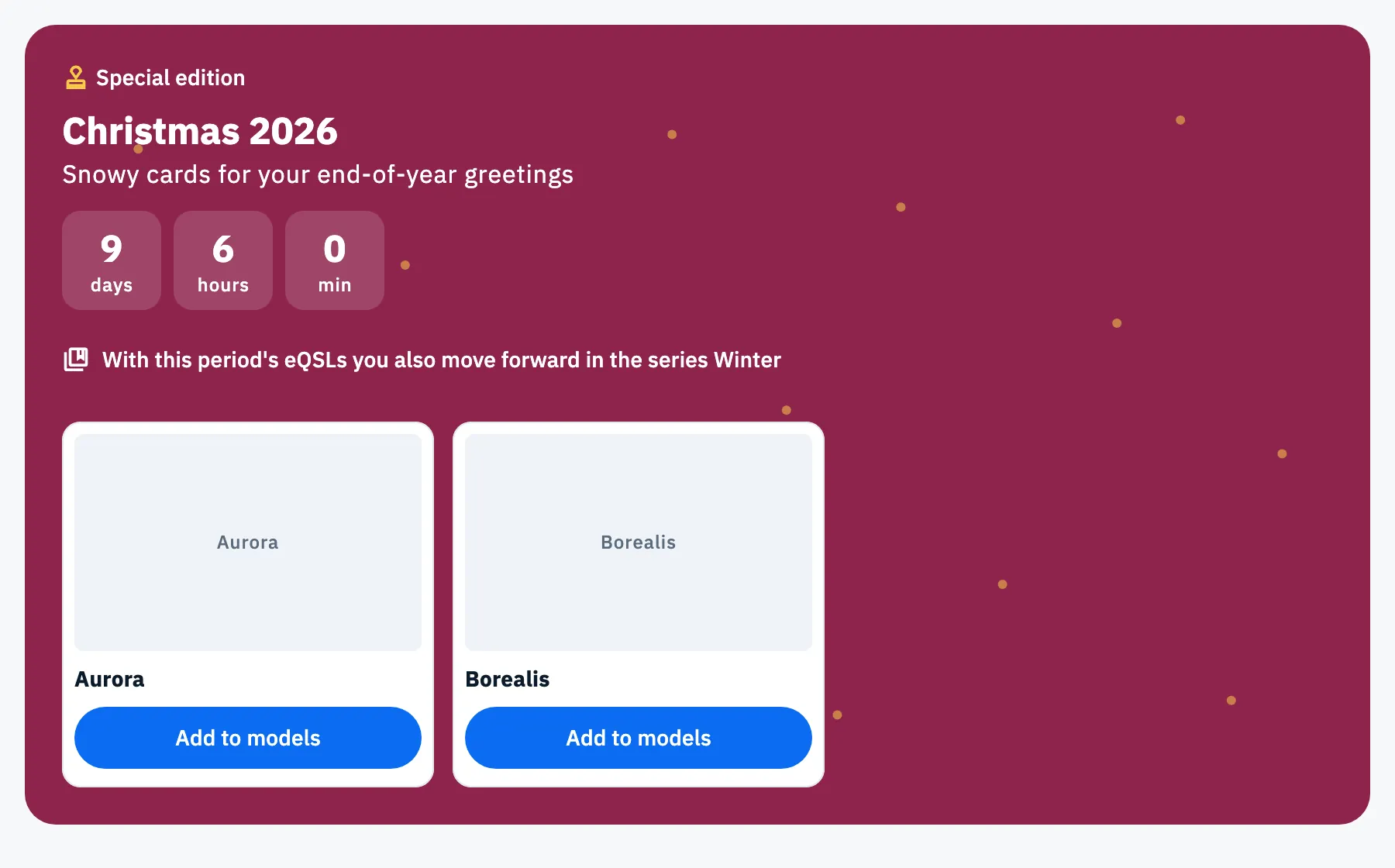
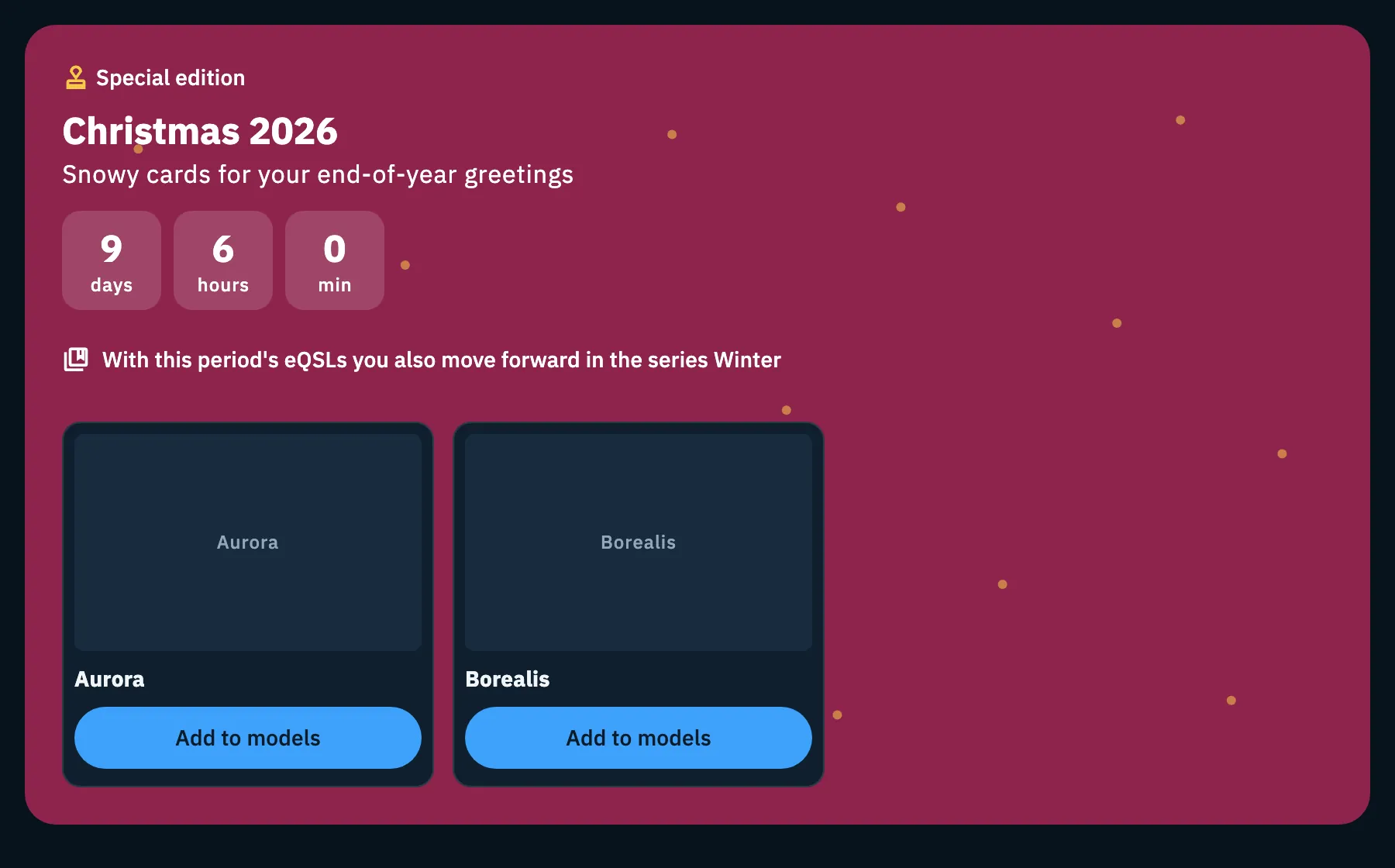
The countdown uses the server's time, corrected against your device clock, and updates every minute. When an edition ends it leaves the Shop. In the Models tab, a model of an edition you have not added yet says "Available until …" with the date.
The Models tab
The Models tab holds every model your eQSLs can go out with and the ones you can still get.
- Open eQSL HamQSO and tap the Models tab. You can also get there by tapping the "Default: …" chip (on a phone it is at the top of the Shop, elsewhere next to the tabs).
- When it opens your default model is selected: you see it in large, with its panel of actions.
- Tap another tile to see it in large and get its actions.
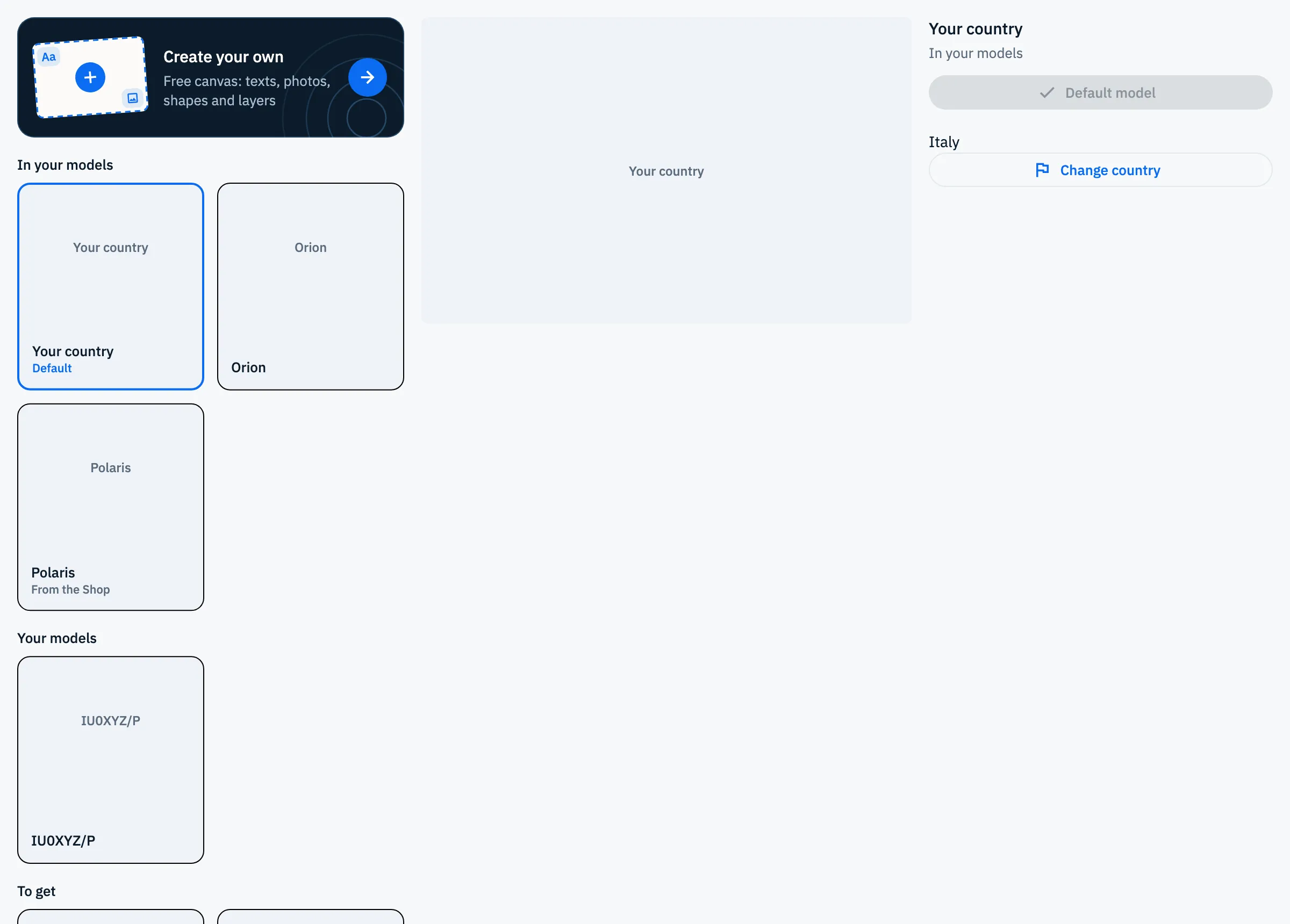
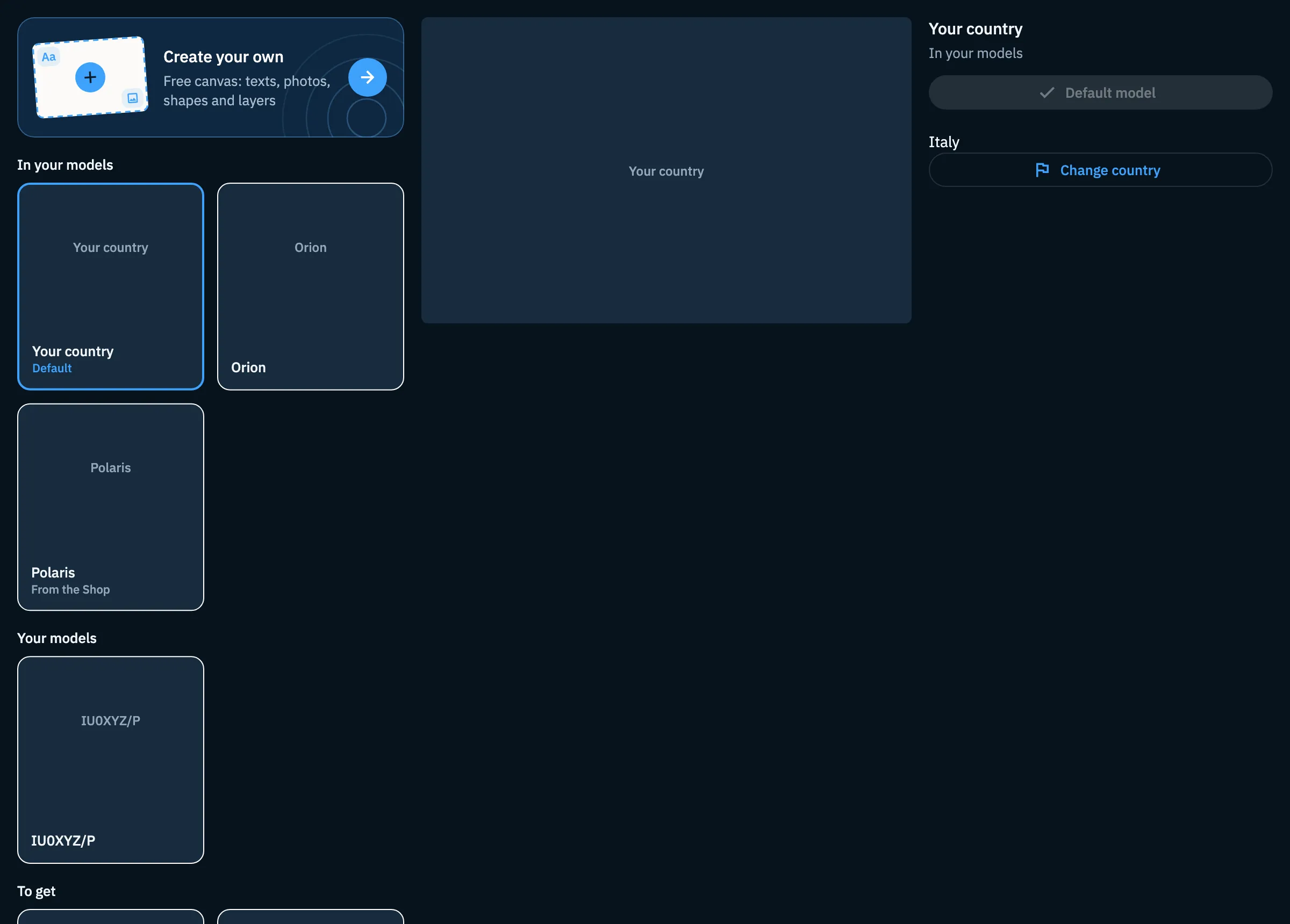
The list is split in groups; an empty group is not shown.
| Group | What it holds |
|---|---|
| Create your own | Always at the top: opens the editor to design a model of your own (see Designing your own card). |
| In your models | HamQSO's starting models, "Your country" among them, the ones you added from the Shop and the prizes you won. |
| Your models | The models you made in the editor. |
| To get | Shop models you have not added yet and series prizes not won yet (with the padlock). |
Under each tile's name you find Default on the default model, From the Shop on Shop models and Pro on those that need HamQSO Pro.
The panel of the chosen model shows its name, the group it belongs to and only the buttons that apply:
| Button | When it is there | What it does |
|---|---|---|
| Use as default | Models you have and can use now | Makes it the model your eQSLs go out with. |
| Default model (greyed out, with a check) | The default model | Tells you it is already in use. |
| Edit | Your models | Opens the model in the editor. |
| Use as a base | HamQSO's starting models (not "Your country") | Opens the editor with a copy of the model to start from. |
| Change country / Back to the country of my callsign | "Your country" | Chooses the country of the card (see below). |
| Add to models | Shop models to get | Adds it to your models, as in the Shop. |
| With HamQSO Pro / Renew HamQSO Pro | Pro models you can't use now | Opens the HamQSO Pro page. |
| Delete model | Your models | Deletes it for good (see below). |
For a prize not won yet the panel shows Series prize and how far you are, for example "14 of 20" with a bar and "6 more and the «Name» model is yours". There is no button: the prize comes when you complete the series (see Received cards, collection and series).
A model just saved in the editor comes into the list with a short animation (still if you reduced motion on your device).
Choosing the default model
The Default model is the one your eQSLs go out with, unless an operation has a model of its own. Until you choose another one it is "Your country".
- Open the Models tab.
- Tap the tile of the model you want.
- In the panel tap Use as default.
The tile gets the Default label and the button becomes Default model, greyed out, with a check. You can also do it from the Shop, with Use as default on the page of an edition you already have, in the large block, and from the editor after saving a model of yours.
"Your country" and Change country
"Your country" is the free model designed for the country of your callsign, and it is the starting default model. Its panel shows the country's name. If the country worked out from your callsign is wrong, or you want another one:
- In the Models tab tap "Your country".
- Tap Change country.
- Pick the country from the list with flags that opens from the bottom.
The server prepares the model of the chosen country and the list updates. Under the country name you see for example "Chosen by you. The callsign IU0XYZ is from Italy.". To go back to your callsign's country tap Back to the country of my callsign. Country names in the list are in the app's language.
Deleting one of your models
You can delete only the models you made in the editor (the Your models group). Starting models, Shop models and prizes can't be deleted.
- In the Models tab tap your model.
- At the bottom of the panel tap Delete model.
- Read the confirmation "Delete “Name”?" and tap Delete.
The confirmation tells you what changes:
- if nothing uses it: "It disappears from "Your models" on all your devices.";
- if it is your default: "Your country" will be used instead;
- if operations use it: they will use your default model; the confirmation names up to 3 of them, then "and N more".
It always ends with "You won't be able to get it back.". While deleting the button says Deleting… and the window can't be closed. When done you see "Model “Name” deleted", with no Undo: deleting can't be undone. The list then selects your next model, or the previous one.
On the web, in a wide window, you can also select the tile of your model with the keyboard and press Del or ⌫: the same confirmation opens. The button's tooltip names the key, for example "Delete model (Del)".
Free and Pro
In the panel of a model that can't go out right now the app tells you which model your eQSLs go out with instead, for example "Without HamQSO Pro, eQSLs with this model go out with "Your country".".
If HamQSO Pro ends
eQSLs with your models and with Pro models go out with another model, without your changes, until you renew. Your changes stay saved. The app tells you:
- in the Shop, with a bar at the top: "Your HamQSO Pro has ended: eQSLs with your models go out without your changes until you renew it. Your changes stay saved.";
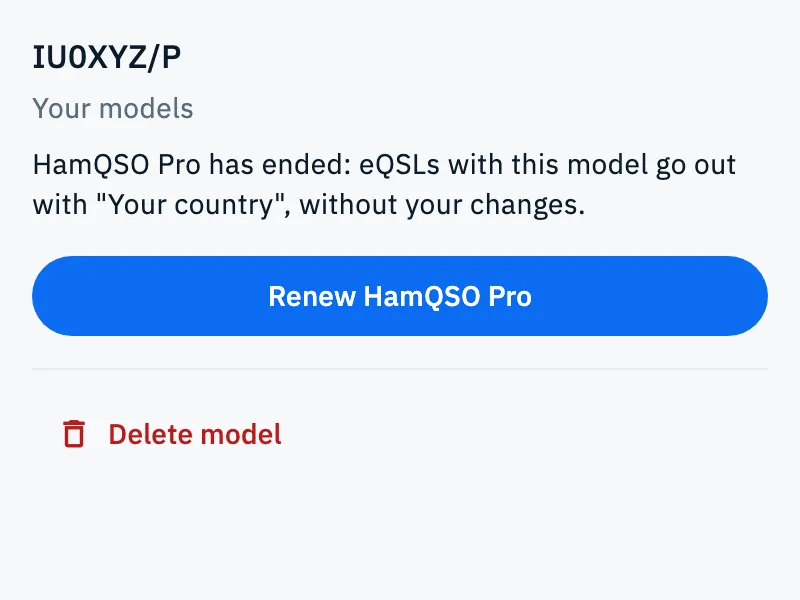
- in Models, in the model's panel, which names the model used instead: for example "HamQSO Pro has ended: eQSLs with this model go out with "Your country", without your changes.". Until you renew, Use as default and Edit are replaced by Renew HamQSO Pro (with Delete model still there for your models);
- in the editor, when you save: "Your HamQSO Pro has ended: the model was not saved. eQSLs go out with "Your country".", and the HamQSO Pro page opens.
Tap Renew HamQSO Pro to renew.
Phone, tablet and web
| Phone | Tablet | Web (wide window) | |
|---|---|---|---|
| Shop grids | 2 columns | 3 or 4 columns | 4 or 5 columns |
| Rows and edition blocks | Small cards with the label | Large cards with the button | Large cards with the button; rows have arrows and also scroll with the mouse |
| Editions in the large block | Dots and swipe | Dots, arrows and swipe | Dots, arrows, list at the side and ← → keys |
| Opened Shop model | Page | Page | Window over the Shop |
| Models tab | Preview, panel and list one under the other | Preview on top, list and panel side by side | List, preview and panel in three columns (in a less wide window, as on a tablet) |
| "Default: …" chip | At the top of the Shop | Next to the tabs | Next to the tabs |
On the web, in a narrow window, the app works as on a phone. On a phone and a tablet, when you tap a tile far down the Models list, the page scrolls back up to show the chosen model.
Troubleshooting
"We can't load what's new in eQSL. Try again in a moment." The Shop did not arrive and the device has no copy of it. Check your connection and tap Retry. When the server does not answer but a copy exists, you see the last Shop downloaded.
"This section didn't load. The rest of the page works. Try again in a moment." Only that section did not arrive: tap Retry next to it.
"I can't load the Shop." The opened model did not load. Tap Retry.
"I can't add it to your models. Try again." The server can't be reached: check your connection and tap Add to models again.
"This model can no longer be added." The server refused the add, for example because the edition has ended. The Shop updates with the current state.
"I can't save. Try again." You tapped Use as default in the Shop before the Shop had finished loading. Wait a moment and try again.
I tapped Use as default or Change country, but everything went back. The server did not save the choice, usually because of the connection. Check your network and try again.
"I can't load the models." The Models tab did not load: tap Retry.
"Couldn't delete “Name”. Check your connection and try again." The model was not deleted. In the confirmation the button becomes Retry.
A card shows only the model's name. The image of the front has not arrived from the server yet, or there is none: you see an empty card instead. A model without a title is called "Model".