
Tuning the radio from spots
Put your radio on the frequency and mode of a spot with one tap: the Tune the radio button, automatic tuning, Undo and the command palette.
Free and ProUpdated for HamQSO 0.1.19
On this page
With your radio connected via CAT, HamQSO puts it on the frequency and mode of a spot: with the Tune the radio button in the spot's detail or, if you choose so, as soon as you tap the spot in the list. If you picked the wrong spot, Undo puts the radio back where it was.
To connect the radio see Connecting your radio.
Tuning with the button
- Open a spot (DX Cluster, POTA, SOTA, WWFF or from the map): see Opening a spot.
- Tap Tune the radio, the first of the actions, above Log QSO.
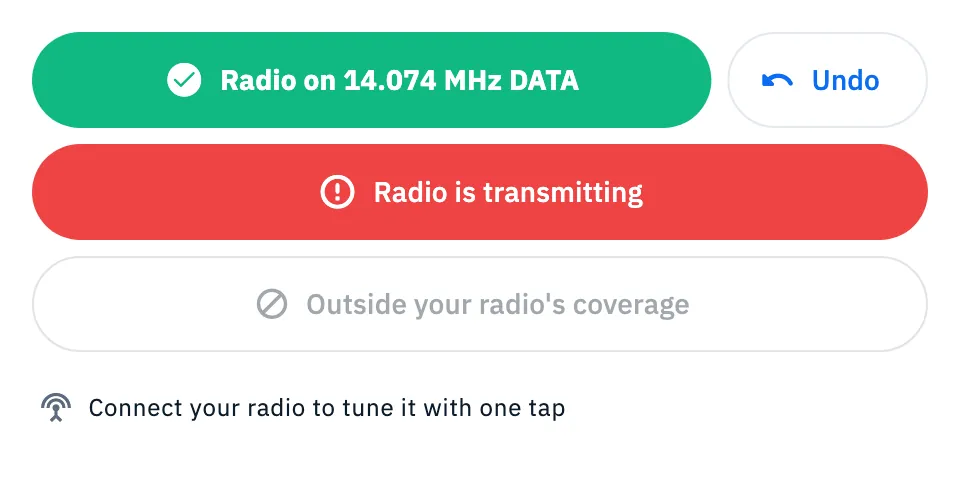
- While the command goes out the button shows a spinner; then, for a couple of seconds, it turns green with Radio on 14.074 MHz DATA (the frequency and mode the radio went to) and goes back to normal.
- If you made a mistake, tap Undo next to the button: the radio goes back to the frequency and mode it had before.
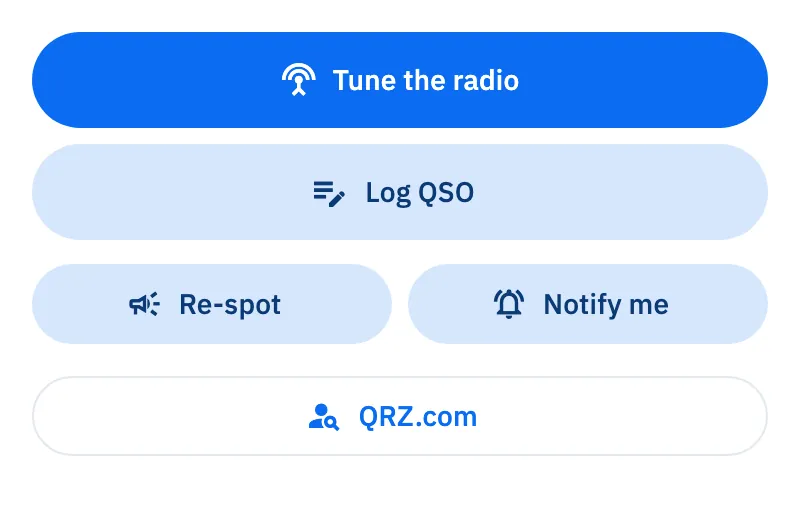
You can tap the button again whenever you like: the radio tunes to the spot again. The button always sets the spot's mode too (see below how it picks it).
What the button shows
| What you see | When |
|---|---|
| Tune the radio | The radio is connected and can receive the spot. |
| Spinner | The command is on its way to the radio: wait. |
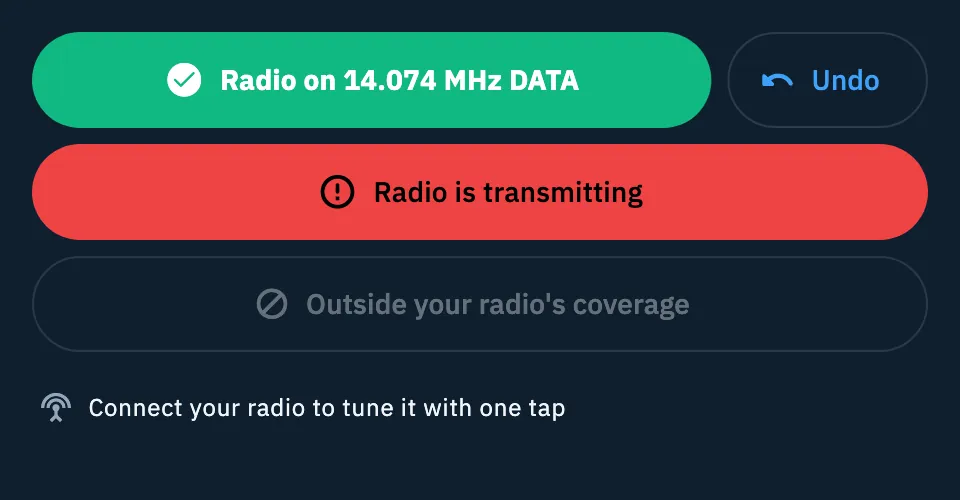
| Green, Radio on … with Undo | The radio is on the spot. The green lasts about 2.5 seconds, Undo stays until you tune somewhere else. After Undo the button shows for a moment where the radio went back to. |
| Red, Could not tune the radio. | The radio did not take the command. |
| Red, Radio is transmitting | With automatic tuning, the radio was transmitting and was not moved. |
| Disabled, Outside your radio's coverage | Your radio model does not receive the spot's frequency (for example a spot on 145 MHz with an HF radio): nothing is sent. |
| Connect your radio to tune it with one tap | No radio connected. Tap the line to open the connection guide. |
A spot without a frequency (for example a SOTA QRT spot) has no button.
Automatic tuning when you tap a spot
If you prefer the radio to move as soon as you tap a spot, without opening the detail and pressing the button, turn on automatic tuning.
- Open Profile and tap My station (see My station: radios and antennas).
- In the Radios tab, scroll below the list of radios to Tuning preferences.
- Under When you tap a spot choose Automatic.
- If you want the radio to change only the frequency and keep its mode, turn off Change the mode too.
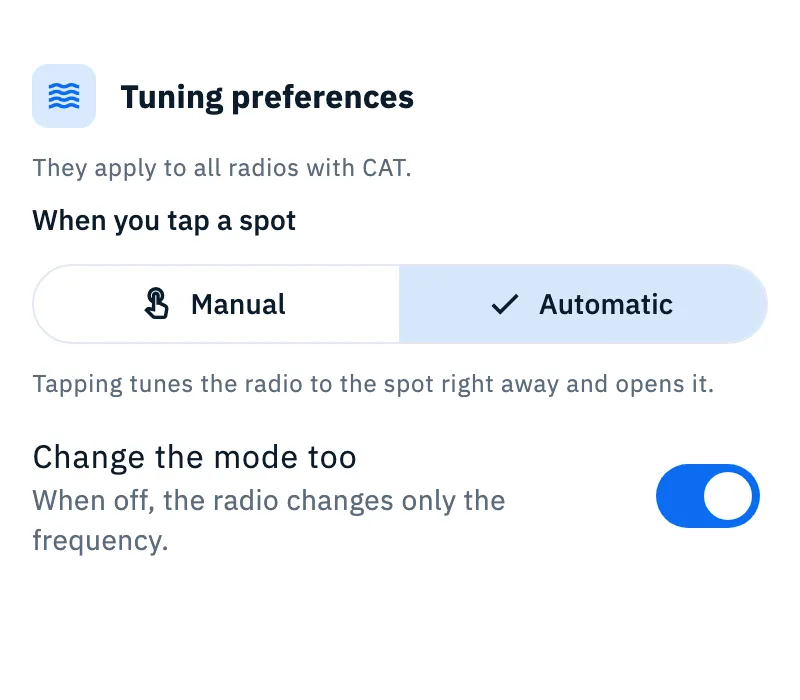
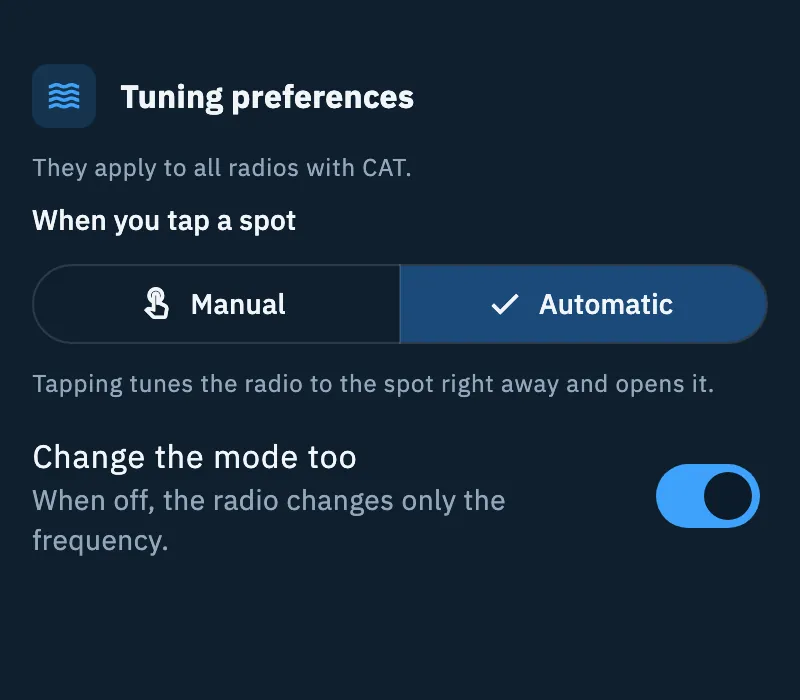
| Option | What it does | Default |
|---|---|---|
| When you tap a spot: Manual | "Tapping opens the spot; the radio tunes with the Tune the radio button." | Yes |
| When you tap a spot: Automatic | "Tapping tunes the radio to the spot right away and opens it." | No |
| Change the mode too | With Automatic, the radio also takes the spot's mode. "When off, the radio changes only the frequency." With Manual the switch is greyed out. | On |
Tuning preferences "apply to all radios with CAT" and stay on this device: on another phone or computer you choose them again. They are hidden while you reorder the radios.
With Automatic the radio goes to the spot when:
- you tap a spot in the list: on a phone the spot opens, on a tablet and on the web on a computer it opens in the detail beside the list;
- you tap a spot on the map next to the list, on a tablet and on the web on a computer;
- you tap the card of a spot on the activations map.
You see the result on the Tune the radio button of the spot that opens, with Undo as for the button. If the radio is transmitting (PTT pressed, or the CQ call of a coverage test), it is not moved and the button says Radio is transmitting.
How the app picks frequency and mode
Nothing to do: every time the radio goes to a spot (button, automatic tap, ◀ ▶ of the radio bar, keyboard arrows on the web) the app follows these rules.
Frequency. FT8, FT4 and JS8 spots carry the station's audio frequency (for example 14.075.8): when the spot falls in the mode's calling window, the radio goes instead to the calling frequency (14.074), where your digital mode program expects it. Every other spot takes the radio to the exact frequency of the spot.
Mode.
| Spot mode | Radio mode |
|---|---|
| CW | CW |
| AM | AM |
| FM, DMR, DV, C4FM | FM |
| RTTY | RTTY |
| USB, LSB | As written |
| SSB and other phone modes | LSB below 10 MHz, USB above and on 60 m |
| FT8, FT4, JS8, PSK and other digital modes | DATA |
| No mode or an unknown mode | The radio keeps its mode |
Tuning from the command palette
On the web on a computer you can also type a frequency and send the radio there, without a spot.
- Press Ctrl+K (on a Mac ⌘+K), or click the "Search callsign, frequency, command…" field at the top, to open the command palette.
- Type the frequency in kHz, for example 14074.
- Choose Tune the radio to 14.074 MHz: the radio goes to that frequency and keeps its mode.
Without a connected radio the command does not appear. See Finding anything with the command palette.
Free and Pro
Phone, tablet and web
- Phone: tapping a spot opens its page, where you find Tune the radio.
- Tablet and web on a computer: tapping a spot opens it in the detail beside the list; the button is there.
- Command palette: only on the web on a computer.
- Where the device vibrates, a successful and a failed tune give two different vibrations.
Troubleshooting
- "Could not tune the radio.": the radio did not take the command. Tap the button again. If after the red you see Connect your radio to tune it with one tap, the connection dropped: see When the radio does not answer.
- "Radio is transmitting": with automatic tuning the radio does not move while you transmit. Release the PTT (or stop the coverage test CQ) and tap the spot or Tune the radio again.
- "Outside your radio's coverage": your radio model does not receive that frequency. If the right radio is another one, switch it from the radio bar (see Using the connected radio).
- Tapping a spot does not move the radio: Manual (the default) is chosen in Tuning preferences, or the radio is not connected. Check the preferences in My station.
- The radio goes to 14.074, not to the spot's 14.075.8: this is on purpose, FT8, FT4 and JS8 spots go to the calling frequency.
- The radio changes frequency but not mode: with automatic tuning, Change the mode too is off; or the spot has no mode the app recognises.