
Signing in and saving your log
Sign in with Apple, Google or an email code, so your log, QSOs, alerts, settings and Pro follow you on every device.
FreeUpdated for HamQSO 0.1.19
On this page
HamQSO works with an account. Once you sign in, your log and QSOs, alerts, settings and Pro subscription are the same on phone, tablet and web, and if you change phone you find everything again. You can sign in with Apple, with Google or with your email and a code, no password needed. The account is free.
Signing in on first launch
During the first launch you reach the step Save your log and protect your callsign. You cannot skip this step: Next turns on only after you sign in.
- Read why signing in matters: your log and QSOs come back on every device, and HamQSO warns you if someone uses your callsign while you're off the air.
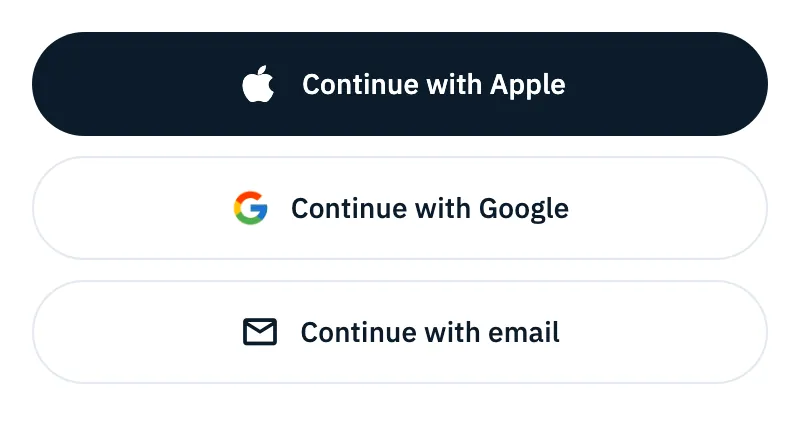
- Tap Continue with Apple, Continue with Google or Continue with email.
- Finish in the Apple or Google window, or with the email code (see below).
- Signed in as followed by your account appears, with "Log and QSOs, alerts, settings and Pro are now the same on every device." and a drawing of a phone, a tablet and a computer linked together.
- Tap Next.
If you cancel in the Apple or Google window you come back to the step with no error, and can choose again.
If the account you sign in to already has a different callsign from the one you entered, the app tells you ("Your account already has the callsign …") and keeps the account's one.
Already have an account?
If you have used HamQSO before (new phone, app reinstalled) you don't have to go through the whole first launch again.
- On the first step ("Who is on the air, right now.") tap Already have an account? Sign in, below the cards.
- On the Sign in to your account page choose Continue with Apple, Continue with Google or Continue with email. Back returns to the cards.
- After signing in you go straight to Make it yours, and find your log, QSOs and settings just as you left them.
With Apple or Google
- Tap Continue with Apple or Continue with Google.
- Confirm in the Apple or Google window.
The Apple button is there on iPhone and iPad (it comes first) and on the web; it is not offered on Android. On the web the Google button is the one drawn by Google.
With email and a code
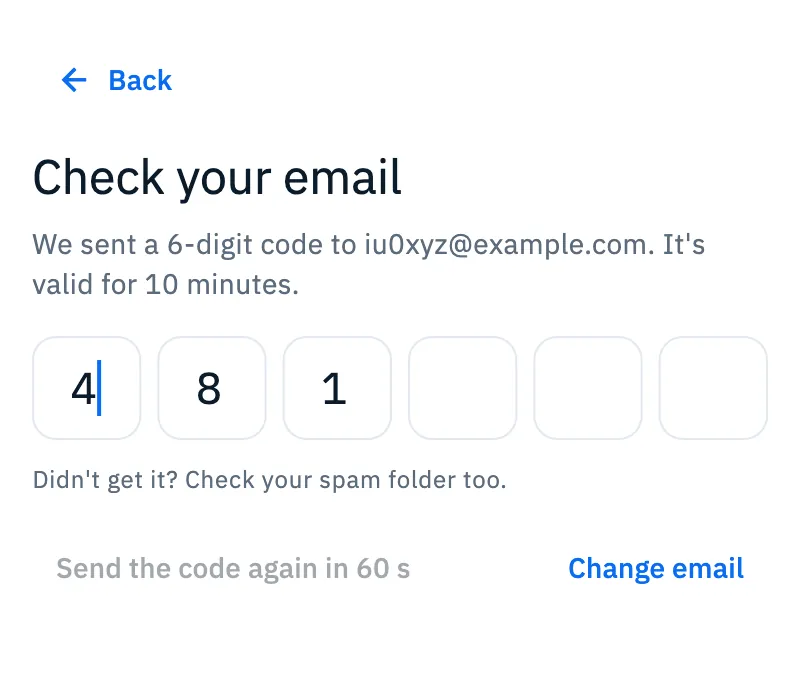
No password: a 6-digit code arrives by email.
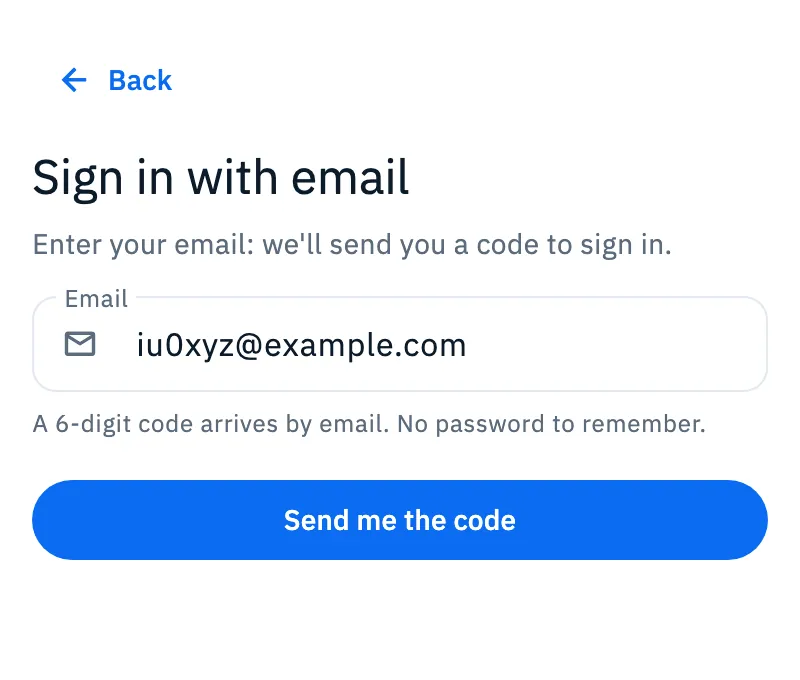
- Tap Continue with email.
- In the Email field enter your address and tap Send me the code.
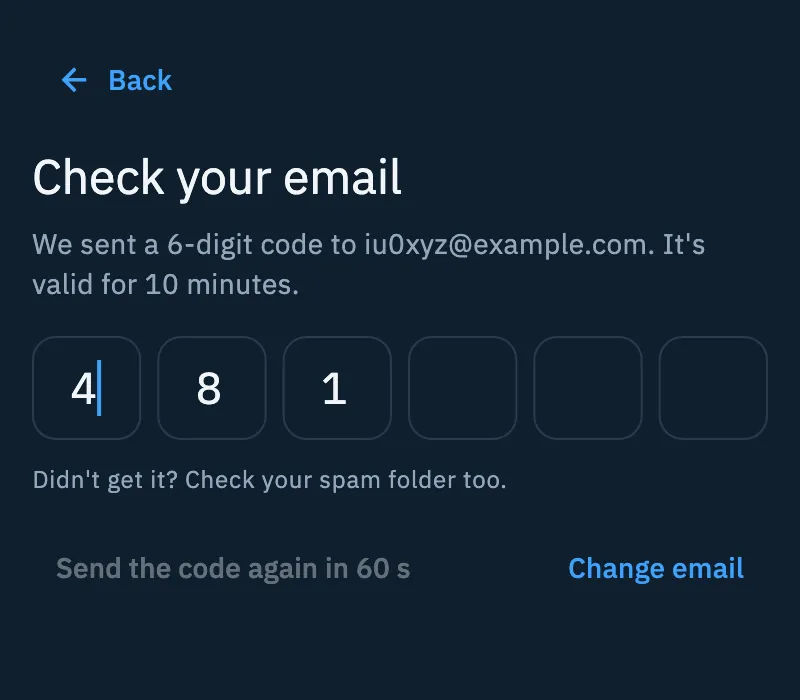
- On the Check your email page type the 6 digits in the boxes. You can also paste the whole code: it fills every box.
- At the sixth digit the code is checked by itself (Checking the code); then Done, you're in. appears and you move on.
| What | How it works |
|---|---|
| Code validity | 10 minutes |
| Send the code again | Can be tapped after 60 seconds; until then it shows Send the code again in … s. Then you read "We sent you a new code. The previous one no longer works." |
| Same email within a minute | If you tap Send me the code again with the same email before the 60 seconds are up, you go back to the code already sent, and no new one is sent. |
| Change email | Back to the email field; the code already sent stays valid. |
| Back | Back to the sign-in buttons. |
Before the code is sent, Cloudflare Turnstile checks that you are not a bot. Usually you see nothing. If Cloudflare asks for a check, on iPhone and Android the Confirm you're human sheet opens and closes by itself once the check is done; on the web the check appears in the page, where under the button you read "Protected by Cloudflare Turnstile".
Sign in to continue
If you finished the first launch but have no account (you used an earlier version without one, you signed out, or the session expired), when the app opens it shows Sign in to continue before the Home. This happens on every platform, the web included, and the system Back button does not close the page: there is no way to the Home without signing in.
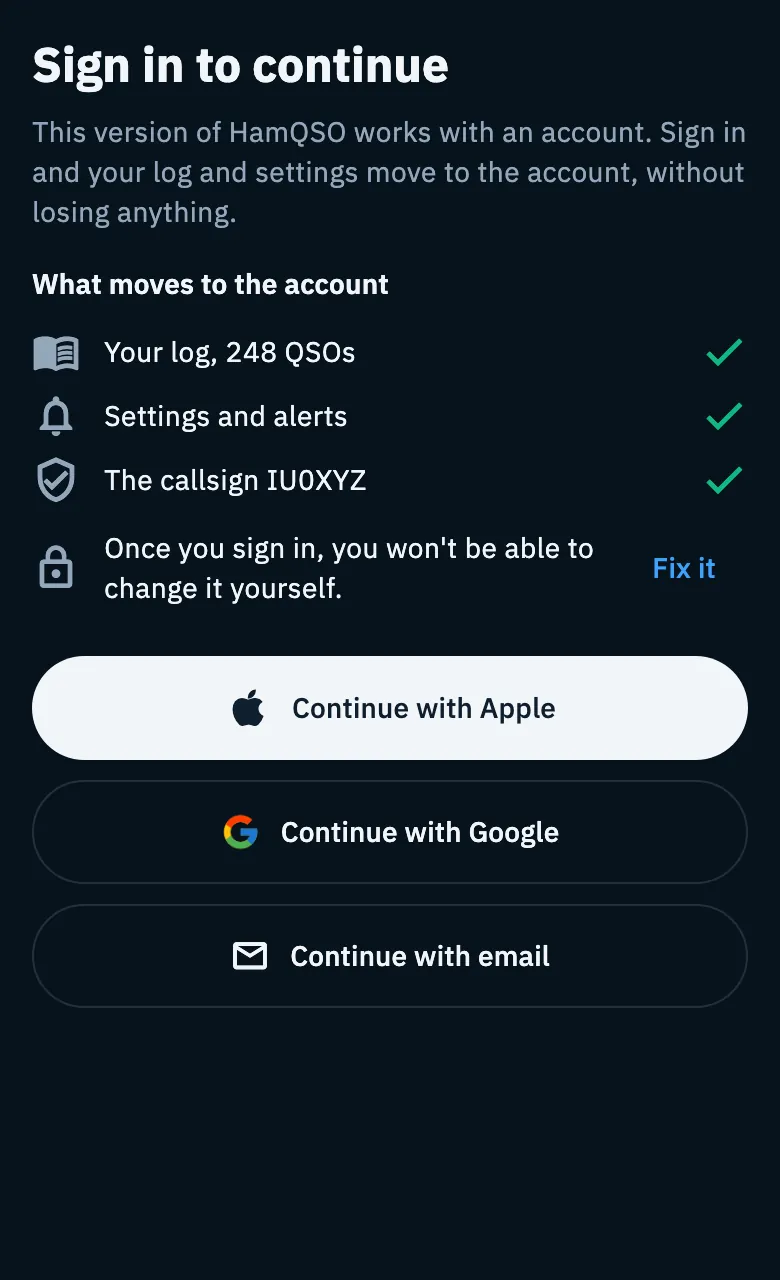
- Read What moves to the account: your log with its number of QSOs, Settings and alerts and your callsign.
- If the callsign is wrong, tap Fix it and type it in the field. Do it now: "Once you sign in, you won't be able to change it yourself."
- Sign in with Continue with Apple, Continue with Google or Continue with email.
- Once signed in the Home opens, with the log and settings you had.
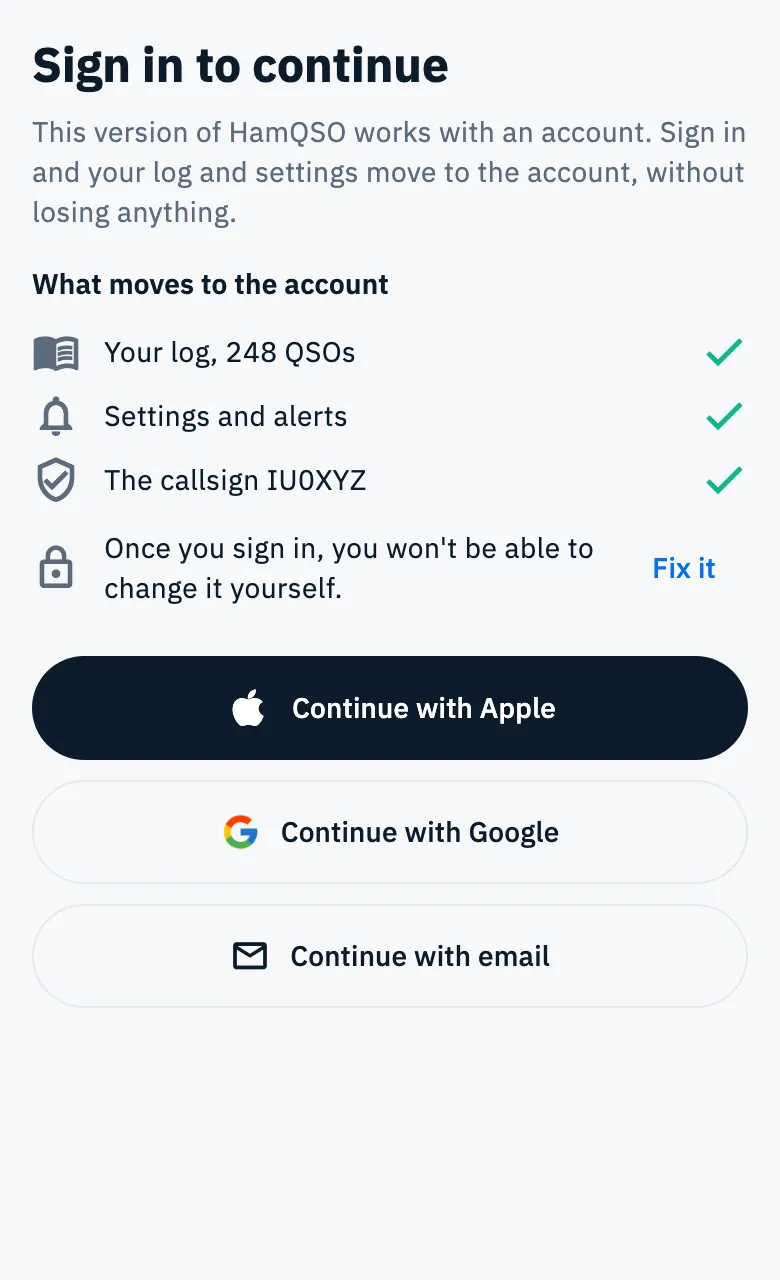
If the app cannot count the QSOs of your log, the log row is left out: a made-up number is never shown.
When the callsign already has an account
Each callsign can have only one account. If the one you entered already has one, it is often you on a new phone: HamQSO does not stop you with an error, it shows a notice, IU0XYZ already has an account, with the way it was created (Apple, Google or an email). If the server does not say, you read "If it's yours, sign in with the account you used."
- On first launch the notice appears on the callsign step or on the sign-in step, with the sign-in buttons below it: sign in with the method shown. Next stays off until you sign in.
- While signing in with Apple or Google (on first launch or in Sign in to continue) the sign-in stops and a sheet opens with three choices:
- Continue with Apple or Continue with Google, only if the account was created that way: signs in to the account that holds the callsign. With Google you are asked which account to use.
- Change callsign: enter the New callsign and confirm it with the keyboard's enter key. HamQSO checks that it is free and the sign-in goes on by itself with it.
- Not now closes the sheet.
- With email, on the sign-in step of the first launch, when you ask for the code (or when it is checked) you come back to the step with the notice, and no email is sent. Tap Continue with email again and enter the email of the account that holds that callsign, or use Apple or Google if the account was created that way.
If you think someone registered your callsign, tap Write to us: it opens an email to support.
What follows your account
After signing in there is nothing else to do: the app keeps everything aligned by itself.
- Callsign, locator and active programs go to the server. When you sign in to an existing account on a new device, the account's callsign and locator fill the ones still empty; if the callsign differs, the account's one wins.
- Your log and QSOs sync across all your devices: see Your log on all your devices.
- If you used HamQSO without an account, the log and settings of that device move to the account. If the move fails (network, server), the app tries again by itself when the network comes back or when the app returns to the foreground: nothing to do, nothing lost.
- Your Pro subscription follows the account too: see Managing your subscription.
To sign out or delete your account see Account: email, signing out and deleting.
Phone, tablet and web
| Where | Differences |
|---|---|
| iPhone and iPad | Continue with Apple is the first button, then Google and email. |
| Android | Only Continue with Google and Continue with email. |
| Web | Apple, Google's own button and email; under Send me the code there is the line "Protected by Cloudflare Turnstile". |
Troubleshooting
| Message | What to do |
|---|---|
| "You're offline: you need a connection to sign in." | The sign-in buttons are off. Connect to the internet and tap Retry; the notice goes away by itself when the network is back. |
| "Sign-in failed. Try again." | The Apple or Google sign-in did not succeed. Try again; if it keeps failing, try another way. |
| "The code is wrong. Check the last email we sent you and try again." | The boxes are emptied. Use the code of the latest email: once you ask for a new one, the previous one no longer works. |
| "This code has expired: it's valid for 10 minutes. Ask for a new one." | Tap Send the code again. |
| "Too many attempts. Wait a few minutes, then ask for a new code." | Wait a few minutes, then tap Send the code again. |
| "You've asked for too many codes. Wait a few minutes and try again." | Wait a few minutes before asking for another code. |
| "You're offline. Check the connection and try again." | The code was not sent. Go back online and tap Retry. |
| "You're offline. The code stays here: try again when the network is back." | The digits stay in the boxes: tap Retry once you're online. |
| "The service returned an error. Try again shortly." | A server error: tap Retry in a moment. |
| "That does not look like a callsign: check it." | In the Change callsign sheet: check the callsign you typed. |
| "IU0XYZ already has an account" under New callsign | The new callsign has an account too: enter another one or sign in to that account. |
| "You need a connection to change callsign. Try again when you're online." | The new callsign is checked on the server: try again online. |