
Opening HamQSO for the first time
What you see the first time you open HamQSO: what the app does, your callsign, signing in, permissions and your name, step by step.
FreeUpdated for HamQSO 0.1.19
On this page
The first time you open HamQSO, a short path shows you what the app does, asks for your callsign, signs you in and explains each permission before the system asks for it. At the end you are already on the spot list. The path appears only once: when it is done, it never opens again.
At launch: the logo
In the app, at every launch the HamQSO logo composes while the app loads the device's data: 3 seconds the first time after installing, then 1.5 seconds. Coming back from the background there is no logo.
- To skip it, tap the screen or press a key: you go straight in if the app is ready, otherwise you see the complete logo until loading is done.
- If loading takes more than 2 seconds after the complete logo, Loading… appears under it.
- With the system's "Reduce motion" on, the logo appears still, with a fade, only while the app loads.
- At first launch the globe of the logo becomes the globe of the welcome path.
On the web there is no such animation: the browser's loading page already shows the logo.
The path, step by step
At the top you always see the progress bar with 1 of 9, 2 of 9 and so on, the Back arrow from the second step and, only on "Make it yours", Skip. Each step has a button at the bottom.
| Step | What you do |
|---|---|
| Who is on the air, right now. | You look at the cards of what HamQSO does, then Let's start. |
| Your callsign | You type your callsign, or Continue without a callsign. |
| Is this your callsign? | You confirm with Yes, it's my callsign or go back with Fix it. Only if you typed a callsign. |
| Cards "for you" | Who hears you around the world, Callsign protection, The globe of your QSOs, then Continue. |
| Save your log and protect your callsign | You sign in to your account. Without signing in you cannot go on. |
| Cards of the log | Summary and DX Replay, eQSL HamQSO, Weekly and monthly summaries, then Continue. |
| Make it yours | Location, notifications and callbook, each with a yes or Not now. |
| What's your name? | You check your first and last name. |
| There's an app too or It's on the web too | You find out about the other version of HamQSO, then See the spots. |
The cards of what HamQSO does
Ten cards, in three groups, show the app's real features with animated sample data: they are not your data.
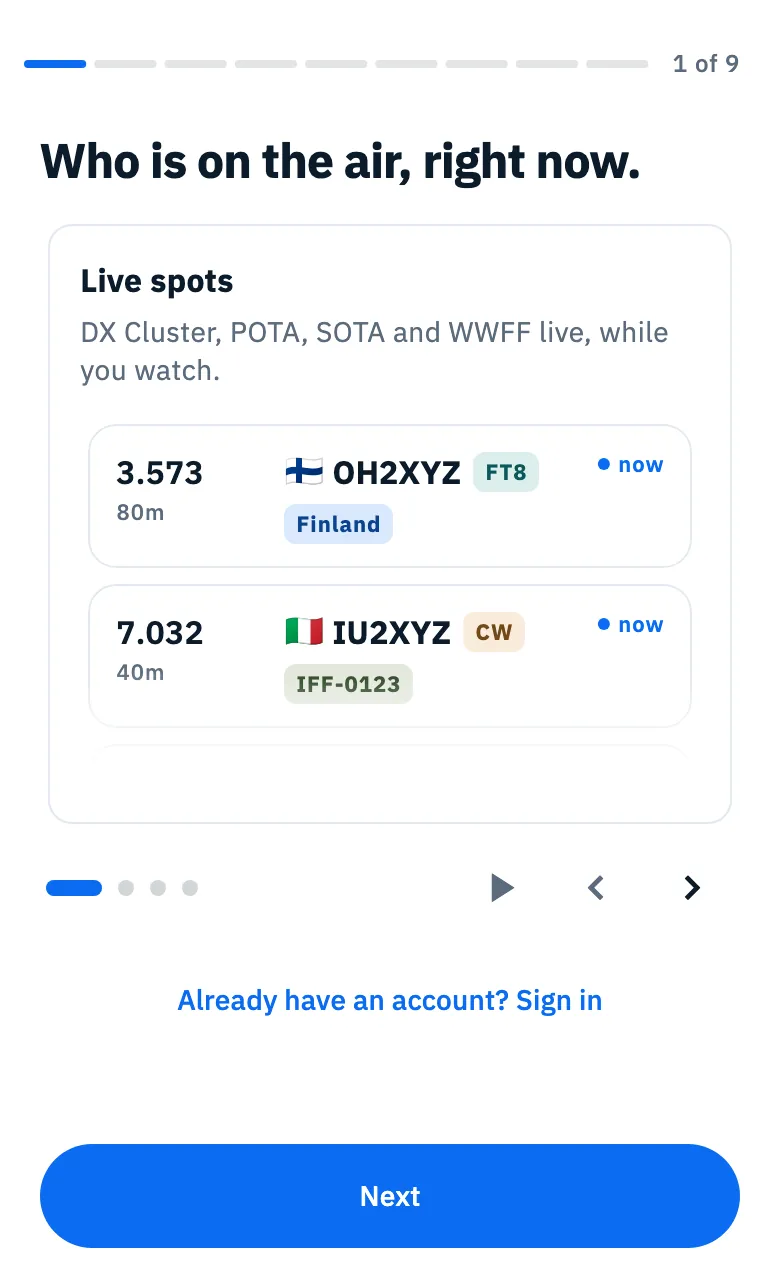
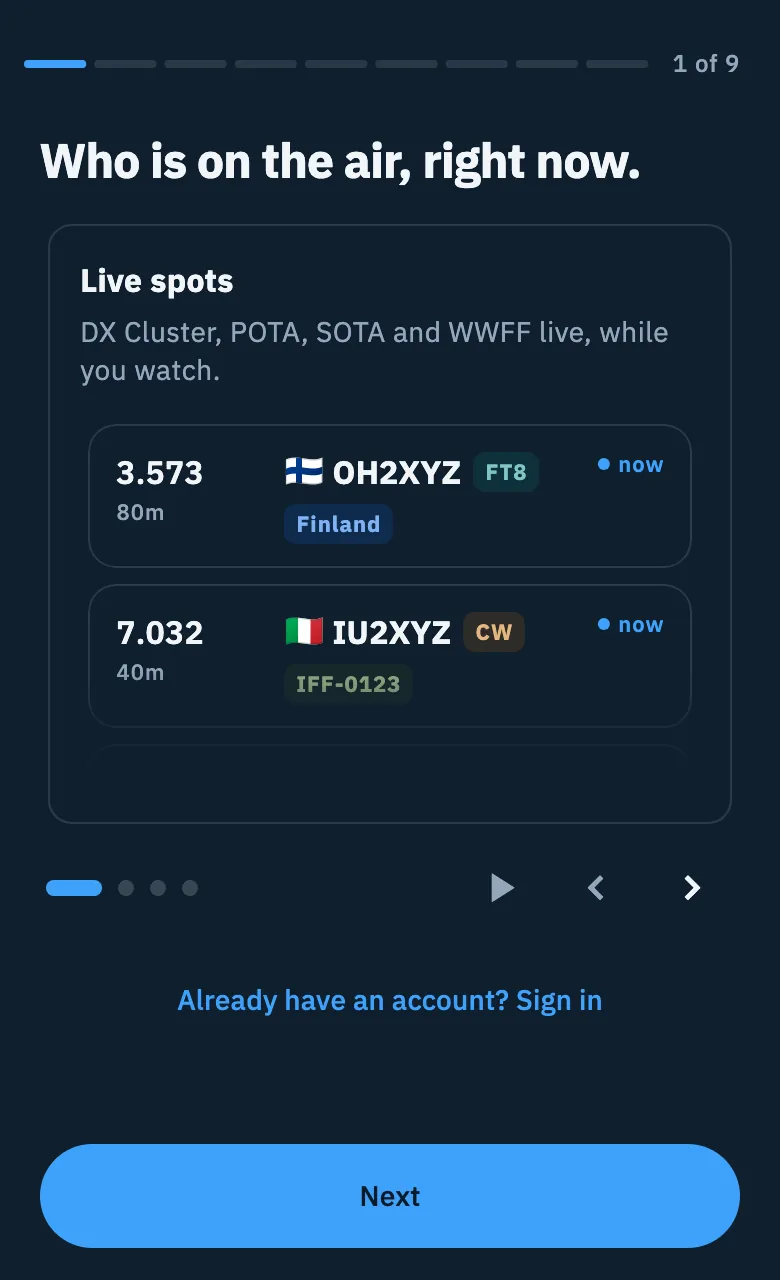
- First group: Live spots, Parks, summits and areas, Control your radio from HamQSO, Alerts.
- Cards "for you": Who hears you around the world, Callsign protection, The globe of your QSOs.
- Cards of the log: Summary and DX Replay (a 20-second video of a sample activation), eQSL HamQSO, Weekly and monthly summaries.
How to use them:
- Let the cards scroll by themselves: each one stays about 6 seconds, the DX Replay 20. Scrolling stops on the last card of the group and does not start over.
- To browse them by hand, swipe, tap Previous card or Next card, or tap a dot. The dots only lead to cards you have already seen; the active one fills like a bar.
- The pause button stops the scrolling (Stop the scrolling) and starts it again (Resume the scrolling). A swipe, an arrow or a dot stops it until you press play again.
- The button at the bottom says Next while another card follows, then Let's start in the first group or Continue in the others.
With "Reduce motion" on, the cards never scroll by themselves. With the mouse over the card, scrolling waits. The counters of the parks card ("Parks on the air", "Summits on the air", "Flora and fauna areas on the air") are a sample figure, not a count of the spots of right now.
Under the cards of the first step there is Already have an account? Sign in: if you sign in from here, the path jumps straight to "Make it yours". See Signing in and saving your log.
Your callsign
HamQSO puts you on the globe and uses your callsign to send spots to the cluster. It is optional: you can add it later from Profile too.
- Type your callsign in the Your callsign field. The field takes only letters, digits and "/", in capitals, up to 15 characters.
- Check the line under the field: flag, country and CQ zone of the prefix, for example "Italy, CQ zone 15". The globe turns towards your country.
- Tap Next. If you do not want to type it, leave the field empty and tap Continue without a callsign.
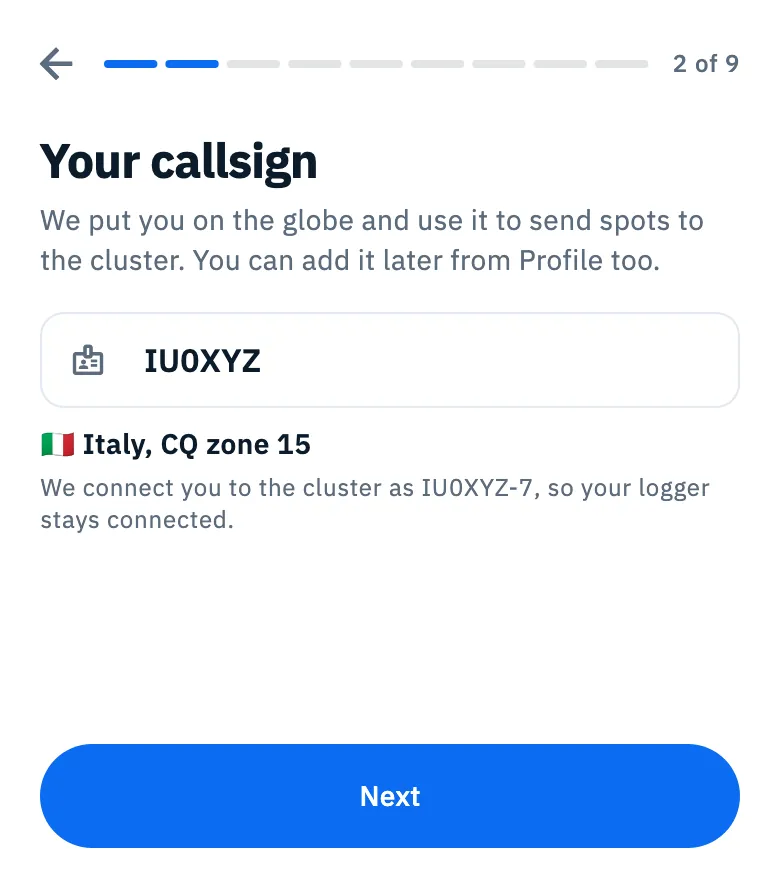
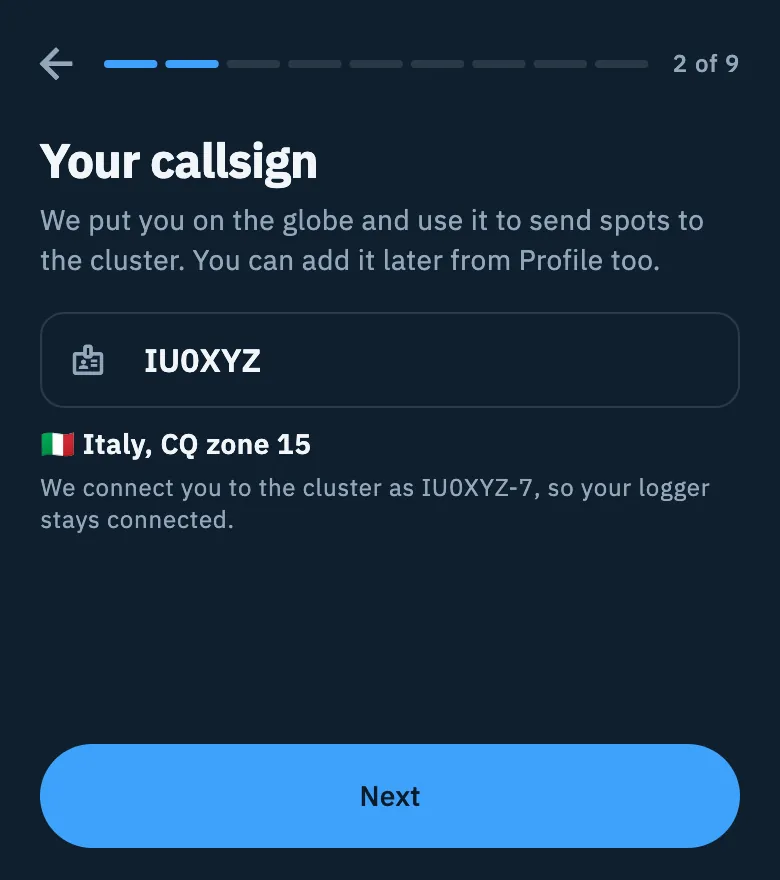
With a valid callsign, under the field you read "We connect you to the cluster as IU0XYZ-7, so your logger stays connected." (on the web: "The spots you send go out as IU0XYZ-7…"). The number after the dash (SSID) is picked at random the first time on each install and then kept, so HamQSO never drops your logger's connection.
While you type, HamQSO checks whether the callsign already has an account: a spinner turns in the field and Next stays off for a moment. Offline, or if the server does not answer within 3 seconds, the check is skipped and you can go on.
If the callsign already has an account
Each callsign can have only one account. If the one you type already has one, you see the notice "IU0XYZ already has an account", with how the account was created when it is known (for example "If it's yours, sign in below. The account was created with Google."); otherwise you read "If it's yours, sign in with the account you used.". Often it is you, on a new phone.
- Sign in with the buttons under the notice, using the same method as the account. Next stays off until you sign in.
- If you are sure you never created an account (the "Not you?" line), tap Write to us: your mail app opens an email to support, with the callsign as the subject.
If the notice appears while you are signing in, in the sheet you can also tap Change callsign and type the New callsign, or Not now.
Is this your callsign?
If you typed a callsign, HamQSO shows it big and asks you to confirm it, because once confirmed you will not be able to change it yourself: to correct it you will need to write to support.
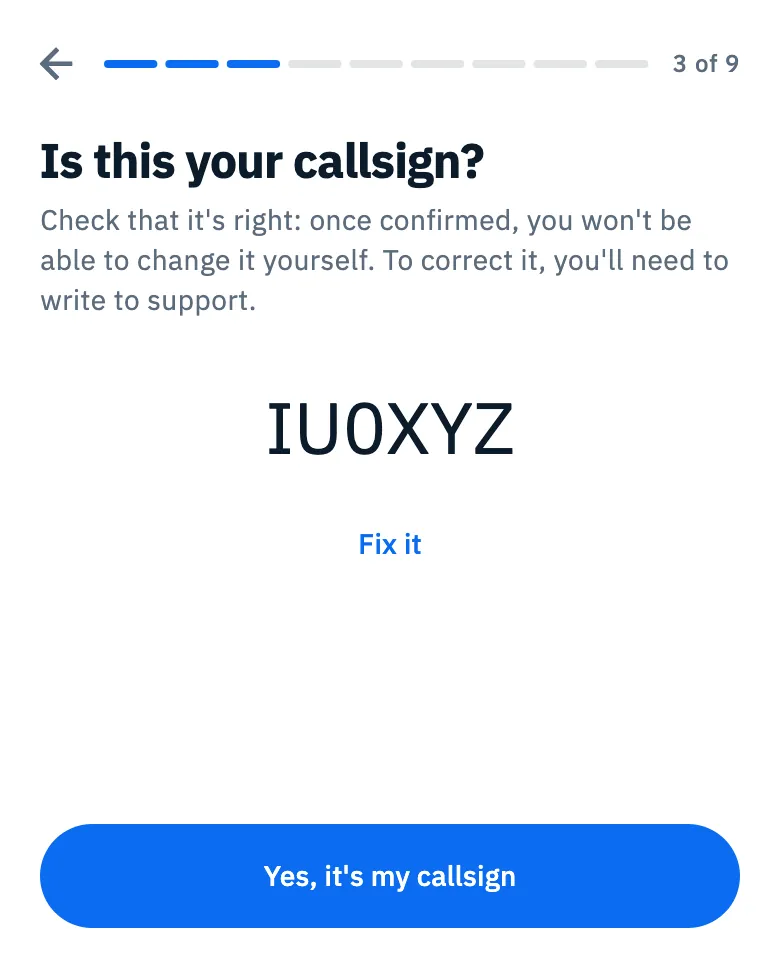
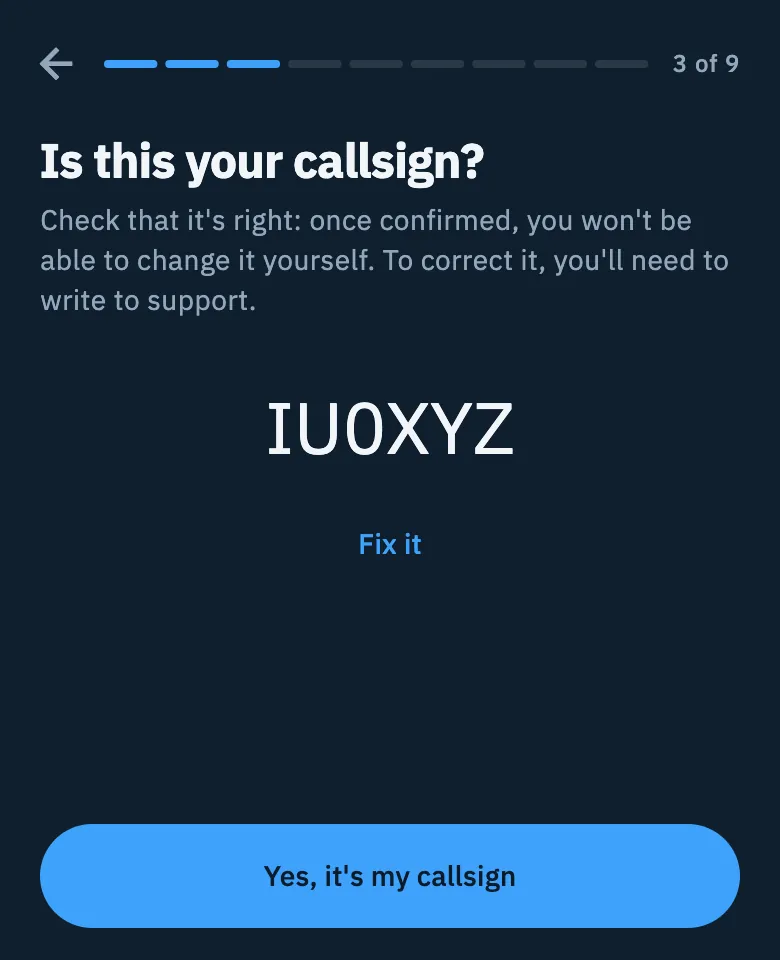
- Tap Yes, it's my callsign to confirm.
- Tap Fix it to go back to the field, with the callsign still typed.
Signing in
The Save your log and protect your callsign step cannot be skipped: sign in with Google or with your email (a code arrives), or with Apple on iPhone, iPad and the web, to go on. Signing in brings your log and QSOs back on every device. All the details are in Signing in and saving your log.
Make it yours
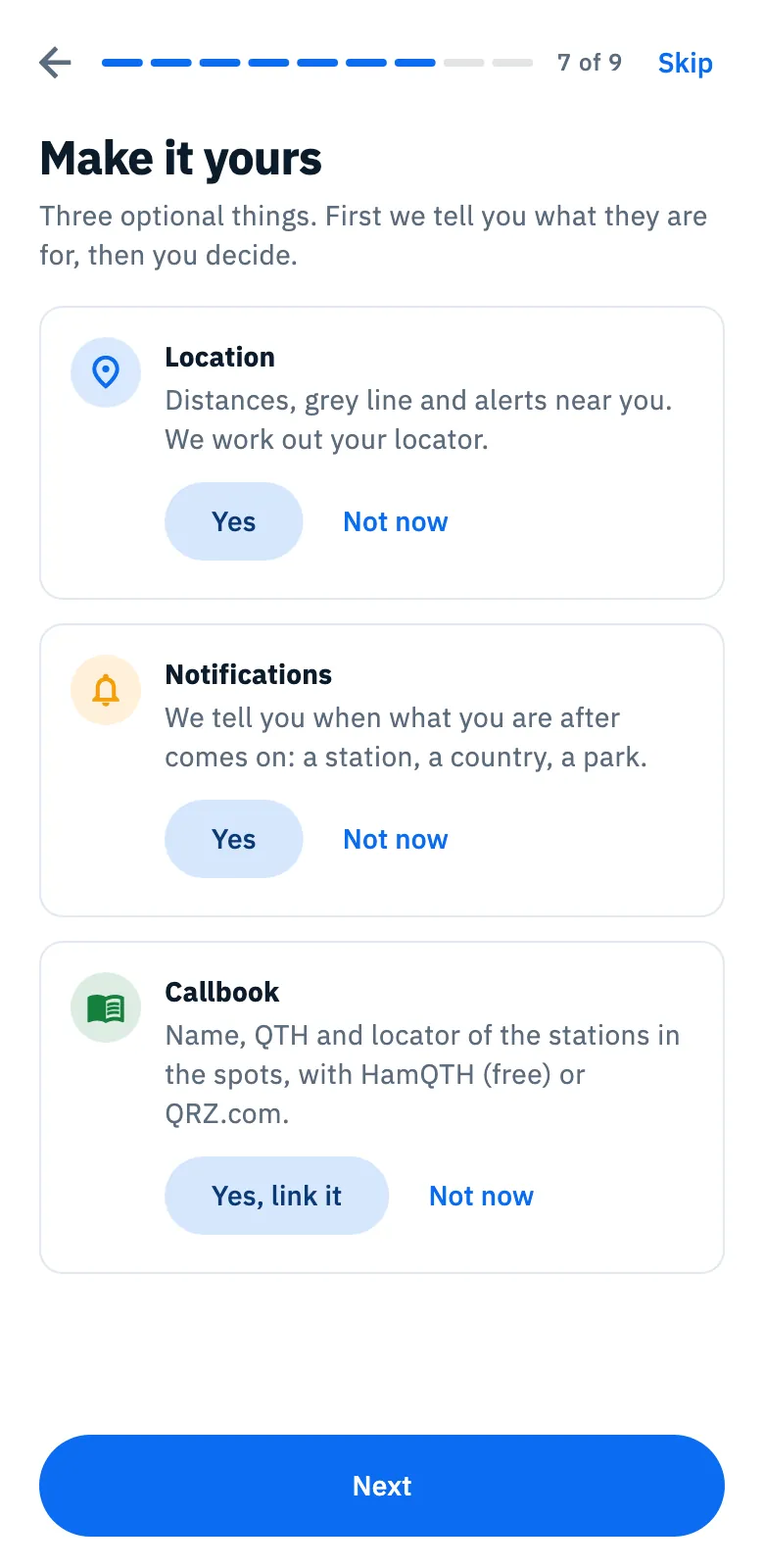
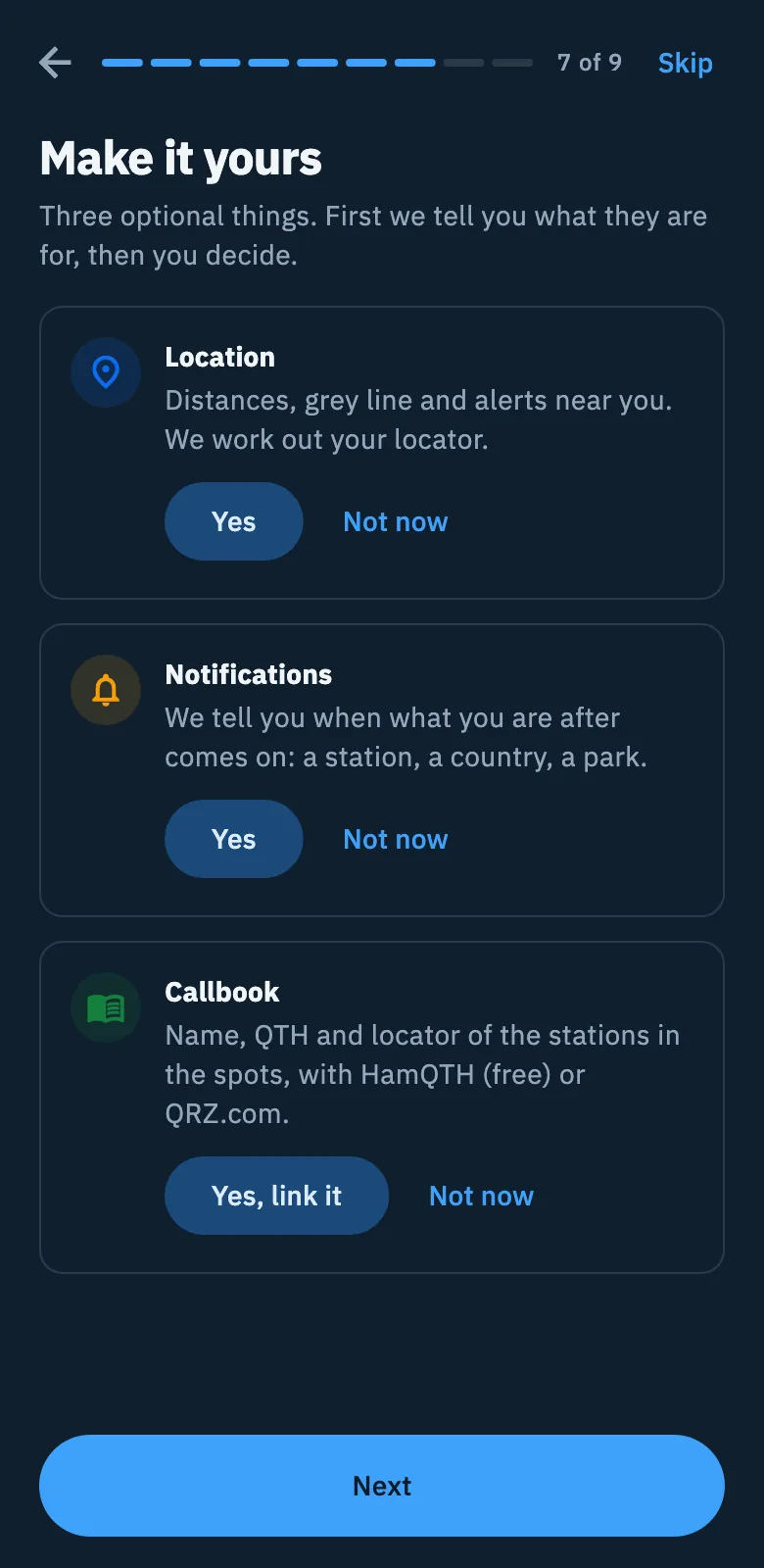
Three optional things. For each one HamQSO first tells you what it is for: the system asks for the permission only after you tap yes.
| Card | What it is for | If you tap yes | If you tap Not now |
|---|---|---|---|
| Location | Distances, grey line and alerts near you; HamQSO works out your locator. | Yes: the system asks for the permission. Granted: "Location on: you are in" followed by your locator. | "That's fine. Turn it on whenever you like from Settings." |
| Notifications | Alerts about what you are after: a station, a country, a park. | Yes: the system asks for the permission. Granted: "Notifications on. You create alerts from the Alerts section." | "That's fine. We will ask when you create your first alert." |
| Callbook | Name, QTH and locator of the stations in the spots, with HamQTH (free) or QRZ.com. | Yes, link it: the HamQTH and QRZ.com boxes appear, with your callsign, if you typed one, already filled in as the username. | "That's fine. Link it whenever you like from Profile, Linked services." |
- While the system answers, a spinner turns in place of the buttons.
- If you refuse the permission in the system, the card shows the same text as Not now.
- After Not now, tap Change to think again.
- Callbook passwords go only to HamQTH and QRZ.com and stay in the device keychain (on the web, encrypted in the browser), never on HamQSO servers.
- The locator worked out from the location goes into the settings at the end of the path, only if there is none there yet.
Tap Next to go on, or Skip at the top: the path ends at once, with what you chose so far.
To learn more: Getting notifications, QRZ.com and callsign lookup, Linking your services.
What's your name?
Your first and last name go on your HamQSO eQSLs and on your live page. HamQSO looks them up for you on QRZ.com and HamQTH (if you linked the callbook) and in your Apple or Google account, fills them in, and you check them before saving.
- Wait for the lookup ("Looking up IU0XYZ on…") or start typing at once: the lookup never overwrites what you already typed.
- Check or correct First name and Last name. Under the fields you read where they come from, for example "Found on QRZ.com, on the page for IU0XYZ. Check that they're right." or "Taken from your Google account. Check that they're right.". If it finds only one of the two parts, it tells you ("QRZ.com only has the first name. Type the last name."); if it finds nothing you read "QRZ.com and HamQTH have no name for IU0XYZ. Type them in yourself.".
- Tap Next: the greeting "Hi, …!" appears with "From now on your eQSLs carry your name.". If something is wrong, tap Fix the name.
Next stays off while the first or last name is missing, or while a part is not valid. Each part can be up to 50 characters. If the server already has your first and last name, this step does not appear. You can change them any time from Profile: see Your profile.
There's an app too, it's on the web too
The last step points you to the other version of HamQSO. With the same account you find your log and QSOs there too.
- In the app ("It's on the web too"): you see the browser window with the address of HamQSO on the web, and tap Send the link to send it to yourself. The reasons: Full-screen globe and Radio by cable (from the computer, with Chrome or Edge).
- On the web from a computer ("There's an app too"): scan the QR code with your phone (Scan with your phone) or use the store badges. The reasons: Log even offline and DX Replay videos, which are made only in the app.
- On the web in a narrow window, like a phone's: only the store badges.
Tap See the spots to finish. There is no Skip here: it would do the same as the button.
At the end: your first spot
The path closes and the DX section opens. The confirmed callsign goes into the settings, if you granted the location the locator is worked out by itself, and the What's new of this version is marked as read.
Above the spot list a single hint appears: "Tap a spot and you are already on its frequency.". Tap Got it to close it. The hint lasts only until the next launch of the app. To go on: Finding your way around and Reading the DX Cluster list.
Phone, tablet, desktop and web
- App on phone and tablet, and browser window under 840 pixels: the live globe at the top, the steps on a sheet below.
- Browser window on a computer, 840 to 1199 pixels wide: the live globe stays dimmed behind the column of steps.
- Browser window from 1200 pixels: the column of steps on the left, on the right the globe with the spots of right now and the "Real spots, right now" list.
- In browser windows on a computer, under the title of the first step there is also the line "DX Cluster, parks and summits, live. Tap a spot and you are on the frequency.".
While the globe's images load, a blue glow holds their place: you can already use the callsign field. If the images do not arrive, a plain sphere stays. If no spots arrive, the globe shows sample arcs, never counted as spots of right now.
With the keyboard on a computer:
| Key | What it does |
|---|---|
| Enter | The step's button, when the focus is not on a field or a button |
| Esc | Back to the previous step |
| ← → | Previous or next card |
The keys are written next to the button of each step. See also Keyboard shortcuts.
Free and Pro
The welcome path is the same for everyone and shows no prices and no Pro label, even though some cards present Pro features. What Pro includes: What HamQSO Pro includes.
Troubleshooting
"HamQSO didn't start"
Tap Retry. If it happens again, close the app and open it again. This page uses the system's language and theme, because the settings have not been read yet.
"Loading…" under the logo
The app is still reading the device's data. Wait a few seconds.
"That does not look like a callsign. Check it, or go on anyway."
It is only a warning: check the callsign, or tap Next anyway.
Next is off on the callsign step
HamQSO is checking the callsign (spinner in the field), or the callsign already has an account: sign in to that account or tap Write to us.
"You're offline: you need a connection to sign in."
The sign-in step needs the network. Get back online and tap Retry. If you see "Sign-in failed. Try again.", try signing in again.
"Type first and last name to go on."
Type both. If you see "Use only letters, spaces, apostrophes and hyphens." or "Up to 50 characters.", correct the field.
"… didn't answer in time. Type them in yourself, or try again."
QRZ.com or HamQTH did not answer: type your first and last name yourself, or tap Retry. If "Needs a connection" appears when saving, try again when you are online.
I confirmed the wrong callsign
Once confirmed you cannot change it yourself: write to support. See Your profile.