
Your log on all your devices
Keep the same log on phone, tablet and web, see at a glance whether everything is synced, and sign out without losing changes.
FreeUpdated for HamQSO 0.1.19
On this page
With the same account on phone, tablet and web you have the same log on every device. Every QSO is saved on the device first and then sent to the cloud by itself: there is nothing to do, and a cloud icon tells you whether everything is in step.
The same log on every device
- Sign in with the same account on every device (see Signing in and saving your log).
- Log or edit QSOs as usual: sync starts by itself.
- On your other devices the changes arrive within seconds if the app is open, otherwise the next time you open it.
Besides QSOs, these sync too: operations (with their photos), station profiles, saved locations, the logbook settings, QSO confirmations, the state of QSOs on your linked services, your radios and antennas, and saved coverage tests. Deletions reach your other devices as well: a deleted QSO goes to the trash everywhere (see Deleting QSOs and the trash).
The CAT connection of a radio stays on the device where you set it up: the radios of your list arrive everywhere, but each one is connected on each device (see Connecting your radio).
With the account, your callsign, the locator of your QTH and the programs you follow also go to the server. When you sign in to an account that already exists, the account's callsign wins over the device's one, and the account's locator fills the device's one if it was empty. Your Pro subscription follows the account too.
When it syncs
There is no button to remember. With the app open, sync starts:
| When | What happens |
|---|---|
| When the app opens and when it comes back to the foreground | A sync. |
| After a change | 3 seconds after the last change (a QSO logged, edited or deleted). If you switch to another app with a change still waiting, right away. |
| When something changes on another device | About 1 second after the cloud's signal. |
| When the network is back | Right away. |
| After an error | It tries again by itself after 30 seconds, then 1, 2, 5 and 15 minutes and then every 15 minutes, while the app stays open. |
With the app closed, Android syncs about every 15 minutes when there is a network; iPhone and iPad sync when the system allows it. On the web there is no background sync: the log is saved in the browser and syncs while the page is open.
The sync status
- Tap Log: the Operations list opens.
- Look at the cloud icon in the header, next to the Operations title.
- Long-press the icon (or hover it with the mouse) to read the status in words.
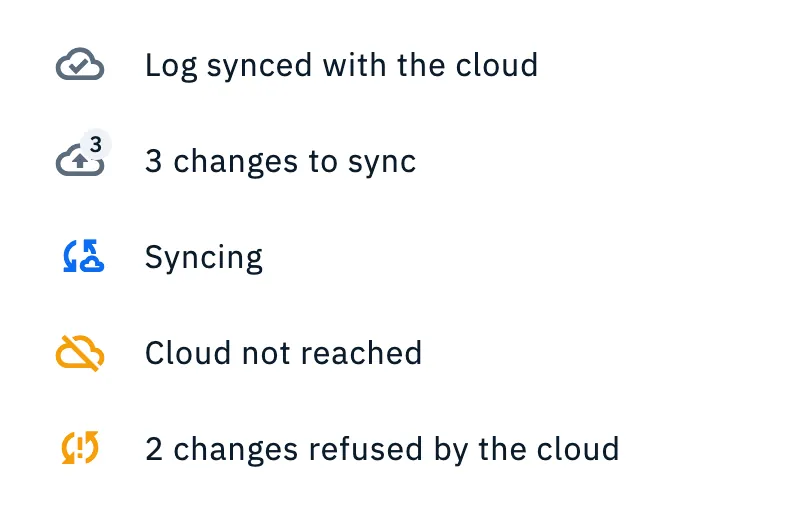
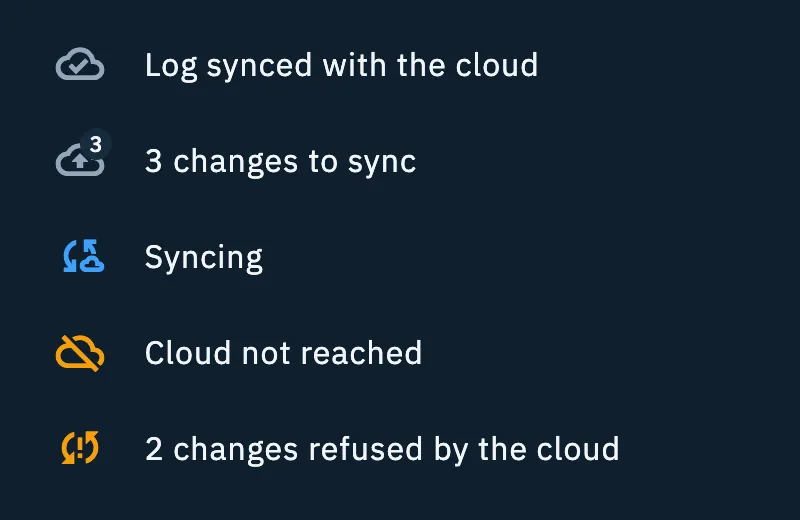
| Icon | Status | What it means |
|---|---|---|
| Cloud with a check mark | “Log synced with the cloud” | The whole log is on the cloud. |
| Cloud with an arrow and a number | “N changes to sync” | Changes made here have not gone out yet. The number says how many. |
| Cloud with arrows, blue | “Syncing” | It is syncing right now. |
| Crossed-out cloud, amber | “Cloud not reached” | The last attempt failed (network or server). It tries again by itself; with changes to send, the number shows too. |
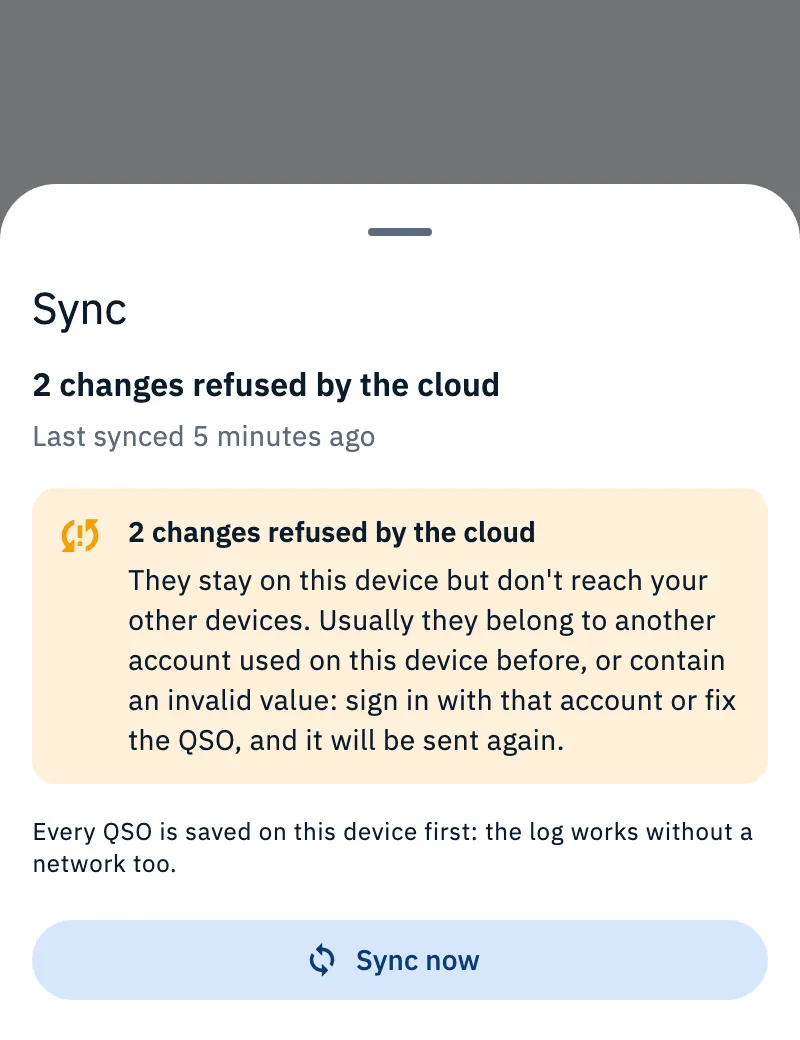
| Arrows with an exclamation mark, amber | “N changes refused by the cloud” | The cloud refused some changes: see “Troubleshooting” at the bottom of the page. |
When spots or uploads to your linked services also wait for the network, the number counts all of them and the status says “N waiting”.
The icon is not there while sync is not active (no session with the cloud) and nothing is waiting: in that case the log stays only on this device.
The mark on a QSO
Every QSO not yet on the cloud has a small cloud with an arrow next to it, “Not synced yet”: in the log row and in the row of the last QSO logged, in the entry bar. The mark goes away once the QSO reaches the cloud.
The Sync sheet
- Tap the cloud icon: the Sync sheet opens.
- At the top you read the status and when the last sync was.
- To sync right away, tap Sync now. The button is disabled while a sync is already running.
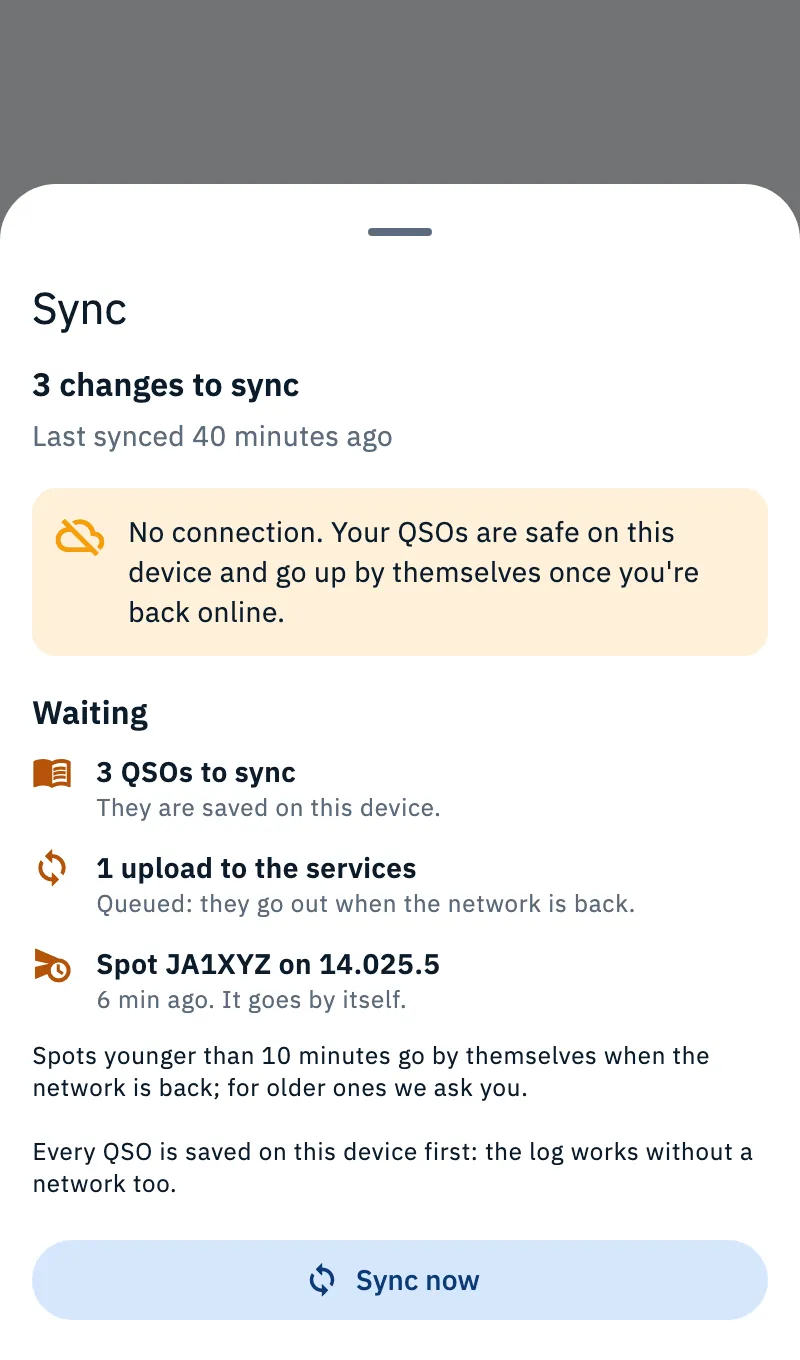
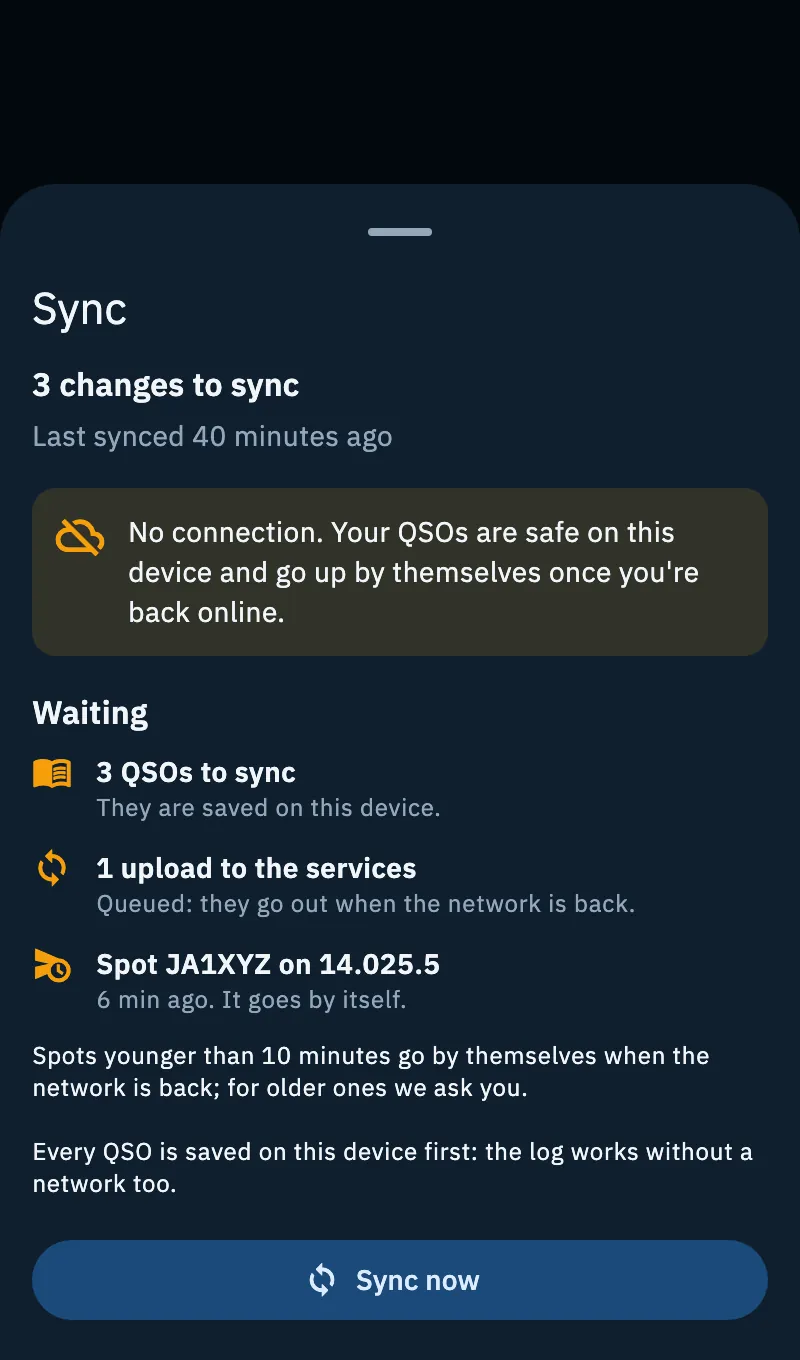
The sheet shows:
| Part | What it says |
|---|---|
| Status | As the icon: synced, changes to sync, syncing, cloud not reached, changes refused. |
| Last sync | “Last synced just now”, “… 5 minutes ago”, the time or the date and time (in your device's time), or “Not synced yet”. |
| Amber notice | Why the last attempt failed, or which changes the cloud refused. |
| Waiting | What waits for the network: “N QSOs to sync”, “N uploads to the services”, queued spots (see Spots sent while offline), the “QRT of the closed operation” and a “Message to HamQSO” still to send. |
| Note | “Every QSO is saved on this device first: the log works without a network too.” |
| Sync now | Starts a sync right away. |
The log works without a network too: you can log, edit and delete QSOs as usual (see Using HamQSO offline). Uploads to QRZ.com, LoTW, eQSL.cc and HRDLog start after the sync: see Automatic uploads and waiting QSOs.
When the account changes
If you had no account before
If you used the app without an account (for example with an earlier version) and then sign in or create your account, the log made so far moves to your account and syncs with the rest. If the merge does not succeed right away (no network, the server not answering), that log stays on the device and HamQSO tries again by itself: when the network is back, when you open the app again and at intervals while it is open. There is nothing to do.
Signing out
When you sign out, the log is removed from this device: it stays in the cloud and you find it again when you sign back in. Before signing out the app tries to sync, so the changes made here are not lost.
- To be safe, check that the cloud icon says “Log synced with the cloud”.
- Open Profile and tap Sign out at the bottom of the page.
- If everything is synced, confirm with Sign out in the Sign out of your account? dialog.
- If some changes are not uploaded yet, the dialog says “N changes are not uploaded yet. If you sign out you lose them.” Choose:
- Upload and sign out: sends the changes, then signs out. Without network it does not sign out and tells you: “No connection. Your changes stay on this device.”
- Sign out anyway: signs out right away, and the changes not uploaded are lost.
- Cancel: you stay signed in.
- If only changes the cloud refused are left, the dialog says “N changes were not accepted by the cloud. If you sign out you lose them.” and offers only Sign out anyway and Cancel.
Another account on the same device
If another account enters on the same device without a sign-out (for example after an expired session), the first account's log does not move to the second one: it is set aside, it is not shown and it is not sent to the cloud. It comes back, with its waiting changes, when that account signs in again.
Deleting the account
Delete account removes profile, preferences, alerts and log, from the cloud and from this device. Export your log before doing it: see Account: email, signing out and deleting.
Free
Syncing your log on all your devices is free: HamQSO Pro is not needed.
Troubleshooting
| What you see | What it means | What to do |
|---|---|---|
| “No connection. Your QSOs are safe on this device and go up by themselves once you're back online.” | The device has no network. | Nothing: everything goes out by itself when the network is back. |
| “The cloud didn't answer: we'll try again shortly. Your QSOs are safe on this device.” | The server did not answer. | Wait: the app tries again by itself. You can also tap Sync now. |
| “N changes refused by the cloud” | “They stay on this device but don't reach your other devices. Usually they belong to another account used on this device before, or contain an invalid value: sign in with that account or fix the QSO, and it will be sent again.” | Sign in with the right account, or open the QSO and fix it (see Opening and editing a QSO). The app also tries again by itself once a day. |
| A QSO logged on one device does not show on the other | One of the two has not synced yet. | Check that both use the same account and have a network; open the Sync sheet and tap Sync now on both. |
| The cloud icon is not there | Sync is not active and nothing is waiting. | Check that you are signed in: see Signing in and saving your log. |