
The operation page
Log QSOs and follow an operation while you operate: header and menu, Log, Map and Statistics on phone, tablet and the web, keyboard shortcuts.
FreeUpdated for HamQSO 0.1.19
On this page
The operation page is where you work: at the top the title and the activation counters, below them the QSOs, the map and the statistics of the session, and at the bottom the bar to log the next QSO.
Opening an operation
- Open Log: the list of operations opens.
- Tap the card of an operation to look at it, or Log on the operation in use to open it with the callsign field ready.
- On a phone, go back to the list with the arrow at the top left.
An open operation starts on the Log section; a closed one starts on the Summary. On the web the page address is the operation's, so a saved link opens it again.
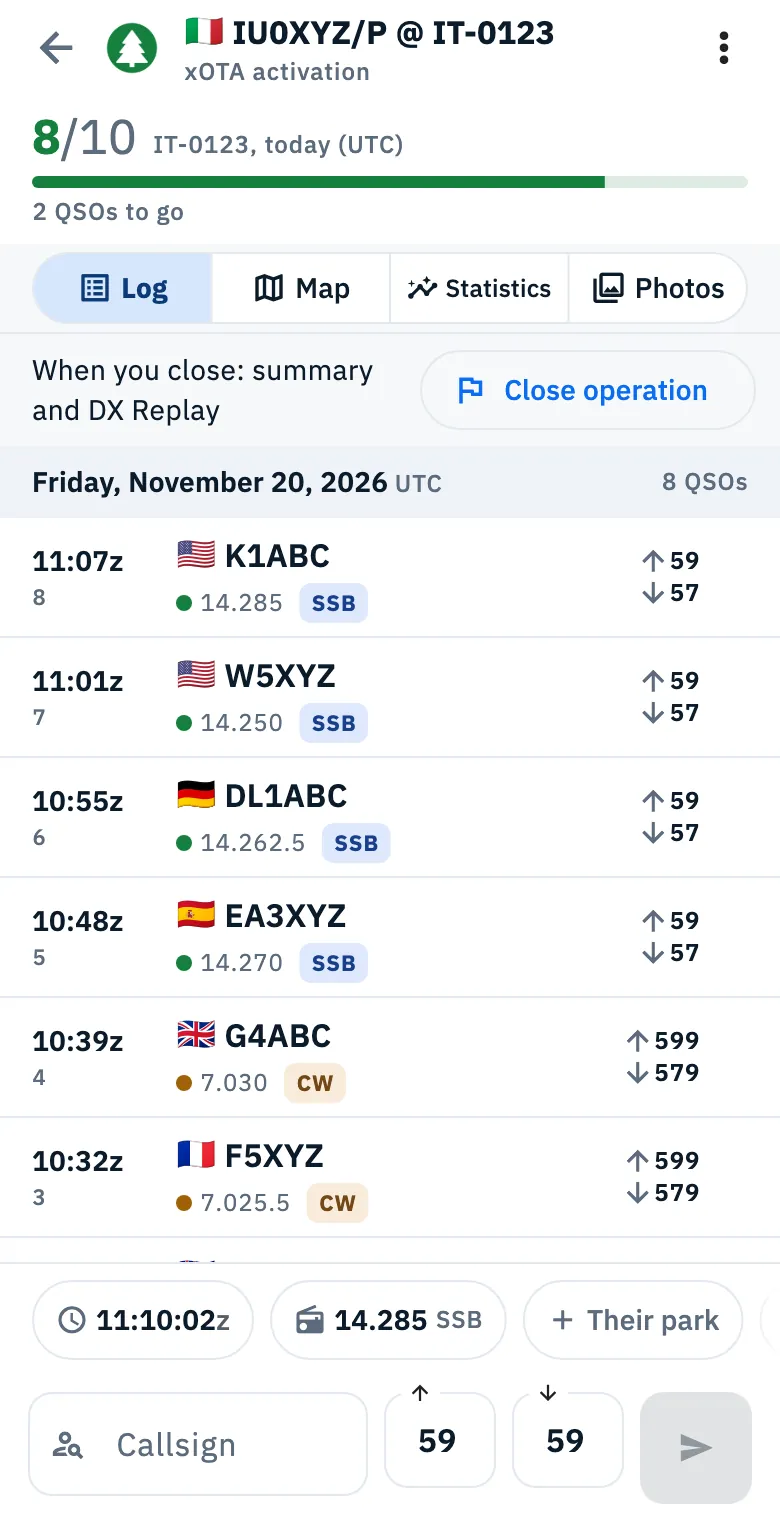
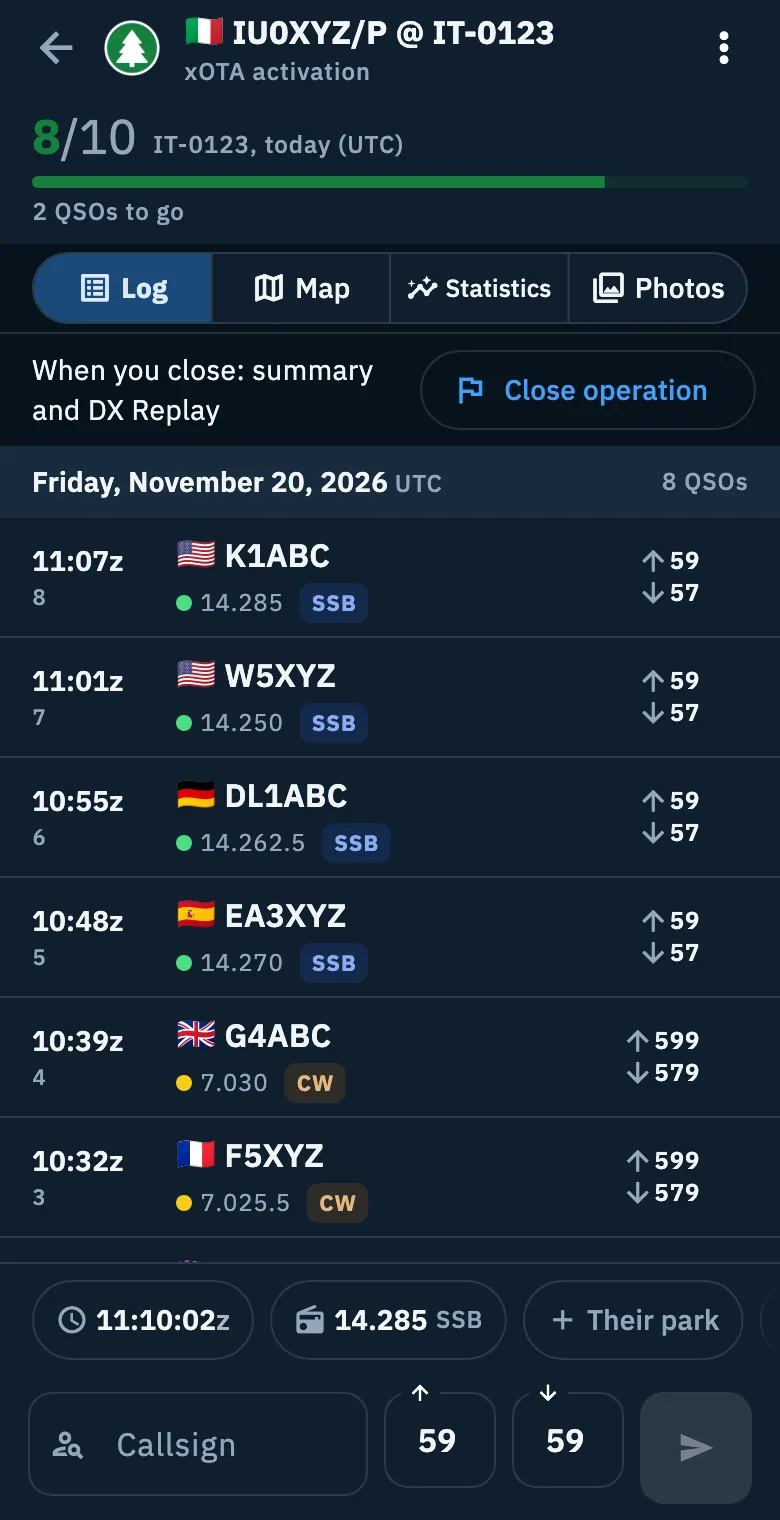
The header
On the top row, from left to right:
| Part | What it does |
|---|---|
| Back arrow | Back to the list, when the list is not already beside it. On an iPad in portrait it is replaced by Show the list / Hide the list. |
| Mark and title | The program mark (POTA, SOTA, WWFF…), the title of the operation and its type below. |
| Globe with a green dot | Only when the operation is on the live page: On the live page: share the link. See The activation live page. |
| Spot | Sends a spot (see Spotting a station). Where the side bar is shown it is not here, because the bar has its own. |
| ⋮ More actions | The operation menu, below. |
Under this row, in an activation with references, are the counters: for each reference how much you have done and how much is needed. POTA counts the QSOs of the UTC day, SOTA the stations of the UTC day, WWFF the QSOs of every activation of the reference. See Activating a POTA park or a SOTA summit.
On a phone the counters shrink to a small label next to the type while you type, while you look at a section other than the Log, or once every threshold is reached. The new UTC day notice always stays in view.
The More actions menu
Tap ⋮ at the top right and pick an item. The items depend on the type and the state of the operation:
| Item | What it does |
|---|---|
| Station, tags and notes | Radio, antenna and power of the operation, its tags and notes. |
| Generate summary | Only in a Station log: builds the summary of a period. |
| Operation settings | The same data as when you created it: type, references, location, QSO defaults. See Creating an operation. |
| Band conditions | Opens propagation: see Reading propagation. |
| Export / Export ADIF | Export when the operation has references (one file per reference or everything in one file), Export ADIF when it has none. See Exporting your log as ADIF. |
| Share | The sheet to share the operation: see Sharing an operation and DX Replay. |
| Send eQSL HamQSO | Sends eQSLs for the QSOs of the operation: see Sending eQSLs. |
| Live page | The link of the live page, to share. |
| DX Replay | Only when the operation has its summary (closed, or a Station log) and at least one QSO. |
| Close operation | Closes the operation. For the activation in use with references it also sends the QRT. See Closing, reopening and deleting an operation. |
| I'm QRT (live page) | Ends the activation announced on the live page while it is still open. Not shown in the activation in use with references, where Close operation already sends the QRT. |
| Reopen operation | On a closed operation that is not archived, when it can be reopened. |
| Archive / Restore | Takes the operation out of the main list, or puts it back. After Archive you see «Operation archived» with Undo. |
| Delete operation | Deletes the operation, in red at the bottom of the menu. Then you read «Operation deleted» and go back to the list. |
Without QSOs, Export, Share and Send eQSL HamQSO are off and say «No QSOs yet» underneath.
The sections
Under the header is the section switcher, always on screen, also with the keyboard up:
- Summary: only once the operation is closed, or in a Station log. See Operation summary, milestones and photos.
- Log, Map, Statistics: explained below.
- Photos: the photos of the operation, also explained in Operation summary, milestones and photos.
On a phone the entry bar stays under every section while the operation is open: switching section keeps the keyboard up. In a Station log, Summary, Map and Statistics have the Period on top (Today, Week, Month, Year); the Log always shows everything.
Log
The Log section shows the QSOs of the operation grouped by UTC day, newest first, each with its progressive number. The header of the day stays at the top while you scroll.
- Type the callsign in the bar at the bottom and press enter: the QSO is saved (see Logging a QSO).
- Tap a QSO to open and edit it (see Opening and editing a QSO).
- To delete it, swipe the row to the left, or long press and choose Delete QSO. «QSO with … deleted» appears with Undo; the QSO stays in the trash for 30 days. The same menu also has Send eQSL HamQSO and Select, to pick several QSOs.
At the top of the Log of an open operation there is the Close operation row with «When you close: summary and DX Replay». In the activation in use the row also says how long you have been on the air («On the air for …»), or «Not spotted yet». A Station log has the Generate summary row instead.
Until the first QSO you read «Your first QSO goes down here»: type a callsign and press enter, the QSO is saved on the device right away, even offline.
Once the operation is closed, the bar is replaced by «Operation closed», «For more QSOs, reopen it» with Reopen operation; once reopened you read «Operation reopened: it is the one in use again.». An activation of another UTC day cannot be reopened: its Log is read-only.
Map
The Map section shows your station and the QSOs of the operation on the globe, with lines from your station.
- Open Map.
- Turn and zoom the globe. Tap a point: the card of its QSO appears at the bottom, tap it to open the QSO. QSOs close together make a number you tap to zoom in or see their list.
- Tap Full screen for a bigger map; leave it with Exit full screen.
- Tap Map settings to turn Lines from my station on or off and choose the Color (By band or By mode). Show all QSOs brings the view back over every point.
At the bottom left the legend says how many QSOs there are, the colors of the bands or modes and, if there are any, the points in Approximate location. Without the operation's location the lines are off with «Needs the station location».
Notes can appear above the map:
- «Add the operation's locator to see lines from your station.»: the operation has no location.
- «Exact location for N of M QSOs: the others are at their home, state or country.»: QSOs without a locator are placed at an estimated location.
- «Exact location for N of M QSOs. Link QRZ.com or HamQTH to see where the stations are.» with Link an account: see QRZ.com and callsign lookup.
- «N of M QSOs with a location»: QSOs without any location are not shown.
On a phone, touching the map puts the keyboard down.
Statistics
The Statistics section updates with every QSO, during the operation and after it.
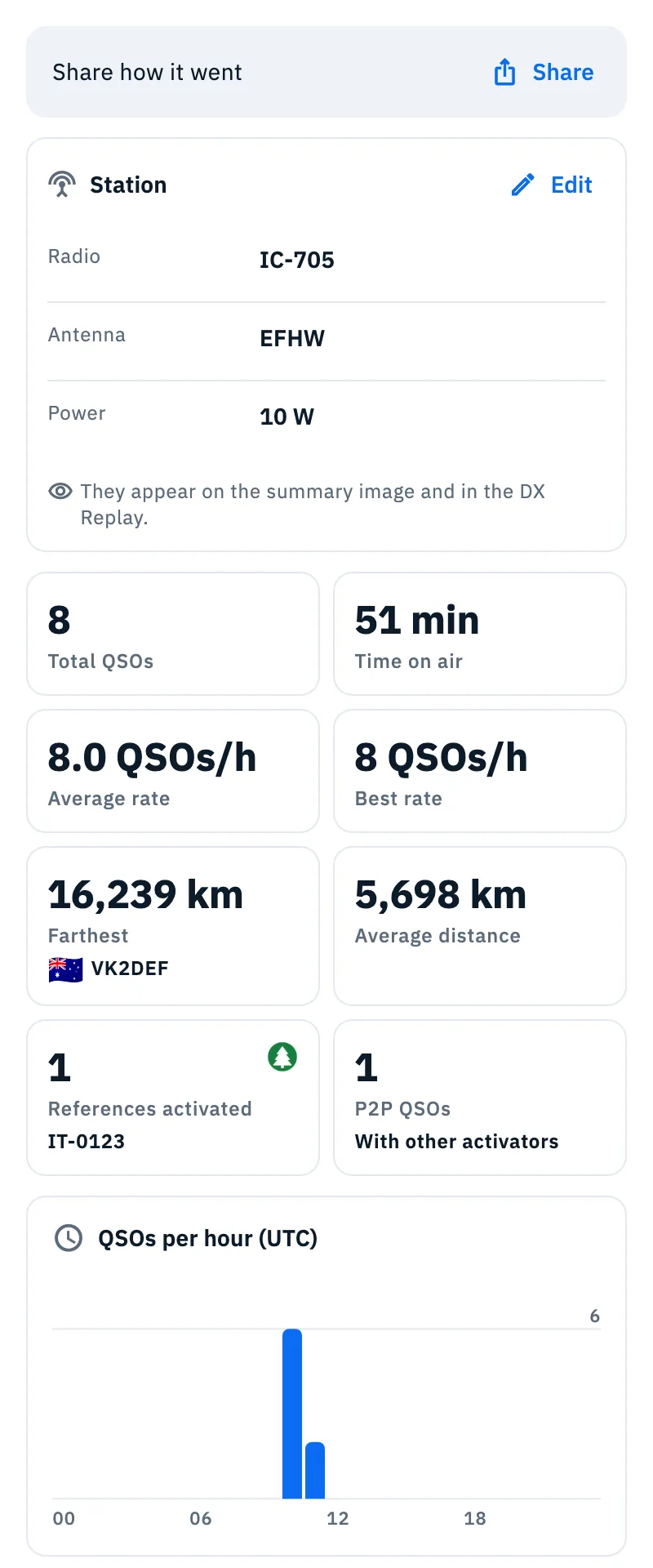
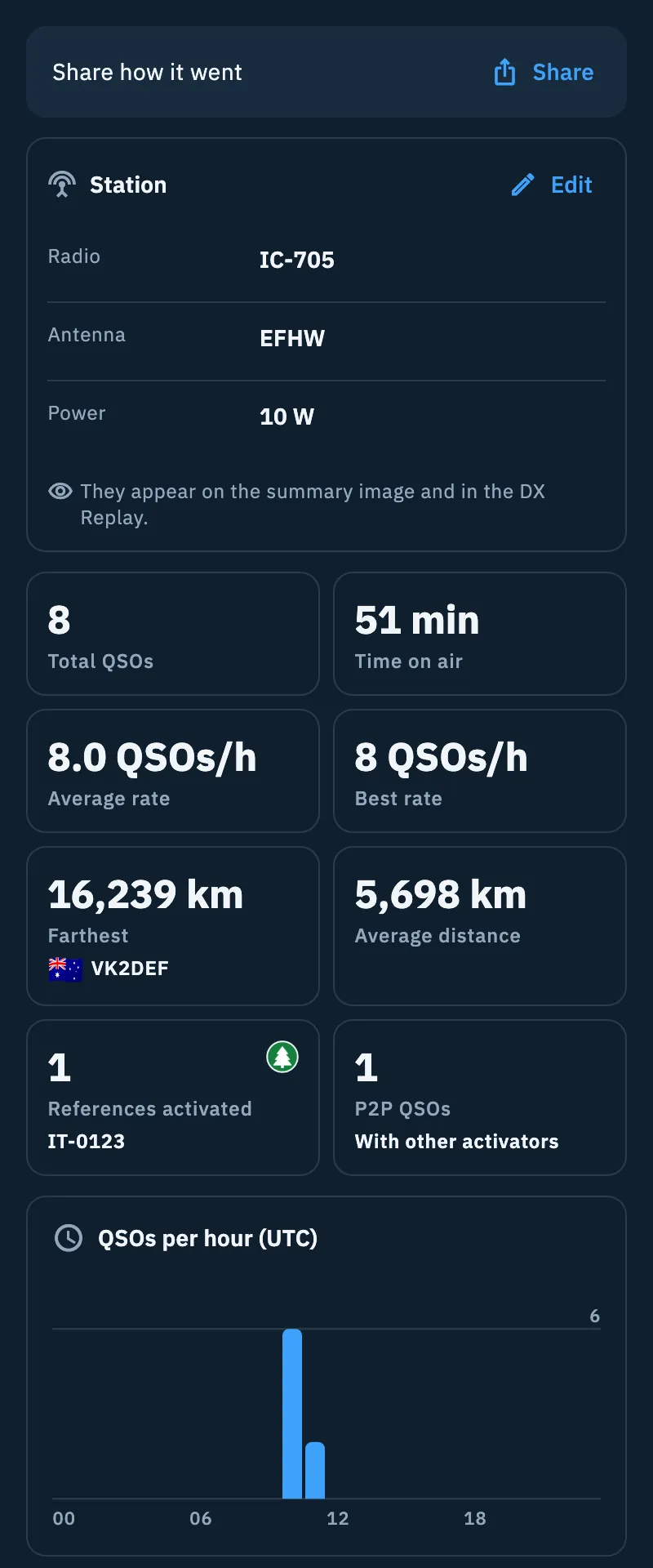
From the top:
- «Share how it went» with Share, which opens the share sheet.
- Station: radio, antenna and power of the QSOs, with Add for the missing ones and Edit. They appear on the summary image and in the DX Replay. Below, the notes of the operation: tap them to edit them.
- The tiles: Total QSOs, Time on air, Average rate, Best rate (in QSOs/h), Farthest with its flag, Average distance and, when the operation has references, References activated and P2P QSOs («With other activators»).
- QSOs per hour (UTC), then Bands and Modes (with the most used), Countries worked with flags and US states worked out of 50.
Distances from an estimated location have «≈» in front; Average distance says how many are estimated («estimated: N of M») and Farthest says where the location comes from («from country», «from state», «from callbook»). If the operation does not have your location you read «Locator missing: without it, no distance.»: tap Set your locator and save it in the operation settings.
On a phone with the keyboard up the section turns compact: four numbers (total QSOs, best rate, time on air, farthest) and the hourly chart. Without QSOs you read «Statistics come with the first QSO», with the Station already there to fill in.
On a tablet
When the operation has at least 840 points of width, the page splits in two: the Log with its entry bar on the left, the other sections on the right (Summary when there is one, Map, Statistics and Photos). The right column starts on the Summary when there is one, otherwise on the Map. A QSO tapped in the Log or on the map opens in the right column; closing it brings back the section you were on.
On the web: table and inspector
On the web, with a window at least 1200 points wide, the operation becomes a keyboard log: the entry bar on top, the QSO table below it and the inspector on the right. In a narrower window the page is as on a tablet or a phone.
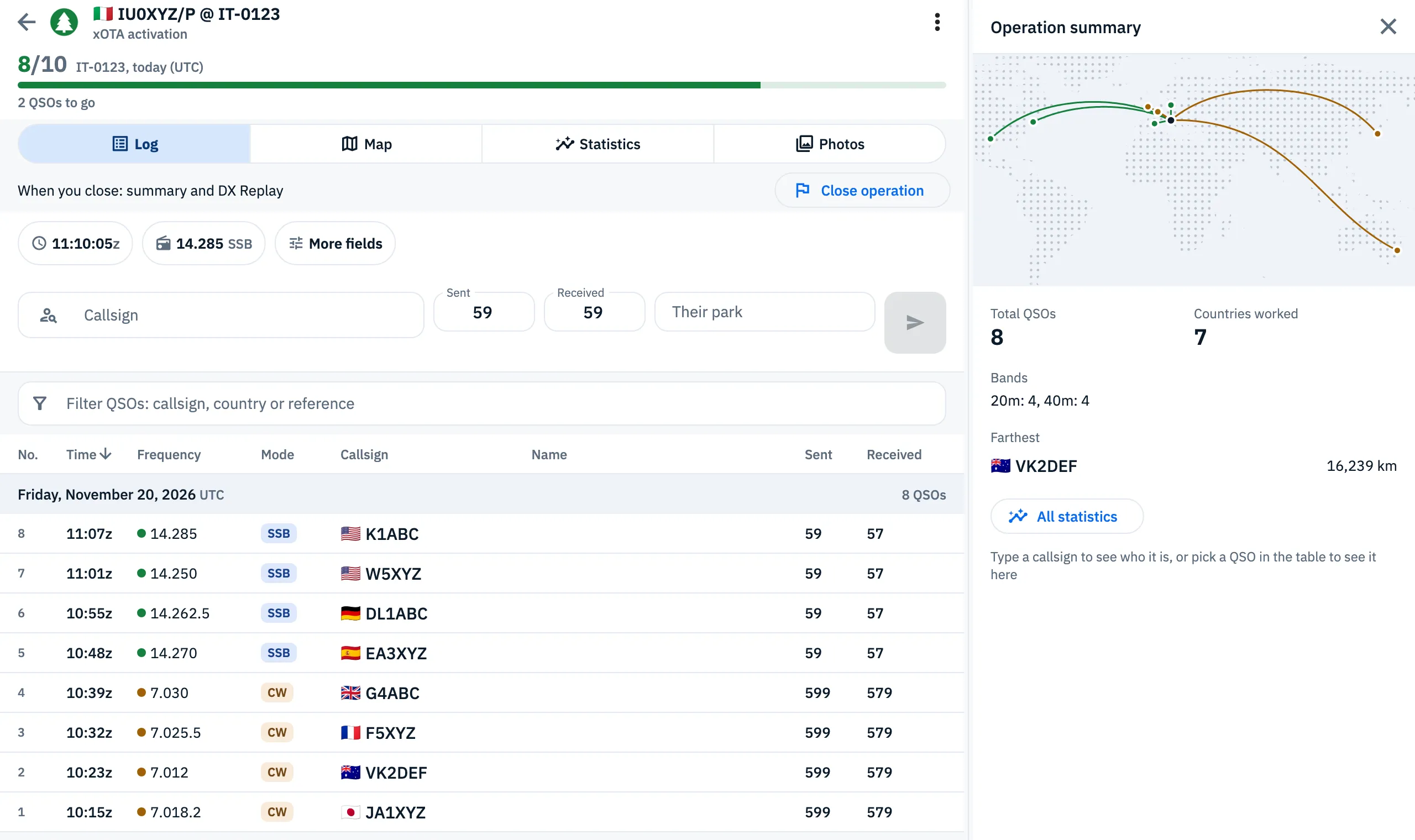
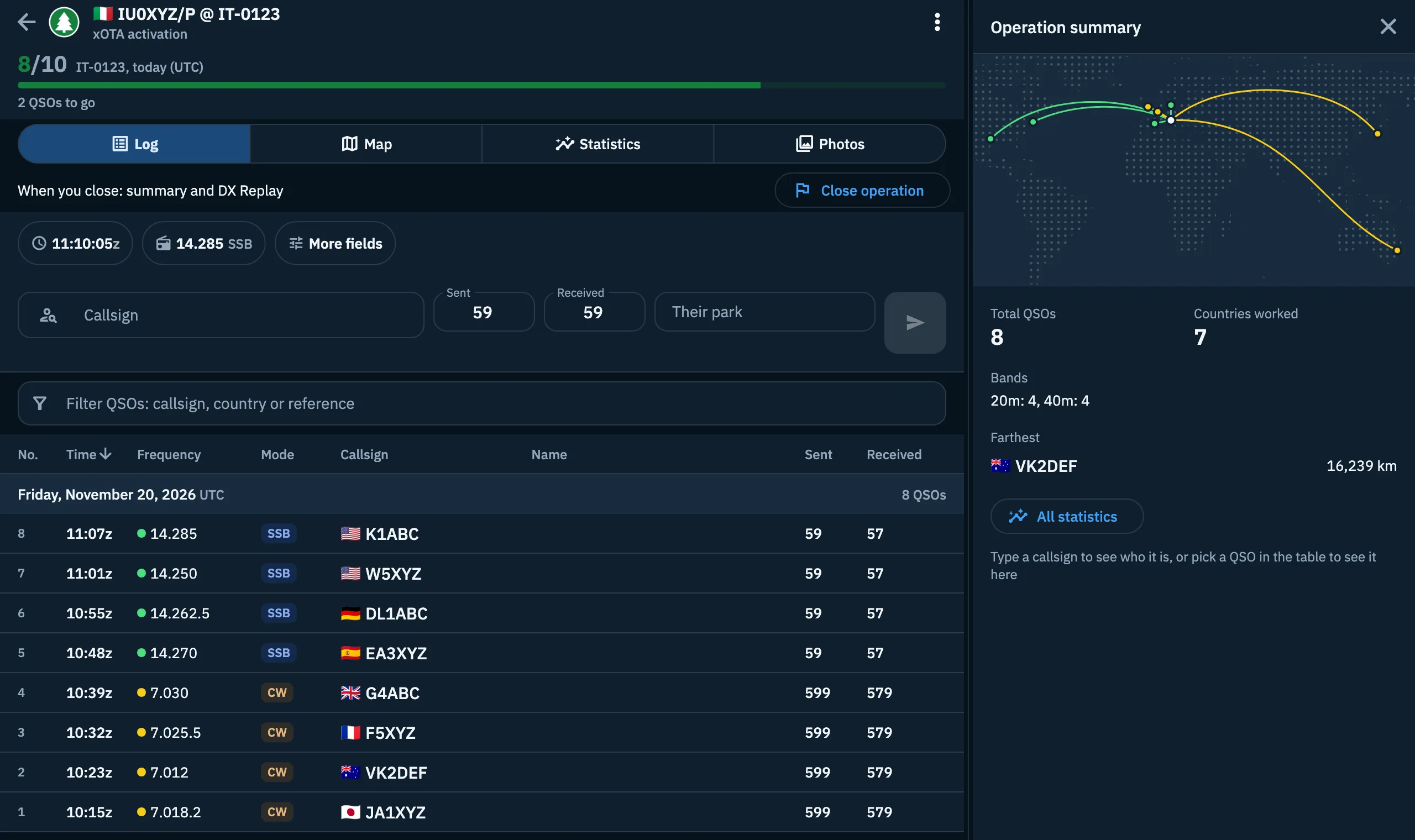
- Type the callsign in the bar at the top and press Enter to save.
- Click a column title to sort the table; a second click reverses the order. Sorted by time, the table keeps the UTC days.
- Type in Filter QSOs: callsign, country or reference to narrow the table; Enter in the filter goes to the first row.
- Click a QSO (or select it and press Enter) to open it in the inspector; close it with Esc or ✕.
The inspector shows one thing at a time:
- while you type a callsign, who it is (see Who you are working, and dupes);
- the QSO open, with the previous and the next one;
- otherwise the Operation summary: the map of the contacts, Total QSOs, Countries worked, Bands, Farthest and All statistics, which opens the Statistics section.
When there is room the inspector sits beside the table (400 points wide, drag its edge to resize it). ✕ (Close the inspector) folds it into a strip; the choice is remembered. In a narrow window only the strip is left: Open the inspector opens it over the table, and Esc, ✕ or a click outside closes it.
The columns adapt to the width: time, frequency, mode, callsign and reports are always there; the name appears when there is room, the progressive number goes away when the table is narrow (in a contest it always stays) and, narrower still, the two reports share one column. Map and Statistics take the place of the table, and a point on the map opens its QSO in the inspector. With an empty table you read «The first QSO goes up here»; with a filter that matches nothing, «No QSO with “…”».
Keyboard shortcuts
They work in the Log section on the web, with a wide window. On a Mac use ⌘ and ⌥ instead of Ctrl and Alt.
| Keys | What they do |
|---|---|
| ↑ ↓ or J K | Previous or next QSO (with the table active). With a QSO open, the inspector follows. |
| Enter | Open the QSO in the inspector (with the table active). |
| Delete or ⌫ | Move the QSO to the trash, with Undo (with the table active). |
| Ctrl+Z | Undo the last deletion (with the table active). |
| Alt+F | Open the frequency row, from any field of the bar. |
| / | Filter the operation's QSOs (outside a text field). |
| Esc twice | The first one clears what you typed; with the bar empty you go to the table, on the last QSO saved. |
| N | New operation (outside a text field). |
| Ctrl+Enter | Use the suggestion: the station spotted on the QSO frequency. It also works while you type in the bar, and it does not save the QSO. |
With the section switcher active, the keys 1 to 5 open a section and ← → go to the next one. Every key is in Keyboard shortcuts.
Troubleshooting
| Message or problem | What to do |
|---|---|
| «This operation no longer exists» | The operation was deleted, possibly on another device. Tap All operations to go back to the list. |
| The bar is replaced by «Operation closed» | Tap Reopen operation. If it is archived, Restore it from the menu first. If the button is not there, it is an activation of another UTC day: create another operation for new QSOs. |
| Export, Share and Send eQSL HamQSO are off | They say «No QSOs yet»: log at least one QSO. |
| «Could not load the map» | Tap Retry. |
| «Could not compute the statistics» | Tap Retry. |
| No lines on the map | Read the note «Add the operation's locator…»: set the location in Operation settings. |
| «Locator missing: without it, no distance.» | Tap Set your locator and save. |
| «Couldn't delete the QSO. Try again.» | The deletion failed: try again. |
| «It can't be deleted: the QSO is confirmed in HamQSO.» | A QSO confirmed in HamQSO cannot be deleted and its row does not swipe. |
| «It can't be deleted: N QSOs are confirmed in HamQSO.» | The operation holds QSOs confirmed in HamQSO and cannot be deleted. |
| «Could not complete the action, try again» | An action of the menu failed: try again. |