
Received cards, collection and series
Open the eQSL HamQSO cards you receive, add their QSO to the log, and complete series to win a card model.
FreeUpdated for HamQSO 0.1.19
On this page
The eQSL HamQSO cards other HamQSO users send you arrive in your Collection. From there you open them, flip them like a real card, add the QSOs you are missing to your log, and complete series, which win you a card model. All of it is free, with or without HamQSO Pro.
Opening the Collection
- Open Profile and tap the eQSL HamQSO card (see What eQSL HamQSO is).
- Tap the Collection tab.
On desktop and on the web, eQSL HamQSO is also in the side bar, as eQSL HamQSO.
Next to the tab name, N new (for example 3 new) tells you how many eQSLs you have not opened yet. The server counts them: the number updates when the app starts, when you open the Shop or the Collection, and when you open a card. Without a network it stays at the last value.
The Collection has three parts, from the top:
| Part | What it holds |
|---|---|
| To open | New eQSLs (with a red dot) and those whose QSO is not in your log. |
| Series | The series to complete, one tile per series (see below). |
| Already in the Collection | The eQSLs you have already opened, with the QSO confirmed. |
Each card shows its front, the callsign of the station that sent it, band and mode, the date of the QSO and, below, QSO confirmed or The QSO is not in the log. Cards are laid out in a grid: one column on a phone held upright, more columns the wider the screen. The newest come first.
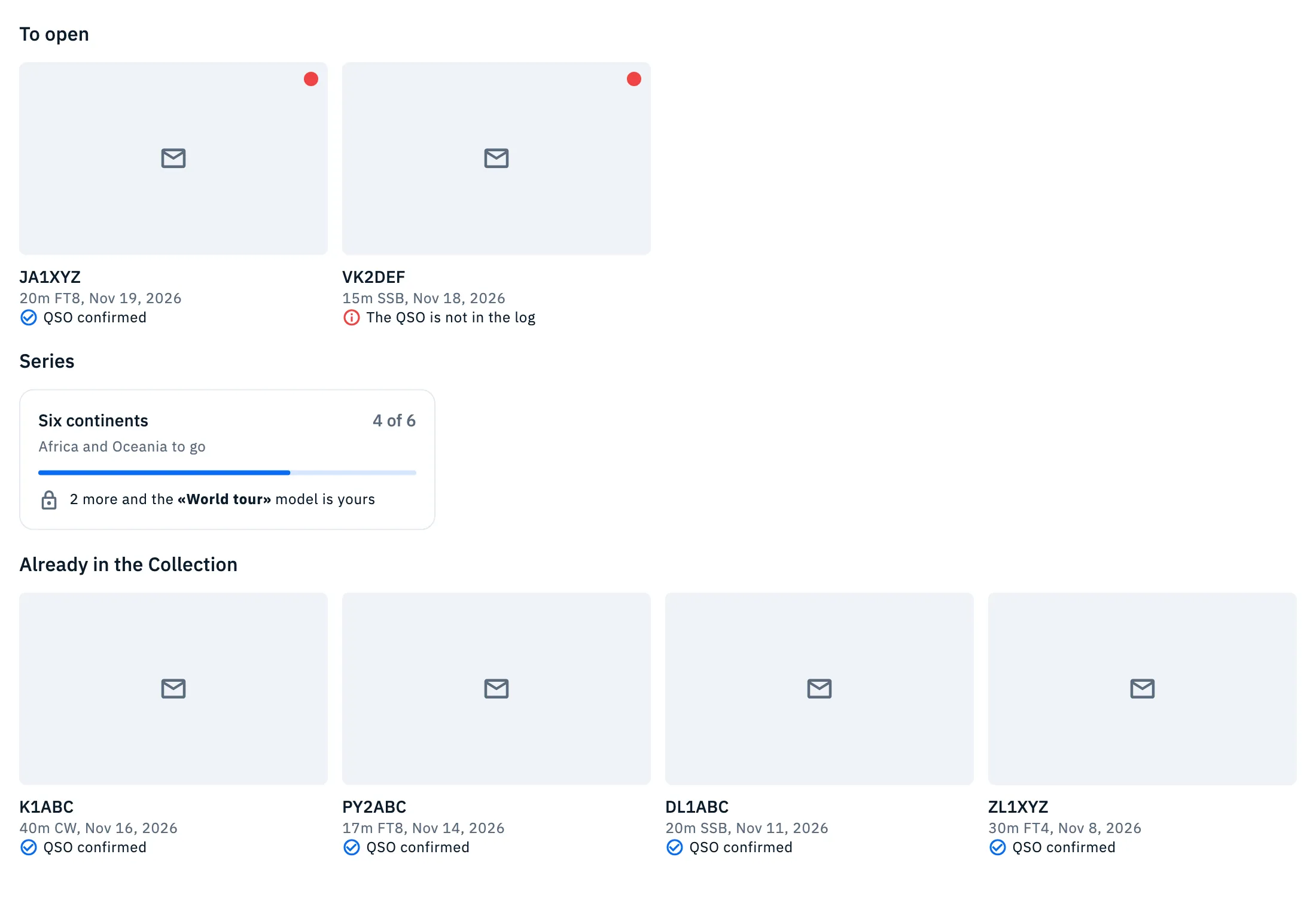
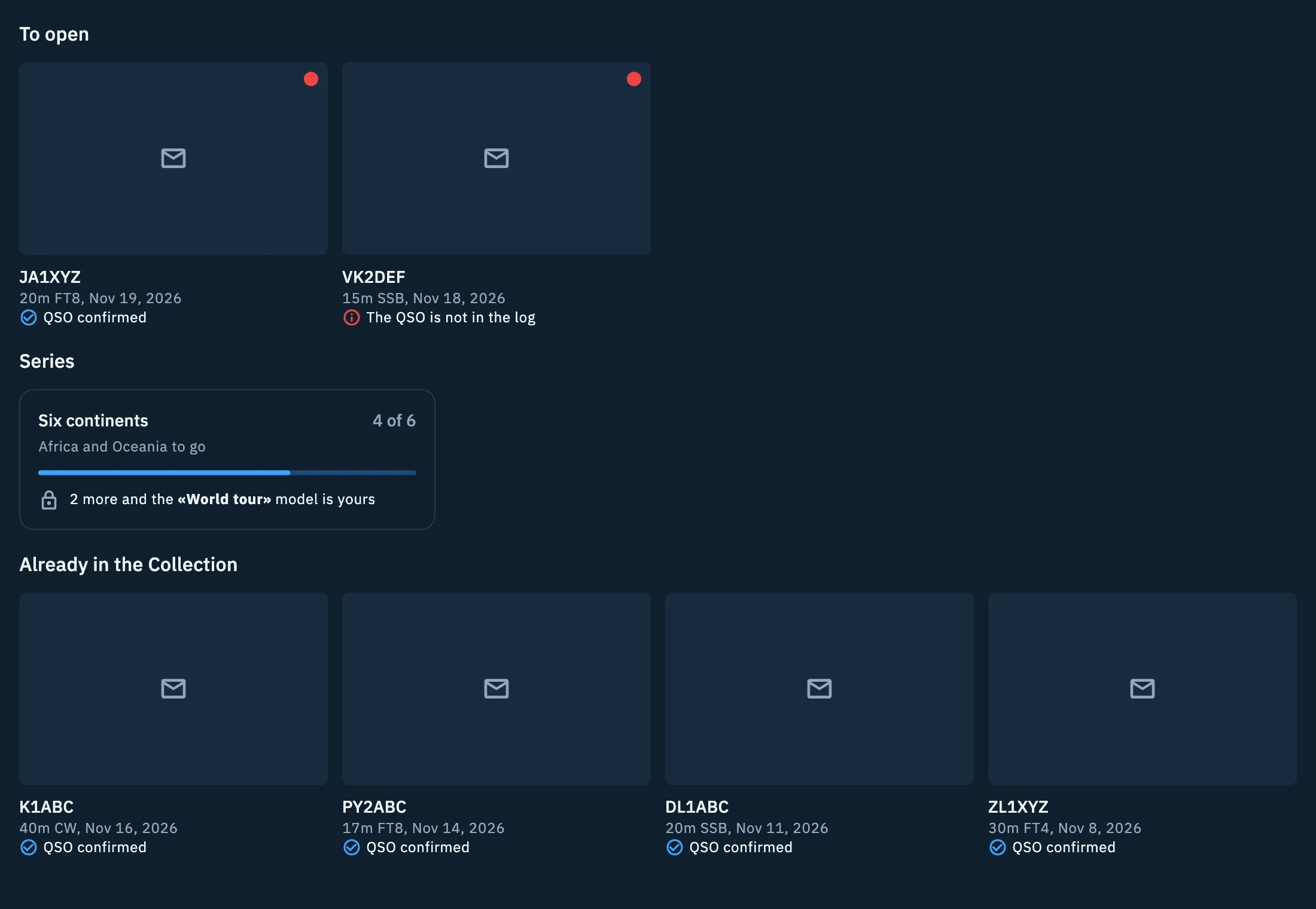
- Cards load 50 at a time: at the bottom, tap Show more for older ones.
- Pull the list down to refresh it.
If you have not received any eQSL yet, the Collection shows a dashed card For IU0XYZ (your callsign, or For you if it is not in your profile), the title No eQSL yet and "When another HamQSO user sends you an eQSL, it arrives here, ready to open." Ongoing series show up even when the Collection is empty.
The Shop can also show the new eQSLs, in the N new section ("The eQSL you've received"): tap a card to open it, or Open the Collection to see them all.
Opening a card
- Tap a card in the Collection. Its page opens, titled with the callsign of the station that sent it.
- Tap the card to flip it between front and back ("Tap to flip the card").
- Below you read the callsign, band and mode, the date of the QSO and the state of the QSO in your log.
Opening an eQSL marks it as seen: the red dot goes away and the count of new ones drops. When you go back, the Collection and the series update, because a card can complete a series.
The state of the QSO can be:
- QSO confirmed, "With eQSL HamQSO, on" and the date: the QSO is in your log and the eQSL confirms it.
- This QSO is not in the log: your log has no QSO with that station on that day, on that band and in that mode. You can add it (see below).
On tablets and on the web the card keeps a comfortable reading width, centred on the page.
Adding a card's QSO to the log
If you receive an eQSL for a QSO you do not have in your log, you add it with one tap.
- Open the card marked The QSO is not in the log.
- In the This QSO is not in the log box, tap Add the QSO to the log.
- When it is done you read QSO added to the log, already confirmed, "With the data from the card of" and the callsign.
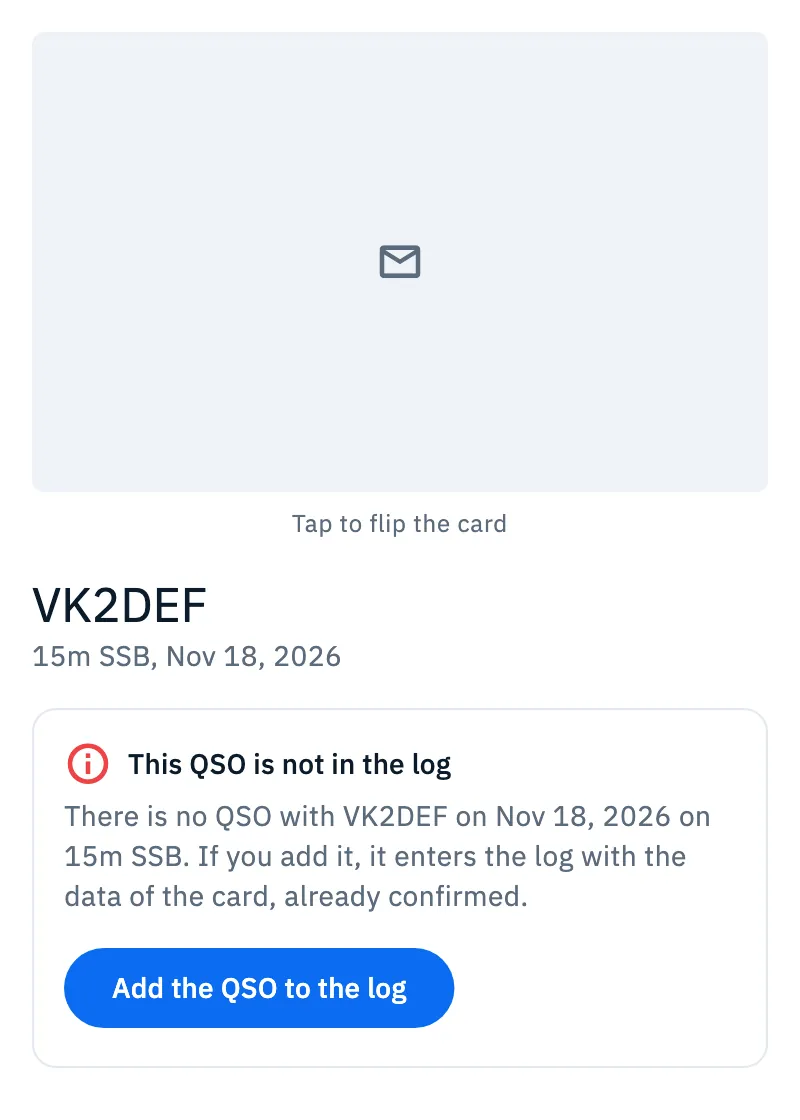
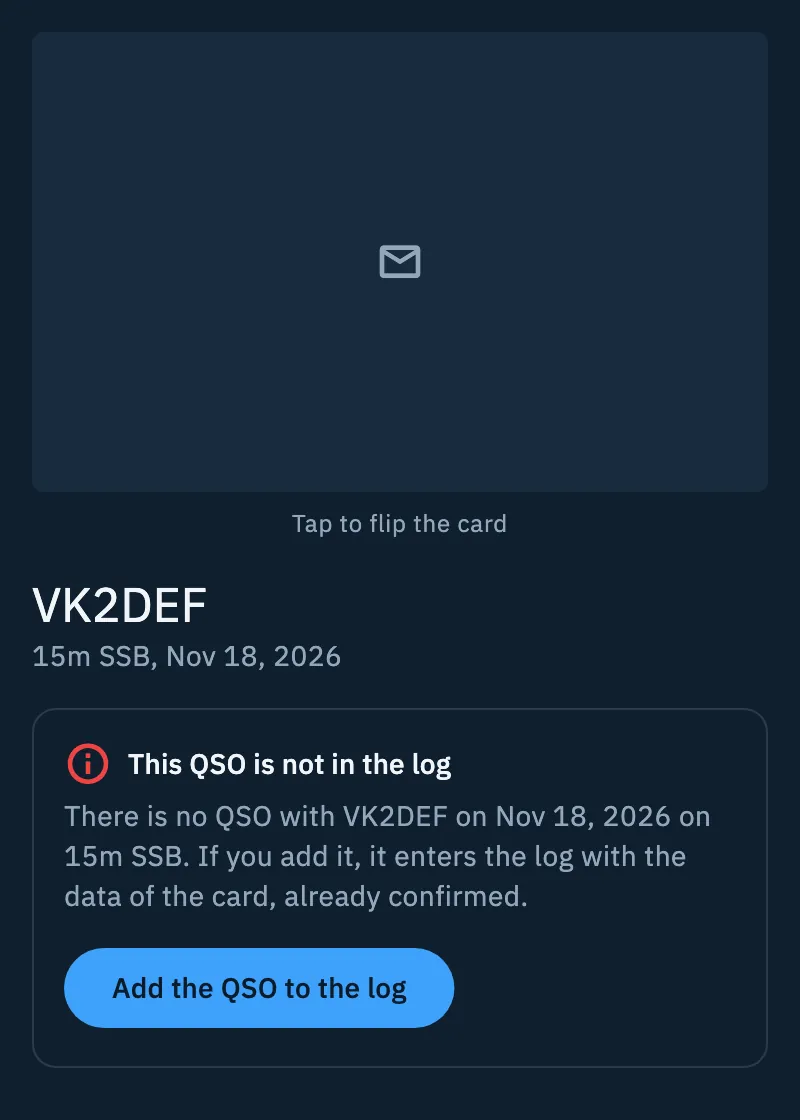
The QSO enters the log with the data of the card only: callsign, date and time (UTC), band and mode. You add the rest (frequency, reports, notes) by opening the QSO, see Opening and editing a QSO.
If the QSO was actually already there (same callsign, band and mode, within 10 minutes of the card's time: the same duplicate rule as the import), HamQSO does not log it twice and confirms that one. Which QSO an eQSL can confirm is decided by the HamQSO server.
Series
A series is a set to complete: for example one eQSL from each of the six continents. Every eQSL that arrives from a place you are missing uncovers a piece; which places count, and which place each eQSL counts for, is decided by the server. When you complete a series you win its card model, which stays yours even without HamQSO Pro.
In the Collection, under Series, each series has its own tile with:
- its name and N of M (for example 4 of 6), or Completed;
- what is missing: "Africa to go", "Africa and Oceania to go", up to three places by name; beyond that, "5 to go". Once completed, where they all came from ("All found" if the server says nothing else);
- a progress bar;
- the prize: "2 more and the «World tour» model is yours", or "The «World tour» model is yours".
In the Collection the series tiles sit one, two or three per row depending on the screen width; the Shop can show the series with the same tiles. If the server does not answer, the series simply do not appear and the rest of the Collection stays as it is.
The page of a series
- Tap the tile of a series. Its page opens, titled with the series name.
- At the top is the prize: N of M, "2 more and the «…» model is yours." and "Every eQSL of the series uncovers a piece."
- Below, The eQSL of the series: each place found, with the callsign of the station that sent you the eQSL, or To find.
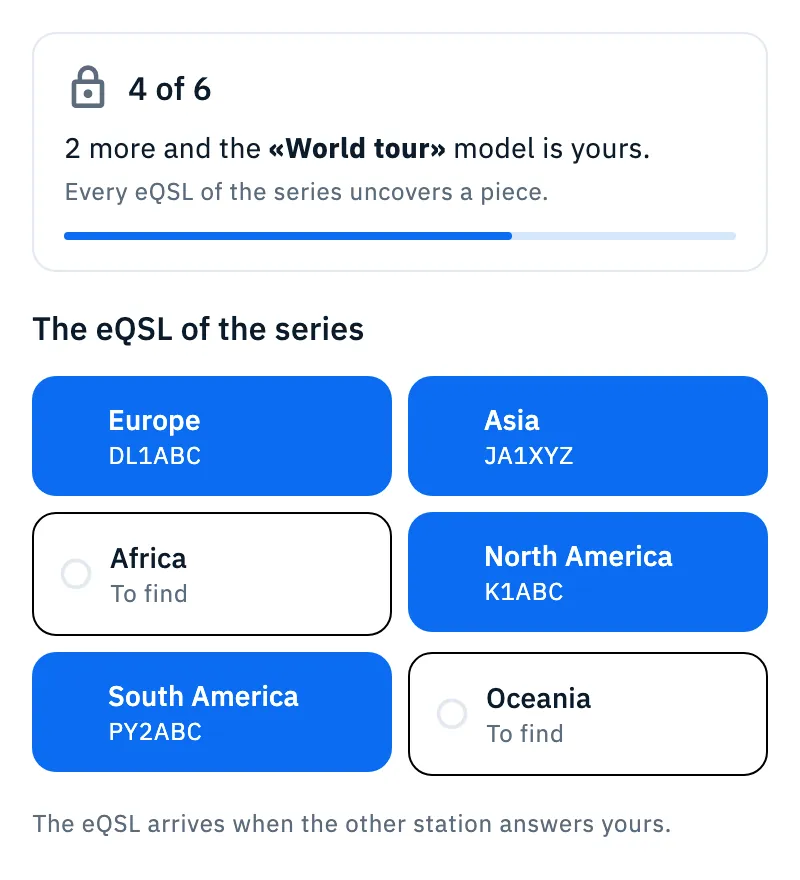
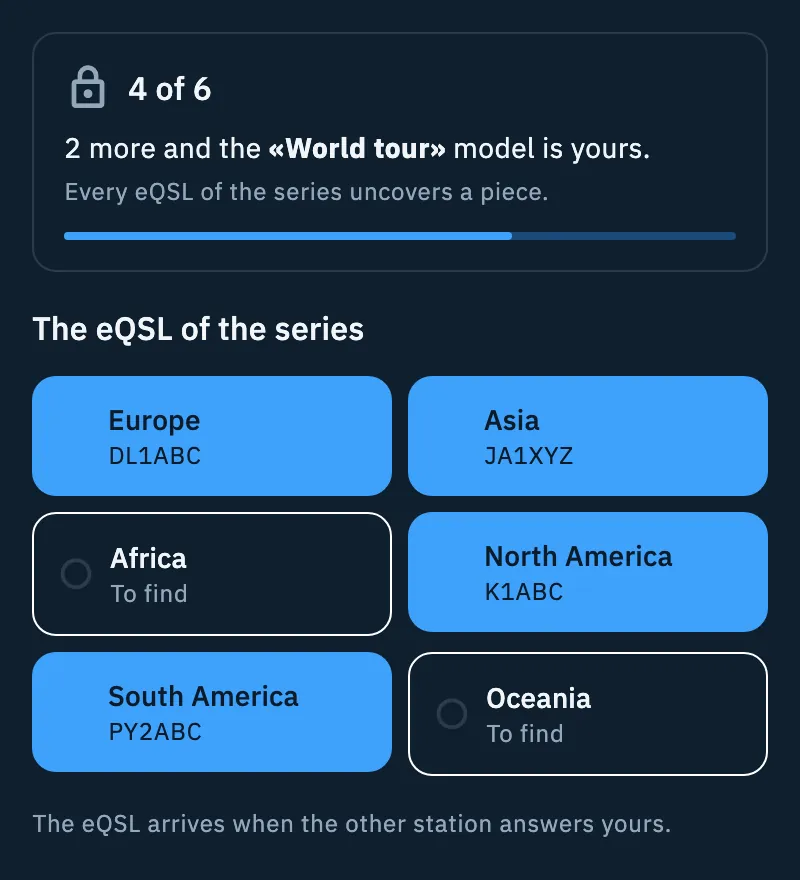
To uncover the missing places, work stations from those places: as the page says, "The eQSL arrives when the other station answers yours." Once the series is completed, the top reads "You completed" with the series name, "The «…» model is yours. You find it among your models, for your next eQSL." and the buttons:
- Use the model: opens the Models tab, where you can make it your default model (see Choosing your card).
- Share: as in the completed series scene, below.
Series completed
When a series is completed while you are in the Collection or in the Shop (for example after opening a card or adding its QSO to the log), the Series completed scene opens by itself; it also opens when you tap the notification of a completed series. The scene shows the series name, how many places and how many different stations you collected ("6 continents, 6 different stations. The «World tour» model is in your Models.") and Completed on with the date. The prize model is already in your Models before you tap anything.
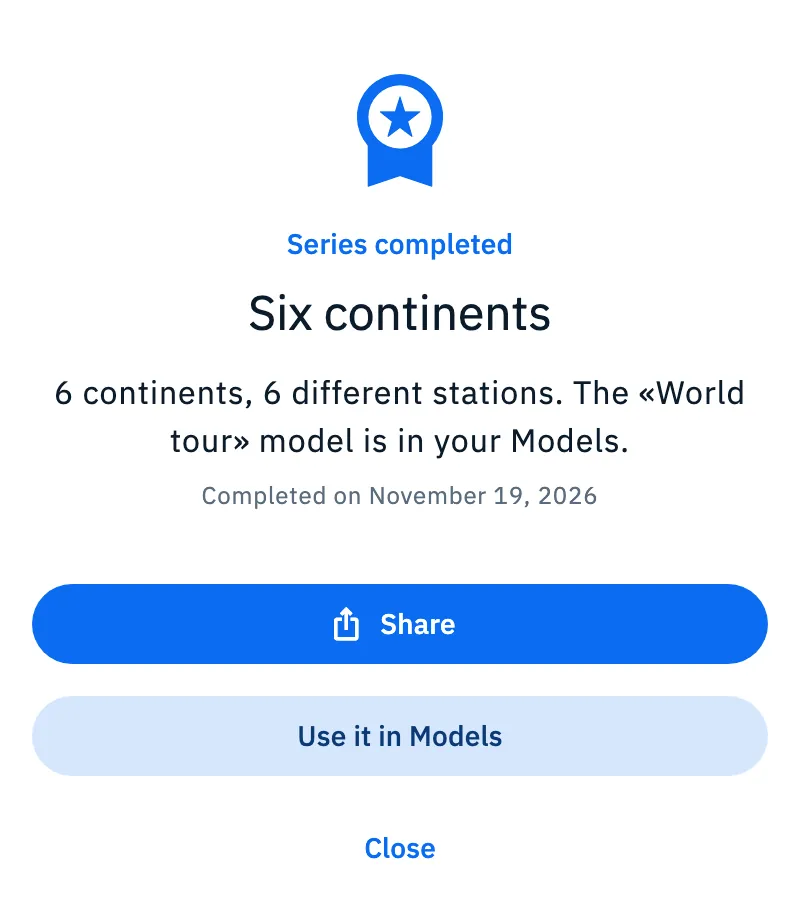
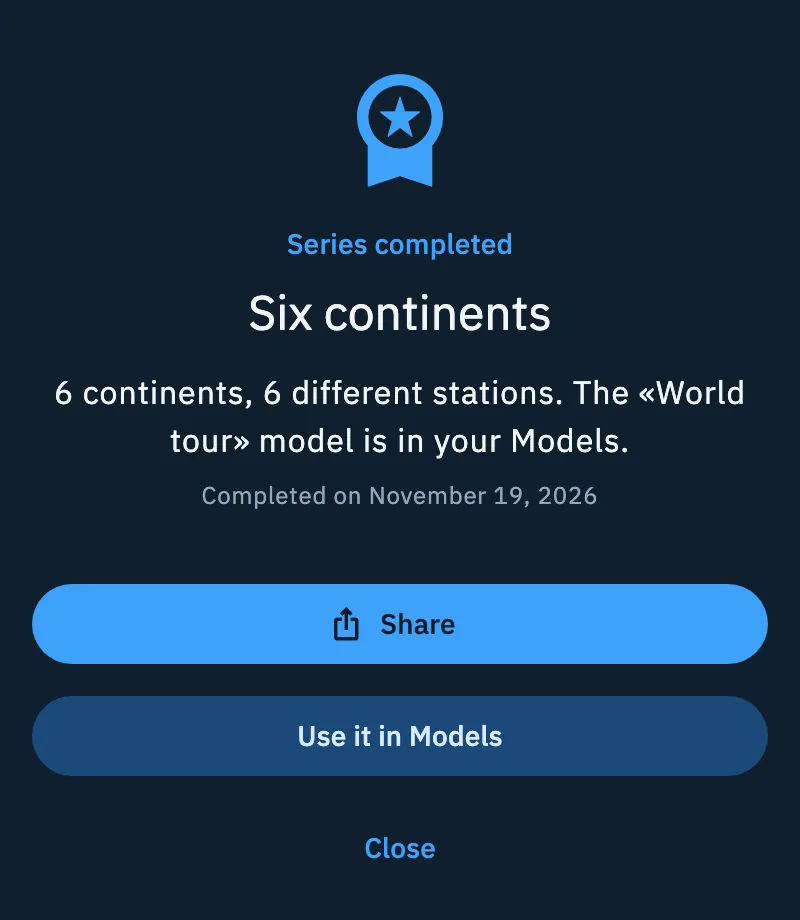
| Button | What it does |
|---|---|
| Share | Prepares an image of the series and opens the system share sheet, with the text "I completed the «…» series with eQSL HamQSO:" and the link to the public page of the series. |
| Use it in Models | Opens the Models tab. |
| Close | Closes the scene. A bar at the bottom reminds you "The «…» model is in your Models." |
On a phone the scene fills the screen; on tablets and on the web it is a dialog in the middle. The image to share is prepared by the server: while it comes, the button reads Preparing the image.
The notification of a received eQSL
When a HamQSO user sends you an eQSL you get a notification. Tapping it opens eQSL HamQSO on the Shop tab; you find the new eQSLs in the Collection. A completed series also arrives as a notification: tapping it opens the Series completed scene.
To stop the notification of eQSLs:
- Open eQSL HamQSO and tap the gear at the top (eQSL settings).
- Turn off Notify me when I receive one ("With the card and the QSO confirmed."). It is on by default.
The other settings are in eQSL settings; how the app's notifications arrive in general is in Getting notifications.
Free and Pro
Receiving, opening and collecting eQSLs, adding their QSOs to the log and completing series are free. The model you win with a series is yours and you use it even without HamQSO Pro.
Troubleshooting
- "I can't load the Collection." The server did not answer, usually because there is no network. Check the connection and tap Retry.
- "QSO added to the log. It will be confirmed as soon as there is a connection." The QSO is saved in the log but the server could not be reached, and the box has no button to try again. When you are online, go back, open the card again from the Collection and tap Add the QSO to the log once more: HamQSO finds the QSO already saved and does not log it twice.
- "The QSO is in the log, but this eQSL cannot confirm it." The QSO stays in the log, but the server does not accept this eQSL as its confirmation. If you want, check the QSO in Opening and editing a QSO.
- "I can't add the QSO to the log. Try again." The QSO was not added. Tap Add the QSO to the log again.
- "The image is not ready." The server did not prepare the image of the series. Try again in a moment with Retry: the model is already in your Models.
- "Without a network the image cannot be prepared." Share stays off until the network is back; the model is already in your Models.
- You do not see the series. The server did not answer: the series come back the next time you open the Collection with a network.
- The count of new eQSLs does not change. The server counts them: without a network or without being signed in it stays at the last value.