
Spots on the map and on the globe
See where the spotted stations are on a globe or a map beside the DX list, on tablet and computer, and open the globe full screen.
FreeUpdated for HamQSO 0.1.19
On this page
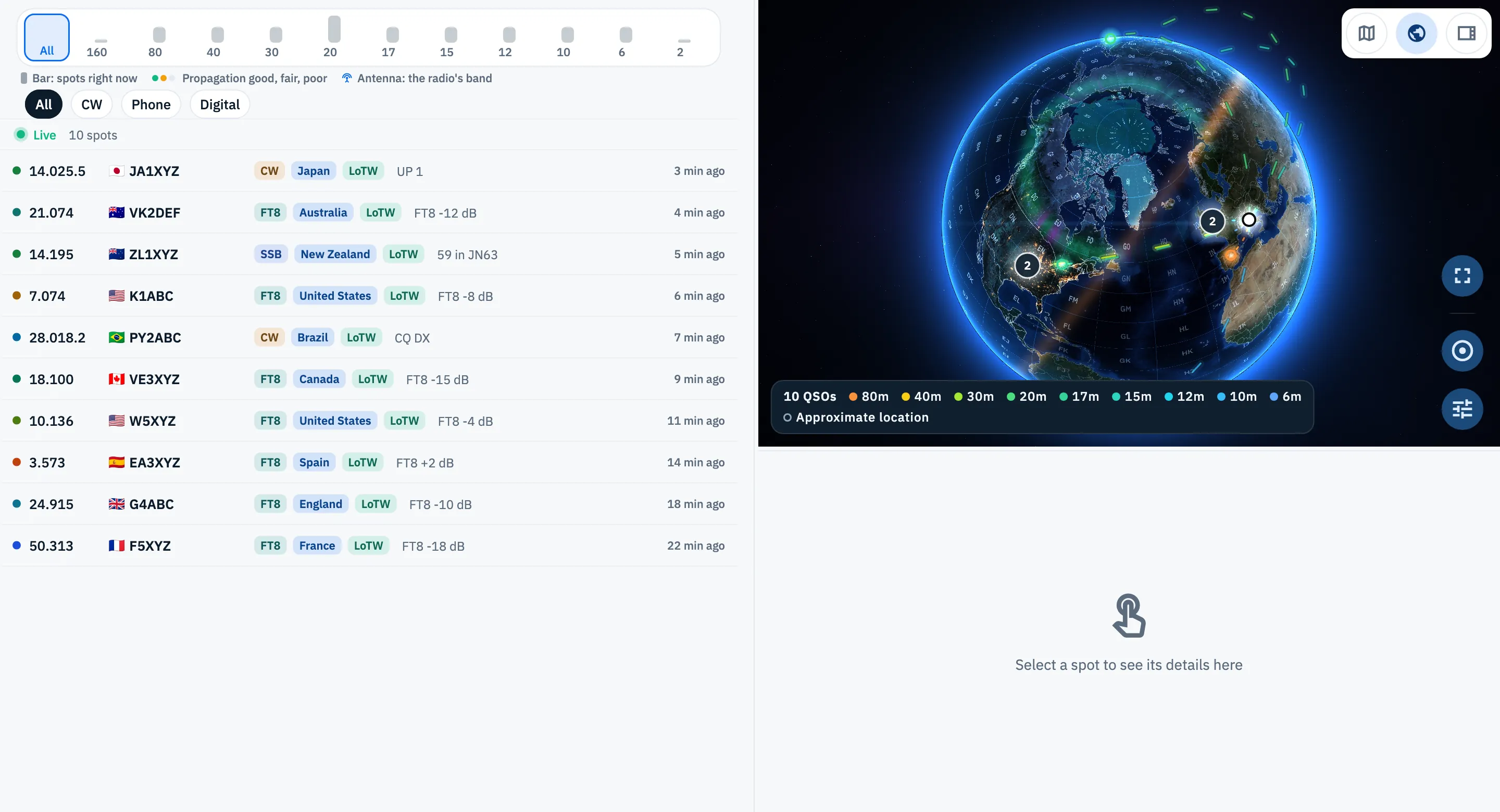
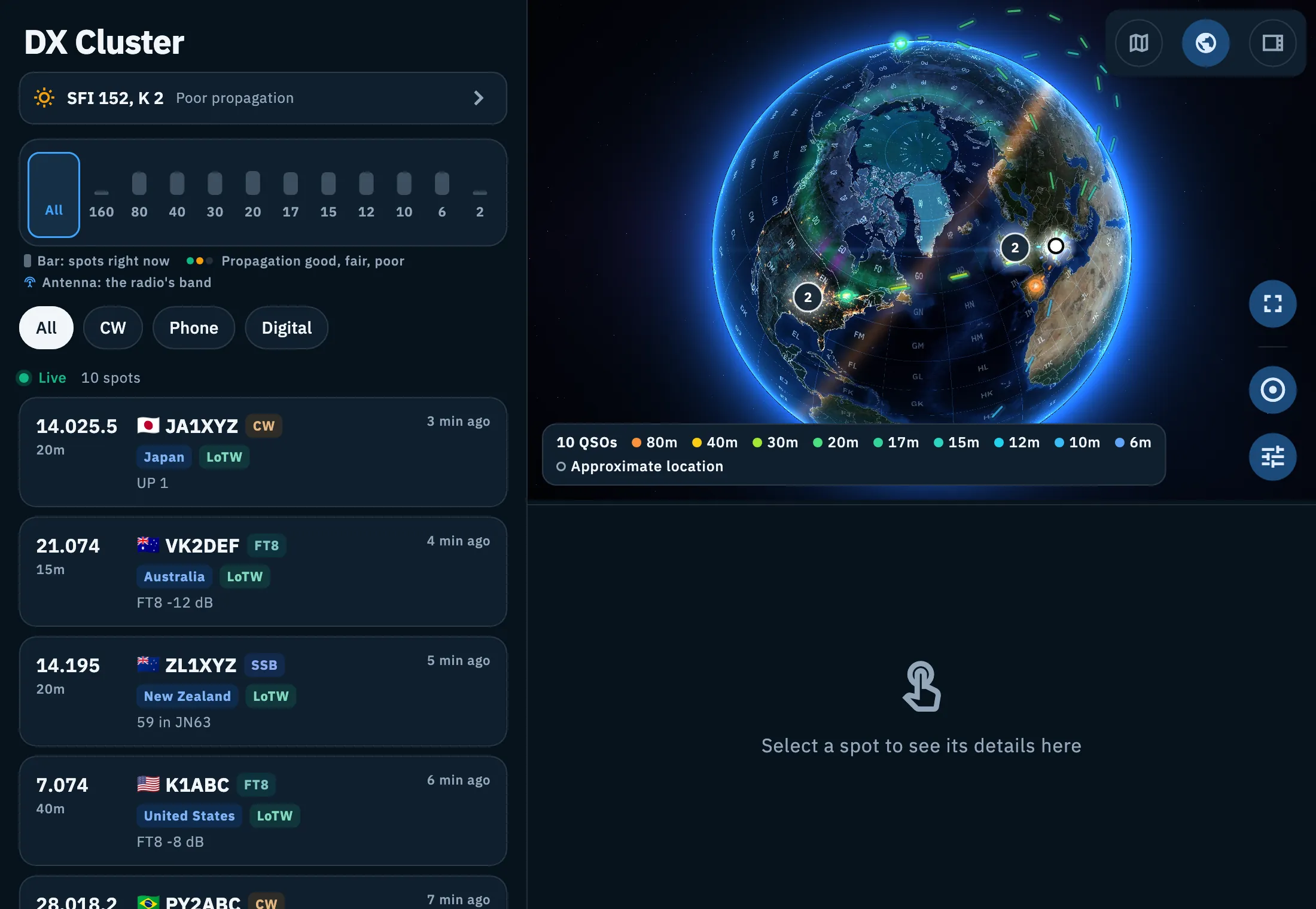
On a tablet and in a computer window, the DX Cluster list has the detail of the chosen spot beside it, and above the detail you can open a globe or a map with every spot of the list. It follows your filters and updates live, so you see at a glance where the stations are and on which band.
List and detail side by side
When the list has at least 840 px of width (a tablet, or a browser on a computer) the DX section splits in two: the list on the left and the detail on the right. Until you choose a spot, the right side says "Select a spot to see its details here".
- Open the DX section.
- Tap (or click) a spot: it is highlighted in the list and its detail appears on the right.
- Tap another spot to switch to it.
What the detail shows is in Opening a spot. If When you tap a spot is set to Automatic in the radio preferences, the connected radio moves to the frequency of the spot you choose: see Tuning the radio from spots.
| Where | How it is laid out |
|---|---|
| Tablet (iPad, Android tablets) | A 440 px wide list with the spots as cards, the detail in the rest of the screen. |
| Browser, window from 840 to 1200 px | As on a tablet, if at least 840 px are left beside the side bar; otherwise the list is the phone one. |
| Browser, window from 1200 px | The computer layout: one-line rows and a separator between list and detail (see below). |
Opening the globe or the map
At first no pane is open: you open it when you need it.
- At the end of the mode row, on the right, tap the globe icon, Show the globe (or the map icon, Show the map, if you had the map last time).
- The pane opens above the detail, a little more than half the height of the right column.
- To switch view, use the three icons in the top right corner of the pane: Map, Globe and None (the side panel icon). The open one is filled. The icons have no text: screen readers read their names.
- To close the pane, choose None: the icon at the end of the mode row comes back, and it reopens the last view you had.
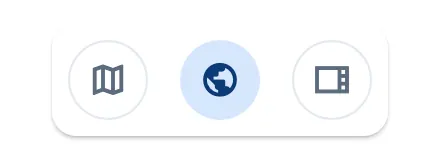

The choice is saved in the app settings: the DX list opens again with the view you left, and the activations list has its own separate choice. The first time, the icon opens the globe in the DX list.
Between the pane and the detail there is a separator: drag it to give more room to the globe or to the detail (from a quarter to four fifths of the column). The height you choose is remembered; a double click on the separator brings it back to the starting height.
The spot globe
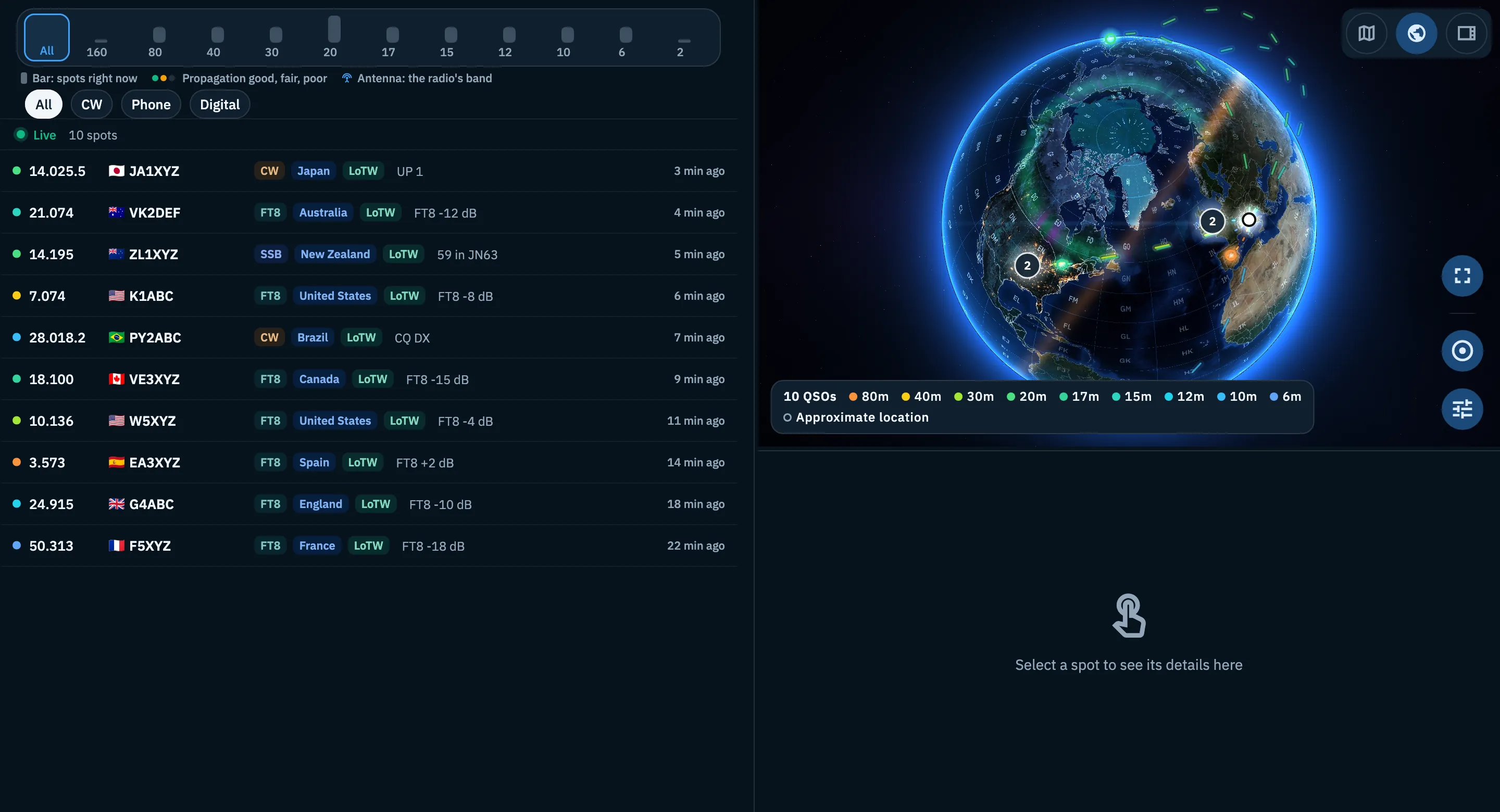
Every spot visible in the list is a point on the globe, with an arc from your station colored by band. The legend at the bottom left names the color of each band. The globe frames every spot and your station when it opens and when the first spots arrive.
- Rotate: drag with a finger or the mouse.
- Zoom in and out: two fingers, the mouse wheel, or + and − when the globe has the focus.
- Choose a spot: tap it on the globe. It is highlighted and its detail appears below, as if you had chosen it in the list. The spot chosen in the list lights up on the globe too.
- Overlapping spots: spots close together on screen become a bubble with a number. Tapping the bubble zooms in: if its spots are at one place, the bubble opens in a ring. If there are more than 8 at one place, a list opens instead to choose one from.
- Show all spots: the target button at the bottom right turns and zooms the globe to show them all.
With the keyboard, when the globe has the focus: ← and → move from one spot (or bubble) to the next, Enter or Space chooses it. Every key is in Keyboard shortcuts.
Map settings
The Map settings button, below Show all spots, opens two choices:
| Option | What it does | Default |
|---|---|---|
| Lines from my station | Shows or hides the arcs from your locator to each spot. Without a locator in your profile it cannot be changed and it says "Needs the station location" below. | On |
| Color | By band or By mode: how points and arcs are colored, and what the legend says. | By band |
The settings apply to the globe of that list and last while the app is open, even if you close and reopen the pane. When you open the app again they are back to the defaults.
The globe full screen
- On the globe of the pane, tap Full screen, the top button of the group at the bottom right.
- The globe fills the whole page, with the same spots, the same filters and the same chosen spot. At the top left you read the name of the list and how many spots it shows (for example "10 spots").
- Tap a spot: you go back to the pane with that spot chosen and its detail open.
- To go back without choosing, tap Exit full screen (in the same place as the previous button), press Esc, the browser's Back button or, on an Android tablet, the Back gesture.
This is not the Globe of the web side bar (key G), which shows the spots of every band and has nothing to choose: for that one see The desk-mode Globe.
The spot map
The Map view shows the same spots on a flat map: one point per spot, with the callsign beside it, always at the center of the DXCC country. When it opens, the map frames the area with most spots, leaving out the few farthest ones.
- Choose Map among the icons of the pane.
- Pan and zoom the map with your fingers or the mouse.
- Tap a point: the spot is chosen and its detail appears below. With When you tap a spot set to Automatic, the connected radio also moves to its frequency; a tap on a spot of the globe does not move it.
The map follows the filters and the updates of the list like the globe. Unlike the globe, it needs the network to draw itself.
On a tablet
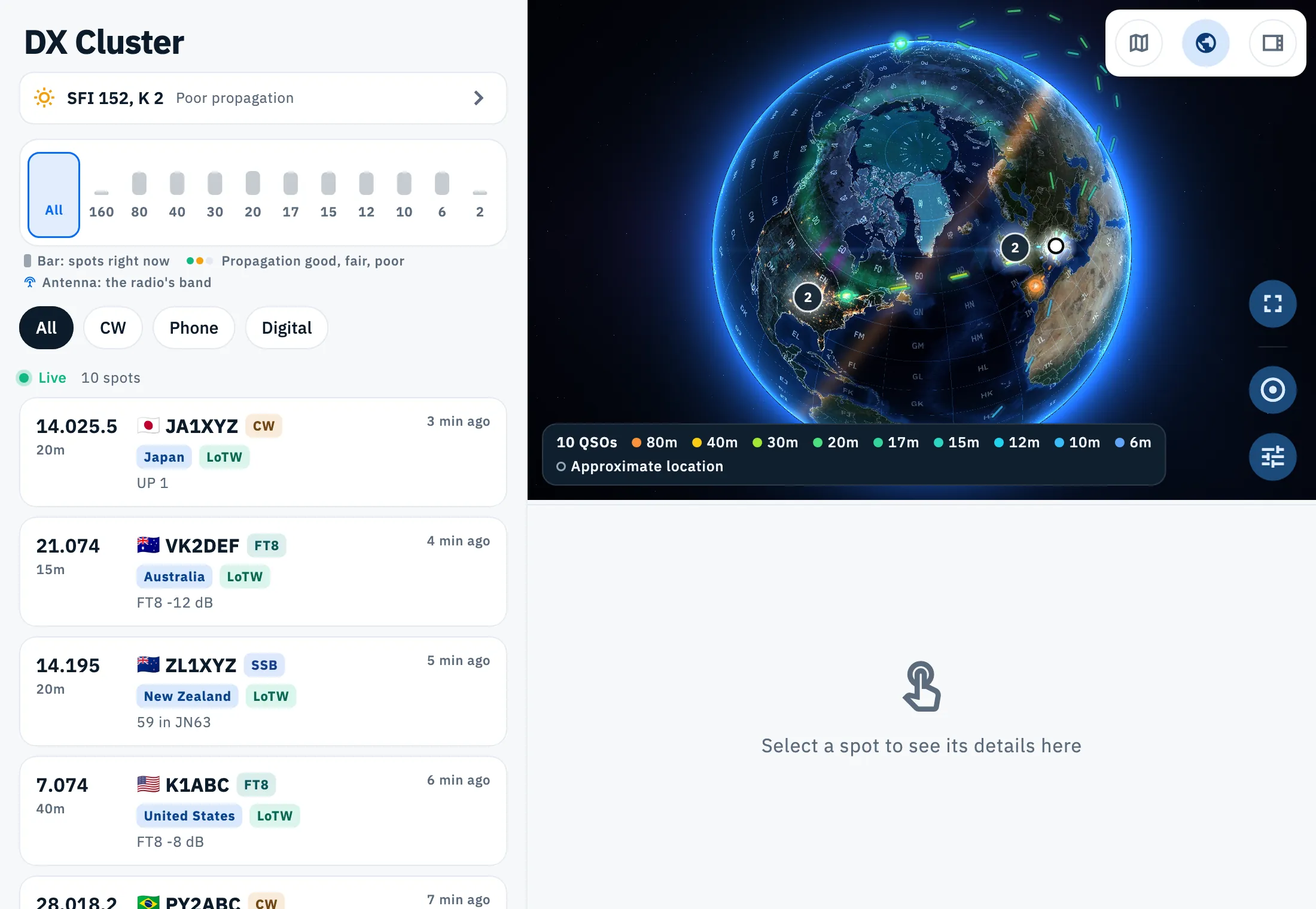
On a tablet the list, the detail and the pane work as above, by touch: the list stays 440 px wide and the pane opens above the detail.
In a computer window
In the browser, in a window at least 1200 px wide, the DX list takes the computer layout:
- List and detail are separated by a handle: drag it to widen one or the other. They start at half each; the list never gets narrower than 400 px and always leaves at least 480 px to the detail. The size is remembered in the browser.
- You can move the handle with the keyboard too: give it the focus with Tab and use the arrows (← → between list and detail, ↑ ↓ between pane and detail). A double click on the handle brings it back to the starting size.
- The list has no big title: the section name and the solar indices are in the top bar.
- Spots are one-line rows. The band legend sits under the band strip, next to the mode row; to the right of these two rows are the buttons, including the icon that opens the globe.
- In a window less than 700 px high the band strip is lower, the rows are denser, the legend moves to the first row of the list and the tip to connect the radio becomes a button next to the filters.
The rest of the web frame is in Phone, tablet and web.
Free and Pro
List and detail side by side, the globe, the map and full screen are free.
Troubleshooting
I don't see the icon to open the globe. On a phone, or when the list is less than 840 px wide (in the browser, the room beside the side bar counts), the DX list has no pane: make the window wider. If the pane is already open, the icon at the end of the mode row is not there: you switch view with the icons above the pane.
A spot is in the list but not on the globe or the map. HamQSO did not recognize the DXCC country of the callsign, so it does not know where to place it. Check the filters too: the globe and the map show only the spots visible in the list (see Filtering spots by band and mode).
Many spots at the same point. They are stations of the same country, all placed at its center. Tap the bubble to open it, or choose the spot from the list.
The globe has no arcs. Your profile has no locator, or you turned off Lines from my station. Set your locator as explained in Your profile: name, callsign and locator.
"Map not available offline". You opened the map without a connection. The map comes back by itself when you are online; a map already open stays on screen if the network drops. The globe works offline. See Using HamQSO offline.
I can't find the globe settings. The pane is too low: drag the separator down.