
Opening a spot
Everything about a spotted DX station: operator, country and local time, who heard it, its earlier spots, your log and where to point the antenna.
Free and ProUpdated for HamQSO 0.1.19
On this page
The detail of a spot tells you everything the app knows about the station: who the operator is, where they are and what time it is there, who heard them, where they were spotted before, whether they are already in your log and where to point your antenna. From here you log the QSO, re-spot the station or create an alert.
Opening the detail
- Open the DX section (see Reading the DX Cluster list).
- Tap a spot in the list, or on the spots map.
- On a phone the detail opens as a page, with the DX Cluster bar: go back to see the list again. On a tablet and on the web the detail appears next to the list, and you tap another spot to change it.
The same detail also opens from the link of a shared spot (see Sharing a spot) and from the history and the notifications of your alerts (see Getting notifications).
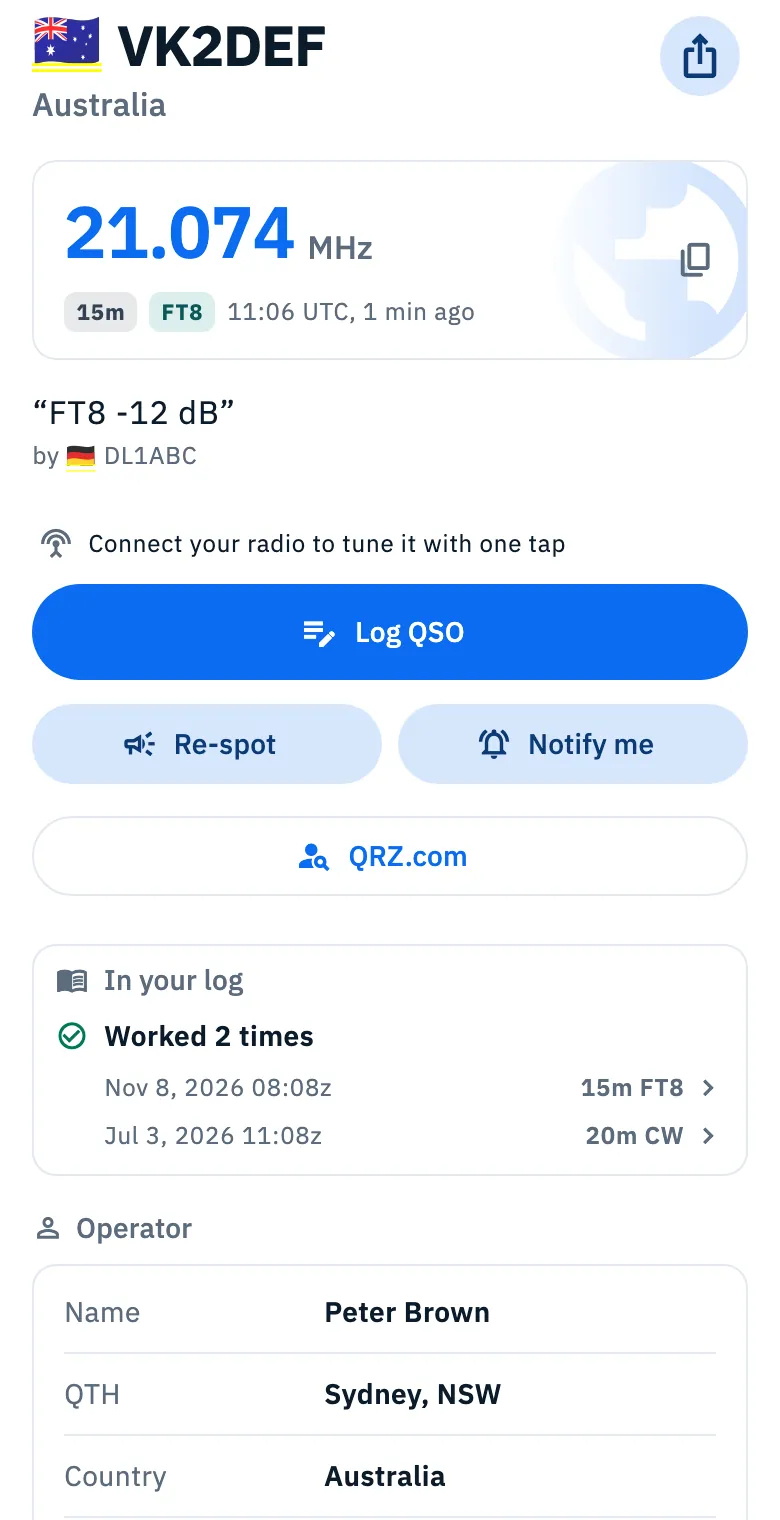
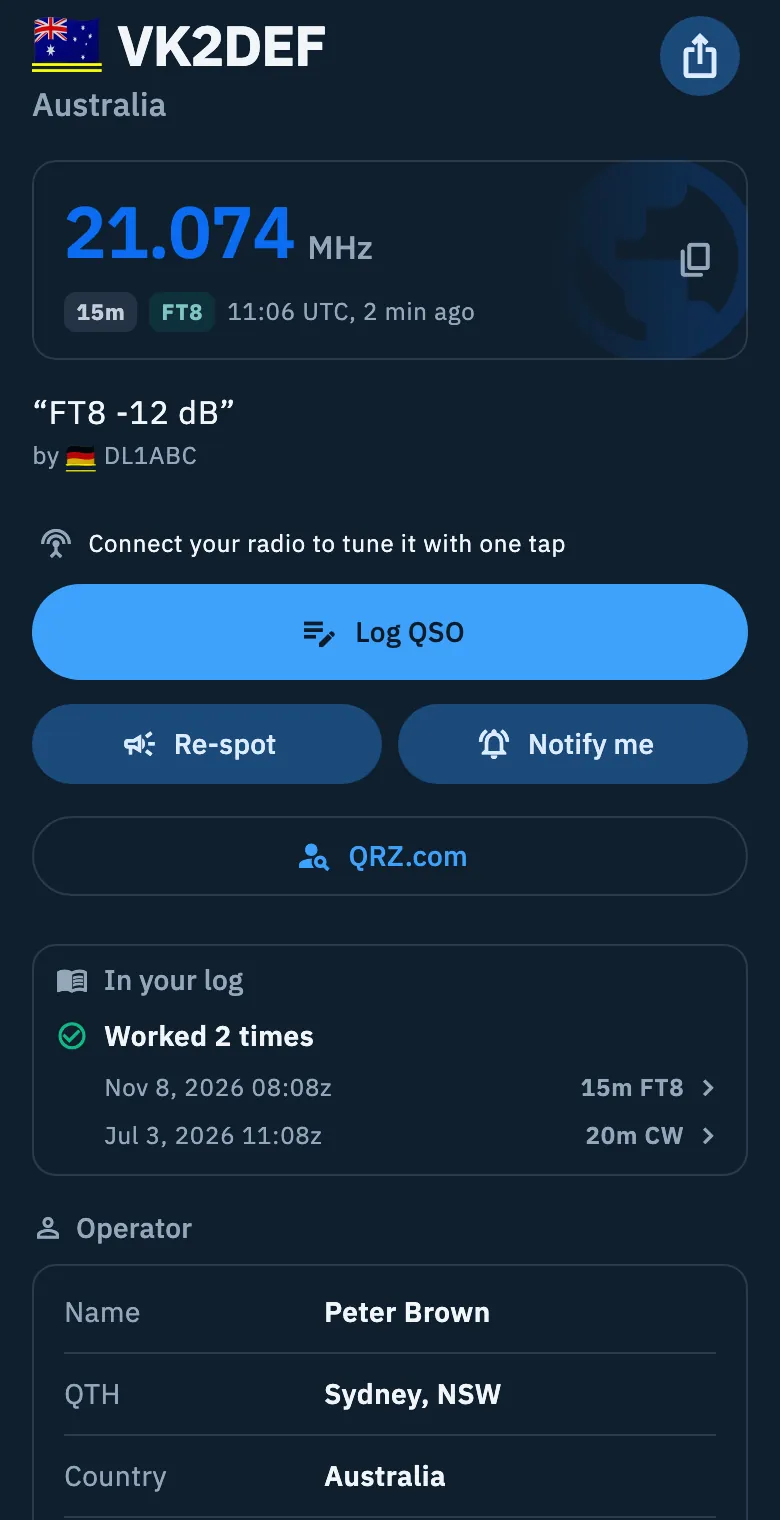
At the top: who it is and where to listen
- The callsign, large. Below it, once the details arrive, the operator's name and city from your callbook, then the place: the country, preceded by the state with its flag for a station in the United States. Before the details arrive you only see the country, as in the list.
- The share button (Share spot) at the top right: see Sharing a spot.
- The frequency card: the frequency in MHz exactly as the spot gave it, never rounded, the band, the mode and the spot time in UTC with its age («21:13 UTC, 2 min ago»), which updates by itself. A mode the spot does not state carries the mark estimated or band plan: tap it to read where it comes from.
- The spotter's comment in quotes, and below it by with the spotter's callsign.
Copying the frequency
- Tap the frequency card (it has the copy icon on the right).
- Frequency copied appears: the frequency is on the clipboard, in MHz and without the word «MHz», ready to paste into another program.
On a phone the tap also gives a light vibration.
The actions
Under the frequency card you find the buttons, in this order:
| Button | What it does |
|---|---|
| Tune the radio | Sets your connected radio to the frequency and mode of the spot. It is there only with a radio connected; without one, in its place you see the line Connect your radio to tune it with one tap, which opens the connection guide. After the tap the button confirms for a moment with Radio on and the frequency, and Undo appears next to it to put the radio back where it was. If your radio does not receive that frequency the button is off and reads Outside your radio's coverage. See Tuning the radio from spots. |
| Log QSO | Opens the QSO entry already filled in with callsign, frequency, mode and, when your callbook knows it, the operator's name. See Logging a QSO. |
| Re-spot | Opens the sheet to send the station's spot to the cluster again. See Re-spotting a spot or a QSO. |
| Notify me | Opens a new alert for this station (the base callsign, without /P or prefixes). See Alerts from a spot or a link. |
| QRZ.com | Opens the station's QRZ.com page (base callsign) in a sheet inside the app. Offline it is greyed out. |
When the mode of the spot is estimated, under Log QSO you read for example «SSB guessed from the frequency: confirm it in the QSO»: check the mode before saving.
With a radio connected, Log QSO becomes a lighter button, because the first thing to do is tune in.
In your log
Under the actions, the In your log card tells you what your log knows about this station (same base callsign, trash excluded):
- Never worked: this would be a new one, when you have never worked it;
- Worked 3 times (or Worked once), with the latest QSOs below (up to five): date, UTC time, band and mode. Tap a row to open that QSO.
The card reads the log on your device and updates by itself when you log a QSO.
When the spot came from one of your alerts, under the card you also find Worked it or heard it?, with I worked it and I heard it: see Alerts from a spot or a link. See also Spotting what you have already worked.
Map and antenna heading
Under In your log there is a small map with the position of the station. A DX spot has no coordinates, so the app uses:
- the address in the callbook, when the station is at home;
- the centre of its country, when the callsign is portable (with a slash, such as /P or /M) or the callbook has no position.
In the second case headings and distance are approximate. When the app does not recognise the station's country and the callbook gives no position, there is no map.
- Tap the map (or Open map) to open it full screen, with the line from your position to the station.
- Close the map with the ✕ at the top.
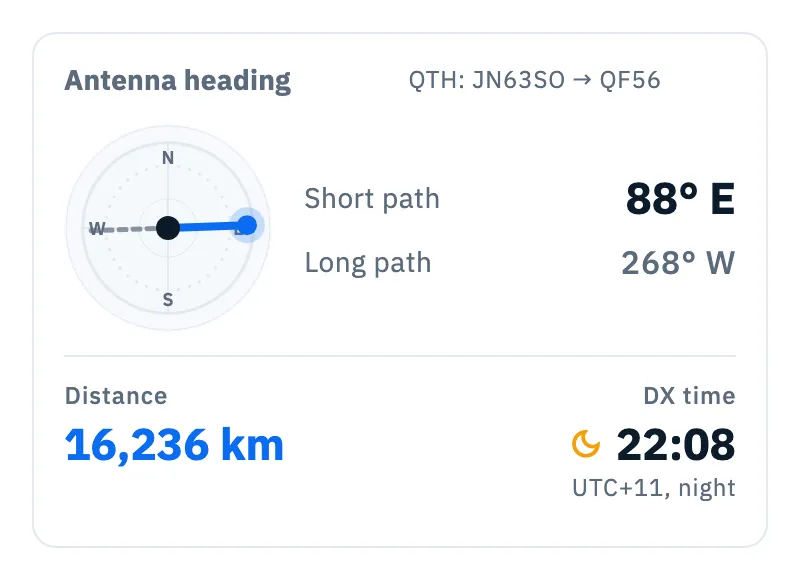
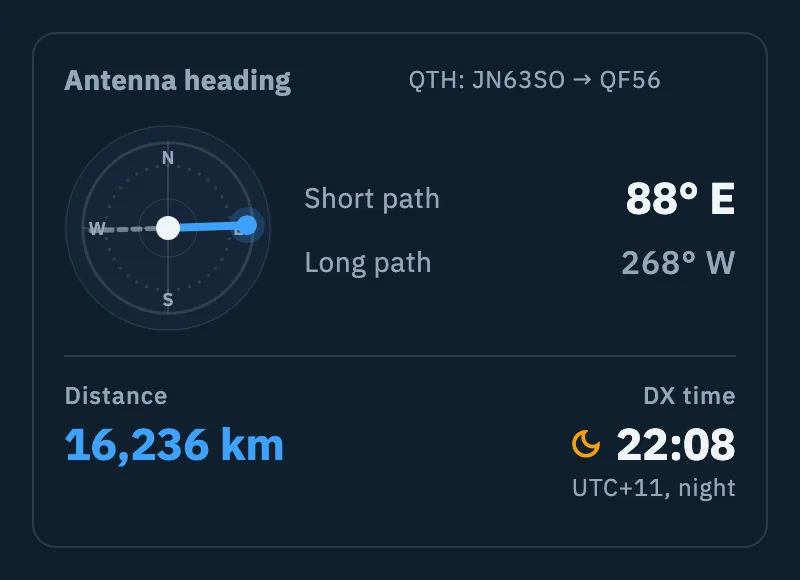
When the app knows your position (the device's, or without it the centre of the locator saved in your profile), the Antenna heading card appears under the map:
| Part | What it shows |
|---|---|
| QTH | Your locator (six characters) and the station's (four), for example «QTH: JN63SO → QF56». |
| Compass | The short path heading (solid line) and the long path (dashed). |
| Short path / Long path | The two headings in degrees and compass point. |
| Distance | In km or miles, following the units chosen in the settings (see Language, theme and units). |
| DX time | The time at the station, with its offset from UTC and day or night. When the time is not known you read At the station with only Day or Night. |
Without your position you only see the station's map, without the card.
The sections of the detail
Below (on a tablet and on the web in the right column) come the sections with the information. A row without a value is left out.
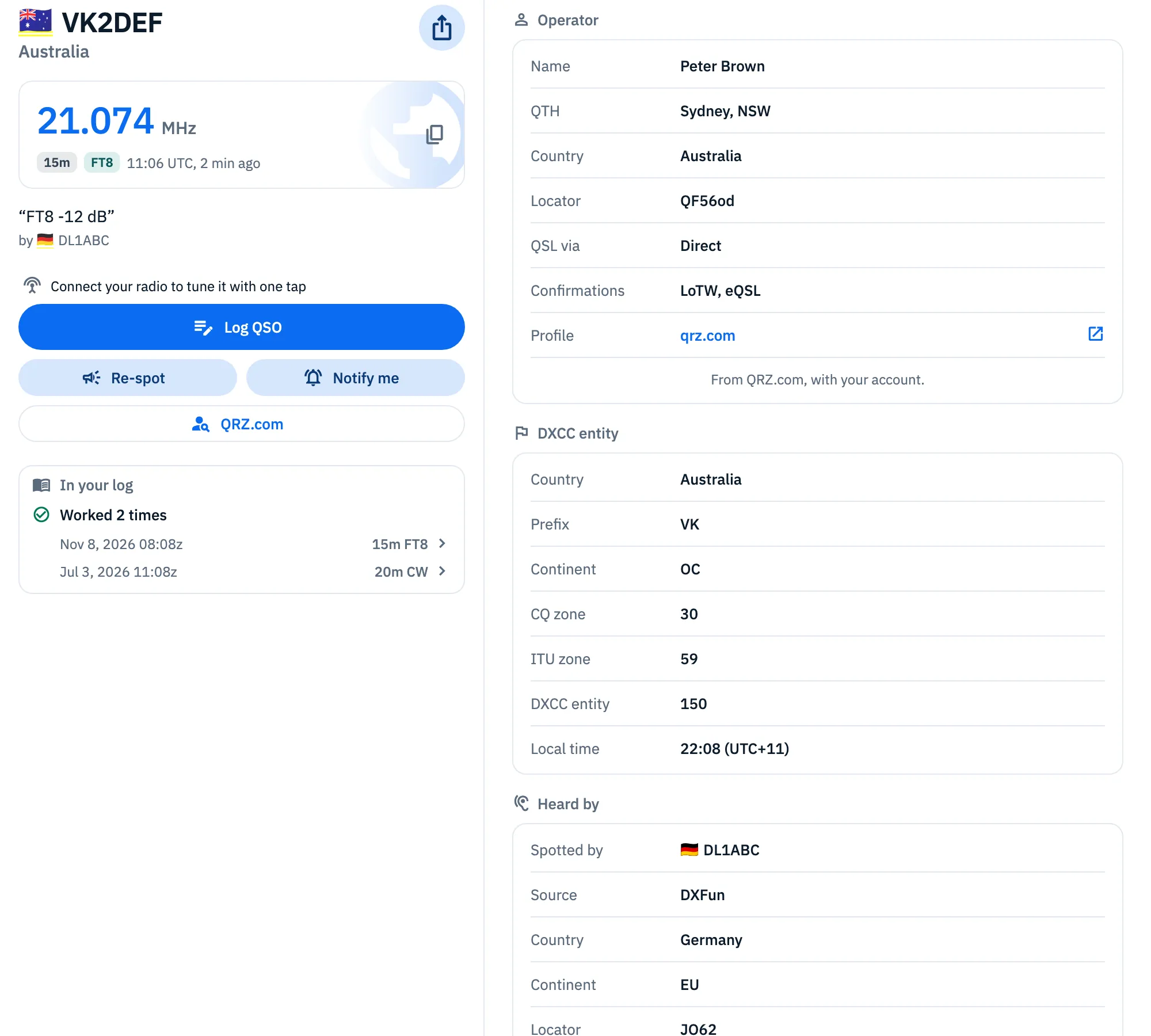
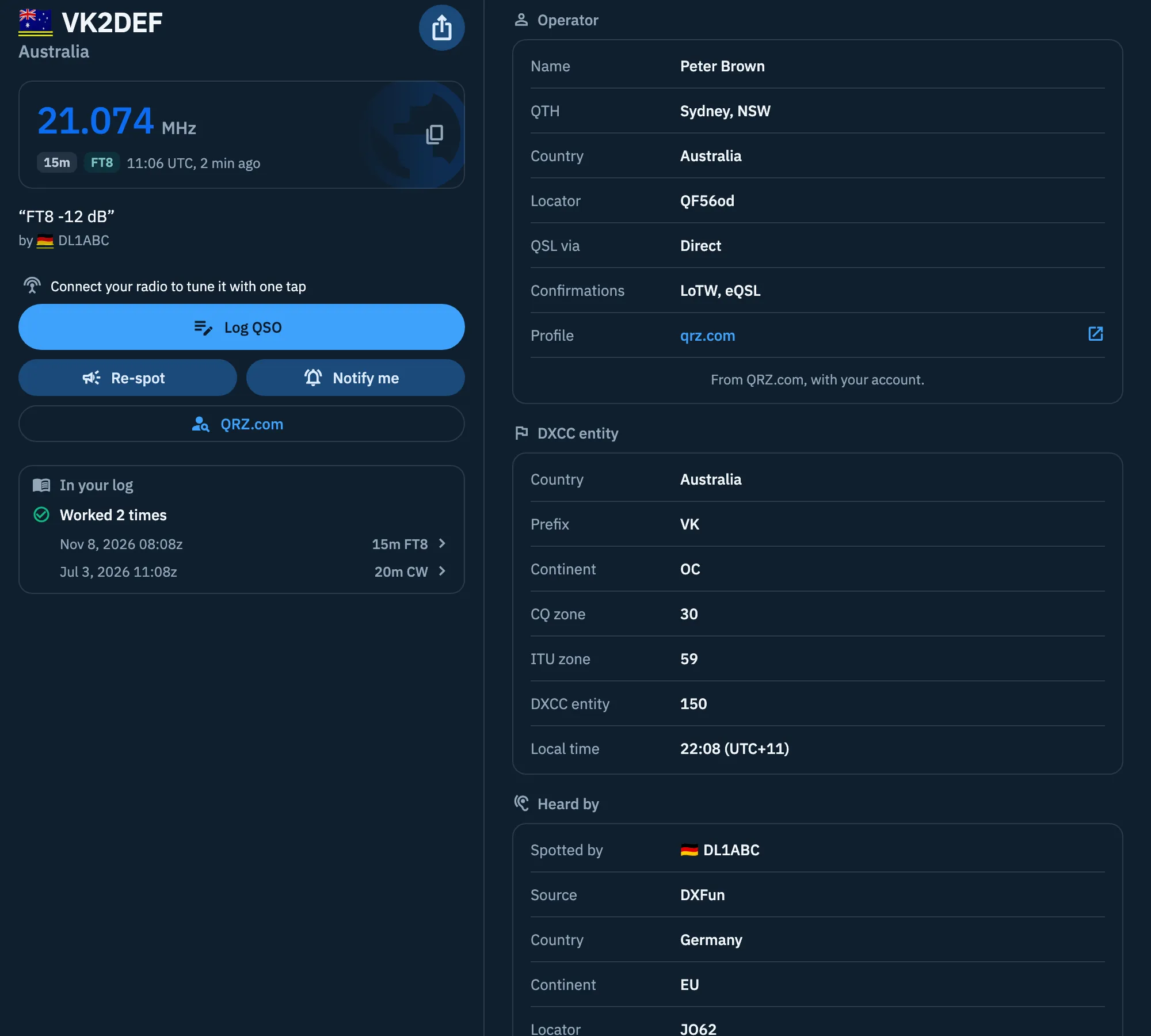
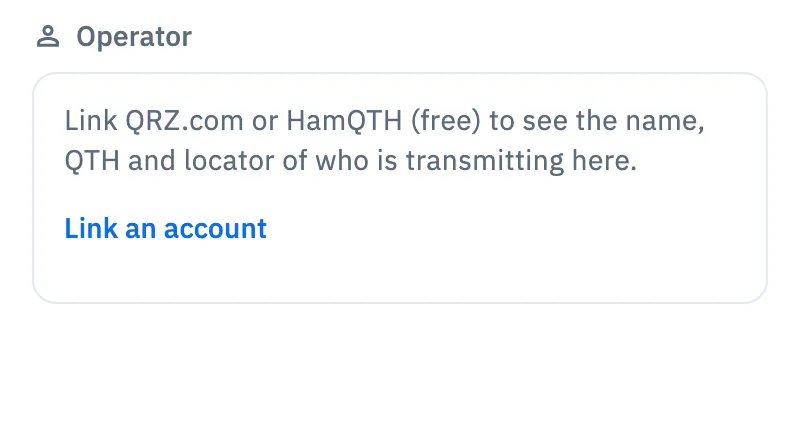
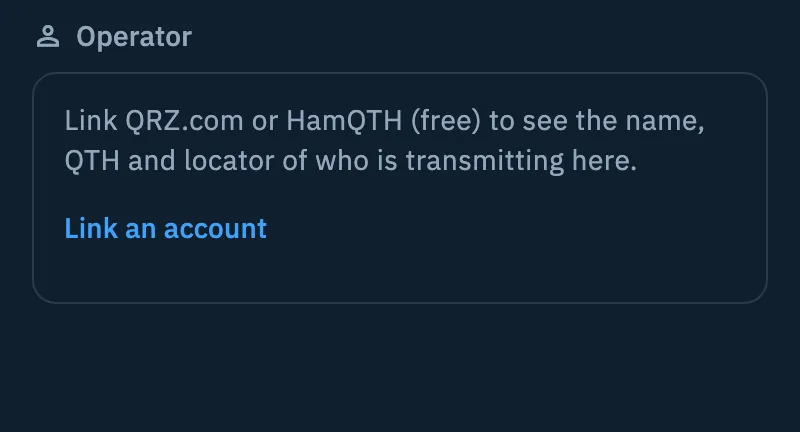
Operator
Who is transmitting, from your callbook (QRZ.com or HamQTH):
| Row | What it shows |
|---|---|
| Name | The operator's name. |
| QTH | City and state or province. |
| Country | The country of the address. |
| Locator | The locator in the callbook. |
| QSL via | The QSL manager or how they want the QSL. |
| Confirmations | LoTW, eQSL: the services they use. |
| Profile | Opens the station's page on QRZ.com or HamQTH in the browser. |
When the callbook has a photo, you see it under the rows. At the bottom you read where the data comes from, for example «From QRZ.com, with your account.».
Without a linked callbook the section invites you: Link QRZ.com or HamQTH (free) to see the name, QTH and locator of who is transmitting here. Tap Link an account to open Linked services (see QRZ.com and callsign lookup). When the callbook is linked but does not know the station, the section is not there.
DXCC entity
| Row | What it shows |
|---|---|
| Country | The DXCC entity of the callsign, in your language. |
| US state | For stations in the United States, with the state flag, from their licence. |
| Prefix | The main prefix of the entity. |
| Continent | AF, AN, AS, EU, NA, OC, SA. |
| CQ zone / ITU zone | The spot's own when it states them, otherwise the entity's. |
| DXCC entity | The DXCC number. |
| Local time | The time at the station with its offset from UTC, daylight saving included. With «≈» in front it is approximate: this happens in countries with several time zones when the app does not know where the station is, and when it only knows the country's fixed offset from UTC (without daylight saving). |
The section is missing when the app does not recognise the entity of the callsign.
Heard by
Who spotted the station and from where: it tells you in which part of the world the station is being heard right now.
| Row | What it shows |
|---|---|
| Spotted by | The spotter's callsign (without the «-#» suffix of skimmers). |
| Source | The cluster or clusters that delivered the spot (for example DXFun or HamQTH). |
| Country | The spotter's country. |
| Continent | The spotter's continent. |
| Locator | The spotter's locator, when the node sends it. |
| Confirmations | LoTW, eQSL: the services the spotted station uses, according to the spot. |
Previous spots
Previous spots (2) lists the other spots of the same callsign that are now in the DX Cluster list: the number in brackets counts them all, the list shows up to 30: time, frequency, mode, who spotted it and the comment. This way you see how the station moves between bands and frequencies. Only spots in the list count, with the band and mode filters you chose; when there are none, the section is not there.
Free and Pro
The spot detail, copying the frequency, Log QSO, Re-spot, QRZ.com, the sections and the antenna heading are free.
Phone, tablet and web
- Phone: a single scrolling column: station, actions, In your log, map and then the sections.
- Tablet and web: the detail sits next to the list, in two columns that each scroll on their own: station, actions, In your log and map on the left, the sections on the right. On the web the sections column has a maximum width, to leave room for the list.
Troubleshooting
- «Couldn't load the details.» The details did not arrive. The top part of the spot stays: tap Retry.
- «Details not available offline» with «What the spot says is above. The rest arrives when you are online.» You are offline: frequency, actions and comment are there, the rest arrives by itself when the connection is back. See Using HamQSO offline.
- «Callbook not reachable offline. I'll try again by myself.» in the Operator section: the callbook cannot answer offline; the app asks again by itself when the connection is back.
- QRZ.com is greyed out with Needs a connection: the QRZ.com page needs the network.
- «Map not available offline» instead of the map: the map comes back by itself when you are online. Distance and antenna heading stay.
- I don't see the Operator section, nor name and city at the top: link a callbook (QRZ.com or HamQTH), or the callbook does not know that callsign.
- I don't see the Antenna heading card: the app does not know your position. Give the app the location permission, or save your locator in your profile (see Your profile: name, callsign and locator).
- Heading and distance look wrong for a /P station: for portable callsigns the app uses the centre of the country, not the operator's home.