
Filtering the contest calendar
Show only the contests of the modes, bands, durations and areas you care about, the ones you take part in, and save your filters.
FreeUpdated for HamQSO 0.1.19
On this page
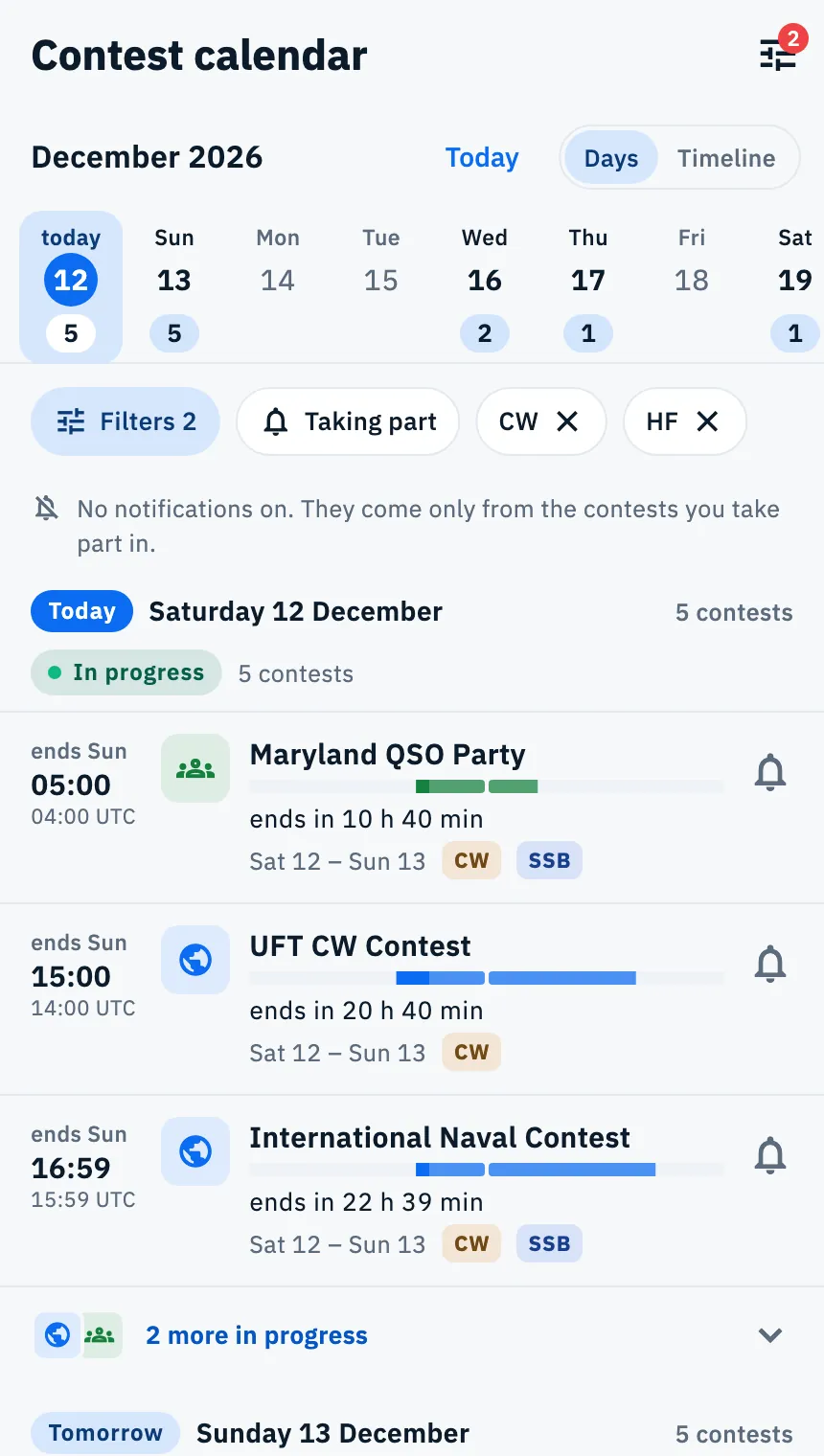
The contest calendar shows every contest of the coming days. Filters narrow it to the ones you care about: by mode, band, duration and area, without the weekly series, or only the ones you take part in. Filters apply in every view: Days, Timeline and, on a tablet and on the web, Month.
Choosing filters
- Open the Contest calendar from Profile.
- Tap the Filters chip above the list. On a phone you can also tap the filters icon in the top bar.
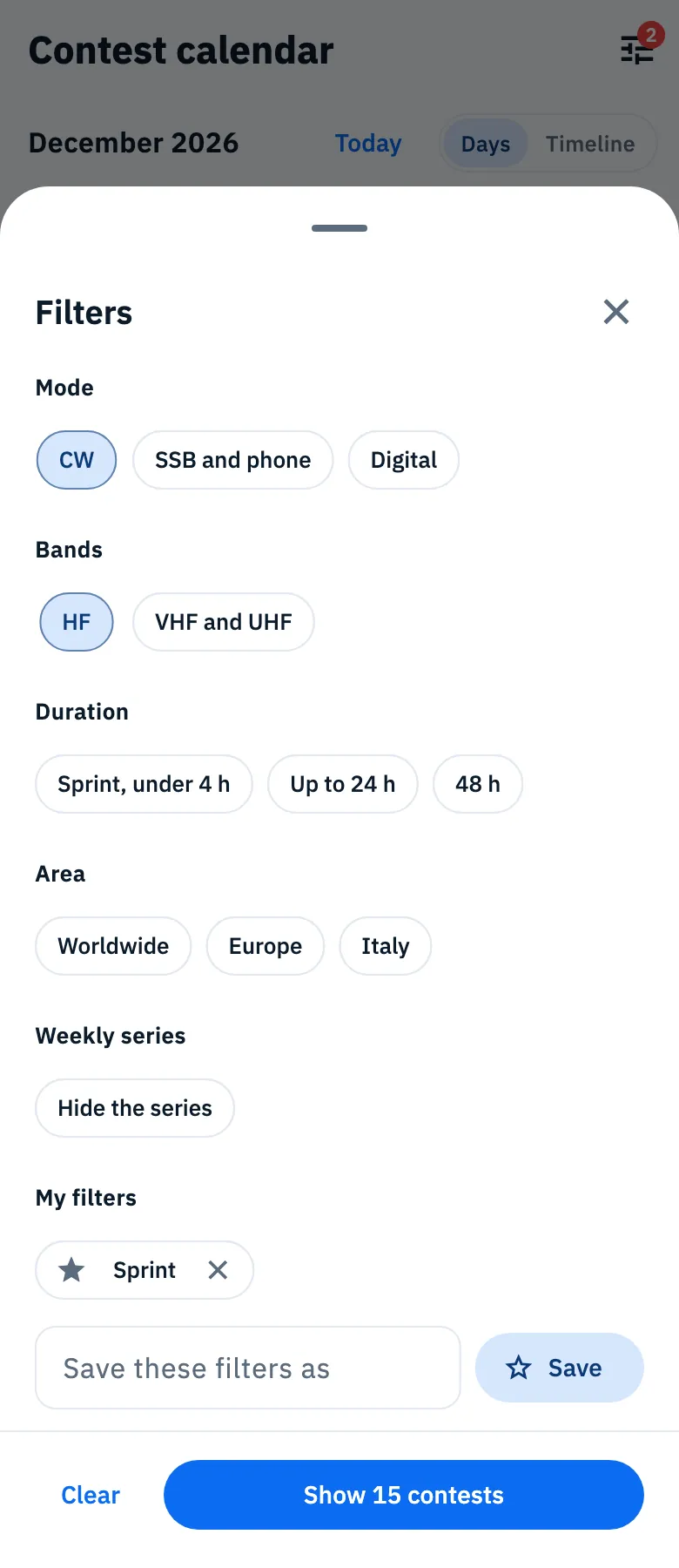
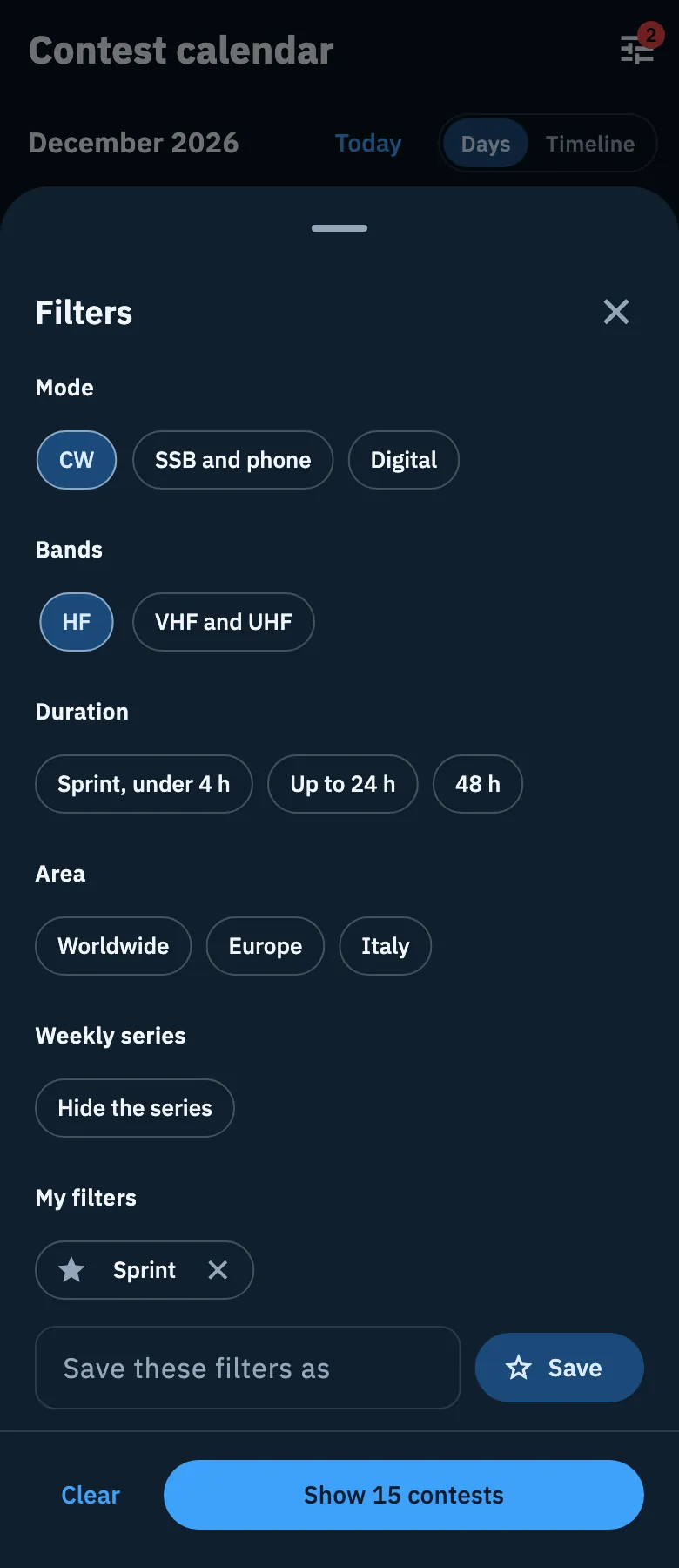
- Tap one or more choices in the Mode, Bands, Duration and Area groups. If you want, tap Hide the series.
- Look at the button at the bottom: it already says how many contests remain in the coming days, for example Show 12 contests. A contest that repeats counts once for each session.
- Tap the button to apply the filters.
On a phone the filters open in a sheet from the bottom; on a tablet, and on the web in a large window, in a dialog in the middle of the screen.
| Group | Choices | What it keeps |
|---|---|---|
| Mode | CW, SSB and phone, Digital | The contests run in that mode. Digital includes for example RTTY, FT8, FT4, PSK and Hell. |
| Bands | HF, VHF and UHF | The contests on at least one band of the group. 6 m and the bands above count as VHF and UHF. |
| Duration | Sprint, under 4 h, Up to 24 h, 48 h | The length of the contest's next session (of the last one, if it is over). 48 h includes every contest longer than 24 hours. |
| Area | Worldwide, Europe, Italy | The area the contest is meant for, as its source says. Worldwide does not include the contests marked as European or Italian. |
| Weekly series | Hide the series | Leaves out the contests that repeat every week. |
When you open the calendar no filter is on. Inside a group the choices add up: CW and Digital show the contests in CW or in a digital mode. Across groups all of them must hold: CW and HF show only the CW contests on the HF bands.
To start again, tap Clear at the bottom, then the button to apply: this also turns off Taking part. If you close the filters with the X without tapping the button, nothing changes.
The chips above the list
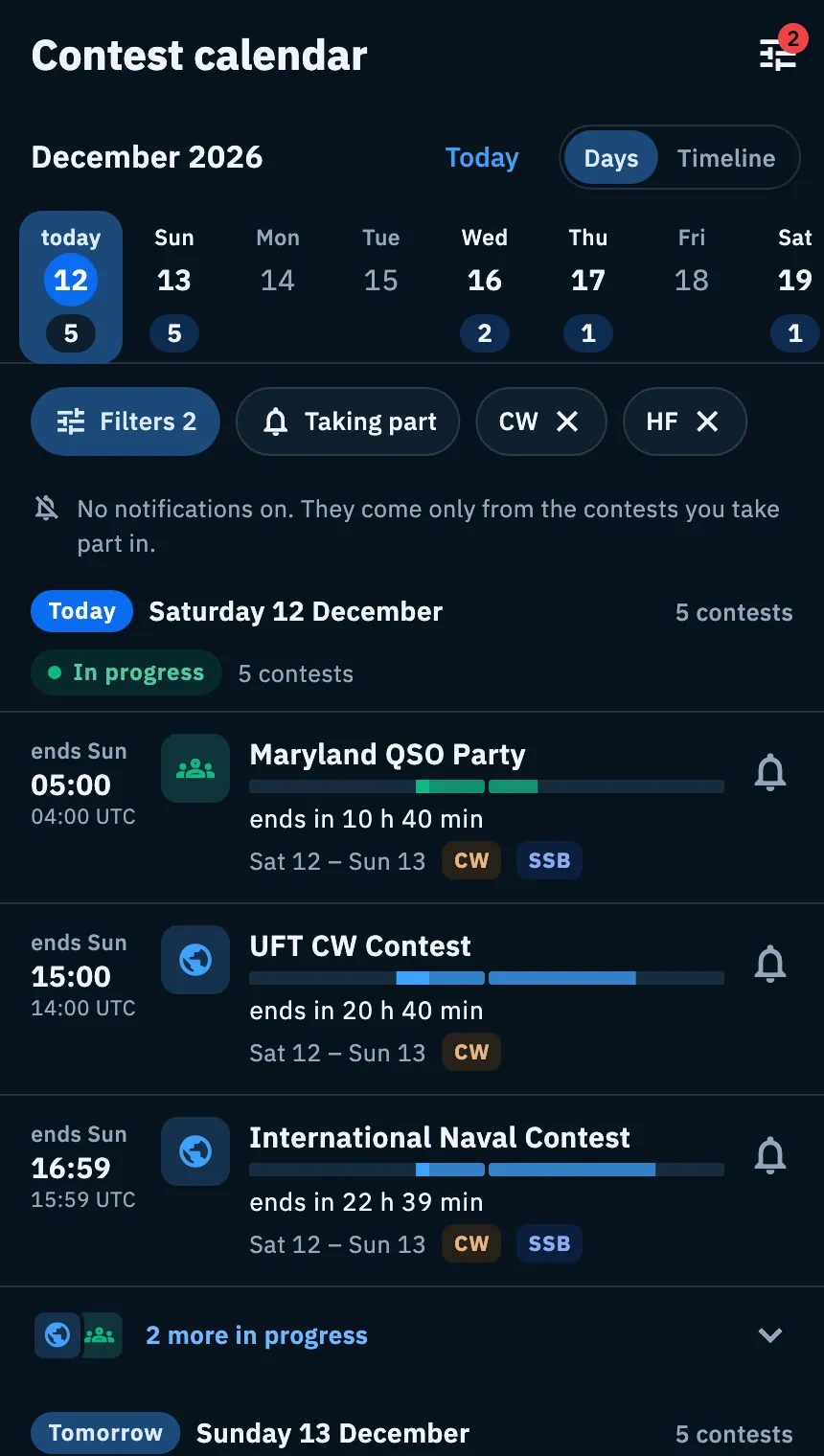
Above the list, in every view, there is a row of chips that scrolls sideways:
- Filters opens the filters. With filters on it is highlighted and shows their number, for example Filters 3. On a phone the same number appears on the icon in the top bar.
- Taking part shows only the contests you take part in, the ones where you tapped Take part (see Taking part in a contest). Tap it again to turn it off. It counts as an active filter.
- Your saved filters, with a star (see below).
- Each choice applied, with an X: tap it to remove just that one.
On a phone, in the Timeline view, the chips scroll away with the list.
Saving the filters you use often
If you always follow the same kind of contest, save the combination under a name and call it back with a tap.
- Tap Filters and choose.
- At the bottom, in the My filters section, type a name in the Save these filters as field (for example "CW at the weekend").
- Tap Save. The filters apply at once, their chip gets a full star and a message confirms it: Filters saved as "CW at the weekend".
Until you choose at least one filter, instead of the field you read "Choose some filters to save them and call them back with a tap."
To use a saved filter:
- Tap its chip in the row above the list: the star fills in and its choices apply.
- Tap it again to turn it off: the calendar goes back to no filters.
While a saved filter is on, its choices do not show as separate chips. If you tap another saved filter you switch to that one. If you change the filters (from Filters or with Taking part), the star turns off and the choices stay applied as single chips.
To delete a saved filter, open Filters and, in My filters, tap the X on its chip. It goes at once, with no confirmation.
When you open the calendar again
The filters you apply hold while you stay in the calendar: when you open it again, the list starts with no filters. Your filters in My filters stay, ready to tap.
Phone, tablet and web
| Phone | Tablet and web | |
|---|---|---|
| Where you open the filters | Filters chip or the icon in the top bar | Filters chip in the list column |
| How they open | Sheet from the bottom | Dialog in the middle of the screen |
On the web, in a wide window, there is also a Search a contest field above the list: the search by name adds up with the filters, also in the number on the button. In a narrow window the calendar looks as it does on a phone.
Free and Pro
Calendar filters, Taking part and saved filters are free.
Troubleshooting
"No contests with these filters". No contest matches all your choices together. Under the message the app offers to remove the narrowest filter (for example Remove the duration filter), Clear all filters and, when there are more contests further on, Show the days after. Further down, under "The nearest without filters", you find the next contest, regardless of your filters. If you searched by name with no filters, you get Clear the search instead of Clear all filters. The filters button warns you earlier: No contests, show anyway.
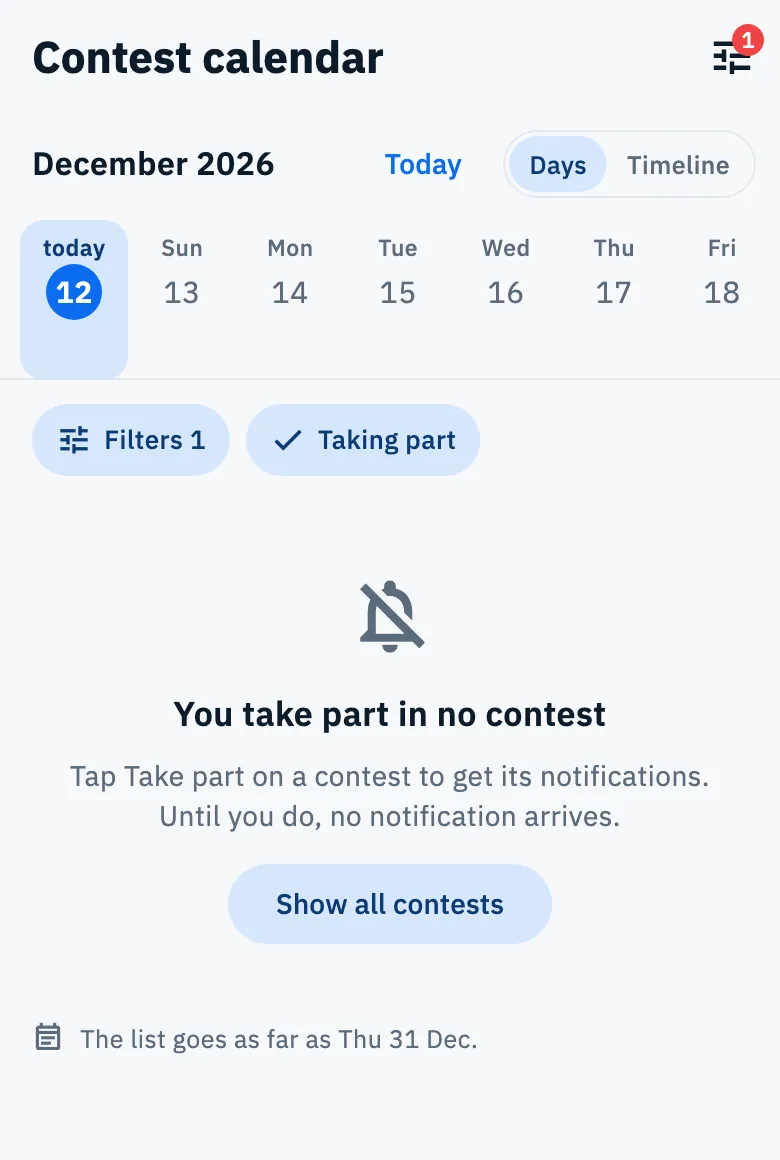
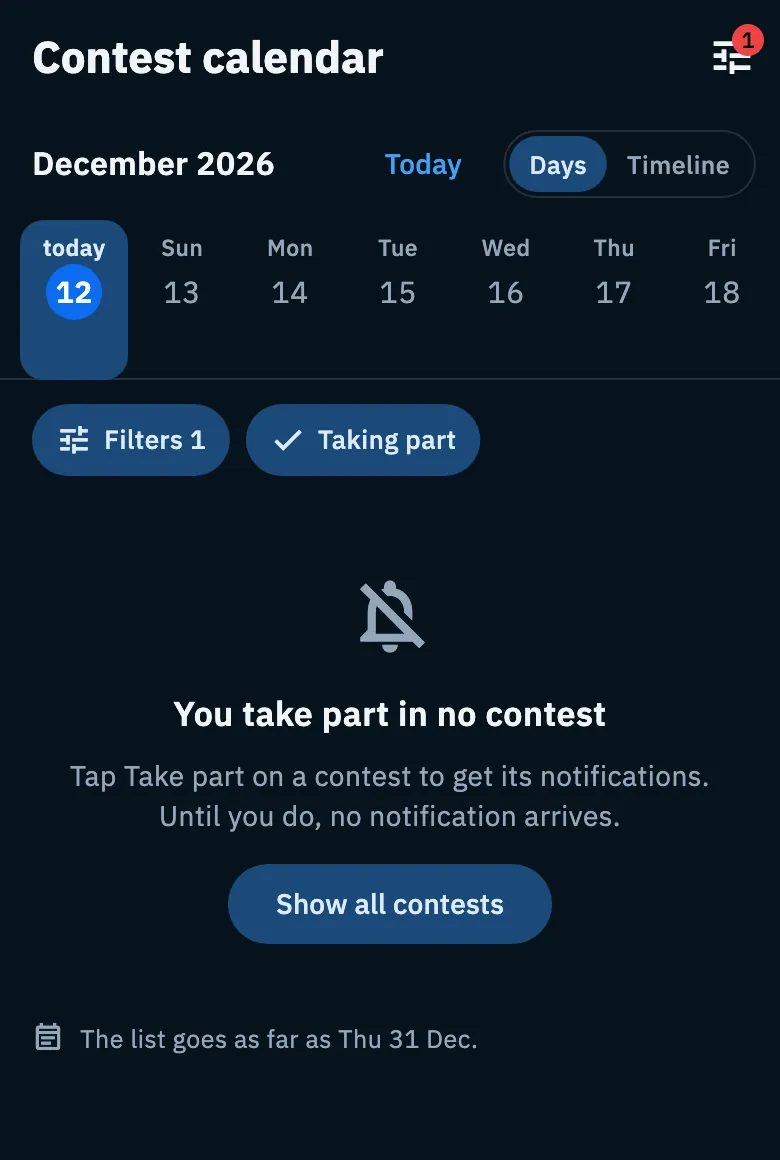
"You take part in no contest". You turned on Taking part but you do not take part in any contest yet. Tap Show all contests, then tap Take part on a contest.
A CW contest also shows with the Digital filter. It does not say its mode: so as not to hide it, the app keeps it under every mode filter. The line above the list says how many there are.
The saved filter is missing on another device. Saved filters stay on the device where you created them: save it again there too.